1
4-8
Compact IO™ Isolated HART Analog Output Module
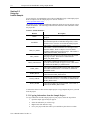
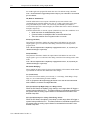
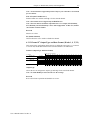
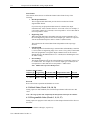
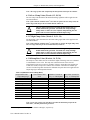
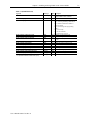
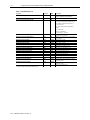
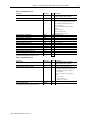
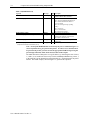
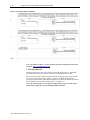
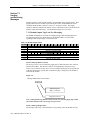
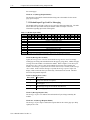
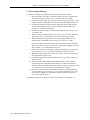
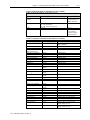
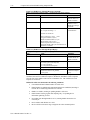
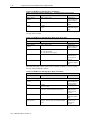
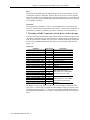
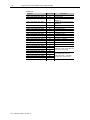
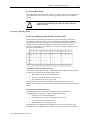
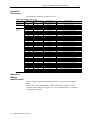
The table below gives a brief description of each data type.
Table 4-2 (User Defined Data Type Descriptions)
User Defined Data Type
Description
ConfigurationStructure
Defines the structure for the configuration tags used to
configure the module.1
GetDeviceInfoStructure
Defines the structure of the HART data returned by the
module when the module specific command, Get
Device Information, is sent to module.2
OF4IHMessage
This data type defines the structure for tags used to
send messages to and from the module using the paging
scheme.2
OF4IHPassThruMsg
Defines the structure for tags used to send HART pass
through messages to and from the module.2
InputStructure
Defines the structure for the input tags returned by the
module.1
OutputStructure
Defines the structure for the output tags used by the
module.1
Packet0
Defines the data structure for HART packet 0. HART
packet zero contains device information for the
connected HART device.2
Packet1
Defines the data structure for HART packet 1. HART
packet 1 is used to display the four dynamic variables
for the selected HART device.2
Packet2
Defines the data structure for HART packet 2. HART
packet 2 is used to display the slot variables for the
connected HART device.2
Packet3
Defines the data structure for HART packet 3. HART
packet 3 displays the ASCII message for the connected
HART device.2
Packet4
Defines the data structure for HART packet 4. HART
packet 4 contains the extended status for the connected
HART device.2
Section 4.4
Project Tags
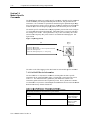
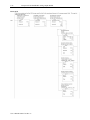
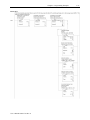
The project tags were created to simplify the configuration of the module as well as
reduce confusion related to using only the module local tags. The tags defined in the
sample project utilize the user defined data types described in the previous section.
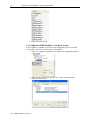
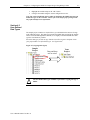
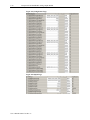
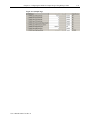
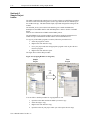
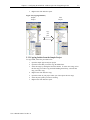
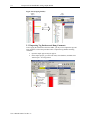
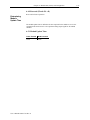
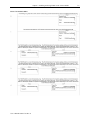
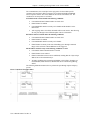
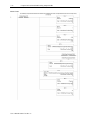
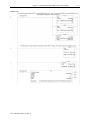
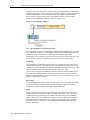
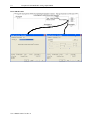
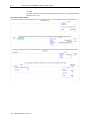
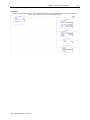
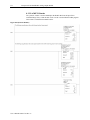
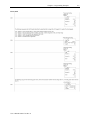
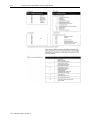
The tags from the controller scope should be copied to your project before the tags
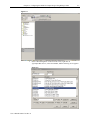
contained in the individual program sections. Open the controller tags on the sample
project and select the edit tags mode. Grab the tags you want to copy by using the left
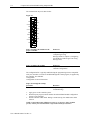
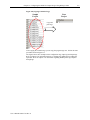
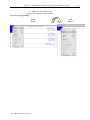
mouse button and dragging. See figure below.
1
2
Refer to Chapter 6 for more details.
Refer to Chapter 7 for more details.
User’s Manual 0300217-03 Rev. A