1
User manual
10.8 Parental Lock
You can set a password for anyone who wishes
to operate in the “Installation” menu. And you
can also set the password for the lock channels.
(How to set the lock channel please refer to
LOCK) Here will show you how to setting and
how to revising the password.
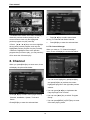
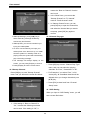
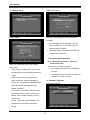
1 In “Parental Lock” function, press [OK] key,
there will pop an dialogue for you to input
the password. When you input the correct
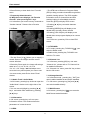
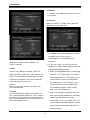
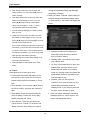
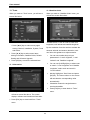
1 Subtitle Display: You can press [◄,►] key to
password, you will see a screen like below:
select “On” or “Off”. If the current channel has
subtitle information, it will be showed up while
this function is “On”. If this function is “Off”,
there won’t show up subtitle information even
if the current channel has subtitle information.
2 OSD Timeout: When you switch channels in
full screen, there will show up some
information about current channel on the
lower of the screen. And regarding to the
duration of these information show up on the
screen, you can press [◄,►] key to set the
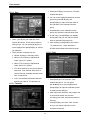
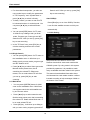
2 Menu Lock determining that when user
time. The range of the duration is “1 second ~
wish to enter “Installation” menu, whether
10seconds”.
have to input Password or not. If the setting
3 OSD Position: control display position of the
of “Menu Lock” is “Yes” which means user
info bar in full screen mode. You can choose
have to key in password, set “No” means
“bottom” or “top”.
unlock.
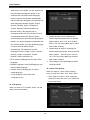
4 OSD Transparency: Besides the setting of
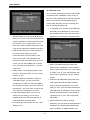
3 Channel Lock determining that when user
“OSD Menu Style”, you also can set the
transparency of OSD. You can press [◄,►]
wish to play the lock channels, whether
key to select the values. There are 5 levels of
have to input the password or not. If the
transparency, 10%, 20%, 30%, and 40% and
setting is “Yes”, play the channels with lock
“NO” (means no transparency function).
mark will show up a dialogue on the screen
and ask for the password. If the setting of
5 Load OSD Setting Default: If you are not
satisfy with your setting, you can move
“Channel Lock ”is “No”, the Lock function
highlight to this item and press [OK] key to
will invalid.
reset parameters as default value.
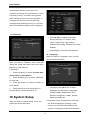
4 New Password is used for revising
6 Press [Exit] key to draw back from the “OSD
password; you can input the new password
Setting” menu.
in this item by using number keys directly.
After you filled in 4 digital numbers, the
21