1
Configuration
3.2.1
23
Score
Spam Threshold
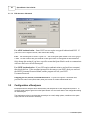
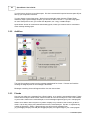
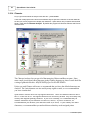
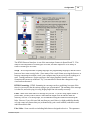
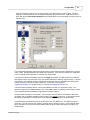
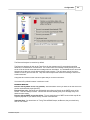
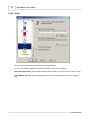
The Score dialog lets you set your personal spam tolerance threshold. Start with the default settings.
Then look at the spam that was caught and the spam that wasn't in the Mail Jail. If you are getting too
much spam in your InBox, decrease the spam threshold. If you are losing too many real messages,
increase the spam threshold.
Stop Threshold
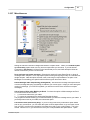
To be more efficient, Spam Sleuth ™ can stop analyzing if the Spam Score exceeds a certain level. If
you don't have any GoodWords or Bayesian then you can set this to the same value as the Spam
Score. Good Words and Bayesian can deduct points from the spam score to allow an e-mail through
which may pertain to something you want. If the spam score gets too high, then the GoodWords aren't
going to help, you may as well let Spam Sleuth ™ quit analyzing.
Trash Threshold
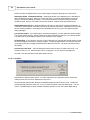
If the Spam Score gets too high, there may be no reason to even keep the message in the Mail Jail. If
it is such blatant junk spam, let Spam Sleuth permanently delete it. If you don't like storing any spam,
just set the Permanent Trash Score lower than the Spam Score. If you never want to permanently
trash e-mail, set this to the highest level of 999,999.
Spam Management
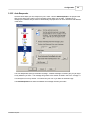
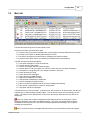
The spam will keep on coming, but you probably don't want to keep it forever. Spam Sleuth does
compress the messages so they take less room on your computer. Spam Sleuth will permanently
delete spam after so many days. You decide how long to keep it in storage. We've set the default to
30 days, but you might only want to keep it for 5 days. Once a day, Spam Sleuth will clear out
messages that are too old to keep. If you lower this number and the spam doesn't immediately
disappear, don't worry, wait a day and Spam Sleuth will clean out the old spam.
© 2004 Blue Squirrel