1
RSF-1 for System Engineers
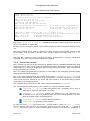
On running the console, you will be presented with the server view, a list of RSF-1 servers. To
gain a quick overview of running services, select View->Show_Overview from the menu. The
overview displays a grid of servers against services in a separate window. Running services are
marked with a green bullet. Servers that could potentially run a service should the current server
fail are marked with a grey bullet. Find the services running on the server you intend to work on.
You can also click on one of the servers listed in the initial server view to expand it into a list of
services. From here, you can select various actions to perform on a selected service.
B.5 Disabling failover
To disable failover, select the affected service(s) under each server on which it can run in the
server view, then choose Actions->Mode->Manual from the menu. This changes the switchover
modes for the service to manual and prevents each server from running the service should it
become unavailable. You will need a valid RSF-1 username and password combination to do this;
the password for root on the machine may not be enough as RSF-1 may not be configured to
recognise it.
At this point, failover is disabled, although any running services will be unaffected. However,
should a server be rebooted, it will not start any services automatically. This will need to be
done manually by the administrator using the console, as shown in section Error! Reference
source not found..
Note: If the current server has the switchover mode for the service left in automatic, it will
restart the service on boot.
B.6 Failing over running services
Although RSF-1 in normal operation will automatically failover services should a server be shut
down, it is better to initiate a controlled failover manually, prior to shutdown.
Use rsfgui as described in section B.4 to discover which services are currently running on the
server you intend to disable. Select each service in turn under the server in the server view, and
choose Actions->Move->server_name from the menu. If there are several possible servers listed,
ask the site administrator which one to use.
RSF-1 will then shut down the service using the correct procedure. Once this has occurred, the
chosen sibling server will restart it. Following this, the console will show the service running on
the other server. (You may wish to check that any affected applications are now running
correctly on the sibling server). It is now safe to proceed with maintenance on the local server.
B.7 Restoring normal operation
Once you have completed your work on a server, repeat whichever of the procedures you
followed above to restore the cluster to its original state, setting switchover modes to automatic
as necessary.
B.8 Other Issues
A host running RSF-1 services may appear to behave oddly under certain circumstances. In fact, it
is likely that RSF-1 is operating normally. Some common sources of confusion are described
below.
'Missing' Disk Mounts
If the servers are connected to a shared disk, it may appear that certain file-systems from the
disk that contain applications and data are not mounted. These file-systems are only mounted by
RSF-1 when it is running the relevant service. Similarly, logical disk groups created in disk
management software may not be available. If you require access to these file-systems, you may
manually import and mount them, assuming they are not in use elsewhere. Ensure that you
unmount them before restoring cluster operation.
Page 74 of 88
Revision 2.5c