1
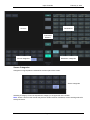
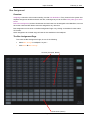
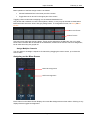
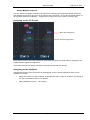
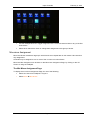
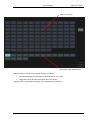
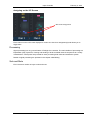
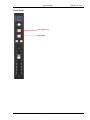
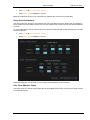
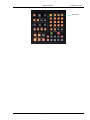
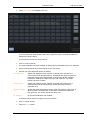
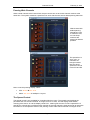
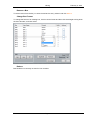
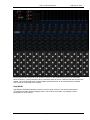
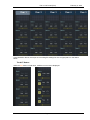
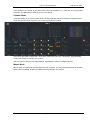
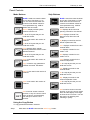
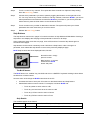
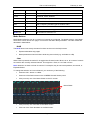
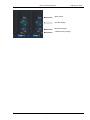
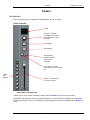
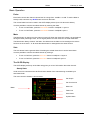
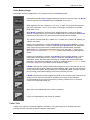
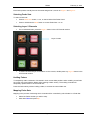
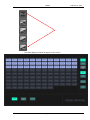
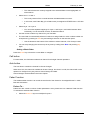
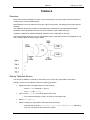
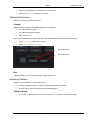
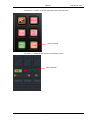
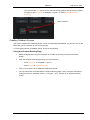
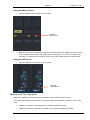
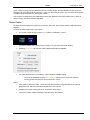
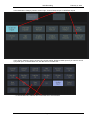
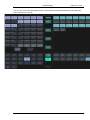
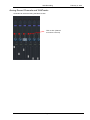
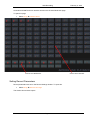
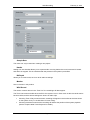
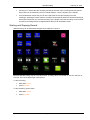
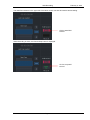
Input Channels February 2, 2015 Input Channels Introduction The Input Channel or simply channel, is the basic audio path in EVO.Live. It conducts audio from a physical input to a mixing bus, applies processing along the way and routes components of the audio signal to a number of useful destinations, including mix-minus, talkback, auxiliary buses, direct outputs and more. Channel Selection or “Calling” There are many situations where one channel is selected for an operation. We call this “calling” the channel. The called channel is the one whose properties will be changed at times when only one channel can be changed. There are a number of ways to call a channel: Press the CALL button on its fader. Click its Name Plate in the Mixer Screen. Click or touch its Name Plate in the ILP Screen. Touch its fader when “Call Fader” is on Solo the channel when “Call Solo” is on Touch one of its knobs in the ILP when “Call ILP” is on o To turn on Call Fader, press the Call Fader button in Intellipad 1 Layout 3 o To turn on Call Solo, press the Call Solo button in Intellipad 1 Layout 3 o To turn on Call ILP, press the Call ILP button in Intellipad 1 Layout 3 Source A channel’s “source” is the origin of the audio in the channel. It typically comes from one of the following: A physical input Another audio path in the console, like a bus output, insert return etc. Choosing the source for a channel is done in the Patch I/O Page. All other connections between audio paths are also done from this screen. Patching – the Patch I/O Page To display the Patch I/O Page, do one of the following: Select Patch in Intellipad 1 Layout 3 Click Setup Patching Sources are shown on the left of the screen, while Destinations are shown at the right. Page 9