1
4.3
Installing Q-Vet
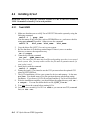
Install and run Q-Vet from the SYSTEM account on VMS or the root account on
UNIX. Remember to install Q-Vet in each partition.
4.3.1
1.
Tru64 UNIX
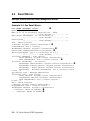
Make sure that there are no old Q-Vet or DECVET kits on the system by using the
following command:
setld -i | grep VET
Note the names of any listed kits, such as OTKBASExxx etc., and remove the kits
using qvet_uninstall if possible. Otherwise use the command
setld -d
kit1_name kit2_name
kit3_name
2.
3.
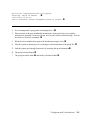
Copy the kit tar file (QVET_Vxxx.tar) to your system.
Be sure that there is no directory named output. If there is, move to another
directory or remove the output directory.
rm -r output
4. Untar the kit with the command
tar xvf
QVET_Vxxx.tar
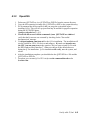
Note: The case of the file name may be different depending upon how it was stored
on the system. Also, you may need to enclose the file name in quotation marks if a
semi-colon is used.
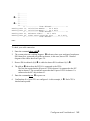
5. Install the kit with the command
setld -l output
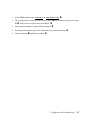
6. During the install, if you intend to use the GUI you must select the optional GUI
subset (QVETXOSFxxx).
7. The Q-Vet installation will size your system for devices and memory. It also runs
qvet_tune. You should answer 'y' to the questions that are asked about setting
parameters. If you do not, Q-Vet will not install and the Q-Vet kit will be deleted.
8. After the installation completes, you should delete the output directory with rm r output. You can also delete the kit tar file, QVET_Vxxx.tar.
9. You must reboot the system before starting Q-Vet.
10. On reboot you can start Q-Vet GUI via vet& or you can run non GUI (command
line) via vet -nw.
4-4
HP AlphaServer ES80 Upgrades