1
R&S®ESR
EMI Test Receiver
Release Notes
Firmware Version V2.27 SP2
These Release Notes are for following models of the R&S® EMI Test Receiver:
R&S® ESR3,
order no. 1316.3003K03
R&S® ESR7,
order no. 1316.3003K07
R&S® ESR26,
order no. 1316.3003K26
© 2015 Rohde & Schwarz GmbH & Co. KG
Muehldorfstr. 15, 81671 Munich, Germany
Phone: +49 89 41 29 - 0
Fax: +49 89 41 29 12 164
E-mail: mailto:[email protected]
Internet: http://www.rohde-schwarz.com
Subject to change.
R&S® is a registered trademark of Rohde & Schwarz GmbH &
Co. KG.
Trade names are trademarks of the owners.
The following abbreviations are used throughout this document:
PAD-T-M: 3574.3288.02/02.00/CI/1/EN/
Test and Measurement
Release Notes
R&S®ESR is abbreviated as R&S ESR.
R&S ESR
Current Version and History
New Functions
Table of Contents
1 Current Version and History .............................................................. 3
1.1
New Functions .............................................................................................................3
1.2
Modified Functions ......................................................................................................5
1.3
Improvements ..............................................................................................................7
1.4
Known Issues .............................................................................................................10
1.5
Modifications to the Documentation........................................................................10
2 Firmware Update ............................................................................... 11
2.1
Performing the Firmware Update on the Instrument .............................................11
2.2
Performing the Firmware Update from a Windows PC ..........................................12
2.3
Operation with and without Administrator Rights .................................................13
2.4
Installing Firmware Options .....................................................................................14
2.4.1
Firmware options included in basic instrument ............................................................14
2.4.2
Enabling Options by Entering Option Key Codes ........................................................14
3 Quality Assurance ............................................................................ 16
4 Customer Support ............................................................................ 17
Release Notes 1175.7100.02 - 13
2
R&S ESR
Current Version and History
1 Current Version and History
1.1 New Functions
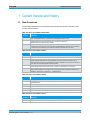
The following table lists the new functions and indicates the version in which the new
function was introduced:
New functions of Firmware V2.27 SP2:
Version
Function
V2.27 SP2
Restriction to a minimum RF Attenuation of 10 dB is now also available in spectrum analyzer
mode. The default is active. I.e. the minimum attenuation value is 10 dB.
V2.27 SP2
The final measurement detector in receiver mode can be set to “None” to exclude the
specified traces from the final measurement. The remote command is
:SENSe1:DETector1:FMEasurement NONE.
V2.27 SP2
Support for Trace export of all currently active traces was added.
To select this via remote control, the command :FORMat:DEXPort:TRACes ALL was added.
To select the former behaviour, the parameter “SINGLE” (default) has to be used.
New functions of Firmware V2.27:
Version
Function
V2.27
Support for FSV-B10: External Generator Control.
V2.27
Support for new Four Line V Network ENV 432.
V2.27
Support for new parameter “CONTinuous” of remote command :TRACe:DATA? for the
receiver bargraph measurement. This parameter works like “SINGle” but results can be
queried at any given time. If no valid bargraph value is available, this query returns the value
-1000. Else the measured detector value is returned.
V2.27
New unit extension dBx/MHz is supported now. This extension is available in spectrum
analyzer sweep and receiver mode if a MIL-, CISPR- or a EMI-filter type is selected.
V2.27
Sample transducer factor MDS-21_CA added. It takes care of the accessories shipped
together with the MDS-21 and combines in one transducer factor the typical contribution of
the MDS-21 clamp factor + cable loss + 6 dB attenuation.
New functions of Firmware V2.26:
Version
Function
V2.26
Sweep Type Sweep is now available in Spectrum Analyzer Mode.
V2.26
Lower minimum sweep times in Spectrum Analyzer Mode possible due to improved design of
digital RBW filters.
V2.26
Added K54 Meas Markers to Test Report.
V2.26
Support for High Speed LAN Instrument Protocol (HiSLIP) added.
V2.26
Measured phase of conducted measurements added to Test Report.
V2.26
Support for remote command :SYSTem:SHUTdown.
New functions of Firmware V2.17:
Version
Function
V2.17
Support for generating Test Reports.
V2.17
Support for 4 channel Click rate Analyzer. Additional program needed.
Release Notes 1175.7100.02 – 13
3
R&S ESR
Current Version and History
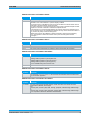
New functions of Firmware V2.16:
Version
Function
V2.16
Additional result table for CISPR APD, including the average value.
V2.16
Single measurement in receiver mode with 10 Hz RBW at 5 Hz receiver frequency.
V2.16
Coupling manager to couple frequency, attenuation etc. between receiver mode and
spectrum analyzer mode.
V2.16
Support for the remote command
:SENSe:CORRection:TRANsducer:ACTive? for reading back the active
transducer name.
V2.16
Remote command *TRG is now available in receiver mode.
Release Notes 1175.7100.02 – 13
4
R&S ESR
Current Version and History
New functions of Firmware V1.79:
Version
Function
V1.79
New model R&S® ESR26.
V1.79
Spectrogram is available for both if analysis and receiver scan.
V1.79
OVLD / AC CPL displays in receiver scan window.
V1.79
Transducer set break in spectrum analyzer mode.
V1.79
Receiver scan with different LISN settings.
V1.79
OBW: Marker search limits can be used for multi-carrier measurements.
V1.79
User Preference: Remote command MMEM:USER added for automated configuration of the
User Key assignment.
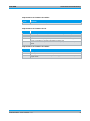
New functions of Firmware V1.78SP1:
Version
Function
V1.78 SP1
R&S ESR only: CISPR APD according to CISPR 16-1-1.
V1.78 SP1
Couple receiver bargraph detector to scan trace.
1.2 Modified Functions
The following table lists the modified functions and indicates the version in which the
modification was carried out:
Modified functions of Firmware V2.27:
Version
Function
V2.27
An additional state “Off” is now available to switch off the Video Output. The state “Off” is the
default.
V2.27
The conditions “inside” and “outside” of the frequency mask trigger are no longer available.
V2.27
Click Rate Analyzer is available without option K53.
V2.27
In the “Res BW” field of the receiver scan table a “!” is shown, if the selected CISPR
bandwidth does not belong to the selected scan range frequency borders. The “!” now is also
shown, if a MIL bandwidth is selected.
V2.27
The maximum number of reference values of a transducer factor is increased to 1001.
V2.27
The minimum resolution of the receiver frequency field was limited to 0.1 Hz.
V2.27
The status message “Increase Sweep Points or RBW” is displayed when an EMI
measurement is active, if the distance between two sweep points becomes wider than 1/3 of
the resolution bandwidth.
V2.27
The peak search function in receiver mode has changed. If a limit line is assigned to the
affected trace, only peaks within the frequency range of the assigned limit line are
considered. A second condition is, that the level of the peaks must be higher then the
corresponding limit line value. The peaks with the greatest deltas to the assigned limit line are
saved into the peak list.
If no limit line is assigned to the trace, all peaks of the scan trace are considered. In this case,
the peaks with the highest level values are saved into the peak list.
V2.27
Support for new RF Frontend revision with order no. 1312.0512.04.
V2.26
Modified equalization filter algorithm in spectrum analyzer mode with active preselector and
“Auto FFT”.
Release Notes 1175.7100.02 – 13
5
R&S ESR
Current Version and History
Modified functions of Firmware V2.26:
Version
Function
V2.26
LXI 1.4 conformity.
V2.26
I/Q Analyzer:
Calculation of the Trace detectors in spectrum display modified:
The spectrum trace is calculated using an FFT length of 4096 and a window length which is
either 4096 or the record length, if lower than 4096.
The window overlap is 0.75 if the record length is long enough to calculate multiple windows.
Multiple FFT's are then combined to create the final spectrum trace.
Up to firmware V2.10 a linear average detector was used to combine the overlapping FFT's
into one spectrum trace. The selected trace detector was only used to reduce the number of
FFT points to the (lower) number of sweep points.
Starting from V2.20 the trace detector is already used when combining the overlapping
FFT's. The algorithm to reduce the number of FFT points to sweep points remains
unchanged.
Modified functions of Firmware V2.17:
Version
Function
V2.17
Transducer set break works now in receiver final measurement.
V2.17
The receiver IF analysis spectrogram is cleared after changing the history depth.
V2.17
If an empty receiver spectrogram is recalled, an active spectrogram will be cleared.
Modified functions of Firmware V2.16 SP1:
Version
Function
V2.16 SP1
The SCPI commands
:DISPlay[:WINDow]:TRACe:Y[:SCALe]:BOTTom,
:DISPlay[:WINDow]:TRACe:Y[:SCALe]:TOP and
:DISPlay[:WINDow]:TRACe:Y[:SCALe][:VALue]
are now available during active receiver scan.
Modified functions of Firmware V2.16:
Version
Function
V2.16
The command :SYSTem:REBoot will now reboot the operating system as well and not
only the firmware application.
Modified functions of Firmware V1.78 SP2:
Version
Function
V1.78 SP2
The order of the receiver bargraph detector results, returned by the remote command
TRACe:DATA? SINGLE, was changed
from
maximum peak, minimum peak, RMS, average, quasipeak, CISPR average, RMS average
to
maximum peak, minimum peak, quasipeak, average, RMS, CISPR average, RMS average
to be compatible to R&S ESU, R&S ESPI and R&S ESCI.
Release Notes 1175.7100.02 – 13
6
R&S ESR
Current Version and History
1.3 Improvements
The following tables list the improvements and indicate since which version the issue
could be observed:
Improvements of Firmware V2.27 SP2:
since
Function
V2.27
Application terminated, if a FFT Sweep in spectrum analyzer mode with active preselector
and more than 32001 points was started . This issue is solved.
V2.27
The remote commands SENSe:CORRection:TRANsducer:CATalog? and
SENSe:CORRection:TSET:CATalog? did not return a result. This issue is solved.
Improvements of Firmware V2.27 SP1:
since
Function
V2.27
Selfalignment failed without option B22. This issue is solved.
Improvements of Firmware V2.27:
since
Function
V2.26
It was not possible to define a limit line with unit dBuV/m in receiver mode. This issue is
solved.
V2.26
ESR Windows XP: The touch screen was no longer operable after a touchscreen alignment
was performed. This issue is solved.
V2.26
ESR Windows 7: Screen saver did not work. This issue is solved.
V2.26
If a receiver stepped scan with active CISPR-AV or CISPR-RMS detector was started, trace
results were only shown, if the measurement time was above 26 ms. This issue is solved.
V2.26
The Auto Range function in receiver mode could lead to an unresponsive Firmware. This
issue is solved
V2.17
The speed of a receiver time domain scan in Band B with a resolution bandwidth of 10 kHz
was improved.
V2.17
Auto range functionality of receiver time domain scan to handle high signal levels improved.
V2.17
In some cases, the entries of a final measurement in receiver mode showed invalid delta limit
values. This issue is solved.
V1.79
In some cases the auto rearm trigger of the real time analyzer did not work after warm boot if
a Span/RBW ratio of 208 was selected. This issue is solved.
V1.78 SP1
The remote command SENSe:BANDwidth:TYPE PULSe returned the error “Data out of
range” if no B29 option was installed. This issue is solved.
Note: If option B29 isn’t installed, this command activates the filter type CISPR.
Improvements of Firmware V2.26:
since
Function
V1.79
Trace with max hold is not reset after another trace was set to “View”.
V1.79
Display Title now shown in Receiver Mode.
V2.16
Speed improvement when toggling between Delta Marker and Marker.
V1.78
Removed possible freeze during receiver Time Domain Scan.
V2.17
A Test Report was not generated if user defined text fields contained letters with accent. This
issue is solved.
V2.17
In some cases a file selection dialogue was shown, if a Test Report with diagram was
generated with “New” or “Append”. This problem is solved.
V2.17
If a setup with active Spectrum Analyzer Mode was recalled, the parameter coupling did not
work properly if the Receiver Mode was activated. This issue is solved.
Release Notes 1175.7100.02 – 13
7
R&S ESR
Current Version and History
Improvements of Firmware V2.17:
since
Function
V1.79 SP1
A linear stepped receiver scan from 1 GHz to 18 GHz stopped at 10 GHz. This issue is
solved.
V2.16
If the unit dBuA and a transducer with unit dB were activated in a receiver scan, a limit check
failed although the measurement value was lower than the limit line value. This issue is
solved.
V2.16
If a receiver fixed frequency trace was exported, the unit of the resolution bandwidth was
saved in seconds. This issue is solved.
V2.16
If the K14 spectrogram was active, the application crashed during measurement, when the
number of sweep points was changed. This issue is solved.
V2.16
In some cases the noise level was higher than expected in a linear stepped receiver scan.
This issue is solved.
V2.16
Overload handling of a linear stepped receiver scan improved in Band B.
V2.16
Fixed quantization effect with active AM demodulator in Receiver Scan and Zerospan mode
Improvements of Firmware V2.16 SP1:
since
Function
V2.16
If a data entry field was opened in receiver mode, the receiver frequency input field lost it’s
focus after the data entry field was closed. This issue is solved.
V2.16
The markers of a receiver scan shift off the peaks they were set on, when the soft key bar
was subsequently removed. This is fixed in V216 SP1.
V1.79
In some cases the block data transmission of a receiver scan did not finish if auto range was
active. This issue is solved.
V1.79
The receiver scan stopped in some cases, if the grid min level or the grid range was
changed. This issue is solved.
Improvements of Firmware V2.16:
since
Function
V1.79 SP1
Calculation of time domain receiver scan optimized.
V1.79
Improved delay handling for single measurements with CISPR detectors.
V1.78
Continuous measurement showed spikes when using the wheel to change the frequency
while a quasipeak detector was active. This issue is solved.
V1.76
External trigger did not work in receiver time domain scan. This issue is solved.
V1.78
Enhanced auto ranging in receiver mode.
V1.78
Solved basic firmware issues:
- Recalling a file with an active transducer setup works now, no matter whether the save item
"All Transducers" is selected.
- While in continuous sweep with Trace1 Max Hold, Trace1 restarted the max hold function
when Trace2 was switched to View mode.
- In signal track mode, the marker symbol was not always positioned on the peak signal.
- Print to file: Overwriting existing files is now possible after confirmation.
- Enabling a transducer with absolute unit switched off transducers with relative units.
- Marker Count readout corrected for frequencies ≤ 22 MHz.
- Enabling a transducer with absolute unit switched off transducers with relative units.
- Marker Count readout corrected for frequencies ≤ 22 MHz.
V1.78
Solved license key issue:
- In some cases temporary key code licenses were not accepted due to an inconsistent
system
time management. This is fixed in V2.16.
- If this happens with an older firmware version, please update to firmware V2.16 or newer
and
request a Time-Control key from the R&S service center.
V1.78
Spurious Measurement: Issue with deleting last range from remote control is solved.
Release Notes 1175.7100.02 – 13
8
R&S ESR
Current Version and History
Improvements of Firmware V1.79 SP1:
since
Function
V1.79 SP1
Problem with Instrument Startup corrected.
Improvements of Firmware V1.79:
since
Function
V1.78 SP1
The “Tracking Generator” soft key is now available after having been remotely controlled.
V1.78 SP1
The marker peak function does work with each individual receiver scan trace.
V1.78 SP1
The peak search function in receiver mode does now work with level unit dBpW.
V1.78 SP1
A spectrum Receiver frequency sweep does terminate with selected RMS average detector
for every combinations of resolution bandwidth and sweep time.
V1.78 SP1
The measurement accuracy of a time domain scan with quasipeak detector was improved in
Band B.
Improvements of Firmware V1.78 SP1:
since
Function
V1.78
Hardcopy with view trace in receiver mode did not show the whole scan trace.
V1.78
Auto range of receiver time domain scan improved.
V1.78
In some cases the noise floor was to high after changing resolution bandwidth in spectrum
analyzer mode.
Release Notes 1175.7100.02 – 13
9
R&S ESR
Current Version and History
1.4 Known Issues
The following table lists the known issues and indicates since which version the issue
could be observed:
since
Function
V1.78
The analyzer supports the LXI standard. As a consequence the DHCP IP address
assignment is performed twice: once while Windows XP is booting, and again when the
firmware is started. This be omitted by deleting the following registry key:
HKEY_LOCAL_MACHINE\SOFTWARE\Rohde&Schwarz\SoftwarePlatf
orm\ServiceConfiguration\LanServices: "DoRenewDHCP"="1"
1.5 Modifications to the Documentation
The current documentation is up-to-date.
Release Notes 1175.7100.02 – 13
10
R&S ESR
Firmware Update
2 Firmware Update
The firmware update file for the R&S ESR is one file including the main firmware
version number e.g. ESRSetup_V2.16_SP1.exe. It will be referred as ESRSetup.exe
later in the text. The file can be found on Rohde & Schwarz web page.
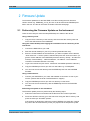
2.1 Performing the Firmware Update on the Instrument
There are three ways to make the setup ESRSetup.exe visible to the device:
Using a memory stick:
1.
Copy the file to a directory of the memory stick and insert the memory stick into
one of the USB sockets of the R&S ESR.
Using the remote desktop and copying the installation files to a directory of the
instrument:
1.
Connect the R&S ESR to your LAN.
2.
Start the remote desktop on your PC (C:\winnt\system32\mstsc.exe).
3.
Enter the TCP/IP address of the instrument, you want to update. Ensure that the
"local resources" > "drives" option is selected and press the "Connect" button. (To
get the TCP/IP address of the R&S ESR press the hard key “Setup" ” and then the
soft keys “General Setup”, “Network Address”, “IP Address”. The IP address
consists of 4 numbers between 0 and 255)
4.
Login to the instrument (user name: “instrument” and default password “894129”).
5.
Copy the ESRSetup.exe from your PC to a new folder e.g. C:\FWUpdate.
6.
You can now access this directory with the ESRSetup.exe from the R&S ESR
firmware.
Using a network drive:
1.
Connect your R&S ESR to your LAN, and establish a connection to one of your
servers. (Please ask the local IT administrator for support)
2.
Copy the ESRSetup.exe from your PC to a directory on this server
3.
You can now access the directory with the ESRSetup.exe from the R&S ESR
firmware.
Performing the update on the instrument:
The firmware update process is performed by the following steps:
1.
Switch the instrument on and wait until the Receiver has resumed operation.
2.
Press the "SETUP" hard key, go to the side menu using the "More" soft key, and
press the soft keys "Firmware Update".
A file browser is displayed to select the proper ESRSetup.exe setup file. Change
the path to the drive and directory which you prepared in the step before (USB
Release Notes 1175.7100.02 – 13
11
R&S ESR
Firmware Update
stick directory, remote PC directory or directory on a server) and close the dialog
with the “Select” button.
3.
Press the "Next" button to come to the selection of the firmware packages. By
default all application should be installed. Ensure that the applications needed are
selected.
4.
Press the "Install" button.
The firmware will be stopped and the installation starts. After a few minutes the
system restarts automatically. After the restart the firmware installation is
complete. After the firmware update the "UNCAL" flag appears
5.
A self alignment is necessary. Press the "SETUP" hard key, then "Alignment" and
the "Self Alignment" soft key to start the alignment procedure.
6.
Depending on the previous firmware version, a reconfiguration of the hardware
may be required during the first start of the firmware. In this case the following
message box is displayed:
"FPGA Update. A system shutdown is necessary”
Accept this and the device will be shut down. It is then necessary to start the
device on the front panel. An automatic restart is not possible because the FPGA
needs a complete boot cycle from power off.
2.2 Performing the Firmware Update from a Windows PC
If the firmware version 1.78 or newer is installed on the instrument the new firmware
can also be uploaded without using a memory stick or a network drive. Just a LAN
connection from the instrument and a Windows PC is necessary.
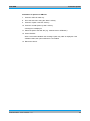
1.
Run ESRSetup.exe on your PC.
2.
Select Remote Installation and
click the button Next.
3.
Select the Packages which shall be
installed and click the button Next.
HINT FOR FIRE WALL USERS: The
ESRSetup.exe is communicating with the
instruments via LAN. Therefore it is
necessary that the ESRSetup.exe may
pass the fire wall. After adding it to the fire
wall rules, restart the scan by clicking on
Rescan.
Release Notes 1175.7100.02 – 13
12
R&S ESR
Firmware Update
4.
After scanning your LAN subnet all found instruments are listed. Select the
instruments you want to update.
It is possible to select up to 5 instruments for updating in parallel.
Please be careful and check twice if you have selected the correct instruments.
Depending on your company’s network structure also instruments of other departments
will show up!
5.
Additional help will be displayed after clicking the button “Help” and further options
are available by clicking the button “Options”.
6.
Start the installation by selecting “Install”
7.
Confirm that you want to reboot the instrument in order to activate the firmware
update (the instrument then restarts automatically)
2.3 Operation with and without Administrator Rights
The receiver may be operated with or without administrator rights. Some administrative
tasks (e.g. a firmware update or network configuration) do require administrator rights.
In the default configuration, auto login is enabled, and the “Instrument” account with
administrator rights is active. This means that no password is required, and the full
functionality of the receiver is available. An additional user account (user name
“NormalUser” with default password “894129”) is pre-defined. Use standard Windows
functionality if you wish to deactivate the auto login mechanism and activate the
NormalUser account. Please refer also to the Quick Start Manual of the R&S ESR.
Release Notes 1175.7100.02 – 13
13
R&S ESR
Firmware Update
2.4 Installing Firmware Options
2.4.1 Firmware options included in basic instrument
All Firmware Options for the R&S ESR are part of the basic instrument firmware.
Therefore they do not have a separate item in the installer to be selected.
2.4.2 Enabling Options by Entering Option Key Codes
This section can be skipped if the option key was entered once.
To activate application software packages, you must enter a license key for validation.
If a XML-file with an option key was sent to you see the install description below.
The license key is in the device certificate or delivered as a part of the software
package. The process is performed in the following steps:
1. Press the "SETUP" hard key.
2. Go to the side menu using the "More" soft key.
3. Press the "Option Licenses" soft key.
4. Press the "Install Option" soft key.
A dialog box is displayed.
5. Enter the option key number using the keypad.
6. Press "ENTER".
After a successful validation the message "option key valid" is displayed. If the
validation failed, the option software is not installed.
8.
Reboot the device.
Release Notes 1175.7100.02 – 13
14
R&S ESR
Firmware Update
Installation of options via XML-file
7. Press the "SETUP" hard key.
8. Go to the side menu using the "More" soft key.
9. Press the "Option Licenses" soft key.
10. Press the "Install Option by XML" soft key.
A dialog box is displayed.
11. Select the path to the XML file (e.g. network drive or USB stick)
12. Press "ENTER".
After a successful validation the message "option key valid" is displayed. If the
validation failed, the option software is not installed.
13. Reboot the device.
Release Notes 1175.7100.02 – 13
15
R&S ESR
Quality Assurance
3 Quality Assurance
This firmware release was tested and approved according to the processes, which are
part of the ISO 9001 certified quality system of Rohde & Schwarz. The test procedures
include a verification of specified instrument performance, as described in the
performance test in the service manual.
Release Notes 1175.7100.02 – 13
16
R&S ESR
Customer Support
4 Customer Support
Technical support – where and when you need it
For quick, expert help with any Rohde & Schwarz equipment, contact one of our
Customer Support Centers. A team of highly qualified engineers provides telephone
support and will work with you to find a solution to your query on any aspect of the
operation, programming or applications of Rohde & Schwarz equipment.
Up-to-date information and upgrades
To keep your instrument up-to-date and to be informed about new application notes
related to your instrument, please send an e-mail to the Customer Support Center
stating your instrument and your wish. We will take care that you will get the right
information.
Europe, Africa, Middle East
Phone +49 89 4129 12345
[email protected]
North America
Phone 1-888-TEST-RSA (1-888-837-8772)
[email protected]
Latin America
Phone +1-410-910-7988
[email protected]
Asia/Pacific
Phone +65 65 13 04 88
[email protected]
China
Phone +86-800-810-8828 / +86-400-650-5896
[email protected]
Release Notes 1175.7100.02 – 13
17