1
31
Settings Menu: Clock
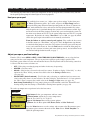
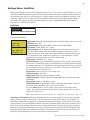
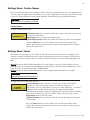
Use the Clock menu to set the EasyTouch system date and time. The day, time and AM/PM is displayed on
the main screen. The system clock settings are used for the EasyTouch system scheduled operations. The
EasyTouch system clock will continue to run if power is removed from the EasyTouch system at the load
center.
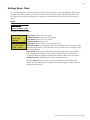
Clock
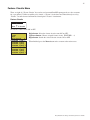
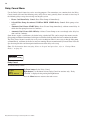
Getting There
▲
MENU ▼ SETTINGS
CLOCK
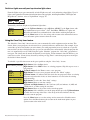
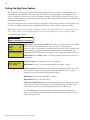
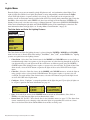
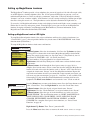
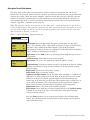
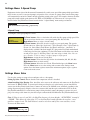
To set the system date and time:
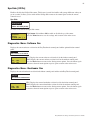
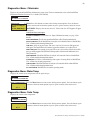
Date & Time
1/2
JAN 12 2009
09:20 AM
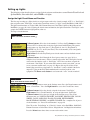
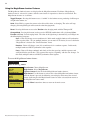
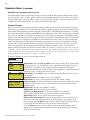
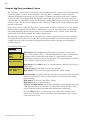
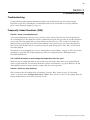
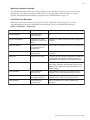
Date & Time
2/2
DayLt Sav: Auto
Clk Adj: 00:00
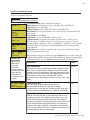
Right button: Move to the day setting.
Up/Down buttons: Set the day of the month.
Right button: Move to the year setting.
Up/Down buttons: Set the year.
Right button: Move to the next set of settings (2/2).
Up/Down buttons: Set Daylight Savings to Auto or Manual. Auto keep track of the
semi annual time changes. If you do not live in an area that observes daylight savings
time, choose Manual.
Right button: Move to the clock adjustment setting. If the internal system clock
loses time during the month, use this setting to set the number of seconds in five
second increments per month to automatically adjust the clock to the correct time.
Up/Down buttons: Adjust the offset in five second increments.
Press the Menu button to save the settings and to return to the Settings menu
options. Press the button again to return to the main menu options or press again to
return to the main screen.
EasyTouch Pool and Spa Control System User’s Guide