1
Setup for Failover Clustering and Microsoft Cluster Service
Procedure
u
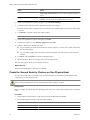
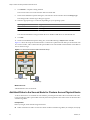
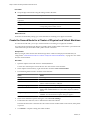
Set up the physical machine using the settings listed in the table.
Component
Requirement
Windows Cluster Administrator
application
Advanced minimum configuration if Windows 2003 is used.
Network adapters
At least two.
Storage
Access to the same storage on a SAN as the ESX/ESXi host on which the
corresponding virtual machine will run.
Operating system
Installed on each physical machine.
What to do next
Create the second node by setting up a virtual machine for clustering across physical machines.
Create the Second Node for a Cluster of Physical and Virtual Machines
To create the second node, you set up a virtual machine for clustering across physical machines.
You configure the virtual network adapters to handle virtual machine traffic for the cluster: a private network
connection for the private heartbeat and a public network connection.
Prerequisites
Before you begin, make sure that the shared storage that is visible from the physical machine that you
configured in “Create the First Node for a Cluster of Physical and Virtual Machines,” on page 27 is also visible
from the virtual machine.
Procedure
1
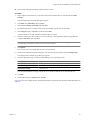
Open the vSphere Client and connect to the ESX/ESXi host.
Use the user name and password of the user who will own the virtual machine.
2
In the vSphere Client inventory, right-click the host and select New Virtual Machine.
3
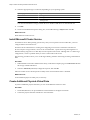
Proceed through the wizard to create the virtual machine.
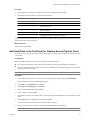
Option
Action
Configuration
Select Typical.
Name and Location
Enter a name and select a location.
Datastore
Select a datastore as the location for the virtual machine configuration file
and the virtual machine disk (.vmdk) file.
Guest Operating System
Select the Windows Server operating system that you intend to install.
Create Disk
Enter the appropriate value in Virtual disk size. Select Support clustering
features such as Fault Tolerance to create a disk in eagerzeroedthick
format.
Ready to Complete
Select Edit the virtual machine settings before completion and click
Continue. The Virtual Machine Properties dialog box appears.
4
In the Virtual Machine Properties dialog box, select New NIC (adding).
5
Under Network Connection, select a label from the Network Label list.
The network label refers to the network to be used for virtual machine traffic for the cluster, either public
or private.
6
28
Click Finish to complete creating the virtual machine.
VMware, Inc.