1
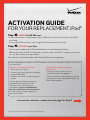
Step ➌ COMPLETE on-screen Setup Assistant to set up your replacement
iPad, restore your data from iCloud® or iTunes and set up your Apple
ID, if applicable.
Note: If you receive a “No SIM Card Installed” message, tap OK and wait for
Verizon LTE or Verizon 3G to appear in the top left corner.
When Verizon LTE or Verizon 3G appears in the top left corner, you’re ready to
use the Verizon Wireless network.
To sign up for prepaid data service:
• Tap Safari or tap General > Cellular Data > View Account.
• Follow instructions to select a plan and enter your payment information.
When Verizon LTE or Verizon 3G appears in the top left corner, you’re ready
to use the Verizon Wireless network. You will also receive a notification on
your iPad.
Note: If your prepaid service has been inactive for some time, you may need
a new 4G LTE SIM card. Visit any Verizon Wireless Communications Store
or call 1.800.256.4646 for a new SIM card.
To set up Wi-Fi:
• Tap the Settings icon on your new iPad.
• Tap Wi-Fi.
• Set Wi-Fi to ON and choose a network.
• Enter a password and tap Join.
To locate the mobile number (called “cellular data number”) of your new iPad:
• From the home screen, tap Settings > General > About.
Traveling abroad?
Verizon Wireless global devices support data in more than 205 countries,
with access to 3G speeds in more than 150 countries. To activate global service, call 1.800.922.0204 from a landline phone to speak to a representative.
To get the latest coverage, data rates and additional global details,
visit verizonwireless.com/global
Note: Prepaid data plans do not support global roaming.
The iPad you received may be a reconditioned Certified Like-New Replacement,
which will carry the remaining warranty period from the prior iPad, or 90 days,
whichever is greater. This does not limit or supersede any existing manufacturer
warranty and may be considered a “warranty” or “service contract” in certain states.
In these states, visit verizonwireless.com/extendedwarranty for the Extended
Limited Warranty or Service Contract information.
For more information on how to use your replacement iPad,
visit apple.com/support or view the User Guide on your iPad
by tapping Safari, then
, then iPad User Guide bookmark.