1
Get
Started
All you need to know to get going.
Welcome!
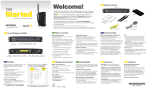
Thanks for choosing Sprint. This guide introduces you to the basics of getting
started with Sprint and your new NETGEAR 341U USB Modem.
ReadyNow – For more help in getting up and running with your
new device, take advantage of exclusive Ready Now resources at
sprint.com/readynow. You can even schedule a one-on-one
appointment at a Sprint Store near you.
For ongoing support and resources, visit sprint.com/support. There, you’ll find
guides, tutorials, and more to help you get the most out of your device.
Note: Available applications and services are subject to change at any time.
©2013 Sprint. Sprint and the logo are trademarks of Sprint. NETGEAR and the NETGEAR logo are trademarks
of NETGEAR, Inc. Other marks are property of their respective owners.
Get Connected
3. Launch the device’s Web browser interface
to check the connection status. Type
http://sprintmodem or http://192.168.1.1 into
the Web browser. The User Interface will show
Connected when your device has completed
the activation process.
4. In the Sign In field, enter the administrator
password (1-31 letters, numbers, and
symbols).
Note: For optimal signal reception indoors, your
device should be as close as possible to an
outside-facing window.
1. Turn on your computer and close all applications.
2. Insert the device’s USB connector into an
available USB port on your computer. Your device
should automatically activate and connect to the
Sprint network.
Note: The default password is “password”. It’s
recommended you change the password.
5. Click Sign In.
Note: The first time you connect your USB modem,
you will be prompted to install required drivers and
to accept the Terms and Conditions.
2. Click I accept the terms in the license
agreement.
3. Click Install.
4. When the installation is complete, click Finish.
Windows
Mac
When your NETGEAR 341U USB Modem is
connected to a Windows computer that does
not have the required drivers:
1. The device starts up, and then:
• the driver End user license agreement is
displayed, or
• if the AutoPlay window opens, click
Run setup.exe, or
• if the driver End user license agreement is not
displayed, in Windows Explorer browse to the
TRU-Install entry (under My Computer), then
browse to the Win folder and run Setup.exe.
1. The device starts up, and then the TRU-Install
window opens. Double-click the Install Drivers
icon.
2. Follow the onscreen instructions and when
prompted, enter your Mac password.
3. Click Continue Installation.
4. When the installation finishes, click Restart to
reboot the computer and use the new drivers.
When the device is connected to a Mac computer
that does not have the required device drivers:
Once connected, you can use the device’s Web
browser interface to view your data usage,
manage your network connection, view alert
messages, access the User Guide, and more.
1. With the device on and connected to your
computer, launch your Web browser.
2. Type http://sprintmodem into the address bar
and then press Enter.
• From the Home page, you can check your
connection status and data usage.
Detailed
User Guide
• From the Settings page, onfigure your device
and network settings, update your software,
reset your device to default settings, and more.
Tip: In the top right corner of the Home page,
click Support > User Guide to view the online
copy of the User Guide.
The USB Modem’s OLED display shows details
(connection status, roaming status, and GPS
status) and data usage for the current billing
period or connection session.
Note: The OLED display
shows network or device
alerts for situations that
require your attention. The
alert remains on screen
until it is resolved. To view
and resolve alerts, launch
the Web browser interface.
Resources
From a Phone
• Make a payment, see your bills, enroll in
online billing
• Sprint Customer Service:
Dial 1-888-211-4727
• Check usage and account balance
• Business Customer Service:
Dial 1-888-788-4727
• Get detailed instructions and download content
Manage Your Device Using the
Web Browser Interface
• From the GPS page, you can obtain your
current location coordinates. You can also
enable or disable GPS tracking, and choose
the tracking method being used.
Manage Your Account
• See or modify the details of your Sprint
service plan
Your NETGEAR 341U USB Modem includes
TRU-Install, which is a feature that installs the
required drivers the first time you connect your
USB modem to your Windows or Mac computer.
An installation CD is not required.
Manage Your Device
The first time you insert your NETGEAR 341U USB
Modem into an available USB port, it is designed to
automatically activate and connect to the Sprint
network.
Online: www.sprint.com
Before You Start
For Your Device
• This Get Started guide to get you up and running.
• User Guide – View the User Guide online
at sprint.com/support.
• Updates – Your device is designed to check for
updates upon activation and then automatically
every 7 days.
• To manually check for updates, from your
Web browser, enter http://sprintmodem in
the address bar to access the Web browser
interface. Click Settings > General > Software
and Reset, and then click Check for update. If
an update is available, an Install Now button
appears. Click Install Now.
Network
status
troubleshooting and other resources, or go to
sprint.com/downloads to download updates.
Data Usage
Account
Details
Sustainability
• Web – Go to sprint.com/support to access
Alerts
Manage
network
settings
At Sprint, environmental responsibility is more
than talk. We’re continuously working to reduce
our carbon footprint and decrease our use of
natural resources.
So where is my user guide?
To support our increased responsibility efforts,
we’ve put expanded instructional materials online
for you. Just visit sprint.com/support from any
computer to access your complete user guide and
other support materials.
What else has Sprint been doing?
Survey
Please tell us what you think
about your new device.
We are interested in your initial impressions
of this new Sprint device. Within two weeks
of your device purchase, please go to the website
http://labs.sprint.com/sprintphonesurvey to
complete a brief survey. Your feedback will help
us provide the wireless features and services
you want most.
Thank you for choosing Sprint.
Plenty. To find out just what we’ve been up to, visit
sprint.com/green.
This guide is printed with vegetable inks and
contains up to 30% post consumer paper.
Hermes_341U_GSP_NEW.indd 1
2013-06-18 5:08 PM
2013-06-18 5:09 PM
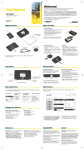
¡Bienvenido!
Gracias por elegir Sprint. Este folleto te introduce a lo básico para empezar a usar
Sprint y tu nuevo NETGEAR 341U USB Modem.
ReadyNow – Para obtener más ayuda en optimizar e iniciar tu nuevo tableta,
aprovecha los recursos del exclusivo Ready Now en sprint.com/readynow 1 . Podrás
incluso programar citas en tu tienda Sprint más cercana.
Para obtener apoyo y recursos, visita sprint.com/support. Allí encontrarás guías,
tutoriales y más para sacar el máximo provecho a tu equipo.
Nota: Los servicios y las aplicaciones disponibles están sujetos a cambio.
1
Disponible sólo en inglés.
©2013 Sprint. Sprint y el logotipo son marcas comerciales de Sprint. NETGEAR y el logotipo de NETGEAR
son marcas comerciales de NETGEAR, Inc. Otras marcas son propiedad de sus respectivos propietarios.
Conéctate
La primera vez que enciendas tu equipo, éste está
diseñado para activarse y conectar automáticamente
con la red Sprint.
Nota: Para una óptima recepción de señal en
interiores, tu equipo deberá estar lo más cerca
posible de una ventana con vista al exterior.
1. Enciende tu computadora y cierra cualquier
aplicación que esté funcionando.
2. Introduce tu equipo en un puerto USB
disponible en tu computadora. Tu equipo debe
activarse automáticamente y conectarse a la red
de Sprint.
3. Activa el Interfaz de Usuario del equipo para
revisar el estado de la conexión. Escribe
http://sprintmodem o http://192.168.1.1 en el
browser de Internet. El Interfaz de Usuario
mostrará Conectado cuando tu equipo haya
completado el proceso de activación.
4. En el campo Iniciar sesión, ingrese la
contraseña de administrador (1 a 31 letras,
números y símbolos).
Nota: La contraseña por defecto es “password”.
Es aconsejable que la cambie.
5. Haga clic en Sign In (Iniciar sesión).
Nota: La primera vez que conecte su módem
USB, se le pedirá que instale los controladores
correspondientes y que acepte los Términos y
Condiciones.
Antes de comenzar
Su NETGEAR 341U USB Modem incluye TRU-Install,
una función que instala los controladores
imprescindibles la primera vez que conecta su módem
USB a su computadora con sistema operativo Mac o
Windows. No se requiere ningún CD de instalación.
Windows
Cuando conecta su NETGEAR 341U USB Modem
a una computadora con Windows que no tiene los
controladores requeridos:
1. El equipo se inicia y, a continuación:
• Se muestra el acuerdo de licencia de los
controladores para el usuario final.
• Si se abre la ventana AutoPlay, haga clic en
Run setup.exe, o
• Si no se muestra el acuerdo de licencia de los
controladores para el usuario final, vaya a
Windows Explorer y busque la función TRU-Install
(en Mi Computadora). A continuación, diríjase a la
carpeta Win y ejecute el archivo Setup.exe.
1. Haga click en I accept the terms in the license
agreement (Acepto los términos del acuerdo de
licencia).
2. Haga click en Install (Instalar).
3. Cuando la instalación se haya completado, haga
click en Finish (Finalizar).
Mac
Cuando conecta el equipo a una computadora Mac
que no cuenta con los correspondientes controladores:
1. El dispositivo se inicia y, posteriormente, se abre
la ventana de TRU-Install. Haga doble click en el
ícono Install Drivers (Instalar controladores).
2. Siga las instrucciones en pantalla y cuando se le
solicite, ingrese su contraseña de Mac.
3. Haga clic en Continue Installation (Continuar
instalación).
► Cuando la instalación haya terminado, haga clic
en Restart para reiniciar la computadora y poder
usar los nuevos controladores.
su equipo y la red, actualizar el software,
restablecer los valores por defecto en su
dispositivo, entre otras funciones.
Sugerencia: En la parte superior derecha de la
página de Inicio, haga clic en Support (Soporte) >
User Guide (Guía del Usuario) para ver la copia de la
Guía del Usuario en línea.
Para tu equipo
• Esta guía de inicio para dejarte completamente listo.
• Guía de usuario – Consulta la guía de usuario por
Internet en sprint.com/support1.
• Actualizaciones – Tu equipo está diseñado para
comprobar las actualizaciones cuando se activa y
luego para buscar actualizaciones automáticamente
cada 7 días.
Vamos
Todo lo que tienes que saber para comenzar.
Guía del
Usuario
Detallada
Maneja las
configuraciones
de la red
Estado de
la red
En la pantalla OLED del módem USB, se muestra
información detallada (estado de la conexión, del
roaming y del GPS), así como el uso de datos
correspondiente al actual período de facturación o la
sesión de conexión.
Nota: En la pantalla OLED, también se muestran alertas
sobre la red o el dispositivo, de situaciones que
requieren su atención. Las
alertas permanecen en la
pantalla hasta que se resuelven.
Para ver y resolver las alertas,
inicie la interfaz del navegador
de Internet.
• Internet – Visita sprint.com/support1
para acceder a resoluciones de problemas o
demás recursos, o visita sprint.com/downloads1
para descargar las actualizaciones.
1
Disponible sólo en inglés.
• Para buscar actualizaciones manualmente,
desde tu navegador de Internet, ingresa
http://sprintmodem en la barra de dirección para
acceder a la interfaz de usuario del navegador de
Internet. Haga clic en Settings (Configuración) >
General > Software and Reset (Software y
Reiniciar) y, a continuación, haga click en Check
for update (Buscar actualizaciones). Si hay
actualizaciones, aparecerá el botón Install Now
(Instalar ahora). Haga click en Install Now
(Instalar ahora).
Alertas
Uso de
datos
Detalles de
la cuenta
Sostenibilidad
Recursos
Desde un teléfono
• Atención al Cliente Sprint:
Marca 1-888-211-4727
• Atención al Cliente para Negocios:
Marca 1-888-788-4727
2400268 Rev 2
Maneja tu Equipo
Maneja tu equipo usando la página de
manejo de Internet
Una vez conectado, puedes usar la página de
manejo de Internet del equipo para configurar
opciones avanzadas, cotejar el estado, acceder a
la Guía del Usuario y más.
1. Con el equipo encendido y conectado a tu
computadora, inicia tu navegador de Internet.
2. Ingresa http://sprintmodem en la barra de
dirección y entonces haz clic en Enter (ingresar).
• En la página de Inicio, puede revisar el estado
de su conexión y el uso de datos.
• En la página del GPS, puede consultar las
coordenadas de su ubicación actual. Asimismo,
puede activar o desactivar el GPS y elegir el
método de seguimiento que desea utilizar.
• En la página de Configuración, puede configurar
Maneja tu cuenta
Por Internet: www.sprint.com
• Realiza un pago, revisa tus facturas,
suscríbete a facturación por Internet
• Revisa el uso y el saldo de tu cuenta
• Revisa o modifica los detalles de tu plan
de servicio Sprint
• Obtén instrucciones detalladas y descarga
contenido
Hermes_341U_GSP_NEW.indd 2
En Sprint, la responsabilidad con el medio
ambiente es más que habladurías. Trabajamos
continuamente para reducir nuestro impacto de
carbono y reducir nuestro uso de recursos naturales.
¿Dónde está mi guía del usuario?
En un intento por aumentar nuestros esfuerzos de
responsabilidad, hemos puesto materiales
educativos expandidos en Internet para ti. Visitar
sprint.com/support1 desde cualquier computadora
para encontrar su guía de usuario completa y más.
Encuesta
Por favor, dinos qué opinas sobre tu
nuevo equipo.
Estamos interesados en tus primeras
impresiones sobre este nuevo equipo Sprint.
Durante las dos semanas después de la compra
de tu equipo, por favor, visita el sitio de Internet
http://labs.sprint.com/sprintphonesurvey1 para
completar una breve encuesta. Tu información nos
ayudará a proveer las funciones y servicios
móviles que más quieres.
¿Qué más ha estado haciendo Sprint?
Muchos recursos. Para saber exactamente lo que
estamos haciendo, visita sprint.com/green1 para
más información.
Grácias para elegir Sprint.
1
Esta guía está impresa con tintas de verduras y
contiene hasta un 30% de papel pre-usado.
Disponible sólo en inglés.