1
MVE Biological Systems
MVE Variō™ Pro Quick Start Guide
6.3 Multilevel Passwords
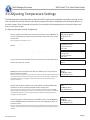
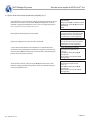
1. From the home screen, press SETUP to enter setup menus. If Password Entry
Mode is enable, the controller will prompt for a password. Use the ▲/▼ keys to
scroll to the appropriate number and press ENTER to advance the cursor to the
next position.
Higher User Level
Required use ▲/▼ to
ENTER Password
0000
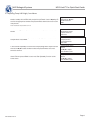
2. After entering password, press SETUP to scroll through the menu items. When
the Password Menus screen appears, press ENTER.
Press ENTER for
Password menus
or press SETUP for
next menu
Note: The default user password is 3 4 5 6.
3. The controller will prompt for a password. Use the ▲/▼ keys to scroll to the
appropriate number and press ENTER to advance the cursor to the next position.
4. Press SETUP to scroll to the Change Password 1 display and press ENTER.
5. Use the ▲/▼ keys to scroll to the desired number and press ENTER to advance
the cursor to the next position. When complete, press ENTER to save
6. At the Password 1 Level display, use the ▲/▼ keys to select the desired access
level for password 1.
7. At the Confirm New Password? display, use the ▲/▼ keys to select either YES
to confirm, or NO to cancel. Press ENTER to save.
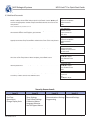
Level 1
- Fog Clear
- End Clear
- Alarm Mute
- Change Display Units
PN 14910831 Rev A
Security Access Levels
Level 2
Level 1 + :
- Temp Settings
- Time & Date Settings
- Calibration Menus
- Language Selection
- Hot Gas Bypass Menus
Level 3
Higher User Level
Required use ▲/▼ to
ENTER Password
0000
Press ENTER to
Change password 1
Password or press SETUP
for next menu
Password 1 level
Use ▲/▼ to adjust
Press ENTER for next
XXXX
Password 1 level
Use ▲/▼ to adjust
Press ENTER for next
XXXX
Confirm new
Password?
NO
Use▲/▼ to adjust
Level 4
Level 2 + :
Level 3 + :
- Communications Settings - Password Settings
- Programming
Page 11