1
12. Network functions
SPM250 User guide
12.1 Wired LAN connection
Index
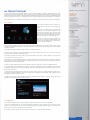
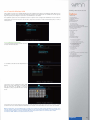
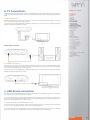
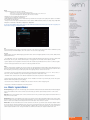
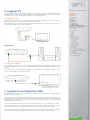
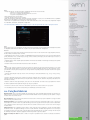
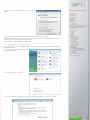
SPM250 includes Ethernet connection (RJ45), which will allow you to play multimedia files saved in your PC or laptop using
a network cable. To connect the device to your computer or laptop through LAN connection please follow the steps shown
in the picture. If the cable is properly connected, a green and orange LEDs will be turned on in the RJ45 connector of the
device.
1. Welcome
2. Features
3. Content
4. Hardware
5. Remote Control
6. TV Connections
6.1 AV Connection
6.2 HDMI Connection
7. USB device connection
8. Playback from card reader
9. First time usage
9.1 Starter Screen
10. Main Menu
10.1 Movie
10.2 Music
10.3 Photo
10.4 File Copy
10.5 Setup
11. Basic operations
12. Network functions
12.1 Wired LAN connection
12.1.1 IP Settings
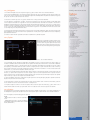
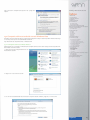
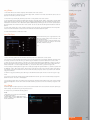
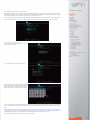
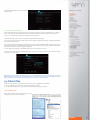
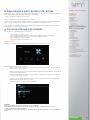
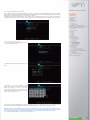
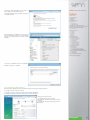
After doing the network connections, you must assign an IP address to your SPM250. You can assign an IP automatically or in manual mode. Go to
“Settings”, “Network” section and in “Wired LAN
setup” select “IP DHCP (auto)“ to assign an IP automatically. Select “Fixed IP (manual)“ if you want
to enter the IP.
12.2.1 IP Setup
12.2.2 IP data on Windows XP
12.2.3 IP data on Windows Vista
12.2 Wireless LAN connection
12.2.1 Infraestructure (AP)
12.2.2 Point to Point (Ad Hoc)
13. Files sharing
13.1 Windows XP
13.2 Windows Vista
13.2.1 Mode 1
13.2.2 Mode 2
14. File access through the network
14.1 My Shortcuts
14.2 My Neighbors
15. Firmware upgrading
16. FAQs
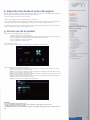
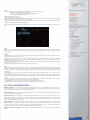
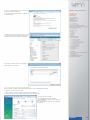
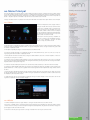
Auto IP settings
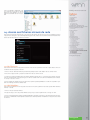
If the unit is connected to the network through a router and you select the option "IP DHCP (Auto)", the router assigns an
IP automatically to the device as shown in the picture (192.168.158.113). This IP range changes depending on the setup
and the router model.
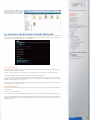
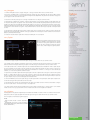
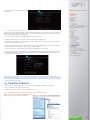
Fixed IP settings
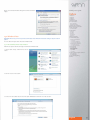
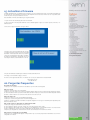
Select the option "Fixed IP (Manual)" if you want to
setup a Fixed IP as shown in the picture.
Then complete all the required information. Please
note the last IP numbers can not match with the
rest of IP assigned to another devices connected
through the network; it may cause network problems. For example, if the IP of your computer is
192.162.158.27, you can assign a new IP to your
device only changing the last two numbers
(192.168.158.33). You can only change the last two
numbers of the IP address.
Please complete the information "Subnet mask",
"Default Gateway" and "DNS Server" with the
same values of your computer.
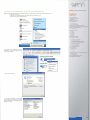
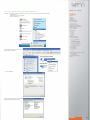
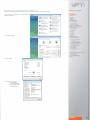
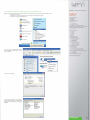
Read carefully the sections 12.1.2 and 12.1.3 for further information about how to get this niformation.
Press "Enter" and confirm to saven and apply the changes.
Note:
DHCP means "Dynamic Host Configuration Protocol". It is a protocol which allows a device connected through a network to obtain a configuration
(network configuration) in a dynamic way (automatically, without the needing of the user enter any information).
A router is a device for interconnection of computer
networks that allows secure routing packets between networks or to determine the route you
should take the packet of data
English
28