1
More information
Email
Cricket services
Apps on Google Play
Camera and video
BlinkFeed and Sense Home
Zoe
On the Web
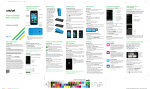
Email setup
Take a picture
Add feed sources in HTC BlinkFeed®
1.From the home screen, tap
App tray
> Mail
.
These services make using Cricket even better and
easier!
Access Google Play™
Detailed support information, including device
specifications and the full user manual, is available
at: www.cricketwireless.com/support/devices.
1.From the home screen, tap Play Store
.
1.From the home screen, tap Camera
.
Easily access content from popular websites and
your social networks.
A Zoe™ is a clip of photos and videos that Gallery
has automatically put together, with added
background music and special effects.
2.Tap
On the phone
3.Enter the email address and password, and then tap Next.
2.Enter your existing Google®
Account or create one
following the steps on the
screen.
1.From the home screen,
swipe right to access HTC BlinkFeed.
• Check out the Help app for self-help in
troubleshooting basic problems.
• Call Customer Care at 1-855-246-2461 or dial
611 from your phone.
Accessories
Cricket offers a full line of accessories. For more
information go to www.cricketwireless.com/shop/accessories or visit your local Cricket store.
2.Select an email provider.
4.Follow the onscreen
instructions, and then tap
Finish setup.
Your email will begin to synchronize with your
phone.
Send an email
1.From the home screen, tap
App tray
> Mail
.
2.Switch to the email account
that you want to use.
3.Tap
.
4.In the To field, type email
addresses or tap
to
choose from your contacts.
5.Enter the subject and your
message.
6.To add an attachment, tap .
HTC Dot View cases
© 2015 HTC Corporation. All rights reserved. HTC, the HTC logo, HTC
Desire, HTC BlinkFeed, HTC Sense, and HTC Dot View are trademarks of
HTC Corporation.
© 2015 Cricket Wireless LLC. All rights reserved. Cricket and the Cricket
logo are trademarks under license to Cricket Wireless LLC. Other marks
are the property of their respective owners.
Printed in China
P/N: XXXXXL000-00
My Cricket: Access billing, make a quick
payment, view usage and access support
from the palm of your hand.
Cricket Wi-Fi: Automatically connect to
free and open Wi-Fi® hotspots, helping you
to maximize data usage and enhance
coverage.
1.From the home screen, tap
App tray
> Gallery
.
2.On HTC BlinkFeed, swipe
right to open the slideout
menu.
3.Tap
Navigate Google Play
From Play Store, you will have multiple ways to
search for apps, games, and more.
1.Tap a category to browse popular apps, games,
movies, and music organized by popularity or
category.
2.Tap the Google play text field to search the Play
Store for a specific game or app.
3.To install, tap the app and follow instructions.
Once installed, you will see a notification in the
Notifications panel. Open the app from this
notification or by locating the app in the App tray
.
.
6.Tap the Back key
to return to HTC BlinkFeed.
2.Tap
to start recording.
HTC Sense® Home
3.Tap
to end recording.
Get timely and smart updates
on your phone. The HTC Sense
Home widget automatically
adapts to where you are, and
automatically shows apps that
you often use at home, work, or outdoors.
Send a picture*
1.From the home screen, tap
App tray
> Gallery
. 2.Swipe right to open the
slideout menu and select
how you want to view your
pictures.
3.Tap a picture.
4.Tap
to share via
Bluetooth®, send by email,
send as a message, or
upload to a social network.
Note: A Google Wallet™ payment method is
required to purchase apps.
5.Select the feeds you want to add to HTC BlinkFeed.
Take a video
1.From the home screen, tap Camera
> Add content.
4.Tap a category to see
available content.
3.Tap a thumbnail to view it in full screen.
7.Tap
to send or to send it later, tap > Save.
Note: To set up your corporate email, contact your
IT administrator.
View pictures
2.Swipe right to open the
slideout menu and select
how you want to view your pictures.
Cricket Visual Voicemail: Quickly view,
access and play back your voicemail
messages. Easily save important numbers
to your Favorites list and respond to
messages by calling back or texting.
Deezer: Listen on-the-go with ad-free
streaming music, download your favorites
to your phone and get customized playlists
based on your preferences.
to take a picture.
* Data charges may apply.
Over time, the phone learns
which apps you use often
based on where you are and
fills the widget with those apps
automatically.
View a Zoe in Gallery
1.From the home screen, tap
App tray
> Gallery
.
2.Tap
, and then choose
how you want to view your
photos and videos. When in Timeline view, you
need to go to the Events
or Year
tab.
3.Tap a tile to open a group
of photos and videos. You’ll
then see a preview of the
Zoe play automatically.
Edit a Zoe
1.While viewing a collection
of photos and/or videos,
tap
at bottom right
corner of the Zoe.
2.Tap Clips to select the
photos or videos to include
in the Zoe. Swipe an item
right or left to remove it.
3.Tap Theme to choose video
filters to apply to the Zoe.
4. Tap Music to select music for
your Zoe.
5.Tap Done.
Note: Location settings must be turned on.
You can also edit your Zoes
by using Zoe
in the App tray
.