1
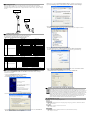
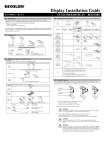
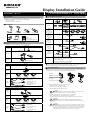
◈ Tilting Function
This product allows display tilting to any angle desired by the user. Please adhere to the following
instructions during installation to prevent possible product damage and/or malfunction. The display can be
angled left and right from the Center Line in 13° angle intervals for a total of 4 steps, 5 positions. (Angling:
52°max.)
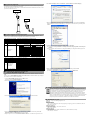
5. Repeat steps 1~3 again in the Found New Hardware Wizard. Installation is performed twice.
6. Open the Device Manager (Start > Control Panel > System > Hardware > Device Manager).
Center Line
Center Line
7. Select USB Serial Port (COM x) and right-click. Then select Properties.
The COM port is automatically numbered, and it varies according to PC port occupation conditions.
◈ Setting the DIP Switches
Changing Dip Switch settings must be done when the printer is off.
Any changes done while the printer is on will not be processed.
1. DIP Switch #1 Function (RS-232 Serial Input Setting)
No.
Function
Switch OFF
1
Default Setting
DIP Switch Values
2
N.C. (No Connection)
Reserved for Future Using
3
Display Vewing Side
Customer Side
4
Self-Test Execution
Does not execute
5~8
Command Emulation
2. DIP Switch #2 Function
No.
Function
1
Data Length
2
Parity using
3
Parity Selection
4~6
Baud-rate Selection
7~8
N.C. (No Connection)
5
0
0
0
0
0
0
0
0
6
0
0
0
0
1
1
1
1
7
0
0
1
1
0
0
1
1
8 Command Emulation
0
Samsung VFD
1
Epson ESC/POS
0
ADM787/788
1
DSP800
0
AEDEX
1
UTC Standard
0
UTC Enhance
1
CD5220
(“0” : S/W OFF,
Switch ON
EEP-ROM Data Leading
Reserved for Future Using
Operator Side
Executes
5 6 7 8 Command Emulation
1 0 0 0
NCR Real POS
1 0 0 1
PD6000
1 0 1 0
ICD2002
1 0 1 1
Reserved
1 1 0 0
Reserved
1 1 0 1
Reserved
1 1 1 0
Reserved
1 1 1 1
Reserved
“1” : S/W ON)
Switch OFF
8 Bits
None Parity
Odd
4
0
0
0
0
5 6 Baud-rate 4
0 0 9,600 bps 1
0 0 4,800 bps 1
1 1 2,400 bps 1
1 0 1,200 bps 1
(“0” : S/W OFF,
Reserved for Future Using
8. Set the Serial communication conditions and select Advanced.
8-1. The preset Serial conditions are 9600 bps, 8 data bits, parity none, and flow control hardware.
8-2. These conditions must be identical to the Master settings and application program Serial settings.
Switch ON
7 Bits
Parity
Even
5 6 Baud-rate
0 0 115,200 bps
0 1 57,600 bps
1 0 38,400 bps
1 1 19,200 bps
“1” : S/W ON)
Reserved for Future Using
◈ Virtual COM Driver Installation (for BCD-1000 USB type only)
The PC requires software installation when it detects new hardware connected to a USB Port.
First, connect the BCD-1000DU/WU (USB) to the PC USB Port and install the software, setting the
conditions as shown below.
9. Check the boxes of the Serial Enumerator and the Serial Printer, and then select OK. The Virtual
COM driver is now successfully installed.
(The Serial Enumerator and Serial Printer boxes are not found in Windows 98.)
1. Connect the BCD-1000DU/WU(USB) to the PC USB Port.
The Found New Hardware message will appear.
2. Select Install from a list or specific location (Advanced).
◈ WEEE (Waste Electrical and Electric Equipment)
3. Select the location, VirtualCOM_V9052154 by browsing, and click Next.
This marking shown on the product or its literature, indicates that is should not be disposed with
other household wastes at the end of its working life, To prevent possible harm to the environment or
human health from uncontrolled waste disposal, please separate this from other types of wastes and
recycle it responsibly to promote the sustainable reuse of material resources. Household users should
contact either the retailer where they purchased this product, or their local government office, for
details of where and how they can take this item for environmentally safe recycling. Business users
should contact their supplier and check the terms and conditions of the purchase contract. This
product should not be mixed with other commercial wastes for disposal.
☎ BIXOLON Co., Ltd.
● Website http://www.samsungminiprinters.com
● Headquarters
(Add) A-502, Digital Empire, 980-3 Yeongtong-dong, Yeongtong-gu, Suwon-si, South Korea, 443-813
(Tel) +82-31-218-5531
● U.S. Office
(Add) 1210 E. 223rd St., #330, Carson, CA 90745
(Tel) +1-858 764 4581
4. The Found New Hardware message appears again at the bottom right of the screen, PC Found New
Hardware (USB Serial Port), when it is completed.
● Europe Office
(Add) BIXOLON Europe GmbH, Lindenstrasse 169, 40233 Dusseldorf, Germany
(Tel) +49 (0)211 68 78 54 0