1
3.2 General setup
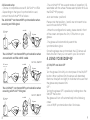
- Choose a compatible source: IR, DLP-LinkTM or VESA
- Depending on the type of synchronization used,
connect the ActivHubTM RF as follows :
The ActivHubTM can transmit RF synchronization when
receiving an IR 3D signal.
3D Content
ActivHUB
Movie, sports...
RF glasses
- The ActivHubTM RF has several modes of operation (12),
selectable with the wheel. Please select position 8 to use
the EDGETM RF properly.
Auto test mode : position 0
Please note that positions 1 and 2 are not meant to be
used in the ActivHubTM RF50.
- When the configuration is ready, please stand in front
of the screen and press the On / Off button on your
glasses.
- The glasses will automatically search the
synchronization signal.
The ActivHubTM can transmit RF synchronization when
connected to a VESA or BNC cable
3D Content
ActivHUB
Movie, sports...
In=Wire, Out=RF
RF glasses
The ActivHubTM can transmit RF synchronization when
receiving a DLP-LinkTM 3D signal.
3D Content
Movie, sports...
8
ActivHUB
In=DLP, Out=RF
RF glasses
Once the glasses are synchronized, the LCD lenses will
flash ultra-fast. Then you can watch your 3D content
4. USING YOUR EDGETM RF
4.1 ON/OFF and Auto OFF
ON :
Turn the glasses ON with just a short press of the ON/OFF
button. When switched ON, the lenses will alternately
flash one time (left and right) to indicate to the user that
the glasses are powered ON.
OFF :
Turning the glasses OFF is possible by holding down the
ON/OFF the button.
The glasses will turn off automatically in the following
cases:
- Loss of IR/RF synchronization after 10 minutes.
9