1
4.2 Switch button
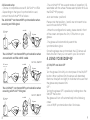
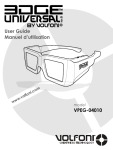
EDGETM RF has a switch button with 3 positions (all in 3D
mode by default)
4.3.2 Battery Charge
The battery charging will be indicated by the LED when
the USB cable is connected:
- Steady light: charging.
- Off: charging is complete.
It is also possible to see the exact level of your glasses’
battery charge by connecting to your computer and
using the Volfoni Loader (see section Advanced settings
via Volfoni Loader).
Once the glasses are recognized,the level bar is
displayed.
5. SOFTWARE UPDATES
4.3 Battery
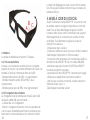
The EDGETM RF battery life is about 75H
4.3.1 Battery Level
When starting up the glasses and with a short press of
the button, the glasses will show the level of battery life
by the number of flashes of the LED:
- Low level (less than 30%): one flash
- Intermediate level (between 30% and 90%): two flashes
- High level (greater than 90%): three flashes
10
Before using the EDGETM RF glasses, make sure you
have the latest version of software from our website. For
this purpose, please download the « Volfoni Loader »
software (http://www.volfoni.com/en/services-support/
download) and connect your glasses to your computer.
Then start the software and follow the instructions below.
- choose the menu “SUPPORT”
- choose “Upgradable Software”
- download the application “VOLFONI LOADER”
- connect your computer to the μUSB connector on the
arm of the EDGETM RF with the USB/μUSB cable
- press and hold the ON/OFF button of the EDGETM RF
during 3 seconds.
- the LED of the EDGETM RF will light red
- verify that the application recognizes your system
- once you are connected, press the button “Check for
updates”
- download the lastest version
11