1
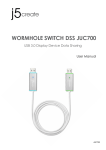
USB 3.0 Wormhole Switch JUC700 EN : ES : DE : FR : Quick Installation Guide Guía De Instalación Rápida Kurzanleitung Für Installation Guide D'installation Rapide 日本語 : クイックインストールガイド 繁中文 : 快速安裝手冊 Step 1 Step 1. Driver Installation on both computers: 1. Insert the Driver CD into the drive; the setup program should launch automatically. ( * Make sure that JUC700 is NOT connected to your host computer. ) 2. Click on “ Install the Latest Driver” or press “Install Driver” to start the installation ( * Please make sure the network is available. ) 3. When Install Shield Wizard is complete, select “Yes, I want to restart my computer now”. * Update Driver is available at www.j5create.com in “support > download” area. Step 1. Instalación del controlador en ambos equipos 1. Inserte el CD de controladores en la unidaddeCD ; el programa de configuración debe iniciarse automáticamente. ( * Asegúrese que el JUC700 NO está conectado a su computadora. ) 2. clic en “Instalar el último controlador”. o presione “Instalar controlador” para iniciar la instalación ( * Asegúrese de que la red esté disponible ) 3. Cuando el Asistente para la instalación InstallShield Wizard haya finalizado, seleccione “Si, deseo reiniciar el equipo ahora.” * La descarga de los controladores está disponible en www.j5create.com en el área "support > download". Step 1. Treiberinstallation auf beiden Computern: 1. Treiber-CD einlegen; das Einstellungsprogramm sollte jetzt automtaisch starten 2 Step 1 ( * Gehen Sie sicher, dass der JUC700 NICHT mit dem Host Computer verbunden ist. ) 2. klicken Sie auf “ Den neuesten Treiber installieren oder klicken sie auf “ Treiber installieren”, um die Installation zu starten. ( * Stellen Sie sicher, dass das Netzwerk verfügbar ist. ) 3. Wenn der InstallShield-Assistent abgeschlossen ist, wählen Sie “Ja, ich möchte meinen Computer jetzt neu starten”. * Treiber update gibt es auf www.j5create.com unter „support > download“. Step 1. Installation du pilote sur les deux ordinateurs : 1. Insérez le CD pilote dans le lecteur,le programme d’installation doit être lancée automatiquement. ( * Assurez-vous que JUC700 N’EST PAS connecté à votre ordinateur hôte. ) 2. Cliquez sur “ Installer le dernier pilote” ou appuyez sur “Installer le pilote” pour démarrer l'installation ( * Assurez-vous que le réseau est disponible) 3. Lorsque l'assistant d'installation est terminé, sélectionnez «Oui, je veux redémarrer mon ordinateur maintenant.» * Télécharger Pilote est disponible à sur www.j5create.com dans la rubrique «soutien/ téléchargement» domaine. Step 1.両方のコンピュータへのドライバーのインストール 1. JUC700に接続する両方のコンピュータにドライバーをインストールしてください。 (※このインストールプログラムを実行する前に、必ず、JUC700のUSBケーブルをPCまたはノート ブックから外してください。) 2. インストールを開始するには ”最新のドライバーをインストール”をクリックします。ネットワークが利 用可能かどうか確認するか、または ”ドライバーのインストール”を押してインストールを開始します。 (※ネットワーク接続をご確認の上、ダウンロードを行います。) 3. インストール完了後、 “Yes”をセレクトし、 “います。 “はい、今すぐコンピューターを再起動します。” を選び、 “Finish”をクリックして、再起動します。 ※ www.j5create.com/jpn/ダウンロードページからドライバーダウンロードをクリックして下さい。 步驟 1. 在兩台電腦上安裝驅動軟體 1. 將驅動程式光碟片放入光碟機中,安裝精靈將會自動執行。 ( ※ 驅動程式尚未安裝完成前,請勿將 JUC700 接到 USB 埠上。) 2. 請按“安裝最新驅動程式”或是點選“安裝驅動程式”進行安裝光碟驅動程式。 ( ※ 請注意需要開啟網際網路進行下載 ) 3. 當驅動程式成功安裝後,請點選“是,立即重新啟動電腦” ※ 歡迎隨時造訪本公司官網 www.j5create.com/tw/「技術支援」下載最新版驅動程式。 3 Step 2 Step 2. Device connection After the computer is rebooted, connect two ends of the JUC700 into two computers. * Tips:JUC700 has two side connectors in two colors (blue & green) the icons that appear in the control bar will help you to distinguish between the two computers. Step 2. Conexión de dispositivos Después de reiniciar el equipo, conecte dos extremos de su JUC700 a los equipos. * Sugerencias : Su JUC700 tiene dos conectores de dos colores (azul y verde). Los iconos que aparecen en la barra de control le ayudarán a distinguir los dos equipos. Step 2.Geräteanschluss Después de reiniciar el equipo, conecte dos extremos de su JUC700 a los equipos. * Tipps : Das JUC700 besitzt Anschlüsse in zwei Farben (blau & grün) an beiden Seiten, deren Symbole in der Kontrollleiste Ihnen helfen, zwischen den beiden Computern zu unterscheiden. Step 2. Branchement du périphérique Une fois l’ordinateur redémarré, raccordez les deux extrémités du JUC700 aux deux ordinateurs. * Conseils : Le JUC700 dispose de deux connecteurs latéraux de deux couleurs (bleu et vert), les icônes qui apparaissent dans la barre de contrôle vous aident à faire la distinction entre les deux ordinateurs. Step 2. 装置接続 コンピュータを再起動したら、JUC700のいずれかのコネクターを2台のコンピュータのいずれかの USB 3.0ポートに接続します。次に、JUC700のもう一方のコネクターを2番目のコンピュータに接続し ます。 (初めての接続の場合、コンピュータがJUC700を認識するのに時間がかかることがあります。) ※ ヒント:JUC700には両端に2色(ブルーとグリーン)のコネクターがあります。コントロールバ ーに現れるアイコンによって、2台のコンピュータを識別できます。 步驟 2. 硬體裝置連接 コンピューターの重新啟動電腦後,將 JUC700 兩端連接至兩台電腦。 ※ 提示:JUC700 兩端的電腦會出現不同顏色 ( 藍色和綠色 ) 的工具列,是為了幫助你分辨你正在操作的是 哪一台電腦。 4 Step 3 Step 3. Settings for both computers Once the JUC700 is plugged in 1. Select the position of the other computer. 2. Choose Extended Mode or Mirror Mode. Step 3. Configuración para ambos equipos Cuando su JUC700 esté enchufado 1. Seleccionar la posición del otro equipo 2. Elegir el modo extendido o el modo de duplicidad Step 3. Einstellungen auf beiden Computern Gleich nach dem Anschluss des JUC700 1. Wählen Sie die Position des anderen Computers. 2. Wählen Sie den Extended Mode (Erweiterungsmodus) oder den Mirror Mode (Spiegelmodus). Step 3.Paramètres pour les deux ordinateurs Une fois que le JUC700 est branché 1. Sélectionner la position de l'autre ordinateur 2. Choisissez le Extended Mode (mode Étendu) ou le Mirror Mode (mode Miroir) Step 3. 両方のコンピュータの設定 JUC700を接続したら 1. もう一方のコンピュータの位置を選択します。 2. Extended Mode (拡張モード)またはMirror Mode (ミラーモード)を選択します。 步驟 3. 兩端電腦的設定 當 JUC700 兩端連接上之後 1. 選擇另一台電腦的位置 2. 選擇 Extended Mode ( 延伸顯示 ) 或 Mirror Mode ( 鏡像顯示 ) 5 Display Share Uso compartido de la pantalla Anzeigefreigabe Partage d'écran ディスプレイの共有 螢幕共享 View and control Blue computer Vision y control equipo azul Anzeige und Steuerung blauen Computers Vue et le contrôle l'ordinateur Bleu View and control Green computer Vision y control equipo verde Anzeige und Steuerung grünen Computers Vue et le contrôle l'ordinateur Vert ブルーのコンピュータを見るてとコントロールする ᢎࣼٮᐇᙢՓႫသ グリーンのコンピュータを見るてとコントロールする ᢎࣼٮᐇᆦՓႫသ Stop display sharing Anzeigefreigabe stoppen Anzeigefreigabe stoppen Arrêtez le partage de l'affichage ディスプレイの共有を停止する ୄХᒉᄍӓٴ Extend Mode Mirror Mode Touch Screen Control sharing: If the computer has a touch screen, you can directly use the touch screen to control the computer being mirrored or extended on the touch screen. Touchscreen-Kontrollfreigabe: Hat der Computer einen Touchscreen, können Sie den Computer, der auf dem Touchscreen gespiegelt oder erweitert ist, direkt auf dem Touchscreen kontrollieren. Partage de la contrôle d'écran tactile : Si l'ordinateur dispose d'un écran tactile, vous pouvez directement utiliser l'écran tactile pour contrôler l'ordinateur qui est en mode miroir ou étendu sur l'écran tactile. Uso compartido del control de pantalla táctil: Si el equipo tiene una pantalla táctil, puede utilizarla directamente para controlar el equipo duplicado o extendido en la misma. タッチスクリーンコントロールの共有: コンピュータにタッチ画面がある場合、タッチ画面を直接使用してタッチスクリーンでミラーリングまたは拡張されているコンピュ ータをコントロールできます。 操控觸控螢幕共享 如果您的電腦擁有觸控螢幕,您可以直接觸碰點選您所需要的鏡象顯示或延伸顯示。 6 Data share Uso compartido de datos Datenfreigabe Partage de données データ共有 檔案共享 View and transfer data from the opposite computer, by clicking the folder icon on the tool bar. Puede ver y transferir datos desde el equipo contrario, haciendo clic en el icono carpeta de la barra de herramientas. Daten auf dem anderen Computer können Sie durch Anklicken des Ordner symbols auf der Symbolleiste anzeigen und übertragen. Visualisez et transférez des données de l'autre ordinateur, en cliquant sur l'icône du dossier sur la barre d'outils. ツールバーのフォルダーアイコンをクリックし、反対側のコンピュータを見 て、データを転送します。 點擊工具列上的文件夾圖示, 查看另一台電腦中的所有資料, 並可進行檔案傳輸。 Device Share: Keyboard and Mouse Sharing Uso compartido de dispositivos: uso compartido de teclado y ratón Gerätefreigabe: Tastatur- und Mausfreigabe Partage de périphérique : Partage de clavier et souris 装置共有:キーボードとマウスの共有 裝置共享:鍵盤與滑鼠共享 For complete instructions on Functions please refer to the User Manual in CD. Para instrucciones sobre la totalidad de la función, refiérase al Manual del Usuario. Für alle Funktionen,bitte die Gebrauchsanleitung konsultieren. Pour l’instruction fonction entière, s’il vous plaît se référer au manuel utilisateur. 全ての機能説明については、電子取扱説明書を参照してください 完整的顯示操作,請參考電子檔使用手冊 7 System Requirements Environnements requis Requisitos Del Entorno 必須環境 Systemvoraussetzungen 使用環境需求 ♦ Microsoft Windows 8.1 / 8 / 7 / XP (32-bit or 64-bit) ♦ Available USB port (USB 3.0 is recommended) ♦ Minimum System Requirements CPU: i3 Dual core 2.8 GHz RAM: 2GB memory or higher ♦ Microsoft Windows 8.1 / 8 / 7 / XP (32-bit or 64-bit) ♦ Un puerto USB disponible (USB 3.0 recomendado) ♦ Requisitos mínimos del sistema CPU: i3 Dual core 2.8 GHz RAM: 2GB RAM o más ♦ Microsoft Windows 8.1 / 8/ 7 / XP (32-bit or 64-bit) ♦ Freier USB -Anschluss (USB 3.0 empfohlen) ♦ Systemvoraussetzungen (mindestens) CPU: i3 Dual core 2.8 GHz RAM: 2GB RAM oder mehr ♦ Microsoft Windows 8.1 / 8/ 7 / XP (32-bit or 64-bit) ♦ Un Port USB disponible (USB 3.0 est recommandé) ♦ Configuration minimale requise CPU: i3 Dual core 2.8 GHz RAM: 2GB RAM ou plus ♦ Microsoft Windows 8.1 / 8 / 7 / XP (32 ビットまたは 64 ビット) ♦ USB ポート使用可能 (USB 3.0 を推奨) ♦ 最小システム要件 CPU: i3 Dual core 2.8 GHz RAM: 2GB RAM もしくはそれ以上 ♦ 支援 Microsoft Windows 8.1 / 8 / 7 / XP(32-bit or 64-bit) ♦ USB 埠 ( 建議 USB 3.0 ) ♦ 系統規格需求 CPU 處理器 : i3 Dual core 2.8 GHz RAM 記憶體 : 2GB RAM 或以上 Limited Warranty j5create offers a limited 1-year warranty. User’s wear & tear damage is not included. The user shall call or email j5create customer service with defect information of theproduct and obtain a return authorization number.Users are responsible for one way return freight cost and we will take care of one way freight back. In order to obtain a return authorization number, users should have the following information handy when calling or emailing the service team: (i) (ii) (iii) (iv) a copy of the original purchase invoice to verify your warranty a product serial number a description of the problem customer’s name, address, and telephone number j5create does not warrant that the operation of the product will be uninterrupted or error-free. j5create is not responsible for damage arising from failure to follow instructions relating to the product’s use. This warranty does not apply to:(a) consumable parts, unless damage has occurred due to a defect in materials or workmanship; (b) cosmetic damage, including but not limited to scratches, dents ,and broken plastic on ports; (c) damage caused by use with non-j5create products; (d) damage cause by natural disasters ( flood, fire, earthquake, lighting strike, typhoon etc.,)(e) damage caused by human misuse( lost, accident, abuse, misuse or other external causes) (f) damage caused by operating the product outside the permitted or intended uses described by j5create ; (g) damage caused by service (including upgrades and expansions) performed by anyone who is not a representative of j5create or a j5create Authorized Service Provider; (h) a product or part that has been modified to alter functionality or capability without the written permission of j5create; or (i) if any j5create serial number on the product has been removed or defaced. If such a situation occurs, j5create will calculate the cost of materials and repair for your reference. This warranty is given by j5create in lieu of any other warranties express or implied. Copyright© 2013 j5create. All rights reserved. All trade names are registered trademarks of their respective owners. Features and specifications are subject to change without notice. Product may not be exactly as shown in the diagrams. 8 STOP!! If you have any issues using this product, please try the following instructions below before return. 1. The User Manual Contains detailed instructions and a troubleshooting section, many common issues can be easily resolved by reading the user manual. 2. Online Support Please visit the j5create website (www.j5create.com) to find the latest software for your device. If you are still experiencing issues, you can submit a trouble ticket through our j5 web support. Your ticket will be respond within 24 hours. 3. Telephone Support Please call us @ +1-888-689-4088 and one of our support technicians will be very happy to assist you.We stand behind our products and it is our goal to provide you with world class support. TECHNICAL SUPPORT SUPPORT TECHNIQUE SOPORTE TÉCNICO テクニカルサポート TECHNISCHER SUPPORT 技術支援資訊 Toll free number: +1-888-689-4088 Business Hours: Mon. – Fri. 10:00 a.m – 6:00 p.m E.S.T Email: [email protected] Número gratuito: +1-888-689-4088 Horario de atención: Lun-Vier. 10:00 a.m – 6:00 U.S.A-E.S.T Email: [email protected] Kostenloser Anruf bei:+1-888-689-4088 Sprechstunden: Mon. – Frei. 10.00-18.00 U.S.A-E.S.T E-mail:[email protected] Numéro gratuit: +1-888-689-4088 Heures d’ouverture: lun. - Ven. 10:00 a.m - 06:00 U.S.A-E.S.T Email: [email protected] お客様相談センター : 03-5540-9010 電子メール:[email protected] テクニカルサポートやその他のご相談は下記の時間 にくださいますようお願い申し上げます 営業時間:平日:9:30~11:30/13:30~17:30 台灣客服專線:+886-2-2269-5533#19 台灣時間:星期一至星期五 9:30 AM -6:00 PM Email:[email protected] 9 V1