1
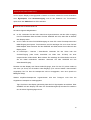
USING THE TOUCH FUNCTION
Connect the USB cable to the USB port on your PC (after you have been asked within the
software installation process).
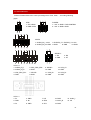
The touch-screen series also supports the use of touch through the serial port. Please order
the faytech special cable or connect the serial port according the connection definition in the
connections chapter.
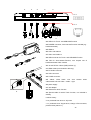
USING BACKVIEW CAMERA / VIDEO CAMERA.
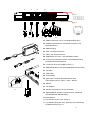
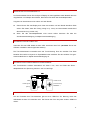
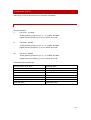
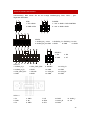
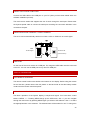
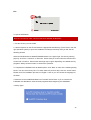
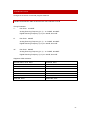
The touch monitor automatically switches to Video 2 when on PIN5 is a 12 to 36V signal.
GND
12-36V Signal
12-36V DC-IN
(5.5mm/2.5mm)
USB PORT
On the front of the touch monitor is a USB port. For usage the USB cable must be connected
to the PC. You can use the USB port as any other PC-USB port.
DISPLAY OPERATION
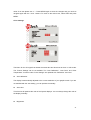
THE REMOTE CONTROL
The remote control functions are similar to the buttons on the display. Before using the remote
for the first time, please remove the thin plastic on the back side so that the battery makes
contact and the remote control has power.
OSD-MENU-OPERATION IN VGA MODE
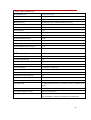
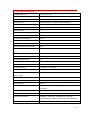
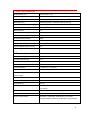
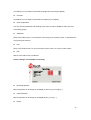
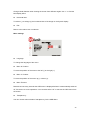
The Menu operation of the faytech display is simple and logical. You have three control
buttons. MENU, +/ -. Pressing MENU brings up the OSD menu; with +/- you can navigate
through the main menu. By pressing MENU again you switch to the submenu. Use +/- to select
the appropriate item in the submenu. The selected item will be marked in red. To change the
40