1
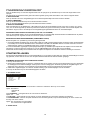
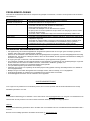
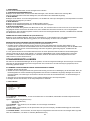
V ID E O Q U A L IT Y S E T U P SHARPNESS B R IG H T N E S S CONTRAST HUE S AT U R AT IO N E X IT S E T U P 3.1 SHARPNESS - to set the sharpness for display. Options: HIGH MEDIUM LOW 3.2 BRIGHTNESS - to set the brightness for display. 3.3 CONTRAST - to set the contrast effect for display. 3.4 HUE - to set the hue for display. 3.5 SATURATION - to set the saturation for display. 4. SYSTEM SETUP S Y S T E M PA G E TV TYPE A U D IO S U B T IT L E D IS C M E N U PA R E N TA L PA S S W O R D D E FA U LT E X IT S E T U P 4.1 TV TYPE - it is used to select the TV mode. Please select this option as per your TV set. 4.2 AUDIO - select preferred audio language. (DVD only - need disc software support) 4.3 SUBTITLE - select preferred subtitle language. (DVD only - need disc software support) 4.4 DISC MENU - select preferred disc menu language. (DVD only - need disc software support) 4.5 PARENTAL - select rating levels. You must set PASSWORD MODE ON and then enter password to enable this selection. (DVD only - need disc software support) 4.6 PASSWORD Option: Change Select to change password Procedure to change password: 1) Enter old password in the OLD PASSWORD row 2) Enter new password in the NEW PASSWORD row 3) Enter the new password again in the CONFIRM PWD row You may reset the password if you forget the old password by using the supervisor password: 1389 4.7 DEFAULT - Reset to factory settings. DISC HANDLING PRECAUTIONS Hold the disc by the edge so the surface will not be soiled with finger prints. Finger prints, dirt and scratches can cause skipping and distortion. Do not write on the label side with a ball-point pen or other writing utensils. Do not apply benzine, thinner, and liquid that prevents against static electricity. Be careful not to drop or bend the disc. Install only one disc on the disc tray. Do not try to close the disc tray when the disc is not installed properly. Be sure to store the disc in its case when not in use. TROUBLESHOOTING If your DVD player does not seem to be functioning properly, check the items below before you contact an authorized service center. Symptom Power does not turn on or suddenly turns off. No picture or sound Check Make sure the AC adapter is securely plugged into an AC outlet. Turn the power off and then back on. Check that the A/V cables are securely connected. Check that the disc is a DVD, DVD-RW or AUDIO CD. Do not use a disc that has scratches or dirt. 6