1
Basic Operations (continued)
■ Basic search
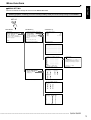
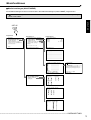
This unit displays a menu of most used search functions
simply by pressing the SEARCH button.
♦ TIME DATE SEARCH
On this unit, various search functions are available for
searching the beginning of video clips. In this section, the
most common search method referred to as time/date
search is explained. With this method, searching is possible by date, hour, minute, second and specified camera
number.
Example : Search a scene recorded on the HDD with time/
date stamp of 03/03/2002 9:25:40pm (21:25:40) using camera number “ 3 ”.
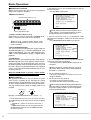
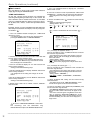
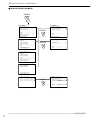
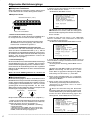
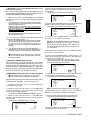
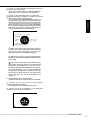
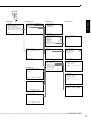
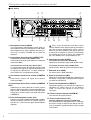
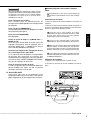
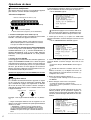
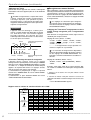
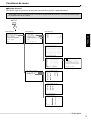
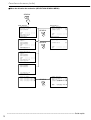
1. Press the SEARCH button to display the <TIME DATE
SEARCH> screen.
• The default setting of the search menu displayed when
pressing the SEARCH button is “TIME DATE SEARCH”.
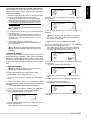
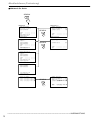
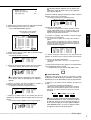
7. Press the SEARCH button to display the <SEARCH
SELECTION> screen.
8. Check to see that the cursor is positioned at “SELECTION
CAMERA NO. ”, and then turn the SHUTTLE ring clockwise.
• The background of the setting item changes to red and
flashes.
9. Turn the JOG dial to select “
clockwise.
3 ” and turn the SHUTTLE ring
• Setting is confirmed and flashing stops.
• Setting ( default : “ALL” )
“ALL”, “ 1 ”, “ 2 ”, “ 3 ”, “ 4 ”, “ 5 ”, “ 6 ”, “ 7 ”,
“ 8 ”, “ 9 ”
“ALL” : Search is conducted for all camera number “ 1 ” ~
“ 9 ”.
<SEARCH SELECTION>
SEARCH TYPE
TIME DATE
3
>>SELECTION CAMERA NO.
PLAYBACK DEVICE
HDD
<TIME DATE SEARCH>
>>01-01-2002
00:00:00
START
END
EXECUTE(FORWARD)
START
END
02-02-2002
04-04-2002
00:00:00
12:30:15
PUSH SEARCH KEY FOR
SEARCH SELECTION
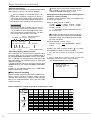
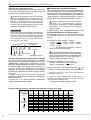
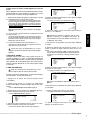
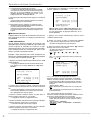
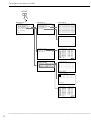
2. Check to see that the cursor is next to the search date and
turn the SHUTTLE ring clockwise twice.
• The display reverses in color when the SHUTTLE ring is
turned the first time. When the ring is turned for the second
time, the display turns red and flashes.
3. Turn the JOG dial to display “03” for “DAY” and turn the
SHUTTLE ring clockwise.
• Setting is confirmed and flashing stops.
4. Turn the JOG dial to reverse display “MONTH” and turn the
SHUTTLE ring clockwise.
• The background of the setting item changes to red and
flashes.
5.Turn the JOG dial to display “03” for “MONTH” and turn the
SHUTTLE ring clockwise.
• Setting is confirmed and flashing stops.
6. Repeat steps 4 and 5 to set “YEAR”, “HOUR”, “MINUTE”
and “SECOND”.
21:25:40
EXECUTE(FORWARD)
START
END
02-02-2002
04-04-2002
00:00:00
12:30:15
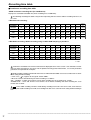
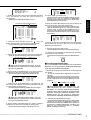
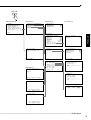
10-1. (To change the playback device • • • )
Turn the JOG dial to select “PLAYBACK DEVICE” and turn
the SHUTTLE ring clockwise.
• The background of the setting item changes to red and
flashes. Turn the JOG dial to display the desired playback
device and confirm.
• Setting ( default : “HDD” )
“HDD” : Select when playing back HDD contents.
“CFC” : Select when playing back Compact Flash Card
contents.
10-2. (To change the search type • • • )
Turn the JOG dial to select “SEARCH TYPE” and turn the
SHUTTLE ring clockwise.
• The background of the setting item changes to red and
flashes. Turn the JOG dial to display the desired search menu
and confirm.
• Setting ( default : “TIME DATE” )
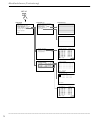
“TIME DATE”, “INDEX”, “ALARM INDEX”, “ALARM SKIP”,
“ALARM LIST”
11. When completed with setting, turn the SHUTTLE ring
counterclockwise.
• The display returns to the <TIME DATE SEARCH> screen
and the cursor appears on the left of the search date.
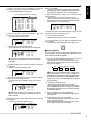
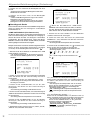
12. Turn the JOG dial to select “EXECUTE(FORWARD)” and
turn the SHUTTLE ring clockwise.
<TIME DATE SEARCH>
>>03-03-2002
02-02-2002
04-04-2002
00:00:00
12:30:15
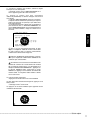
• The TIME DATE SEARCH begins the video of the set date/
time (or the video closest to the search) will appear in still
frame.
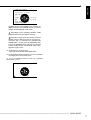
• The search result will appear using SPLIT9 screen when
“ALL” is selected in “SELECTION CAMERA NO.” of the
“SEARCH SELECTION” screen. If camera number has been
selected individually, the still frame will be displayed in a
single screen.
PUSH SEARCH KEY FOR
SEARCH SELECTION
To exit the <TIME DATE SEARCH> screen without searching, turn the SHUTTLE ring
counterclockwise or press the SEARCH button twice.
••••••••••••••••••••••••••••••••••••••••••••••••••••••••••••••••••••••••••••••••••••••••••••••••••••••••••••••••••••••••••••••••••••••••••••••
10