1
Using MimioStudio Notebook
l
To select a range of pages, select the first page, and then press SHIFT and select
the last page.
l
To select all pages, choose Select All from the Edit menu.
To insert a duplicate of an existing page
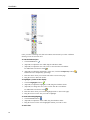
1. In the Tab View, click , and then select the page to duplicate.
2. Do one of the following:
l
Choose Duplicate Page from the Insert menu.
l
(Capture mode only) Press the Copy Page button,
, on your MimioCapture tray.
To delete a page
1. In the Tab View, click , and then select the page to delete.
2. Click the Delete button, .
To import a page from another Notebook
1. In the Tab View of the source Notebook, click and then select the page to import.
2. Click the Copy button,
.
3. Select the location in the target Notebook to insert the page.
4. Click the Paste button, .
You can also import pages by dragging the pages from the source Notebook to the
target Notebook.
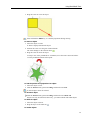
To insert the desktop as a new page
1. From MimioStudio Tools, click the Screen Clipping button,
The desktop is displayed with a transparent mask.
.
2. Click the text Click here to capture this Desktop as a New Page.
The desktop is inserted as a new page in the Notebook.
To change the page size
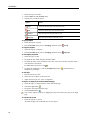
1. Choose Page Setup from the File menu.
The Page Setup dialog box appears.
2. Do one of the following:
l
From the Page Size list, choose any of the available display or device sizes.
l
From the Page Size list, choose Custom, and then enter the desired valued into the
Width and Height boxes.
3. From the Apply To list, choose one of the following:
l
Current Page to apply the page size to the current page only.
This option is not available if more than one page is selected in the Tab View.
l
Selected Pages to apply the page size to the selected pages.
This option is only available if more than one page is selected in the Tab View.
l
Whole Document to apply the page size to all of the pages in the Notebook.
4. (Optional) Do one of the following:
l
To apply the page size to all new pages, select the All new pages check box.
This option is only available if no MimioTeach device is connected.
l
To apply the page size to all new pages and the currently connected device, select
11