1
Chapter 3. IBM Cognos Connection
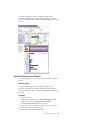
IBM Cognos Connection is the portal to IBM Cognos software. IBM Cognos
Connection provides a single access point to all corporate data available in IBM
Cognos software.
You can use IBM Cognos Connection to work with entries such as reports,
analyses, queries, agents, metrics, and packages. You can use IBM Cognos
Connection to create shortcuts, URLs, and pages, and to organize entries. You can
personalize IBM Cognos Connection for your own use.
You can use IBM Cognos Connection to create and run reports and cubes and
distribute reports. You can also use it to create and run agents and schedule
entries.
If you use a customized user interface, you may not have access to all the features
documented.
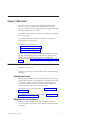
Related concepts:
“Distributing Reports” on page 101
You can distribute reports to other users to share information with them.
Chapter 6, “Reports and Cubes,” on page 71
You can use reports, cubes, and documents to analyze data and help you make
informed and timely decisions.
Chapter 9, “Agents,” on page 141
You can create agents in Event Studio to monitor your organization's data for
occurrences of business events. After an agent is published to the portal, use IBM
Cognos Connection to manage it.
Chapter 12, “Schedule Management,” on page 165
You can schedule IBM Cognos entries to run at a time that is convenient for you.
For example, you may want to run reports or agents during off hours when
demands on the system are low. Or you may want to run them at a regular weekly
or monthly interval.
Log On
IBM Cognos software supports authenticated and anonymous user access. To use
IBM Cognos software as an authenticated user, you must successfully log on.
During the logon process, you must provide your credentials, such as user ID and
password, as required by your organization. Anonymous users do not log on.
Tip: If you want to see a summary of your logon information for the current
session, in the portal, click My Area Options, My Preferences and then click the
Personal tab. This is not available to anonymous users.
Procedure
1. In the portal, click Log On.
2. If the namespace Logon page appears, in the Namespace box, click the
namespace you want to use.
3. Click OK and type your user ID and password.
4. Click OK.
© Copyright IBM Corp. 2005, 2012
15