1
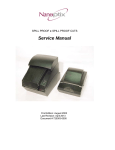
Heavy Duty Kiosk Thermal Printer
Owner's Manual
First Edition: April 2003
Last Revision: July 2005
Document #103701-0000R00
Heavy Duty Kiosk Thermal Printer
Owner’s Manual
Legal Notices
Disclaimer
Information in this document is subject to change without notice. Consult your Nanoptix Inc. sales
representative for information that is applicable and current. Nanoptix Inc. reserves the right to
improve products as new technology, components, software, and firmware become available.
No part of this document may be reproduced or transmitted in any form or by any means,
electronic or mechanical, for any purpose without the express written permission of Nanoptix Inc.
Copyright
Copyright 2003 by Nanoptix Inc.
Dieppe, New Brunswick Canada
All rights reserved
Printed in Canada
Confidential, Unpublished
Property of Nanoptix Inc.
Trademarks
Epson is registered trademark of Epson Corporation.
Windows is registered trademark of Microsoft Corporation.
Nanoptix is a trademark. Other trademarks and registered trademarks are the property of their
respective holders.
Federal Communications Commission (FCC)
Radio Frequency Interference Statement
Warning
Changes or modifications to this unit not expressly approved by the party responsible for
compliance could void the user’s authority to operate the equipment.
Note
This equipment has been tested and found to comply with the limits for a Class A digital device,
pursuant to Part 15 of the FCC Rules. These limits are designed to provide reasonable protection
against harmful interference when the equipment is operated in a commercial environment. This
equipment generates, uses, and can radiate radio frequency energy and, if not installed and used
in accordance with the instruction manual, may cause harmful interference to radio
communications. Operation of this equipment in a residential area is likely to cause harmful
interference in which case the user will be required to correct the interference at his own
expense.
Information to the User
This equipment must be installed and used in strict accordance with the manufacturer's
instructions. However, there is no guarantee that interference to radio communications will not
occur in a particular commercial installation. If this equipment does cause interference, which can
be determined by turning the equipment off and on, the user is encouraged to contact Nanoptix
Inc. immediately.
103701-0000R00
July 2005
ii
Heavy Duty Kiosk Thermal Printer
Owner’s Manual
Nanoptix Inc. is not responsible for any radio or television interference caused by unauthorized
modification of this equipment or the substitution or attachment of connecting cables and
equipment other than those specified by Nanoptix Inc. The correction of interferences caused by
such unauthorized modification, substitution or attachment will be the responsibility of the user.
In order to ensure compliance with the Product Safety, FCC and CE marking requirements, you
must use the power supply, power cord, and interface cable which were shipped with this product
or which meet the following parameters:
Power Supply
UL Listed power supply with standard 60Hz-50Hz, 100-240VAC input and 24VDC output
equipped with AC line filtering, over-current and short-circuit protection.
Use of this product with a power supply other than the Nanoptix Inc. power supply will require you
to test the power supply and Nanoptix Inc. printer for FCC and CE mark certification.
Communication Interface Cable
An approved Nanoptix interface cable must be used with this product. Use of a cable other than
Nanoptix approved product will require that you test the cable with the Nanoptix Inc. printer and
your system for FCC and CE mark certification.
Power Cord
A UL listed, detachable power cord must be used. A power cord with Type SVT marking must be
used. For applications outside the North America, power cords that meet the particular country’s
certification and application requirements should be used.
Use of a power cord other than described here may result in a violation of safety certifications
that is in force in the country of use.
Industry Canada (IC)
Radio Frequency Interference Statement
This Class A digital apparatus meets all requirements of the Canadian Interference-Causing
Equipment Regulations.
Cet appareil numérique de la classe A respecte toutes les exigences du Règlement sur le
matériel brouilleur du Canada.
103701-0000R00
July 2005
iii
Heavy Duty Kiosk Thermal Printer
Owner’s Manual
Table of Contents
1. ABOUT THE PRINTER................................................................ 1
1.1 Description of Printer ...................................................................................1
1.2 Options Available..........................................................................................2
1.3 General specifications..................................................................................2
1.4 Printer Controls.............................................................................................3
To reset Printer ............................................................................................................. 3
Paper Feed Button ........................................................................................................ 4
1.5 Changing Paper ............................................................................................5
1.6 Testing the Printer ........................................................................................9
1.7 Troubleshooting the Printer.......................................................................10
Printer LED.................................................................................................................. 10
Printing Problems........................................................................................................ 10
Printer Does Not Work ................................................................................................ 11
2. MEDIA AND SUPPLIES GUIDE................................................ 12
2.1 Thermal Paper Specifications....................................................................12
2.2 Ordering Thermal Paper .............................................................................12
2.3 Ordering Miscellaneous Supplies .............................................................13
Power Supply and Power Cords ................................................................................. 13
Ordering Communication Cables ................................................................................ 13
Communication Cables Pin-Out.................................................................................. 14
3. COMMUNICATING WITH THE PRINTER ................................. 15
APPENDIX A: MECHANICAL DRAWINGS .................................... 16
103701-0000R00
July 2005
iv
Heavy Duty Kiosk Thermal Printer
Owner’s Manual
Figures
FIGURE 1: NANOPTIX HEAVY DUTY KIOSK PRINTER ............................................................................ 1
FIGURE 2: RESETTING PRINTER.......................................................................................................... 3
FIGURE 3: PAPER FEED BUTTON ........................................................................................................ 4
FIGURE 4: LOADING PAPER................................................................................................................ 5
FIGURE 5: INSERTING THE PAPER ....................................................................................................... 6
FIGURE 6: ALIGNING THE PAPER......................................................................................................... 7
FIGURE 7: CLOSING DOOR ................................................................................................................. 8
FIGURE 8: TEST TICKET ..................................................................................................................... 9
FIGURE 9: MECHANICAL DIMENSIONS FRONT .................................................................................... 16
FIGURE 10: MECHANICAL DIMENSIONS SIDE ..................................................................................... 17
FIGURE 11: MECHANICAL DIMENSIONS TOP ...................................................................................... 18
103701-0000R00
July 2005
v
Heavy Duty Kiosk Thermal Printer
Owner’s Manual
Tables
TABLE 1: SPECIFICATION ................................................................................................................... 2
TABLE 2: TROUBLESHOOTING WITH THE STATUS LED....................................................................... 10
TABLE 3: TROUBLESHOOTING PRINTING PROBLEMS ......................................................................... 10
TABLE 4: PRINTER DOES NOT WORK ............................................................................................... 11
TABLE 5: THERMAL PAPER DIMENSIONS .......................................................................................... 12
TABLE 6: THERMAL PAPER PART NUMBERS ..................................................................................... 12
TABLE 7: POWER SUPPLY AND POWER CORD PART NUMBERS ......................................................... 13
TABLE 8: COMMUNICATION CABLES PART NUMBERS ........................................................................ 13
TABLE 9: RS-232 INTERFACE PIN-OUT ............................................................................................ 14
103701-0000R00
July 2005
vi
Heavy Duty Kiosk Thermal Printer
Owner’s Manual
1. About the Printer
1.1 Description of Printer
The Nanoptix Heavy Duty Kiosk printer is extremely fast, quiet, and very reliable. With
thermal printing technology, there is no ribbon cassette to change, and paper loading is
extremely simple. The paper roll mounting bracket is designed to be mounted on the left
side or on the right side. Upon request, the bottom plate can be customized to fit your
need.
Figure 1: Nanoptix Heavy Duty Kiosk Printer
103701-0000R00
July 2005
1
Heavy Duty Kiosk Thermal Printer
Owner’s Manual
1.2 Options Available
There are several options available for the Nanoptix Heavy Duty Kiosk. Please call your
representative for the most recent information at 1-888-983-3030 (Toll-free North
America) or 506-384-3388 or by e-mail at [email protected].
1.3 General specifications
Print Method
Resolution
Print Width
Paper Width
Max Roll Diameter
Operating Temperature
Storage Temperature
Operating Relative Humidity
Communication Interface Options
Memory/Firmware
Resident Character Sets
Integrated Bar Codes
Speed
Sensors
Human Interface
Dimensions
Weight
Emission Standards
Direct Thermal
8 dot/mm (203 dpi)
80mm
82.5 mm
250 mm, recommended core size is 52mm
inner diameter, plastic or cardboard, paper
must not glued or taped
0 to 50 C
-40 C to +65 C
20% to 85% RH at 50C (non-condensing)
USB, RS-232C, RS-485, IEEE1284
1 Mbit of SRAM, 2 Mbit of flash and16Kbit of
EEPROM
Arial Bold (6 sizes)
Note: Other Character sets can be
programmed quickly
UPC-A, UPC-E, interleaved 2 of 5, 3 of 9,
Code 128, EAN 8, EAN 13.
Note: Other Bar Codes can be programmed
quickly
Up to 130 mm/second
• Paper out
• Door open
• Paper low
• Cutter not homed
• Top of form (optional)
Drop-in paper loading, status LED, paper feed
button
170mm width x 265mm height x 295mm depth
3.7 Kg
United States - FCC Part 15 Subpart B
Canada - Industry Canada ICES-003
Europe – EN 55022
Class A emissions
Table 1: Specification
103701-0000R00
July 2005
2
Heavy Duty Kiosk Thermal Printer
Owner’s Manual
1.4 Printer Controls
To reset Printer
Simply plug and unplug the printer to reset the printer in case of a fault condition. Once
the printer is re-plugged, the printer goes through a startup routine and resets itself.
Figure 2: Resetting Printer
103701-0000R00
July 2005
3
Heavy Duty Kiosk Thermal Printer
Owner’s Manual
Paper Feed Button
Use the Paper Feed Button to advance the paper.
Figure 3: Paper Feed Button
103701-0000R00
July 2005
4
Heavy Duty Kiosk Thermal Printer
Owner’s Manual
1.5 Changing Paper
Caution: Do not operate the printer if the printer runs out of paper. The printer will not
operate without paper, but it may continue to accept data from the host computer.
Because the printer cannot print any transactions, the data may be lost.
1. Remove the used roll.
2. Tear off the end of the new roll so that the edge is loose and place the new roll onto
the spindle at the back of the printer. Make sure that the paper unrolls from the top of
the roll.
Figure 4: Loading Paper
Caution: Be sure the paper unrolls from the top of the roll. Otherwise, the printer will not
print or the paper will jam.
103701-0000R00
July 2005
5
Heavy Duty Kiosk Thermal Printer
Owner’s Manual
3. Open the front door of the printer by pulling on the handle.
4. Pull up on the paper tensioner (arrow 1 in figure below). Then pull the paper
underneath the tensioner then up (arrow 2 in figure below).
Figure 5: Inserting the paper
103701-0000R00
July 2005
6
Heavy Duty Kiosk Thermal Printer
Owner’s Manual
5. Align the left edge of the paper to the line on the label as shown in figure below.
Figure 6: Aligning the paper
103701-0000R00
July 2005
7
Heavy Duty Kiosk Thermal Printer
Owner’s Manual
6. Close the door as illustrated.
Figure 7: Closing door
7. Press the paper feed button. The paper will advance and the paper will be cut,
leaving a clean edge for the next printed ticket.
Note: In the event of a paper jam, open the door, pull paper past the crumpled part, tear
a new edge, and follow above instructions on inserting and aligning the paper.
103701-0000R00
July 2005
8
Heavy Duty Kiosk Thermal Printer
Owner’s Manual
1.6 Testing the Printer
Run this test to check the printer. The test prints and cuts a resident test ticket. Verify
this ticket to judge the printing quality.
Model:
Firmware:
TITANIA
TIT-2.41G-61UCS
COMMUNICATION
Interface:
Baud:
Data Bits:
Parity:
Handshaking:
Print Mode:
Aux Port:
IEEE1284 (0) or Serial
9600
8
NONE
NONE
NTL
Disabled
PRINT CONTROL
Darkness Control:
Voltage:
Temperature:
Speed:
Black Bar Index:
-1%
24.2 Volts
26 Celcius
4 IPS
Disabled
SYSTEM RESOURCES
FLASH
-Used:
-Free:
0
24576
LIBRARY INVENTORY
Templates:
0,1,2
Print Regions:
1,2,3,4,5,6,7,8,
h,9,A,B,C,D,E,F,G,
I,J,K,L,N,O,P,Q,R,
S,T,U,Z,X,a,b,c,d,
e,f,g,i,j,k,l,m,n,
o,p,q,
Graphics:
Fonts:
None
0,3,5,7,8
MANUFACTURING INFORMATION
Printer ID:
Date Code:
PWM Setting:
A to D:
Resets:
Tickets:
Status: TIT-2.41G-40-40-40-40-40-P
5465789
20184
7F7F7F7FFFFFFF
DE7AA400FD000000
9
00001336
Figure 8: Test Ticket
To print the test ticket, power-on the printer while pressing and holding the Paper Feed
Button for approximately 3 seconds. A test ticket similar to above will be printed
approximately 5 seconds after. Press the paper feed button once more and the ticket
will feed. Pressing the button again will result in blank tickets.
103701-0000R00
July 2005
9
Heavy Duty Kiosk Thermal Printer
Owner’s Manual
1.7 Troubleshooting the Printer
The printer is simple and generally trouble-free, but from time to time minor problems
may occur. Follow these procedures to determine the cause and resolution of any
problems the printer may be having. If the procedures in this section do not correct the
problem, contact a service representative.
Printer LED
Condition
LED Status
Unit ready
Unit is in Reset or Booting
Unit in standby (powered off)
Paper Out
Door Open
Paper Jam
Missing Black Index Mark
Temperature Error
Voltage Error
Print Head Error
ON
OFF
OFF
Slow Blink
Fast Blink
Fast Blink
Fast Blink
Med Blink
Med Blink
Med Blink
Table 2: Troubleshooting with the status LED
Printing Problems
Problem
Receipt does not come
out all the way.
Possible Causes
Paper is jammed.
Printer starts to print,
but stops while the
receipt is being printed.
Paper is jammed.
Paper is jammed.
Receipt is not cut.
Print is light or spotty.
Vertical column of print
is missing.
One side of receipt is
missing.
The printer is not
configured for a cutter.
Paper roll loaded
incorrectly.
Thermal printhead is
dirty.
This indicates a serious
problem with the printer
electronics.
This indicates a serious
problem with the printer
electronics.
What to Do
Open the printer door,
inspect the cutter, and
clear any jammed paper.
Open the printer door,
inspect the cutter, and
clear any jammed paper.
Open the printer door,
inspect the cutter, and
clear any jammed paper.
Contact your authorized
service representative.
Check that the paper is
loaded properly.
Use recommended
thermal receipt paper.
Contact your authorized
service representative.
Contact your authorized
service representative.
Table 3: Troubleshooting Printing Problems
103701-0000R00
July 2005
10
Heavy Duty Kiosk Thermal Printer
Owner’s Manual
Printer Does Not Work
Problem
Possible Causes
Printer Does Not
Function When Turned
On.
Printer not plugged in.
Door not fully
closed.
What to Do
Check that printer cables
are properly connected
on both ends.
Check that the host or
power supply is getting
power.
Close the door.
Table 4: Printer Does Not Work
103701-0000R00
July 2005
11
Heavy Duty Kiosk Thermal Printer
Owner’s Manual
2. Media and Supplies Guide
2.1 Thermal Paper Specifications
The printer requires qualified thermal paper with the following dimensions:
Width
Diameter
82.5 mm ± .2 mm (3.25 in. ± .008
in.)
250 mm max. (10 in.)
Recommended Inside Core
Diameter
50mm (2 inches) - Plastic
Table 5: Thermal Paper Dimensions
The paper should not be attached to the core. If Top of Form Option is installed, paper
with a colored stripe at the end can be used to indicate that the paper is running low.
2.2 Ordering Thermal Paper
We recommend the following paper grades produced by their respective manufacturers.
There are a number of paper converters qualified to supply this paper, provided the POS
rolls are from these recommended grades.
Manufacturer
Kanzaki Specialty Papers
(USA)
Kanzan Spezialpapiere
GMBH (Germany)
Appleton Papers, Inc.
(USA)
Blumberg GMBH
Mitsubishi
Paper Grade
P-350
F380
Lotto 480
KT300 (thick cutter only)
TO381N (thick cutter only)
KLS 36
KLS 46
KT415s+ (thick cutter only)
Optima T-886 B
Royale 4.5 or 5.3 (thick cutter
only)
T49-32
TP8065
Paper Thickness
61 µm / 2.4mil
60 µm / 2.4 mil
83 µm/ 3.3 mil
183 µm/7.2 mil
115 µm/ 4.5mil
80 µm / 3.2 mil
80 µm / 3.2 mil
183 µm / 7.2 mil
82 µm / 3.2 mil
135µm / 5.3 mil
88 µm/ 3.4 mil
80 µm/ 3.2 mil
Table 6: Thermal Paper Part Numbers
Additional grades can be qualified and made available. Contact your sales
representative for more information.
103701-0000R00
July 2005
12
Heavy Duty Kiosk Thermal Printer
Owner’s Manual
2.3 Ordering Miscellaneous Supplies
Power Supply and Power Cords
Contact your sales representative to order the power supply and power cords listed in
the table. The numbers are for reference only. Suppliers may use other numbers.
Part
Power Supply (24VDC, 2.5A max., 60W)
Power Cord – North American
Power Cord – Continental Europe
Part Number
102048
102080
102086
Table 7: Power Supply and Power Cord Part Numbers
Ordering Communication Cables
Contact your sales representative to order the communication cables listed in the table.
The numbers are for reference only. Suppliers may use other numbers.
Part
Standard RS232 communication cable (Host Cable)
Part Number
102082
(DB9 male plug, DB9 female receptacle)
Standard RS232 communication cable (Host Cable)
102106
(DB9 female receptacle, DB25 male plug)
Serial RS232 communication harness (Adapter Harness)
(DB9 male plug to DB25 female receptacle)
Parallel communication cable (Host Cable)
102042
102083
(IEEE 1284 Type A to B - Large Centronics to DB25)
USB communication cable (Host Cable)
102085
(Type A to mini B)
Table 8: Communication Cables Part Numbers
103701-0000R00
July 2005
13
Heavy Duty Kiosk Thermal Printer
Owner’s Manual
Communication Cables Pin-Out
The tables below detail the connection pin-out for the RS-232 interface (Female DB-9).
Pin
Signal Name
1
n/a
51R pull up to 5V
Input
2
3
4
5
PRT_RS232_TXD
PRT_RS232_RXD
n/a
Signal Ground
Output
Input
No connect
Signal Ground
Input
Output
Output
Signal Ground
6
7
RS232_DSR
PRT_RS232_CTS
(host RTS)
PRT_RS232_RTS
(host CTS)
n/a
Frame Ground
8
9
Shell
Printer I/O
Host I/O
4K7 pull up to 5V
Input
Input
Output
Printer
Function
Aux Power
(low current)
Data transmit
Data receive
None
Signal
Ground
Printer Ready
Handshake
Output
Input
Handshake
100k pull up to 5V
Frame Ground
Input
Frame Ground
None
Shield
Table 9: RS-232 Interface Pin-Out
103701-0000R00
July 2005
14
Heavy Duty Kiosk Thermal Printer
Owner’s Manual
3. Communicating with the Printer
Over the years, Nanoptix has developed emulations for compatibility with the most
popular printers in the market. At the time of printing this manual, the following
emulations are available:
i.
ii.
iii.
iv.
v.
vi.
vii.
Epson LQ570+ / Nanoptix Command set (default from factory)
Epson TM-T88III
Star TUP-400
Axiohm A722
Ithaca P70
Ithaca P170
Citizen 3551
Please contact your sales representative if you require other emulations. If we do not
have the emulation you need, we can provide most emulations in a short timeframe. If
you are not required to emulate other printer, please ask your sales representative for
the latest Nanoptix Windows Driver or the “Nanoptix Programming Guide” which will list
the Nanoptix ESC/P commands.
103701-0000R00
July 2005
15
Heavy Duty Kiosk Thermal Printer
Owner’s Manual
APPENDIX A: Mechanical Drawings
Figure 9: Mechanical Dimensions Front
103701-0000R00
July 2005
16
Heavy Duty Kiosk Thermal Printer
Owner’s Manual
Figure 10: Mechanical Dimensions Side
103701-0000R00
July 2005
17
Heavy Duty Kiosk Thermal Printer
Owner’s Manual
Figure 11: Mechanical Dimensions Top
103701-0000R00
July 2005
18