1
Overview of the App
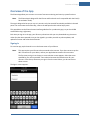
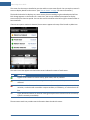
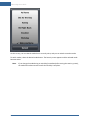
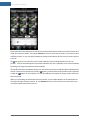
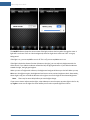
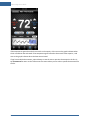
On the Settings screen, if you have access to more than one site, all of the sites you can access are listed,
with a check mark next to the site you are currently viewing. To select a different site to view, tap the
name of the site. You return to the home screen for the new site.
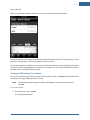
To sign out of the app, tap Sign Out. You return to the Sign In screen.
When finished, tap Done to return to the previous screen.
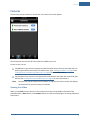
Signing Out
It is not necessary to explicitly sign out of the app. It automatically signs you out after a period of
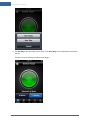
inactivity. However, to explicitly sign out of the app, tap
Note:
on any screen, and then tap Sign Out.
To keep your information secure, use the Passcode Lock feature of your iPhone, which you
can find in the Settings utility on your iPhone's home screen.
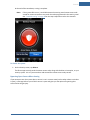
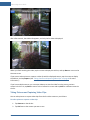
If your iPhone goes to sleep while running the app, you can remain signed in. When you
wake up your phone, the screen might display a reconnecting message while it reconnects to
the server to update the data on the current screen.
Navigation
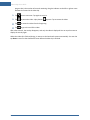
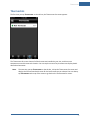
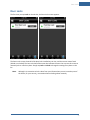
You navigate through the app using the tab bar that appears at the bottom of the main screens of the
app.
Refer to the following sections for more information about each area:
"Security" on page 4
"Cameras" on page 15
"Lights" on page 21
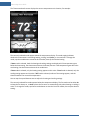
"Thermostats" on page 23
"Door Locks" on page 27
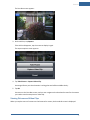
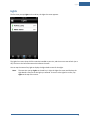
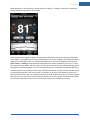
Swiping works the same way in this app as in other iPhone apps. When you are viewing details about a
device, if there is more than one device of that type, you can swipe right-to-left to go to the details screen
for the next device, or swipe left-to-right to go to the details screen for the previous device.
3