1
Recovering Your ID
If your ID is compromised in some way, customer support may instruct you to use this tool to recover it.
1
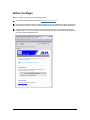
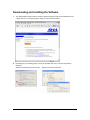
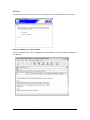
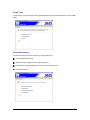
From the ID Tools main page, click ‘Add a Secure Mail ID’. The Secure Mail Activation Wizard is
displayed.
2
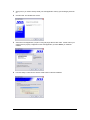
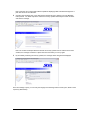
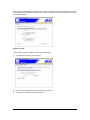
Enter your Secure Mail email address and click ‘Next.’ The Secure Mail Account Information dialog box
is displayed.
3
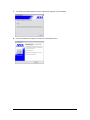
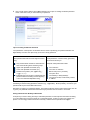
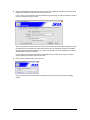
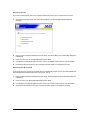
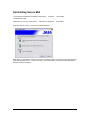
In the box, enter your Secure Mail Password and click 'Next'.
4
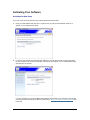
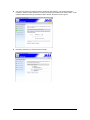
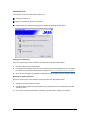
A confirmation message will appear once the recovery is complete. Click 'Finish' to close the window.
5
Close Microsoft Outlook and any open messages and then restart it to complete the recovery.
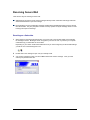
Recovering your ID on startup
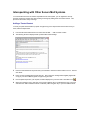
In the event your ID is removed or corrupted, this tool automatically prompts you for your email address and
the associated Secure Mail Password so it can recover your ID.
1
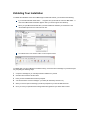
Enter your Secure Mail email address and click 'Next'. The Secure Mail Account Information dialog box
is displayed.
2
In the box, enter your Secure Mail Password and click 'Next'.
3
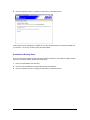
A confirmation message will appear once the recovery is complete. Click 'Finish' to close the window.
4
Close Microsoft Outlook and any open messages and then restart it to complete the recovery.
Secure Mail User Guide for Microsoft Outlook Express
27 of 31