1
QUICK GUIDE FOR BOARD DIRECTORS
Section: 04 The Learning Management System
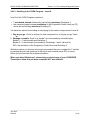
(Portal) and at the external e-mail address you specified in your My Profile.
Please watch for them.
Now, proceed to Step 7 below.
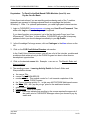
B. Click Request Approval (if your credit union is a CUSOURCE Corporate
Subscriber)
i. A Thank You screen will appear advising you that your request has been sent
to the credit union’s CUSOURCE Manager for his/her approval. (The name
of your CUSOURCE Manager is in My Profile.) The e-mail will appear in
your CUSOURCE My InBox (on the Knowledge Exchange) and at the
external e-mail address you specified in My Profile.
The workshop will also appear on your My Learning Plan with a Status of
“Pending Approval”.
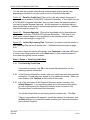
ii. When your request is approved, you will receive e-mail notification from your
credit union’s CUSOURCE Manager. The notification will appear in your
CUSOURCE My InBox (on the Knowledge Exchange) and at the external email address you specified in your My Profile.
iii. Now approved, the Status of your course/workshop in your My Learning
Plan changes to “Approved”. Enroll by clicking on the course title in My
Learning Plan. You can also choose to Remove the course.
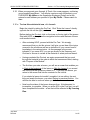
iv. Click “Enroll” in the Learning Activities Details screen for the Corporate
Governance workshop.
7. Your Successful enrollment will be confirmed by e-mail to your CUSOURCE My
InBox and the external e-mail address specified in your My Profile. The Status of
your enrollment on your My Learning Plan will change to “Enrolled”.
If the session you wanted to enroll in was full, you can ask to be placed on a Wait
List. You will be notified by e-mail if space becomes available; if so, the enrollment
process recommences. This means that you need to carefully watch your
CUSOURCE My InBox and your external e-mail in case space does become
available.
____________________________________________________________________________________
July 2004
Revised:
04.37