1
• BIRTHDATE
• COMPLETE ADDRESS & POSTAL CODE (for Canadians) USA
addresses put the US State Code in the Province field and USA in
the Country Field, and Zip code in the Postal Code field
Notes:
• no nicknames and full first and last names, not initials, should be entered
• the legal given and surname of a baby should be entered where known. If
unknown, the name should be entered as “Baby, Boy A” for example.
• the age field is calculated and cannot be updated
• billing plans are accessed and updated by pressing the F5 key.
• the ‘alternate PHN’ field is used for doctors’ offices and situations where
profile mailings are to be sent to a parent or someone other than the patient
himself
• allergies are NOT automatically sent to Pharmanet (use ‘set net DUE’)
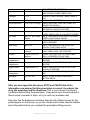
• the 2 lines describing hotkeys at the bottom of the screen describe local
functions (top line) and network functions (bottom line)
• address information can be updated in PharmaNet by using the F11 key
• brackets may NOT appear in a patient name e.g. RAY (RED) but quotes may
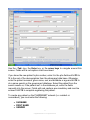
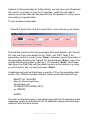
Hit F10 when you have finished entering data to create/update the patient
record. ESC will allow you to exit the patient update screen without saving any
changes you have made.
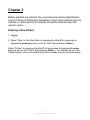
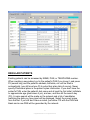
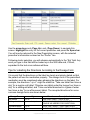
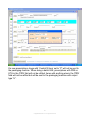
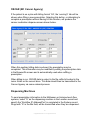
To check or edit the information entered for a patient, press the letter B to select
“Browse” from the Main Menu then press the letter P to select “Patient”. A box
will pop up requesting the patient’s name. Enter the patient’s last name (or the
first few letters of the last name) or a PHN and press <Enter>. You will now be
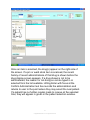
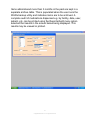
at the Patient Selection Screen, as shown:
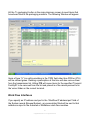
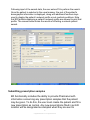
Use the cursor key to move down and choose the correct patient. There may be
many patients in the system with the same name. Use the <Page Up> and
<Page Down> keys to scan through the pages of entries to find your patient,
and the arrow keys within a page to select the correct patient.
Note the function keys indicated on the information line at the bottom of the
screen i.d. press <Enter> if you wish to look at the Patient screen and perhaps
do any editing of the information you previously entered, press the space bar if
you wish to fill a new prescription for the patient, etc.
14
© Applied Robotics Inc. All rights reserved.