1
6 Troubleshooting
6.5
Reset to Factory Defaults
Resetting your Thomson Gateway
If at some point you can no longer connect to the Thomson Gateway or you want to make a fresh install, it
may be useful to perform a reset to factory defaults.
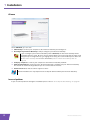
Warning
A reset to factory default settings deletes all configuration changes you made. Therefore, after the reset, a
reconfiguration of your Thomson Gateway will be needed.
Also your wireless clients will have to be re-associated, as described in “3 Wireless Access” on page 23.
Methods
You can choose between:
Resetting the Thomson Gateway via the Thomson Gateway GUI
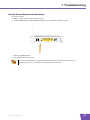
Reset the Thomson Gateway via the Reset button
Resetting the Thomson Gateway via the Thomson Gateway GUI
Proceed as follows:
50
1
Browse to the Thomson Gateway GUI.
2
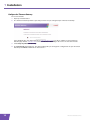
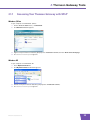
On the Thomson Gateway menu, click Configuration.
3
In the Pick a task list, click Reset my Thomson Gateway.
4
The Thomson Gateway restores the initial configuration and restarts.
5
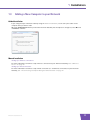
The Thomson Gateway returns to the Thomson Gateway home page (unless the IP address of your
computer is not in the same subnet as the default IP address of the Thomson Gateway, being
192.168.1.254).
E-DOC-CTC-20090708-0001 v1.0