1
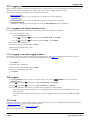
IP Office
9500 Series Phone User Guide
Issue 03h - (27 July 2011)
© 2011 AVAYA All Rights Reserved.
Notices
While reasonable efforts have been made to ensure that the information in
this document is complete and accurate at the time of printing, Avaya
assumes no liability for any errors. Avaya reserves the right to make changes
and corrections to the information in this document without the obligation to
notify any person or organization of such changes.
Documentation disclaimer
Avaya shall not be responsible for any modifications, additions, or deletions
to the original published version of this documentation unless such
modifications, additions, or deletions were performed by Avaya.
End User agree to indemnify and hold harmless Avaya, Avaya's agents,
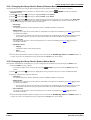
servants and employees against all claims, lawsuits, demands and judgments
arising out of, or in connection with, subsequent modifications, additions or
deletions to this documentation, to the extent made by End User.
Link disclaimer
Avaya is not responsible for the contents or reliability of any linked Web sites
referenced within this site or documentation(s) provided by Avaya. Avaya is
not responsible for the accuracy of any information, statement or content
provided on these sites and does not necessarily endorse the products,
services, or information described or offered within them. Avaya does not
guarantee that these links will work all the time and has no control over the
availability of the linked pages.
Warranty
Avaya provides a limited warranty on this product. Refer to your sales
agreement to establish the terms of the limited warranty. In addition, Avaya’s
standard warranty language, as well as information regarding support for this
product, while under warranty, is available to Avaya customers and other
parties through the Avaya Support Web site: http://www.avaya.com/support.
Please note that if you acquired the product from an authorized Avaya reseller
outside of the United States and Canada, the warranty is provided to you by
said Avaya reseller and not by Avaya.
Licenses
THE SOFTWARE LICENSE TERMS AVAILABLE ON THE AVAYA WEBSITE,
HTTP://SUPPORT.AVAYA.COM/LICENSEINFO/ ARE APPLICABLE TO ANYONE
WHO DOWNLOADS, USES AND/OR INSTALLS AVAYA SOFTWARE,
PURCHASED FROM AVAYA INC., ANY AVAYA AFFILIATE, OR AN AUTHORIZED
AVAYA RESELLER (AS APPLICABLE) UNDER A COMMERCIAL AGREEMENT
WITH AVAYA OR AN AUTHORIZED AVAYA RESELLER. UNLESS OTHERWISE
AGREED TO BY AVAYA IN WRITING, AVAYA DOES NOT EXTEND THIS
LICENSE IF THE SOFTWARE WAS OBTAINED FROM ANYONE OTHER THAN
AVAYA, AN AVAYA AFFILIATE OR AN AVAYA AUTHORIZED RESELLER, AND
AVAYA RESERVES THE RIGHT TO TAKE LEGAL ACTION AGAINST YOU AND
ANYONE ELSE USING OR SELLING THE SOFTWARE WITHOUT A LICENSE. BY
INSTALLING, DOWNLOADING OR USING THE SOFTWARE, OR AUTHORIZING
OTHERS TO DO SO, YOU, ON BEHALF OF YOURSELF AND THE ENTITY FOR
WHOM YOU ARE INSTALLING, DOWNLOADING OR USING THE SOFTWARE
(HEREINAFTER REFERRED TO INTERCHANGEABLY AS “YOU” AND “END
USER”), AGREE TO THESE TERMS AND CONDITIONS AND CREATE A
BINDING CONTRACT BETWEEN YOU AND AVAYA INC. OR THE APPLICABLE
AVAYA AFFILIATE (“AVAYA”).
Avaya grants End User a license within the scope of the license types
described below. The applicable number of licenses and units of capacity for
which the license is granted will be one (1), unless a different number of
licenses or units of capacity is specified in the Documentation or other
materials available to End User. "Designated Processor" means a single
stand-alone computing device. "Server" means a Designated Processor that
hosts a software application to be accessed by multiple users. "Software"
means the computer programs in object code, originally licensed by Avaya
and ultimately utilized by End User, whether as stand-alone products or
pre-installed on Hardware. "Hardware" means the standard hardware
originally sold by Avaya and ultimately utilized by End User.
9500 Series Phone User Guide
IP Office
License types
Designated System(s) License (DS). End User may install and use each copy
of the Software on only one Designated Processor, unless a different number
of Designated Processors is indicated in the Documentation or other materials
available to End User. Avaya may require the Designated Processor(s) to be
identified by type, serial number, feature key, location or other specific
designation, or to be provided by End User to Avaya through electronic means
established by Avaya specifically for this purpose.
Copyright
Except where expressly stated otherwise, no use should be made of materials
on this site, the Documentation(s) and Product(s) provided by Avaya. All
content on this site, the documentation(s) and the product(s) provided by
Avaya including the selection, arrangement and design of the content is
owned either by Avaya or its licensors and is protected by copyright and other
intellectual property laws including the sui generis rights relating to the
protection of databases. You may not modify, copy, reproduce, republish,
upload, post, transmit or distribute in any way any content, in whole or in
part, including any code and software. Unauthorized reproduction,
transmission, dissemination, storage, and or use without the express written
consent of Avaya can be a criminal, as well as a civil, offense under the
applicable law.
Third Party Components
Certain software programs or portions thereof included in the Product may
contain software distributed under third party agreements ("Third Party
Components"), which may contain terms that expand or limit rights to use
certain portions of the Product ("Third Party Terms"). Information regarding
distributed Linux OS source code (for those Products that have distributed the
Linux OS source code), and identifying the copyright holders of the Third
Party Components and the Third Party Terms that apply to them is available
on the Avaya Support Web site: http://support.avaya.com/Copyright.
Preventing toll fraud
"Toll fraud" is the unauthorized use of your telecommunications system by an
unauthorized party (for example, a person who is not a corporate employee,
agent, subcontractor, or is not working on your company's behalf). Be aware
that there can be a risk of toll fraud associated with your system and that, if
toll fraud occurs, it can result in substantial additional charges for your
telecommunications services.
Avaya fraud intervention
If you suspect that you are being victimized by toll fraud and you need
technical assistance or support, call Technical Service Center Toll Fraud
Intervention Hotline at +1-800-643-2353 for the United States and Canada.
For additional support telephone numbers, see the Avaya Support Web site:
http://support.avaya.com
Suspected security vulnerabilities with Avaya products should be reported to
Avaya by sending mail to: [email protected].
Trademarks
Avaya and Aura are trademarks of Avaya, Inc.
The trademarks, logos and service marks (“Marks”) displayed in this site, the
documentation(s) and product(s) provided by Avaya are the registered or
unregistered Marks of Avaya, its affiliates, or other third parties. Users are
not permitted to use such Marks without prior written consent from Avaya or
such third party which may own the Mark. Nothing contained in this site, the
documentation(s) and product(s) should be construed as granting, by
implication, estoppel, or otherwise, any license or right in and to the Marks
without the express written permission of Avaya or the applicable third party.
Avaya is a registered trademark of Avaya Inc. All non-Avaya trademarks are
the property of their respective owners.
Downloading documents
For the most current versions of documentation, see the Avaya Support Web
site: http://www.avaya.com/support
Contact Avaya Support
Avaya provides a telephone number for you to use to report problems or to
ask questions about your product. The support telephone number is
1-800-242-2121 in the United States. For additional support telephone
numbers, see the Avaya Web site: http://www.avaya.com/support
Page 2
Issue 03h (27 July 2011)
Contents
Contents
9. Headset/Handsfree Operation
1. Introduction
1.1 Important Safety
.....................................................................
Information
9
1.2 9504 Telephone
..................................................................... 10
1.3 9508 Telephone
..................................................................... 11
1.4 Status Letters
..................................................................... 12
1.5 Button Modules
..................................................................... 13
1.6 Phone Keys
..................................................................... 14
1.7 The Phone.....................................................................
Stand
14
2. Making Calls
2.1 En-Bloc Dialing
.....................................................................
2.2 Call Soft Key
.....................................................................
Options
2.3 Calling from
.....................................................................
the Contacts List
2.4 Calling from.....................................................................
the Call Log/History
2.5 Redialling a.....................................................................
Previous Number
2.6 Making a Page
.....................................................................
Call
2.7 Withholding.....................................................................
Your Number
2.8 Adjust the Call
.....................................................................
Volume
2.9 Muting a Call
.....................................................................
2.10 Ending Calls
.....................................................................
16
17
18
18
19
19
19
20
20
20
3. Answering Calls
3.1 Divert a Call
.....................................................................
to Voicemail
3.2 Ignore an Incoming
.....................................................................
Call
3.3 Answering .....................................................................
a Page Call
3.4 Call Pickup.....................................................................
23
23
23
24
4. Redialling
4.1 Redial (Last.....................................................................
Dialed Mode)
26
4.2 Redial (Call.....................................................................
Log Mode)
26
4.3 Selecting Your
.....................................................................
Redial Mode
26
5. Holding and Parking Calls
5.1 Holding Calls
.....................................................................
5.1.1 Holding
............................................................................
a Call
5.1.2 Taking
............................................................................
a Call Off Hold
5.1.3 Switching
............................................................................
Between Calls
5.1.4 Transfer
............................................................................
a Held Call
5.2 Parking Calls
.....................................................................
5.2.1 Park
............................................................................
Using the Menu
5.2.2 Unpark
............................................................................
(Status Menu)
29
29
29
29
29
30
30
30
9.1 Headset Operation
.....................................................................
9.1.1 Headset
............................................................................
Volume
9.1.2 Default
............................................................................
Handsfree Audio Path
9.2 Handsfree .....................................................................
Speaker Operation
9.2.1 Speaker
............................................................................
Volume
9.2.2 Default
............................................................................
Handsfree Audio Path
10. Contacts/Directory
10.1 Managing.....................................................................
External Contacts
10.2 Viewing Contacts
.....................................................................
Details
10.3 Make a Call
.....................................................................
from the Directory
10.4 Using the .....................................................................
Directory for Other Functions
10.5 Adding a New
.....................................................................
Contact
10.5.1............................................................................
Add a Contact from the Call Log/History
10.6 Editing a Contact
.....................................................................
10.7 Deleting a.....................................................................
Contact
11.1 Accessing.....................................................................
the Call Log/History
11.2 Making a .....................................................................
Call
11.3 Viewing Call
.....................................................................
Details
11.4 Deleting a.....................................................................
Record
11.5 Deleting All
.....................................................................
Records
11.6 Adding a Record
.....................................................................
to Your Contacts
12.1 Message .....................................................................
Waiting Indication
12.2 Checking .....................................................................
Messages
12.3 Sending a.....................................................................
Message
12.4 Mailbox Greeting
.....................................................................
12.5 Email Mode
.....................................................................
12.6 Changing.....................................................................
Your Voicemail Code
12.7 Voicemail.....................................................................
On/Off
12.8 Transfer to
.....................................................................
Voicemail
12.9 Send a Call
.....................................................................
to Voicemail
12.10 Visual Voice
.....................................................................
14. Redirecting Calls
7.1 Forced Account
.....................................................................
Code Entry
34
7.2 Manual Account
.....................................................................
Code Entry
34
14.1 Follow Me.....................................................................
14.1.1............................................................................
Follow Me To (Features Menu)
14.1.2............................................................................
Follow Me (Status Menu)
14.1.3............................................................................
Follow Me Here (Features Menu)
14.2 Forwarding
.....................................................................
Calls
14.2.1............................................................................
Forward Unconditional (Status Menu)
14.2.2............................................................................
Forward Unconditional (Features Menu)
14.2.3 Forward On Busy/No Answer (Features
Menu)............................................................................
9500 Series Phone User Guide
IP Office
36
36
36
37
37
37
56
57
58
58
59
59
60
60
60
60
13. Logging In/Out
7. Account Codes
8.1 Starting a Conference
.....................................................................
8.2 Adding a Call
.....................................................................
to a Conference
8.3 Viewing Conference
.....................................................................
Details
8.4 Dropping/Muting
.....................................................................
Parties
8.5 Holding a Conference
.....................................................................
Call
8.6 Transferring
.....................................................................
Calls Using Conference
51
51
52
53
53
53
12. Voicemail
6.1 Transfer to.....................................................................
Voicemail
32
6.2 Transferring
.....................................................................
a Held Call
32
8. Conference Calls
44
45
46
46
47
47
48
48
11. Call History
13.1 Logging In.....................................................................
13.1.1............................................................................
Logging In on a Phone Already in Use
13.1.2............................................................................
Logging In on a Not Logged In Phone
13.2 Logout .....................................................................
13.3 Lock
.....................................................................
13.4 Unlock .....................................................................
13.5 Auto Lock.....................................................................
13.6 Changing.....................................................................
Your Security PIN
6. Transferring Calls
40
40
40
41
41
41
63
63
63
63
63
64
65
65
69
70
70
70
71
73
73
74
Page 3
Issue 03h (27 July 2011)
14.2.4............................................................................
Forward On No Answer (Status Menu)
14.2.5............................................................................
Forward On Busy (Status Menu)
14.3 Do Not Disturb
.....................................................................
14.3.1............................................................................
DND On/Off (Features Menu)
14.3.2............................................................................
DND Off (Status Menu)
14.3.3............................................................................
Do Not Disturb Exceptions
14.4 Twinning .....................................................................
14.4.1............................................................................
Mobile Twinning Control
74
75
76
77
77
77
78
78
15. Groups
15.1 Group Membership
.....................................................................
15.1.1............................................................................
Group Membership On/Off (Status Menu)
15.1.2............................................................................
Group Membership On/Off (Features Menu)
15.2 Group Service
.....................................................................
Status and Fallback
15.2.1 Changing the Group Service Status
(Features
............................................................................
Menu)
15.2.2 Changing the Group Service Status (Status
Menu)............................................................................
15.2.3............................................................................
Changing the Group Fallback
81
81
81
82
83
83
84
16. Button Features
16.1 Editing Your
.....................................................................
Programmable Buttons
16.2 Abbreviated
.....................................................................
Dial
16.3 Absence Text
.....................................................................
16.4 Account Code
.....................................................................
16.5 Automatic.....................................................................
Callback
16.6 Breakout .....................................................................
16.7 Call Forward
.....................................................................
All
16.8 Call Park .....................................................................
16.9 Call Park .....................................................................
to Other
16.10 Call Pickup
.....................................................................
16.11 Call Pickup
.....................................................................
Any
16.12 Drop Call.....................................................................
16.13 Flash Hook
.....................................................................
16.14 Group BLF
.....................................................................
16.15 Hunt Group
.....................................................................
Night Service
16.16 Internal Auto
.....................................................................
Answer
16.17 Paging .....................................................................
16.18 Ringer Off
.....................................................................
16.19 Self Administer
.....................................................................
16.20 Send All.....................................................................
Calls
16.21 Supress .....................................................................
Digits
16.22 User BLF
.....................................................................
87
88
88
88
88
88
88
89
89
89
89
89
89
90
90
90
90
90
90
90
91
91
17.7.2
............................................................................
Display Contrast
17.7.3
............................................................................
Last Call Duration Display
17.7.4
............................................................................
Half/Full Width Display
17.7.5
............................................................................
Call Timer Display
17.7.6
............................................................................
Display Language
17.7.7
............................................................................
Show Call Waiting
17.7.8
............................................................................
Inactivity Timer (Auto Return)
17.7.9
............................................................................
A-Menu Auto Exit
17.8 Volume and
.....................................................................
Sound
17.8.1
............................................................................
Button Clicks
17.8.2
............................................................................
Error Tones
17.8.3
............................................................................
Ringer Volume
17.8.4
............................................................................
Handset Volume
17.8.5
............................................................................
Headset Volume
17.8.6
............................................................................
Speaker Volume
17.8.7
............................................................................
Automatic Gain Control
17.8.8
............................................................................
Default Handsfree Audio Path
102
102
103
103
104
104
104
105
106
106
106
107
107
107
107
107
108
18. Status Menu
18.1 Do Not Disturb
.....................................................................
18.2 Follow Me
.....................................................................
To
18.3 Follow Me
.....................................................................
Here
18.4 Forward .....................................................................
On Busy
18.5 Forward .....................................................................
On No Answer
18.6 Forward .....................................................................
Unconditional
18.7 Forwarded
.....................................................................
Here
18.8 Group Membership
.....................................................................
18.9 Group Service
.....................................................................
Status
18.10 Mobile .....................................................................
Twinning
18.11 Parked.....................................................................
Calls
18.12 System.....................................................................
Alarms
112
112
113
113
114
114
114
115
115
115
116
116
19. Short Codes
20. System Administration
20.1 Checking.....................................................................
the System Information
20.2 Setting the
.....................................................................
Date
20.3 Checking.....................................................................
the Time Server Status
20.4 Setting the
.....................................................................
Time
20.5 Setting the
.....................................................................
Time Offset
20.6 System Shutdown
.....................................................................
20.7 Memory .....................................................................
Card Management
20.8 System Alarms
.....................................................................
122
122
123
124
124
125
126
127
17. Phone Settings
21. Menus
17.1 Mobile Twinning
..................................................................... 95
17.2 Withhold Number
..................................................................... 95
17.3 Redial Mode
..................................................................... 95
17.4 En-Bloc Dialing
..................................................................... 96
17.5 Auto Lock..................................................................... 96
17.6 Ringer Controls
..................................................................... 97
17.6.1............................................................................
Disabling the Ringer
98
17.6.2............................................................................
Visual Alerting
98
17.6.3............................................................................
Coverage Ring
98
17.6.4............................................................................
Ring Sound
99
17.6.5
............................................................................
Ringer Volume
100
17.6.6
............................................................................
Internal Auto Answer
100
17.7 Display Controls
..................................................................... 101
17.7.1
............................................................................
Display Brightness
102
21.1 Features.....................................................................
Menu
130
21.2 Status Menu
..................................................................... 131
21.3 A Menu ..................................................................... 132
9500 Series Phone User Guide
IP Office
22. Glossary
22.1 Abbreviated
.....................................................................
Ring
22.2 Appearance
.....................................................................
Button
22.3 Attention.....................................................................
Ring
22.4 Auto Hold
.....................................................................
22.5 Bridged Appearance
.....................................................................
Button
22.6 Call Appearance
.....................................................................
Button
22.7 Call Coverage
.....................................................................
Button
22.8 Coverage
.....................................................................
Ring
22.9 Do Not Disturb
.....................................................................
134
134
134
134
134
134
134
134
134
Page 4
Issue 03h (27 July 2011)
Contents
22.10 Do Not .....................................................................
Disturb Exceptions
135
22.11 Follow Me
..................................................................... 135
22.12 Follow Me
.....................................................................
Here
135
22.13 Follow Me
.....................................................................
To
135
22.14 Forward.....................................................................
on Busy
135
22.15 Forward.....................................................................
on No Answer
135
22.16 Forward.....................................................................
Unconditional
135
22.17 Group ..................................................................... 136
22.18 Idle Line
.....................................................................
Preference
136
22.19 Internal.....................................................................
Twinning
136
22.20 Line Appearance
.....................................................................
Button
136
22.21 Logged.....................................................................
Out
136
22.22 Login Code
..................................................................... 136
22.23 Missed.....................................................................
Call
136
22.24 Missed.....................................................................
Group Call
136
22.25 Mobile .....................................................................
Twinning
136
22.26 Park Call
..................................................................... 137
22.27 Park Slot
.....................................................................
Number
137
22.28 Ringing.....................................................................
Line Preference
137
22.29 Short Codes
..................................................................... 137
22.30 Small Community
.....................................................................
Network
137
22.31 System.....................................................................
Administrator
137
22.32 System.....................................................................
Phone User
137
22.33 Twinning
..................................................................... 137
Index ...............................................................................139
9500 Series Phone User Guide
IP Office
Page 5
Issue 03h (27 July 2011)
Chapter 1.
Introduction
9500 Series Phone User Guide
IP Office
Page 7
Issue 03h (27 July 2011)
Introduction:
1. Introduction
This guide is for 9500 Series telephones supported by IP Office Release 7.0 running on an Avaya IP Office telephone
system.
· 9500 Series Telephones
The 9504 and 9508 phones are supported on B5800 Branch Gateway and IP Office systems only.
·
1.1 Important Safety Information
· ! Warning: This handset may pickup small metal objects such as metal pins or staples.
· During a power surge, EFT or ESD, calls may be dropped. After a power surge, EFT or ESD, it is normal for the
phone to restart.
· Using a cell phone, mobile phone, GSM phone or two-way radio in close proximity to an Avaya telephone might
cause interference.
· The phone should not be connected directly to the outdoor telecommunication network.
Note for Australian installations only:
Installations of the 9508 terminal with an 1151 PSU and BM12 must be restricted to the same building as the host
Gateway. That is, the 9508 – if installed with an 1151 PSU and BM12 – cannot be connected in a campus environment
where the 9508 terminal is installed in a building separate from the building housing the Gateway. This application cannot
be used with exposed (out-of-building) wiring.
For installations in which the 9508 is used without the 1151 PSU and BM12, campus connections are acceptable: the 9508
can be located in a separate building in these cases.
This restriction applies to Australian installations only.
9500 Series Phone User Guide
IP Office
Page 9
Issue 03h (27 July 2011)
1.2 9504 Telephone
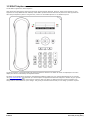
The IP Office supports the 9504 telephone.
9400 Series and 9500 Series phones are physically and functionally identical. However, 9500 Series phones are only
supported on Avaya B5800 Branch Gateway and IP Office systems whereas 9400 Series phones are also supported on
other Avaya telephone systems. This guide only covers use of IP Office phones on an IP Office system.
The phone supports 12 programmable call appearance/feature buttons. The labels for these are displayed in the main
display and can be controlled by the adjacent buttons.
Functions can be assigned to the phone's call appearance/feature buttons by your system administrator or by yourself
using self-administration 86 . Note that you cannot replace call appearances features assigned to buttons by your system
maintainer but you can replace other features. However also note there are features that the system maintainer can
assign that are not available to you to assign. This guide just includes features that you can assign yourself if required.
9500 Series Phone User Guide
IP Office
Page 10
Issue 03h (27 July 2011)
Introduction: 9504 Telephone
1.3 9508 Telephone
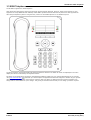
The IP Office supports the 9508 telephone.
9400 Series and 9500 Series phones are physically and functionally identical. However, 9500 Series phones are only
supported on Avaya B5800 Branch Gateway and IP Office systems whereas 9400 Series phones are also supported on
other Avaya telephone systems. This guide only covers use of IP Office phones on an IP Office system.
The phone supports 24 programmable call appearance/feature buttons. The labels for these are displayed in the main
display and can be controlled by the adjacent buttons.
Functions can be assigned to the phone's call appearance/feature buttons by your system administrator or by yourself
using self-administration 86 . Note that you cannot replace call appearances features assigned to buttons by your system
maintainer but you can replace other features. However also note there are features that the system maintainer can
assign that are not available to you to assign. This guide just includes features that you can assign yourself if required.
9500 Series Phone User Guide
IP Office
Page 11
Issue 03h (27 July 2011)
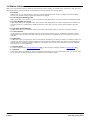
1.4 Status Letters
When your own extension name is shown on the second line of the display, for example when the phone is idle, the name
may be followed by a series of letters. These letters are used to indicate your current status.
· B = Barred
A B is shown on your phone's display when the system administrator has set you to outgoing call barred status.
You will only be able to make internal calls while this is applied.
· D = Diverting (Forwarding) Calls
A D is shown after your extension name on the phone's idle display when you have forward unconditional enabled.
· G = Group Member (In Group)
A G is shown after your extension name on the phone's idle display when have been configured as a member of a
hunt group and your membership is enabled. While this is the case, you may receive calls targeted to the hunt
group.
· N = No Calls (Do Not Disturb)
An N is shown after your extension name on the phone's idle display when you have do not disturb enabled.
· O = Out of Service
An O is shown on your phone's display when any of the groups of which you are enabled as a member is set to
night service mode. In that mode calls to that group are diverted to its fallback if set or otherwise to voicemail if
available.
· R = Resilience
An R is shown after your extension name on the phone's idle display your phone is working in resilience mode. This
is used when there may have been a problem with the telephone system to which your phone was registered and
another system is currently providing support for your phone. In this mode, some features may not be available
and calls may be routed differently.
· S = System Alarm
If you are configured as a system administrator
122 ,
an S in the phone's display indicates a system alarm
127 .
· T = Twinned
A T is shown after your extension name on the phone's idle display if it is internally twinned with your phone. Calls
to you will alert on both phones and can be answered by you at either phone.
9500 Series Phone User Guide
IP Office
Page 12
Issue 03h (27 July 2011)
Introduction: Status Letters
1.5 Button Modules
The addition of a button module allows the phone to support additional programmable buttons.
· Do not connect or disconnect a button module yourself. Your system administrator will arrange this if necessary.
Failure to connect and restart the equipment in the correct order may cause the phone and or the button module to
not function correctly.
9508 Phones
These phones support BM12 button modules. Each button module provides the phone with an additional 24 buttons (2
pages of 12) which can be used as appearance buttons 134 and or feature buttons 86 .
Up to 3 button modules can be attached to a each phone. However the number of button modules supported by the
telephone system may be limited by the total number of button modules attached to other phones on the telephone
system.
9504 Phones
These phones do not support any additional button modules.
Note for Australian installations only:
Installations of the 9508 terminal with an 1151 PSU and BM12 must be restricted to the same building as the host
Gateway. That is, the 9508 – if installed with an 1151 PSU and BM12 – cannot be connected in a campus environment
where the 9508 terminal is installed in a building separate from the building housing the Gateway. This application cannot
be used with exposed (out-of-building) wiring.
For installations in which the 9508 is used without the 1151 PSU and BM12, campus connections are acceptable: the 9508
can be located in a separate building in these cases.
This restriction applies to Australian installations only.
9500 Series Phone User Guide
IP Office
Page 13
Issue 03h (27 July 2011)
1.6 Phone Keys
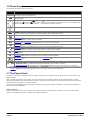
The following keys are found on the phone:
Key
Description
Soft Keys - The keys below the display have variable functions. When the key is active, its function is
indicated by the text label above it.
Message - This key is used to access your voicemail system. By default this uses a series of menus on your
phone's display.
Navigation Keys - Press the
up and down
arrow keys to scroll through lists. In some menus, you can
also use the
left and right
arrow keys to enter and exit different levels of the menu. A menu option that
accesses a sub-menu is indicated by the ... dots (ellipsis) icon after its name.
OK - The OK key normally matches the function offered by the left hand soft key below the screen.
PHONE - This key is used to exit any menu you are in and return to the appearance buttons menu. During a
call it can also be used to toggle the options displayed on the appearance menu.
MENU /HOME - This key is used to access a menu for phone settings and information.
CONTACTS 44 - This key is used to display the various directories (personal and shared) of names and
telephone numbers to which you have access.
CALL LOG 50 / HISTORY 53 - This key displays a record of you most recent answered, missed and
outgoing calls. The button is illuminated when you have new missed calls.
VOLUME 106 - Press + plus or – minus on the Volume key to adjust the volume of the incoming call.
Separate volumes can be adjusted for the ringer, handset, headset and speaker.
HEADSET 40 - This key is used to answer and end calls using a headset connected to the phones headset
socket. The button is lit when you are connected to a call using the headset.
MUTE 20 - This key can be used to mute your speech to the currently connected call. The button is lit while
mute is active.
SPEAKER 41 - This key is used to answer and end calls using the phone's handsfree speaker and
microphone. The button is lit when you are connected to a call handsfree.
FORWARD
or
68
- Provides direct access to the forwarding
68
menu options.
These keys have two roles:
· Appearance Keys - These button represent calls that you can make or receive.
· Feature Buttons 86 - Those key not configured as appearance keys can be used for other functions.
· The CONFERENCE, DROP, HOLD, REDIAL and TRANSFER keys found on other Avaya phones are presented as
soft key 17 functions when appropriate to the current call to which you are protected.
1.7 The Phone Stand
The phones all include a stand that clips to the base of the phone. The stand allows the phone to be used in either of two
different angles.
When changing the position of the stand, be sure to check that the stand has locked into the chosen position. A small
plastic peg is located just under the phone's handset. This peg can be reversed to more securely anchor the handset when
the stand places the phone in an upright position.
The stand cannot be flipped to another position except by removing it to change the position. The angle of the display on
these phones is not adjustable.
Other Stands
If the phone needs to be used in a situation other than on a desk, for example wall mounted, a number of other stand
designs are available from Avaya. Contact your system maintainer.
9500 Series Phone User Guide
IP Office
Page 14
Issue 03h (27 July 2011)
Chapter 2.
Making Calls
9500 Series Phone User Guide
IP Office
Page 15
Issue 03h (27 July 2011)
2. Making Calls
If you are not already on a call, then you can just dial the number. The first available appearance button will be used for
the call. Alternatively, you can press a specific appearance button in order to make a call using that button.
If the number you dial matches a user or group on the telephone system, the directory name of the user or group is
shown and the call starts altering the target.
If the call is to a user, and they do not answer, you can set a callback by pressing CallBack and then ending the call by
pressing Drop. When a callback is set, when the user next uses their phone or ends their current call, the system will call
you and when you answer, automatically make another call to the user.
2.1 En-Bloc Dialing
By default, when you start dialing a number on your phone, the phone immediately connects to the telephone system and
starts passing the digits you dial to the phone system. You cannot correct the digits you have already dialed except by
ending the call and starting again. Also if you pause dialing for too long the phone system may think that you have
finished dialing and will attempt to connect the call using only the digits you have completed dialing so far.
En-bloc dialing allows you to compose and edit the number to dial on your phone's display before it is sent to the phone
system to be dialed.
Through the phone's menus you can select whether you want to use traditional or en-bloc dialing when making calls. Your
chosen setting is then applied whenever you are using a phone that supports en-bloc dialing.
Dialing a Number Using En-Bloc Mode
1. With no connected call on the phone, start dialing. Do not lift the handset or select headset or speaker before
dialing.
right arrow key or the Bksp key to delete the previous digit dialed if you need to correct the
2. You can use the
number or Clear to erase the whole number.
3. When you have completed the number as required, you can select how you want to make the call.
· Lift the handset to start a call using the handset.
· Pressing the Call soft key or OK button to start the call using the phone's default handsfree audio path
(speaker or headset). You can also press one of your idle call appearance to make the call using that
appearance.
108
· Press the Headset button to start the call on a headset connected to your phone.
· Press the Speaker button to start the call on your phone's handsfree speaker.
Enabling/Disabling En-Bloc Dialing
You can enable or disable your en-bloc dialing setting through the phone's Features menu.
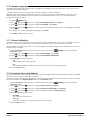
PHONE key and then press the
1. Press the Features soft key if shown. To do this during a call, press the
Features soft key.
up and down
arrow keys to highlight Call Settings. Press Select.
2. Use the
4. Use the
up and down
arrow keys to highlight En-Bloc Dial.
5. Use Change button to select On or Off.
9500 Series Phone User Guide
IP Office
Page 16
Issue 03h (27 July 2011)
Making Calls: En-Bloc Dialing
2.2 Call Soft Key Options
The options displayed for the buttons at the bottom of the display will change dynamically to reflect actions that you can
perform during calls or while the phone is idle.
· Account
Enter an account code to associate with the call.
· Answer
Answer a page call, turning it into a normal call.
· CallBack
Set an automatic callback on the user that you have called but who has not answered. When they next end a call,
the telephone system will call you and when answered, will automatically make a call to the user.
· Complete
Complete the transfer of a held call. A Cancel option is also shown which will end the transfer attempt.
· Conference
Put your current call on hold and present dial tone for you to dial the number you want to add to a conference with
the held caller.
· Connect
Take a call of hold.
· Dir
Access the directory in order to select a number by name rather than dialing it. The type of names available in the
directory is adjusted to match those suitable for use by the feature.
· Drop
End the call.
· Ignore
Quiet the ringer for the current alerting call. The call will continue alerting until either answered or it goes to
voicemail.
· Pickup
Answer the call that is held or alerting another user.
· Redial
If there are outgoing numbers in your call log, display the list of those numbers.
· Transfer
Put your current call on hold and present dial tone for you to dial the number to which you want to transfer the
call.
· ToVM
Send an alerting call to your voicemail.
9500 Series Phone User Guide
IP Office
Page 17
Issue 03h (27 July 2011)
2.3 Calling from the Contacts List
You can use any directory contacts to make a call. You can also use the directory in almost any telephone function where
you need to select the number for a destination, for example during transfers.
1. Access the contacts directory:
a. Press the
b. Use the
CONTACTS key. The directory menu is displayed.
left and right
arrow keys to select which type of directory entries you want displayed.
· All
All directory entries.
· External
Directory entries stored by the telephony system for all users to use.
· Groups
The names and numbers of hunt groups on the telephone system.
· Users
The names and numbers of other users on the telephone system.
· Personal
Your own personal directory entries.
up and down
arrow keys to scroll through the list or start dialing the name you want to find to
c. Use the
display only matching entries. If you dial a name to return to the full list press the Clear soft key.
d. To view more details of the highlighted name, press Details. To return to the directory press List.
2. When the required entry is highlighted, press Call or press the
button next to the name.
3. Continue as for a normally dialed call.
2.4 Calling from the Call Log/History
You can use the call log to make calls to the number included in the currently selected call record.
1. Access the call log.
a. Press the
HISTORY button.
b. The display will change to show your call log records. The caller's name is shown if known, otherwise the
number. If you have any new missed call records, the button is illuminated and the call log will open showing
your missed calls.
left and right
arrow keys to select which call log records you are viewing. The options are All,
c. Use the
Missed, Incoming and Outgoing.
d. Use the
up and down
arrow keys to scroll through the records.
2. Press Call to call the number displayed in the call record.
9500 Series Phone User Guide
IP Office
Page 18
Issue 03h (27 July 2011)
Making Calls: Calling from the Call Log/History
2.5 Redialling a Previous Number
When Redial is displayed it can be used in one of two ways, set by the phone's redial mode setting
26
.
List Mode
This redial method is used when your phone's redial mode
26
is set to List.
1. Access the redial list.
a. Press Redial. The list of outgoing calls is displayed.
b. Use the
up and down
arrow keys to scroll through the 10 most recent outgoing calls.
2. Press Call to call the number displayed in the call record.
3. Continue in the same way as for a normal dialed call.
One Number Mode
This redial method is used when your phone's redial mode
26
is set to One.
1. Press Redial.
2. The number for the most recent outgoing call in your personal call log is redialed.
3. Continue in the same way as for a normal dialed call.
2.6 Making a Page Call
In order to make page calls you must have access to a paging short code provided by the system administrator or to a
paging feature button.
If the dialing short code or the paging button have been pre-configured with a number, the user or group at that number
will be paged if available.
The dialing short code can be configured to accept the number of the user or group to page when dialed. Similarly a
paging button can be set to allow number entry when pressed as follows:
1. Press the paging button.
2. Dial the number of the user or group you want to page.
3. When the dialing is completed, the page call is made.
· If the destination is a user and they already have a call connected, they cannot be paged. If the destination is a
group which is not in service or has no available members, it cannot be paged.
Feature Button
The self-administer function can be used to assign a feature button as a page button using the Group Paging action.
2.7 Withholding Your Number
You can select to withhold your number on external calls. Note that this option may not be supported in all situations. It
may depend on the configuration of your phone system and options supported by your telephone line provider.
PHONE key and then press the
1. Press the Features soft key if shown. To do this during a call, press the
Features soft key.
up and down
arrow keys to highlight Call Settings. Press Select.
2. Use the
3. Use the
up and down
menu keys to highlight Withhold Number.
4. Press Change to switch the option On or Off.
5. Press Save.
9500 Series Phone User Guide
IP Office
Page 19
Issue 03h (27 July 2011)
2.8 Adjust the Call Volume
While talking, you can adjust the volume of the incoming call. The volume is separately adjusted for whichever device you
are currently using (handset, headset or speaker).
1. With the call connected, press the
VOLUME key.
2. Use the + plus and – minus keys to adjust the volume.
3. The display will return to normal after a few seconds.
2.9 Muting a Call
Muting a call stops the caller from hearing you. However you can still hear them.
· The mute setting remains active even if you switch between calls using hold and or appearance buttons.
· If you change how you are listening to the call, for example switching from the handset to the speaker, the mute
setting is canceled.
1. To activate mute, press the
MUTE key. The button will be lit while mute is active.
2. To switch mute off, press the key again.
2.10 Ending Calls
· The Drop option can be used to end the currently highlighted call on the display.
· If the call is connected on the phone's speaker, the
SPEAKER key is lit. Pressing the key again will end the call.
· If the call is connected on the phone's headset, the
HEADSET key is lit. Pressing the key again will end the call.
· If the call is connected on the phone's handset, replacing the handset will end the call.
9500 Series Phone User Guide
IP Office
Page 20
Issue 03h (27 July 2011)
Chapter 3.
Answering Calls
9500 Series Phone User Guide
IP Office
Page 21
Issue 03h (27 July 2011)
3. Answering Calls
A slow flashing red lamp on an appearance button indicates an alerting call. This may also be accompanied by ringing
and by the message lamp flashing 98 .
97
Selected Button
If you are currently not on a call, you can answer the alerting call in the following ways:
1. Select the method which you want to use to talk to the caller:
· To quiet the ringing, press the Ignore soft key. The call will still continue alerting visually and can be answered
or ignored.
· To redirect the call to voicemail, press the To VM soft key.
· To answer the call using the handset, lift the handset.
· To answer the call handsfree, press the
SPEAKER key.
· To answer the call on a headset, press the
HEADSET key.
· Just pressing the call appearance key will answer the call either on the speaker or headset depending on the
phone's audio path 40 setting.
2. Once you have answered the call, you can switch between different talk modes:
· To switch to using the handset, lift the handset.
· To switch to handsfree, press the
it.
SPEAKER key. If you were using the handset you can now safely replace
· To switch to headset mode, press the
replace it.
HEADSET key. If you were using the handset you can now safely
· If you have answered the call on the speaker or headset, pressing the SPEAKER or HEADSET key again
before you select another mode will end the call.
· Just pressing the call appearance key or any other appearance button will put the current call on hold.
Answering Another Call
If you are already on a call, answering a new call will automatically put the existing call on hold.[1] unless your first press
Drop.
1. Using the
up and down
arrow keys, scroll the display highlight the waiting call.
· To quiet the ringing, press the Ignore soft key. The call will still continue alerting and can be answered or
ignored.
· To redirect the call to voicemail, press the To VM soft key.
2. To answer the call press the call appearance button. Your existing call will be put on hold.
Notes
1. This guide assumes that auto hold is enabled (the default). The system administrator can disable auto hold for the
system, in which case calls are automatically disconnected rather than held.
9500 Series Phone User Guide
IP Office
Page 22
Issue 03h (27 July 2011)
Answering Calls:
3.1 Divert a Call to Voicemail
You can transfer a call targeted at you directly to your voicemail mailbox.
1. If the call is not the currently highlighted call on the display, use the
up and down
arrow keys to
highlight it.
2. Press the To VM soft key. The call is redirected to your mailbox.
3.2 Ignore an Incoming Call
You can quiet the ringer of a currently alerting call. The call will continue alerting visually but with no audible ring.
1. If the call is not the currently highlighted call on the display, use the
up and down
arrow keys to
highlight it.
2. Press the Ignore soft key.
3. The call will continue alerting but with no audible ring.
3.3 Answering a Page Call
Your phone can be paged if you have no other connected call in progress. The page is heard through the phone's speaker.
1. A page call is indicated in the display by the word Page.
· To answer the page call, press the Answer soft key. The call is turned into a normal call.
· To ignore the page call, press the Drop soft key.
9500 Series Phone User Guide
IP Office
Page 23
Issue 03h (27 July 2011)
3.4 Call Pickup
Pickup is used to answer a call ringing elsewhere on the phone system. There are a number of pickup options:
· Answer any ringing call on the telephone system.
· Answer a call ringing a particular user.
· Answer a call ringing a particular group.
· Answer a call, not necessarily a group call, ringing the members of a group.
1. Press the Features soft key if shown. To do this during a call, press the
Features soft key.
up and down
arrow keys to highlight Pickup. Press Select.
2. Use the
PHONE key and then press the
· To answer a ringing call, press the Any soft key.
· To answer a call ringing against a particular target, dial the targets number. Alternatively, press the Dir soft
key to select the target from the directory 46 .
3. The following menus will depend on the type of number entered:
· User Number
· To answer a call ringing against the user, press the Pickup soft key.
· To return to entering a number, press the Clear key.
· Hunt Group Number
· To answer a call ringing against the members of the group, press the Members soft key. The call does not
have to be a call to the hunt group.
· To answer a call ringing for the hunt group, press the Group soft key.
· To return to entering a number, press the Clear key.
Default Short Codes
Short codes are numbers that you can dial to enable and disable various features. The following are default short codes
that may be available. Your system administrator will confirm any additional short codes that they may have configured
for your use.
· Pickup Any Call: *30
Answer a call ringing on the telephone system.
· Pickup a Group Call: *31
Answer a call ringing a group of which you are a member. You can use this even if your group membership is
currently set to disabled.
· Pickup a Users Call: *32*N#
Pickup a call ringing a user's extension number (N).
· Pickup a Group Members Call: *53*N#
Pickup a call ringing the members of a group (N). This does not necessarily have to be a group call.
9500 Series Phone User Guide
IP Office
Page 24
Issue 03h (27 July 2011)
Chapter 4.
Redialling
9500 Series Phone User Guide
IP Office
Page 25
Issue 03h (27 July 2011)
4. Redialling
The phones redial operation can work in either of the following modes:
· Open Call Log
If this mode is selected, pressing Redial will display a menu of the 10 most recent outgoing calls in your call
log. You can select the call that you want to redial and perform a number of other functions.
· Last Dialed
If this mode is selecting, pressing Redial will immediately repeat the most recent outgoing call in your call log.
None of the other redial functions will be accessible.
You can select the redial mode 26 that the phone uses. In either case, the redial function uses the outgoing call records in
your personal call log 50 . If you delete the records in your call log, redial will not work until new outgoing call records
exist in your personal call log.
Note
1. Use of centralized call log can be switched off by the system administrator. In that case the numbers used for the
redial function are stored by the phone. This guide only covers redial using outgoing call records in the user's
centralized call log.
4.1 Redial (Last Dialed Mode)
This redial method is used when your phone's redial mode
26
is set to One.
1. Press Redial.
2. The number for the most recent outgoing call in your personal call log is redialed.
3. Continue in the same way as for a normal dialed call.
4.2 Redial (Call Log Mode)
This redial method is used when your phone's redial mode
26
is set to List.
1. Access the redial list.
a. Press Redial. The list of outgoing calls is displayed.
b. Use the
up and down
arrow keys to scroll through the 10 most recent outgoing calls.
2. Press Call to call the number displayed in the call record.
3. Continue in the same way as for a normal dialed call.
4.3 Selecting Your Redial Mode
You can select whether your phone uses the redial list or last call redial mode.
PHONE key and then press the
1. Press the Features soft key if shown. To do this during a call, press the
Features soft key.
up and down
arrow keys to highlight Call Settings. Press Select.
2. Use the
4. Use the
up and down
arrow keys to highlight Redial Action.
5. The current mode, Open Call Log or Last Dialed is displayed.
· Open Call Log
If this mode is selected, pressing Redial will display a menu of the 10 most recent outgoing calls in your call
log. You can select the call that you want to redial and perform a number of other functions.
· Last Dialed
If this mode is selecting, pressing Redial will immediately repeat the most recent outgoing call in your call log.
None of the other redial functions will be accessible.
6. Press Change to change the mode.
7. When the required mode is displayed, press Save.
9500 Series Phone User Guide
IP Office
Page 26
Issue 03h (27 July 2011)
Chapter 5.
Holding and Parking Calls
9500 Series Phone User Guide
IP Office
Page 27
Issue 03h (27 July 2011)
5. Holding and Parking Calls
Holding a call and parking a call are two similar actions. The current caller is placed on hold and hears music on hold if
available. The table below summarizes the main differences between parking a call or holding a call.
When used to park or hold a call...
Hold
Park
... the call occupies an appearance button.
Yes
No
... the caller hears music on hold if available.
Yes
Yes
... the calls can be retrieved by other users dialing a short code.
No
Yes
Yes
Default 15
seconds
Yes
Default 5
minutes.
... can be used with conference calls.
Yes
No
... can be used to start or add calls to a conference.
Yes
No
... the call is assigned a unique ID.
No
Yes
... the calls recalls you automatically if your phone is idle.
9500 Series Phone User Guide
IP Office
Page 28
Issue 03h (27 July 2011)
Holding and Parking Calls:
5.1 Holding Calls
You can hold a call or several calls.
· The held call will still occupy the appearance button on which it was made or answered.
· While held the caller will hear music on hold. If your system does not have music on hold available, the caller will
hear double beep tones every few seconds.
· If you have more than one held call, or one held call and a connected call, pressing the Conference soft key will
start a conference between yourself and the calls.
Calls that you have held will return to your phone (when idle) if they remain on hold for too long. The default return delay
is 15 seconds. Your hold recall can be changed by the system administrator. Returning calls ignore any forwarding or do
not disturb settings.
Important - Holding Conference Calls
You can hold a conference call in the same way as holding a normal call. Holding the conference call does not affect the
other conference parties who can continue talking. You will also still be listed as a member of the conference call in the
conference details.
· Warning: This only applies to conference calls hosted by your own telephone system. Holding your call to a
conference hosted on another telephone system may cause that conference to hear your system's music on hold.
5.1.1 Holding a Call
1. To put your current call on hold, press the Hold soft key or the call's appearance button.
2. The held call will be indicated by its appearance key using a fast flashing lamp.
3. While held the caller will hear music on hold. If your system does not have music on hold available, the caller will
hear double beep tones every few seconds.
4. If you can scroll the display using the
up and down
arrow keys, the held call will appear with a
icon.
5.1.2 Taking a Call Off Hold
Either of the following methods can be used to retrieve a call from hold. If you have a currently connected call, that call
will be automatically put on hold.
1. Press the appearance button with the fast flashing red lamp call appearance.
up and down
2. Scroll the display using the
Connect soft key to take the call off hold.
arrow keys, the held call will appear with a
icon. Press the
5.1.3 Switching Between Calls
With a call on hold (fast flashing appearance button) and another call connected (red call appearance button), you can
switch between calls by pressing the appearance button of the held call. The current call is automatically put on hold and
the previously held call connected.
5.1.4 Transfer a Held Call
When you already have a call on hold and a call connected, you can connect them by starting a conference. Press the
Conf soft key. Your current call and the held call will be connected. You can now drop yourself 37 from the conference.
Note
1. If you are the only internal user in the conference, depending on your telephone systems configuration, dropping
yourself from the conference may end it. Consult your system administrator for details.
9500 Series Phone User Guide
IP Office
Page 29
Issue 03h (27 July 2011)
5.2 Parking Calls
Parking a call is similar to holding a call. However parked calls can be unparked by other users on the phone system. Each
parked call is given a number. By default the number is your extension number plus a digit.
Calls that you have parked will return to your phone (when idle) if they remain parked for too long. The default return
delay is 5 minutes. This is a system delay that is applied to all users and can be changed by the system administrator.
Returning calls ignore any forwarding or do not disturb settings.
If you park a call without specifying a park slot number, the system will assign a number based on your extension number
plus a single digit. For example for extension 201, the first parked call will use park slot number 2010 if available. If you
already have one parked call, the next parked call will use park slot 2011 if available.
Call park buttons can be configured with a specific park slot numbers. A calls parked using that button will be given that
park slot number. Any other users with a call park button set to the same number will see that there is a parked call and
can unpark it using their button.
A feature button 86 set to the Call Park action can be used to park and unpark calls. If configured to a specific park
number, the button will indicate when another user has parked a call using that park slot number.
Default Short Codes
Short codes are numbers that you can dial to enable and disable various features. The following are default short codes
that may be available. Your system administrator will confirm any additional short codes that they may have configured
for your use.
· Park Call: *37*N#
Parks the held call using the park number dialed in place of N.
· Unpark Call: *38*N#
Unpark the call parked using the park number N.
5.2.1 Park Using the Menu
PHONE key and then press the
1. Press the Features soft key if shown. To do this during a call, press the
Features soft key.
up and down
arrow keys to highlight Call Park or Call Park To Other.
2. Use the
· Call Park
Park the call on the system with parked call indication on your extension.
· Call Park To Other
Park the call on the system with parked call indication on the selected extension.
5.2.2 Unpark (Status Menu)
While parked calls are parked on the telephone system and can be unparked by any other user, the parked call indication
is sent to a particular extension. If there are any calls parked against your phone, you can view and unpark them using
the Status menu.
1. Press the Status soft key if shown.
· To access the status menu during a call, press the
shown.
PHONE key and then press the Status soft key if
2. If you have any parked calls, the Parks option is displayed. The option is not present if you do not have calls
parked against your extension.
3. Press the Details soft key.
4. Use the
up and down
arrow keys to scroll through the parked calls.
5. To unpark a particular call, press the Connect soft key.
9500 Series Phone User Guide
IP Office
Page 30
Issue 03h (27 July 2011)
Chapter 6.
Transferring Calls
9500 Series Phone User Guide
IP Office
Page 31
Issue 03h (27 July 2011)
6. Transferring Calls
To transfer a call your phone must have an available call appearance button. If all your current call appearance buttons
are in use, you must end 20 or park 30 one of your existing calls.
1. Press Transfer. The current call is automatically put on hold.
2. Dial the number for the transfer. Alternatively, press Dir to select a destination from the directory
46
.
· To complete the transfer, press Complete. You can do this while the call is still ringing.
· Transferring a call while it is still ringing is called an unsupervised transfer.
· Transferring a call after ringing finishes is called a supervised transfer.
· If the transfer destination does not answer or, after answering the call, does not want to accept the call, press
the Cancel soft key.
3. Press Complete to complete the transfer. If the transfer destination does not answer or does not want to accept
the call, press the Cancel soft key.
6.1 Transfer to Voicemail
When set to visual voice mode, the
user or group.
key can be used to transfer your current call to the voicemail mailbox of another
1. With the call connected, press the
key. You are still connected to the call and can continue talking.
2. Dial the extension number of the user or group to which you want to transfer the call.
3. When the number matches a user or group, their name is displayed.
· To transfer the call to the user or group's mailbox, press Select. The caller will hear a few seconds of ringing
and then the mailbox greeting.
· To exit the transfer menu, press Cancel.
6.2 Transferring a Held Call
When you already have a call on hold and a call connected, you can connect them by starting a conference. Press the
Conf soft key. Your current call and the held call will be connected. You can now drop yourself 37 from the conference.
Note
1. If you are the only internal user in the conference, depending on your telephone systems configuration, dropping
yourself from the conference may end it. Consult your system administrator for details.
9500 Series Phone User Guide
IP Office
Page 32
Issue 03h (27 July 2011)
Chapter 7.
Account Codes
9500 Series Phone User Guide
IP Office
Page 33
Issue 03h (27 July 2011)
7. Account Codes
The telephone system can store a number of account codes. Account codes may be used to keep track of calls in relation
to particular activities or clients. They can also be used to keep track of calls by particular users or sets of users.
· When an account code is entered while making a call or during a call, that account code is included in the call
records output by the system.
· Accounts entered are checked against those stored by the telephone system. If an invalid code is entered, the
account code is requested again.
· The system administrator can configure certain numbers or types of numbers to require entry of an account code
before you can continue making a call to such a number.
· The system administrator can also configure you to have to enter an account code before making any external call.
7.1 Forced Account Code Entry
The system administrator can configure certain numbers or types of numbers to require entry of an account code before
you can continue making a call to such a number.
1. The follow menu is displayed when you are required to enter an account code.
2. Enter the account code that you want to use.
3. Press the Done soft key.
4. If the account code was not a valid account code, the REENTER ACCOUNT menu is displayed.
7.2 Manual Account Code Entry
You can enter account codes during a call or before making a call. The account code that you enter must match an
account code set on the telephone system.
PHONE key and then press the
1. Press the Features soft key if shown. To do this during a call, press the
Features soft key.
up and down
arrow keys to highlight Call Settings. Press Select.
2. Use the
4. Use the
up and down
arrow keys to highlight Account Code.
5. Press the Set soft key or the OK button or the
right arrow key.
6. Enter the account code that you want to use.
7. Press the Done soft key.
8. If the account code was not a valid account code, the Failed menu is displayed.
Feature Button
Access to the enter account code menu can be assigned to a feature button
action. The button can also be preset with a specific account code.
9500 Series Phone User Guide
IP Office
86
configured with the Account Code Entry
Page 34
Issue 03h (27 July 2011)
Chapter 8.
Conference Calls
9500 Series Phone User Guide
IP Office
Page 35
Issue 03h (27 July 2011)
8. Conference Calls
The telephone system supports multiple conference call, with additional parties addable to any conference call until the
systems conference capacity is reached. A maximum of 64 parties in any particular conference call is supported.
Conference resources are also used for call recording and other features, reducing the available conference capacity for
ordinary conference calls.
Note that some conference controls, for example dropping other parties, only apply for conferences started on the same
phone system as your extension.
Default Short Codes
Short codes are numbers that you can dial to enable and disable various features. The following are default short codes
that may be available. Your system administrator will confirm any additional short codes that they may have configured
for your use.
· Conference Held Calls: *47
Start a conference between yourself and any calls that you have on hold.
8.1 Starting a Conference
If you have a connected call and any held calls, pressing the Conf soft key will start a conference between you and those
calls.
If you do not already have a held call, you can use the process below to start a conference.
1. Make a call to the first party or answer a call.
2. Press the Conf soft key. The current call is automatically put on hold.
3. Dial the party that you want to add to the conference.
4. If they answer and want to join the call, press Conf again.
5. If they do not want to join the call or do not answer, press Drop and then press the appearance key of the held
call.
8.2 Adding a Call to a Conference
You can add additional parties to an existing conference.
1. Press HOLD to put the conference on hold. This does not affect the other conference parties who can continue
talking to each other.
2. Press an available appearance key on which to make a call.
3. Dial the party that you want to add to the conference.
4. If they answer and want to join the call, press Conf again.
5. If they do not want to join the call or do not answer, press Drop and then press the appearance key of the held
call.
8.3 Viewing Conference Details
You can display a list of the parties involved in a conference call.
1. If not already displayed, press the
up or down
arrow key to display the conference call.
2. Press the Details soft key.
· To scroll through the list of callers in the conference, use the
up and down
arrow keys.
· To drop a caller from the conference, highlight them and press Drop.
· To mute a caller, highlight them and press Mute. Repeat this to unmute them.
· To return to the call display, press the Back soft key.
9500 Series Phone User Guide
IP Office
Page 36
Issue 03h (27 July 2011)
Conference Calls: Dropping/Muting Parties
8.4 Dropping/Muting Parties
You can drop parties from a conference call, including yourself. You can also mute other parties.
1. While connected to a conference call, if you press the Details key, the conference details menu is displayed.
2. You can then perform the following actions:
· To scroll through the list of callers in the conference, use the
up and down
arrow keys.
· To drop a caller from the conference, highlight them and press Drop.
· To mute a caller, highlight them and press Mute. Repeat this to unmute them.
· To return to the call display, press the Back soft key.
Note
1. If you are the only internal user in the conference, depending on your telephone systems configuration, dropping
yourself from the conference may end it. Consult your system administrator for details.
8.5 Holding a Conference Call
Using the Hold soft key you can put a conference call on hold in the same way as you can for a normal call. The
appearance key for the conference call will show a fast flashing red lamp.
To take the conference call off hold, press the appearance key.
Important - Holding Conference Calls
You can hold a conference call in the same way as holding a normal call. Holding the conference call does not affect the
other conference parties who can continue talking. You will also still be listed as a member of the conference call in the
conference details.
· Warning: This only applies to conference calls hosted by your own telephone system. Holding your call to a
conference hosted on another telephone system may cause that conference to hear your system's music on hold.
8.6 Transferring Calls Using Conference
When you already have a call on hold and a call connected, you can connect them by starting a conference. Press the
Conf soft key. Your current call and the held call will be connected. You can now drop yourself 37 from the conference.
Note
1. If you are the only internal user in the conference, depending on your telephone systems configuration, dropping
yourself from the conference may end it. Consult your system administrator for details.
9500 Series Phone User Guide
IP Office
Page 37
Issue 03h (27 July 2011)
Chapter 9.
Headset/Handsfree Operation
9500 Series Phone User Guide
IP Office
Page 39
Issue 03h (27 July 2011)
9. Headset/Handsfree Operation
9.1 Headset Operation
Your phone has a headset socket located under the phone. This is suitable for the connection of phone headsets that
connect via a HIS headset cable.
· Pressing the
headset call.
HEADSET key can be used to answer a call through the headset. It can also be pressed to end a
· The key is lit when there is a call connected through the headset.
· The key can also pressed to turn a call already answered using the handset or handsfree into a headset call.
· If there are no currently connected call to which you are talking, a call answered by pressing its appearance button
is connected either handsfree or through the headset according to the phone's audio path setting 40 .
· If there is already a connected call to which you are talking through the headset, answering another call by
pressing the appearance button will answer that call using the headset.
You can adjust the following handsfree settings:
· Headset Volume
107
· Headset Automatic Gain Control On/Off
· Default Audio Path
107
40
9.1.1 Headset Volume
While talking via the headset, you can adjust the volume of the incoming call.
1. With the call connected on the headset, press the
key.
2. Use the + plus and – minus keys to adjust the volume.
3. The display will return to normal after a few seconds.
9.1.2 Default Handsfree Audio Path
By default, when you make a call or answer a call without lifting the handset, the audio is played through the phone's
speaker while you speak via the phone's microphone.
If you have a headset attached, you can change the phone's behavior so the audio is played through the headset by
default rather than the speaker.
1. Press the
2. Use the
MENU button.
up and down
arrow keys to highlight Call Settings.
3. Press Select.
4. Use the
up and down
arrow keys to highlight Audio Path.
5. Press Change to change the setting between Headset and Speaker.
6. When completed, press the Save soft key.
7. Press the Back / Exit soft keys to exit the menus.
9500 Series Phone User Guide
IP Office
Page 40
Issue 03h (27 July 2011)
Headset/Handsfree Operation: Headset Operation
9.2 Handsfree Speaker Operation
Your phone has a speaker and microphone that allows you make and answer calls handsfree. The speaker is located under
the handset. The microphone is located near the bottom right of the phone's keypad.
· Pressing the
call.
SPEAKER key can be used to answer a call handsfree. It can also be pressed to end a handsfree
· The key is lit when there is a call connected handsfree.
· The key can also pressed to turn a call already answered using the handset or headset into a handsfree call.
· If there are no currently connected call to which you are talking, a call answered by pressing its appearance button
is connected either handsfree or through the headset according to the phone's audio path setting 40 .
· If there is already a connected call to which you are talking handsfree, answering another call by pressing the
appearance button will answer that call handsfree.
You can adjust the following handsfree settings:
· Speaker Volume
107
· Speaker Automatic Gain Control On/Off
· Default Audio Path
107
41
Conference Phones
Your phone is not designed as a conference room speakerphone. It is designed for use by a speaker located directly in
front of the phone with no obstructions between themselves and the microphone. Phones designed to be used as
conference speakerphones typically have multiple microphones and are able to handle sounds coming from multiple
directions. For details of conference speakerphones supported by your phone system contact your system administrator.
9.2.1 Speaker Volume
While talking handsfree via the phone's speaker, you can adjust the volume of the incoming call.
1. With the call connected on the speaker, press the
key.
2. Use the + plus and – minus keys to adjust the volume.
3. The display will return to normal after a few seconds.
9.2.2 Default Handsfree Audio Path
By default, when you make a call or answer a call without lifting the handset, the audio is played through the phone's
speaker while you speak via the phone's microphone.
If you have a headset attached, you can change the phone's behavior so the audio is played through the headset by
default rather than the speaker.
1. Press the
2. Use the
MENU button.
up and down
arrow keys to highlight Call Settings.
3. Press Select.
4. Use the
up and down
arrow keys to highlight Audio Path.
5. Press Change to change the setting between Headset and Speaker.
6. When completed, press the Save soft key.
7. Press the Back / Exit soft keys to exit the menus.
9500 Series Phone User Guide
IP Office
Page 41
Issue 03h (27 July 2011)
9500 Series Phone User Guide
IP Office
Page 42
Issue 03h (27 July 2011)
Chapter 10.
Contacts/Directory
9500 Series Phone User Guide
IP Office
Page 43
Issue 03h (27 July 2011)
10. Contacts/Directory
This menu is accessed by pressing the
use for making calls.
CONTACTS key. It is used to display names and numbers that you can then
The directory includes names stored for use by all users, names stored for use by just you and the name and numbers of
all the other users and groups on the phone system.
The contacts shown in the directory come from a number of sources.
· Personal Directory Contacts
These contacts are stored by the telephone system as part of your user settings.
· They are displayed on the phone while you are using it. If you hot desk to another phone that also stores your
contacts on the system, your personal contacts move with you.
· You can have up to 100 personal directory entries[2] which you can add, edit and delete these through the
phone.
· The system administrator can also add, edit and delete your personal directory entries.
· User Contacts
These contacts list all[3] the other users on the telephone system. If your system is part of a Small Community
Network of IP Office telephone systems, it includes users on the other systems.
· Group Contacts
These contacts list all the hunt groups on the telephone system. If your system is part of a Small Community
Network of IP Office telephone systems, it includes those hunt groups that the system administrator has configured
to be advertised across the network.
· External Contacts
These contacts are viewable and useable by all phone users. These are two types of external contacts:
· Some external contacts are entered into the telephone system configuration by the system administrator.[1]
· Other external contacts are those imported by the telephone system from other directory sources.
Note
1. If you have been configured as a system phone user by the system administrator, then you can also add, edit and
delete some external directory contacts.
2. While each user is allowed up to 100 personal directory entries, the total capacity of the system may limit the
addition of further personal directory entries for all users.
3. The system administrator can set other users as Ex Directory. Those users are then not included in the user
directory.
10.1 Managing External Contacts
If you have been configured as a system phone user by the system administrator, then you can also add, edit and delete
some external directory contacts.
· This only applies to external directory contacts entered locally into configuration of the telephone system at which
you are logged in.
· External directory contacts imported by the system from other sources cannot be edited. However, if a local entry is
created with the same name or number as an imported entry, the imported entry is discarded in favour of the local
one.
9500 Series Phone User Guide
IP Office
Page 44
Issue 03h (27 July 2011)
Contacts/Directory: Managing External Contacts
10.2 Viewing Contacts Details
1. Access the contacts directory:
a. Press the
b. Use the
CONTACTS key. The directory menu is displayed.
left and right
arrow keys to select which type of directory entries you want displayed.
· All
All directory entries.
· External
Directory entries stored by the telephony system for all users to use.
· Groups
The names and numbers of hunt groups on the telephone system.
· Users
The names and numbers of other users on the telephone system.
· Personal
Your own personal directory entries.
up and down
arrow keys to scroll through the list or start dialing the name you want to find to
c. Use the
display only matching entries. If you dial a name to return to the full list press the Clear soft key.
d. To view more details of the highlighted name, press Details. To return to the directory press List.
2. When the required entry is highlighted, press Details to display the name, number and type of contact.
3. Use the
up and down
arrow key to scroll through the contacts.
4. The range of soft keys available will depend on the type of directory entry:
· Call 46
Make a call to the stored number.
· List
Return to the list of contacts.
· More
If the contact is one of your personal directory entries, the More soft key will be present to allow you to access
the options below. It is also present for external directory entries if you have been setup as a system phone
user by the system administrator.
· Edit 48
Edit the name and number.
· Delete 48
Delete the name and number.
· New 47
Add a new personal directory contact.
9500 Series Phone User Guide
IP Office
Page 45
Issue 03h (27 July 2011)
10.3 Make a Call from the Directory
You can use any directory contacts to make a call. You can also use the directory in almost any telephone function where
you need to select the number for a destination, for example during transfers.
1. Access the contacts directory:
a. Press the
b. Use the
CONTACTS key. The directory menu is displayed.
left and right
arrow keys to select which type of directory entries you want displayed.
· All
All directory entries.
· External
Directory entries stored by the telephony system for all users to use.
· Groups
The names and numbers of hunt groups on the telephone system.
· Users
The names and numbers of other users on the telephone system.
· Personal
Your own personal directory entries.
up and down
arrow keys to scroll through the list or start dialing the name you want to find to
c. Use the
display only matching entries. If you dial a name to return to the full list press the Clear soft key.
d. To view more details of the highlighted name, press Details. To return to the directory press List.
2. When the required entry is highlighted, press Call or press the
button next to the name.
3. Continue as for a normally dialed call.
10.4 Using the Directory for Other Functions
Within other menus where entry of a number is required, it may be possible to use the directory to select an existing
number by name. If this option is available, it will be indicated by the presence of a Dir soft key in the menu.
When using the directory in this way, the names made available will depend on the type of function that is being setup.
For example, for some functions only group names will be displayed, for others only user names.
1. Press the Dir soft key.
2. Either dial the name to see a list of matches or press the List soft key to list all names.
up and down
arrow keys to scroll through the list or start dialing the name you want to find to
a. Use the
display only matching entries. If you dial a name to return to the full list press the Clear soft key.
b. To view more details of the highlighted name press Details. To return to the directory press List.
3. When the required entry is highlighted, press Select.
4. You will be returned to the menu in which you selected the Dir soft key.
9500 Series Phone User Guide
IP Office
Page 46
Issue 03h (27 July 2011)
Contacts/Directory: Using the Directory for Other Functions
10.5 Adding a New Contact
So long as the telephone system capacity has not been reached, you can add up to 100 personal directory entries.
1. Access your personal directory contacts:
a. Press the
b. Use the
CONTACTS key. The directory menu is displayed.
left and right
arrow keys to select your Personal directory.
2. Press the New soft key.
· The menu now allows editing of the name and number.
· Use the
up and down
arrow keys to switch between number and name entry.
· When the name and number have been entered as required, press the Save soft key.
· To exit without making any changes, press the Cancel soft key.
Note
1. If you have been configured as a system phone user by the system administrator, then you can also add, edit and
delete some external directory contacts.
10.5.1 Add a Contact from the Call Log/History
You can add a name and number shown in your call log to your personal contacts.
1. Access the call log.
a. Press the
HISTORY button.
b. The display will change to show your call log records. The caller's name is shown if known, otherwise the
number. If you have any new missed call records, the button is illuminated and the call log will open showing
your missed calls.
left and right
arrow keys to select which call log records you are viewing. The options are All,
c. Use the
Missed, Incoming and Outgoing.
d. Use the
up and down
arrow keys to scroll through the records.
2. Press More and then press the +Contact soft key.
3. Use the
up and down
arrow keys to switch between the name and number details for the new contact.
4. Using the telephone keypad and the Bksp soft key you can edit the name and the number. When editing the
number, use the Pause soft key to enter a comma (,) for a 1 second pause in the number dialing.
5. When the name and number are set as required, press the Save soft key. To return without saving the name and
number, press the Cancel soft key.
9500 Series Phone User Guide
IP Office
Page 47
Issue 03h (27 July 2011)
10.6 Editing a Contact
You can edit the contacts in your own personal directory.
1. Access your personal directory contacts:
a. Press the
b. Use the
CONTACTS key. The directory menu is displayed.
left and right
arrow keys to select your Personal directory.
up and down
arrow keys to scroll through the list or start dialing the name you want to find to
c. Use the
display only matching entries. If you dial a name to return to the full list press the Clear soft key.
d. To view more details of the highlighted name, press Details. To return to the directory press List.
2. Locate the required entry.
3. Press the Details soft key.
4. Press the More soft key and then the Edit soft key.
· The menu now allows editing of the name and number.
· Use the
up and down
arrow keys to switch between number and name entry.
· When the name and number have been entered as required, press the Save soft key.
· To exit without making any changes, press the Cancel soft key.
Note
1. If you have been configured as a system phone user by the system administrator, then you can also add, edit and
delete some external directory contacts.
10.7 Deleting a Contact
You can delete a contact from your own personal directory.
1. Access your personal directory contacts:
a. Press the
b. Use the
CONTACTS key. The directory menu is displayed.
left and right
arrow keys to select your Personal directory.
up and down
arrow keys to scroll through the list or start dialing the name you want to find to
c. Use the
display only matching entries. If you dial a name to return to the full list press the Clear soft key.
d. To view more details of the highlighted name, press Details. To return to the directory press List.
2. Locate the required entry.
3. Press the Details soft key.
4. Press the More soft key and then the Delete soft key.
5. Press the Delete soft key again to confirm the action.
Note
1. If you have been configured as a system phone user by the system administrator, then you can also add, edit and
delete some external directory contacts.
9500 Series Phone User Guide
IP Office
Page 48
Issue 03h (27 July 2011)
Chapter 11.
Call History
9500 Series Phone User Guide
IP Office
Page 49
Issue 03h (27 July 2011)
11. Call History
This menu is accessed by pressing the
HISTORY key. The call log you see is a call log stored on the telephone system.
If you login at another phone that also does this, your call history moves with you.
Your call history contains your 10 most recent answered calls, 10 most recent calls you made and 10 most recent missed
calls. If configured by the system administrator, it can also include calls missed by hunt groups of which you are a
member.
· Making a Call
51
· Viewing Call Details
· Deleting a Record
52
53
· Deleting All Records
53
· Add a Record to Your Contacts
53
Missed Calls
Missed calls are calls to you that you did not answer. Your system administrator can also configure if the log includes calls
presented to you but answered by someone else or by voicemail.
The
History button is illuminated when you have any new missed calls in your call log. The lamp is extinguished when
you have viewed the missed call in the call log or the record of that call is no longer in your call log.
The
icon is also used at the top left of the phone display to indicate missed calls and is prefixed with the number of
missed calls.
Missed Group Call
If you are a member of any hunt groups, the system administrator can configure whether your missed calls log should also
include missed hunt groups calls. The hunt group does not necessarily have to have rung your phone. It will be recorded
as missed if it was presented to the hunt group and not answered by any of the members including you.
Notes
1. Centralized call log can be turned off by the system administrator 137 . In that case the call log is one stored by the
phone and is lost if the phone is reset. This guide only covers the centralized call log stored by the telephone
system.
2. The call log on other types of phones is a local call log maintained by that phone. It will not move with you when
you hot desk and it will be lost if the phone is restarted.
3. The redial function uses the outgoing call records stored in the call log.
9500 Series Phone User Guide
IP Office
Page 50
Issue 03h (27 July 2011)
Call History:
11.1 Accessing the Call Log/History
1. Access the call log.
a. Press the
HISTORY button.
b. The display will change to show your call log records. The caller's name is shown if known, otherwise the
number. If you have any new missed call records, the button is illuminated and the call log will open showing
your missed calls.
left and right
arrow keys to select which call log records you are viewing. The options are All,
c. Use the
Missed, Incoming and Outgoing.
d. Use the
up and down
arrow keys to scroll through the records.
2. Pressing OK will make a call to the number stored with the currently displayed record.
3. You can use the functions listed at the bottom of the display by pressing the soft key below the function name.
· Call 51
Make a call to the number stored in the currently displayed call log record.
· Details 52
Display more details about the current call log record. You can then also add the caller details to your personal
directory 53 if required.
· Delete 53
Deletes the current displayed record.
· More
Switch between the different sets of available soft key functions.
· Del All 53
Delete all the call log records, not just the current types of records being shown.
· +Contact 53
Add the currently highlighted call log record to your personal contacts.
4. To exit the call log, press the PHONE/EXIT button.
11.2 Making a Call
You can use the call log to make calls to the number included in the currently selected call record.
1. Access the call log.
a. Press the
HISTORY button.
b. The display will change to show your call log records. The caller's name is shown if known, otherwise the
number. If you have any new missed call records, the button is illuminated and the call log will open showing
your missed calls.
left and right
arrow keys to select which call log records you are viewing. The options are All,
c. Use the
Missed, Incoming and Outgoing.
d. Use the
up and down
arrow keys to scroll through the records.
2. Press Call to call the number displayed in the call record.
9500 Series Phone User Guide
IP Office
Page 51
Issue 03h (27 July 2011)
11.3 Viewing Call Details
You can view additional details about the currently shown call.
1. Access the call log.
a. Press the
HISTORY button.
b. The display will change to show your call log records. The caller's name is shown if known, otherwise the
number. If you have any new missed call records, the button is illuminated and the call log will open showing
your missed calls.
left and right
arrow keys to select which call log records you are viewing. The options are All,
c. Use the
Missed, Incoming and Outgoing.
d. Use the
up and down
arrow keys to scroll through the records.
2. Press the Details soft key. The individual details of the currently selected call record are displayed.
3. The possible values are:
Name
Call Type Icon
Number
Time and Date
Count
Duration
· Name - The name of the caller if known.
· Number - The number of the caller if available.
· Time and Date - The time of the call.
· Call Type Icon - The type of call record, ie.
= Incoming,
= Outgoing or
= Missed.
· Count - How many time a call of the same type, name and number has occurred. Only the details of the most
recent call are kept in your call log. However the count will indicate if the caller has rung or has been rung
several times.
· Duration - The length of the call.
4. While you are in the details of a call record, the soft key functions available are:
· Call
Call the number shown in the call record. You can also do this by pressing the OK button.
· List
Go back to the normal call screen to select another call record. You can also use the
keys to view the previous or next record.
up and down
arrow
· Delete
Delete the currently displayed record.
· More
Switch between the different sets of available soft key functions.
· +Contact
Add the name and number to your personal directory. You can edit the details before they are added.
· Delete All
Delete all the records.
9500 Series Phone User Guide
IP Office
Page 52
Issue 03h (27 July 2011)
Call History: Viewing Call Details
11.4 Deleting a Record
You can delete the currently displayed call record. If the record is a missed hunt group call, the record is also deleted from
the call log of other users configured to see the same hunt group's missed calls.
1. Access the call log.
a. Press the
HISTORY button.
b. The display will change to show your call log records. The caller's name is shown if known, otherwise the
number. If you have any new missed call records, the button is illuminated and the call log will open showing
your missed calls.
left and right
arrow keys to select which call log records you are viewing. The options are All,
c. Use the
Missed, Incoming and Outgoing.
d. Use the
up and down
arrow keys to scroll through the records.
2. When the required record is highlight, press More and then press Delete.
11.5 Deleting All Records
You can delete all call records from your call log. This action deletes all call log record types (Incoming, Missed and
Outgoing), not just the type you are currently viewing. This action deletes your personal call records and any hunt group
call records.
1. Access the call log.
a. Press the
HISTORY button.
b. The display will change to show your call log records. The caller's name is shown if known, otherwise the
number. If you have any new missed call records, the button is illuminated and the call log will open showing
your missed calls.
left and right
arrow keys to select which call log records you are viewing. The options are All,
c. Use the
Missed, Incoming and Outgoing.
d. Use the
up and down
arrow keys to scroll through the records.
2. Press the More soft key.
3. Press the Del All soft key to delete all your call log records.
11.6 Adding a Record to Your Contacts
You can add a name and number shown in your call log to your personal contacts.
1. Access the call log.
a. Press the
HISTORY button.
b. The display will change to show your call log records. The caller's name is shown if known, otherwise the
number. If you have any new missed call records, the button is illuminated and the call log will open showing
your missed calls.
left and right
arrow keys to select which call log records you are viewing. The options are All,
c. Use the
Missed, Incoming and Outgoing.
d. Use the
up and down
arrow keys to scroll through the records.
2. Press More and then press the +Contact soft key.
3. Use the
up and down
arrow keys to switch between the name and number details for the new contact.
4. Using the telephone keypad and the Bksp soft key you can edit the name and the number. When editing the
number, use the Pause soft key to enter a comma (,) for a 1 second pause in the number dialing.
5. When the name and number are set as required, press the Save soft key. To return without saving the name and
number, press the Cancel soft key.
9500 Series Phone User Guide
IP Office
Page 53
Issue 03h (27 July 2011)
Chapter 12.
Voicemail
9500 Series Phone User Guide
IP Office
Page 55
Issue 03h (27 July 2011)
12. Voicemail
If your telephone system includes a voicemail server, pressing the
MESSAGES button accesses a series of menus
referred to as "visual voice".[1] You can use these menus to playback messages and change various voicemail settings.
· Checking Messages
57
· Record and Send a Message
58
· Change Your Mailbox Greeting
58
· Select a Voicemail Email Mode
59
· Change Your Voicemail Code
· Turn Use of Voicemail On/Off
· Transfer to Voicemail
59
60
60
· Send a Call to Voicemail
60
By default voicemail is used to answer calls to you that have rung unanswered for your no answer time. It is also used to
answer calls when you have do not disturb enabled.
Default Short Codes
Short codes are numbers that you can dial to enable and disable various features. The following are default short codes
that may be available. Your system administrator will confirm any additional short codes that they may have configured
for your use.
· Check Messages: *17
Access mailboxes to check for messages.
· Voicemail On: *18
Allow voicemail to be used to answer calls.
· Voicemail Off: *19
Stop voicemail being used to answer calls.
· Voicemail Ringback On: *48
Have voicemail ring your phone when you have any new messages. It will call when you use the phone.
· Voicemail Ringback Off: *49
Switch off ringback.
Notes
1. The system administrator can change the default operation of the MESSAGES button to access either visual voice
or a spoken voice prompts. That is a system wide setting that will affect all users. This guide assumes the default
operation of using visual voice.
12.1 Message Waiting Indication
Both the
MESSAGES button and the message lamp on your phone are used to indicate when you have new
messages in your voicemail mailbox. They remain lit until you have played each of the new messages.
The system administrator can also configure it so that you receive new message waiting indication for a hunt group or
hunt groups.
9500 Series Phone User Guide
IP Office
Page 56
Issue 03h (27 July 2011)
Voicemail: Message Waiting Indication
12.2 Checking Messages
1. Press the
MESSAGES button.
· Depending on how your system is configured, you may be required to enter your voicemail password and then
press Done.
2. The visual voice menu is displayed. The numbers shown against the Listen option indicate the number of new, old
and saved messages in your mailbox.
· If the system administrator has configured you to receive message waiting indication for any hunt group
mailboxes, you can also use the
up and down
arrow keys to highlight hunt group names and the number
of messages in those mailboxes.
3. Highlight Listen and press Select.
up and down
arrow keys to highlight which messages (New, Old or Saved) that you want to listen to
4. Use the
and press Select. The details of the first message of that type are displayed.
5. You can use the
up and down
arrow keys to scroll through the messages.
6. Use the soft keys to control the playback actions for the currently highlighted message:
· Play / Pause
Start/stop playback of the currently displayed message.
· Call
Call the person who left the message.
· Back
Return to the previous menu.
· More
Switch between the different sets of available soft key functions.
· Delete
Delete the message.
· Save
Mark the message as saved. Saved messages are not normally automatically deleted.[1]
· Copy
Copy the message to another mailbox. The menu will prompt you to enter the destination number.
Notes
1. Automatic Message Deletion
By default, messages are automatically deleted a set time after being played. The delay depends on the particular
voicemail server (24 hours for embedded voicemail, 30 days for Voicemail Pro). For voicemail messages on a
Voicemail Pro system, the system administrator can customize the delay and can also apply automatic deletion
times to new and saved messages.
9500 Series Phone User Guide
IP Office
Page 57
Issue 03h (27 July 2011)
12.3 Sending a Message
You can use visual voice to record and send a voicemail message to other users' mailboxes.
1. Press the
MESSAGES button.
· Depending on how your system is configured, you may be required to enter your voicemail password and then
press the Done soft key.
2. The visual voice menu is displayed.
3. Use the
up and down
arrow keys to scroll to the option Message and press Select.
4. Press Record to start recording a messages.
5. To stop recording, press Stop.
6. You can now use the following soft keys:
· New
Record the message again.
· Send To
Enter the number to which you want to send the message and press Add. You can add several numbers. When
the list of numbers to which the message should be sent is complete press Send.
· Play
Listen to the recording.
· Cancel
Abandon the message.
12.4 Mailbox Greeting
While the voicemail system will play a generic greeting to caller, prompting them to leave a message, you can record your
own greeting.
1. Press the
MESSAGES button.
· Depending on how your system is configured, you may be required to enter your voicemail password and then
press the Done soft key.
1. The visual voice menu is displayed.
2. Use the
up and down
arrow keys to scroll to the option Greeting. Press Select.
3. Use the soft keys to listen to and record your mailbox greeting.
· Record
Record a new greeting. Note that the greeting must be at least 3 seconds long or the voicemail system will
discard it.
· Listen
Listen to the current greeting or the new greeting just recorded.
· Submit
Submit the new recording as your mailbox greeting.
· More
Switch between the different sets of available soft key functions.
· Delete
Delete your current mailbox greeting. The voicemail will use its default greeting.
· Cancel
Return to the main visual voice menu.
Personal Greetings
Intuity voicemail allows a number of greeting to be recorded and then used for different call types (internal, external, etc).
These greetings are setup and recorded through the mailbox voice prompt interface.They can also be setup and recorded
using the one-X Portal for IP Office application.
9500 Series Phone User Guide
IP Office
Page 58
Issue 03h (27 July 2011)
Voicemail: Mailbox Greeting
12.5 Email Mode
Voicemail email is a feature where emails are sent to your email address when your voicemail mailbox receives a new
voicemail message. The email can include the voicemail message as an attachment or it can be just an alert.
This option is only available if configured by your system administrator.
Through the visual voice menu you can change the mode of voicemail email operation.
1. Press the
MESSAGES button.
· Depending on how your system is configured, you may be required to enter your voicemail password and then
press the Done soft key.
2. The visual voice menu is displayed.
up and down
arrow keys to scroll to the option Email. This option is only available if your email
3. Use the
address has been set in your voicemail settings by the system administrator.
4. The menu displays your current voicemail email mode setting. Press Change to scroll through the possible
settings:
· Off
Do not send any emails.
· Copy
Send an email with a copy of the new voicemail message attached.
· Forward
Send an email with the new voicemail message attached and delete the message from the voicemail mailbox.
· Alert
Send an email telling you there is a new message but do not attach a copy of the message.
6. When the required setting is displayed, press Save. To exit without changing the setting, press Cancel.
12.6 Changing Your Voicemail Code
1. Press the
MESSAGES button.
· Depending on how your system is configured, you may be required to enter your voicemail password and then
press the Done soft key.
2. The visual voice menu is displayed.
3. Use the
up and down
arrow keys to scroll to the option Password. Press Select.
4. Enter your current password and press Save.
5. Enter the new password that you want to use.
· The new password must be at least 4 digits long.
· A series of numbers (for example 1234) or repeated numbers are not allowed.
6. When completed press Save.
9500 Series Phone User Guide
IP Office
Page 59
Issue 03h (27 July 2011)
12.7 Voicemail On/Off
You can control whether the telephone system uses voicemail to answer your unanswered calls. This does not switch off
your mailbox which you can still access to play existing messages and use other functions.
1. Press the
MESSAGES button.
· Depending on how your system is configured, you may be required to enter your voicemail password and then
press the Done soft key.
2. The visual voice menu is displayed.
3. Use the
up and down
arrow keys to highlight Voicemail.
4. Press the Change to switch between On or Off.
5. Press Save to save the change.
12.8 Transfer to Voicemail
When set to visual voice mode, the
user or group.
1. With the call connected, press the
key can be used to transfer your current call to the voicemail mailbox of another
key. You are still connected to the call and can continue talking.
2. Dial the extension number of the user or group to which you want to transfer the call.
3. When the number matches a user or group, their name is displayed.
· To transfer the call to the user or group's mailbox, press Select. The caller will hear a few seconds of ringing
and then the mailbox greeting.
· To exit the transfer menu, press Cancel.
12.9 Send a Call to Voicemail
You can transfer a call targeted at you directly to your voicemail mailbox.
1. If the call is not the currently highlighted call on the display, use the
up and down
arrow keys to
highlight it.
2. Press the To VM soft key. The call is redirected to your mailbox.
12.10 Visual Voice
This menu option provides a route into visual voice if the MESSAGES key has not been setup to do that.
PHONE key and then press the
1. Press the Features soft key if shown. To do this during a call, press the
Features soft key.
up and down
arrow keys to highlight Visual Voice. Press Select.
2. Use the
3. Use the
up and down
arrow keys to highlight Visual Voice. Press Select.
· Depending on how your system is configured, you may be required to enter your voicemail password and then
press the Done soft key.
4. You will now see the visual voice menu.
9500 Series Phone User Guide
IP Office
Page 60
Issue 03h (27 July 2011)
Chapter 13.
Logging In/Out
9500 Series Phone User Guide
IP Office
Page 61
Issue 03h (27 July 2011)
13. Logging In/Out
You may always use the same phone in the same location. However the telephone system provides a number of features
that allow you to use any phone on the system to make and receive your calls.
· Log In 63
You can login at any phone that you want to use. All your calls are then directed to that phone and your user
settings are applied to calls made and received. If it is a phone that stores your contacts and call history on the
system, your contacts and call log are displayed by the phone.
· Any existing user of the phone is logged out while you are logged in.
· If you were logged in on another phone, you are logged out from that phone.
· If your phone system is in a Small Community Network 137 of phone systems, it may be possible to login at
extensions located on other phone systems in the network. Your system administrator will advise you if you
can remote hot desk and what features will still be available to you when you do.
· Log Out 63
When you log out from a phone (or are logged out by another user logging in), the telephone system may apply
several actions:
· If you have a normal default extension and no one else is logged in there, you return to being logged in on that
phone.
· If you remain logged out, you are treated the same as being on do not disturb except that all calls to you go to
voicemail if available.
· If you have a mobile twinned number, the system administrator can configure the system so that calls are still
presented to your mobile twin while you are logged out.
· Lock/Unlock 63
Separately from logging in and out, you can lock your phone settings. While locked, the phone can still be used to
answer your calls and can be used to make internal and emergency calls. However it cannot be used to make
external calls and your user settings cannot be accessed through the phones menus.
· You can set your phone to automatically lock itself after a period of inactivity.
· Default Extension
Each extension can be configured with a default user. If you are logged off from an extension, if you have a default
extension the system will automatically log you in at your default extension if it is not in use by another user.
· Login Idle Period
Your system administrator can configure a timeout which will automatically log you out if you do not use the phone
in that time to make or answer a call.
Default Short Codes
Short codes are numbers that you can dial to enable and disable various features. The following are default short codes
that may be available. Your system administrator will confirm any additional short codes that they may have configured
for your use.
· Login: *35*N*P#
Login to a phone using your extension number (N) and login code (P).
· Log Out: *36
Log yourself out from the phone where you are currently logged in.
9500 Series Phone User Guide
IP Office
Page 62
Issue 03h (27 July 2011)
Logging In/Out:
13.1 Logging In
When you login to a phone, you take control of that phone. Incoming calls for you are redirected to it phone and your user
information and settings are available. Any existing user on the phone is logged off when you login.
The method for logging in depends on the current state of the phone:
· Phone In Use 63
If the phone is already in use you can still login. The existing user will be logged out.
· Logged Out 63
If the phone has no current user, the basic menu with just the login option is displayed.
· Unregistered Phone
If the phone is not registered with the phone system, the Enter Extension menu is displayed.
13.1.1 Logging In on a Phone Already in Use
You can login at a phone that is already in use by another user. The existing user is logged out.
1. If the phone is already in use:
· Press the Features soft key.
· Use the
up and down
arrow keys to highlight Phone User. Press Select.
· Use the
up and down
arrow keys to highlight Login.... Press Select.
2. The login menu is displayed.
3. Enter your extension number and press Next .
4. Enter your security PIN (login code).
5. Press Done.
13.1.2 Logging In on a Not Logged In Phone
This method is used to login at an extension where the previous user has logged out
user. You can recognize a phone in this state by NOT LOGGED IN on the display.
63
and the phone has no current
1. Press Select.
2. The login menu is displayed.
3. Enter your extension number and press Next .
4. Enter your security PIN (login code).
5. Press Done.
13.2 Logout
PHONE key and then press the
1. Press the Features soft key if shown. To do this during a call, press the
Features soft key.
up and down
arrow keys to highlight Phone User. Press Select.
2. Use the
3. Use the
up and down
arrow keys to highlight Logout. Press Select.
4. You will be logged out of the phone. The follow action will depend on several factors:
· If the phone does not have a default user, or the default user is currently logged on elsewhere, the no user
display is shown:
· If the phone has a default user and they are not current logged on elsewhere, they are automatically logged
back in.
13.3 Lock
Rather than logging out, you can lock your phone. You can either lock your phone manually using the steps below or have
it automatically locked 65 after a period of phone inactivity.
To use this feature you need to set a security PIN
65
.
When your phone is locked:
9500 Series Phone User Guide
IP Office
Page 63
Issue 03h (27 July 2011)
· It can only be used to make internal and emergency calls.
· None of the menus for your user settings can be accessed.
· To unlock the phone
64
requires your login code if you have configured a login code
65
.
PHONE key and then press the
1. Press the Features soft key if shown. To do this during a call, press the
Features soft key.
up and down
arrow keys to highlight Phone User. Press Select.
2. Use the
3. Use the
up and down
arrow keys to highlight Lock. Press the Select.
4. The phone is now locked as indicated by the display.
13.4 Unlock
The message PHONE LOCKED indicates that the phone has been locked 63 . While locked, the phone can only be used to
make internal calls to other extensions and none of the phone and user menus can be accessed.
1. Press the Unlock soft key.
2. Enter your security PIN (login code).
3. Press the Done soft key.
9500 Series Phone User Guide
IP Office
Page 64
Issue 03h (27 July 2011)
Logging In/Out: Unlock
13.5 Auto Lock
Rather than logging out, you can lock your phone. You can either lock your phone manually 63 using the steps below or
have it automatically locked after a period of phone inactivity. To use this feature you need a security PIN 65 (login code)
set.
When your phone is locked:
· It can only be used to make internal and emergency calls.
· None of the menus for your user settings can be accessed.
· To unlock the phone
64
requires your login code if you have configured a login code
65
.
PHONE key and then press the
1. Press the Features soft key if shown. To do this during a call, press the
Features soft key.
up and down
arrow keys to highlight Phone User. Press Select.
2. Use the
3. Use the
up and down
arrow keys to highlight Phone Screen Settings. Press Select.
4. Use the
up and down
arrow keys to highlight Auto Lock (minutes).
5. Press the Change soft key to change the setting or use the
left or right
arrow keys.
· Disabled
Do not use the inactivity timer.
· 1 / 5 / 30 / 60
Lock the phone after the indicated number of minutes.
6. Press the Save soft key.
13.6 Changing Your Security PIN
You can change your own security PIN (login code). If set, this PIN is used for logging in at other phones, locking your
phone 63 and accessing system administration features 122 . This is not your voicemail code 59 used for voicemail
access.
PHONE key and then press the
1. Press the Features soft key if shown. To do this during a call, press the
Features soft key.
up and down
arrow keys to highlight Phone User. Press Select.
2. Use the
3. Use the
up and down
arrow keys to highlight Set Security PIN. Press Select.
4. Enter your current security PIN if you already have one and press Done.
5. Enter your new password.
6. Press Save.
7. The security PIN changed message will appear for a few moments.
9500 Series Phone User Guide
IP Office
Page 65
Issue 03h (27 July 2011)
Chapter 14.
Redirecting Calls
9500 Series Phone User Guide
IP Office
Page 67
Issue 03h (27 July 2011)
14. Redirecting Calls
This section looks at the different ways that you can redirect your calls to another phone.
· Follow Me 69
Temporarily redirect all your calls to another phone that you will be sharing with that phone's normal user. This
function can be used in two ways:
· Follow Me To
Set the follow me destination from your own phone.
· Follow Me Here
Set the follow me destination from the phone that you want to use.
· Forward 71
Forward calls to an internal or external number.
· Forward on Busy
Forward calls when you have reached the limit of the number of calls that the phone can present to you.
· Forward on No Answer
Forward calls if they have rung unanswered at your phone.
· Forward Unconditional
Immediately forward calls. Forwarding to voicemail can be selected as an option.
· Do Not Disturb 76
Redirect all calls to voicemail if available or otherwise to busy tone.
· Do not disturb exception numbers can be used to allow calls from specific numbers to ignore do not disturb.
· Twinning 78
Twinning is a process whereby you can have your calls ring at two different phones. You can answer calls at either
phone. There are two variants of twinning, internal twinning which uses two internal extensions and mobile
twinning which twins your internal extension with an external number.
Method
Calls Redirected
Internal
Follow Me
External
Destination
Group
Internal
External
Voicemail
Follow Me To
Follow Me Here
Forward
Forward on Busy
Forward on No Answer
Forward Unconditional
Do Not Disturb
Twinning
9500 Series Phone User Guide
IP Office
Page 68
Issue 03h (27 July 2011)
Redirecting Calls:
14.1 Follow Me
Follow me to is used to redirect your calls to another extension where you will be working.
The calls are presented with your user name so that they can be distinguished from calls for the extensions normal user.
This allows you to share another person's phone without logging them off their phone.
The calls are still subject to all your user settings as if they were ringing at your phone.
All calls are redirected.
Follow Me To
Follow me to is the function used to enable follow me from your own phone.
Follow Me Here
Follow here the function used to enable follow me at the extension to which you want your calls redirected.
Default Short Codes
Short codes are numbers that you can dial to enable and disable various features. The following are default short codes
that may be available. Your system administrator will confirm any additional short codes that they may have configured
for your use.
· Follow Me Here: *12*N#
Dialed at the extension to which you want you calls redirected. Use your own extension number (N) when dialing
the short code.
· Follow Me Here Cancel: *13*N#
Dialed at the extension to which you want your calls were redirected. Use your own extension number (N) when
dialing the short code.
· Follow Me To: *14*N#
Dialed at your phone. Dial the extension number (N) to which you want your calls redirected. You can dial just
*14# to cancel follow me.
· Cancel All Forwarding: *00
Switch off any forwarding. Includes forward unconditional, forward on busy, forward on no answer, follow me and
do not disturb.
·
! The system administrator is able to configure whether you can access the Forward and Follow Me menu and
status options.
9500 Series Phone User Guide
IP Office
Page 69
Issue 03h (27 July 2011)
14.1.1 Follow Me To (Features Menu)
Using the user menu you can set and clear follow me to settings.
1. Press the Features soft key if shown. To do this during a call, press the
Features soft key.
up and down
arrow keys to highlight Forward. Press Select.
2. Use the
3. Use the
up and down
PHONE key and then press the
arrow keys to highlight Follow me To. Press Select.
4. Dial the number of another user. When it matches a user their name is displayed. Alternatively use the Dir soft key
to select a user from the directory 46 .
· Save
Save the selected number as your follow me to destination. All calls to your extension number will be
redirected to that destination.
· Clear
Clear the currently selected or set number.
· Back
Go back to the previous menu.
·
! The system administrator is able to configure whether you can access the Forward and Follow Me menu and
status options.
14.1.2 Follow Me (Status Menu)
If you have set a follow me destination for calls to your phone, you can clear or change the setting through the Status
menu.
1. Press the Status soft key if shown.
· To access the status menu during a call, press the
shown.
2. Use the
up and down
PHONE key and then press the Status soft key if
arrow keys to highlight Follow Me To.
· To clear the follow me to setting, press the Clear soft key.
· To change the destination of the setting, press the Details soft key.
·
! The system administrator is able to configure whether you can access the Forward and Follow Me menu and
status options.
14.1.3 Follow Me Here (Features Menu)
You may be able to change follow me here using the Features menu.
1. Press the Features soft key if shown. To do this during a call, press the
Features soft key.
up and down
arrow keys to highlight Forward. Press Select.
2. Use the
3. Use the
up and down
PHONE key and then press the
arrow keys to highlight Follow Me Here. Press Select.
· Use the menu to add or remove users.
· Use the
up and down
arrow keys to scroll through the names.
· To remove a user, press the Clear soft key.
· To add a user, press the Add soft key.
· Dial the number of another user. When it matches a user their name is displayed. Alternatively, use
the Dir soft key to select a user from the directory 46 .
· Press the Save soft key to set the follow me here.
·
! The system administrator is able to configure whether you can access the Forward and Follow Me menu and
status options.
9500 Series Phone User Guide
IP Office
Page 70
Issue 03h (27 July 2011)
Redirecting Calls: Follow Me
14.2 Forwarding Calls
Forwarding is used to redirect calls to another extension or an external number.
Forward Unconditional
Forward unconditional can be used to immediately redirect your calls.
· By default this function is only applied to incoming external calls to you. However, if required internal calls and or
hunt group calls can also be selected.
· When enabled, all calls matching the settings are forwarded to the number set as the forward unconditional
destination. That number can be internal or external.
· You can still use the phone to make outgoing calls. When you go off-hook you will hear broken dial tone.
· The forward on busy and forward on no answer options use the same forwarding destination number. If no number
is set, they use the same destination as set for forward unconditional.
· If you have voicemail enabled 60 , the telephone system will attempt to redirect forwarded calls to voicemail if they
are still unanswered after having rung for your no answer time (default 15 seconds). This is not always possible for
calls that have been forwarded to an external number.
· D = Diverting (Forwarding) Calls
A D is shown after your extension name on the phone's idle display when you have forward unconditional enabled.
Forward on Busy
Forward on busy redirects your calls when your phone is not able to present you with any more alerting calls.
· By default this function is only applied to incoming external calls to you. However, if required internal calls can also
be selected.
· When enabled, all calls matching the settings are forwarded to the number set as the forward on busy/no answer
destination. That number can be internal or external.
· Busy is defined has having no available call appearance buttons on which further calls can be presented.
· Hunt group calls are not presented when you are busy and so are not forwarded by this setting.
· The forward on busy and forward on no answer options use the same forwarding destination number. If no number
is set, they use the same destination as set for forward unconditional.
· If you have voicemail enabled 60 , the telephone system will attempt to redirect forwarded calls to voicemail if they
are still unanswered after having rung for your no answer time (default 15 seconds). This is not always possible for
calls that have been forwarded to an external number.
Forward on No Answer
Forward on no answer redirects calls that have alerted your phone but have not been answered for some reason.
· By default this function is only applied to incoming external calls to you. However if required internal calls can also
be selected.
· When enabled, all calls matching the settings are forwarded to the number set as the forward on busy/no answer
destination. That number can be internal or external.
· No answer is defined as having been presented to your phone for your no answer time (default 15 seconds).
· Hunt group calls are not forwarded.
· The forward on busy and forward on no answer options use the same forwarding destination number. If no number
is set, they use the same destination as set for forward unconditional.
· If you have voicemail enabled 60 , the telephone system will attempt to redirect forwarded calls to voicemail if they
are still unanswered after having rung for your no answer time (default 15 seconds). This is not always possible for
calls that have been forwarded to an external number.
9500 Series Phone User Guide
IP Office
Page 71
Issue 03h (27 July 2011)
Default Short Codes
Short codes are numbers that you can dial to enable and disable various features. The following are default short codes
that may be available. Your system administrator will confirm any additional short codes that they may have configured
for your use.
· Cancel All Forwarding: *00
Switch off any forwarding. Includes forward unconditional, forward on busy, forward on no answer, follow me and
do not disturb.
· Set the Forward Unconditional Destination: *07*N#
Set the destination number (N) for forward unconditional when it is switched on.
· Switch Forward Unconditional On: *01
Switch on forward unconditional. A destination must have been set.
· Switch Forward Unconditional Off: *02
· Include Hunt Group Calls in Forward Unconditional: *50
· Exclude Hunt Group Calls from Forward Unconditional: *51
· Set the Forward On Busy/No Answer Destination: *57*N#
Set the destination number (N) for forward on busy and forward on no answer. If no number has been set, those
functions will use the forward unconditional number if set.
· Switch Forward On Busy On: *03
· Switch Forward On Busy Off: *04
· Switch Forward on No Answer On: *05
· Switch Forward on No Answer Off: *06
·
! The system administrator is able to configure whether you can access the Forward and Follow Me menu and
status options.
9500 Series Phone User Guide
IP Office
Page 72
Issue 03h (27 July 2011)
Redirecting Calls: Forwarding Calls
14.2.1 Forward Unconditional (Status Menu)
You can clear or change your forward unconditional settings through the Status menu.
1. Press the Status soft key if shown.
· To access the status menu during a call, press the
shown.
2. Use the
up and down
PHONE key and then press the Status soft key if
arrow keys to highlight Fwd Uncon.
· To switch off forward unconditional, press the Off soft key.
· To change the forwarding settings, press the Details soft key.
· Use the
up and down
· Use the
arrow keys to scroll through the editing options.
left and right
arrow keys to switch the forwarding on or off.
· Use the
left and right
arrow keys to select which calls should be forwarded. The options are
External Only, External and Group, Non Group Calls and All Calls.
· Select edit to change the number to which calls are forwarded.
·
! The system administrator is able to configure whether you can access the Forward and Follow Me menu and
status options.
14.2.2 Forward Unconditional (Features Menu)
You may be able to change your forward unconditional settings using the Features menu.
1. Press the Features soft key if shown. To do this during a call, press the
Features soft key.
up and down
arrow keys to highlight Forward. Press Select.
2. Use the
3. Use the
up and down
PHONE key and then press the
arrow keys to highlight Forward Unconditional. Press Select.
4. The screen displayed will display your current forward unconditional settings.
· To Switch Forward Unconditional On/Off
Highlight Fwd Unconditional. Press On or Off to change the current setting. If no destination is currently set
when you switch forward unconditional on the display will jump to the destination field.
· To Select Which Calls as Forwarded
Highlight Call Type. Press Change to see the different options. When the required option is displayed press
Save. The options are External Only, External and Group, Non Group Calls and All Calls.
· To Set the Forward Destination
Highlight Destination. Either press Edit and enter the number required or press To VM for a forward to
voicemail.
· If you select Voicemail as the destination, you will need to switch forward unconditional off in order to
cancel it and enter a new destination.
·
! The system administrator is able to configure whether you can access the Forward and Follow Me menu and
status options.
9500 Series Phone User Guide
IP Office
Page 73
Issue 03h (27 July 2011)
14.2.3 Forward On Busy/No Answer (Features Menu)
You may be able to use the Features menu to switch forward on no answer, forward on busy on or off.
1. Press the Features soft key if shown. To do this during a call, press the
Features soft key.
up and down
arrow keys to highlight Forward. Press Select.
2. Use the
3. Use the
up and down
· Use the
PHONE key and then press the
arrow keys to highlight Fwd Busy/No Answer. Press Select.
up and down
arrow keys to scroll through the menu options.
· To switch forward on busy on or off, highlight Fwd Busy and press On or Off.
· To switch forward on no answer on or off, highlight Fwd No Answer and press On or Off.
· To select which calls are forwarded highlight Call Type. Press Change to change the option between
All Calls or External Calls Only.
· To change the destination highlight Destination and press Edit. Enter the number and press Select.
· Press Save to save any changes.
·
! The system administrator is able to configure whether you can access the Forward and Follow Me menu and
status options.
14.2.4 Forward On No Answer (Status Menu)
If your phone is set to forward on no answer
135 ,
you can clear or change the forward settings through the Status menu.
1. Press the Status soft key if shown.
· To access the status menu during a call, press the
shown.
2. Use the
up and down
PHONE key and then press the Status soft key if
arrow keys to highlight Fwd No Answer.
3. To switch the forward off press Off.
4. To change the forward setting press Details.
· Use the
up and down
arrow keys to scroll through the menu options.
· To switch forward on busy on or off, highlight Fwd Busy and press On or Off.
· To switch forward on no answer on or off, highlight Fwd No Answer and press On or Off.
· To select which calls are forwarded highlight Call Type. Press Change to change the option between
All Calls or External Calls Only.
· To change the destination highlight Destination and press Edit. Enter the number and press Select.
· Press Save to save any changes.
·
! The system administrator is able to configure whether you can access the Forward and Follow Me menu and
status options.
9500 Series Phone User Guide
IP Office
Page 74
Issue 03h (27 July 2011)
Redirecting Calls: Forwarding Calls
14.2.5 Forward On Busy (Status Menu)
If your phone is set to forward on busy, you can clear or change the forward settings through the Status menu.
1. Press the Status soft key if shown.
· To access the status menu during a call, press the
shown.
2. Use the
up and down
PHONE key and then press the Status soft key if
arrow keys to highlight Fwd Busy.
3. To switch the forward off press Off.
4. To change the forward setting press Details.
· Use the
up and down
arrow keys to scroll through the menu options.
· To switch forward on busy on or off, highlight Fwd Busy and press On or Off.
· To switch forward on no answer on or off, highlight Fwd No Answer and press On or Off.
· To select which calls are forwarded highlight Call Type. Press Change to change the option between
All Calls or External Calls Only.
· To change the destination highlight Destination and press Edit. Enter the number and press Select.
· Press Save to save any changes.
·
! The system administrator is able to configure whether you can access the Forward and Follow Me menu and
status options.
9500 Series Phone User Guide
IP Office
Page 75
Issue 03h (27 July 2011)
14.3 Do Not Disturb
· When you are in 'do not disturb', your callers are redirected to voicemail if available or otherwise hear busy tone.
· The only people who can call you are those calling from numbers in your do not disturb exceptions list. Forwarding
can still be applied to these calls.
· Calls to any hunt group of which you are a member are not presented to you (unless you are the last available
member of the group).
· Enabling do not disturb will not affect any calls already being presented to your phone.
· You can still use the phone to make outgoing calls. When you go off-hook you will hear broken dial tone.
· N = No Calls (Do Not Disturb)
An N is shown after your extension name on the phone's idle display when you have do not disturb enabled.
Default Short Codes
Short codes are numbers that you can dial to enable and disable various features. The following are default short codes
that may be available. Your system administrator will confirm any additional short codes that they may have configured
for your use.
· Switch Do Not Disturb On: *08
Set your phone to do not disturb.
· Switch Do Not Disturb Off: *09
Switch off do not disturb.
· Add a Do Not Disturb Exception Number: *10*N#
Add a number (N) to your list of do not disturb exceptions.
· Delete a Do Not Disturb Exception Number: *11*N#
Remove a number (N) from your list of do not disturb exceptions.
· Cancel All Forwarding: *00
Switch off any forwarding. Includes forward unconditional, forward on busy, forward on no answer, follow me and
do not disturb.
9500 Series Phone User Guide
IP Office
Page 76
Issue 03h (27 July 2011)
Redirecting Calls: Do Not Disturb
14.3.1 DND On/Off (Features Menu)
You can use the Features menu to switch do not disturb on or off. Enabling DND will not affect any calls already being
presented to your phone. Hunt group calls will also still be presented if you are the only available member of the group.
PHONE key and then press the
1. Press the Features soft key if shown. To do this during a call, press the
Features soft key.
up and down
arrow keys to highlight Call Settings. Press Select.
2. Use the
3. Press Change to change the setting.
4. Press Save to save the setting.
14.3.2 DND Off (Status Menu)
You can use the Status menu to switch off do not disturb.
1. Press the Status soft key if shown.
· To access the status menu during a call, press the
shown.
2. If necessary use the
up and down
PHONE key and then press the Status soft key if
arrow keys to highlight Do Not Disturb.
· To clear the do not disturb setting, press the Off soft key.
14.3.3 Do Not Disturb Exceptions
These numbers are used to indicate callers who you want to be allowed to call you as normal even when you have do not
disturb on. This does not include group calls which are not presented when you are in do not disturb.
PHONE key and then press the
1. Press the Features soft key if shown. To do this during a call, press the
Features soft key.
up and down
arrow keys to highlight Call Settings. Press Select.
2. Use the
4. Use the
up and down
arrow keys to highlight DND Exceptions. Press Select.
5. To add a number highlight Add Another. Dial the number and press Add.
6. To remove an existing number highlight it and press Remove.
7. Press Done when completed.
9500 Series Phone User Guide
IP Office
Page 77
Issue 03h (27 July 2011)
14.4 Twinning
Twinning is a process whereby your calls ring on two phones. Twinning is only available if configured by the system
administrator.
There are two methods of twinning supported, internal twinning
136
and mobile twinning
136 .
Internal Twinning
This method of twinning twins your normal phone with another internal phone. Your incoming calls will ring on both
phones. You can also make your calls from either extension.
A typical example for internal twinning would be a user who uses both a normal desk phone and also needs a mobile
phone while moving around the building.
Your settings are applied to both phones. Similarly message waiting indication and voicemail access from either phone will
be to your mailbox.
If both phones are phones that store your contacts and call history on the system, the contacts and call history on each
will be the same.
· T = Twinned
A T is shown after your extension name on the phone's idle display if it is internally twinned with your phone. Calls
to you will alert on both phones and can be answered by you at either phone.
Mobile Twinning
Mobile twinning is twinning 137 where your calls ring at both your phone and at another number which can include an
external number. If you have been configured as a mobile twinning user, you can switch use of mobile twinning on or off
through the phone's menus and also change the number to which you are twinned.
Using the phone menus you can switch use of mobile twinning on/off and change the destination number for twinned
calls.
14.4.1 Mobile Twinning Control
This menu option is only available is you have been configured by the system administrator to be able to use mobile
twinning.
· The addition of a button set to the Twinning function is recommended, contact your system administrator. Such a
button allows you to transfer a call to your twinning destination, retrieve a call from the twinning destination and
access the menu options below to set the twinning destination number and switch twinning on/off.
1. Press the Features soft key if shown. To do this during a call, press the
Features soft key.
up and down
arrow keys to highlight Forward. Press Select.
2. Use the
3. Use the
up and down
PHONE key and then press the
arrow keys to highlight Mobile Twinning. Press Select.
4. If no twinning number has been set, the menu will prompt you to enter a number.
5. When a number has been entered, you can access the Enable and Disable soft keys to turn use of mobile twinning
on or off. The Clear soft key removes the existing twinning number in order to allow entry of a new number.
9500 Series Phone User Guide
IP Office
Page 78
Issue 03h (27 July 2011)
Chapter 15.
Groups
9500 Series Phone User Guide
IP Office
Page 79
Issue 03h (27 July 2011)
15. Groups
Your system administrator can include you as a member of a group along with other users. Each group has its own
extension number which can be used as the destination for call.
When a call is presented to a group, it is presented to the available group members, either one at a time or all at the same
time, until answered by one of the members.
How long a group call will ring at each group member before being presented to the next member is controlled by the
group's own settings. Hunt groups also use voicemail and have their own settings for when an unanswered call should go
to the group's mailbox. For group calls, the hunt group's voicemail settings are used rather than your settings.
The system administrator can enable a number of hunt group menu options on your phone. Each option is enabled for a
selected hunt group or hunt groups of which you are a member:
· Enable/Disable Your Group Membership 81
When your membership of a hunt group is disabled, you no longer receive hunt group calls for that group. You are
still a member of the group and can re-enable your membership.
· Change the Hunt Group Service Status 82
Each hunt group can be in service, in night service or out of service. When in night service or out of service, the
groups calls are redirected to an alternate group or to voicemail.
· Change the Hunt Group Fallback Destination 82
These menus allow you to change the alternate groups used for the groups calls when it is in night service or out of
service status.
Default Short Codes
Short codes are numbers that you can dial to enable and disable various features. The following are default short codes
that may be available. Your system administrator will confirm any additional short codes that they may have configured
for your use.
· Night Service Status On: *20*N#
Set a hunt group into night service status by entering its extension number (N).
· Night Service Status Off: *21*N#
Take a hunt group out of night service status by entering its extension number (N).
9500 Series Phone User Guide
IP Office
Page 80
Issue 03h (27 July 2011)
Groups:
15.1 Group Membership
Only the system administrator can change the groups of which you are a member. However, you can be provided with
options to enable or disable your group membership. While your membership of a group is disabled, you will not receive
any group calls for that group.
15.1.1 Group Membership On/Off (Status Menu)
If the system administrator has allowed you, you can enable/disable your membership of a group through the Status
menu. When your membership of a group is disabled you do not receive group calls for that group.
1. Press the Status soft key if shown.
· To access the status menu during a call, press the
shown.
up and down
2. Use the
Enabled or Disabled).
PHONE key and then press the Status soft key if
arrow keys to highlight the hunt group name and your current membership status (
3. Press the Enable or Disable soft key to change the status of your membership of that group.
4. Press Exit.
·
! The system administrator is able to configure if you can access the Membership, State and Fallback options of
a group. If you are not configured for any groups then the Group menu is not shown.
15.1.2 Group Membership On/Off (Features Menu)
You may be able to enable or disable your group membership for some of the groups to which you belong.
1. Press the Features soft key if shown. To do this during a call, press the
Features soft key.
up and down
arrow keys to highlight Group. Press Select.
2. Use the
PHONE key and then press the
3. Use the
up and down
arrow keys to highlight Membership. Press Select.
4. Use the
up and down
arrow keys to scroll through the list of hunt groups you can configure.
5. To change your membership of the highlighted group press Change.
· To change your membership of all groups press More and then press either All Ena or All Dis.
·
! The system administrator is able to configure if you can access the Membership, State and Fallback options of
a group. If you are not configured for any groups then the Group menu is not shown.
9500 Series Phone User Guide
IP Office
Page 81
Issue 03h (27 July 2011)
15.2 Group Service Status and Fallback
· Group Service Status
A hunt group can be in one of the following service modes:
· In Service
The groups operates a normal, distributing calls to available members of the group.
· Night Service
The group is in night service mode. Calls are redirected to its night service fallback group if set
to voicemail if available.
84
, otherwise
· A hunt group can also be put into and out of night service automatically by the telephone system using a
time profile. If that is the case, the night service state cannot be overridden using manual controls.
· Out of Service
The group is out of service. Calls are redirected to it out of service fallback group if set
voicemail if available.
84
, otherwise to
· Fallback Group
For the night service and out of service states, the hunt group can be configured with a fallback destination to
which its group calls are redirected. This destination is another hunt group. If no fallback destination is set, the
group's voicemail is used if available. Separate night service and out of service fallback destinations can be set for
the group.
Display Icon
· O = Out of Service
An O is shown on your phone's display when any of the groups of which you are enabled as a member is set to
night service mode. In that mode calls to that group are diverted to its fallback if set or otherwise to voicemail if
available.
·
! The system administrator is able to configure if you can access the Membership, State and Fallback options of
a group. If you are not configured for any groups then the Group menu is not shown.
9500 Series Phone User Guide
IP Office
Page 82
Issue 03h (27 July 2011)
Groups: Group Service Status and Fallback
15.2.1 Changing the Group Service Status (Features Menu)
Using the Features menu you may be able to change the service status of some groups to which you belong.
1. Press the Features soft key if shown. To do this during a call, press the
Features soft key.
up and down
arrow keys to highlight Group. Press Select.
2. Use the
3. Use the
up and down
PHONE key and then press the
arrow keys to highlight State. Press Select.
up and down
arrow keys to scroll through the list of hunt groups you can configure. Use All Groups
4. Use the
for all the groups you can configure. The soft keys available will vary depending on whether a particular or all
groups is selected and the current state of the selection.
· All Groups
· In Service
The groups operates a normal, distributing calls to available members of the group.
· Night Service
The group is in night service mode. Calls are redirected to its night service fallback group if set
to voicemail if available.
84
, otherwise
· A hunt group can also be put into and out of night service automatically by the telephone system using a
time profile. If that is the case, the night service state cannot be overridden using manual controls.
· Out of Service
The group is out of service. Calls are redirected to it out of service fallback group if set
voicemail if available.
84
, otherwise to
· Particular Group
· Change
Change the status of the selected group.
· Save
Exit the menus.
·
! The system administrator is able to configure if you can access the Membership, State and Fallback options of
a group. If you are not configured for any groups then the Group menu is not shown.
15.2.2 Changing the Group Service Status (Status Menu)
If the system administrator has allowed you, you can change the service state of a group through the Status menu.
1. Press the Status soft key if shown.
· To access the status menu during a call, press the
shown.
2. Use the
up and down
PHONE key and then press the Status soft key if
arrow keys to highlight the hunt group name and your current membership status.
3. Select the required state using the soft keys:
· In Service
The groups operates a normal, distributing calls to available members of the group.
· Night Service
The group is in night service mode. Calls are redirected to its night service fallback group if set
to voicemail if available.
84
, otherwise
· A hunt group can also be put into and out of night service automatically by the telephone system using a
time profile. If that is the case, the night service state cannot be overridden using manual controls.
· Out of Service
The group is out of service. Calls are redirected to it out of service fallback group if set
voicemail if available.
·
84
, otherwise to
! The system administrator is able to configure if you can access the Membership, State and Fallback options of
a group. If you are not configured for any groups then the Group menu is not shown.
9500 Series Phone User Guide
IP Office
Page 83
Issue 03h (27 July 2011)
15.2.3 Changing the Group Fallback
You may be able to use the Features menu to change the fallback group destination for some of the hunt groups of which
you are a member.
1. Press the Features soft key if shown. To do this during a call, press the
Features soft key.
up and down
arrow keys to highlight Group. Press Select.
2. Use the
3. Use the
up and down
PHONE key and then press the
arrow keys to highlight Fallback. Press Select.
· Use the
settings.
left and right
· Use the
mode.
up and down
arrow keys to switch between altering night service (NS) or out of service (OOS)
arrow keys to scroll through the list of hunt groups you can configure in the current
· To change the setting of the currently highlighted hunt group press Edit.
· To change the setting of all the hunt groups press More and then press Edit All.
·
! The system administrator is able to configure if you can access the Membership, State and Fallback options of
a group. If you are not configured for any groups then the Group menu is not shown.
9500 Series Phone User Guide
IP Office
Page 84
Issue 03h (27 July 2011)
Chapter 16.
Button Features
9500 Series Phone User Guide
IP Office
Page 85
Issue 03h (27 July 2011)
16. Button Features
Functions can be assigned to the phone's call appearance/feature buttons by your system administrator or by yourself
using self-administration 86 . Note that you cannot replace call appearances features assigned to buttons by your system
maintainer but you can replace other features. However also note there are features that the system maintainer can
assign that are not available to you to assign. This guide just includes features that you can assign yourself if required.
Button Actions
There are a wide range of actions that can be assigned to the buttons. This guide only includes details of those that you
can assign to a button using the self-administer menu. Functions that can only be assigned by your system administrator
will be explained by the system administrator.
· Abbreviated Dial*
· Call Forward All*
· Drop Call
· Ringer Off
· Absence Text*
· Call Park
· Flash Hook
· Self Administer*
· Account Code
· Call Park To Other
· Group BLF
· Send All Calls*
· Auto Callback
· Call Pickup*
· HG Night Service
· Suppress Digits
· Break Out
· Call Pickup Any *
· Internal Auto Answer
· User BLF
· Page*
· Timer
Some actions are not supported on all phones. However they may be set for users who hot desk between different types
of phone.
Button Lamps
The use of the button lamp or icon will depend on the action associated with the button.
Fixed Buttons
On all the phones, the programmable button features appear below the call appearance buttons. The screen can be
scrolled to display further buttons.
9500 Series Phone User Guide
IP Office
Page 86
Issue 03h (27 July 2011)
Button Features:
16.1 Editing Your Programmable Buttons
This process is used to select and apply a function to a feature key. It can be used to replace or delete existing functions.
PHONE key and then press the
1. Press the Features soft key if shown. To do this during a call, press the
Features soft key.
up and down
arrow keys to highlight Phone User. Press Select.
2. Use the
3. Use the
up and down
keys to highlight Self-Administer. Press Select.
4. Enter your security PIN and press Done.
5. Use the
up and down
keys to scroll through the list of current functions assigned to each button.
· To remove the existing function from a button press Erase.
· You can also press More and use the Copy and Paste options to copy the settings of an existing button to
another button.
· To assign a function to the highlighted button press Replace.
· Select the required function from the list and press Select.
· Depending on the function you may need to enter some information such as a target extension number.
· The button will be given a default label. To change the label, press More and then select Label. Use the
keyboard to enter the text you want to display for the button label. Note that the label is only shown while
editing the label and after you exit the administration menu.
7. When completed press Back.
9500 Series Phone User Guide
IP Office
Page 87
Issue 03h (27 July 2011)
16.2 Abbreviated Dial
This action can be used as a speed dial button. While setting up the button, enter the number you would like it to dial.
You can enter a partial number and complete the dialing after pressing the button. For example pre-program the button
with a particular international dialing code.
16.3 Absence Text
Set or clear an absence text message for display on your phone. The text is also displayed on other extension when they
call you. When setting the message you can select from a number of pre-configured messages and then add your own
text.
16.4 Account Code
This action can be setup with or without an account code.
If the button is setup with an account code, that account code is applied to the current call when the button is pressed.
If the button is setup without an account code, pressing the button will display the enter account code
34
menu.
16.5 Automatic Callback
A button with this action can be used to set a callback on a user who does not answer. After ring the user, press the
button. When the target user ends their next call, the system will ring you and then the targeted user.
When a callback has been set, the button's red lamp is lit. Pressing the button again cancels the callback.
16.6 Breakout
This action is useable within a Small Community Network 137 of IP Office systems. When the button is pressed, the menu
will allow selection of another IP Office system within the network. The number that you then dial will be output from that
IP Office system.
This feature is useful if you are able to hot desk to other IP Office systems within the network. While logged in on a
remote system, it will allow you to dial out from your home system as if still working there.
16.7 Call Forward All
A button with this action can be used to switch forwarding unconditional on/off.
If setup with a preset number, that number is used as the forwarding destination.
If setup without a number, when the button is pressed you will be asked to confirm your existing forward unconditional
destination number or to enter a new number.
The button's red lamp is lit when forwarding is enabled.
9500 Series Phone User Guide
IP Office
Page 88
Issue 03h (27 July 2011)
Button Features: Call Forward All
16.8 Call Park
A button setup with this action can be used to park and unpark calls. The button can be setup with or without a park slot
number.
· When associated with a specific park slot number, the button will park and unpark calls from that park slot. When a
call has been parked, the button's red lamp is lit. Pressing the button again shows the parked call details and
enables you to retrieve the call.
· When not associated with a specific park slot number, the button will park calls by assigning them a park slot
number based on your extension number. More than 1 call can be parked. When a call has bee parked, the button's
red lamp is lit. When you press the button all the call that are parked are displayed. Select the call that you want to
retrieve and press the connect soft button.
· If pressed while a call is connected, that call will be parked using a park slot number assigned by the system
based on your extension number.
· If pressed with no call connected, your phone will display details of your parked calls.
16.9 Call Park to Other
A button setup with this action can be used to park a call against another extension. The park slot number used will be
based on your extension number.
The button can be setup with a target user number or left blank for number entry when the button is pressed. The
button's red lamp is lit when a call is parked. The button can be pressed again to retrieve the call.
16.10 Call Pickup
Answer a call ringing a user or hunt group.
The target user or group number from which to pickup a call can be set when the button is configured. If no number is
set, pressing the button will display a menu for number entry.
16.11 Call Pickup Any
Answer a call currently ringing on the telephone system.
16.12 Drop Call
This action can be used to drop you current call without having to highlight it on the display.
16.13 Flash Hook
A button configured for this action will send a hook flash signal to a currently connected analog line.
9500 Series Phone User Guide
IP Office
Page 89
Issue 03h (27 July 2011)
16.14 Group BLF
A button can be programmed to indicate if there are any calls to a group waiting to be answered. A red flashing lamp
indicates that there are calls waiting for the hunt group. Press the button to pickup the longest waiting call.
16.15 Hunt Group Night Service
A button configured with this action can be used to put a hunt group into or out of night service status.
The button cannot be used to override a hunt group put into night service by a time profile on the telephone system.
The button can be configured with a hunt group number or it can be left blank to toggle all groups of which you are a
member.
16.16 Internal Auto Answer
A button configured with this action can be used to switch internal auto-answer on or off. When internal auto-answer is on,
the button's red lamp is lit. Pressing the button again turns the internal auto-answer off.
16.17 Paging
A button configured with this action can be used to make a page call.
The button can be configured with the target user or group for the page. If configured with no number, pressing the
button will display a menu for number entry before making the page call.
16.18 Ringer Off
A button configured with this action can be used to turn your phone's ringer on or off.
When you turn the ringer off the visual alerting is also turned off. When the ringer has been turned off, the button's red
lamp is lit. Pressing the button again will turn the ringer on.
16.19 Self Administer
A button configured for this action can be used to access the self-administer menu.
16.20 Send All Calls
A button configured with this action can be used to switch do not disturb 76 on or off. When do not disturb is on, the
button's red lamp is lit or a red warning icon is displayed. Pressing the button again turns do not disturb off.
9500 Series Phone User Guide
IP Office
Page 90
Issue 03h (27 July 2011)
Button Features: Send All Calls
16.21 Supress Digits
Masks the display of digits as you dial them on the phone. Dialed digits are replaced with an s character. The button is
used to switch the suppression on/off. When supress digits has been set, the button's red lamp is lit. Pressing the button
again cancels the supression.
· If en-block
supressed.
16
dialing is active you will see the digits as you dial them. When you make the call the digits will be
· When the option supress digits is used the call is not recorded in the call log.
16.22 User BLF
This type of button can be used to monitor the status of another user. The lamps state will indicate the status of the user.
· Off = Available
Pressing the button will make a call to the user.
· Slow Flash = Ringing
Pressing the button will display options to pickup the call.
· Fast Flash = On a Call
Pressing the button will display a number of options.
· Call
Call the user.
· Message
Cause a single burst of ringing on the user's phone. They will also see the message Please Call and your
extension number.
· Voicemail
Call the user's voicemail mailbox to leave a message.
· Auto Callback
Set an automatic callback on the user. The callback will occur when the users ends their current call.
The following options are only available if configured for you by your system administrator.
· Drop Call
Disconnect the user's current call.
· Acquire
Seize the user's current call.
· Intrude
Join the user's current call, turning it into a conference call.
· Listen
Start silent monitoring of the user's call.
In addition to calling the user, the button can be used in processes such as transferring calls or starting a conference
rather than dialing the user's extension number.
9500 Series Phone User Guide
IP Office
Page 91
Issue 03h (27 July 2011)
Chapter 17.
Phone Settings
9500 Series Phone User Guide
IP Office
Page 93
Issue 03h (27 July 2011)
17. Phone Settings
Pressing the
MENU key accesses a menu that can be used to control various phone settings. These are mainly settings
stored by the phone rather than user settings that move with you.
General
Display Controls
· Mobile Twinning
· Withhold Number
· Redial Mode
· Display Contrast
95
102
102
· Half/Full Width Display
95
· En-Bloc Dialing
· Auto Lock
· Display Brightness
95
· Call Timer
96
103
103
· Show Last Call Duration
96
· Display Language
102
104
· Show Waiting Calls
104
· Exit Menu Inactivity Timer
(Auto Return) 104
· A-Menu Auto Exit
Sounds
Ringer Controls
· Button Clicks
· Error Tones
· Switch the Ringer On/Off
106
107
· Handset Volume
107
· Headset Volume
107
· Speaker Volume
107
· Coverage Ring
· Ring Sound
108
107
98
99
· Ring Volume
· Automatic Gain Control
· Default Audio Path
98
· Flash the message lamp for
calls (Visual Alerting) 98
106
· Ringer Volume
9500 Series Phone User Guide
IP Office
105
100
· Internal Auto Answer
100
· Audible Alerting
Page 94
Issue 03h (27 July 2011)
Phone Settings:
17.1 Mobile Twinning
This menu option is only available is you have been configured by the system administrator to be able to use mobile
twinning.
· The addition of a button set to the Twinning function is recommended, contact your system administrator. Such a
button allows you to transfer a call to your twinning destination, retrieve a call from the twinning destination and
access the menu options below to set the twinning destination number and switch twinning on/off.
1. Press the Features soft key if shown. To do this during a call, press the
Features soft key.
up and down
arrow keys to highlight Forward. Press Select.
2. Use the
3. Use the
up and down
PHONE key and then press the
arrow keys to highlight Mobile Twinning. Press Select.
4. If no twinning number has been set, the menu will prompt you to enter a number.
5. When a number has been entered, you can access the Enable and Disable soft keys to turn use of mobile twinning
on or off. The Clear soft key removes the existing twinning number in order to allow entry of a new number.
17.2 Withhold Number
You can select to withhold your number on external calls. Note that this option may not be supported in all situations. It
may depend on the configuration of your phone system and options supported by your telephone line provider.
PHONE key and then press the
1. Press the Features soft key if shown. To do this during a call, press the
Features soft key.
up and down
arrow keys to highlight Call Settings. Press Select.
2. Use the
3. Use the
up and down
menu keys to highlight Withhold Number.
4. Press Change to switch the option On or Off.
5. Press Save.
17.3 Redial Mode
You can select whether your phone uses the redial list or last call redial mode.
PHONE key and then press the
1. Press the Features soft key if shown. To do this during a call, press the
Features soft key.
up and down
arrow keys to highlight Call Settings. Press Select.
2. Use the
4. Use the
up and down
arrow keys to highlight Redial Action.
5. The current mode, Open Call Log or Last Dialed is displayed.
· Open Call Log
If this mode is selected, pressing Redial will display a menu of the 10 most recent outgoing calls in your call
log. You can select the call that you want to redial and perform a number of other functions.
· Last Dialed
If this mode is selecting, pressing Redial will immediately repeat the most recent outgoing call in your call log.
None of the other redial functions will be accessible.
6. Press Change to change the mode.
7. When the required mode is displayed, press Save.
9500 Series Phone User Guide
IP Office
Page 95
Issue 03h (27 July 2011)
17.4 En-Bloc Dialing
By default, when you start dialing a number on your phone, the phone immediately connects to the telephone system and
starts passing the digits you dial to the phone system. You cannot correct the digits you have already dialed except by
ending the call and starting again. Also if you pause dialing for too long the phone system may think that you have
finished dialing and will attempt to connect the call using only the digits you have completed dialing so far.
En-bloc dialing allows you to compose and edit the number to dial on your phone's display before it is sent to the phone
system to be dialed.
Through the phone's menus you can select whether you want to use traditional or en-bloc dialing when making calls. Your
chosen setting is then applied whenever you are using a phone that supports en-bloc dialing.
You can enable or disable your en-bloc dialing setting through the phone's Features menu.
PHONE key and then press the
1. Press the Features soft key if shown. To do this during a call, press the
Features soft key.
up and down
arrow keys to highlight Call Settings. Press Select.
2. Use the
4. Use the
up and down
arrow keys to highlight En-Bloc Dial.
5. Use Change button to select On or Off.
17.5 Auto Lock
Rather than logging out, you can lock your phone. You can either lock your phone manually 63 using the steps below or
have it automatically locked after a period of phone inactivity. To use this feature you need a security PIN 65 (login code)
set.
When your phone is locked:
· It can only be used to make internal and emergency calls.
· None of the menus for your user settings can be accessed.
· To unlock the phone
64
requires your login code if you have configured a login code
65
.
PHONE key and then press the
1. Press the Features soft key if shown. To do this during a call, press the
Features soft key.
up and down
arrow keys to highlight Phone User. Press Select.
2. Use the
3. Use the
up and down
arrow keys to highlight Phone Screen Settings. Press Select.
4. Use the
up and down
arrow keys to highlight Auto Lock (minutes).
5. Press the Change soft key to change the setting or use the
left or right
arrow keys.
· Disabled
Do not use the inactivity timer.
· 1 / 5 / 30 / 60
Lock the phone after the indicated number of minutes.
6. Press the Save soft key.
9500 Series Phone User Guide
IP Office
Page 96
Issue 03h (27 July 2011)
Phone Settings: Auto Lock
17.6 Ringer Controls
This section covers controls for adjusting the ringing used by your phone.
· Switch the Ringer On/Off
98
· Flash the message lamp for calls (Visual Alerting)
· Coverage Ring
· Ring Sound
98
98
99
· Ring Volume
100
· Internal Auto Answer
100
· Audible Alerting
Calls are presented with a number of different ring patterns.
· Internal Calls: Repeated single ring.
· External Calls: Repeated double ring.
· Ringback/Return Calls: Repeated single-ring followed by two short rings.
This type of ring is used for calls that are returning to your phone. For example, a call that you put on hold and
which is returning due to being left on hold too long.
· Coverage Ring: Variable
You can also adjust the ringing used for call coverage and bridged appearance buttons. See Coverage Ring
options are normal ringing, an abbreviated ring (a non-repeated single ring) or no ring.
98
. The
· Attention Ring: Variable
The system administrator can adjust the ring used for new calls when you are already talking to a caller. The
options are an abbreviated ring (a non-repeated single ring) or no ring.
· For calls alerting on a call coverage or bridged appearance button when you are already on a call, the shorter
of the coverage ring or attention ring settings is used.
The system administrator can also adjust the when ringing is used for each specific appearance button. The ringing can be
immediate, delayed for a set time or off.
9500 Series Phone User Guide
IP Office
Page 97
Issue 03h (27 July 2011)
17.6.1 Disabling the Ringer
This option can be used to turn off the ringer for all calls. If set to no ring, this disables both the phones audible alerting
and visual alerting 98 .
PHONE key and then press the
1. Press the Features soft key if shown. To do this during a call, press the
Features soft key.
up and down
arrow keys to highlight Call Settings. Press Select.
2. Use the
4. Use the
up and down
arrow keys to highlight Disable Ringer.
5. Press the Change soft key to change the setting. Selecting On will turn the ringer off.
17.6.2 Visual Alerting
The message waiting lamp at the top-right corner of the phone can also be used to indicate when you have a call alerting
your phone. The lamp is flashed to indicate a call waiting to be answered.
1. Press the
2. Use the
MENU button.
up and down
arrow keys to highlight Call Settings.
3. Press Select.
4. Use the
up and down
arrow keys to highlight Visual Alerting.
5. Press the Change soft key to change the setting.
6. When completed, press the Save soft key.
7. Press the Back / Exit soft keys to exit the menus.
17.6.3 Coverage Ring
If you have any bridged appearance and or call coverage buttons, you can set the type of ringing (coverage ring) 98 that
should be used when a call alerts on any of those buttons. The options are to use normal ringing, a single non-repeated
ring (abbreviated ring) or no ring. The coverage ring setting is only used if you do not already have a connected call. If
you already have a connected call in progress, the shorter of your coverage ring and the system administrator set
attention ring settings is used.
This is a user setting which will move with you if you hot desk another phone.
PHONE key and then press the
1. Press the Features soft key if shown. To do this during a call, press the
Features soft key.
up and down
arrow keys to highlight Call Settings. Press Select.
2. Use the
4. Use the
up and down
arrow keys to highlight Coverage Ring.
5. Press the Change soft key to change the setting.
· Ring - Use normal ringing.
· Abbreviated - Use a single non-repeated ring (abbreviated ring).
· Off - No ring.
9500 Series Phone User Guide
IP Office
Page 98
Issue 03h (27 July 2011)
Phone Settings: Ringer Controls
17.6.4 Ring Sound
Calls are presented with a number of different ring patterns.
· Internal Calls: Repeated single ring.
· External Calls: Repeated double ring.
· Ringback/Return Calls: Repeated single-ring followed by two short rings.
This type of ring is used for calls that are returning to your phone. For example, a call that you put on hold and
which is returning due to being left on hold too long.
· Coverage Ring: Variable
You can also adjust the ringing used for call coverage and bridged appearance buttons. See Coverage Ring
options are normal ringing, an abbreviated ring (a non-repeated single ring) or no ring.
98
. The
· Attention Ring: Variable
The system administrator can adjust the ring used for new calls when you are already talking to a caller. The
options are an abbreviated ring (a non-repeated single ring) or no ring.
· For calls alerting on a call coverage or bridged appearance button when you are already on a call, the shorter
of the coverage ring or attention ring settings is used.
The system administrator can also adjust the when ringing is used for each specific appearance button. The ringing can be
immediate, delayed for a set time or off.
You can adjust the sound of the ring used by the phone.
1. Press the
2. Use the
MENU button.
up and down
arrow keys to highlight Screen & Sound Options.
3. Press Select.
4. Use the
up and down
· Use the
arrow keys to highlight Personalized Ringing. Press Select.
up and down
arrow keys to scroll through the different available ring patterns.
· Press the Play soft key to repeat the currently display ring pattern.
· Press Other to hear a different version of the ring sound.
· To make the currently displayed ring pattern the selected ring pattern for the phone press the Save soft key.
· To leave the menu without making any changes press the Cancel soft key.
5. Press Back / Exit to exit the menus.
9500 Series Phone User Guide
IP Office
Page 99
Issue 03h (27 July 2011)
17.6.5 Ringer Volume
You can adjust the ringer volume while the phone is idle or while it is ringing.
1. With the phone idle or ringing, press the
key.
2. Use the + plus and – minus keys to adjust the volume.
3. The display will return to normal after a few seconds.
17.6.6 Internal Auto Answer
You can select to have internal calls automatically connected if you are not already on a call. The call will be connected,
after the phone gives a brief tone, using either the phone's speaker or the headset as set by the phone's audio path
setting 108 .
1. Press Features.
2. Use the
up and down
arrow keys to highlight Options & Settings. Press Select.
3. Use the
up and down
arrow keys to highlight Call Settings. Press Select.
4. Use the
up and down
arrow keys to highlight Internal Auto-Answer.
5. Press the Change soft key to change the setting.
This function can be assigned to a feature button
indicate when internal auto answer is on.
9500 Series Phone User Guide
IP Office
86
configured with the Internal Auto Answer action. The button lamp will
Page 100
Issue 03h (27 July 2011)
Phone Settings: Ringer Controls
17.7 Display Controls
This section covers controls for adjusting the phones display and the information shown on the display.
· Display Brightness 102
Adjust the brightness of the display.
· Display Contrast 102
Adjust the contrast of the display.
· Half/Full Width Display 103
Some phones can display full or half-width button labels.
· Call Timer 103
Adjust whether the ring/call time is displayed for calls on appearance buttons.
· Show Last Call Duration 102
Display the duration of a call for a few seconds after the call is ended.
· Display Language 104
Select the language used for the phones menus.
· Show Waiting Calls 104
If, when already on a call, there is another call waiting to be answered, automatically toggle the call information
displayed between details of the current call and those of the waiting call.
· Exit Menu Inactivity Timer (Auto Return) 104
Return to the normal call display after a period of inactivity in a menu.
· A-Menu Auto Exit 105
Automatically exit the A-menu screens when a new call alerts your phone.
9500 Series Phone User Guide
IP Office
Page 101
Issue 03h (27 July 2011)
17.7.1 Display Brightness
1. Press the
2. Use the
MENU button.
up and down
arrow keys to highlight Screen & Sound Options.
3. Press Select.
4. Use the
up and down
5. Use the
up and down
arrow keys to highlight Brightness. Press Select.
arrow keys to adjust the brightness as required.
6. When completed, press the Save soft key.
7. Press Back / Exit to exit the menus.
17.7.2 Display Contrast
1. Press the
2. Use the
MENU button.
up and down
arrow keys to highlight Screen & Sound Options.
3. Press Select.
4. Use the
up and down
5. Use the
left and right
arrow keys to highlight Contrast. Press Select.
arrow keys to adjust the brightness as required.
6. When completed, press the Done soft key.
7. Press Back / Exit to exit the menus.
17.7.3 Last Call Duration Display
As an alternate to call timer
is ended.
103
display, you can have the phone briefly (4 seconds) display the duration of the call after it
PHONE key and then press the
1. Press the Features soft key if shown. To do this during a call, press the
Features soft key.
up and down
arrow keys to highlight Call Settings. Press Select.
2. Use the
3. Use the
up and down
arrow keys to highlight Show Last Call Duration.
4. Press Change to change the setting between On or Off.
5. Press the Save soft key.
9500 Series Phone User Guide
IP Office
Page 102
Issue 03h (27 July 2011)
Phone Settings: Display Controls
17.7.4 Half/Full Width Display
The phone can be set to use either a full screen width line or just a half-width for each appearance and feature button.
The number of button features that can be configured is not affected by the display mode selected for the buttons.
PHONE key and then press the
1. Press the Features soft key if shown. To do this during a call, press the
Features soft key.
up and down
arrow keys to highlight Phone User. Press Select.
2. Use the
3. Use the
up and down
arrow keys to highlight Phone Screen Settings. Press Select.
4. Use the
up and down
arrow keys to highlight Display Mode.
5. Press the Change soft key to change the setting or use the
left or right
arrow keys.
· Dual Column
Each button feature occupies one half of a screen line, either right of left. The adjacent button is used with the
button feature.
· Single Column
Each button feature occupies the full width screen line. The buttons at either end are used with the button
feature, however for status indication lights only the left hand button is used.
6. Press the Save soft key.
17.7.5 Call Timer Display
When you have calls alerting on appearance buttons, the phone can include a timer in the appearance details shown on
the display. The timer shows how long the call has been alerting and, if you answer the call, resets to show how long the
call has been connected. The timer will also show how long a call has been on hold when you hold the call.
You can turn the timer display on or off. Turning it off provides more space for other call details on the display.
· For the currently selected call appearance, the call timer display can be temporarily turned on or off using a
programmable button set to the Timer function.
1. Press the
2. Use the
MENU button.
up and down
arrow keys to highlight Call Settings.
3. Press Select.
4. Use the
up and down
arrow keys to highlight Display Call Timer.
5. Press Change to change the setting between On or Off.
6. When completed, press the Save soft key.
7. Press Back / Exit to exit the menus.
9500 Series Phone User Guide
IP Office
Page 103
Issue 03h (27 July 2011)
17.7.6 Display Language
The system administrator can configure which languages are available for use by the phone for its own menus. Up to 5
languages can be made available.
Though the phone's menu you can select which of those languages the phone should use.
Note that many of the messages displayed on the phone use text sent from the telephone system. They will use the
default language of the telephone system unless the system administrator has set you to use a specific language
supported by the phone system.
1. Press the
MENU button.
2. Use the
up and down
arrow keys to highlight Advanced Options. Press Select.
3. Use the
up and down
arrow keys to highlight Language. Press Select.
up and down
4. Use the
by a tick mark.
arrow keys to scroll through the available languages. The current language is indicated
5. To change to the currently highlighted language, press Select.
4. Press Back / Exit to exit the menus.
17.7.7 Show Call Waiting
By default, when you are connected on a call, the display will show details of that call. In order to see details of a another
call such as a held call or a waiting call you need to scroll the display using the up and down arrow buttons.
Using this option, you can select to have the current call display automatically toggle between details of the current call
and the waiting call display.
PHONE key and then press the
1. Press the Features soft key if shown. To do this during a call, press the
Features soft key.
up and down
arrow keys to highlight Call Settings. Press Select.
2. Use the
4. Use the
up and down
arrow keys to highlight Auto Display Waiting Call.
5. Press Change to change the setting.
· Off
Show details of the current call only.
· On
Automatically toggle the display between details of the current call and the waiting call.
6. Press the Save soft key.
17.7.8 Inactivity Timer (Auto Return)
You can set a timer which will return the phone to its normal call display after a set period of phone inactivity. By default
the phone will be set to auto return after 60 seconds.
Note that the timer is not applied to all menus. For example it is not applied to the A-menu and to the visual voice menu.
It is also not applied to the System Admin section of the Features menus.
PHONE key and then press the
1. Press the Features soft key if shown. To do this during a call, press the
Features soft key.
up and down
arrow keys to highlight Phone User. Press Select.
2. Use the
3. Use the
up and down
arrow keys to highlight Phone Screen Settings. Press Select.
4. Use the
up and down
arrow keys to scroll the display to the option Auto Return (s).
5. Press Change to change the setting.
· Disabled
Do not use the inactivity timer.
· 30 / 60
Apply the inactivity timer after the selected number of seconds.
6. Press the Save soft key.
9500 Series Phone User Guide
IP Office
Page 104
Issue 03h (27 July 2011)
Phone Settings: Display Controls
17.7.9 A-Menu Auto Exit
The Show Phone Screen option only applies to the A-menu screens accessed when you press the
key. If the option is
on, if you receive a call while in the A-menu, the phone will automatically exit the menus and display the call details.
1. Press the
2. Use the
MENU button.
up and down
arrow keys to locate the option Call Settings....
3. Press the Select soft key.
4. Use the
up and down
5. Use the
left and right
arrow keys to locate the option Show Phone Screen.
arrow keys or press the On/Off soft key to change the setting.
6. When completed, press the Done soft key.
7. Press the Exit soft key to exit the menus.
9500 Series Phone User Guide
IP Office
Page 105
Issue 03h (27 July 2011)
17.8 Volume and Sound
This section covers controls that relate to the various sounds that your phone uses and to the volume. These are in
addition to the ringer controls 97 available.
· Button Click 106
Turn the phone menu key click on or off.
· Error Tones 106
Turn the phone menu error tones on or off.
· Ringer Volume 107
Adjust the volume of the ringer used by the phone.
· Handset Volume 107
Adjust the incoming call volume heard through the phone's handset.
· Headset Volume 107
Adjust the incoming call volume heard through a headset attached to the phone.
· Speaker Volume 107
Adjust the incoming call volume heard through the phone's speaker.
· Automatic Gain Control 107
Switch automatic gain control on or off.
Note
The system administrator can set your phone to reset its volume after each call.
17.8.1 Button Clicks
While using the phone menus, the phone can provide a key press confirmation click sound. This can be turned off if it is
annoying.
1. Press the
2. Use the
MENU button.
up and down
arrow keys to highlight Screen & Sound Options.
3. Press Select.
4. Use the
up and down
arrow keys to highlight Button Clicks.
5. Press Change to change the setting between On or Off.
6. When completed, press the Save soft key.
7. Press Back / Exit to exit the menus.
17.8.2 Error Tones
1. Press the
2. Use the
MENU button.
up and down
arrow keys to highlight Screen & Sound Options.
3. Press Select.
4. Use the
up and down
arrow keys to highlight Error Tones.
4. Press Change to change the setting between On or Off.
5. When completed, press the Save soft key.
6. Press Back / Exit to exit the menus.
9500 Series Phone User Guide
IP Office
Page 106
Issue 03h (27 July 2011)
Phone Settings: Volume and Sound
17.8.3 Ringer Volume
You can adjust the ringer volume while the phone is idle or while it is ringing.
1. With the phone idle or ringing, press the
key.
2. Use the + plus and – minus keys to adjust the volume.
3. The display will return to normal after a few seconds.
17.8.4 Handset Volume
While talking via the handset, you can adjust the volume of the incoming call.
1. With the call connected on the handset, press the
key.
2. Use the + plus and – minus keys to adjust the volume.
3. The display will return to normal after a few seconds.
17.8.5 Headset Volume
While talking via the headset, you can adjust the volume of the incoming call.
1. With the call connected on the headset, press the
key.
2. Use the + plus and – minus keys to adjust the volume.
3. The display will return to normal after a few seconds.
17.8.6 Speaker Volume
While talking handsfree via the phone's speaker, you can adjust the volume of the incoming call.
1. With the call connected on the speaker, press the
key.
2. Use the + plus and – minus keys to adjust the volume.
3. The display will return to normal after a few seconds.
17.8.7 Automatic Gain Control
When using automatic gain control (AGC), the phone tries to maintain a constant audio level even if the incoming call
changes between loud and quiet.
1. Press the
MENU button.
2. Use the
up and down
arrow keys to highlight Advanced Options. Press Select.
3. Use the
up and down
arrow keys to highlight Audio. Press Select.
· Use the
up and down
automatic gain control.
arrow keys to switch between the Handset, Headset or Speaker settings for
· To change the highlighted setting, press Change.
4. When completed, press the Save.
5. Press Back / Exit to exit the menus.
9500 Series Phone User Guide
IP Office
Page 107
Issue 03h (27 July 2011)
17.8.8 Default Handsfree Audio Path
By default, when you make a call or answer a call without lifting the handset, the audio is played through the phone's
speaker while you speak via the phone's microphone.
If you have a headset attached, you can change the phone's behavior so the audio is played through the headset by
default rather than the speaker.
1. Press the
2. Use the
MENU button.
up and down
arrow keys to highlight Call Settings.
3. Press Select.
4. Use the
up and down
arrow keys to highlight Audio Path.
5. Press Change to change the setting between Headset and Speaker.
6. When completed, press the Save soft key.
7. Press the Back / Exit soft keys to exit the menus.
9500 Series Phone User Guide
IP Office
Page 108
Issue 03h (27 July 2011)
Phone Settings: Volume and Sound
9500 Series Phone User Guide
IP Office
Page 109
Issue 03h (27 July 2011)
Chapter 18.
Status Menu
9500 Series Phone User Guide
IP Office
Page 111
Issue 03h (27 July 2011)
18. Status Menu
The Status menu is not always visible. It is shown when you have any special call routing features active. For example do
not disturb switched on.
It is also shown if the system administrator has given you the rights to change the status of your hunt group memberships
or to change the service status of the hunt groups.
· Switching mobile twinning off
· View and unpark parked calls
115
116
· Clear or change a follow me to setting
· Switch off do not disturb
112
112
· Clear or change forward unconditional
114
· Clear or change forward on no answer
114
· Clear or change forward on busy
113
· Clear or change follow me here settings
· Change hunt group membership status
· Change hunt group service status
· View System Alarms
113
115
115
116
18.1 Do Not Disturb
You can use the Status menu to switch off do not disturb.
1. Press the Status soft key if shown.
· To access the status menu during a call, press the
shown.
2. If necessary use the
up and down
PHONE key and then press the Status soft key if
arrow keys to highlight Do Not Disturb.
· To clear the do not disturb setting, press the Off soft key.
18.2 Follow Me To
If you have set a follow me destination for calls to your phone, you can clear or change the setting through the Status
menu.
1. Press the Status soft key if shown.
· To access the status menu during a call, press the
shown.
2. Use the
up and down
PHONE key and then press the Status soft key if
arrow keys to highlight Follow Me To.
· To clear the follow me to setting, press the Clear soft key.
· To change the destination of the setting, press the Details soft key.
·
! The system administrator is able to configure whether you can access the Forward and Follow Me menu and
status options.
9500 Series Phone User Guide
IP Office
Page 112
Issue 03h (27 July 2011)
Status Menu: Follow Me To
18.3 Follow Me Here
If other users has a follow me set to you phone, you can clear or change the setting through the Status menu.
1. Press the Status soft key if shown.
· To access the status menu during a call, press the
shown.
2. Use the
up and down
PHONE key and then press the Status soft key if
arrow keys to highlight Follow Me Here. There will be a separate entry for each user.
· To clear the follow me to setting, press the Clear soft key.
· To change the destination of the setting, press the Details soft key.
· Use the menu to add or remove users.
· Use the
up and down
arrow keys to scroll through the names.
· To remove a user, press the Clear soft key.
· To add a user, press the Add soft key.
· Dial the number of another user. When it matches a user their name is displayed. Alternatively, use
the Dir soft key to select a user from the directory 46 .
· Press the Save soft key to set the follow me here.
·
! The system administrator is able to configure whether you can access the Forward and Follow Me menu and
status options.
18.4 Forward On Busy
If your phone is set to forward on busy, you can clear or change the forward settings through the Status menu.
1. Press the Status soft key if shown.
· To access the status menu during a call, press the
shown.
2. Use the
up and down
PHONE key and then press the Status soft key if
arrow keys to highlight Fwd Busy.
3. To switch the forward off press Off.
4. To change the forward setting press Details.
· Use the
up and down
arrow keys to scroll through the menu options.
· To switch forward on busy on or off, highlight Fwd Busy and press On or Off.
· To switch forward on no answer on or off, highlight Fwd No Answer and press On or Off.
· To select which calls are forwarded highlight Call Type. Press Change to change the option between
All Calls or External Calls Only.
· To change the destination highlight Destination and press Edit. Enter the number and press Select.
· Press Save to save any changes.
·
! The system administrator is able to configure whether you can access the Forward and Follow Me menu and
status options.
9500 Series Phone User Guide
IP Office
Page 113
Issue 03h (27 July 2011)
18.5 Forward On No Answer
If your phone is set to forward on no answer
135 ,
you can clear or change the forward settings through the Status menu.
1. Press the Status soft key if shown.
· To access the status menu during a call, press the
shown.
2. Use the
up and down
PHONE key and then press the Status soft key if
arrow keys to highlight Fwd No Answer.
3. To switch the forward off press Off.
4. To change the forward setting press Details.
· Use the
up and down
arrow keys to scroll through the menu options.
· To switch forward on busy on or off, highlight Fwd Busy and press On or Off.
· To switch forward on no answer on or off, highlight Fwd No Answer and press On or Off.
· To select which calls are forwarded highlight Call Type. Press Change to change the option between
All Calls or External Calls Only.
· To change the destination highlight Destination and press Edit. Enter the number and press Select.
· Press Save to save any changes.
·
! The system administrator is able to configure whether you can access the Forward and Follow Me menu and
status options.
18.6 Forward Unconditional
You can clear or change your forward unconditional settings through the Status menu.
1. Press the Status soft key if shown.
· To access the status menu during a call, press the
shown.
2. Use the
up and down
PHONE key and then press the Status soft key if
arrow keys to highlight Fwd Uncon.
· To switch off forward unconditional, press the Off soft key.
· To change the forwarding settings, press the Details soft key.
· Use the
up and down
· Use the
arrow keys to scroll through the editing options.
left and right
arrow keys to switch the forwarding on or off.
· Use the
left and right
arrow keys to select which calls should be forwarded. The options are
External Only, External and Group, Non Group Calls and All Calls.
· Select edit to change the number to which calls are forwarded.
·
! The system administrator is able to configure whether you can access the Forward and Follow Me menu and
status options.
18.7 Forwarded Here
This option allows you to see the names of users who are currently forwarding calls to you. It includes forward
unconditional, forward on no answer and forward on busy. A separate entry is shown for each user.
1. Press the Status soft key if shown.
· To access the status menu during a call, press the
shown.
2. Use the
·
up and down
PHONE key and then press the Status soft key if
arrow keys to highlight Fwd To Here.
! The system administrator is able to configure whether you can access the Forward and Follow Me menu and
status options.
9500 Series Phone User Guide
IP Office
Page 114
Issue 03h (27 July 2011)
Status Menu: Group Membership
18.8 Group Membership
If the system administrator has allowed you, you can enable/disable your membership of a group through the Status
menu. When your membership of a group is disabled you do not receive group calls for that group.
1. Press the Status soft key if shown.
· To access the status menu during a call, press the
shown.
up and down
2. Use the
Enabled or Disabled).
PHONE key and then press the Status soft key if
arrow keys to highlight the hunt group name and your current membership status (
3. Press the Enable or Disable soft key to change the status of your membership of that group.
4. Press Exit.
18.9 Group Service Status
If the system administrator has allowed you, you can change the service state of a group through the Status menu.
1. Press the Status soft key if shown.
· To access the status menu during a call, press the
shown.
2. Use the
up and down
PHONE key and then press the Status soft key if
arrow keys to highlight the hunt group name and your current membership status.
3. Select the required state using the soft keys:
· In Service
The groups operates a normal, distributing calls to available members of the group.
· Night Service
The group is in night service mode. Calls are redirected to its night service fallback group if set
to voicemail if available.
84
, otherwise
· A hunt group can also be put into and out of night service automatically by the telephone system using a
time profile. If that is the case, the night service state cannot be overridden using manual controls.
· Out of Service
The group is out of service. Calls are redirected to it out of service fallback group if set
voicemail if available.
·
84
, otherwise to
! The system administrator is able to configure if you can access the Membership, State and Fallback options of
a group. If you are not configured for any groups then the Group menu is not shown.
18.10 Mobile Twinning
If you have been configured as a mobile twinning user, you can use the status menu to switch mobile twinning mode off.
1. Press the Status soft key if shown.
· To access the status menu during a call, press the
shown.
2. If necessary use the
up and down
PHONE key and then press the Status soft key if
arrow keys to highlight Mobile Twinning.
· To clear the setting, press the Off soft key.
9500 Series Phone User Guide
IP Office
Page 115
Issue 03h (27 July 2011)
18.11 Parked Calls
While parked calls are parked on the telephone system and can be unparked by any other user, the parked call indication
is sent to a particular extension. If there are any calls parked against your phone, you can view and unpark them using
the Status menu.
1. Press the Status soft key if shown.
· To access the status menu during a call, press the
shown.
PHONE key and then press the Status soft key if
2. If you have any parked calls, the Parks option is displayed. The option is not present if you do not have calls
parked against your extension.
3. Press the Details soft key.
4. Use the
up and down
arrow keys to scroll through the parked calls.
5. To unpark a particular call, press the Connect soft key.
18.12 System Alarms
If you have been configured as a system administrator (also called a system phone user), an S on the phone's display
indicates a system alarm message. While you are not expected to be able to fix the error causing the alarm, the error
message allows you to report the problem to your system maintainer.
· Memory Card Failure
There is a problem with one of the memory cards used by the telephone system. Selecting Admin will take you to
the system administration menu where you can check the status of the memory cards 126 .
· Expansion Failure
There is a problem with one of the external expansion modules attached to the telephone system.
· Voicemail Failure
The voicemail system is not available.
· Voicemail Almost Full
The voicemail system is nearly out of storage space for any more messages, prompts and recordings.
· Voicemail Full
The voicemail system cannot store any more messages, prompts and recordings.
· Licence Key Failure
There is a problem with the memory card used to license features and applications.
· System Boot Error
The telephone system has encountered an error while restarting.
· Corrupt Date/Time
There is an error in the date or time being used by the system. Selecting Admin will take you to the system
administration menu where you can change the date 122 and time 124 .
9500 Series Phone User Guide
IP Office
Page 116
Issue 03h (27 July 2011)
Chapter 19.
Short Codes
9500 Series Phone User Guide
IP Office
Page 117
Issue 03h (27 July 2011)
19. Short Codes
Short codes are numbers that you can dial to enable and disable various features. The following are default short codes
that may be available. Your system administrator will confirm any additional short codes that they may have configured
for your use.
These are useful as they can be dialed from any phone on the system. For example this allows you to login at a basic
analog extension and still control a number of features.
Some short codes require you to enter some information when you dial them, typically an extension number. That is
indicated by N in the short codes shown below.
Park/Unpark
· Park Call: *37*N#
Parks the held call using the park number dialed in place of N.
· Unpark Call: *38*N#
Unpark the call parked using the park number N.
Call Pickup
· Pickup Any Call: *30
Answer a call ringing on the telephone system.
· Pickup a Group Call: *31
Answer a call ringing a group of which you are a member. You can use this even if your group membership is
currently set to disabled.
· Pickup a Users Call: *32*N#
Pickup a call ringing a user's extension number (N).
· Pickup a Group Members Call: *53*N#
Pickup a call ringing the members of a group (N). This does not necessarily have to be a group call.
Conference
· Conference Held Calls: *47
Start a conference between yourself and any calls that you have on hold.
Do Not Disturb
· Switch Do Not Disturb On: *08
Set your phone to do not disturb.
· Switch Do Not Disturb Off: *09
Switch off do not disturb.
· Add a Do Not Disturb Exception Number: *10*N#
Add a number (N) to your list of do not disturb exceptions.
· Delete a Do Not Disturb Exception Number: *11*N#
Remove a number (N) from your list of do not disturb exceptions.
· Cancel All Forwarding: *00
Switch off any forwarding. Includes forward unconditional, forward on busy, forward on no answer, follow me and
do not disturb.
Follow Me
· Follow Me Here: *12*N#
Dialed at the extension to which you want you calls redirected. Use your own extension number (N) when dialing
the short code.
· Follow Me Here Cancel: *13*N#
Dialed at the extension to which you want your calls were redirected. Use your own extension number (N) when
dialing the short code.
· Follow Me To: *14*N#
Dialed at your phone. Dial the extension number (N) to which you want your calls redirected. You can dial just
*14# to cancel follow me.
· Cancel All Forwarding: *00
Switch off any forwarding. Includes forward unconditional, forward on busy, forward on no answer, follow me and
do not disturb.
9500 Series Phone User Guide
IP Office
Page 118
Issue 03h (27 July 2011)
Short Codes:
Forwarding
· Cancel All Forwarding: *00
Switch off any forwarding. Includes forward unconditional, forward on busy, forward on no answer, follow me and
do not disturb.
· Set the Forward Unconditional Destination: *07*N#
Set the destination number (N) for forward unconditional when it is switched on.
· Switch Forward Unconditional On: *01
Switch on forward unconditional. A destination must have been set.
· Switch Forward Unconditional Off: *02
· Include Hunt Group Calls in Forward Unconditional: *50
· Exclude Hunt Group Calls from Forward Unconditional: *51
· Set the Forward On Busy/No Answer Destination: *57*N#
Set the destination number (N) for forward on busy and forward on no answer. If no number has been set, those
functions will use the forward unconditional number if set.
· Switch Forward On Busy On: *03
· Switch Forward On Busy Off: *04
· Switch Forward on No Answer On: *05
· Switch Forward on No Answer Off: *06
Hunt Group
· Night Service Status On: *20*N#
Set a hunt group into night service status by entering its extension number (N).
· Night Service Status Off: *21*N#
Take a hunt group out of night service status by entering its extension number (N).
Login
· Login: *35*N*P#
Login to a phone using your extension number (N) and login code (P).
· Log Out: *36
Log yourself out from the phone where you are currently logged in.
Voicemail
· Check Messages: *17
Access mailboxes to check for messages.
· Voicemail On: *18
Allow voicemail to be used to answer calls.
· Voicemail Off: *19
Stop voicemail being used to answer calls.
· Voicemail Ringback On: *48
Have voicemail ring your phone when you have any new messages. It will call when you use the phone.
· Voicemail Ringback Off: *49
Switch off ringback.
9500 Series Phone User Guide
IP Office
Page 119
Issue 03h (27 July 2011)
Chapter 20.
System Administration
9500 Series Phone User Guide
IP Office
Page 121
Issue 03h (27 July 2011)
20. System Administration
If necessary, the system administrator can configure you as a 'system phone' user. This allows you to performs a range of
additional functions to help maintain your phone system.
· Edit external contacts stored by the phone system.
· Change the system date and time.
· Check the system type and software version.
· Check and perform various actions on any additional memory card installed in the telephone system.
20.1 Checking the System Information
Being able to check and report the system software version may be useful when reporting any potential problems to the
system maintainer.
PHONE key and then press the
1. Press the Features soft key if shown. To do this during a call, press the
Features soft key.
up and down
arrow keys to highlight Phone User. Press Select.
2. Use the
up and down
arrow keys to highlight System Administration. Press Select. If the option is not
3. Use the
present then you may not have been configured as a system phone user by your system administrator.
4. Enter your security PIN (login code) and press Done.
5. Use the
up and down
arrow keys to highlight System Information. Press Select.
6. Various items of information about the system are displayed:
· The system type and the level of software it is running.
· The IP addresses of the two network interfaces.
· The serial number of the license key.
20.2 Setting the Date
The process below can be used when the telephone system does not obtain the time and date automatically. On systems
that are configured to obtain the time automatically, the option for checking the Time Server Status 123 is available
instead.
PHONE key and then press the
1. Press the Features soft key if shown. To do this during a call, press the
Features soft key.
up and down
arrow keys to highlight Phone User. Press Select.
2. Use the
up and down
arrow keys to highlight System Administration. Press Select. If the option is not
3. Use the
present then you may not have been configured as a system phone user by your system administrator.
4. Enter your security PIN (login code) and press Done.
5. Use the
up and down
arrow keys to highlight Date. Press Select.
6. The current date being used by the telephone system is displayed.
7. Enter the required date, using the either the * or # keys to enter the / separators. To delete the previous digit or
character entered press Bksp.
8. When a complete valid date has been entered, the display will confirm that by showing the full date and the Set
soft key option.
9. To set the date as the new date to be used by the telephone system press Set.
9500 Series Phone User Guide
IP Office
Page 122
Issue 03h (27 July 2011)
System Administration: Setting the Date
20.3 Checking the Time Server Status
For systems where the system automatically obtains the time from a time server, this option is available in place of the
Date 122 , Time 124 and Time Offset 124 functions. It allows you to check the current status of the time server and the
information the system has obtained from the time server.
PHONE key and then press the
1. Press the Features soft key if shown. To do this during a call, press the
Features soft key.
up and down
arrow keys to highlight Phone User. Press Select.
2. Use the
up and down
arrow keys to highlight System Administration. Press Select. If the option is not
3. Use the
present then you may not have been configured as a system phone user by your system administrator.
4. Enter your security PIN (login code) and press Done.
5. Use the
up and down
arrow keys to highlight Time Server Status. Press Select.
6. The time server information is listed. It includes the address of the time server, the current local time and the UTC
time. If the phone system is configured for daylight savings then the current amount of daylight savings being
applied to the local time is also shown.
9500 Series Phone User Guide
IP Office
Page 123
Issue 03h (27 July 2011)
20.4 Setting the Time
The process below can be used when the telephone system does not obtain the time and date automatically. On systems
that are configured to obtain the time automatically, the option for checking the Time Server Status 123 is available
instead.
PHONE key and then press the
1. Press the Features soft key if shown. To do this during a call, press the
Features soft key.
up and down
arrow keys to highlight Phone User. Press Select.
2. Use the
up and down
arrow keys to highlight System Administration. Press Select. If the option is not
3. Use the
present then you may not have been configured as a system phone user by your system administrator.
4. Enter your security PIN (login code) and press Done.
5. Use the up and down arrow keys to highlight Time. Press Select.
6. The current time being used by the telephone system is displayed.
7. Enter the required time in 24-hour clock format:
· Use either the * or # keys to enter the : separator.
· To delete the previous digit or character entered press Bksp.
8. When a complete valid time has been entered, the display will confirm that by showing the Set soft key option.
9. To set the time as the new time to be used by the telephone system press the Set soft key.
20.5 Setting the Time Offset
The process below can be used when the telephone system does not obtain the time and date automatically. On systems
that are configured to obtain the time automatically, the option for checking the Time Server Status 123 is available
instead.
PHONE key and then press the
1. Press the Features soft key if shown. To do this during a call, press the
Features soft key.
up and down
arrow keys to highlight Phone User. Press Select.
2. Use the
up and down
arrow keys to highlight System Administration. Press Select. If the option is not
3. Use the
present then you may not have been configured as a system phone user by your system administrator.
4. Enter your security PIN (login code) and press Done.
5. Use the up and down arrow keys to highlight Local Time Offset. Press Select.
6. The current offset is displayed.
7. Enter the offset required in hours and minutes:
· To enter the : separator press either the * or # key.
· To delete the previous digit or character entered press the Bksp key.
· To change the offset from between positive or negative press the
right arrow key.
8. When a valid offset has been entered, the Set soft key is displayed.
9. To apply the offset to the current telephone system time press the Set soft key.
9500 Series Phone User Guide
IP Office
Page 124
Issue 03h (27 July 2011)
System Administration: Setting the Time Offset
20.6 System Shutdown
You can shutdown the telephone system for a specified number of minutes. Note that this is not a polite shut-down, once
you have confirmed the action, any existing calls and services using the telephone system will start being disconnected.
The telephone system will then remain unavailable for the duration you specify, the default being 10 minutes. After the
shutdown duration it will take up to 5 more minutes for the telephone system to complete its restart.
! WARNINGS
· A shutdown must always be used to switch off the system. Simply removing the power cord or switching off the
power input may cause errors.
· This is not a polite shutdown, any users calls and services in operation will be stopped. Once shutdown, the system
cannot be used to make or receive any calls until restarted.
· The shutdown process takes up to a minute to complete. When shutdown, the CPU LED and the base card LEDs 1
and 9 (if trunk daughter card fitted) will flash red rapidly. The memory card LEDs are extinguished. Do not remove
power from the system or remove any of the memory cards until the system is in this state.
· To restart a system when shutdown indefinitely, or to restart a system before the timed restart, switch power to
the system off and on again.
PHONE key and then press the
1. Press the Features soft key if shown. To do this during a call, press the
Features soft key.
up and down
arrow keys to highlight Phone User. Press Select.
2. Use the
up and down
arrow keys to highlight System Administration. Press Select. If the option is not
3. Use the
present then you may not have been configured as a system phone user by your system administrator.
4. Enter your security PIN (login code) and press Done.
5. Use the up and down arrow keys to highlight System Shutdown. Press Select.
6. The current default timeout (10 minutes) setting is shown and can be used by pressing OK soft key. Otherwise
enter the timeout required in hours and minutes and then press the Ok soft key.
· The allowable range for the timeout is from 00:05 to 24:00. Note that the Ok soft key is not displayed if the
timeout entered is not within the allowed range.
· To enter the : symbol in the timeout press either the * or # key.
· To delete the previous digit or character entered press the
left arrow key.
7. After pressing the Ok soft key, you will be asked to confirm whether you want to shutdown the telephone system.
Only proceed is you are sure. If you are not sure press Back.
8. If you press the Confirm soft key, the telephone system will switch itself to a shutdown state. This will disconnect
all current calls and services.
9500 Series Phone User Guide
IP Office
Page 125
Issue 03h (27 July 2011)
20.7 Memory Card Management
The telephone system can be fitted with an additional memory card or cards which are used for various functions. The
memory card menu allows you to check the status of the card or cards fitted to your telephone system and to perform a
number of actions on the cards.
PHONE key and then press the
1. Press the Features soft key if shown. To do this during a call, press the
Features soft key.
up and down
arrow keys to highlight Phone User. Press Select.
2. Use the
up and down
arrow keys to highlight System Administration. Press Select. If the option is not
3. Use the
present then you may not have been configured as a system phone user by your system administrator.
4. Enter your security PIN (login code) and press Done.
7. Use the up and down arrow keys to highlight Memory Card. Press Select.
8. The menu lists both the current state of the memory card or cards that can be added to the telephone system
followed by the actions that can be performed on those cards.
· The status of each memory card listed will be one of No Card, Active or Inactive. Entries are only listed for
the types of cards that are supported on the telephone system to which you are connected:
· System - This refers to the first SD memory card that must be fitted to the system.
· Option - This refers to the second optional SD memory card that can be fitted to the system.
· The actions that can be performed on the memory cards are listed after the status of the cards. The actions
available will depend on the cards fitted and the current status of those cards. After selecting an action, you
can then select the card on which you want the action performed and then press the Confirm soft key to start
the action.
· System Backup
This option is available when a System card is present and active. It allows the telephone system's
current configuration settings to be copied to a backup file on the memory card.
· System Restore
This option is available when a System card is present and active. It overwrites the telephone system's
current configuration settings with those from a backup file on the card.
· Upgrade Configuration
Copy configuration files from an Optional card to the System card in the system's control unit.
· Upgrade Binaries
Copy software files from an Optional card to the System card in the system;s control unit.
· Copy
This option is available on systems where both a System and Option memory card are active. It copies
the contents of the System card to the Option card.
· Shutdown
This option is available when an Active card is present. It allows the card to be made inactive.
· Start Up
This option is available when an Inactive care is present. It allows the card to be made active again.
9500 Series Phone User Guide
IP Office
Page 126
Issue 03h (27 July 2011)
System Administration: Memory Card Management
20.8 System Alarms
If you have been configured as a system administrator (also called a system phone user), an S on the phone's display
indicates a system alarm message. While you are not expected to be able to fix the error causing the alarm, the error
message allows you to report the problem to your system maintainer.
· Memory Card Failure
There is a problem with one of the memory cards used by the telephone system. Selecting Admin will take you to
the system administration menu where you can check the status of the memory cards 126 .
· Expansion Failure
There is a problem with one of the external expansion modules attached to the telephone system.
· Voicemail Failure
The voicemail system is not available.
· Voicemail Almost Full
The voicemail system is nearly out of storage space for any more messages, prompts and recordings.
· Voicemail Full
The voicemail system cannot store any more messages, prompts and recordings.
· Licence Key Failure
There is a problem with the memory card used to license features and applications.
· System Boot Error
The telephone system has encountered an error while restarting.
· Corrupt Date/Time
There is an error in the date or time being used by the system. Selecting Admin will take you to the system
administration menu where you can change the date 122 and time 124 .
9500 Series Phone User Guide
IP Office
Page 127
Issue 03h (27 July 2011)
Chapter 21.
Menus
9500 Series Phone User Guide
IP Office
Page 129
Issue 03h (27 July 2011)
21. Menus
21.1 Features Menu
This menu is accessed by pressing the Features soft key. It can be used to access a range of user settings.
To exit the whole user menu and return to the appearance menu, press the
press the Exit soft key.
Within the menu, the
up and down
PHONE/EXIT button or, if displayed,
arrows keys are used to scroll through menu options.
When the menu option displayed has sub menus, that is indicated by the ... 3 dots (ellipsis) icon after the menu option
name. Except where they are being used to change the value of a setting (see below), the
left and right
arrow keys
can be used to exit and enter sub-menus.
Entering a sub-menu can also be done by pressing the Select soft key or the OK button. Exiting a sub-menu can also be
done by pressing the Back soft key.
! The system administrator controls whether you can access some of the menus. Others are only available if certain
perquisites are met:
· While the phone is locked
63
, the Features menu cannot be accessed to change user settings.
· The system administrator is able to configure if you can access the Membership, State and Fallback options of a
group. If you are not configured for any groups then the Group menu is not shown.
· The system administrator is able to configure whether you can access the Forward and Follow Me menu and
status options.
· The Park menu and status options are only accessible while you are talking to a caller or already have parked
calls.
· The Account Code menu is only accessible if the system has been configured with accounts codes.
· The Mobile Twinning options are only shown if you have been configured to use mobile twinning.
· The System Admimistration option is only shown if you have been configured as a 'System Phone' user.
9500 Series Phone User Guide
IP Office
Page 130
Issue 03h (27 July 2011)
Menus: Features Menu
21.2 Status Menu
This menu is accessed by pressing the Status soft key when displayed.
9500 Series Phone User Guide
IP Office
Page 131
Issue 03h (27 July 2011)
21.3 A Menu
This menu is used mainly for phone specific settings that are stored by the phone rather than settings that are stored by
the phone system and move with you when you login on another phone.
The menu is accessed by pressing the
9500 Series Phone User Guide
IP Office
key.
Page 132
Issue 03h (27 July 2011)
Chapter 22.
Glossary
9500 Series Phone User Guide
IP Office
Page 133
Issue 03h (27 July 2011)
22. Glossary
22.1 Abbreviated Ring
A single non-repeated ring. By default this is the type of ring used when another call alerts you when you already have a
call in connected.
22.2 Appearance Button
Appearance buttons are used to represent calls made and received by you and other users on the telephone system. They
are configured by your system administrator. Normally your first 3 buttons are call appearance buttons but additional
buttons can be configured as appearance buttons.
22.3 Attention Ring
Your system administrator can set what ringing should be used if another call alerts you when you already have a call
connected. The options are a single non-repeated ring (abbreviated ring) or no ring.
22.4 Auto Hold
By default, when you have a connected call in progress, if you press another appearance button, the connected call is
automatically put on hold. Without auto-hold, the connected call is ended when you press another appearance button.
22.5 Bridged Appearance Button
A bridged appearance button shows the state of one of another user's call appearance buttons. It can be used to answer
or join calls on that other user's call appearance button. It can also be used to make a call that the call appearance user
can then join or retrieve from hold.
· When the user's call appearance button alerts, your matching bridged appearance button also alerts. The bridged
appearance button can be used to answer the call on the call appearance button user's behalf.
· When the call appearance button user answers or makes a call using that call appearance, your matching bridged
appearance button show the status of that call, for example connected, on hold, etc. The bridged appearance button
can be used to retrieve the call if on hold or to join the call if active.
· Bridged appearance buttons are not supported between users on different systems in a Small Community Network
137 .
22.6 Call Appearance Button
Call appearance buttons are used to display calls to and from your phone. By having several call appearance buttons, you
are able to answer and make several calls, switch between calls and perform other actions.
When all your call appearance buttons are in use, any further calls to your number follow your forward on busy setting if
set or otherwise go to voicemail if available.
22.7 Call Coverage Button
Each call coverage button is associated with another user on your telephone system. The button allows you to be alerted
when that user has an unanswered call still ringing. You can view the details of the call and answer it if required.
The settings of the user being covered control how long it rings at their phone before it also starts alerting on your call
coverage button for that user. Call coverage appearance buttons are not supported between users on different systems in
a Small Community Network.
22.8 Coverage Ring
If you have any bridged appearance and or call coverage buttons, you can set the type of ringing (coverage ring) 98 that
should be used when a call alerts on any of those buttons. The options are to use normal ringing, a single non-repeated
ring (abbreviated ring) or no ring. The coverage ring setting is only used if you do not already have a connected call. If
you already have a connected call in progress, the shorter of your coverage ring and the system administrator set
attention ring settings is used.
22.9 Do Not Disturb
· When you are in 'do not disturb', your callers are redirected to voicemail if available or otherwise hear busy tone.
· The only people who can call you are those calling from numbers in your do not disturb exceptions list. Forwarding
can still be applied to these calls.
· Calls to any hunt group of which you are a member are not presented to you (unless you are the last available
member of the group).
· Enabling do not disturb will not affect any calls already being presented to your phone.
· You can still use the phone to make outgoing calls. When you go off-hook you will hear broken dial tone.
· N = No Calls (Do Not Disturb)
An N is shown after your extension name on the phone's idle display when you have do not disturb enabled.
9500 Series Phone User Guide
IP Office
Page 134
Issue 03h (27 July 2011)
Glossary: Do Not Disturb Exceptions
22.10 Do Not Disturb Exceptions
· These are numbers for caller's who can call you even when you are set to do not disturb. This only applies for calls
to you. It does not apply for calls to a hunt group of which you are a member.
22.11 Follow Me
Follow me to is used to redirect your calls to another extension where you will be working.
The calls are presented with your user name so that they can be distinguished from calls for the extensions normal user.
This allows you to share another person's phone without logging them off their phone.
The calls are still subject to all your user settings as if they were ringing at your phone.
All calls are redirected.
22.12 Follow Me Here
Follow here the function used to enable follow me at the extension to which you want your calls redirected.
22.13 Follow Me To
Follow me to is the function used to enable follow me from your own phone.
22.14 Forward on Busy
Forward on busy redirects your calls when your phone is not able to present you with any more alerting calls.
· By default this function is only applied to incoming external calls to you. However, if required internal calls can also
be selected.
· When enabled, all calls matching the settings are forwarded to the number set as the forward on busy/no answer
destination. That number can be internal or external.
· Busy is defined has having no available call appearance buttons on which further calls can be presented.
· Hunt group calls are not presented when you are busy and so are not forwarded by this setting.
· The forward on busy and forward on no answer options use the same forwarding destination number. If no number
is set, they use the same destination as set for forward unconditional.
· If you have voicemail enabled 60 , the telephone system will attempt to redirect forwarded calls to voicemail if they
are still unanswered after having rung for your no answer time (default 15 seconds). This is not always possible for
calls that have been forwarded to an external number.
22.15 Forward on No Answer
Forward on no answer redirects calls that have alerted your phone but have not been answered for some reason.
· By default this function is only applied to incoming external calls to you. However if required internal calls can also
be selected.
· When enabled, all calls matching the settings are forwarded to the number set as the forward on busy/no answer
destination. That number can be internal or external.
· No answer is defined as having been presented to your phone for your no answer time (default 15 seconds).
· Hunt group calls are not forwarded.
· The forward on busy and forward on no answer options use the same forwarding destination number. If no number
is set, they use the same destination as set for forward unconditional.
· If you have voicemail enabled 60 , the telephone system will attempt to redirect forwarded calls to voicemail if they
are still unanswered after having rung for your no answer time (default 15 seconds). This is not always possible for
calls that have been forwarded to an external number.
22.16 Forward Unconditional
Forward unconditional can be used to immediately redirect your calls.
· By default this function is only applied to incoming external calls to you. However, if required internal calls and or
hunt group calls can also be selected.
· When enabled, all calls matching the settings are forwarded to the number set as the forward unconditional
destination. That number can be internal or external.
· You can still use the phone to make outgoing calls. When you go off-hook you will hear broken dial tone.
· The forward on busy and forward on no answer options use the same forwarding destination number. If no number
is set, they use the same destination as set for forward unconditional.
· If you have voicemail enabled 60 , the telephone system will attempt to redirect forwarded calls to voicemail if they
are still unanswered after having rung for your no answer time (default 15 seconds). This is not always possible for
calls that have been forwarded to an external number.
9500 Series Phone User Guide
IP Office
Page 135
Issue 03h (27 July 2011)
· D = Diverting (Forwarding) Calls
A D is shown after your extension name on the phone's idle display when you have forward unconditional enabled.
22.17 Group
Your system administrator can include you as a member of a group along with other users. Each group has its own
extension number which can be used as the destination for call.
When a call is presented to a group, it is presented to the available group members, either one at a time or all at the same
time, until answered by one of the members.
How long a group call will ring at each group member before being presented to the next member is controlled by the
group's own settings. Hunt groups also use voicemail and have their own settings for when an unanswered call should go
to the group's mailbox. For group calls, the hunt group's voicemail settings are used rather than your settings.
22.18 Idle Line Preference
Having one of your phone's call or line appearance button set as the currently selected appearance button, means it will
be the appearance button used when you go off hook. If this was not the case, you would need to select an appearance
button before going off hook. Idle line preference automatically selects the first available call appearance or line
appearance as your currently selected button when you do not have a call connected.
22.19 Internal Twinning
This method of twinning twins your normal phone with another internal phone. Your incoming calls will ring on both
phones. You can also make your calls from either extension.
A typical example for internal twinning would be a user who uses both a normal desk phone and also needs a mobile
phone while moving around the building.
Your settings are applied to both phones. Similarly message waiting indication and voicemail access from either phone will
be to your mailbox.
If both phones are phones that store your contacts and call history on the system, the contacts and call history on each
will be the same.
22.20 Line Appearance Button
Line appearance buttons allow you to make and receive calls on a specific telephone line connected to your telephone
system. The button also allows you to see when the line is in use by other users.
For incoming calls, the telephone system still determines the destination for the call. That may be a user or group.
However, if you have a line appearance button for the line, you will see that there is a call alerting and can answer it if
required.
· Private Lines
Special behaviour is applied to calls where the user has both a line appearance for the line involved and is also the
Incoming Call Route destination of that call. Such calls will alert only on the Line Appearance button and not on any
other buttons. These calls will also not follow any forwarding.
22.21 Logged Out
If you are logged out from any phone, you are treated as being busy to receiving any calls. Callers follow your forwarding
settings if set or go to voicemail if available.
22.22 Login Code
You can use a login code to login at any phone on the telephone system and then use that phone as your own. While
logged in, you can use the phone's menus to set and change your login code.
22.23 Missed Call
Missed calls are calls that ring at your phone but are not answered by you. Your 10 most recent missed calls are included
in your call log.
The system administrator can configure whether missed calls should include calls that you did not answer but where
answered for you by another user. For example by a user with a call coverage button set for your calls. If this mode is
enabled, it will also include calls that were answered by your voicemail.
22.24 Missed Group Call
The system administrator can configure whether the telephone system should keep an internal log of missed hunt group
calls. They can then also set which groups of which you are a member, should have their missed calls shown as part of
your missed calls call log. This does not require the group call to have been presented to you and missed.
22.25 Mobile Twinning
Mobile twinning is twinning 137 where your calls ring at both your phone and at another number which can include an
external number. If you have been configured as a mobile twinning user, you can switch use of mobile twinning on or off
through the phone's menus and also change the number to which you are twinned.
9500 Series Phone User Guide
IP Office
Page 136
Issue 03h (27 July 2011)
Glossary: Park Call
22.26 Park Call
Parking a call is similar to holding a call. However parked calls can be retrieved by other users on the telephone system.
A call that you park and leave parked for too long will recall to your phone. The recall will ignore any do not disturb and
forwarding settings, recalling to the phone from which it was parked.
22.27 Park Slot Number
If you park a call without specifying a park slot number, the system will assign a number based on your extension number
plus a single digit. For example for extension 201, the first parked call will use park slot number 2010 if available. If you
already have one parked call, the next parked call will use park slot 2011 if available.
Call park buttons can be configured with a specific park slot numbers. A calls parked using that button will be given that
park slot number. Any other users with a call park button set to the same number will see that there is a parked call and
can unpark it using their button.
22.28 Ringing Line Preference
This setting is controlled by your system administrator and is normally on. When you are not connected to a call, if you
receive an incoming call, ringing line preference will make the alerting appearance button your selected appearance
button. You can answer the call on the selected appearance button by lifting the handset or pressing the Headset or
Speaker button.
Without ringing line preference, to answer the call on the alerting appearance button you must press the appearance
button to select it manually.
22.29 Short Codes
Short codes are numbers that you can dial to enable and disable various features. The following are default short codes
that may be available. Your system administrator will confirm any additional short codes that they may have configured
for your use.
22.30 Small Community Network
Several IP Office telephone systems can be connected together to form a Small Community Network. You can then dial the
user on other systems in the same way as for internal calls on your own system. The remote users are listed in the
directory.
The system administrator can also configure which hunt groups are accessible across the network. You may also be able to
hot desk to a phone located on another system in the network.
22.31 System Administrator
The system administrator is able to make or arrange changes to the telephone system configuration. They are able to see
and change most of your user settings.
22.32 System Phone User
Your system administrator can configure some user's as system phone users. They will be able to access a range of
additional functions such as changing the system date and time. A system phone user is able to add, edit and delete
system directory entries.
22.33 Twinning
Twinning is a process whereby your calls ring on two phones. Twinning is only available if configured by the system
administrator.
There are two methods of twinning supported, internal twinning
9500 Series Phone User Guide
IP Office
136
and mobile twinning
136 .
Page 137
Issue 03h (27 July 2011)
Index
Index
A
Abbreviated ring 98, 134
Access Control
Fallback 81, 82, 83, 84, 115
Follow Me 69, 70, 71, 73, 74, 75, 112, 113, 114
Forward 69, 70, 71, 73, 74, 75, 112, 113, 114
Membership 81, 82, 83, 84, 115
State 81, 82, 83, 84, 115
Add
Contact 47, 53
External contact 44, 47, 48
to conference call 36
Alarm 116, 127
All
Call Log 18, 47, 51, 52, 53
Contacts 18, 45, 46
Forward 73, 114
All Calls 73, 114
Almost Full 116, 127
A-menu 94
Answered 18, 47, 51, 52, 53
Attention Ring 97, 99
Audio Path 40, 41, 108
Auto-Answer 100
B
B 12
Barred 12
BM32 13
Boot Error 116, 127
Bridged appearance
Coverage ring 98, 134
broken dial tone 71, 76, 134, 135
Busy
Forward 74, 75, 113, 114
Button Module 13
C
Call
from Call Log 18, 51
from Contacts 18, 46
from redial list 19, 26
Call coverage
Coverage ring 98, 134
CALL LOG 18, 47, 51, 52, 53
Call from 18, 51
Details 52
Menu 50
Call Settings 16, 19, 26, 34, 77, 95, 96, 98, 102, 104
Audio Path 40, 41, 108
Auto-Answer 100
Internal Auto-Answer 100
Visual alerting on/off 98
Withhold number 19, 95
Call Waiting 104
Caller
Details 52
Conference
Add call 36
Caller details 36, 37
Drop caller 36, 37
End automatically 29, 32, 37
Hold 29, 37
Last internal user 29, 32, 37
Music on hold 29, 37
9500 Series Phone User Guide
IP Office
Contact
Add 47, 53
add external 44, 47, 48
delete external 44, 47, 48
Edit 47, 48
edit external 44, 47, 48
CONTACTS 18, 44, 45, 46, 47, 48
Make call 18, 46
Corrupt Date/Time 116, 127
Count 52
Coverage ring 97, 98, 99, 134
CPkUp 30, 116
D
D 12, 71, 135
Date 123
Daylight Saving 123
Delete
External contact 44, 47, 48
Follow me here 70, 113
Details
Call Log 52
Dial tone
Broken 71, 76, 134, 135
Directory
Add 47, 53
add external 44, 47, 48
delete external 44, 47, 48
Edit 47, 48
edit external 44, 47, 48
Make call 18, 46
Display
Call Waiting 104
Divert
To voicemail 23, 60
Diverting 12, 71, 135
Do Not Disturb 12, 76, 134
Off 77, 112
Status 77, 112
E
Edit
Contact 47, 48
External contact 44, 47, 48
Follow me here 70, 113
En-bloc 16, 96
En-Bloc Dial 16, 96
Expansion Failure 116, 127
External 18, 45, 46
Forward 73, 114
Forward on Busy 74, 75, 113, 114
External and Group 73, 114
External Calls 97, 99
external directory 44, 47, 48
External Only 73, 114
F
Failure 116, 127
Features
Menu 130
Follow me here
Clear 70, 113
Edit 70, 113
Off 113
Status 113
Follow Me To
Off 70, 112
Status 70, 112
Page 139
Issue 03h (27 July 2011)
Forward
All Calls 73, 114
External and Group 73, 114
External Only 73, 114
Non Group Calls 73, 114
Off 73, 114
on Busy 74, 75, 113, 114
Forward on Busy
Off 75, 113
Status 75, 113
Forward on No Answer
Off 74, 114
Status 74, 114
Forward Unconditional 73, 114
Off 73, 114
Status 73, 114
Forwarded to Here
Off 114
Status 114
Forwarding 12, 71, 135
Full 116, 127
Full Width 103
Fwd To Here 114
G
G 12
Group
Call log 50
Forward 73, 114
Membership status 81, 115
Missed 50
Service status 82, 83, 115
Group Member 12
Groups 18, 45, 46
H
Half Width 103
Handset
Volume 107
Headset
Volume 40, 107
Held call
Transfer 29, 32, 37
Hold
Conference 29, 37
Transfer 29, 32, 37
Hunt group
Call log 50
Forward 73, 114
Membership status 81, 115
Missed 50
Service status 83, 115
Memory Card Failure 116, 127
Menu
A-menu 94
Call log 50
Contacts 44
Features 130
Status 131
Status menu 112
Message waiting lamp 98
Missed 18, 47, 51, 52, 53
Missed calls
Hunt group calls 50
Mobile Twinning
Number 78, 95
Off 115
On/Off 78, 95
Status 115
More 51, 52, 57, 58
Music on hold 29, 37
N
N 12, 76, 134
New
Contact 47, 53
Night Service
Automatic 82, 83, 115
No answer
Forward status 74, 114
No Calls 12, 76, 134
No ring 98, 134
Non Group Calls 73, 114
O
O 12, 82
One 26, 95
OOS 82, 83, 115
Out of Service 12, 82, 83, 115
Outgoing 18, 47, 51, 52, 53
P
Parked calls
Status 30, 116
Password 63
Personal 18, 45, 46
Phone User 63, 65, 87, 96, 103, 104, 122, 123, 124, 125,
126
R
M
R 12
Reason 52
Redial 19, 26
List 19, 26
Redial mode 26, 95
Resilience 12
Ring
Attention Ring 97, 99
Coverage Ring 97, 99
External Calls 97, 99
Internal Calls 97, 99
Ringback 97, 99
Ring Time 52
Ringback 97, 99
Ringer
Volume 100, 107
Make call
from Call Log
from Contacts
from redial list
S 12
SBM32 13
Send All Calls 73, 114
I
In Service 82, 83, 115
Internal Auto-Answer 100
Internal Calls 97, 99
L
Lamp 98
List 26, 95
Local Time 123
Login 63
S
18, 51
18, 46
19, 26
9500 Series Phone User Guide
IP Office
Page 140
Issue 03h (27 July 2011)
Index
Speaker
Volume 41, 107
Status
Do Not Disturb 77, 112
Follow Me here 113
Follow Me To 70, 112
Forward on Busy 75, 113
Forward on No Answer 74, 114
Forward unconditional 73, 114
Forwarded to Here 114
Group membership 81, 115
Group service status 83, 115
Hunt group service status 83, 115
Membership 81, 115
Menu 131
Mobile twinning 115
Parked calls 30, 116
Service status 83, 115
Status menu 112
System Administrator 116, 127
System Alarm 12, 116, 127
System Boot Error 116, 127
System Phone 44, 47, 48, 116, 127
T
T 12, 78
Time 123
Time profile 82, 83, 115
Time Server 123
Transfer
Held call 29, 32, 37
To voicemail 23, 32, 60
Twinned 12, 78
Twinning
Number 78, 95
Off 115
On/Off 78, 95
Status 115
U
Users 18, 45, 46
UTC Time 123
V
Visual Alerting 98
Voicemail
Transfer 23, 32, 60
Voicemail Almost Full 116, 127
Voicemail Failure 116, 127
Voicemail Full 116, 127
Volume
Handset 107
Headset 40, 107
Ringer 100, 107
Speaker 41, 107
W
Waiting Call 104
Width 103
Withhold Number 19, 95
9500 Series Phone User Guide
IP Office
Page 141
Issue 03h (27 July 2011)
9500 Series Phone User Guide
IP Office
Page 143
Issue 03h (27 July 2011)
Performance figures and data quoted in this document are typical, and must be
specifically confirmed in writing by Avaya before they become applicable to any
particular order or contract. The company reserves the right to make alterations
or amendments to the detailed specifications at its discretion. The publication of
information in this document does not imply freedom from patent or other
protective rights of Avaya or others.
All trademarks identified by the ® or ™ are registered trademarks or trademarks,
respectively, of Avaya Inc. All other trademarks are the property of their
respective owners.
This document contains proprietary information of Avaya and is not to be
disclosed or used except in accordance with applicable agreements.
© 2011 Avaya Inc. All rights reserved.
9500 Series Phone User Guide
IP Office
Page 144
Issue 03h (27 July 2011)