1
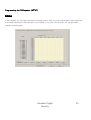
Main Screen
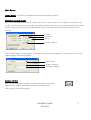
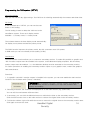
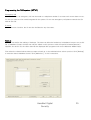
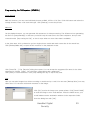
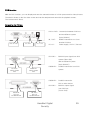
Overview of the live screen
After the software starts, an information window opens on the screen. Close it by clicking [OK].
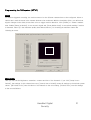
Setup:
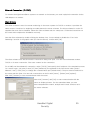
Here you can configure the digital surveillance system. Besides general settings, you can set
the following here : recording type, schedule, motion detection, pan/tilt function, network and
backups.
Search:
To play back recording video data you have a wide range of options for finding, analysing and
saving relevant video data.
Pan/Tilt:
For controlling connected P/T/Z cameras.
Function:
Useful functions such as preview, system info, history, network messages or auto-email are
available.
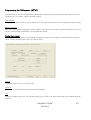
Date/time:
Display of date and time
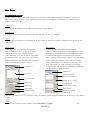
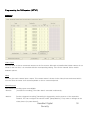
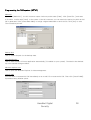
On-screen information: In the live view, various information can be displayed with the video picture
Channel number
Recording of motion event
Normal (continuous) recording
Recording of sensor alarm event
Pre(Pr) or Post(Af)-event recording
Voice recording
Channel selector: Here you can select a specific channel or automatic channel sequencing.
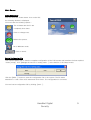
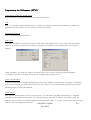
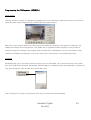
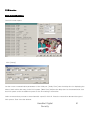
Main Screen:
(live video)
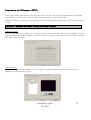
To view video pictures live, you can select either a single picture (full-screen) or up to 16
pictures at a time (depending on your video card). You can move the channels around in
the live-video area according to your needs. To do this, left-click a live video picture and
keep the mouse button pressed. Now drag the video picture to the desired live video area
and drop it there.
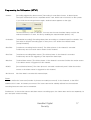
Alarm outputs:
Outputs 1-4 can be switched here manually (optional alarm I/O card required ; see the
section “Installing the alarm I/O card” for fitting).
Exit:
Button for exiting the digital surveillance system.
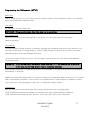
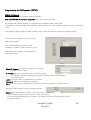
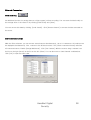
Screen Division:
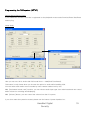
The video section of the live screen can be divided into 4,6,7,9,10,13 or 16 smaller screens.
The channels can be swapped around on the screen. To move a channel, left-click it and
keep the left mouse button pressed. Drag the video picture to the desired position and drop
it there. If you left-click a channel, you can change it to full-screen display. Click again to
return to the original view. A right-click enlarges the video area a fill the whole screen.
HanaNet Digital
Security
5