1
Main Screen
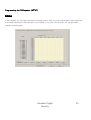
Controlling PTZ cameras
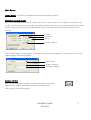
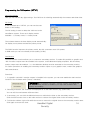
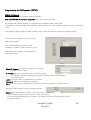
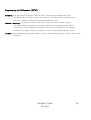
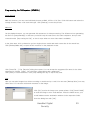
To open the PTZ control tab, click [PAN/TILT] in the live screen. With the digital surveillance system, you
can control a large number of PTZ cameras. You first have to configure a connected PTZ camera on the
[Setup / PAN/TILT] tab.
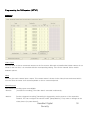
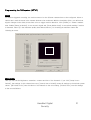
Speed
The pan and tilt speeds can be adjusted according to requirements.
Zoom/Focus
You can zoom and focus the camera manually with the [+] and [-] buttons.
Control
This contains the direction control buttons. At the center an autofocus button is displayed (not active for all
cameras).
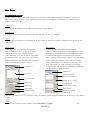
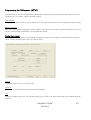
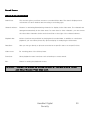
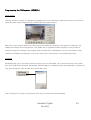
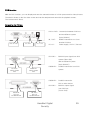
Setup Preset
Under [Preset], you can save and retrieve
camera positions. Up to 64 preset positions
can be saved for each camera channel.
Select a number from the Preset list and name
this position under [ID]. Now move the camera
to the desired position and then click [Save ID].
remove a preset with [Delete Preset].
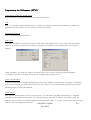
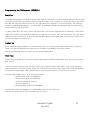
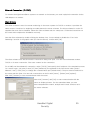
Auto Group
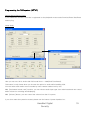
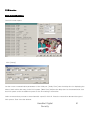
This figure shows the Auto Group window.
Here you can form a group of preset positions. The
positions of this group are then automatically set by
this camera at specific successive time intervals.
Enter a group number and ID and click [Group Add].
In the lower half, select a preset and click [Preset
Add]. Add all desired positions to the group. Then
click [Group Run] to start automatic positioning.
At the bottom, you can set the movement speed and
the dwell time for each position.
Camera no.
Camera no.
Preset list
Group Run/Stop
Group Del/Rename
Go to preset
Group # / ID / Add
Name ID
Preset Delete
Preset Insert / Add
Save ID
Goto Preset
Movement speed /
Dwell time
Set Preset
Delete Preset
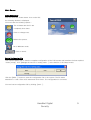
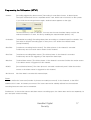
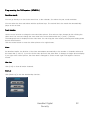
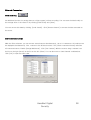
Setup menu
Here you can control various functions of the PTZ camera. These functions cannot be accessed for all camera
models.
Close
Click this blue button to close camera control.HanaNet
Digital
Security
8