1
Rain Bird® MI Series Mobile Controllers User Manual
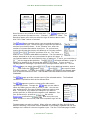
When you first browse your MI Web address, MI may ask you to select UI if it cannot
decide which UI for your browser. If using a regular cellphone, you have to select the
simple UI. The simple UI supports all mobile browsers include advanced browsers in
smartphones. If using a smartphone and you do not know whether your mobile
browser supports MI Smart UI or not, just try the Smart UI. If you can login but
some features do not work, usually the mobile browser does not support MI Smart
UI. In this case, you can either use simple UI or upgrade your mobile browser from
your vendor Website.
You may directly browse to simple UI sub-address at
http://YourMiAddress:port/rb/cell/
You may directly browse to Smart UI sub-address at
http://YourMiAddress:port/rb/smart/
Simple UI Login
Logging in to Rain Bird MI Series Mobile Controllers is similar to other programs or
Web sites. You enter the appropriate webpage address into your browser and the
log-in page will appear. It is recommended that you save your Rain Bird MI Series
Mobile Controller Web address as a favorite in your browser. If you use a dynamic
IP (most people do) then you will want to open an account with a domain name
service. What Domain Name Services do is store a Web address for you and also
keep track of your computer‘s IP on the Internet. You then always log on to the Web
address you defined in your account with the domain name service – then because
the domain name service always keeps track of your computer‘s IP address the
service can easily re-route Web traffic to you current IP.
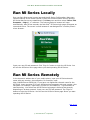
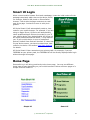
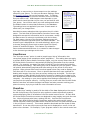
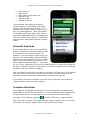
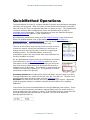
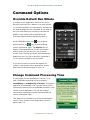
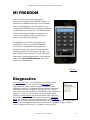
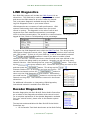
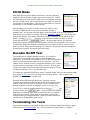
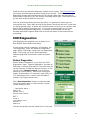
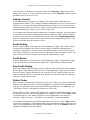
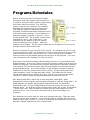
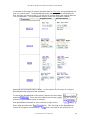
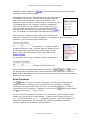
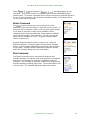
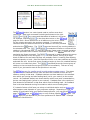
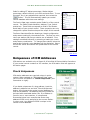
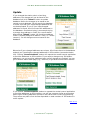
In addition to your golf course name, the login page will
indicate the number of days remaining in the product trial
period if applicable. At the log in screen enter your User Id
and Password. Once you have this information in place, click
the ―Sign In‖ button and your User ID will be authenticated.
For security, Rain Bird MI Series Mobile Controllers allows for
up to 5 incorrect passwords with a User ID. After 5 failing
attempts to log in, that user ID will be disabled. To re-enable
the account go to the User Management area of Rain Bird MI
Series Mobile Controllers Configuration and assign the now
Disabled user a new user role. Rain Bird MI Series Mobile
Controllers does not keep track of a user‘s past roles.
Any time you use Rain Bird MI Series Mobile Controllers after
logging out, you must enter your User ID and password at the
Login page. Please note that Rain Bird MI Series Mobile
Controllers are designed to automatically log you out after 30
minutes of inactivity.
© 2013 Rain Bird® Corporation
20