1
Rain Bird® MI Series Mobile Controllers User Manual
telling you the process may take a minute. Inside the office, your central control will
be initiating a manual download to retrieve weather data. You will need to wait a
few minutes before checking the weather data using
button
discussed below. It is not required that you download 24-hour data before checking
24-hour data – you only need to download if you want up to the minute information.
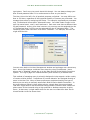
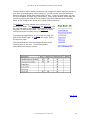
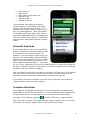
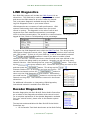
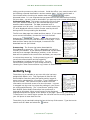
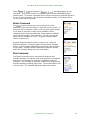
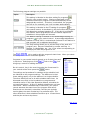
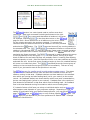
Collected 24Hr Data: This button retrieves the 24-hour data
from your weather station as it was recorded during the last
weather station download. The data presented here is
summarized over 24 hours. Just like in the central control, the
ET value displayed refers to inches of water used by the turf
during the 24 hours preceding the download.
The 24-hour data page has a date and time stamp. If you need
more current information, choose the Back link and then
depress the
button. Wait a few minutes to let
the download process complete and return to this page. If the
date and time stamp has not changed, it means the 24download has not yet finished.
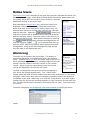
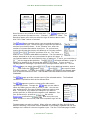
Process Log: The Process log button download the
SmartWeather process log. This is a diagnostic tool which is
normally not needed. If you attempt to download 24-Hour data
and receive a message indicating a problem, or the 24-hour
data will not update to the current time and date, you may wish
to review the process log. In the process log you will
see all the communication activity logged by
SmartWeather including download errors. You can
see this same information in your central control by
choosing the ―View Communication Log‖ button in SmartWeather.
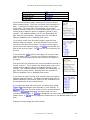
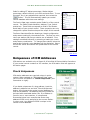
Activity Log
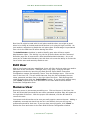
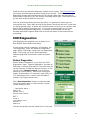
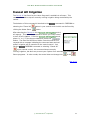
The activity log is available to any user with who has been
assigned the Admin. role. This log shows all Rain Bird MI
Series Mobile Controllers activities performed by logged in
users and is maintained for 12 months. Time is displayed in
24-hour format. This is done to make it easier to fit the
information on the small screen of a micro-browser. Log text
is wrapped into the next line unless the settings in your phone
are configured differently. The ―Lines/Screen‖ setting under
Rain Bird MI Series Mobile Controllers user preference is
honored by this page. When more lines are to be displayed,
pagination buttons will appear at the bottom of the page. Optionally, you could set
―Lines/Screen‖ to a much higher number like 100 and use the scrolling capability of
your cell phone to scan down the list.
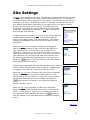
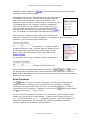
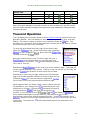
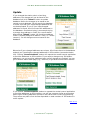
The activity log is searchable using the box at the top of the screen. Type the text to
search such as a date and select the
button.
© 2013 Rain Bird® Corporation
51