1
Module 7: Review and Approve Requests
Approve/Deny a Request in EPIC
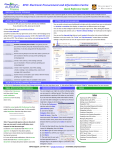
1. Go to the Home page by clicking on the home tab.
2. Locate the “To Do” box section of your home page where you will find the items which
require approval
OR
Locate the common actions box at the top left of the home page and select “My To Do”
3. Click the Title of the request to open up the request which requires approval.
4. Once the request is open, review the details by selecting “details” on each line item. Once
fully reviewed, revert back to the summary tab to view the 3 options for approving.
5. The Edit option will simply allow you to look at more options within the request but not
physically edit the request.
6. When approving or denying the request you will be directed to a page which allows you to
add comments if you wish. A check box option to make the comments visible to the supplier is
also available.
7. Click the “Home” tab to return to the EPIC home page.
Approve/Deny a Request in EPIC via Email
Similarly to approving through EPIC, you can approve or deny a request directly via email. If you
have chosen to receive emails for each purchase request, here is how to approve requests.
EPIC Support: 204-480-1001 • [email protected] • umanitoba.ca/eprocurement
106