1
as a number. The annualisation functions supplied are:
•
straight-line depreciation;
•
Tilted Straight-line depreciation;
•
sum of digits depreciation;
•
standard annuity function; and
•
tilted annuity function.
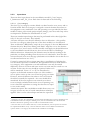
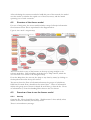
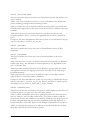
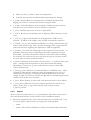
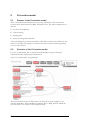
The user may choose the annualisation technique as shown in the figure above by
using the built-in drop-down menu.
The formula used to toggle between these different annualisation options is
embedded in Visual Basic code4. Please refer to the Model Documentation for
more information on the specific annualisation formula used.
2.3.2.2 I_Cost parameters
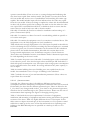
The sheet I_Cost parameters contains input data and options. The majority of
information is linked demand and allocation data from the core, access and colocation model. This data will be updated automatically when the other models
are open. Further, there are a few items of cost-related data that may be entered.
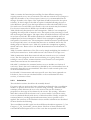
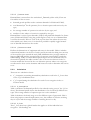
Table 1 contains an option to toggle between busy hour allocation of costs and
per minute allocation of costs. The default setting is per minute allocation.
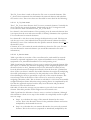
Table 2 includes a list of all network elements that are input into the model from
the three other models. The table also provides some summary information on
the number of network elements and number of cost categories assigned to each
network element. No changes would normally be required to this table.
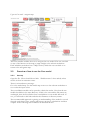
Table 3 is linked demand and route/allocation information tables from core,
access and co-location model. Since the model has to consider busy hour
allocation and per minute cost allocation both routing factors and cost weightings
based on busy hour traffic and minutes are included (table 3.2 and 3.3
respectively).
Table 4 is the cost of capital. There is no derivation of data for this value. Users
wishing to change this value may readily do so, however, it should be noted that
the cost of capital used is stated in nominal pre tax terms.
Table 5 contains inputs for the cost of working capital.
2.3.2.3 I_FA_Costs
The sheet I_FA_Costs contains input information used to calculate the
Functional Area costs. Although this is an input sheet, it contains some
calculations as this increases transparency and eases audit of the calculations.
To modify module sheets in Excel, run the Visual Basic Editor. Press Alt+F11 and select Module
“M3_Annualisation”. The annualisation formula has been embedded as a user-defined function.
4
Post- och telestyrelsen
10