1
•
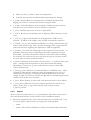
User notes. Purple indicates important notes or the source of the data.
Changing these cells will have no affect on results. These cells generally
describe neighbouring cells.
•
Input parameter. Pale blue boxes indicate that the values could be changed
but require thought before doing so. This is because changes will alter the
meaning of other data, or because the values are key parameters that affect a
considerable part of the model calculations. The inexperienced user should
generally leave these unchanged, or at least check the consequences (e.g. using
the Excel Audit tools) before making a change.
•
Header at start of table. Each worksheet has areas (“tables”) that relate to a
type of calculation or processing of data. These areas are separated from each
other by a header row – white text on a mid grey background.
•
Calculations, Developer notes, Warnings/Error messages. Unfilled
(white) cells are used for working or for text comments that describe a
neighbouring cell. These should not be altered unless you are developing the
model.
•
Bold red text (or cells shaded pale red) indicates warning messages; some
data has not passed a sense check, or some calculations have given results that
do not appear to be correct. The error message will indicate the nature of the
problem, but it is left to the user to resolve the problem.
•
Bold orange text indicates warning messages; some data is border line for
passing a sense check or calibration check, or some calibration ratios or other
calculations give results that are valid but slightly outside the “ideal” or
“normal” range. The warning or accompanying text will indicate the nature of
the issue, but it is left to the user to decide whether to resolve the warning, or
to let it stand.
•
Cells that link to external data. Tan coloured areas indicate linked data –
from another workbook.
•
Confidential input data. Bright green indicates a confidential input. The user
may enter a value or occasionally enter a hard coded formula to create the
value required – this is not recommended, but it can be useful. Values in these
cells have been adjusted for reasons of confidentiality.
•
Single cell array calculations. Underlined text with an optional comment
attached indicates a single cell array calculation. The inexperienced user should
particularly avoid editing these cells, as single cell array calculations can get
corrupted by being edited, even if the user does not change the formula.
(These array calculations are used to perform larger calculations whilst
keeping the size of the model manageable). Refer to the Excel on-line help for
more information on array calculations.
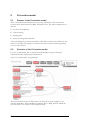
As well as Excel Comments, some floating text boxes have been used to expand
on the user notes. Some are in colour simply to highlight the information more
clearly. Comments fields have also been used – these also supply information
about the data or the formula used.
Post- och telestyrelsen
4