1
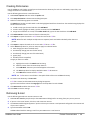
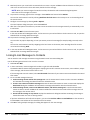
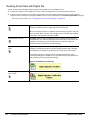
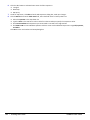
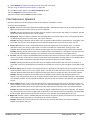
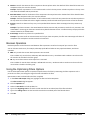
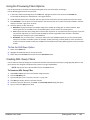
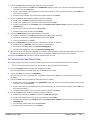
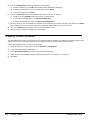
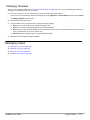
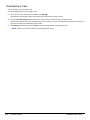
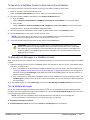
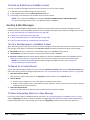
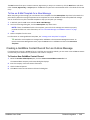
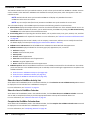
Outlook Mail The Outlook Integration adds several options and enhancements to the composition of messages in Outlook. Among these are the ability to link a message to a GoldMine contact, create a Contact based on a message, and view the Contact Record details for a linked message. NOTE: When Outlook’s compose message window is opened from within GoldMine by clicking on a hyperlink inside of GoldMine or by using the Action > Send Outlook Message option, an e-mail is linked to a contact only if a corresponding Auto-linking setting or a manual linking feature of GoldMine Outlook Integration is used. For more information, see "To Setup Auto-Linking of Messages to Contact Records" on page 362 and "Set Outlook as Default E-mail Application for GoldMine" on page 357. Notes About Sorted E-mail Folders GoldMine supports a drill-down capability when searching your e-mail folders. For example: if you sort your Inbox by sender (From), you can type the first letter of a sender’s name to jump to the first message from that sender. If you enter “V” and then enter “I”, a search will be made for e-mails from senders whose names start with “VI”. To switch from “V'” to “I”, press the E S C key then select 'I' and the cursor will be positioned on the first e-mail sender with “I” or the next letter, if no sender names begin with “I”. For additional information, refer to the following topics: Linking E-Mail Messages (see page 246) Sending E-Mail Messages (see page 248) Creating a GoldMine Contact Record from an Outlook Message (see page 249) Displaying the Linked Contact Details in Outlook (see page 363) Setting the Contact/E-Mail Pane Display Options (see page 365) Linking E-Mail Messages An e-mail message can be linked to a GoldMine Contact record either during composition or from a message in one of your Outlook folders (Inbox, Sent Items, Drafts, etc.). New messages are linked using the Link this e-mail to drop-down list and existing messages have options in the GoldMine panel for the selected message. For additional information, refer to the following topics: To Search for a GoldMine Contact to Associate an E-mail Address (see page 247) To Manually Link Messages to a GoldMine Contact (see page 247) To Link Multiple Messages (see page 247) To Setup Auto-Linking of Messages to Contact Records (see page 362) To Setup Linking Exclusions (see page 363) To Set How the E-Mail is Linked to a Contact (see page 362) To Unlink an E-Mail from a GoldMine Contact (see page 248) 246 • Outlook Integration GoldMine User Guide