1
P. 20
Placing Calls on Hold & Retrieving Calls from Hold
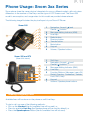
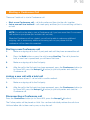
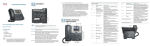
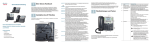
While on an active call, press the Hold button, or press the ‘Hold’ Soft Key.
The call is now on hold, and the other party will be listening to the ‘Music on Hold’. The
Indicator for the Line Key that is being used for the call will change to a slow-flashing red to
indicate this.
Retrieving a Call: To retrieve a call that has been placed on Hold, press the Hold button
again, or press the ‘Resume’ Soft Key.
If you have multiple calls on hold, press the Line Key that you wish to retrieve – it will have a
slow-flashing red Indicator.
Missed Calls
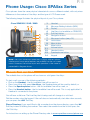
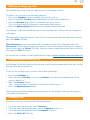
To view missed calls on your phone press the Down arrow.
Do Not Disturb
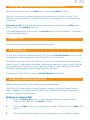
To stop your phone from receiving incoming calls, press the Do Not Disturb button. You will
still be able to make outgoing calls when ‘Do Not Disturb’ is activated.
The phone screen will show ‘Do Not Disturb’. The phone will behave the same way as when
the line is ‘busy’: callers dialing the phone’s direct line will hear a busy tone, or the ‘Follow Me’
call forwarding will activate if it is set up (see p.26 for details); callers dialing the Call Group
number will be redirected to other phones within the Call Group.
To switch off ‘Do Not Disturb’, press the Do Not Disturb button again.
Setting Up and Using Speed Dials
Speed Dials can be used to quickly dial frequently used numbers.
The Polycom IP phones assign ‘Speed Dial Index’ numbers to existing Contact Directory
entries. Therefore, you need to create a new Contact Directory entry before being able to
assign it a Speed Dial Index number.
Setting up a Speed Dial
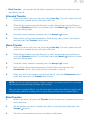
1.
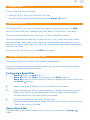
Press the Directories button. Use the Navigation buttons to select ‘Contact
Directory’ and then press the ‘Select’ Soft Key.
2.
Press the ‘Add’ Soft Key. If you do not see the ‘Add’ Soft Key, press the ‘More’ Soft
Key first.
3.
Fill out the required information using the Navigation buttons to highlight different