1
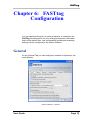
FASTtag
Note:
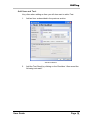
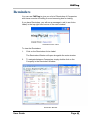
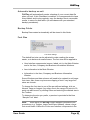
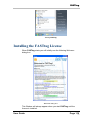
For best results, your logo should be in a jpg file with width
= 1.75 x height. For example, width 44mm, height 25mm. This
aspect ratio will make your logo compatible with the standard tag
template, if you are using the Printer Option.
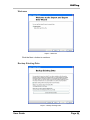
Emailing Reports
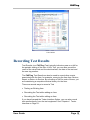
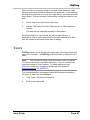
The FASTtag reports allow you to conveniently output the report to a
pdf file, which can then be emailed to a customer.
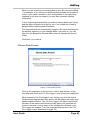
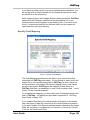
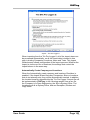
Saving Report to PDF
To email your report
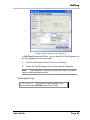
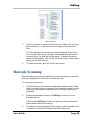
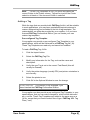
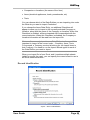
1.
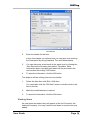
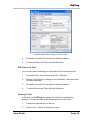
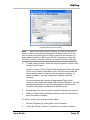
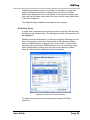
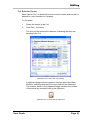
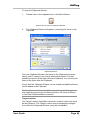
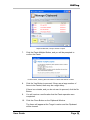
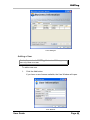
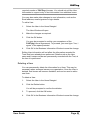
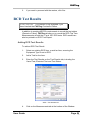
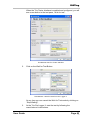
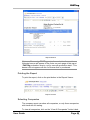
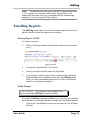
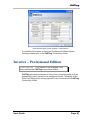
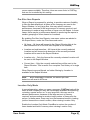
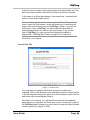
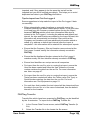
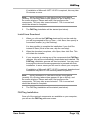
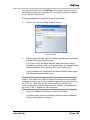
Click on the Export button in the Report Viewer (this is the disk
icon).
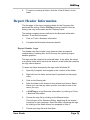
Report Controls
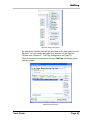
2.
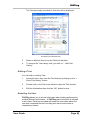
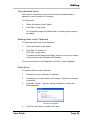
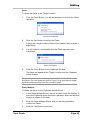
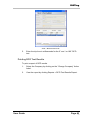
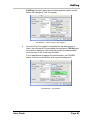
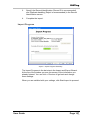
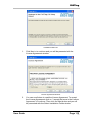
Choose the “Acrobat (PDF) File” option.
3.
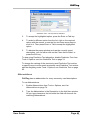
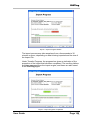
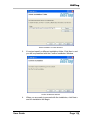
Specify a Location and file name for the pdf file.
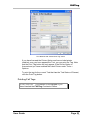
4.
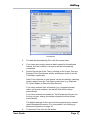
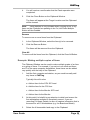
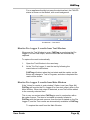
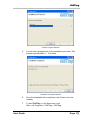
If you want to email the report, this can be done by closing the
Report window and creating an email with the FASTtag email
tools. For more information about how to do this, see Sending
Email to a Customer on page 53.
Email Report
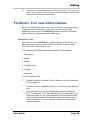
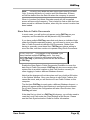
Product Required: This feature is only available if you
have licensed the FASTtag Professional Edition.
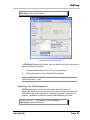
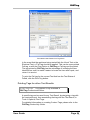
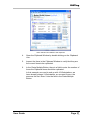
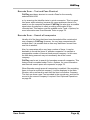
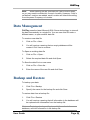
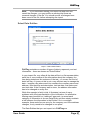
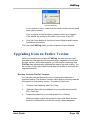
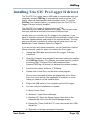
If you have FASTtag Professional Edition, you can more conveniently
email the report in a single operation, directly from the Report window.
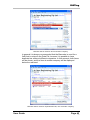
1.
User Guide
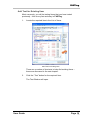
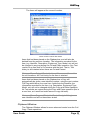
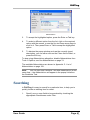
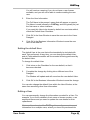
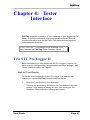
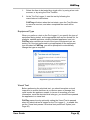
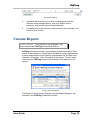
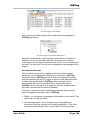
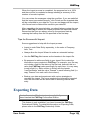
Click on the “Email Report” button on the lower left of the Report
Window.
Page 71
v3.3
P:\faxes\FASTtagDocumentPrep\UserGuide.doc