1
Confluence 3.0 Documentation
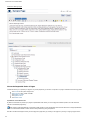
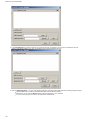
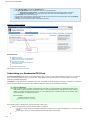
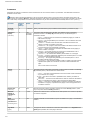
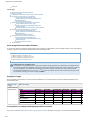
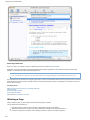
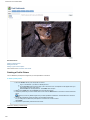
The website title and URL will be automatically copied from the website to your bookmark.
When you've finished adding the bookmark, you will be automatically returned to the website.
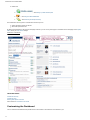
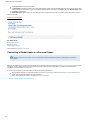
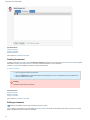
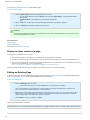
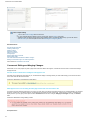
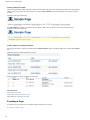
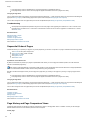
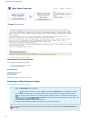
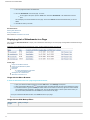
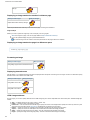
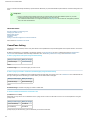
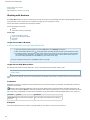
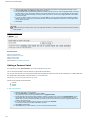
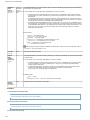
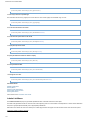
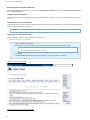
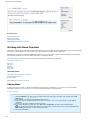
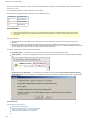
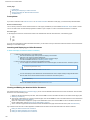
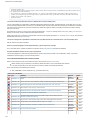
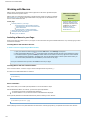
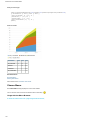
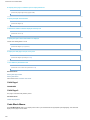
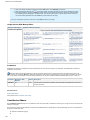
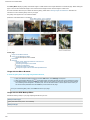
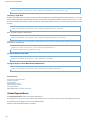
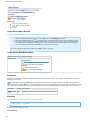
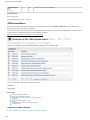
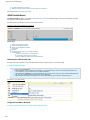
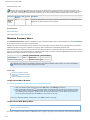
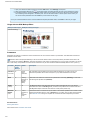
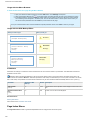
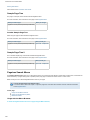
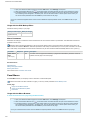
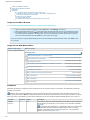
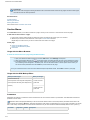
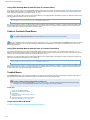
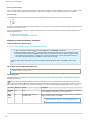
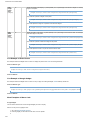
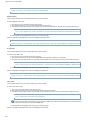
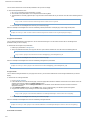
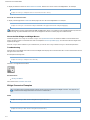
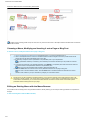
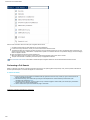
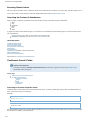
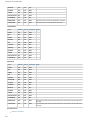
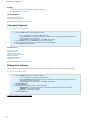
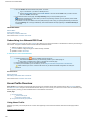
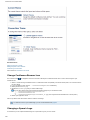
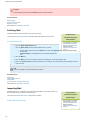
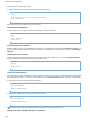
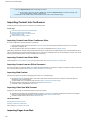
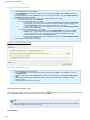
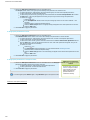
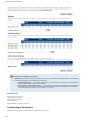
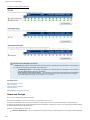
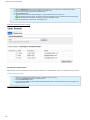
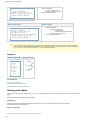
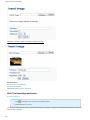
The bookmark icon will look something like this:
Internet Explorer:
Firefox:
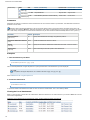
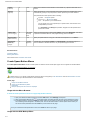
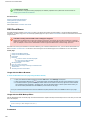
There are two ways to add the icon to the browser toolbar:
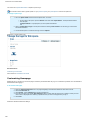
Drag the 'Bookmark in Confluence' link from the 'Space Bookmarks' page onto the browser toolbar. This method works for most
browsers, including Firefox. Read the full instructions.
Manually add the 'Bookmark in Confluence' link to your browser's 'Favorites - Links' folder. This method works for Internet
Explorer 7. Read the full instructions.
You can change the bookmark name from 'Bookmark in Confluence' to something else, if you want to. Just use your browser's own
functions for editing/organising bookmarks and bookmark properties.
RELATED TOPICS
Adding a bookmark
Adding a Bookmark Icon to your Browser
Adding a Bookmark Link to your Browser's Favorites
Dragging a Bookmark Link to your Browser
Editing or Commenting on a Bookmark
Removing a Bookmark
Subscribing to a Bookmarks RSS Feed
Viewing Bookmarks
Social Bookmarking Plugin
Take me back to Confluence User Guide
Adding a Bookmark Link to your Browser's Favorites
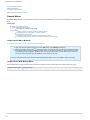
When using bookmarks in Confluence, you will find it useful to put a bookmark icon on your browser toolbar. Read an overview of adding the
icon to your toolbar.
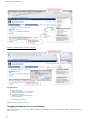
This page tells you how to add the Confluence bookmark link to your 'Links' folder within your browser's 'Favorites'. This will ensure that the
link and its icon appear on the 'Links' toolbar. We are using Internet Explorer 7 as an example browser
To add the bookmarks link to your Links folder,
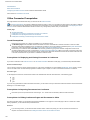
1. First make sure that your browser's 'Links' toolbar is showing: In IE7, click 'Tools' in the browser menu bar, then
select 'Toolbars' and put a check mark next to 'Links'.
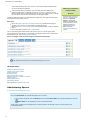
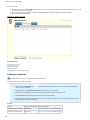
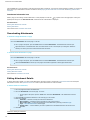
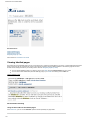
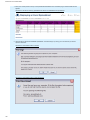
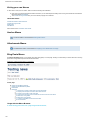
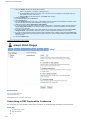
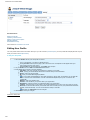
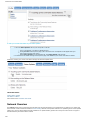
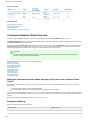
2. Go to 'Browse Space' for any Confluence space and click the 'Bookmarks' tab.
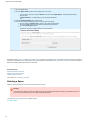
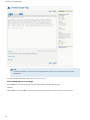
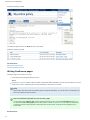
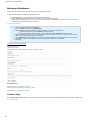
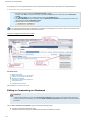
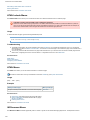
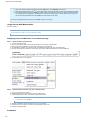
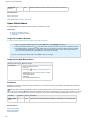
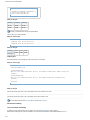
3. The 'Space Bookmarks' screen will appear. Right-click the 'Bookmark in Confluence' link on the right of the screen,
and select 'Add to Favorites...'.
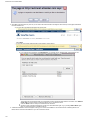
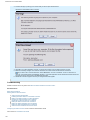
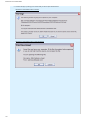
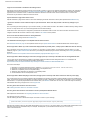
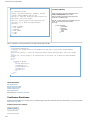
4. If the browser gives a security warning and asks if you want to continue, click 'Yes'.
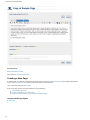
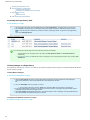
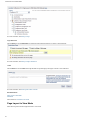
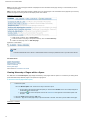
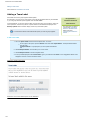
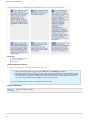
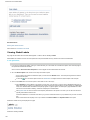
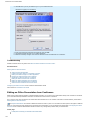
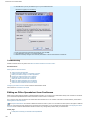
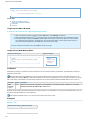
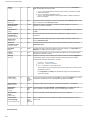
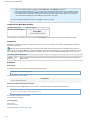
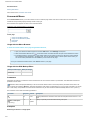
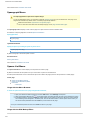
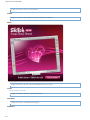
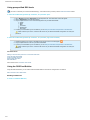
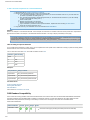
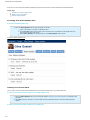
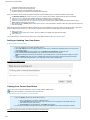
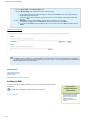
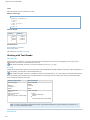
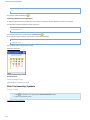
5. The 'Add a Favorite' window appears. Edit the 'Name' to something like 'Bookmark in Confluence'.
6. Select 'Links' from the 'Create in' dropdown list.
7. Click the 'Add' button.
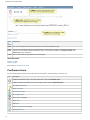
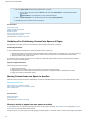
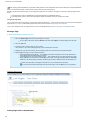
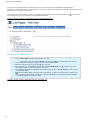
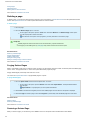
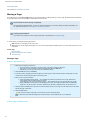
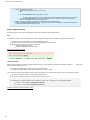
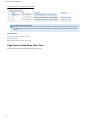
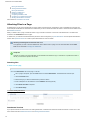
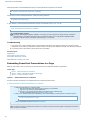
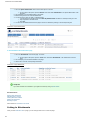
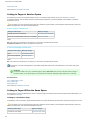
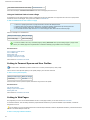
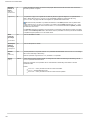
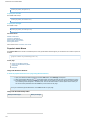
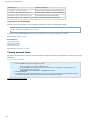
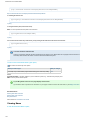
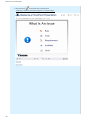
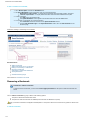
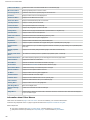
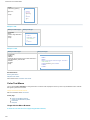
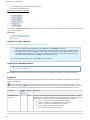
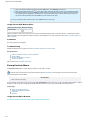
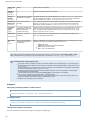
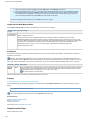
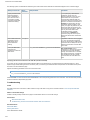
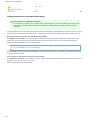
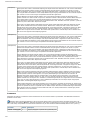
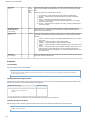
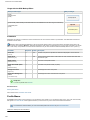
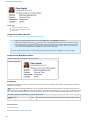
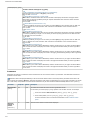
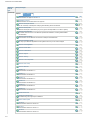
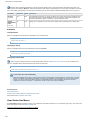
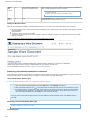
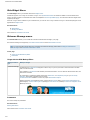
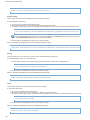
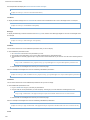
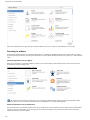
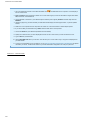
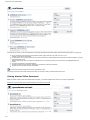
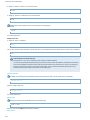
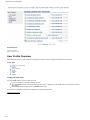
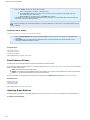
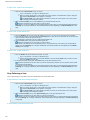
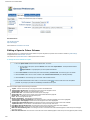
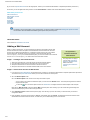
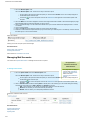
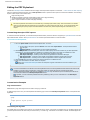
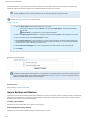
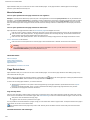
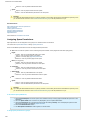
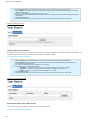
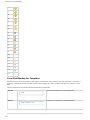
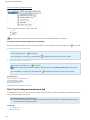
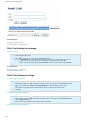
8. The bookmark icon appears in your browser's 'Links' toolbar:
You can change the bookmark name from 'Bookmark in Confluence' to something else, if you want to. Just use your browser's own
functions for editing/organising bookmarks and bookmark properties.
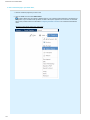
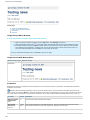
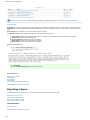
Screenshot : Showing the Links toolbar in IE7
171