1
1. Confluence User Guide . . . . . . . . . . . . . . . . . . . . . . . . . . . . . . . . . . . . . . . . . . . . . . . . . . . . . . . . . . . . . . . . . . . . . . . . . . . . . . . . . . .
1.1 Dashboard . . . . . . . . . . . . . . . . . . . . . . . . . . . . . . . . . . . . . . . . . . . . . . . . . . . . . . . . . . . . . . . . . . . . . . . . . . . . . . . . . . . . . . . . .
1.1.1 Customising the Dashboard . . . . . . . . . . . . . . . . . . . . . . . . . . . . . . . . . . . . . . . . . . . . . . . . . . . . . . . . . . . . . . . . . . . . . . .
1.2 Using the Confluence Screens . . . . . . . . . . . . . . . . . . . . . . . . . . . . . . . . . . . . . . . . . . . . . . . . . . . . . . . . . . . . . . . . . . . . . . . . .
1.3 Confluence Icons . . . . . . . . . . . . . . . . . . . . . . . . . . . . . . . . . . . . . . . . . . . . . . . . . . . . . . . . . . . . . . . . . . . . . . . . . . . . . . . . . . . .
1.4 Working with Spaces Overview . . . . . . . . . . . . . . . . . . . . . . . . . . . . . . . . . . . . . . . . . . . . . . . . . . . . . . . . . . . . . . . . . . . . . . . . .
1.4.1 Administering Spaces . . . . . . . . . . . . . . . . . . . . . . . . . . . . . . . . . . . . . . . . . . . . . . . . . . . . . . . . . . . . . . . . . . . . . . . . . . .
1.4.2 Browsing a space . . . . . . . . . . . . . . . . . . . . . . . . . . . . . . . . . . . . . . . . . . . . . . . . . . . . . . . . . . . . . . . . . . . . . . . . . . . . . . .
1.4.2.1 Editing Space Details . . . . . . . . . . . . . . . . . . . . . . . . . . . . . . . . . . . . . . . . . . . . . . . . . . . . . . . . . . . . . . . . . . . . . . .
1.4.2.2 Managing Orphaned Pages . . . . . . . . . . . . . . . . . . . . . . . . . . . . . . . . . . . . . . . . . . . . . . . . . . . . . . . . . . . . . . . . . .
1.4.2.3 Managing Undefined Pages . . . . . . . . . . . . . . . . . . . . . . . . . . . . . . . . . . . . . . . . . . . . . . . . . . . . . . . . . . . . . . . . . .
1.4.2.4 Tree View of Pages . . . . . . . . . . . . . . . . . . . . . . . . . . . . . . . . . . . . . . . . . . . . . . . . . . . . . . . . . . . . . . . . . . . . . . . .
1.4.2.5 Viewing Pages Alphabetically . . . . . . . . . . . . . . . . . . . . . . . . . . . . . . . . . . . . . . . . . . . . . . . . . . . . . . . . . . . . . . . .
1.4.2.6 Viewing Recently Updated Content . . . . . . . . . . . . . . . . . . . . . . . . . . . . . . . . . . . . . . . . . . . . . . . . . . . . . . . . . . . .
1.4.2.7 Viewing Space Details . . . . . . . . . . . . . . . . . . . . . . . . . . . . . . . . . . . . . . . . . . . . . . . . . . . . . . . . . . . . . . . . . . . . . .
1.4.3 Converting a Global Space to a Personal Space . . . . . . . . . . . . . . . . . . . . . . . . . . . . . . . . . . . . . . . . . . . . . . . . . . . . . . .
1.4.4 Deleting a Space . . . . . . . . . . . . . . . . . . . . . . . . . . . . . . . . . . . . . . . . . . . . . . . . . . . . . . . . . . . . . . . . . . . . . . . . . . . . . . .
1.4.5 Guidelines For Partitioning Content Into Spaces & Pages . . . . . . . . . . . . . . . . . . . . . . . . . . . . . . . . . . . . . . . . . . . . . . .
1.4.6 Moving Content from one Space to Another . . . . . . . . . . . . . . . . . . . . . . . . . . . . . . . . . . . . . . . . . . . . . . . . . . . . . . . . . .
1.4.6.1 Moving a family of pages from one space to another . . . . . . . . . . . . . . . . . . . . . . . . . . . . . . . . . . . . . . . . . . . . . .
1.4.6.2 Moving a Page from one Space to Another . . . . . . . . . . . . . . . . . . . . . . . . . . . . . . . . . . . . . . . . . . . . . . . . . . . . . .
1.4.7 Moving Pages within a Space . . . . . . . . . . . . . . . . . . . . . . . . . . . . . . . . . . . . . . . . . . . . . . . . . . . . . . . . . . . . . . . . . . . . .
1.4.8 Setting up a New Global Space . . . . . . . . . . . . . . . . . . . . . . . . . . . . . . . . . . . . . . . . . . . . . . . . . . . . . . . . . . . . . . . . . . . .
1.4.9 Setting up your Personal Space . . . . . . . . . . . . . . . . . . . . . . . . . . . . . . . . . . . . . . . . . . . . . . . . . . . . . . . . . . . . . . . . . . .
1.4.10 Viewing all Spaces . . . . . . . . . . . . . . . . . . . . . . . . . . . . . . . . . . . . . . . . . . . . . . . . . . . . . . . . . . . . . . . . . . . . . . . . . . . . .
1.4.11 Viewing Space Activity . . . . . . . . . . . . . . . . . . . . . . . . . . . . . . . . . . . . . . . . . . . . . . . . . . . . . . . . . . . . . . . . . . . . . . . . . .
1.5 Working with Pages Overview . . . . . . . . . . . . . . . . . . . . . . . . . . . . . . . . . . . . . . . . . . . . . . . . . . . . . . . . . . . . . . . . . . . . . . . . . .
1.5.1 Commenting on a Page . . . . . . . . . . . . . . . . . . . . . . . . . . . . . . . . . . . . . . . . . . . . . . . . . . . . . . . . . . . . . . . . . . . . . . . . . .
1.5.1.1 Adding a Comment . . . . . . . . . . . . . . . . . . . . . . . . . . . . . . . . . . . . . . . . . . . . . . . . . . . . . . . . . . . . . . . . . . . . . . . .
1.5.1.2 Deleting Comments . . . . . . . . . . . . . . . . . . . . . . . . . . . . . . . . . . . . . . . . . . . . . . . . . . . . . . . . . . . . . . . . . . . . . . . .
1.5.1.3 Editing a Comment . . . . . . . . . . . . . . . . . . . . . . . . . . . . . . . . . . . . . . . . . . . . . . . . . . . . . . . . . . . . . . . . . . . . . . . . .
1.5.1.4 Linking to Comments . . . . . . . . . . . . . . . . . . . . . . . . . . . . . . . . . . . . . . . . . . . . . . . . . . . . . . . . . . . . . . . . . . . . . . .
1.5.1.4.1 Sample Page . . . . . . . . . . . . . . . . . . . . . . . . . . . . . . . . . . . . . . . . . . . . . . . . . . . . . . . . . . . . . . . . . . . . . . . .
1.5.1.5 Viewing Comments . . . . . . . . . . . . . . . . . . . . . . . . . . . . . . . . . . . . . . . . . . . . . . . . . . . . . . . . . . . . . . . . . . . . . . . .
1.5.2 Copying a Page . . . . . . . . . . . . . . . . . . . . . . . . . . . . . . . . . . . . . . . . . . . . . . . . . . . . . . . . . . . . . . . . . . . . . . . . . . . . . . . .
1.5.3 Creating a New Page . . . . . . . . . . . . . . . . . . . . . . . . . . . . . . . . . . . . . . . . . . . . . . . . . . . . . . . . . . . . . . . . . . . . . . . . . . . .
1.5.4 Deleting a page . . . . . . . . . . . . . . . . . . . . . . . . . . . . . . . . . . . . . . . . . . . . . . . . . . . . . . . . . . . . . . . . . . . . . . . . . . . . . . . .
1.5.4.1 Purging Deleted Pages . . . . . . . . . . . . . . . . . . . . . . . . . . . . . . . . . . . . . . . . . . . . . . . . . . . . . . . . . . . . . . . . . . . . .
1.5.4.2 Restoring a Deleted Page . . . . . . . . . . . . . . . . . . . . . . . . . . . . . . . . . . . . . . . . . . . . . . . . . . . . . . . . . . . . . . . . . . .
1.5.5 Display an older version of a page . . . . . . . . . . . . . . . . . . . . . . . . . . . . . . . . . . . . . . . . . . . . . . . . . . . . . . . . . . . . . . . . . .
1.5.6 Editing an Existing Page . . . . . . . . . . . . . . . . . . . . . . . . . . . . . . . . . . . . . . . . . . . . . . . . . . . . . . . . . . . . . . . . . . . . . . . . .
1.5.6.1 Concurrent Editing and Merging Changes . . . . . . . . . . . . . . . . . . . . . . . . . . . . . . . . . . . . . . . . . . . . . . . . . . . . . . .
1.5.6.2 Making Rich Text or Wiki Markup Editing Default . . . . . . . . . . . . . . . . . . . . . . . . . . . . . . . . . . . . . . . . . . . . . . . . .
1.5.6.3 Recording Change Comments . . . . . . . . . . . . . . . . . . . . . . . . . . . . . . . . . . . . . . . . . . . . . . . . . . . . . . . . . . . . . . . .
1.5.7 E-mailing a Page . . . . . . . . . . . . . . . . . . . . . . . . . . . . . . . . . . . . . . . . . . . . . . . . . . . . . . . . . . . . . . . . . . . . . . . . . . . . . . .
6
10
11
13
15
16
17
19
20
21
22
22
23
23
23
24
25
26
26
26
27
27
30
31
33
33
35
35
36
37
37
38
39
39
41
42
45
45
45
46
46
47
48
48
49
1.5.8 Linking pages . . . . . . . . . . . . . . . . . . . . . . . . . . . . . . . . . . . . . . . . . . . . . . . . . . . . . . . . . . . . . . . . . . . . . . . . . . . . . . . . . .
1.5.9 Moving a Page . . . . . . . . . . . . . . . . . . . . . . . . . . . . . . . . . . . . . . . . . . . . . . . . . . . . . . . . . . . . . . . . . . . . . . . . . . . . . . . . .
1.5.10 Sequential Order of Pages . . . . . . . . . . . . . . . . . . . . . . . . . . . . . . . . . . . . . . . . . . . . . . . . . . . . . . . . . . . . . . . . . . . . . . .
1.5.11 Page History and Page Comparison Views . . . . . . . . . . . . . . . . . . . . . . . . . . . . . . . . . . . . . . . . . . . . . . . . . . . . . . . . . .
1.5.11.1 Restoring an Older Version of a Page . . . . . . . . . . . . . . . . . . . . . . . . . . . . . . . . . . . . . . . . . . . . . . . . . . . . . . . . .
1.5.12 Page Layout in Edit Mode (Rich Text) . . . . . . . . . . . . . . . . . . . . . . . . . . . . . . . . . . . . . . . . . . . . . . . . . . . . . . . . . . . . . .
1.5.13 Page Layout in Edit Mode (Wiki Markup) . . . . . . . . . . . . . . . . . . . . . . . . . . . . . . . . . . . . . . . . . . . . . . . . . . . . . . . . . . . .
1.5.14 Page Layout in View Mode . . . . . . . . . . . . . . . . . . . . . . . . . . . . . . . . . . . . . . . . . . . . . . . . . . . . . . . . . . . . . . . . . . . . . .
1.5.15 Recently Viewed Content . . . . . . . . . . . . . . . . . . . . . . . . . . . . . . . . . . . . . . . . . . . . . . . . . . . . . . . . . . . . . . . . . . . . . . . .
1.5.16 Renaming a Page . . . . . . . . . . . . . . . . . . . . . . . . . . . . . . . . . . . . . . . . . . . . . . . . . . . . . . . . . . . . . . . . . . . . . . . . . . . . .
1.5.17 Viewing Page Information . . . . . . . . . . . . . . . . . . . . . . . . . . . . . . . . . . . . . . . . . . . . . . . . . . . . . . . . . . . . . . . . . . . . . . .
1.5.18 Working with Drafts Overview . . . . . . . . . . . . . . . . . . . . . . . . . . . . . . . . . . . . . . . . . . . . . . . . . . . . . . . . . . . . . . . . . . . .
1.5.18.1 Configuring the Time Interval at which Drafts are Saved . . . . . . . . . . . . . . . . . . . . . . . . . . . . . . . . . . . . . . . . . . .
1.5.18.2 Resuming the Editing of a Draft . . . . . . . . . . . . . . . . . . . . . . . . . . . . . . . . . . . . . . . . . . . . . . . . . . . . . . . . . . . . . .
1.5.18.3 Viewing Drafts . . . . . . . . . . . . . . . . . . . . . . . . . . . . . . . . . . . . . . . . . . . . . . . . . . . . . . . . . . . . . . . . . . . . . . . . . . .
1.5.19 Writing Confluence pages . . . . . . . . . . . . . . . . . . . . . . . . . . . . . . . . . . . . . . . . . . . . . . . . . . . . . . . . . . . . . . . . . . . . . . .
1.5.20 Working with Page Families . . . . . . . . . . . . . . . . . . . . . . . . . . . . . . . . . . . . . . . . . . . . . . . . . . . . . . . . . . . . . . . . . . . . . .
1.5.20.1 Setting a Page Family to Alphabetical Order . . . . . . . . . . . . . . . . . . . . . . . . . . . . . . . . . . . . . . . . . . . . . . . . . . . .
1.5.20.2 What is a Page Family? . . . . . . . . . . . . . . . . . . . . . . . . . . . . . . . . . . . . . . . . . . . . . . . . . . . . . . . . . . . . . . . . . . . .
1.5.20.3 Breadcrumbs . . . . . . . . . . . . . . . . . . . . . . . . . . . . . . . . . . . . . . . . . . . . . . . . . . . . . . . . . . . . . . . . . . . . . . . . . . . .
1.5.20.4 Viewing a Page's Family . . . . . . . . . . . . . . . . . . . . . . . . . . . . . . . . . . . . . . . . . . . . . . . . . . . . . . . . . . . . . . . . . . .
1.5.20.5 Viewing Children of a Page . . . . . . . . . . . . . . . . . . . . . . . . . . . . . . . . . . . . . . . . . . . . . . . . . . . . . . . . . . . . . . . . .
1.5.20.6 Viewing Hierarchy of Pages within a Space . . . . . . . . . . . . . . . . . . . . . . . . . . . . . . . . . . . . . . . . . . . . . . . . . . . . .
1.5.20.7 Viewing a Page's Location within a Space . . . . . . . . . . . . . . . . . . . . . . . . . . . . . . . . . . . . . . . . . . . . . . . . . . . . . .
1.5.20.8 Changing Parent of a Page . . . . . . . . . . . . . . . . . . . . . . . . . . . . . . . . . . . . . . . . . . . . . . . . . . . . . . . . . . . . . . . . .
1.5.20.9 Creating a Child Page . . . . . . . . . . . . . . . . . . . . . . . . . . . . . . . . . . . . . . . . . . . . . . . . . . . . . . . . . . . . . . . . . . . . .
1.6 Working with Attachments Overview . . . . . . . . . . . . . . . . . . . . . . . . . . . . . . . . . . . . . . . . . . . . . . . . . . . . . . . . . . . . . . . . . . . . .
1.6.1 Attaching Files to a Page . . . . . . . . . . . . . . . . . . . . . . . . . . . . . . . . . . . . . . . . . . . . . . . . . . . . . . . . . . . . . . . . . . . . . . . . .
1.6.2 Attachment Versions . . . . . . . . . . . . . . . . . . . . . . . . . . . . . . . . . . . . . . . . . . . . . . . . . . . . . . . . . . . . . . . . . . . . . . . . . . . .
1.6.3 Deleting an Attachment . . . . . . . . . . . . . . . . . . . . . . . . . . . . . . . . . . . . . . . . . . . . . . . . . . . . . . . . . . . . . . . . . . . . . . . . . .
1.6.4 Displaying List of Attachments in a Page . . . . . . . . . . . . . . . . . . . . . . . . . . . . . . . . . . . . . . . . . . . . . . . . . . . . . . . . . . . . .
1.6.5 Downloading Attachments . . . . . . . . . . . . . . . . . . . . . . . . . . . . . . . . . . . . . . . . . . . . . . . . . . . . . . . . . . . . . . . . . . . . . . . .
1.6.6 Editing Attachment Details . . . . . . . . . . . . . . . . . . . . . . . . . . . . . . . . . . . . . . . . . . . . . . . . . . . . . . . . . . . . . . . . . . . . . . . .
1.6.7 Embedding Multimedia Content . . . . . . . . . . . . . . . . . . . . . . . . . . . . . . . . . . . . . . . . . . . . . . . . . . . . . . . . . . . . . . . . . . . .
1.6.8 Embedding PowerPoint Presentations in a Page . . . . . . . . . . . . . . . . . . . . . . . . . . . . . . . . . . . . . . . . . . . . . . . . . . . . . .
1.6.9 Finding an Attachment . . . . . . . . . . . . . . . . . . . . . . . . . . . . . . . . . . . . . . . . . . . . . . . . . . . . . . . . . . . . . . . . . . . . . . . . . . .
1.6.10 Linking to Attachments . . . . . . . . . . . . . . . . . . . . . . . . . . . . . . . . . . . . . . . . . . . . . . . . . . . . . . . . . . . . . . . . . . . . . . . . . .
1.6.11 Moving an Attachment . . . . . . . . . . . . . . . . . . . . . . . . . . . . . . . . . . . . . . . . . . . . . . . . . . . . . . . . . . . . . . . . . . . . . . . . . .
1.6.11.1 Choose a Page . . . . . . . . . . . . . . . . . . . . . . . . . . . . . . . . . . . . . . . . . . . . . . . . . . . . . . . . . . . . . . . . . . . . . . . . . .
1.6.12 Viewing Attachment Details . . . . . . . . . . . . . . . . . . . . . . . . . . . . . . . . . . . . . . . . . . . . . . . . . . . . . . . . . . . . . . . . . . . . . .
1.7 Working with Images . . . . . . . . . . . . . . . . . . . . . . . . . . . . . . . . . . . . . . . . . . . . . . . . . . . . . . . . . . . . . . . . . . . . . . . . . . . . . . . . .
1.7.1 Displaying an Image . . . . . . . . . . . . . . . . . . . . . . . . . . . . . . . . . . . . . . . . . . . . . . . . . . . . . . . . . . . . . . . . . . . . . . . . . . . .
1.7.1.1 Image File Formats . . . . . . . . . . . . . . . . . . . . . . . . . . . . . . . . . . . . . . . . . . . . . . . . . . . . . . . . . . . . . . . . . . . . . . . .
1.7.2 Viewing Images as a Slide Show . . . . . . . . . . . . . . . . . . . . . . . . . . . . . . . . . . . . . . . . . . . . . . . . . . . . . . . . . . . . . . . . . . .
1.8 Working with Links Overview . . . . . . . . . . . . . . . . . . . . . . . . . . . . . . . . . . . . . . . . . . . . . . . . . . . . . . . . . . . . . . . . . . . . . . . . . . .
1.8.1 CamelCase linking . . . . . . . . . . . . . . . . . . . . . . . . . . . . . . . . . . . . . . . . . . . . . . . . . . . . . . . . . . . . . . . . . . . . . . . . . . . . . .
1.8.1.1 CamelCasePage . . . . . . . . . . . . . . . . . . . . . . . . . . . . . . . . . . . . . . . . . . . . . . . . . . . . . . . . . . . . . . . . . . . . . . . . . .
1.8.2 Changing the Title of a Link . . . . . . . . . . . . . . . . . . . . . . . . . . . . . . . . . . . . . . . . . . . . . . . . . . . . . . . . . . . . . . . . . . . . . . .
1.8.2.1 Sample Release Notes . . . . . . . . . . . . . . . . . . . . . . . . . . . . . . . . . . . . . . . . . . . . . . . . . . . . . . . . . . . . . . . . . . . . .
1.8.3 Linking an Image . . . . . . . . . . . . . . . . . . . . . . . . . . . . . . . . . . . . . . . . . . . . . . . . . . . . . . . . . . . . . . . . . . . . . . . . . . . . . . .
1.8.4 Linking to Confluence Pages from Outside Confluence . . . . . . . . . . . . . . . . . . . . . . . . . . . . . . . . . . . . . . . . . . . . . . . . .
1.8.5 Linking to Pages in Another Space . . . . . . . . . . . . . . . . . . . . . . . . . . . . . . . . . . . . . . . . . . . . . . . . . . . . . . . . . . . . . . . . .
1.8.6 Linking to Pages Within the Same Space . . . . . . . . . . . . . . . . . . . . . . . . . . . . . . . . . . . . . . . . . . . . . . . . . . . . . . . . . . . .
1.8.7 Linking to Personal Spaces and User Profiles . . . . . . . . . . . . . . . . . . . . . . . . . . . . . . . . . . . . . . . . . . . . . . . . . . . . . . . . .
1.8.8 Linking to Web Pages . . . . . . . . . . . . . . . . . . . . . . . . . . . . . . . . . . . . . . . . . . . . . . . . . . . . . . . . . . . . . . . . . . . . . . . . . . .
1.8.9 Trackback . . . . . . . . . . . . . . . . . . . . . . . . . . . . . . . . . . . . . . . . . . . . . . . . . . . . . . . . . . . . . . . . . . . . . . . . . . . . . . . . . . . .
1.8.10 Using a link to create a new mail message . . . . . . . . . . . . . . . . . . . . . . . . . . . . . . . . . . . . . . . . . . . . . . . . . . . . . . . . . .
1.8.11 Working with Anchors . . . . . . . . . . . . . . . . . . . . . . . . . . . . . . . . . . . . . . . . . . . . . . . . . . . . . . . . . . . . . . . . . . . . . . . . . .
1.9 Working with Labels Overview . . . . . . . . . . . . . . . . . . . . . . . . . . . . . . . . . . . . . . . . . . . . . . . . . . . . . . . . . . . . . . . . . . . . . . . . . .
1.9.1 Adding a Global Label . . . . . . . . . . . . . . . . . . . . . . . . . . . . . . . . . . . . . . . . . . . . . . . . . . . . . . . . . . . . . . . . . . . . . . . . . . .
1.9.2 Adding a Personal Label . . . . . . . . . . . . . . . . . . . . . . . . . . . . . . . . . . . . . . . . . . . . . . . . . . . . . . . . . . . . . . . . . . . . . . . . .
1.9.3 Adding a Space Label . . . . . . . . . . . . . . . . . . . . . . . . . . . . . . . . . . . . . . . . . . . . . . . . . . . . . . . . . . . . . . . . . . . . . . . . . . .
1.9.4 Adding a Team Label . . . . . . . . . . . . . . . . . . . . . . . . . . . . . . . . . . . . . . . . . . . . . . . . . . . . . . . . . . . . . . . . . . . . . . . . . . . .
1.9.5 Categorising Wiki Content Using Labels . . . . . . . . . . . . . . . . . . . . . . . . . . . . . . . . . . . . . . . . . . . . . . . . . . . . . . . . . . . . .
1.9.6 Label Macros . . . . . . . . . . . . . . . . . . . . . . . . . . . . . . . . . . . . . . . . . . . . . . . . . . . . . . . . . . . . . . . . . . . . . . . . . . . . . . . . . .
1.9.6.1 Content by Label Macro . . . . . . . . . . . . . . . . . . . . . . . . . . . . . . . . . . . . . . . . . . . . . . . . . . . . . . . . . . . . . . . . . . . . .
1.9.6.2 Labels List Macro . . . . . . . . . . . . . . . . . . . . . . . . . . . . . . . . . . . . . . . . . . . . . . . . . . . . . . . . . . . . . . . . . . . . . . . . . .
1.9.6.3 Navmap Macro . . . . . . . . . . . . . . . . . . . . . . . . . . . . . . . . . . . . . . . . . . . . . . . . . . . . . . . . . . . . . . . . . . . . . . . . . . . .
1.9.6.4 Popular Labels Macro . . . . . . . . . . . . . . . . . . . . . . . . . . . . . . . . . . . . . . . . . . . . . . . . . . . . . . . . . . . . . . . . . . . . . .
1.9.6.5 Recently Used Labels Macro . . . . . . . . . . . . . . . . . . . . . . . . . . . . . . . . . . . . . . . . . . . . . . . . . . . . . . . . . . . . . . . . .
1.9.6.6 Related Labels Macro . . . . . . . . . . . . . . . . . . . . . . . . . . . . . . . . . . . . . . . . . . . . . . . . . . . . . . . . . . . . . . . . . . . . . .
1.9.7 Navigating Pages by Label . . . . . . . . . . . . . . . . . . . . . . . . . . . . . . . . . . . . . . . . . . . . . . . . . . . . . . . . . . . . . . . . . . . . . . .
1.9.8 Removing a label from a page . . . . . . . . . . . . . . . . . . . . . . . . . . . . . . . . . . . . . . . . . . . . . . . . . . . . . . . . . . . . . . . . . . . . .
1.9.9 Removing a space label . . . . . . . . . . . . . . . . . . . . . . . . . . . . . . . . . . . . . . . . . . . . . . . . . . . . . . . . . . . . . . . . . . . . . . . . . .
1.9.10 Removing a team label . . . . . . . . . . . . . . . . . . . . . . . . . . . . . . . . . . . . . . . . . . . . . . . . . . . . . . . . . . . . . . . . . . . . . . . . .
1.9.11 Viewing Global Labels . . . . . . . . . . . . . . . . . . . . . . . . . . . . . . . . . . . . . . . . . . . . . . . . . . . . . . . . . . . . . . . . . . . . . . . . . .
1.9.12 Viewing labelled pages . . . . . . . . . . . . . . . . . . . . . . . . . . . . . . . . . . . . . . . . . . . . . . . . . . . . . . . . . . . . . . . . . . . . . . . . .
1.9.13 Viewing personal labels . . . . . . . . . . . . . . . . . . . . . . . . . . . . . . . . . . . . . . . . . . . . . . . . . . . . . . . . . . . . . . . . . . . . . . . . .
1.9.14 Viewing Popular Labels . . . . . . . . . . . . . . . . . . . . . . . . . . . . . . . . . . . . . . . . . . . . . . . . . . . . . . . . . . . . . . . . . . . . . . . . .
1.10 Working with News Overview . . . . . . . . . . . . . . . . . . . . . . . . . . . . . . . . . . . . . . . . . . . . . . . . . . . . . . . . . . . . . . . . . . . . . . . . .
50
51
54
54
57
58
59
61
62
63
64
65
66
66
66
67
68
68
70
71
71
71
72
73
73
74
74
75
76
76
77
79
79
80
81
82
83
85
85
86
88
88
90
90
92
93
94
94
94
95
95
96
96
97
97
98
98
99
100
101
102
103
104
105
106
106
110
112
116
118
119
122
124
124
125
126
127
128
129
130
1.10.1 Adding News . . . . . . . . . . . . . . . . . . . . . . . . . . . . . . . . . . . . . . . . . . . . . . . . . . . . . . . . . . . . . . . . . . . . . . . . . . . . . . . . .
1.10.2 Deleting News . . . . . . . . . . . . . . . . . . . . . . . . . . . . . . . . . . . . . . . . . . . . . . . . . . . . . . . . . . . . . . . . . . . . . . . . . . . . . . . .
1.10.3 Editing News . . . . . . . . . . . . . . . . . . . . . . . . . . . . . . . . . . . . . . . . . . . . . . . . . . . . . . . . . . . . . . . . . . . . . . . . . . . . . . . . .
1.10.4 Linking to News . . . . . . . . . . . . . . . . . . . . . . . . . . . . . . . . . . . . . . . . . . . . . . . . . . . . . . . . . . . . . . . . . . . . . . . . . . . . . . .
1.10.5 Viewing News . . . . . . . . . . . . . . . . . . . . . . . . . . . . . . . . . . . . . . . . . . . . . . . . . . . . . . . . . . . . . . . . . . . . . . . . . . . . . . . .
1.11 Working with the Office Connector . . . . . . . . . . . . . . . . . . . . . . . . . . . . . . . . . . . . . . . . . . . . . . . . . . . . . . . . . . . . . . . . . . . . .
1.11.1 Office Connector Prerequisites . . . . . . . . . . . . . . . . . . . . . . . . . . . . . . . . . . . . . . . . . . . . . . . . . . . . . . . . . . . . . . . . . . .
1.11.2 Installing the Firefox Add-On for the Office Connector . . . . . . . . . . . . . . . . . . . . . . . . . . . . . . . . . . . . . . . . . . . . . . . . .
1.11.3 Editing a Confluence Page in an Office Application . . . . . . . . . . . . . . . . . . . . . . . . . . . . . . . . . . . . . . . . . . . . . . . . . . . .
1.11.4 Importing an Office Document into Confluence . . . . . . . . . . . . . . . . . . . . . . . . . . . . . . . . . . . . . . . . . . . . . . . . . . . . . . .
1.11.5 Displaying an Office Document in Confluence . . . . . . . . . . . . . . . . . . . . . . . . . . . . . . . . . . . . . . . . . . . . . . . . . . . . . . . .
1.11.6 Editing an Office Document from Confluence . . . . . . . . . . . . . . . . . . . . . . . . . . . . . . . . . . . . . . . . . . . . . . . . . . . . . . . .
1.11.7 Editing an Office Presentation from Confluence . . . . . . . . . . . . . . . . . . . . . . . . . . . . . . . . . . . . . . . . . . . . . . . . . . . . . .
1.11.8 Editing an Office Spreadsheet from Confluence . . . . . . . . . . . . . . . . . . . . . . . . . . . . . . . . . . . . . . . . . . . . . . . . . . . . . .
1.11.9 Office Connector Limitations and Known Issues . . . . . . . . . . . . . . . . . . . . . . . . . . . . . . . . . . . . . . . . . . . . . . . . . . . . . .
1.12 Working with Bookmarks . . . . . . . . . . . . . . . . . . . . . . . . . . . . . . . . . . . . . . . . . . . . . . . . . . . . . . . . . . . . . . . . . . . . . . . . . . . . .
1.12.1 Adding a bookmark . . . . . . . . . . . . . . . . . . . . . . . . . . . . . . . . . . . . . . . . . . . . . . . . . . . . . . . . . . . . . . . . . . . . . . . . . . . .
1.12.2 Adding a Bookmark Icon to your Browser . . . . . . . . . . . . . . . . . . . . . . . . . . . . . . . . . . . . . . . . . . . . . . . . . . . . . . . . . . .
1.12.2.1 Adding a Bookmark Link to your Browser's Favorites . . . . . . . . . . . . . . . . . . . . . . . . . . . . . . . . . . . . . . . . . . . . .
1.12.2.2 Dragging a Bookmark Link to your Browser . . . . . . . . . . . . . . . . . . . . . . . . . . . . . . . . . . . . . . . . . . . . . . . . . . . . .
1.12.3 Editing or Commenting on a Bookmark . . . . . . . . . . . . . . . . . . . . . . . . . . . . . . . . . . . . . . . . . . . . . . . . . . . . . . . . . . . . .
1.12.4 Removing a Bookmark . . . . . . . . . . . . . . . . . . . . . . . . . . . . . . . . . . . . . . . . . . . . . . . . . . . . . . . . . . . . . . . . . . . . . . . . . .
1.12.5 Subscribing to a Bookmarks RSS Feed . . . . . . . . . . . . . . . . . . . . . . . . . . . . . . . . . . . . . . . . . . . . . . . . . . . . . . . . . . . . .
1.12.6 Viewing Bookmarks . . . . . . . . . . . . . . . . . . . . . . . . . . . . . . . . . . . . . . . . . . . . . . . . . . . . . . . . . . . . . . . . . . . . . . . . . . . .
1.13 Working with Macros . . . . . . . . . . . . . . . . . . . . . . . . . . . . . . . . . . . . . . . . . . . . . . . . . . . . . . . . . . . . . . . . . . . . . . . . . . . . . . . .
1.13.1 Anchor Macro . . . . . . . . . . . . . . . . . . . . . . . . . . . . . . . . . . . . . . . . . . . . . . . . . . . . . . . . . . . . . . . . . . . . . . . . . . . . . . . . .
1.13.2 Attachments Macro . . . . . . . . . . . . . . . . . . . . . . . . . . . . . . . . . . . . . . . . . . . . . . . . . . . . . . . . . . . . . . . . . . . . . . . . . . . .
1.13.3 Blog Posts Macro . . . . . . . . . . . . . . . . . . . . . . . . . . . . . . . . . . . . . . . . . . . . . . . . . . . . . . . . . . . . . . . . . . . . . . . . . . . . . .
1.13.4 Bookmarks Macro . . . . . . . . . . . . . . . . . . . . . . . . . . . . . . . . . . . . . . . . . . . . . . . . . . . . . . . . . . . . . . . . . . . . . . . . . . . . .
1.13.5 Change-History Macro . . . . . . . . . . . . . . . . . . . . . . . . . . . . . . . . . . . . . . . . . . . . . . . . . . . . . . . . . . . . . . . . . . . . . . . . . .
1.13.6 Chart Macro . . . . . . . . . . . . . . . . . . . . . . . . . . . . . . . . . . . . . . . . . . . . . . . . . . . . . . . . . . . . . . . . . . . . . . . . . . . . . . . . . .
1.13.7 Cheese Macro . . . . . . . . . . . . . . . . . . . . . . . . . . . . . . . . . . . . . . . . . . . . . . . . . . . . . . . . . . . . . . . . . . . . . . . . . . . . . . . .
1.13.8 Children Display Macro . . . . . . . . . . . . . . . . . . . . . . . . . . . . . . . . . . . . . . . . . . . . . . . . . . . . . . . . . . . . . . . . . . . . . . . . .
1.13.8.1 Child Page 1 . . . . . . . . . . . . . . . . . . . . . . . . . . . . . . . . . . . . . . . . . . . . . . . . . . . . . . . . . . . . . . . . . . . . . . . . . . . . .
1.13.8.1.1 Grandchild . . . . . . . . . . . . . . . . . . . . . . . . . . . . . . . . . . . . . . . . . . . . . . . . . . . . . . . . . . . . . . . . . . . . . . . . .
1.13.8.2 Child Page 2 . . . . . . . . . . . . . . . . . . . . . . . . . . . . . . . . . . . . . . . . . . . . . . . . . . . . . . . . . . . . . . . . . . . . . . . . . . . . .
1.13.9 Code Block Macro . . . . . . . . . . . . . . . . . . . . . . . . . . . . . . . . . . . . . . . . . . . . . . . . . . . . . . . . . . . . . . . . . . . . . . . . . . . . .
1.13.10 Color Text Macro . . . . . . . . . . . . . . . . . . . . . . . . . . . . . . . . . . . . . . . . . . . . . . . . . . . . . . . . . . . . . . . . . . . . . . . . . . . . .
1.13.11 Column Macro . . . . . . . . . . . . . . . . . . . . . . . . . . . . . . . . . . . . . . . . . . . . . . . . . . . . . . . . . . . . . . . . . . . . . . . . . . . . . . .
1.13.12 Content by User Macro . . . . . . . . . . . . . . . . . . . . . . . . . . . . . . . . . . . . . . . . . . . . . . . . . . . . . . . . . . . . . . . . . . . . . . . .
1.13.13 Contributors Macro . . . . . . . . . . . . . . . . . . . . . . . . . . . . . . . . . . . . . . . . . . . . . . . . . . . . . . . . . . . . . . . . . . . . . . . . . . .
1.13.14 Contributors Summary Macro . . . . . . . . . . . . . . . . . . . . . . . . . . . . . . . . . . . . . . . . . . . . . . . . . . . . . . . . . . . . . . . . . . .
1.13.15 Create Space Button Macro . . . . . . . . . . . . . . . . . . . . . . . . . . . . . . . . . . . . . . . . . . . . . . . . . . . . . . . . . . . . . . . . . . . . .
1.13.16 Documentation Link Macro . . . . . . . . . . . . . . . . . . . . . . . . . . . . . . . . . . . . . . . . . . . . . . . . . . . . . . . . . . . . . . . . . . . . .
1.13.17 Edit in Word Link Macro . . . . . . . . . . . . . . . . . . . . . . . . . . . . . . . . . . . . . . . . . . . . . . . . . . . . . . . . . . . . . . . . . . . . . . . .
1.13.18 Excerpt Include Macro . . . . . . . . . . . . . . . . . . . . . . . . . . . . . . . . . . . . . . . . . . . . . . . . . . . . . . . . . . . . . . . . . . . . . . . . .
1.13.19 Excerpt Macro . . . . . . . . . . . . . . . . . . . . . . . . . . . . . . . . . . . . . . . . . . . . . . . . . . . . . . . . . . . . . . . . . . . . . . . . . . . . . . .
1.13.20 Favourite Pages Macro . . . . . . . . . . . . . . . . . . . . . . . . . . . . . . . . . . . . . . . . . . . . . . . . . . . . . . . . . . . . . . . . . . . . . . . .
1.13.21 Flowchart Macro . . . . . . . . . . . . . . . . . . . . . . . . . . . . . . . . . . . . . . . . . . . . . . . . . . . . . . . . . . . . . . . . . . . . . . . . . . . . .
1.13.22 Gallery Macro . . . . . . . . . . . . . . . . . . . . . . . . . . . . . . . . . . . . . . . . . . . . . . . . . . . . . . . . . . . . . . . . . . . . . . . . . . . . . . . .
1.13.23 Global Reports Macro . . . . . . . . . . . . . . . . . . . . . . . . . . . . . . . . . . . . . . . . . . . . . . . . . . . . . . . . . . . . . . . . . . . . . . . . .
1.13.24 HTML Include Macro . . . . . . . . . . . . . . . . . . . . . . . . . . . . . . . . . . . . . . . . . . . . . . . . . . . . . . . . . . . . . . . . . . . . . . . . . .
1.13.25 HTML Macro . . . . . . . . . . . . . . . . . . . . . . . . . . . . . . . . . . . . . . . . . . . . . . . . . . . . . . . . . . . . . . . . . . . . . . . . . . . . . . . .
1.13.26 IM Presence Macro . . . . . . . . . . . . . . . . . . . . . . . . . . . . . . . . . . . . . . . . . . . . . . . . . . . . . . . . . . . . . . . . . . . . . . . . . . .
1.13.27 Include Page Macro . . . . . . . . . . . . . . . . . . . . . . . . . . . . . . . . . . . . . . . . . . . . . . . . . . . . . . . . . . . . . . . . . . . . . . . . . . .
1.13.27.1 Sample Include Page . . . . . . . . . . . . . . . . . . . . . . . . . . . . . . . . . . . . . . . . . . . . . . . . . . . . . . . . . . . . . . . . . . . . .
1.13.28 Info Macro . . . . . . . . . . . . . . . . . . . . . . . . . . . . . . . . . . . . . . . . . . . . . . . . . . . . . . . . . . . . . . . . . . . . . . . . . . . . . . . . . .
1.13.29 JIRA Issues Macro . . . . . . . . . . . . . . . . . . . . . . . . . . . . . . . . . . . . . . . . . . . . . . . . . . . . . . . . . . . . . . . . . . . . . . . . . . . .
1.13.30 JIRA Portlet Macro . . . . . . . . . . . . . . . . . . . . . . . . . . . . . . . . . . . . . . . . . . . . . . . . . . . . . . . . . . . . . . . . . . . . . . . . . . . .
1.13.31 JUnit Report Macro . . . . . . . . . . . . . . . . . . . . . . . . . . . . . . . . . . . . . . . . . . . . . . . . . . . . . . . . . . . . . . . . . . . . . . . . . . .
1.13.32 Livesearch Macro . . . . . . . . . . . . . . . . . . . . . . . . . . . . . . . . . . . . . . . . . . . . . . . . . . . . . . . . . . . . . . . . . . . . . . . . . . . . .
1.13.33 Loremipsum Macro . . . . . . . . . . . . . . . . . . . . . . . . . . . . . . . . . . . . . . . . . . . . . . . . . . . . . . . . . . . . . . . . . . . . . . . . . . .
1.13.34 Metadata Macro . . . . . . . . . . . . . . . . . . . . . . . . . . . . . . . . . . . . . . . . . . . . . . . . . . . . . . . . . . . . . . . . . . . . . . . . . . . . . .
1.13.35 Metadata Summary Macro . . . . . . . . . . . . . . . . . . . . . . . . . . . . . . . . . . . . . . . . . . . . . . . . . . . . . . . . . . . . . . . . . . . . . .
1.13.36 Network Macro . . . . . . . . . . . . . . . . . . . . . . . . . . . . . . . . . . . . . . . . . . . . . . . . . . . . . . . . . . . . . . . . . . . . . . . . . . . . . . .
1.13.37 Noformat Macro . . . . . . . . . . . . . . . . . . . . . . . . . . . . . . . . . . . . . . . . . . . . . . . . . . . . . . . . . . . . . . . . . . . . . . . . . . . . . .
1.13.38 Nolink and nl Macros . . . . . . . . . . . . . . . . . . . . . . . . . . . . . . . . . . . . . . . . . . . . . . . . . . . . . . . . . . . . . . . . . . . . . . . . . .
1.13.39 Note Macro . . . . . . . . . . . . . . . . . . . . . . . . . . . . . . . . . . . . . . . . . . . . . . . . . . . . . . . . . . . . . . . . . . . . . . . . . . . . . . . . .
1.13.40 Page Index Macro . . . . . . . . . . . . . . . . . . . . . . . . . . . . . . . . . . . . . . . . . . . . . . . . . . . . . . . . . . . . . . . . . . . . . . . . . . . .
1.13.41 Pagetree Macro . . . . . . . . . . . . . . . . . . . . . . . . . . . . . . . . . . . . . . . . . . . . . . . . . . . . . . . . . . . . . . . . . . . . . . . . . . . . . .
1.13.41.1 Sample Page Tree . . . . . . . . . . . . . . . . . . . . . . . . . . . . . . . . . . . . . . . . . . . . . . . . . . . . . . . . . . . . . . . . . . . . . . .
1.13.41.1.1 Another Sample Page Tree . . . . . . . . . . . . . . . . . . . . . . . . . . . . . . . . . . . . . . . . . . . . . . . . . . . . . . . . . . .
1.13.41.2 Sample Page Tree 2 . . . . . . . . . . . . . . . . . . . . . . . . . . . . . . . . . . . . . . . . . . . . . . . . . . . . . . . . . . . . . . . . . . . . .
1.13.42 Pagetree Search Macro . . . . . . . . . . . . . . . . . . . . . . . . . . . . . . . . . . . . . . . . . . . . . . . . . . . . . . . . . . . . . . . . . . . . . . . .
1.13.43 Panel Macro . . . . . . . . . . . . . . . . . . . . . . . . . . . . . . . . . . . . . . . . . . . . . . . . . . . . . . . . . . . . . . . . . . . . . . . . . . . . . . . . .
1.13.44 Profile Macro . . . . . . . . . . . . . . . . . . . . . . . . . . . . . . . . . . . . . . . . . . . . . . . . . . . . . . . . . . . . . . . . . . . . . . . . . . . . . . . .
1.13.45 Quote Macro . . . . . . . . . . . . . . . . . . . . . . . . . . . . . . . . . . . . . . . . . . . . . . . . . . . . . . . . . . . . . . . . . . . . . . . . . . . . . . . .
1.13.46 Recently Updated Dashboard Macro . . . . . . . . . . . . . . . . . . . . . . . . . . . . . . . . . . . . . . . . . . . . . . . . . . . . . . . . . . . . . .
1.13.47 Recently Updated Macro . . . . . . . . . . . . . . . . . . . . . . . . . . . . . . . . . . . . . . . . . . . . . . . . . . . . . . . . . . . . . . . . . . . . . . .
1.13.48 RSS Feed Macro . . . . . . . . . . . . . . . . . . . . . . . . . . . . . . . . . . . . . . . . . . . . . . . . . . . . . . . . . . . . . . . . . . . . . . . . . . . . .
130
131
132
132
133
134
135
136
143
146
149
151
154
158
161
168
168
170
171
172
173
174
175
176
178
181
181
181
185
188
188
197
198
200
200
200
200
202
203
205
206
209
211
212
213
214
215
216
217
219
223
225
225
225
227
228
229
230
235
239
241
242
244
245
246
247
249
249
250
252
256
256
256
256
257
258
260
260
263
268
1.13.49 Search Macro . . . . . . . . . . . . . . . . . . . . . . . . . . . . . . . . . . . . . . . . . . . . . . . . . . . . . . . . . . . . . . . . . . . . . . . . . . . . . . . .
1.13.50 Section Macro . . . . . . . . . . . . . . . . . . . . . . . . . . . . . . . . . . . . . . . . . . . . . . . . . . . . . . . . . . . . . . . . . . . . . . . . . . . . . . .
1.13.51 Space Details Macro . . . . . . . . . . . . . . . . . . . . . . . . . . . . . . . . . . . . . . . . . . . . . . . . . . . . . . . . . . . . . . . . . . . . . . . . . .
1.13.52 Spacegraph Macro . . . . . . . . . . . . . . . . . . . . . . . . . . . . . . . . . . . . . . . . . . . . . . . . . . . . . . . . . . . . . . . . . . . . . . . . . . . .
1.13.53 Spaces List Macro . . . . . . . . . . . . . . . . . . . . . . . . . . . . . . . . . . . . . . . . . . . . . . . . . . . . . . . . . . . . . . . . . . . . . . . . . . . .
1.13.54 Table of Contents Macro . . . . . . . . . . . . . . . . . . . . . . . . . . . . . . . . . . . . . . . . . . . . . . . . . . . . . . . . . . . . . . . . . . . . . . .
1.13.55 Table of Contents Zone Macro . . . . . . . . . . . . . . . . . . . . . . . . . . . . . . . . . . . . . . . . . . . . . . . . . . . . . . . . . . . . . . . . . .
1.13.56 Tasklist Macro . . . . . . . . . . . . . . . . . . . . . . . . . . . . . . . . . . . . . . . . . . . . . . . . . . . . . . . . . . . . . . . . . . . . . . . . . . . . . . .
1.13.57 Thumbnail Macro . . . . . . . . . . . . . . . . . . . . . . . . . . . . . . . . . . . . . . . . . . . . . . . . . . . . . . . . . . . . . . . . . . . . . . . . . . . . .
1.13.57.1 Thumbnail and Gallery Example . . . . . . . . . . . . . . . . . . . . . . . . . . . . . . . . . . . . . . . . . . . . . . . . . . . . . . . . . . . .
1.13.58 Tip Macro . . . . . . . . . . . . . . . . . . . . . . . . . . . . . . . . . . . . . . . . . . . . . . . . . . . . . . . . . . . . . . . . . . . . . . . . . . . . . . . . . . .
1.13.59 Userlister Macro . . . . . . . . . . . . . . . . . . . . . . . . . . . . . . . . . . . . . . . . . . . . . . . . . . . . . . . . . . . . . . . . . . . . . . . . . . . . . .
1.13.60 User Status List Macro . . . . . . . . . . . . . . . . . . . . . . . . . . . . . . . . . . . . . . . . . . . . . . . . . . . . . . . . . . . . . . . . . . . . . . . . .
1.13.61 View File Macro . . . . . . . . . . . . . . . . . . . . . . . . . . . . . . . . . . . . . . . . . . . . . . . . . . . . . . . . . . . . . . . . . . . . . . . . . . . . . .
1.13.62 Warning Macro . . . . . . . . . . . . . . . . . . . . . . . . . . . . . . . . . . . . . . . . . . . . . . . . . . . . . . . . . . . . . . . . . . . . . . . . . . . . . . .
1.13.63 Web-Widget Macro . . . . . . . . . . . . . . . . . . . . . . . . . . . . . . . . . . . . . . . . . . . . . . . . . . . . . . . . . . . . . . . . . . . . . . . . . . .
1.13.64 Welcome Message macro . . . . . . . . . . . . . . . . . . . . . . . . . . . . . . . . . . . . . . . . . . . . . . . . . . . . . . . . . . . . . . . . . . . . . .
1.13.65 Widget Macro . . . . . . . . . . . . . . . . . . . . . . . . . . . . . . . . . . . . . . . . . . . . . . . . . . . . . . . . . . . . . . . . . . . . . . . . . . . . . . . .
1.13.65.1 Widget Connector Examples . . . . . . . . . . . . . . . . . . . . . . . . . . . . . . . . . . . . . . . . . . . . . . . . . . . . . . . . . . . . . . .
1.14 Working with the Macro Browser . . . . . . . . . . . . . . . . . . . . . . . . . . . . . . . . . . . . . . . . . . . . . . . . . . . . . . . . . . . . . . . . . . . . . . .
1.15 Tracking Updates Overview . . . . . . . . . . . . . . . . . . . . . . . . . . . . . . . . . . . . . . . . . . . . . . . . . . . . . . . . . . . . . . . . . . . . . . . . . . .
1.15.1 Managing Watches . . . . . . . . . . . . . . . . . . . . . . . . . . . . . . . . . . . . . . . . . . . . . . . . . . . . . . . . . . . . . . . . . . . . . . . . . . . .
1.15.2 Subscribing to Daily Email Reports . . . . . . . . . . . . . . . . . . . . . . . . . . . . . . . . . . . . . . . . . . . . . . . . . . . . . . . . . . . . . . . .
1.15.3 Subscribing to RSS Feeds within Confluence . . . . . . . . . . . . . . . . . . . . . . . . . . . . . . . . . . . . . . . . . . . . . . . . . . . . . . . .
1.15.3.1 Using pre-specified RSS feeds . . . . . . . . . . . . . . . . . . . . . . . . . . . . . . . . . . . . . . . . . . . . . . . . . . . . . . . . . . . . . .
1.15.3.2 Using the RSS Feed Builder . . . . . . . . . . . . . . . . . . . . . . . . . . . . . . . . . . . . . . . . . . . . . . . . . . . . . . . . . . . . . . . .
1.15.4 Watching a Page . . . . . . . . . . . . . . . . . . . . . . . . . . . . . . . . . . . . . . . . . . . . . . . . . . . . . . . . . . . . . . . . . . . . . . . . . . . . . .
1.15.5 Watching a Space . . . . . . . . . . . . . . . . . . . . . . . . . . . . . . . . . . . . . . . . . . . . . . . . . . . . . . . . . . . . . . . . . . . . . . . . . . . . .
1.15.6 Working with RSS Feeds . . . . . . . . . . . . . . . . . . . . . . . . . . . . . . . . . . . . . . . . . . . . . . . . . . . . . . . . . . . . . . . . . . . . . . . .
1.15.6.1 Adding a username and password to Confluence RSS feeds . . . . . . . . . . . . . . . . . . . . . . . . . . . . . . . . . . . . . . .
1.15.6.2 RSS Readers Compatibility . . . . . . . . . . . . . . . . . . . . . . . . . . . . . . . . . . . . . . . . . . . . . . . . . . . . . . . . . . . . . . . . .
1.16 Searching Confluence . . . . . . . . . . . . . . . . . . . . . . . . . . . . . . . . . . . . . . . . . . . . . . . . . . . . . . . . . . . . . . . . . . . . . . . . . . . . . . .
1.16.1 Confluence Search Fields . . . . . . . . . . . . . . . . . . . . . . . . . . . . . . . . . . . . . . . . . . . . . . . . . . . . . . . . . . . . . . . . . . . . . . .
1.16.2 Confluence Search Syntax . . . . . . . . . . . . . . . . . . . . . . . . . . . . . . . . . . . . . . . . . . . . . . . . . . . . . . . . . . . . . . . . . . . . . .
1.16.3 Ranking of Search Results . . . . . . . . . . . . . . . . . . . . . . . . . . . . . . . . . . . . . . . . . . . . . . . . . . . . . . . . . . . . . . . . . . . . . .
1.16.4 Searching the People Directory . . . . . . . . . . . . . . . . . . . . . . . . . . . . . . . . . . . . . . . . . . . . . . . . . . . . . . . . . . . . . . . . . . .
1.16.5 Text Tokenisation and Filtering . . . . . . . . . . . . . . . . . . . . . . . . . . . . . . . . . . . . . . . . . . . . . . . . . . . . . . . . . . . . . . . . . . .
1.17 Working with Favourites Overview . . . . . . . . . . . . . . . . . . . . . . . . . . . . . . . . . . . . . . . . . . . . . . . . . . . . . . . . . . . . . . . . . . . . .
1.17.1 Adding Favourites . . . . . . . . . . . . . . . . . . . . . . . . . . . . . . . . . . . . . . . . . . . . . . . . . . . . . . . . . . . . . . . . . . . . . . . . . . . . .
1.17.2 Removing Favourites . . . . . . . . . . . . . . . . . . . . . . . . . . . . . . . . . . . . . . . . . . . . . . . . . . . . . . . . . . . . . . . . . . . . . . . . . . .
1.17.3 Viewing Favourites . . . . . . . . . . . . . . . . . . . . . . . . . . . . . . . . . . . . . . . . . . . . . . . . . . . . . . . . . . . . . . . . . . . . . . . . . . . . .
1.18 User Profile Overview . . . . . . . . . . . . . . . . . . . . . . . . . . . . . . . . . . . . . . . . . . . . . . . . . . . . . . . . . . . . . . . . . . . . . . . . . . . . . . .
1.18.1 Changing Password . . . . . . . . . . . . . . . . . . . . . . . . . . . . . . . . . . . . . . . . . . . . . . . . . . . . . . . . . . . . . . . . . . . . . . . . . . . .
1.18.2 Editing User Settings . . . . . . . . . . . . . . . . . . . . . . . . . . . . . . . . . . . . . . . . . . . . . . . . . . . . . . . . . . . . . . . . . . . . . . . . . . .
1.18.3 Editing User Profile . . . . . . . . . . . . . . . . . . . . . . . . . . . . . . . . . . . . . . . . . . . . . . . . . . . . . . . . . . . . . . . . . . . . . . . . . . . .
1.18.4 Viewing Status Updates . . . . . . . . . . . . . . . . . . . . . . . . . . . . . . . . . . . . . . . . . . . . . . . . . . . . . . . . . . . . . . . . . . . . . . . . .
1.18.5 Email Address Privacy . . . . . . . . . . . . . . . . . . . . . . . . . . . . . . . . . . . . . . . . . . . . . . . . . . . . . . . . . . . . . . . . . . . . . . . . . .
1.18.6 Updating Email Address . . . . . . . . . . . . . . . . . . . . . . . . . . . . . . . . . . . . . . . . . . . . . . . . . . . . . . . . . . . . . . . . . . . . . . . .
1.18.7 Uploading a Profile Picture . . . . . . . . . . . . . . . . . . . . . . . . . . . . . . . . . . . . . . . . . . . . . . . . . . . . . . . . . . . . . . . . . . . . . .
1.18.7.1 Deleting a Profile Picture . . . . . . . . . . . . . . . . . . . . . . . . . . . . . . . . . . . . . . . . . . . . . . . . . . . . . . . . . . . . . . . . . . .
1.18.8 Viewing User Profile . . . . . . . . . . . . . . . . . . . . . . . . . . . . . . . . . . . . . . . . . . . . . . . . . . . . . . . . . . . . . . . . . . . . . . . . . . . .
1.19 User Status Overview . . . . . . . . . . . . . . . . . . . . . . . . . . . . . . . . . . . . . . . . . . . . . . . . . . . . . . . . . . . . . . . . . . . . . . . . . . . . . . .
1.20 Network Overview . . . . . . . . . . . . . . . . . . . . . . . . . . . . . . . . . . . . . . . . . . . . . . . . . . . . . . . . . . . . . . . . . . . . . . . . . . . . . . . . . .
1.20.1 Subscribing to a Network RSS Feed . . . . . . . . . . . . . . . . . . . . . . . . . . . . . . . . . . . . . . . . . . . . . . . . . . . . . . . . . . . . . . .
1.21 Hover Profile Overview . . . . . . . . . . . . . . . . . . . . . . . . . . . . . . . . . . . . . . . . . . . . . . . . . . . . . . . . . . . . . . . . . . . . . . . . . . . . . .
1.22 Customising Look and Feel . . . . . . . . . . . . . . . . . . . . . . . . . . . . . . . . . . . . . . . . . . . . . . . . . . . . . . . . . . . . . . . . . . . . . . . . . . .
1.22.1 Applying A Theme To A Space . . . . . . . . . . . . . . . . . . . . . . . . . . . . . . . . . . . . . . . . . . . . . . . . . . . . . . . . . . . . . . . . . . .
1.22.2 Change Confluence Browser Icon . . . . . . . . . . . . . . . . . . . . . . . . . . . . . . . . . . . . . . . . . . . . . . . . . . . . . . . . . . . . . . . . .
1.22.3 Changing a Space's Logo . . . . . . . . . . . . . . . . . . . . . . . . . . . . . . . . . . . . . . . . . . . . . . . . . . . . . . . . . . . . . . . . . . . . . . .
1.22.4 Customising Homepage . . . . . . . . . . . . . . . . . . . . . . . . . . . . . . . . . . . . . . . . . . . . . . . . . . . . . . . . . . . . . . . . . . . . . . . . .
1.22.5 Editing a Space's Colour Scheme . . . . . . . . . . . . . . . . . . . . . . . . . . . . . . . . . . . . . . . . . . . . . . . . . . . . . . . . . . . . . . . . .
1.22.6 Modifying Confluence Layouts Using Custom Decorators . . . . . . . . . . . . . . . . . . . . . . . . . . . . . . . . . . . . . . . . . . . . . . .
1.23 Working with Templates Overview . . . . . . . . . . . . . . . . . . . . . . . . . . . . . . . . . . . . . . . . . . . . . . . . . . . . . . . . . . . . . . . . . . . . .
1.23.1 Adding a Template . . . . . . . . . . . . . . . . . . . . . . . . . . . . . . . . . . . . . . . . . . . . . . . . . . . . . . . . . . . . . . . . . . . . . . . . . . . . .
1.23.2 Creating a Page using a Template . . . . . . . . . . . . . . . . . . . . . . . . . . . . . . . . . . . . . . . . . . . . . . . . . . . . . . . . . . . . . . . .
1.23.3 Editing a template . . . . . . . . . . . . . . . . . . . . . . . . . . . . . . . . . . . . . . . . . . . . . . . . . . . . . . . . . . . . . . . . . . . . . . . . . . . . .
1.23.4 Removing a Template . . . . . . . . . . . . . . . . . . . . . . . . . . . . . . . . . . . . . . . . . . . . . . . . . . . . . . . . . . . . . . . . . . . . . . . . . .
1.24 Archiving Mail Overview . . . . . . . . . . . . . . . . . . . . . . . . . . . . . . . . . . . . . . . . . . . . . . . . . . . . . . . . . . . . . . . . . . . . . . . . . . . . .
1.24.1 Adding a Mail Account . . . . . . . . . . . . . . . . . . . . . . . . . . . . . . . . . . . . . . . . . . . . . . . . . . . . . . . . . . . . . . . . . . . . . . . . . .
1.24.2 Deleting Mail . . . . . . . . . . . . . . . . . . . . . . . . . . . . . . . . . . . . . . . . . . . . . . . . . . . . . . . . . . . . . . . . . . . . . . . . . . . . . . . . .
1.24.3 Fetching Mail . . . . . . . . . . . . . . . . . . . . . . . . . . . . . . . . . . . . . . . . . . . . . . . . . . . . . . . . . . . . . . . . . . . . . . . . . . . . . . . . .
1.24.4 Importing Mail . . . . . . . . . . . . . . . . . . . . . . . . . . . . . . . . . . . . . . . . . . . . . . . . . . . . . . . . . . . . . . . . . . . . . . . . . . . . . . . .
1.24.5 Linking to Mail . . . . . . . . . . . . . . . . . . . . . . . . . . . . . . . . . . . . . . . . . . . . . . . . . . . . . . . . . . . . . . . . . . . . . . . . . . . . . . . .
1.24.6 Managing Mail Accounts . . . . . . . . . . . . . . . . . . . . . . . . . . . . . . . . . . . . . . . . . . . . . . . . . . . . . . . . . . . . . . . . . . . . . . . .
1.24.7 Restoring Mail . . . . . . . . . . . . . . . . . . . . . . . . . . . . . . . . . . . . . . . . . . . . . . . . . . . . . . . . . . . . . . . . . . . . . . . . . . . . . . . .
1.24.8 Viewing Mail . . . . . . . . . . . . . . . . . . . . . . . . . . . . . . . . . . . . . . . . . . . . . . . . . . . . . . . . . . . . . . . . . . . . . . . . . . . . . . . . . .
1.25 Exporting a Space . . . . . . . . . . . . . . . . . . . . . . . . . . . . . . . . . . . . . . . . . . . . . . . . . . . . . . . . . . . . . . . . . . . . . . . . . . . . . . . . . .
1.25.1 Confluence to HTML . . . . . . . . . . . . . . . . . . . . . . . . . . . . . . . . . . . . . . . . . . . . . . . . . . . . . . . . . . . . . . . . . . . . . . . . . . .
1.25.2 Confluence to PDF . . . . . . . . . . . . . . . . . . . . . . . . . . . . . . . . . . . . . . . . . . . . . . . . . . . . . . . . . . . . . . . . . . . . . . . . . . . . .
1.25.2.1 Create PDF in another language . . . . . . . . . . . . . . . . . . . . . . . . . . . . . . . . . . . . . . . . . . . . . . . . . . . . . . . . . . . . .
271
274
275
276
276
280
281
281
284
285
287
288
289
291
300
301
301
301
311
314
317
318
318
319
321
321
324
325
326
326
327
328
334
337
339
341
342
343
344
345
345
346
348
348
349
350
352
352
353
355
356
357
359
362
362
364
364
365
365
366
367
368
369
371
371
373
374
374
375
376
377
377
378
379
380
380
381
381
383
385
1.25.3 Confluence to XML . . . . . . . . . . . . . . . . . . . . . . . . . . . . . . . . . . . . . . . . . . . . . . . . . . . . . . . . . . . . . . . . . . . . . . . . . . . .
1.25.4 Editing the PDF Stylesheet . . . . . . . . . . . . . . . . . . . . . . . . . . . . . . . . . . . . . . . . . . . . . . . . . . . . . . . . . . . . . . . . . . . . . .
1.25.5 Exporting to a Word document . . . . . . . . . . . . . . . . . . . . . . . . . . . . . . . . . . . . . . . . . . . . . . . . . . . . . . . . . . . . . . . . . . .
1.26 Importing Content Into Confluence . . . . . . . . . . . . . . . . . . . . . . . . . . . . . . . . . . . . . . . . . . . . . . . . . . . . . . . . . . . . . . . . . . . . .
1.26.1 Importing Pages from Disk . . . . . . . . . . . . . . . . . . . . . . . . . . . . . . . . . . . . . . . . . . . . . . . . . . . . . . . . . . . . . . . . . . . . . . .
1.27 Space Backup and Restore . . . . . . . . . . . . . . . . . . . . . . . . . . . . . . . . . . . . . . . . . . . . . . . . . . . . . . . . . . . . . . . . . . . . . . . . . . .
1.28 Site Backup and Restore . . . . . . . . . . . . . . . . . . . . . . . . . . . . . . . . . . . . . . . . . . . . . . . . . . . . . . . . . . . . . . . . . . . . . . . . . . . . .
1.28.1 Alternative Backup Strategy . . . . . . . . . . . . . . . . . . . . . . . . . . . . . . . . . . . . . . . . . . . . . . . . . . . . . . . . . . . . . . . . . . . . . .
1.29 Security Overview . . . . . . . . . . . . . . . . . . . . . . . . . . . . . . . . . . . . . . . . . . . . . . . . . . . . . . . . . . . . . . . . . . . . . . . . . . . . . . . . . .
1.29.1 Page Restrictions . . . . . . . . . . . . . . . . . . . . . . . . . . . . . . . . . . . . . . . . . . . . . . . . . . . . . . . . . . . . . . . . . . . . . . . . . . . . . .
1.29.1.1 Setting a Page's Restrictions . . . . . . . . . . . . . . . . . . . . . . . . . . . . . . . . . . . . . . . . . . . . . . . . . . . . . . . . . . . . . . . .
1.29.1.2 Viewing a Page's Restrictions . . . . . . . . . . . . . . . . . . . . . . . . . . . . . . . . . . . . . . . . . . . . . . . . . . . . . . . . . . . . . . .
1.29.2 Site Administrators and their permissions . . . . . . . . . . . . . . . . . . . . . . . . . . . . . . . . . . . . . . . . . . . . . . . . . . . . . . . . . . .
1.29.3 Space Administrators and their permissions . . . . . . . . . . . . . . . . . . . . . . . . . . . . . . . . . . . . . . . . . . . . . . . . . . . . . . . . .
1.29.4 Space Permissions Overview . . . . . . . . . . . . . . . . . . . . . . . . . . . . . . . . . . . . . . . . . . . . . . . . . . . . . . . . . . . . . . . . . . . .
1.29.4.1 Assigning Space Permissions . . . . . . . . . . . . . . . . . . . . . . . . . . . . . . . . . . . . . . . . . . . . . . . . . . . . . . . . . . . . . . .
1.29.4.2 Revoking Space Permissions . . . . . . . . . . . . . . . . . . . . . . . . . . . . . . . . . . . . . . . . . . . . . . . . . . . . . . . . . . . . . . .
1.29.4.3 Viewing Space Permissions . . . . . . . . . . . . . . . . . . . . . . . . . . . . . . . . . . . . . . . . . . . . . . . . . . . . . . . . . . . . . . . . .
1.29.5 Users and Groups . . . . . . . . . . . . . . . . . . . . . . . . . . . . . . . . . . . . . . . . . . . . . . . . . . . . . . . . . . . . . . . . . . . . . . . . . . . . .
1.29.5.1 Searching for Users . . . . . . . . . . . . . . . . . . . . . . . . . . . . . . . . . . . . . . . . . . . . . . . . . . . . . . . . . . . . . . . . . . . . . . .
1.29.6 Viewing Restricted Pages . . . . . . . . . . . . . . . . . . . . . . . . . . . . . . . . . . . . . . . . . . . . . . . . . . . . . . . . . . . . . . . . . . . . . . .
1.30 Confluence Notation Guide Overview . . . . . . . . . . . . . . . . . . . . . . . . . . . . . . . . . . . . . . . . . . . . . . . . . . . . . . . . . . . . . . . . . . .
1.30.1 Confluence Emoticons . . . . . . . . . . . . . . . . . . . . . . . . . . . . . . . . . . . . . . . . . . . . . . . . . . . . . . . . . . . . . . . . . . . . . . . . . .
1.30.2 Form Field Markup for Templates . . . . . . . . . . . . . . . . . . . . . . . . . . . . . . . . . . . . . . . . . . . . . . . . . . . . . . . . . . . . . . . . .
1.30.3 Working with Headings . . . . . . . . . . . . . . . . . . . . . . . . . . . . . . . . . . . . . . . . . . . . . . . . . . . . . . . . . . . . . . . . . . . . . . . . .
1.30.4 Working with Lists . . . . . . . . . . . . . . . . . . . . . . . . . . . . . . . . . . . . . . . . . . . . . . . . . . . . . . . . . . . . . . . . . . . . . . . . . . . . .
1.30.5 Working with Tables . . . . . . . . . . . . . . . . . . . . . . . . . . . . . . . . . . . . . . . . . . . . . . . . . . . . . . . . . . . . . . . . . . . . . . . . . . . .
1.30.6 Working with Text Breaks . . . . . . . . . . . . . . . . . . . . . . . . . . . . . . . . . . . . . . . . . . . . . . . . . . . . . . . . . . . . . . . . . . . . . . .
1.30.7 Working with Text Effects . . . . . . . . . . . . . . . . . . . . . . . . . . . . . . . . . . . . . . . . . . . . . . . . . . . . . . . . . . . . . . . . . . . . . . .
1.31 Rich Text Editor Overview . . . . . . . . . . . . . . . . . . . . . . . . . . . . . . . . . . . . . . . . . . . . . . . . . . . . . . . . . . . . . . . . . . . . . . . . . . . .
1.31.1 Enabling Rich Text Editing . . . . . . . . . . . . . . . . . . . . . . . . . . . . . . . . . . . . . . . . . . . . . . . . . . . . . . . . . . . . . . . . . . . . . . .
1.31.2 Rich Text-Right-Click Context Menu . . . . . . . . . . . . . . . . . . . . . . . . . . . . . . . . . . . . . . . . . . . . . . . . . . . . . . . . . . . . . . .
1.31.3 Rich Text-Creating and removing a link . . . . . . . . . . . . . . . . . . . . . . . . . . . . . . . . . . . . . . . . . . . . . . . . . . . . . . . . . . . . .
1.31.4 Rich Text-Inserting an image . . . . . . . . . . . . . . . . . . . . . . . . . . . . . . . . . . . . . . . . . . . . . . . . . . . . . . . . . . . . . . . . . . . . .
1.31.5 Rich Text-Inserting emoticons . . . . . . . . . . . . . . . . . . . . . . . . . . . . . . . . . . . . . . . . . . . . . . . . . . . . . . . . . . . . . . . . . . . .
1.31.6 Rich Text-Inserting Symbols . . . . . . . . . . . . . . . . . . . . . . . . . . . . . . . . . . . . . . . . . . . . . . . . . . . . . . . . . . . . . . . . . . . . .
1.31.7 Rich Text-Linking to an Attachment . . . . . . . . . . . . . . . . . . . . . . . . . . . . . . . . . . . . . . . . . . . . . . . . . . . . . . . . . . . . . . . .
1.31.8 Rich Text-Linking to an Image . . . . . . . . . . . . . . . . . . . . . . . . . . . . . . . . . . . . . . . . . . . . . . . . . . . . . . . . . . . . . . . . . . . .
1.31.9 Rich Text-Linking to a Page . . . . . . . . . . . . . . . . . . . . . . . . . . . . . . . . . . . . . . . . . . . . . . . . . . . . . . . . . . . . . . . . . . . . . .
1.31.10 Rich Text-Working with Tables . . . . . . . . . . . . . . . . . . . . . . . . . . . . . . . . . . . . . . . . . . . . . . . . . . . . . . . . . . . . . . . . . .
1.31.11 Rich Text-Working with Text Effects . . . . . . . . . . . . . . . . . . . . . . . . . . . . . . . . . . . . . . . . . . . . . . . . . . . . . . . . . . . . . .
1.32 Keyboard Shortcuts . . . . . . . . . . . . . . . . . . . . . . . . . . . . . . . . . . . . . . . . . . . . . . . . . . . . . . . . . . . . . . . . . . . . . . . . . . . . . . . . .
1.33 Confluence Glossary . . . . . . . . . . . . . . . . . . . . . . . . . . . . . . . . . . . . . . . . . . . . . . . . . . . . . . . . . . . . . . . . . . . . . . . . . . . . . . . .
385
386
389
390
390
391
392
392
393
394
395
397
397
397
398
399
401
402
403
404
407
408
409
410
411
412
413
415
416
416
417
417
418
420
421
422
423
424
424
425
427
429
430
Confluence 3.0 Documentation
Confluence User Guide
Confluence 3.0 User Guide
Get Familiar with the Confluence Workspace
Working with Spaces
Working with Pages
Working with Attachments
Working with Images
Working with Links
Working with Labels
Working with News
Working with Office Documents
Working with Bookmarks
Working with Macros
Tracking Updates
Searching
Working with Favourites
Working with User Profiles
Customising Confluence
Working with Page Templates
Archiving Mail
Exporting and Importing
Security
Appendix A - Confluence Notation Guide (Wiki Markup)
Appendix B - Rich Text Editor
Appendix C - Keyboard Shortcuts
Appendix D - Glossary
Download
You can download the Confluence documentation in PDF, HTML or XML formats.
About
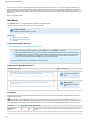
The Confluence User Guide provides an overview of the key features of Confluence and explains both its basic and more
advanced usage as a knowledge management tool, and a collaborative environment. If you still have a question that hasn't
been answered, write and tell us about it.
If you are using Confluence Hosted for Small Business, please note that some Confluence features are excluded from the
Confluence Hosted for Small Business edition. See the feature comparisons on our website and in our documentation.
For more documentation please visit Confluence Documentation Home.
Get Familiar with the Confluence Workspace
6
Confluence 3.0 Documentation
The Dashboard
Using the Confluence Screens
Customising the Dashboard
Page Layout in View Mode
Page Layout in Edit Mode (Wiki Markup)
Page Layout in Edit Mode (Rich Text)
Confluence Icons
Working with Spaces
Working with Spaces Overview
Setting up a New Global Space
Setting up your Personal Space
Viewing all Spaces
Viewing Space Details
Editing Space Details
Browsing a space
Viewing Space Activity
Moving Content from one Space to Another
Deleting a Space
Converting a Global Space to a Personal Space
Administering Spaces
Working with Pages
Working with Pages Overview
Creating a New Page
Writing Confluence pages
Editing an Existing Page
Renaming a Page
Concurrent Editing and Merging Changes
Working with Drafts Overview
Copying a Page
Deleting a page
Moving a Page
Restoring a Deleted Page
Purging Deleted Pages
Commenting on a Page
Attaching Files to a Page
E-mailing a Page
Working with Page Families
Linking Pages
Recording Change Comments
Page History and Page Comparison Views
Viewing Page Information
Page Restrictions
Working with Attachments
Working with Attachments Overview
Attaching Files to a Page
Linking to Attachments
Finding an Attachment
Viewing Attachment Details
Editing Attachment Details
Downloading Attachments
Deleting an Attachment
Moving an Attachment
Displaying List of Attachments in a Page
Embedding Multimedia Content
Working with Images
Overview of Working with Images
Displaying an Image
Rich Text-Inserting an image
Image File Formats
Thumbnail Macro
Gallery Macro
Working with Links
Working with Links Overview
Linking to Pages Within the Same Space
7
Confluence 3.0 Documentation
Linking to Pages in Another Space
Linking to Web Pages
Linking to Confluence Pages from Outside Confluence
Changing the Title of a Link
Linking an Image
Linking to Comments
Linking to News
Linking to Personal Spaces and User Profiles
Linking to Mail
Linking to Attachments
Working with Anchors
CamelCase linking
Trackback
Working with Labels
Working with Labels Overview
Adding a Global Label
Adding a Personal Label
Adding a Space Label
Adding a Team Label
Viewing labelled pages
Viewing Global Labels
Viewing personal labels
Viewing Popular Labels
Removing a label from a page
Removing a space label
Removing a team label
Label Macros
Working with News
Working with News Overview
Viewing News
Adding News
Editing News
Linking to News
Working with Office Documents
Working with the Office Connector
Office Connector Prerequisites
Installing the Firefox Add-On for the Office Connector
Editing a Confluence Page in an Office Application
Importing an Office Document into Confluence
Displaying an Office Document in Confluence
Editing an Office Document from Confluence
Editing an Office Presentation from Confluence
Editing an Office Spreadsheet from Confluence
Office Connector Limitations and Known Issues
Working with Bookmarks
Working with Bookmarks
Adding a bookmark
Adding a bookmark icon to your browser
Viewing bookmarks
Subscribing to a bookmarks feed
Editing a bookmark
Commenting on a bookmark
Removing a bookmark
Displaying bookmarks on a Confluence page
Tracking Updates
Tracking Updates Overview
Watching a Page
Watching a Space
Subscribing to Daily Email Reports
Managing Watches
Working with RSS Feeds
Subscribing to RSS Feeds within Confluence
Using the RSS Feed Builder
Using pre-specified RSS feeds
8
Confluence 3.0 Documentation
Adding a username and password to Confluence RSS feeds
Subscribing to External RSS feeds
Searching
Searching Confluence
Searching the People Directory
Confluence Search Syntax
Confluence Search Fields
Working with Favourites
Working with Favourites Overview
Adding Favourites
Viewing Favourites
Adding a Personal Label
Removing Favourites
Working with User Profiles
User Profile Overview
Editing User Profile
Uploading a Profile Picture
Updating Email Address
Changing Password
Email Address Privacy
Editing User Settings
Linking to Personal Spaces and User Profiles
Setting up your Personal Space
Customising Confluence
Customising Homepage
Customising Look and Feel
Applying A Theme To A Space
Modifying Confluence Layouts Using Custom Decorators
Editing a Space's Colour Scheme
Changing a Space's Logo
Working with Page Templates
Working with Templates Overview
Adding a Template
Form Field Markup for Templates
Creating a Page using a Template
Editing a template
Removing a Template
Archiving Mail
Archiving Mail Overview
Adding a Mail Account
Managing Mail Accounts
Importing Mail
Viewing Mail
Fetching Mail
Deleting Mail
Restoring Mail
Linking to Mail
Exporting and Importing
Space Backup and Restore
Site Backup and Restore
Confluence to HTML
Confluence to PDF
Confluence to PDF in another language
Confluence to XML
Confluence to Word
Importing Content Into Confluence
9
Confluence 3.0 Documentation
Security
Security Overview
Users and Groups
Site Administrators and their permissions
Space Administrators and their permissions
Space Permissions Overview
Viewing Space Permissions
Assigning Space Permissions
Page Restrictions
Appendix A - Confluence Notation Guide (Wiki Markup)
Confluence Notation Guide Overview
Working with Headings
Working with Text Effects
Working with Text Breaks
Working with Links
Working with Anchors
Working with Images
Working with Lists
Working with Tables
Working with Macros
Working with Attachments
Full Notation Guide (Wiki Markup)
Appendix B - Rich Text Editor
Rich Text Editor Overview
Enabling Rich Text Editing
Making Rich Text or Wiki Markup Editing Default
Rich Text-Working with Text Effects
Rich Text-Working with Tables
Rich Text-Inserting an image
Rich Text-Creating and removing a link
Rich Text-Linking to an Image
Rich Text-Linking to an Attachment
Rich Text-Linking to a Page
Rich Text-Inserting emoticons
Rich Text-Inserting Symbols
Appendix C - Keyboard Shortcuts
Keyboard Shortcuts
Appendix D - Glossary
Confluence Glossary
Dashboard
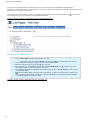
The Dashboard is the front page of a Confluence site. It provides an overview of the site, access to all spaces to which you have 'view'
permission, and displays a list of the most recently updated content within them.
You can go to the Dashboard from any page on your site by clicking on the logo beside the page title or via the Breadcrumbs (the "You are
here" path) located at the top of every page.
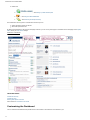
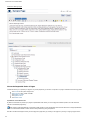
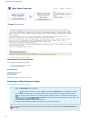
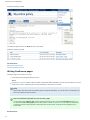
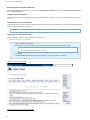
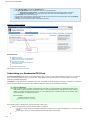
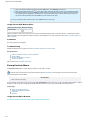
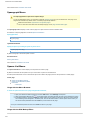
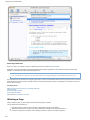
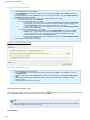
The dashboard is divided into five sections:
1. The Welcome Message for the site, which is configured from the Administration Console.
2. A list of the spaces within the site to which you have access, presented via convenient tabs: 'My', 'Team', 'New' or 'All' spaces. See
Customising the Dashboard.
3. A list of the most Recently Updated documents on the site from the spaces listed. For example, if you click on the tab 'Team', the
recently updated content from your team spaces will be listed here.
4. A list of your Favourite Pages. See Working with Favourites.
5.
10
Confluence 3.0 Documentation
4.
5. Useful links:
a.
— see Setting up a New Global Space
b.
— see Using the RSS Feed Builder
c.
— see Searching the People Directory
The Dashboard is the only place in Confluence from where you can:
access all existing spaces on the site.
add a new space to the site.
By default, the Dashboard is also the site homepage. However, you can set any other page in Confluence as the homepage via the Space
Admin tab or your User Profile settings.
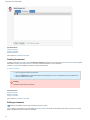
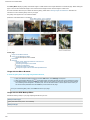
Screenshot : Dashboard
RELATED TOPICS
Confluence Glossary
Confluence Icons
Working with Spaces Overview
Take me back to Confluence User Guide
Customising the Dashboard
You can customise the Dashboard to provide access to the content on the site that is most relevant to you.
11
Confluence 3.0 Documentation
If you are using Confluence Hosted for Small Business, please note that some Confluence features are excluded from the Confluence
Hosted for Small Business edition. See the feature comparisons on our website and in our documentation.
On this page:
Displaying your Favourite Spaces
Displaying your Team's Spaces
Displaying your Favourite Pages
Global Modifications
Displaying your Favourite Spaces
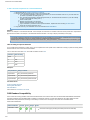
Mark some spaces as favourite. See Adding Favourites. Once you have marked your favourite spaces, you can click on the 'My' tab in the
spaces section of the Dashboard to view a list of only your favourite spaces. The 'Recently updated' section in this view will also display
content only from these spaces.
Displaying your Team's Spaces
Add a team label to the spaces important to your team. See Adding a Team Label. Team labels are used to group together related spaces.
For example, you may want to group together all spaces relating to a project team.
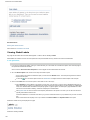
Once you have added team labels, you can click on the 'Team' tab in the spaces section, select a team from the drop down menu, and have
only the list of spaces pertaining to that team displayed. The 'Recently updated' section in this view will also display content only from these
spaces.
The Dashboard remembers which one of the views, 'My', 'Team', 'All' or 'New' you were most recently viewing. So if you clicked the 'My'
tab on this visit, next time around, as soon as you log in to Confluence, only the list of your favourite spaces and the recently modified
content within them will be displayed to you.
Displaying your Favourite Pages
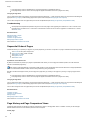
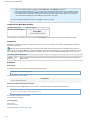
Mark your favourite pages. See Adding Favourites. Whichever view you are in, the Dashboard will display a list of your five most recently
added favourite pages, so you can access those pages easily.
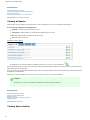
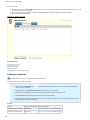
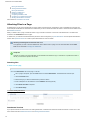
Screenshot : The Dashboard
12
Confluence 3.0 Documentation
Global Modifications
If you are a Confluence Administrator, you can modify files to add content to the global dashboard. See Customising the dashboard for
Administrators.
RELATED TOPICS
Working with Labels Overview
Working with Favourites Overview
Configuring the Site Homepage
Take me back to Confluence User Guide
Using the Confluence Screens
This page gives a pictorial tour of the Confluence user interface.
On this page:
Confluence Menus
Confluence Screen Items
RELATED TOPICS
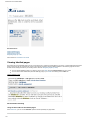
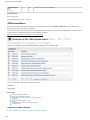
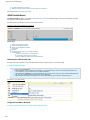
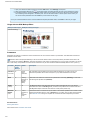
Confluence Menus
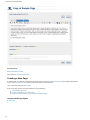
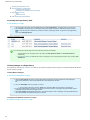
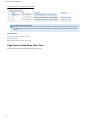
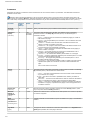
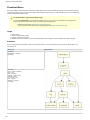
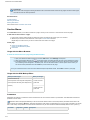
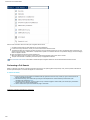
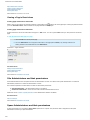
The image below gives an overview of the menus in Confluence.
13
Confluence 3.0 Documentation
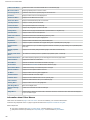
Menu
or
option
Explanation
Browse
menu
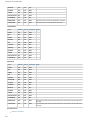
The 'Browse' menu gives access to wiki content such as pages, news items, etc, and allows you to browse the People
Directory. If you are an administrator, the space and site administration options appear here too.
User
menu
After you have logged in, your name will appear at top right of the screen. The 'User' menu appears when your cursor hovers
over your name. The menu allows you to log out, access your user profile or view your editing history, personal labels and page
watches. You can also retrieve drafts of pages you are editing.
Search
box
Type into this box and press 'Enter' to search.
Edit
button
The 'Edit' button allows you to edit this page.
Add
menu
The 'Add' menu allows you to add things to a page or space.
Tools
menu
The 'Tools' menu contains miscellaneous actions relating to the page.
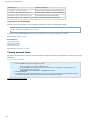
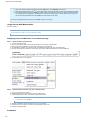
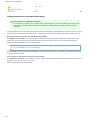
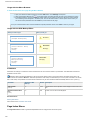
Confluence Screen Items
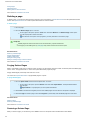
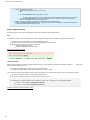
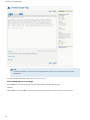
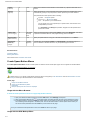
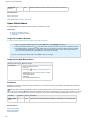
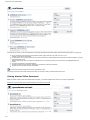
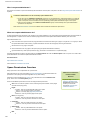
The image below gives an overview of the non-menu screen items in Confluence.
14
Confluence 3.0 Documentation
Menu
or
option
Explanation
Byline
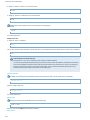
This shows the page author's name and the person who most recently edited the page.
Byline
Icons
Two icons that indicate the presence of page restrictions and attachments to the page. A small padlock indicates page
restrictions, while a paperclip indicates attachments. Both icons are clickable, leading to the 'Page Information' and '
Attachments' pages, respectively.
Labels
This line shows labels (or tags) attached to the current page.
RELATED TOPICS
Overview of Spaces
Overview of Pages
Take me back to Confluence User Guide
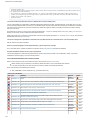
Confluence Icons
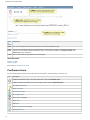
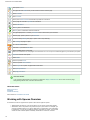
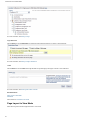
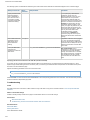
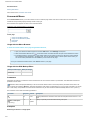
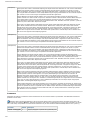
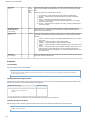
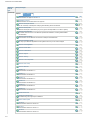
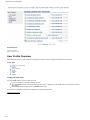
Icons are used throughout Confluence to provide quick links and indicators. The most frequently used icons are:
Icon
Description
Indicates that restrictions apply to the current page. Click to open the 'Information View'.
Indicates that there are attachments to the current page. Click to open the 'Attachments View'.
Go to the people directory.
View a user profile.
Go to a personal space.
Go to a global space.
View a space's homepage.
View a page.
Add a page.
Add a child page to the current page.
View a piece of news.
15
Confluence 3.0 Documentation
Add a piece of news.
This page has been edited since you last viewed it. Click to view the page.
View a comment.
Add a comment.
View a piece of archived mail that has been imported into Confluence.
View a page that has been imported into Confluence.
View an attachment.
This link goes to an attachment.
This link goes to a destination outside Confluence.
This page/space/person is currently a favourite. Click to remove from your favourites.
Add this page, space or person to your favourites.
You are currently watching this page or space. Click to stop watching.
Start watching this page or space.
Go to the RSS feed builder.
Subscribe to a pre-defined RSS feed.
View a printable version of this page.
Note: From Confluence 2.8, most pages do not show this icon. You can print a Confluence page via your browser's print option.
Export the contents of this space.
Define labels.
Choose a space's theme.
Choose a space's colour scheme.
Define a layout for a space, its pages and/or news items.
View space permissions.
View page permissions.
Icons next to links
Your Confluence administrator can configure Confluence to display or hide the icons next to links on the wiki page,
distinguishing external links, user links and email links.
RELATED TOPICS
Showing Link Icons
Dashboard
Confluence Glossary
Take me back to Confluence User Guide
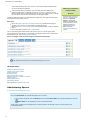
Working with Spaces Overview
In Confluence, content is organised into spaces. There are two types of spaces:
Global spaces are areas on your site into which you can group content items (pages,
attachments, news, etc) based on any theme or topic of your choice. For example, you
may want separate areas on your site for each team or project within your organisation.
In Confluence, you can set up a different space for each team or project. You can build
content for each of these spaces individually, decide who its users are, and even
16
Confluence 3.0 Documentation
archive mail separately within each. There is no limit to the number of global spaces
you can create within Confluence!
Personal spaces belong to particular users, and rather than being listed on the
Dashboard (see below), are available from the People Directory. They can contain
pages and news items, be searched and browsed. They can be kept private, or opened
up so the whole world can view and edit them, just like global spaces.
Confluence treats each space as an independently managed wiki. This means that each space
functions autonomously within your site.
Each space:
Has its own pages, news items, comments, bookmarks (if the Bookmarks Plugin is
enabled), RSS feeds and mail (mail applies to global spaces only).
Has its own access control settings, so you can set different levels of access to different
spaces.
Can be separately exported to PDF , HTML or XML.
Differences in Confluence
Hosted for Small
Business
If you are using Confluence
Hosted for Small Business,
there are no personal
spaces. In Confluence
Hosted for Small Business,
a user does have a profile,
including the ability to
upload a profile picture.
Read more about
comparing the Confluence
editions.
You can view all the global spaces within a site via the Dashboard. You also group global
spaces together into 'Team Spaces' or 'My Spaces' to enable easy access to the content that is
most relevant to you. See Customising the Dashboard.
Here is an example of how you could categorise information using spaces:
'My' spaces are spaces that you have nominated as your favourites.
RELATED TOPICS
Setting up a New Global Space
Setting up your Personal Space
Viewing all Spaces
Browsing a space
Moving Pages within a Space
Moving Content from one Space to Another
Deleting a Space
Viewing Space Activity
Administering Spaces
Take me back to Confluence User Guide
Administering Spaces
To view the space administration menu,
Go to the 'Space Admin' tab of the Browse Space view. To do this:
Go to a page in the space, open the 'Browse' menu and select 'Space Admin'. The 'Space Administration' view will
open.
'Space Admin' is only displayed if you are a space administrator.
All the options pertaining to the management of a space are listed in the left panel. Click on a link to take you to the
corresponding screen.
17
Confluence 3.0 Documentation
To administer a personal space,
For personal spaces, the options available are divided into three categories under these headings:
1. Space Operations
Edit a space's details
Edit space labels and team labels
Remove a space
Purge or restore content from trash
2. Security
View or set space permissions
View restricted pages
3. Look and Feel
Apply a theme
Change the colour scheme
Edit the space's layouts
Screenshot : Space Administration menu for a personal space
To administer a global space,
Note that you need to be a space administrator to perform administrative functions relating to a global space.
For global spaces, the options available are divided into five categories under these headings:
1. Space Operations
Edit a space's details
Edit space labels and team labels
Remove a space
Purge or restore content from trash
2. Security
View or set space permissions
View restricted pages
3. Mail
Manage mail accounts
Import mail
4. Look and Feel
Apply a theme
Change the colour scheme
Edit the space's layouts
Change the space's logo
5. Import
Importing Pages from Disk
Screenshot : Space Administration menu for a global space
18
Confluence 3.0 Documentation
RELATED TOPICS
Browsing a space
Working with Spaces Overview
Take me back to Confluence User Guide
Browsing a space
The 'Browse Space' view gives you access to:
Space-wide views of the content of the space — pages, news, labels, attachments, bookmarks and mail.
Summary information about the space.
Advanced space management tools.
Tools to administer the space (for space administrators only).
The components of the Browse Space view are organised into a number of blue tabs.
Go to the 'Browse Space' view. There are two ways to browse a space:
Go to a page in the space and select the option you want from the 'Browse' menu. The corresponding tab of the 'Browse Space'
view will open.
Or click the
icon next to the space name on the Dashboard. The 'Pages' tab of the 'Browse Space' view will open.
Screenshot: Browsing a space — 'Advanced' tab
19
Confluence 3.0 Documentation
The tabs that are displayed will depend on your Confluence site configuration, the type of space you are viewing and the space
permissions granted to you for the space.
1. Pages
View pages alphabetically
View recently updated content
See tree view of pages
More about Working with pages
2. Labels
View labels
3. Attachments
Find an attachment
View details of an attachment
More about Working with attachments
4. Mail
View mail for this space
Fetch new mail
Delete mail
More about Working with mail
5. Bookmarks
Viewing Bookmarks
More about working with bookmarks
6. News
View news items for this space
More about Working with news
7. Activity
View space activity
8. Advanced
View space details
Edit space details
Manage orphaned pages
Manage undefined pages
Adding a TemplateManage page templates
Export a space
Subscribe to RSS feeds within Confluence
Watch a space
Add a space to your favourites
9. Space Administration
Space Administration
RELATED TOPICS
Working with Spaces Overview
Setting up a New Global Space
Viewing all Spaces
Moving Pages within a Space
Moving Content from one Space to Another
Deleting a Space
Take me back to Confluence User Guide
Editing Space Details
You need to be a space administrator to edit the details of a space.
To edit the details of a space,
20
Confluence 3.0 Documentation
1. Click the 'Browse Space' link for the space. This is located at the top of every page and beside the space link on the
Dashboard.
2. Go to the 'Space Admin' tab and click 'Edit Space Details' in the left-hand panel. This brings up a new screen where
you can:
Enter a different name for the space.
Enter or modify the space description.
Select a new home page for the space from the drop-down menu. This is the default page to which users are
directed when they click the link to the space from the Dashboard.
If you set this field to blank (no selection) then the default home page will be the 'Pages' tab of the '
Browse Space' page.
3. Click 'Save'.
Note
You cannot edit the key or the creator's name.
RELATED TOPICS
Viewing Space Details
Browsing a space
Take me back to Confluence User Guide
Managing Orphaned Pages
An orphaned page is a page without any incoming links. What this means is that unless you know that this page exists, you are not likely to
come across it in the space during the natural course of navigation.
When you are working in a large space with a number of pages, it is difficult to keep track of all of them. An orphaned page may be
redundant or need to be referred to from another page. Confluence allows you to view all the orphaned pages in a space so you can "tidy up"
the space by either deleting pages or by reorganising them.
To view the orphaned pages in a space,
1. Click on the 'Browse Space' link for the space. This is located at the top of every page and beside the space link on
the dashboard.
2. Go to the 'Advanced' tab and click on 'Orphaned Pages' from the left panel.
You can:
delete an orphaned page by clicking on the 'trash' icon beside it.
give an orphaned page a parent — see Changing Parent of a Page.
Screenshot : Managing Orphaned Pages
RELATED TOPICS
21
Confluence 3.0 Documentation
Managing Undefined Pages
Browsing a space
Take me back to Confluence User Guide
Managing Undefined Pages
In Confluence, you can create links to pages that you intend to create later. This is a useful facility as it allows you to create links first and
enter content for those pages later. These are 'undefined links' and are indicated with this sign to remind you that those pages need to be
created.
For example, [Link to new page]
Because you may be working with a large number of pages each with a number of links, this view gives a consolidated report of all the
undefined pages so you can manage your space better.
To view the undefined links in a space,
1. Click on the 'Browse Space' link for the space.
2. Go to the 'Advanced' tab and click on 'Undefined Links' from the left panel. This will display a list of all the undefined
pages in the space.
Click on the 'Add Page' icon beside a page to add content.
RELATED TOPICS
Managing Orphaned Pages
Browsing a space
Take me back to Confluence User Guide
Tree View of Pages
The tree view displays the parent-child relationships of the pages in the space.
Learn about page families in Confluence.
To see the tree view of pages within a space,
1. Browse the space.
Go to the 'Browse Space' view. There are two ways to browse a space:
Go to a page in the space and select the option you want from the 'Browse' menu. The corresponding tab of
the 'Browse Space' view will open.
Or click the
will open.
icon next to the space name on the Dashboard. The 'Pages' tab of the 'Browse Space' view
2. Go to the 'Pages' tab and open the 'Tree' view.
3. A tree view opens. Click the '+' sign next to each page family to open the branches of the tree.
Screenshot : Tree View of pages
RELATED TOPICS
Page Families
Viewing a Page's Location within a Space
22
Confluence 3.0 Documentation
Moving Pages within a Space
Viewing Children of a Page
Working with Pages
Take me back to Confluence User Guide
Viewing Pages Alphabetically
Use this view when you are looking for a specific page in a space and you know its title.
To view the pages in your space alphabetically,
1. Click on the 'Browse Space' link for the space.
2. Go to the 'Pages' tab and click on 'Alphabetical View'.
3. Click on a letter to display all the pages beginning with that letter. Clicking on a page link will take you to that page.
Handy Hint
If you know the title of a page, you might find it faster using the Quick Search.
RELATED TOPICS
View Recently Updated pages
See Tree View
Browsing a space
Take me back to Confluence User Guide
Viewing Recently Updated Content
The 'Recently Updated' view is a useful way of keeping track of the changes being made in a space. It displays links to the most recently
added or modified content within the space including pages, news items, mail messages and comments.
To view the recently updated content in a space,
1. Click on the 'Browse Space' link for the space. This is located at the top of every page and beside the space link on
the dashboard.
2. Go to the 'Pages' tab and click on the link 'Recently Updated'. A list of the most recently added or modified content in
the space is displayed. Clicking on a link will open up the corresponding document.
RELATED TOPICS
Recently Updated Macro
View Pages Alphabetically
See Tree View of Pages
Browsing a space
Viewing Space Activity
Take me back to Confluence User Guide
Viewing Space Details
To view a space's details,
1. Click the 'Browse Space' link for the space. This is located at the top of every page and beside the space link on the
dashboard.
2. Go to the 'Advanced' tab and click 'Space details' in the left-hand panel.
The following details are displayed:
The Name of the space.
The Key used to refer to the space. This key is a shorthand name for the space that is used for web urls, reports, and when linking
content between spaces. Note that personal space keys always contain a '~', whereas global space keys never do.
23
Confluence 3.0 Documentation
Any Labels defined for this space. Optional.
The Homepage of the space. Optional. This is the default page to which users are directed when they click on the link to the space
from the dashboard. If this field is empty (not displayed) then the default home page is the 'Pages' tab of the 'Browse Space' page.
The Creator of the space.
Space Description: Optional. This is a short description of the space used to provide users with an idea of the space's contents.
Here is an example:
Screenshot : Space Details
RELATED TOPICS
Editing Space Details
Browsing a space
Viewing Space Activity
Take me back to Confluence User Guide
Converting a Global Space to a Personal Space
Please see Working with Spaces Overview for information about the differences between global spaces and personal
spaces.
Generally, the easiest way to create your personal space is to follow the instructions described in Setting up your Personal Space. However,
sometimes you may need to convert an existing global space into a personal space, particularly if you used Confluence before the
introduction of personal spaces in version 2.2.
To convert a global space to a personal space, you require the following permissions:
'Personal Space' permission, which is assigned by a Confluence administrator from the Administration Console. See Security or
contact a Confluence administrator for more information.
Space 'Admin' permission, which is assigned by a space administrator.
To convert a global space to a personal space,
24
Confluence 3.0 Documentation
1. Go to the global space.
2. Go to the 'Space Admin' tab of the Browse Space view. To do this:
Go to a page in the space, open the 'Browse' menu and select 'Space Admin'. The 'Space Administration'
view will open.
'Space Admin' is only displayed if you are a space administrator.
3. Click the 'Edit Space Details' link in the left panel.
4. In the 'Convert to Personal Space' section, in the lower half of the screen:
Choose whether to Update Links to pages in this space (recommended).
Choose the User whose personal space this global space will become.
Click the 'Convert Space' button.
Screenshot: Converting a Global Space to a Personal Space
Note that the ability to archive mail and import pages from disk applies only to global spaces, so the 'Mail' and 'Import' sections in the above
screenshot do not appear in the 'Space Admin' tab for personal spaces. Please see Working with Spaces Overview for information about the
differences between global spaces and personal spaces.
RELATED TOPICS
Working with Spaces Overview
Setting up your Personal Space
Uploading a Profile Picture
Take me back to Confluence User Guide
Deleting a Space
Deleting a space permanently removes the space and all of its contents.
Warning
Use caution while deleting a space, and always create an XML Space Backup before proceeding. Once deleted, there is no
way to restore a space unless you have made an XML Space Backup.
You need to be a space administrator to delete a space.
To delete a space,
25
Confluence 3.0 Documentation
1. Go to the 'Space Admin' tab of the Browse Space view. To do this:
Go to a page in the space, open the 'Browse' menu and select 'Space Admin'. The 'Space Administration'
view will open.
'Space Admin' is only displayed if you are a space administrator.
2. Click on the 'Remove Space' link in the left panel under the heading 'Space Operations'.
3. Click 'OK' when the confirmation screen is brought up.
RELATED LINKS
Working with spaces
Setting up a New Global Space
Viewing all Spaces
Browsing a space
Moving Content from one Space to Another
Copying or Renaming a Space
Take me back to Confluence User Guide
Guidelines For Partitioning Content Into Spaces & Pages
Brief guidelines for grouping content into the Confluence space and page format used by Confluence.
Partitioning Guidelines
To ensure maintainable and logical spaces, content should be broken into spaces by:
1. Evaluating permissions across the wiki content. If members require conflicting access, for example user 1 must access content on
topics A and B, while user 2 must access content for topics B and C, then the topics must be separated into three spaces.
2. Grouping content by topic, project or team.
For semi-static content, a space for each topic is fine. If there is a substantial project-related content that must be exclusive to different
groups, you should use separate spaces.
Spaces & Pages Information
Useful notes about spaces and pages:
1.
2.
3.
4.
Spaces cannot be nested
Page permissions can prevent users who can access the space from accessing that page
Page permissions alone cannot keep the existence of a page secret. The page should be in a restricted space instead
Pages can be easily moved between spaces
Moving Content from one Space to Another
While each space in Confluence functions independently, Confluence is flexible enough to let you move content easily between spaces.
What would you like to do?
Move a Page from one Space to Another
Move a Family of Pages from one Space to Another
Move an Attachment
RELATED LINKS
Working with Spaces
Browsing a space
Take me back to Confluence User Guide
Moving a family of pages from one space to another
To move page families, you require 'Create Pages' permission for each page in that family. Space Permissions are assigned by a space
administrator from the Space Administration screens.
Confluence allows you to move pages around by dragging and dropping them on a tree view. When you move a parent page, all its children
26
Confluence 3.0 Documentation
are automatically moved too.
To move an entire family of pages, you can:
Move the page family to a new space, if that's what you want. You do this while editing a page.
Move the page family to a new position in the space's tree view. You do this while editing a page or while viewing the space's Tree
view.
RELATED TOPICS
Moving a Page from one Space to Another
Moving an Attachment
Take me back to Confluence User Guide
Moving a Page from one Space to Another
You can easily move pages from one space to another within Confluence.
To move a page, you require 'Create Pages' permission which is assigned by a space administrator from the Space Administration screens.
See Space permissions or contact a space administrator for more information.
To move a page to a new space, you need to edit the page's location — refer to the instructions on moving a page.
Handy Hint
Any links to the page from the current space will automatically be renamed to point to the page in the new space.
RELATED TOPICS
Moving a Page
Moving Pages within a Space
Moving a family of pages from one space to another
Moving an Attachment
Take me back to Confluence User Guide
Moving Pages within a Space
This page tells you how to move a page using a space's 'Tree' view. This method allows you to move a page, or a family of pages, within a
space. Alternatively, you can move a page to a new position or to a new space while in edit mode — see Moving a Page.
To move a page, you need the following permissions:
Edit permission on the page you are moving, and
View permission on the page's parent page. So if you are moving the page to a different parent, you need 'View' permission on the
new parent.
When you move a page, its children will move as well.
On this page:
About the Sequential Order of Pages
Moving a Page
Setting Page Order to Alphabetical
Troubleshooting
About the Sequential Order of Pages
Confluence allows you to present your pages in any order (sequence) you choose. The position of a page is reflected in the following places:
The Tree tab on the space's 'Pages' view
Space exports to PDF, HTML and XML
The children of a page
The pagetree macro
The children macro
Alphabetical versus Manual Order
By default, Confluence will present your pages in alphabetical order. When you move a page to a different position, the order becomes
manual for the affected page family.
27
Confluence 3.0 Documentation
When ordering pages alphabetically, Confluence actually applies a more sophisticated 'natural' order rather than a straight alphabetical
order. The natural order handles numeric values correctly when doing string comparisons.
Now let's consider what happens when you add a page to a page family, by creating a new page or by moving or copying a page into the
family:
If the page family's order is alphabetical, the new page will appear in alphabetical order too.
If the page family's order is manual, the new page will appear at the bottom of the list of pages in the family.
Changing the Page Order
You can change the order of the pages by moving pages within the page family — simply move the page to its new position while editing the
page (see Moving a Page) or while viewing pages in the space's 'Tree' view (see Moving Pages within a Space).
You can also change the order of a page-family from manual to alphabetical (see Setting a Page Family to Alphabetical Order).
Moving a Page
To move a page within the space's 'Tree' view,
1. Go to the 'Space Pages' view for the current space. To do this:
Go to a page in the space, open the 'Browse' menu and select 'Pages'. The 'Space Pages' view will open.
2. Go to the 'Tree' tab.
3. A tree view opens. Find the page you want to move.
Hint: Click the '+' sign next to each page family to open the branches of the tree.
4. Holding down your left mouse button, click and drag the page up or down the tree. See screenshot below.
5. While dragging the page, you see one of the following:
A thin line between existing pages — This indicates the potential new position for the page. Release the
mouse button when the page is where you want it.
A wide highlight over one or more existing pages — This indicates that you can drop the page into a page
family. Release the mouse button to add the page to the family. The page will appear either in alphabetical
sequence or as the last page in the family, depending on the family's sequential order as described below.
Note: The new position of the page is saved as soon as you release the mouse button.
To cancel the move while still holding down the mouse button, press the 'Esc' key on your keyboard.
Screenshot: Moving a page
Setting Page Order to Alphabetical
28
Confluence 3.0 Documentation
If the pages in a page family have been ordered manually, you can reset the page order to alphabetical as described below.
A page family is a set of pages under a single parent page. In this section, when we say 'page family' we mean the immediate children of the
parent page, not including the grand-children.
The screenshot below shows a family of pages in non-alphabetical order under the parent 'Sample Page'. Notice the
parent 'Sample Page', giving you the option to order the pages alphabetically.
icon next to the
Screenshot: A family of pages in non-alphabetical order with 'Sort Alphabetically' icon
To set a page family to alphabetical order,
1. Go to the 'Space Pages' view for the current space. To do this:
Go to a page in the space, open the 'Browse' menu and select 'Pages'. The 'Space Pages' view will open.
2. Go to the 'Tree' tab. The tree view will open, as shown in the screenshot above.
3. Expand the branches of the tree to find the page family you want.
4. If the page family is in non-alphabetical (manual) order, the 'Sort Alphabetically' icon
parent page as shown in the screenshot above. Click the icon.
will appear next to the
5. The child pages will shuffle into alphabetical order and the icon will change to the 'Undo Sorting' icon
in the screenshot below.
as shown
Only the immediate children of the parent page will be affected. The grand-children will not be re-ordered. (If you
want to re-order the grand-children, you need to click the 'Sort Alphabetically' icon next to the parent of those pages
i.e. re-ordering happens for one node at a time.)
Screenshot: A family of pages in alphabetical order with 'Undo Sorting' icon
29
Confluence 3.0 Documentation
If you change your mind, you can click the 'Undo Sorting' icon
to undo the alphabetical sort. This option is only available while you
remain on the 'Tree' tab and provided that you have not performed any other action on the page family. Once you move away from this
screen or do something else with the page family, such as moving children in or out of the family, the undo option is no longer available.
Troubleshooting
Some people have experienced problems using the tree to move pages, after upgrading to Confluence 2.9. This is a known issue,
that was fixed in Confluence 2.9.1. There is also a workaround for those who do not wish to upgrade to Confluence 2.9.1. Please
see CONF-12911.
RELATED TOPICS
Moving a Page
Overview of Pages
Overview of Page Families
Take me back to Confluence User Guide
Setting up a New Global Space
To set up a new global space, you require 'Create Space' permission which is assigned by a Confluence administrator from the
Administration Console. See Security or contact a Confluence administrator for more information.
To create a new global space,
1. Click the link 'Create a Space'
located below the list of spaces on the Dashboard.
2. The 'Create Space' screen appears, as shown below. Enter the following information about your new space:
Space Name: Type a name for the space. Note that space names do not have to be unique.
Space Key: Type a simple key to identify your space (A-Z, a-z, 0-9). This key is a shorthand name for the
space, used when linking content between spaces, for web URLs and for reports.
For example, a 'Development Space' might have a space key of 'DEV'.
The space key must be unique within the entire Confluence site.
Permissions: Leave the default settings or choose to allow only yourself to view or contribute content to this
space.
A space administrator can change the permissions at any time after creating the space.
Theme: Select a theme for your space.
A space administrator can change the theme later too.
3. Click the 'OK' button. (It's at the bottom of the screen, not shown on the screenshot below.)
4. The 'Home' page for your new space is displayed.
Note: Your home page will automatically contain any default space content as defined by your Confluence
administrator.
5. Click 'OK'.
30
Confluence 3.0 Documentation
Next, you can start adding pages to your space.
Screenshot : Creating a space
RELATED TOPICS
Working with Spaces Overview
Setting up your Personal Space
Viewing Space Details
Editing Space Details
Browsing a space
Deleting a Space
Take me back to Confluence User Guide
Setting up your Personal Space
Your personal space is a place where you can publish your own pages and news items. Once
you have set up your personal space, Confluence users can reach it by clicking your name in
the People Directory.
Creating your personal space
To set up your personal space, you require 'Personal Space' permission which is assigned by a
Confluence administrator from the Administration Console. See Security or contact a
Confluence administrator for more information.
31
Confluence 3.0 Documentation
To create your personal space,
Not applicable to
1. Go to the 'Profile' view for your user profile. To do this:
Confluence Hosted for
Small Business
Log in to Confluence, if you have not already done so.
Go to your name at the top of the page. (This is the 'User' menu. A dropdown list will appear when your
cursor hovers over the 'User' menu.)
This page does not apply if
Select 'Profile' from the dropdown list. The 'Profile' view will open.
you are using Confluence
Hosted for Small Business.
Read more about
2. This will display your Profile. Click the link 'Create Personal Space'.
comparing the Confluence
editions.
3. Enter a few details about your space:
Choose who can view content.
Choose who can contribute (create and edit) content.
Choose the Theme (look and feel) for your personal space.
4. Click the 'Create' button.
5. The 'Home' page for your new space is displayed.
Note: Your home page will automatically contain any default space content as defined by your Confluence
administrator.
Handy Hint
Once you have set up your personal space, you can return to it any time by clicking your name (next to the word 'Welcome'
at the top of the page).
Adding and changing content in your space
Now you can start adding pages to your personal space. You may also want to upload your photo.
Granting access to your space
When you created the space (see above), you made some preliminary decisions about who can view and contribute content to your space.
You can change the permissions on your space at any time.
32
Confluence 3.0 Documentation
RELATED TOPICS
Working with Spaces Overview
Converting a Global Space to a Personal Space
User Profile Overview
Linking to Personal Spaces and User Profiles
Take me back to Confluence User Guide
Viewing all Spaces
Once you login, the list of spaces you have permission to view is displayed on your Dashboard under the spaces section.
The list of spaces is displayed via meaningful tabs :
My Spaces : Spaces you marked as your favourites.
Team Spaces : Spaces pertaining to a team grouped together using team labels.
New : New spaces added to the site in the last seven days.
All : All the spaces on the site.
Screenshot : Viewing Spaces
Additionally, a list of personal spaces is available via the People Directory icon on the Dashboard:
Go to the Dashboard from any page on your site simply by clicking the logo beside the page title or via the Breadcrumbs (the "you are here"
path) located at the top of every page.
If you do not login, you will be treated as an 'anonymous user' and only those spaces to which an anonymous user has 'View' permission will
be displayed on the Dashboard.
Permission to a space is granted by a space administrator. See Space permissions for more information.
Handy Hint
Use the Spaces List Macro to view the list of spaces from any other page in Confluence.
RELATED TOPICS
Working with Spaces Overview
Setting up a New Global Space
Browsing a space
Moving Content from one Space to Another
Deleting a Space
Take me back to Home Help
Viewing Space Activity
33
Confluence 3.0 Documentation
The Confluence Usage Tracking Plugin, which governs the Activity tab, is known to have performance issues on large
installations.
In Confluence version 2.3 and later, statistics on each space's activity are available. These include:
How many pages and news posts have been
viewed
added
edited
Which content is the most popular (i.e. most frequently viewed)
Which content is the most active (i.e. most frequently edited)
Which people are the most active contributors/editors of content
To view a space's activity,
1. Go to the 'Browse Space' view. There are two ways to browse a space:
Go to a page in the space and select the option you want from the 'Browse' menu. The corresponding tab of
the 'Browse Space' view will open.
Or click the
will open.
icon next to the space name on the Dashboard. The 'Pages' tab of the 'Browse Space' view
2. Go to the 'Activity' tab.
The number of pages and news posts that have been viewed, added and edited will be displayed graphically, showing trends over a period of
time, e.g.:
Screenshot : Number of viewed pages and news posts in a week
The top 10 most popular and most active pages and/or news posts will be listed, with a link to each, e.g.:
Screenshot : Popular content
34
Confluence 3.0 Documentation
If your Confluence site is clustered, Space Activity will not be available.
RELATED TOPICS
Browsing a space
Viewing Space Details
Page History and Page Comparison Views
Tracking Updates Overview
Finding Unused Spaces
Take me back to Confluence User Guide
Working with Pages Overview
Pages are the primary means of storing and sharing information in Confluence. Pages are contained within spaces.
Use spaces to organise your wiki content into your primary logical groups. For example, you could have a space per team, per
product or per department.
Use pages to organise your content into lower-level groups. For example, you could have a page for a particular team activity, or for
a feature in a product, or for a chapter in a book. Then add more child pages to contain lower-level details if necessary.
Things you can do with pages in Confluence:
Create a new page from anywhere within the site.
Write content in a simple markup language or using the Rich Text editor.
Edit and rename a page.
Organise pages hierarchically via parent-child relationships.
Move pages while editing a page or while viewing the space's Tree view.
Navigate within and between spaces through flexible linking.
Collaborate via comments on a page.
Control access through page security restrictions.
Monitor page updates and other activity through page notifications.
View page history and link to older versions.
Search page content, including attachments.
Export pages to PDF, WORD, HTML or XML.
Email page content.
RELATED PAGES
Creating a New Page
Overview of the Confluence Notation Guide
Working with Page Families
Working with Drafts
Working with the Office Connector
Recently Viewed Content
Take me back to Confluence User Guide
Commenting on a Page
35
Confluence 3.0 Documentation
A comment is a remark, question, or any other additional information you wish to add to a page pertaining to the topic the page covers.
Comments are a means by which a community of users can interact with each other on the site.
You can leave a comment on any page or news item in Confluence.
What would you like to do?
View Comments
Add Comments
Link to Comments
Delete Comments
Edit a Comment
RELATED TOPICS
Working with Pages Overview
Take me back to Confluence User Guide
Adding a Comment
You can leave a comment on any page or news item in Confluence.
To add a comment, you require 'Create Comments' permission which is assigned by a space administrator from the Space Administration
screens. See Space permissions or contact a space administrator for more information.
You can either add a new comment or respond to a previous comment (only available in 'threaded' view).
Use Confluence markup or the Rich Text editor to write the comment.
Profile photo appears in comments
Your profile picture will appear next to each comment you've added. (This is true if your space uses the Confluence Default
theme.)
To add a new comment,
1.
2.
3.
4.
5.
Click the 'Add Comment' link near the bottom of the page.
The comments box opens up. Type in your text.
Click the 'Preview' tab to see a preview of your comment.
You can tick the box next to 'Watch this page' to receive email alerts whenever the page is commented or edited.
Click the 'Post' button to save your comment and display it on the page.
You can also respond to a comment.
This option is only available when the comments are in 'threaded' view.
To respond to a comment,
1.
2.
3.
4.
Click the 'Reply' link located below the text of a comment.
This will open up a new comment box. Type in your text.
You can tick the box next to 'Watch this page' to receive email alerts whenever the page is commented or edited.
Click 'Post'.
Screenshot : Adding a Comment
36
Confluence 3.0 Documentation
RELATED TOPICS
Viewing Comments
Linking to Comments
Deleting Comments
Take me back to Confluence User Guide
Deleting Comments
To delete a comment from a page, you require 'Remove Comments' permission which is assigned by a space administrator from the Space
Administration screens. See Space permissions or contact a space administrator for more information.
Currently, it is not possible to delete all comments for a page simultaneously.
To delete a comment,
1. Go to the page that contains the comment.
2. Click on the 'Remove' link located at the bottom of the comments box. This is only displayed if you have permission to
remove comments for this page.
Warning
Deleted comments cannot be restored.
RELATED TOPICS
Viewing Comments
Adding a Comment
Linking to Comments
Take me back to Confluence User Guide
Editing a Comment
Comments are editable if you are using Confluence version 2.4 or later.
You can edit any comments that you have created. Space administrators can edit all comments within their space. The date on a comment
always indicates the time the comment was last edited.
37
Confluence 3.0 Documentation
To edit a comment,
1. Go to the comment and click the 'Edit' button. You can use Confluence markup or the Rich Text editor to edit a comment. You can
click preview to see how it will appear.
2. You can tick the box next to 'Watch this page' to receive email alerts whenever the page is commented or edited.
3. When you're finished, click 'Save'.
Screenshot 1: Editing a comment
RELATED TOPICS
Commenting on a Page
Viewing Comments
Linking to Comments
Deleting Comments
Take me back to Confluence User Guide
Linking to Comments
You need to edit in Wiki Markup mode to create a link to a comment.
To link to a comment from within Confluence,
1. Right-click on the 'Permalink' icon
ends in a series of numbers.
located at the lower right of the comments box. You will notice that the URL
2. Select the option to 'Copy the Link Location' the pop-up menu in your browser.
3. Paste the link into a temporary location and copy only the numerals at the very end of the link.
4. Click the 'Edit' tab of the page from which you want to link to the comment.
5. Paste the numerals between square brackets (as you would when you create any link in Confluence), and then include
the dollar sign '$' in front of the numbers.
Examples
38
Link to…
What you need to type
What you will get
Comment in the same space
[$81167140]
Re: Linking to Comments (current space)
Comment in another space
[$81167141]
Re: Linking to Comments (CONF14 space)
Confluence 3.0 Documentation
Because you are linking to the actual database ID of the comment, you do not need to specify a space or a page id explicitly as that's
calculated automatically from the database ID.
To link to a comment from outside Confluence,
1. Right-click on the 'Permalink' icon
located at the lower right of the comments box.
2. Copy the link location of the comment. Alternately, click on 'Permalink'
in the address bar of your browser.
or the date and copy the URL displayed
3. Use this URL to link to the comment from your web page.
Screenshot : Permalink location
Screenshot : Permalink URL
RELATED TOPICS
Commenting on a Page
Adding a Comment
Working with Links
Take me back to Confluence User Guide
Sample Page
Start of sample page content
Lorem ipsum dolor sit amet, consectetuer adipiscing elit. Aliquam fermentum vestibulum est. Cras rhoncus. Pellentesque habitant morbi
tristique senectus et netus et malesuada fames ac turpis egestas. Sed quis tortor. Donec non ipsum. Mauris condimentum, odio nec porta
tristique, ante neque malesuada massa, in dignissim eros velit at tellus. Donec et risus in ligula eleifend consectetuer. Donec volutpat
eleifend augue. Integer gravida sodales leo. Nunc vehicula neque ac erat. Vivamus non nisl. Fusce ac magna. Suspendisse euismod libero
eget mauris.
End of sample page content
child page
Viewing Comments
Comments on articles will appear by default in threaded form, below the page content. If the comment author is a Confluence user, a link
appears to their profile page. The time of the comment's last edit is also displayed – you can mouse-over the time to see the date and time it
was posted.
Actions for Viewing Comments on a Page
Confluence allows you to 'collapse', 'expand', 'show' and 'hide' comments on a page.
Collapse All
Comments are all shrunk to a single line, showing the first 60 characters. This allows easy browsing of many comments.
Clicking the top line of any comment will expand it, showing the links to 'Edit', 'Remove' or 'Reply'.
39
Confluence 3.0 Documentation
Expand All
Comments are returned from the collapsed state to the usual threaded view, showing the full content of all comments inline.
Hide Comments
The page's comments will be hidden when you view the page. The 'Comments' line at the bottom of the page indicates
whether the page currently has any comments.
Show Comments
The page's comments will become visible below the page content.
Comment links at the bottom of each comment and the page allow you to post or manage comments.
Setting the Appearance of Comments on Pages
Comments in Confluence are displayed in one of two views which is configured globally by a site administrator:
Threaded - this view shows the comments in a hierarchy of responses. Each subsequent reply to a comment is indented to indicate
the relationships between the comments.
Flat - this view displays all the comments in one single list and does not indicate the relationships between comments.
In Confluence 2.8.0, the collapsible comments are only available under the default Confluence theme.
Screenshot: Threaded View
Screenshot: Collapsed View
Screenshot: Hide View
40
Confluence 3.0 Documentation
Note
Confluence defaults the view to 'Show' or 'Hide' comments based on what your preference was on your last visit to the site.
RELATED TOPICS
Commenting on a Page
Adding a Comment
Linking to Comments
Deleting Comments
Take me back to Confluence User Guide
Copying a Page
You can copy a page, to create a duplicate of the page content. You will need to rename the page, because a page name must be unique
within a space.
You need 'Create Pages' permission, which is assigned by a space administrator from the Space Administration screens. See space
permissions or contact a space administrator for more information.
To copy a page,
1. View the page you want to copy.
2. Go to the 'Copy Page' option. To do this:
Go to a page in the space, open the 'Tools' menu and select 'Copy'.
Confluence will open a copy of the page in edit mode. By default, Confluence will name the page 'Copy of <<original
page name>>'.
3. Rename the page and make any other changes required in the body of the page.
4. If you need to move the new page to a different space or a different parent, you can edit the 'Location'. Refer to the
instructions on moving a page.
5. Click 'Save'.
More information about copying pages
Copying a page will duplicate all of the original page's attachments and labels, but will not copy comments from the
original page.
This method of copying a page does not copy the child pages. Please add your vote to issue CONF-2814 if you'd
like to see this improvement.
You can copy an entire space, including all pages in the space (parents and children) — refer to these instructions
on copying a space.
Consider using the WebDav plugin to move or copy a page hierarchy from one space to another, provided that
none of the page names already exist in the target space.
Screenshot: Copying a page
41
Confluence 3.0 Documentation
RELATED TOPICS
Working with Pages Overview
Take me back to Confluence User Guide
Creating a New Page
To create a page, you need the 'Create Pages' permission which is assigned by a space administrator from the Space Administration
screens. See space permissions or contact a space administrator for more information.
You can also read more about writing pages.
There are few ways to add a new page, described in more detail below:
Using the Add Page Option
Using an Undefined Link to Create a Page
Importing an Office Document into One or More Confluence Pages
Using the Add Page Option
To add a page,
42
Confluence 3.0 Documentation
1. Go to the 'Add Page' option. To do this:
Go to a page in the space, open the 'Add' menu and select 'Page'. The 'Add Page' screen opens.
Alternatively, you can go to the Dashboard and click the 'Add Page'
Confluence will add the page at the root of the space.
link located beside each space. In this case,
The 'Add Page' links are only displayed if you have permission to create pages for the space.
2. Enter a name (title) for your page.
3. By default, Confluence will add the page as a child of the page you are viewing. If you need to move the new page to a
different space or a different parent, you can edit the 'Location'. Refer to the instructions on moving a page.
4. Enter content for your page using Wiki Markup or the Rich Text editor. See Writing Confluence pages.
5. Click 'Preview' if you want to see a preview of what the page will look like before saving it.
6. Click 'Save'.
Using an Undefined Link to Create a Page
In Confluence, you can add a link which points to a page that you intend to create later. You might also use such a link to prompt other
Confluence users to create pages. This type of link is called an undefined link.
To add an undefined link for later creation of a page,
1. Add a link, by typing a page name between angle brackets '[]' into your page body, specifying the name of a page
which does not exist. See example below.
2. Save the page which contains the undefined link. Confluence indicates undefined links by colouring them red.
3. When you (or another user) click on the link, the 'Add Page' screen appears.
4. You can then follow the steps outlined above to enter the page name, add content and save the page.
Here is an example of an undefined link:
What you need to type
What you will get
[Link to new page]
[Link to new page]
Screenshot : Adding a page
43
Confluence 3.0 Documentation
Page names
Confluence does not accept the following characters in the title of a page:
:, @, /, \, |, ^, #, ;, [, ], {, }, <, >
A page must not start with the following characters:
$, .., ~
Page names must be unique within a space.
We are aware that this is a limitation, and there's a feature request at CONF-5926. If you like, you can vote for this
feature and add yourself as a watcher for future updates. You can also vote for the improvement request
CONF-9458 to remove the restrictions on characters.
Importing an Office Document into One or More Confluence Pages
The Office Connector allows you to import a Word document into Confluence, optionally creating one or more new pages. See Importing an
Office Document into Confluence.
RELATED TOPICS
Writing Confluence pages
Confluence Notation Guide Overview
Editing an Existing Page
Working with Page Families
44
Confluence 3.0 Documentation
Linking Pages
Page Restrictions
Working with the Office Connector
Take me back to Confluence User Guide
Deleting a page
To delete a page, you require the 'Remove Pages' permission which is assigned by a space administrator from the Space Administration
screens. See Space Permissions or contact a space administrator for more information.
To delete a page,
1. Go to the page.
2. Go to the 'Remove Page' option. To do this:
Go to a page in the space, open the 'Tools' menu and select 'Remove'. The 'Remove Page' screen opens.
You will be prompted to confirm the action.
The 'Remove' menu option will only appear if you have permission to remove this page.
Handy Hint
Deleted pages are stored in the trash and can be recovered by a space administrator.
If the page you are deleting has any child pages they will be moved to the root of the space
RELATED TOPICS
Restoring a Deleted Page
Purging Deleted Pages
Creating a New Page
Editing an Existing Page
Editing or Deleting a Page That Won't Render
Take me back to Confluence User Guide
Purging Deleted Pages
When a user deletes a page from a Confluence space, the page is not permanently removed. Instead, Confluence places the deleted page
into the 'Trash'. The page will remain in 'Trash' until a space administrator purges the page.
Purging deleted pages permanently clears them from 'Trash'.
You need to be a space administrator to purge deleted pages for a space.
To purge deleted pages,
1. Go to the 'Space Admin' tab of the Browse Space view. To do this:
Go to a page in the space, open the 'Browse' menu and select 'Space Admin'. The 'Space Administration'
view will open.
'Space Admin' is only displayed if you are a space administrator.
2. Click 'Trash' in the left-hand navigation panel. A list of deleted pages and news items for the space is displayed.
3. Click the 'Purge' link beside a page or else click 'Purge All' to permanently clear all deleted pages and news items.
RELATED TOPICS
Deleting a page
Restoring a Deleted Page
Take me back to Confluence User Guide
Restoring a Deleted Page
When you restore a page, you are retrieving it from 'Trash' to the root of the space where it existed before it was deleted.
45
Confluence 3.0 Documentation
You need to be a space administrator to restore deleted pages.
To restore a deleted page,
1. Go to the 'Space Admin' tab of the Browse Space view. To do this:
Go to a page in the space, open the 'Browse' menu and select 'Space Admin'. The 'Space Administration'
view will open.
'Space Admin' is only displayed if you are a space administrator.
2. Click on 'Trash' from the left panel. A list of deleted pages and emails for the space is displayed.
3. Click on the 'Restore' link beside the page you want to restore.
Handy Hint
If a new page has already been created in that space with the same name as the deleted page, you will be given an option
to rename the page before it is restored.
RELATED TOPICS
Deleting a page
Purging Deleted Pages
Take me back to Confluence User Guide
Display an older version of a page
To point users to an outdated version of a page:
1. View the page and click the "view change" link displayed after the "last edited by" information.
2. In the box on the left-hand side of the "compared to", click on the "Version ## by Username" to show the full outdated version.
3. Click "<< View previous version" to scroll back through the outdated versions until you find the one you would like to link, and copy
the URL from your address bar. This link is of the format
http://confluence.atlassian.com/pages/viewpage.action?pageId=12345
These links inform the users that what they are viewing is out of date and provide a link to the current edition.
Editing an Existing Page
To edit an existing page, you require 'Edit Pages' permission which is assigned by a space administrator from the Space Administration
screen. See Space permissions or contact a space administrator for more information.
To edit an existing page,
1. Go to the 'Edit Page' option. To do this:
Go to a page in the space, and select the 'Edit' button. The page will open for editing.
This is only displayed if you have permission to edit the page. This will bring up the edit screen in either the Wiki
Markup or the Rich Text mode, whichever is your current default.
2. Make changes to the content or add new content as you would when you create a new page. Click the tabs to switch
between 'Rich Text' and 'Wiki Markup' edit modes. You can also use a combination of the two editors. Confluence
retains changes made in one mode when you switch to the other.
3. Click 'Preview' to view your changes. Click 'Save'.
Screenshots: Editing Modes in Confluence
Click thumbnail to see a Confluence page in Wiki Markup mode
46
Click thumbnail to see a Confluence page in Rich Text mode
Confluence 3.0 Documentation
More complex editing
You can also rename a page while in edit mode.
To view changes between different versions of the page, view the history of the page.
While the Rich Text editor includes almost all formatting options possible with Wiki markup, you will still need to
use wiki markup for more complex functions like Enabling and Configuring Macros.
RELATED TOPICS
Rich Text Editor Overview
Creating a New Page
Deleting a page
Renaming a Page
Adding a Comment
Linking Pages
Working with Pages Overview
Working with Drafts
Can Users Edit Individual Sections Within a Page?
Editing a Confluence Page in an Office Application
Take me back to Confluence User Guide
Concurrent Editing and Merging Changes
Sometimes, two or more people may edit a page at the same time. When this happens, Confluence will do its best to ensure that nobody's
changes are lost.
How will I know if someone else is editing the same page as I am?
If another user is editing the same page as you, Confluence will display a message above your edit screen letting you know who the other
user is and when the last edit was made.
Screenshot: Notification of Simultaneous Page Editing
What happens if two of us are editing the same page and the other user saves before I do?
If someone else has saved the page before you, when you click 'Save', Confluence will check if there are any conflicts between your changes
and theirs. If there are no conflicting changes, Confluence will merge both the edits successfully. If there are any conflicts, Confluence will
display them for you and give you the option to either 'Overwrite' the other user's changes, 'Merge your changes' manually, or 'Discard'
them.
Screenshot: Notification of Page Editing Conflict
Example Scenario
47
Confluence 3.0 Documentation
For example, Alice and Bob both edit the same page at the same time.
If Alice clicks save before Bob, Bob is now effectively editing an out-of-date version of the page. When Bob clicks save,
Confluence will examine his changes to see if any overlap with Alice's. If the changes do not overlap (i.e. Alice and Bob
edited different parts of the page), Bob's changes will be merged with Alice's automatically.
If Bob's changes overlap with Alice's, Confluence will display an error message to Bob showing where Alice has changed
the page, and giving Bob the options to overwrite Alice's changes with his own, to re-edit the document to incorporate
Alice's work, or to cancel his own changes entirely.
RELATED TOPICS
Page History and Page Comparison Views
Viewing Page Information
Working with Drafts Overview
Take me back to Confluence User Guide.
Making Rich Text or Wiki Markup Editing Default
You can default to either 'Rich Text' or 'Wiki Markup' modes of editing depending on your preference.
To default to Rich Text or Wiki markup modes of editing,
1. Go to the 'Edit Page' option. To do this:
Go to a page in the space, and select the 'Edit' button. The page will open for editing.
This will open up the page in your current default mode.
2. If the current edit mode is not your default, you can make it your default by clicking the 'Make Default' link beside the
tabs.
The Wiki Markup button cannot be hidden in the editor window.
RELATED TOPICS
Rich Text Editor Overview
Take me back to Confluence User Guide
Recording Change Comments
A change comment is a short description that details the changes made to a page during an edit. Change comments are a useful way of
keeping track of the history of a page.
A 'change comment' is not the same as a comment added to a page. Refer to Commenting on a Page for information about that type of
comment.
Cannot update or remove a change comment
Once a change comment has been added and the page has been saved, it is not possible to update or remove the change
comment.
Entering a Change Comment
You can enter change comments in the field located below the edit screen:
Screenshot: Entering change comments
48
Confluence 3.0 Documentation
Viewing a Change Comment
Once a comment has been added, it becomes visible in the view mode of the page, so that users are aware of the most recent changes
made to a page. If a comment has been recorded, you will see a 'show comment' link below the page title. Click the link to view the
comment.
Screenshot: The 'show comment' link
The 'hide comment' link allows you to hide the comment again, so that it does not distract you from the content of the page.
Screenshot: The 'hide comment' link
Viewing a History of Change Comments
The change comments for a page are recorded under the 'Recent Changes' section of the page's 'Info' view and in the page's 'History'
view.
Screenshot: History of change comments on Info view
Screenshot: History of change comments on History view
RELATED TOPICS
Viewing Page Information
Page History and Page Comparison Views
Take me back to Confluence User Guide
E-mailing a Page
In Confluence, you can easily e-mail a Confluence page to recipients of your choice.
To e-mail a Confluence page,
49
Confluence 3.0 Documentation
1. Go to the 'Information' view for the page. To do this:
Go to a page in the space, open the 'Tools' menu and select 'Info'. The 'Information' view will open.
2. In the first box displayed, click the 'E-mail' link (beside 'Operations').
This may not be visible if this feature is turned off — see note at the bottom of this page.
3. This will display a box for you to enter the e-mail details (see screenshot below).
'Recipients: E-mail address(es)' — To send the email to someone who isn't a Confluence user, type their
email address. You can type multiple addresses, separated by commas.
'Recipients: Confluence Group(s)' — Type the name of the Confluence group (or groups, separated by
commas); or click this icon to select a group from the list:
'Recipients: Confluence User(s)' — Type the name of the Confluence user (or users, separated by
commas); or click this icon to select a user from the list:
'Subject' — (Optional) Type the email's subject line.
'Notes' — (Optional) Type the text (if any) which you want to appear at the top of the email's body. This text
will appear before the contents of the Confluence page.
'Format' — Choose whether to send the email in 'Text' or 'HTML' format.
4. Click the 'Next' button.
5. A preview of your email will be displayed.
To change the Recipients, Subject, Notes or Format, click the 'Edit' button (at the right of the page).
To send the email, click 'Send' button (at the bottom of the page).
Optional Feature
This feature is disabled by default, to prevent it from being used as a tool for spamming or harrassment. If you want to
enable the e-mailing of pages, please ask your Confluence administrator.
Instructions for enabling this feature can be found here: Enabling the 'Mail Page' plugin
Screenshot: Emailing a Page
RELATED TOPICS
Working with Pages
Take me back to Confluence User Guide
Linking pages
What would you like to do?
Link to a page within a space
Link to a page in another space
Link to a webpage
RELATED TOPICS
Working with links
50
Confluence 3.0 Documentation
Working with pages
Take me back to Confluence User Guide
Moving a Page
This page tells you how to move a page which you are currently adding or editing. When you move a page, all attachments and comments
on the page will be moved with the page. All child pages will move as well.
These instructions are for moving a single page
Using the method described below, you can only move the page which you are busy adding or editing. Alternatively, you
can follow the instructions to move pages on the space's Tree view.
Copying a page is different
If you want to copy rather than move a page, please refer to the instructions on copying a page.
To move a page, you need the following permissions:
Edit permission on the page you are moving, and
View permission on the page's parent page. So if you are moving the page to a different parent, you need 'View' permission on the
new parent.
On this page:
Moving a Page
About the Sequential Order of Pages
Troubleshooting
Moving a Page
To move a page within the tree,
1. Make sure your page is in edit mode:
If you are creating a new page or copying a page, your page is already in edit mode.
If you want to move an existing page, view the page then click the 'Edit' button.
Alternatively, you can go to the 'Tools' menu and select 'Move'.
2. Click the 'Edit' button next to 'Location'.
3. A tree view opens, highlighting the current page in its current position. See screenshot below. Holding down your left
mouse button, click and drag the page up or down the tree.
4. Now you see one of the following:
A thin line between existing pages — This indicates the potential new position for the page. Release the
mouse button when the page is where you want it.
A wide highlight over one or more existing pages — This indicates that you can drop the page into a page
family. Release the mouse button to add the page to the family. The page will appear either in alphabetical
sequence or as the last page in the family, depending on the family's sequential order as described below.
5. Optional: Click the 'Done' button if you want to continue adding content to your page. This will close the tree view while
leaving the page in edit mode.
6. Click the 'Save' button.
Note: The new position of the page is not saved until you click the 'Save' button.
To cancel the move while still holding down the mouse button, press the 'Esc' key on your keyboard.
To move a page to a different space,
51
Confluence 3.0 Documentation
1. Make sure your page is in edit mode:
If you are creating a new page, your page is already in edit mode.
If you want to move an existing page, view the page then click the 'Edit' button.
Alternatively, you can go to the 'Tools' menu and select 'Move'.
2. Click the 'Edit' button next to 'Location'.
3. A tree view opens, with a 'Space' dropdown list. Select the space where you want to move the page.
4. The tree view is rebuilt, now showing the pages in the new space, and the current page is highlighted in its new
position.
5. You can move the page to any position in the new space, as described above.
6. Optional: Click the 'Done' button if you want to continue adding content to your page. This will close the tree view while
leaving the page in edit mode.
7. Click the 'Save' button.
Note: The new position of the page is not saved until you click the 'Save' button.
To cancel the move while still holding down the mouse button, press the 'Esc' key on your keyboard.
52
Confluence 3.0 Documentation
Screenshot: Moving a page
About the Sequential Order of Pages
Confluence allows you to present your pages in any order (sequence) you choose. The position of a page is reflected in the following places:
The Tree tab on the space's 'Pages' view
Space exports to PDF, HTML and XML
The children of a page
The pagetree macro
The children macro
Alphabetical versus Manual Order
By default, Confluence will present your pages in alphabetical order. When you move a page to a different position, the order becomes
manual for the affected page family.
When ordering pages alphabetically, Confluence actually applies a more sophisticated 'natural' order rather than a straight alphabetical
order. The natural order handles numeric values correctly when doing string comparisons.
Now let's consider what happens when you add a page to a page family, by creating a new page or by moving or copying a page into the
53
Confluence 3.0 Documentation
family:
If the page family's order is alphabetical, the new page will appear in alphabetical order too.
If the page family's order is manual, the new page will appear at the bottom of the list of pages in the family.
Changing the Page Order
You can change the order of the pages by moving pages within the page family — simply move the page to its new position while editing the
page (see Moving a Page) or while viewing pages in the space's 'Tree' view (see Moving Pages within a Space).
You can also change the order of a page-family from manual to alphabetical (see Setting a Page Family to Alphabetical Order).
Troubleshooting
Some people have experienced problems using the tree to move pages, after upgrading to Confluence 2.9. This is a known issue,
that was fixed in Confluence 2.9.1. There is also a workaround for those who do not wish to upgrade to Confluence 2.9.1. Please
see CONF-12911.
RELATED TOPICS
Sequential Order of Pages
Overview of Pages
Overview of Page Families
Moving Pages within a Space
Take me back to Confluence User Guide
Sequential Order of Pages
Confluence allows you to present your pages in any order (sequence) you choose. The position of a page is reflected in the following places:
The Tree tab on the space's 'Pages' view
Space exports to PDF, HTML and XML
The children of a page
The pagetree macro
The children macro
Alphabetical versus Manual Order
By default, Confluence will present your pages in alphabetical order. When you move a page to a different position, the order becomes
manual for the affected page family.
When ordering pages alphabetically, Confluence actually applies a more sophisticated 'natural' order rather than a straight alphabetical
order. The natural order handles numeric values correctly when doing string comparisons.
Now let's consider what happens when you add a page to a page family, by creating a new page or by moving or copying a page into the
family:
If the page family's order is alphabetical, the new page will appear in alphabetical order too.
If the page family's order is manual, the new page will appear at the bottom of the list of pages in the family.
Changing the Page Order
You can change the order of the pages by moving pages within the page family — simply move the page to its new position while editing the
page (see Moving a Page) or while viewing pages in the space's 'Tree' view (see Moving Pages within a Space).
You can also change the order of a page-family from manual to alphabetical (see Setting a Page Family to Alphabetical Order).
RELATED TOPICS
Overview of Pages
Overview of Page Families
Moving a Page
Moving Pages within a Space
Take me back to Confluence User Guide
Page History and Page Comparison Views
Confluence tracks histories of changes to pages by maintaining a version of the page each time it is modified. It is easy to view changes
between different versions and to restore a previous version if required.
On this page:
54
Confluence 3.0 Documentation
Accessing the Page History View
Viewing Changes in a Page History
Viewing Recent Changes
Comparing Two Different Versions of a Page
Page Comparison View
Key
Interactive views
Other Page History View Features
Accessing the Page History View
To view the history of a page,
Go to the page in the space, open the 'Tools' menu and select 'Page History'. The 'Page History' view will open.
This will display a list of all versions of the page, ordered from newest at the top to oldest at the bottom of the list.
You can click a version number's link to view the contents of that page version. To get back to the page history
view, click 'view page history'.
Screenshot: Page History View
If you are viewing a specific page version, the following functions are available:
View the previous or next page versions by clicking '<< View previous version' or 'view next version >>',
respectively.
Compare the differences between the version of the page you are viewing and the previous one by clicking 'view
differences'.
Viewing Changes in a Page History
The page history view and page information view allow you to view recent changes made to a page or to compare the differences between
any two versions of a page.
Viewing Recent Changes
To view recent changes made to a page,
1. Click the 'view change' link at the top of the page below the page title. The page comparison view is displayed,
showing text differences in wiki markup between the current and previous versions.
Or
2. Go to the 'Information' view for the page. To do this:
Go to a page in the space, open the 'Tools' menu and select 'Info'. The 'Information' view will open.
3. In the section titled 'Recent Changes' you will see the most recent versions of the page, along with the date of their
modification and the name of the modifying author.
4. Click 'view changes' beside the desired version. The page comparison view is displayed, showing text differences in
wiki markup between the selected and previous versions.
Comparing Two Different Versions of a Page
To compare two different versions of a page,
55
Confluence 3.0 Documentation
1. Access the page history view by:
Following the instructions at the top of this page.
Or
a. Go to the 'Information' view for the page. To do this:
Go to a page in the space, open the 'Tools' menu and select 'Info'. The 'Information' view will open.
b. Click the 'View page history' link in the 'Recent Changes' section. This will display a list of all previous
versions of the page in reverse chronological order.
2. Select the versions you want to compare by selecting the check boxes beside them.
3. Click the 'Compare selected versions' button. The page comparison view is displayed, showing the text differences
in Wiki markup between the selected versions.
Page Comparison View
The page comparison view shows the differences in wiki markup between selected page versions.
Key
On the page comparison view, the following key is used to depict wiki markup differences between the selected page versions:
New lines or continuous sections of content are highlighted in green
Removed lines or continuous sections of content are highlighted in red with a strike
Whole lines containing only minor changes show the:
Additions highlighted in green
Deletions highlighted in red with a strike
Screenshot: Comparing Changes
Interactive views
When a page comparison view is first displayed, all large sections of unchanged text are hidden and reduced to an ellipsis ' . . . '. Each one of
these sections is 'toggled', such that:
Clicking one of these ellipses reveals and expands the text it hides
Clicking an expanded section of text hides and contracts it back to an ellipsis
You can also view page changes between versions which are adjacent to your current page comparison view. Click the link containing:
'<<' to view the page comparison with the earlier adjacent version
'>>' to view the page comparison with the more recent adjacent version.
For example, if your page comparison view is between v. 30 and v. 34 of a page, you can view changes between:
v. 29 and v. 30 by clicking '<< Changes from 29 to 30'
v. 34 and v. 35 by clicking 'Changes from 34 to 35 >>'
Screenshot: Interactive Page Comparison Views
56
Confluence 3.0 Documentation
Other Page History View Features
You can also use the page history view to:
Restore an older version of a page
View change comments
RELATED TOPICS
Viewing Page Information
Working with Pages
Tracking Updates
Take me back to the Confluence User Guide.
Restoring an Older Version of a Page
To restore an an older version of a page,
1. Go to the 'Page History' view. To do this:
Go to the page in the space, open the 'Tools' menu and select 'Page History'. The 'Page History' view will
open.
This will display a list of all versions of the page, ordered from newest at the top to oldest at the bottom of the list.
You can click a version number's link to view the contents of that page version, or select the check boxes of two
different versions and click 'Compare selected versions' to view the changes made between them. To get back to the
page history view, click 'View page history'.
2. Click 'Restore this version' beside the desired version.
3. Change the default comment if desired and click 'OK' to restore the desired version.
If you are viewing a specific page version, you can restore that version of the page by clicking 'restore this version' on
that page.
57
Confluence 3.0 Documentation
Screenshot : Restoring an Older Version of a Page
All page history will be retained
Restoring an older version creates a copy of that version. For example, in the above screenshot, if you selected v.39 and
clicked 'Restore this version', a copy of v.39 would be created. This copy would be v.42 and would become the current
version.
RELATED TOPICS
Page History and Page Comparison Views
Working with Pages
Take me back to the Confluence User Guide.
Page Layout in Edit Mode (Rich Text)
Here's what the Confluence edit page looks like Rich Text mode:
58
Confluence 3.0 Documentation
Note
The options available to you in the 'Edit' mode of a page depend on the permissions granted to you by the space
administrator.
RELATED TOPICS
Page Layout in View Mode
Dashboard
Take me back to Confluence User Guide
Page Layout in Edit Mode (Wiki Markup)
Here's what the Confluence edit page looks like in Wiki Markup mode:
59
Confluence 3.0 Documentation
Note
The options available to you in the 'Edit' mode of a page depend on the permissions granted to you by the space
administrator.
For more information about editing a page, see Editing an Existing Page.
More Editing Options on the Page
Click the 'Edit' link next to the following options to open further editing functionality within the page.
Location
Click the 'Edit' link next to 'Location' to move the page to a different position within the space, as shown in this screenshot:
60
Confluence 3.0 Documentation
For more information, see Moving a Page.
Page Restrictions
Click the 'Edit' link next to 'Restrictions' to change the page-specific permissions, as shown in this screenshot:
For more information, see Setting a Page's Restrictions.
Labels
Click the 'Edit' link next to 'Labels' to change the labels or tags belonging to the page, as shown in this screenshot:
For more information, see Working with Labels Overview.
RELATED TOPICS
Page Layout in View Mode
Dashboard
Take me back to Confluence User Guide
Page Layout in View Mode
Here's what a typical Confluence page looks like in 'view' mode:
61
Confluence 3.0 Documentation
Note
Note that the options available depend on the space permissions granted to you by the space administrator and the page
restrictions defined by the page's author.
At the top of the page is the title, followed by the author information and the page content.
You can also see the menu options which allow you to edit the page, add content, and so on. Refer to Using the Confluence Screens for
more details.
Each page can have labels (tags) associated with it. For more information, see Working with Labels Overview.
The page shown above has two comments at the bottom of the page. Depending upon permissions, Confluence users can add comments to
a page. See Commenting on a Page.
RELATED TOPICS
Page Layout in Edit Mode (Wiki Markup)
Dashboard
Take me back to Confluence User Guide
Recently Viewed Content
Confluence keeps track of pages you have recently visited throughout all your accessible spaces within a Confluence installation. This history
is available from the Recently Viewed content view, which you can use to go back to Confluence pages you have recently visited.
To view the list of recently visited pages and go back to one of them,
62
Confluence 3.0 Documentation
1. Go to the 'Recently Viewed' content view. To do this:
Go to your name at the top of the page. (This is the 'User' menu. A dropdown list will appear when your
cursor hovers over the 'User' menu.)
Select 'Recently Viewed' from the dropdown list. The 'Recently Viewed' content view will open.
2. Click the title of the page you wish to revisit.
Screenshot: Recently Viewed content view
This list records up to the last 20 pages visited. However, be aware that it is cleared when you log out of Confluence or
your Confluence session terminates.
RELATED TOPICS
Working with Pages
Browsing a space
Tree View of Pages
Take me back to the Confluence User Guide.
Renaming a Page
To rename an existing page, you require 'Edit Pages' permission which is assigned by a space administrator from the Space Administration
screens. See Space permissions or contact a space administrator for more information.
Links and other references
Confluence will automatically change all internal links to point to your new page title.
Explicit references to your page title in macros will not be changed. You need to change these manually.
Links from external sites will be broken, unless they use the page's permanent URL.
To rename a page,
63
Confluence 3.0 Documentation
1. Go to the 'Edit Page' option. To do this:
Go to a page in the space, and select the 'Edit' button. The page will open for editing.
2. This will bring up the 'Edit' screen, as shown below. The page title is at the top of the edit panel (see screenshot
below).
3. Change the page title as desired.
4. Click 'Save'.
Screenshot : Renaming a page
RELATED TOPICS
Linking Pages
Editing an Existing Page
Working with Pages Overview
Take me back to Confluence User Guide
Viewing Page Information
The 'Information View' for a page shows you various bits of useful information about the page.
To see the Information View for a page,
1. View the page.
2. Go to the 'Information' view for the page. To do this:
Go to a page in the space, open the 'Tools' menu and select 'Info'. The 'Information' view will open.
The 'Information View' displays the following information:
1. Page Details: Title, author, date of creation, date of last modification and the tiny link of the page.
2. Page Hierarchy: Parent-child relationships of the page.
3. Page Permissions: Displays page-level security restrictions that apply to the page (if present).
4. Recent Changes: Links to the five most recent versions of the page along with the name of the editor and the date of modification.
5. View page history: A link to the page history, which displays all the versions of the page in reverse chronological order and allows
you to compare versions or to restore a previous version.
6. Hot Referrers: The external website pages which send the most viewers to the page.
Screenshot: A page's Information View
64
Confluence 3.0 Documentation
RELATED TOPICS
Working with Pages
Take me back to Confluence User Guide
Working with Drafts Overview
A draft is a snapshot version of a page which Confluence saves automatically at regular intervals while you are editing the page. Confluence
saves these interim versions even if you do not save the page yourself. This is useful to prevent you losing work if your Confluence site
experiences a problem.
At regular intervals, Confluence will automatically save the page you are editing and maintain a copy of it as a draft. If some system failure or
error prevents you from saving your changes, you can retrieve the draft and continue working on it.
Drafts are created while you are adding and editing a page or news item.
Each time Confluence saves a draft of your page, it displays a message and the time of the last save. The message appears near
the 'Save' button on the edit screen.
Screenshot: Message displaying the time when the draft was last saved
Whenever you edit a page and click one of the other page tabs, Confluence will automatically save a draft. When you click on the
'Edit' tab again, Confluence will let you know that a version of the page you are editing was not saved and will give you the option to
resume editing.
By default, Confluence saves a draft of your page once every thirty seconds. However, a Confluence administrator can configure
how often drafts are saved.
A draft is only available to you if you have been working on a page and have not yet saved your changes.
You cannot create a draft explicitly.
Drafts are listed in the 'Drafts' tab of your profile. Only you can view and edit your drafts.
Once you have resumed editing a draft, or chosen to discard it, it is removed from this view.
RELATED TOPICS
Viewing Drafts
Resuming the Editing of a Draft
Configuring the Time Interval at which Drafts are Saved
Concurrent Editing and Merging Changes
Take me back to the Confluence Documentation Home page.
65
Confluence 3.0 Documentation
Configuring the Time Interval at which Drafts are Saved
By default, Confluence saves a draft of your page once every thirty seconds. However, as described below, a Confluence administrator can
configure how often drafts are saved.
As a Confluence administrator, you can set the time interval at which drafts are saved as follows:
1. Go to the Confluence 'Administration Console'. To do this:
Open the 'Browse' menu and select 'Confluence Admin'. The 'Administration Console' view will open.
2. Click 'General Configuration' in the left-hand panel.
3. Edit the setting for 'Draft Save Interval'.
RELATED TOPICS
Working with Drafts Overview
Viewing Drafts
Resuming the Editing of a Draft
Resuming the Editing of a Draft
Confluence will save a draft of the page even if you haven't successfully added the page yet.
There are two ways to resume editing the page:
1. To see your drafts, go to your name at the top of the Confluence screen. Select 'Drafts' from the dropdown menu as shown here.
A draft of the page will be listed with an option to 'Resume Editing'.
If you had not yet entered a page title, the draft will be listed without a title.
Screenshot: Untitled Page Draft
2. If you do not resume editing the page as described above: When you next click 'Add Page' in that space, Confluence will ask you if
you want to resume editing the page that wasn't saved. You can choose to resume editing. This will restore the page.
Screenshot: Resume Editing
What happens if I am editing the draft of a page that has since been updated?
When this happens, Confluence will display a message informing you that you are editing an outdated page. If there are no conflicts between
the two versions, Confluence will give you the option to 'Merge and Resume editing'.
If there are any conflicts, Confluence will give you the option to 'View the Conflict' or to 'Discard' your changes.
Screenshot: Editing Conflict in Draft
RELATED TOPICS
Working with Drafts Overview
Viewing Drafts
Viewing Drafts
To see your drafts, go to your name at the top of the Confluence screen. Select 'Drafts' from the dropdown menu.
66
Confluence 3.0 Documentation
Screenshot: Finding your drafts
Your drafts will appear, listed on the 'Drafts' tab in your user profile.
Screenshot: Viewing your drafts
RELATED TOPICS
Working with Drafts Overview
Resuming the Editing of a Draft
Writing Confluence pages
Confluence pages can be written in two ways:
using a simple markup language called Wiki Markup
and / or
using the Rich Text editor: similar to editors available in standard text editing applications, the Rich Text editor allows you to enter
content as you would in a Word document and apply formatting by clicking icons on a toolbar.
NOTE
While the Rich Text editor permits all formatting options possible with Wiki Markup, you will still need to use Wiki Markup for
other more complex functions like macros.
Help on the Wiki Markup language while you are writing a page
A quick notation guide, Notation Help, appears beside the edit screen when you choose the Wiki Markup edit tab. You
can then click the full notation guide link in the help window to view the full Notation Guide. This shows you the entire list
of formatting and other complex operations that Confluence's notation permits, along with the markup detailing how to
perform them.
RELATED TOPICS
67
Confluence 3.0 Documentation
Confluence Notation Guide Overview
Full Notation Guide
Rich Text Editor Overview
Working with Pages Overview
Creating a New Page
Editing an Existing Page
Take me back to Confluence User Guide
Working with Page Families
In Confluence, you can organise pages into a hierarchy of parent and child pages. Pages in such a hierarchy are called a page family.
Page families are a simple but effective way of categorising content. Confluence makes navigation of your site easier by providing links
forward and backwards through the page hierarchy.
A parent page is at the topmost level of that hierarchy. Subpages are called child pages or children.
Read more about page families.
Things you can do with page families in Confluence:
View a page's family
View a page's location within a space
View the hierarchy of all pages within a space
View the children of a page
Create a child page
Move and re-order pages while editing a page or while viewing the space's Tree view.
Order the pages in a page family alphabetically.
Change the parent of a page
RELATED TOPICS
Working with Pages
working with Spaces
Take me back to Confluence User Guide
Setting a Page Family to Alphabetical Order
You can choose to display your Confluence pages in alphabetical or manual order. This page tells you how to set the pages within a family to
alphabetical order.
On this page:
About the Sequential Order of Pages
Setting Page Order to Alphabetical
About the Sequential Order of Pages
Confluence allows you to present your pages in any order (sequence) you choose. The position of a page is reflected in the following places:
The Tree tab on the space's 'Pages' view
Space exports to PDF, HTML and XML
The children of a page
The pagetree macro
The children macro
Alphabetical versus Manual Order
By default, Confluence will present your pages in alphabetical order. When you move a page to a different position, the order becomes
manual for the affected page family.
When ordering pages alphabetically, Confluence actually applies a more sophisticated 'natural' order rather than a straight alphabetical
order. The natural order handles numeric values correctly when doing string comparisons.
Now let's consider what happens when you add a page to a page family, by creating a new page or by moving or copying a page into the
family:
If the page family's order is alphabetical, the new page will appear in alphabetical order too.
If the page family's order is manual, the new page will appear at the bottom of the list of pages in the family.
Changing the Page Order
68
Confluence 3.0 Documentation
You can change the order of the pages by moving pages within the page family — simply move the page to its new position while editing the
page (see Moving a Page) or while viewing pages in the space's 'Tree' view (see Moving Pages within a Space).
You can also change the order of a page-family from manual to alphabetical (see Setting a Page Family to Alphabetical Order).
Setting Page Order to Alphabetical
If the pages in a page family have been ordered manually, you can reset the page order to alphabetical as described below.
A page family is a set of pages under a single parent page. In this section, when we say 'page family' we mean the immediate children of the
parent page, not including the grand-children.
The screenshot below shows a family of pages in non-alphabetical order under the parent 'Sample Page'. Notice the
parent 'Sample Page', giving you the option to order the pages alphabetically.
icon next to the
Screenshot: A family of pages in non-alphabetical order with 'Sort Alphabetically' icon
To set a page family to alphabetical order,
1. Go to the 'Space Pages' view for the current space. To do this:
Go to a page in the space, open the 'Browse' menu and select 'Pages'. The 'Space Pages' view will open.
2. Go to the 'Tree' tab. The tree view will open, as shown in the screenshot above.
3. Expand the branches of the tree to find the page family you want.
4. If the page family is in non-alphabetical (manual) order, the 'Sort Alphabetically' icon
parent page as shown in the screenshot above. Click the icon.
will appear next to the
5. The child pages will shuffle into alphabetical order and the icon will change to the 'Undo Sorting' icon
in the screenshot below.
as shown
Only the immediate children of the parent page will be affected. The grand-children will not be re-ordered. (If you
want to re-order the grand-children, you need to click the 'Sort Alphabetically' icon next to the parent of those pages
i.e. re-ordering happens for one node at a time.)
Screenshot: A family of pages in alphabetical order with 'Undo Sorting' icon
69
Confluence 3.0 Documentation
If you change your mind, you can click the 'Undo Sorting' icon
to undo the alphabetical sort. This option is only available while you
remain on the 'Tree' tab and provided that you have not performed any other action on the page family. Once you move away from this
screen or do something else with the page family, such as moving children in or out of the family, the undo option is no longer available.
RELATED TOPICS
Moving Pages within a Space
Overview of Pages
Overview of Page Families
Take me back to Confluence User Guide
What is a Page Family?
In Confluence, you can organise pages into a hierarchy of parent and child pages. Pages in such a hierarchy are called a page family.
Page families are a simple but effective way of categorising content. Confluence makes navigation of your site easier by providing links
forward and backwards through the page hierarchy.
A parent page is at the topmost level of that hierarchy. Subpages are called child pages or children.
For example, in your organisation, you may have a space for 'Fun'. Under this space you could have the following pages:
Screenshot : Page Family
The 'Recreation' page in this hierarchy is the parent page and the 'Sports', 'Music' and 'Up Coming Trips' pages are its child pages. Together,
they comprise a page family.
Confluence will only allow you to create page families that are a simple tree. This means that you can create any number of nested families
but a child can have only one parent.
RELATED TOPICS
Viewing a Page's Family
Viewing a Page's Location within a Space
Viewing Hierarchy of all Pages within a Space
Viewing the Children of a Page
70
Confluence 3.0 Documentation
Creating a Child Page
Moving a Page
Changing Parent of a Page
Working with Pages
Take me back to Confluence User Guide
Breadcrumbs
The breadcrumbs of a page display its location in the content hierarchy of Confluence. They trace the path from the current page back to the
dashboard allowing easy navigation up and down the page hierarchy.
The breadcrumbs are displayed at the top of every page.
If you glance up at the breadcrumbs region of this page, above the title, you will see that it reads something like this:
Dashboard > Confluence > ... > Working with Page Families > Breadcrumbs
This means that this page is a child of 'Working with Page Families' which in turn is a part of the space 'Confluence'. The three dots '...' mean
that there are other parent spaces between 'Confluence' and 'Working with Page Families'.
RELATED TOPICS
Working with Page Families
Browsing a space
Take me back to Confluence User Guide
Viewing a Page's Family
To view a page's family, go to the page and click on the 'Info' tab.
The page's parent and children, if any exist, are listed under the heading 'Hierarchy'.
If there are more than 10 children, only the first 10 will be shown by default. To view all the children, click ' Show all'. Click 'Hide all' to
hide them again.
Screenshot : Viewing a page's family
Note
If no parent is displayed for the page, either the page sits in the root directory of the space or its parent has been deleted.
RELATED TOPICS
What is a Page Family?
Viewing a Page's Location within a Space
View Hierarchy of all Pages within a Space
View the Children of a Page
Create a Child page
Change Parent of a Page
Orphaned Pages
Take me back to Confluence User Guide
Viewing Children of a Page
Confluence displays the children of a page, if any exist, in one of two views configured globally by a site administrator:
71
Confluence 3.0 Documentation
Show : In this view, a list of the page's children is displayed as links at the bottom of the page. Clicking on a link will take you to the
corresponding child page.
Hide: In this view, the list of the page's children is hidden when you view the page. A link at the bottom of the page tells you how many
children the page has. Clicking on this link will display the list of its children.
Screenshot : Show children
to hide the list of children, click on 'Hide Children'.
to view the location of the page in the space's hierarchy, click on 'View in hierachy'
to add a new child page, click on 'Add child page'
Screenshot : Hide children
Note
Confluence defaults the view to 'Show' or 'Hide' children based on what your preference was on your last visit to the site.
RELATED TOPICS
Children Display Macro
What is a Page Family?
View Hierarchy of a Page
Create a Child Page
Working with Pages
Take me back to Confluence User Guide
Viewing Hierarchy of Pages within a Space
The 'Tree' view on the 'Browse Space' page displays the hierarchy of the pages within the space. It is a useful way of viewing all the
parent-child relationships between pages in the space at a single glance.
To see the tree view of pages within a space,
1. Browse the space.
Go to the 'Browse Space' view. There are two ways to browse a space:
Go to a page in the space and select the option you want from the 'Browse' menu. The corresponding tab of
the 'Browse Space' view will open.
Or click the
will open.
icon next to the space name on the Dashboard. The 'Pages' tab of the 'Browse Space' view
2. Go to the 'Pages' tab and open the 'Tree' view.
3. Click the '+' sign next to each page family to open the branches of the tree. This shows you the children of the page.
Screenshot : Tree View
72
Confluence 3.0 Documentation
RELATED TOPICS
Moving Pages within a Space
Page Families
Viewing a Page's Location within a Space
Viewing the Children of a Page
Creating a Child Page
Changing the Parent of a Page
Working with Pages
Take me back to Confluence User Guide
Viewing a Page's Location within a Space
To view a page's location within the hierarchy of its space, click on the ' View in hierarchy' link at the bottom of the page.
This link is only displayed if the page has children.
Screenshot : Viewing a page's location in the space's hierarchy
Alternately, the Breadcrumbs or the 'you are here' path at the top every page display the page's location in the space's hierarchy.
RELATED TOPICS
Learn about Page Families
View a Page's Location within a Space
View the Children of a Page
Create a Child Page
Change Parent of a Page
Working with Pages
Take me back to Confluence User Guide
Changing Parent of a Page
In Confluence, you can organise pages into a hierarchy of parent and child pages. Pages in such a hierarchy are called a page family.
Page families are a simple but effective way of categorising content. Confluence makes navigation of your site easier by providing links
forward and backwards through the page hierarchy.
A parent page is at the topmost level of that hierarchy. Subpages are called child pages or children.
To change the parent of a page, you can:
Move the page to a new space, if that's what you want. You do this while editing a page.
Move the page to a new position in the space's tree view. You do this while editing a page or while viewing the space's Tree view.
RELATED TOPICS
73
Confluence 3.0 Documentation
Moving a Page
Moving Pages within a Space
Page Families
Viewing a Page's Family
Viewing a Page's Location within a Space
Viewing Hierarchy of Pages within a Space
Viewing Children of a Page
Working with Pages
Take me back to Confluence User Guide
Creating a Child Page
To create a child page, you require 'Create Pages' permission which is assigned by a space administrator from the Space Administration
screens. See Space permissions or contact a space administrator for more information.
Confluence allows you to create child pages in three different ways:
1. View an existing page. Go to the 'Add' menu and select 'Page'. By default, Confluence adds the new page as a child of the first.
2. Go to the 'Add' menu and select 'Page' from anywhere else in Confluence, then move the page to its required 'Location' while still in
edit mode — refer to the instructions on moving a page.
3. Click the 'Add Child Page' link that is displayed when you choose to 'show' children of a page.
This option is available only when the page already has children.
RELATED TOPICS
Working with Page Families
Viewing Children of a Page
Changing Parent of a Page
Working with Pages
Take me back to Confluence User Guide
Working with Attachments Overview
An attachment is any file that is included with your page. Images, Word documents, presentations, PDFs, multimedia and sound files are
some examples of attachments.
Attachments are useful when you want to share information that exists in another file format.
In Confluence you can attach files to any page.
When a page you are viewing contains attachments, a small paperclip icon like this:
appears next to the page byline. Clicking the
paperclip will take you to the 'Attachments View', where the full list of attachments is displayed.
Here is a summary of how to attachments work in Confluence.
Go to the 'Attachments' view for the page. To do this:
Go to a page in the space, open the 'Tools' menu and select 'Attachments'. The 'Attachments' view will open.
From this view, you can start attaching files to the page.
If you attach a file with the same name as an existing attachment, Confluence will create a new version of the existing attachment.
Once you have attached a file, you can then provide a link to it from a Confluence page.
When a user clicks on the link, the attachment will open, so long as the user has the software application needed to open the
attachment.
In the case of image attachments, Confluence allows you to display attached images on the page.
When the attachment is an Office document, you will see a 'View' link next to the attachment on the Attachments view. Click the
'View' link to view the content of the Office document within Confluence. If you have an Office application installed, you will also be
able to launch your Office editor from within Confluence. See Displaying an Office Document in Confluence and Working with the
Office Connector.
RELATED TOPICS
Attaching Files to a Page
Attachment Versions
Deleting an Attachment
Displaying List of Attachments in a Page
Downloading Attachments
Editing Attachment Details
Embedding Multimedia Content
Embedding PowerPoint Presentations in a Page
Finding an Attachment
Linking to Attachments
74
Confluence 3.0 Documentation
Moving an Attachment
Viewing Attachment Details
Moving an Attachment
Deleting an Attachment
Displaying an Image
Configuring Attachment Size
Configuring your Attachment Storage
Working with the Office Connector
Take me back to Confluence User Guide.
Attaching Files to a Page
An attachment is any file that is included with your page. Images, word documents, presentations, PDFs, multimedia and sound files are
some examples of attachments. Attachments are useful when you want to share information that exists in another file format. Read more in
the Attachment Overview.
When you attach a file to a page, Confluence makes a copy of the file and stores it on the server. File attachments in Confluence are
contained in the 'Attachments' view of a page.
To attach a file, you need the 'Create Attachments' permission which is assigned by a space administrator from the Space Administration
screens. See Space Permissions or contact a space administrator for more information.
Attaching and linking files via the 'Insert Link' icon
This page tells you how to use the 'Attachments' view to attach a file to a page. You can also attach files via the 'Insert
Link' icon as described in Linking to an Attachment.
Handy Hint
Changes you make to the original file after you've attached it don't affect the copy in Confluence. To update the content of
the file, you will need to upload a new version.
Attaching files
To attach a file to a page,
Go to the 'Attachments' view for the page. To do this:
Go to a page in the space, open the 'Tools' menu and select 'Attachments'. The 'Attachments' view will open.
1. Click the 'Browse button.
2. Browse through your files and select the file you'd like to attach.
3. Enter a description for the attachment in the 'Comment' text field (optional).
4. Click 'Attach more files' if required.
5. Click 'Attach File(s)'.
Screenshot: Adding attachments
Attachment Versions
If you upload a file with the same name as an existing attachment, Confluence will rename the old file and maintain a version of it on the
server. Read more about Attachment Versions and Viewing Attachment Details.
75
Confluence 3.0 Documentation
Attachment Information Icon
When a page you are viewing contains attachments, a small paperclip icon like this:
appears next to the page byline. Clicking the
paperclip will take you to the 'Attachments View', where the full list of attachments is displayed.
RELATED TOPICS
Working with Attachments
Displaying an Image
Attachment Versions
Take me back to Confluence User Guide
Attachment Versions
An attachment is any file that is included with your page. Images, word documents, presentations, PDFs, multimedia and sound files are
some examples of attachments. Attachments are useful when you want to share information that exists in another file format. Read more in
the Attachment Overview.
To create a new version of an existing attachment, simply upload an attachment with the same filename.
The existing file will be kept as 'Version x', and can be accessed from the page's 'Attachments' view.
Screenshot: Attachment versions
Some additional notes:
You cannot remove specific versions of an attachment — if you remove an attachment, all versions will be removed as well. (See
feature request CONF-3079.)
You cannot revert to a previous version of an attachment. (See feature request CONF-1943).
By default, attachments and their versions are stored in the <confluence_home>/attachments directory. (See Attachment
Storage Configuration in the Administrator's Guide.) There is no limit to the number of attachments/versions, provided that there is
enough disk space.
RELATED TOPICS
Attaching Files to a Page
Moving an Attachment
Viewing Attachment Details
Working with Attachments
Take me back to Confluence User Guide
Deleting an Attachment
To delete an attachment, you require 'Remove Attachments' permission which is assigned by a space administrator from the Space
Administration screens. See Space permissions or contact a space administrator for more information.
To delete an attachment,
76
Confluence 3.0 Documentation
1. Go to the page that contains the attachment.
2. Go to the 'Attachments' view for the page. To do this:
Go to a page in the space, open the 'Tools' menu and select 'Attachments'. The 'Attachments' view will
open.
This will display a list of the attachments in the page. Click on the 'Remove' link beside the attachment you want to
delete.
3. Click 'OK' to confirm your action.
RELATED TOPICS
Working with Attachments
Finding an Attachment
Take me back to Confluence User Guide
Displaying List of Attachments in a Page
Use Confluence's Attachments Macro to display a list of attachments that belong to the current page. It will generate a table like the image
shown below.
Screenshot: List of attachments from 'Attachments' macro, including Office documents with 'View' link
On this page:
Usage with the Macro Browser
Usage with the Wiki Markup Editor
Parameters
Examples
1. Filter Attachments by File Name
2. Include Old Attachments
Viewing the List of Attachments
Attachment Information Icon
Usage with the Macro Browser
To insert the attachments macro into a page using the Macro Browser,
1. Open your desired Confluence page, then click the 'Edit' button. The 'Edit Page' mode opens.
2. Next, click the Macro Browser icon
on the editor toolbar. The Macro Browser will open in the middle of the screen.
3. In the Macro Browser, type the name of your desired macro into the search box at the top right of the window. Macros
with a matching name will appear in the centre pane. Click on the desired macro to see its options screen. Here, you
can set the macro parameters then click 'insert' to put the macro into the page.
Once you've found the attachments macro, click 'insert' to add it to your page.
Usage with the Wiki Markup Editor
What you need
to type
77
What you will get
Confluence 3.0 Documentation
{attachments}
Name
office1.jpg
waterfall.jpg
Size
Creator (Last Modifier)
Creation Date Last Mod Date Comment
94 kB
Vidya Madabushi
Aug 09, 2005
Aug 09, 2005
1.27 MB
Vidya Madabushi
Aug 09, 2005
Aug 09, 2005
Sarah Maddox [Atlassian Technical Writer]
Oct 08, 2007
Oct 08, 2007
33 kB
editProfile.png
Parameters
Parameters are settings for Confluence macros that allow the user to control their content or presentation. The table below lists relevant
parameters for this macro.
Parameter names are displayed differently in the macro browser interface and in wiki markup. Below, parameter names used in the
macro browser are indicated in Bold text, while their equivalents in wiki markup are indicated in (bracketed) text. If the latter is not shown,
then in wiki markup, the parameter's name should be omitted and only its value should be added immediately after the colon symbol ( :).
Parameter
Default
Description
Filename Patterns
(patterns)
all
Specify which attachments to display using filename patterns.
Include Old Attachment Versions
(old)
false
Include old attachments versions in the list.
Sort By
(sortBy)
date
Specify the sort order for attachments. Valid values are "date", "size" and "name".
Allow Upload
(upload)
false
Adds functionality to allow the upload of new attachments.
Examples
1. Filter Attachments by File Name
{attachments:patterns=.*jpg,.*gif}
Use a comma-separated list of regular expressions to specify the filenames of the attachments you want displayed.
Note
The patterns are regular expressions, so to match a file suffix of 'jpg', use .*jpg, not *.jpg.
Here's a detailed tutorial on regular expressions.
2. Include Old Attachments
{attachments:old=true}
An optional true/false value determines whether to show old versions of attachments. This is set to false by default.
Viewing the List of Attachments
When you view the page, you will see a list of attachments. When the attachment is an Office document, you will see a ' View' link as shown
in the screen snippet below.
Screenshot: List of attachments from 'Attachments' macro, including Office documents with 'View' link
78
Confluence 3.0 Documentation
Click the 'View' link to view the content of the Office document within Confluence. If you have an Office application installed, you will also be
able to launch your Office editor from within Confluence. See Displaying an Office Document in Confluence and Working with the Office
Connector.
Attachment Information Icon
When a page you are viewing contains attachments, a small paperclip icon like this:
appears next to the page byline. Clicking the
paperclip will take you to the 'Attachments View', where the full list of attachments is displayed.
RELATED TOPICS
Working with Attachments Overview
Working with Macros
Take me back to the Confluence User Guide.
Downloading Attachments
To download a single attachment of a page,
Go to the 'Attachments' view for the page. To do this:
Go to a page in the space, open the 'Tools' menu and select 'Attachments'. The 'Attachments' view will open.
Right-click the link on the attachment name, and select 'Save Link As'. This will open up a dialog box. Select the
directory into which you want to download the file and click 'Save'.
To download all the attachments of a page,
Go to the 'Attachments' view for the page. To do this:
Go to a page in the space, open the 'Tools' menu and select 'Attachments'. The 'Attachments' view will open.
Click the 'Download All' link at the top of the page to download a zipped file of all the page's attachments.
RELATED TOPICS
Working with Attachments Overview
Viewing Attachment Details
Take me back to Confluence User Guide
Editing Attachment Details
To edit an attachment's details, you need 'Create Attachments' permission which is assigned by a space administrator from the Space
Administration screens. See Space Permissions or contact a space administrator for more information.
To edit the details of an attachment,
1. Go to the page that contains the attachment.
2. Go to the 'Attachments' view for the page. To do this:
Go to a page in the space, open the 'Tools' menu and select 'Attachments'. The 'Attachments' view will
open.
3. Click the 'Edit' link beside the attachment. This will bring up a new screen.
4. Make your changes:
File Name — Rename or modify the name of the attachment.
New Comment — Update the existing comment or enter a new comment.
New Content Type — Change the content type of the attachment by entering a valid Mime type.
Page — Move the attachment to another page.
Update Links? — Choose whether you want to update links to the attachment when new versions are
uploaded.
5. Click 'OK'.
Screenshot: Editing an attachment
79
Confluence 3.0 Documentation
RELATED TOPICS
Moving an Attachment
Viewing Attachment Details
Working with Attachments
Take me back to Confluence User Guide
Embedding Multimedia Content
You can embed multimedia files into a Confluence page as as easily as you can an image. Confluence supports these formats:
Flash (.swf)
Quicktime movies (.mov)
Windows Media (.wma, .wmv)
Real Media (.rm, .ram)
MP3 files (.mp3)
AVI files (.avi) You may need to enable an avi decoder within your browser
You can use other types of files, but you may need to specify the 'classid', 'codebase' and 'pluginspage' properties so that your web browser
can recognise the file type, as described below.
For security reasons, files located on remote servers are not permitted.
Other ways to display external and internal objects
Take a look at the Office Connector for embedding Office documents and presentations onto your Confluence page. Or try
the Widget Connector for displaying live content from external sites.
On this page:
Basic Usage
Specifying File Type and Other Properties
Troubleshooting
Basic Usage
Attach the file to the page. You can then include it as you would include an image, like this:
!filename.mov!
Specifying File Type and Other Properties
80
Confluence 3.0 Documentation
Define the properties of the embedded object using a comma-separated list of properties. For example:
!filename.mov|height=800,width=600,id=media!
If the file does not have a meaningful extension, specify the mime type like this:
!filename|type=image/jpeg!
To play .avi files, you need to specify the dimensions and type. For example, to play a test.avi file:
!test.avi|height=200,width=200,id=media!
Advanced styling via CSS
By default, each embedded object is wrapped in a div tag. If you wish to style the div and its contents, override the
embeddedObject CSS class. Specifying an ID as a property also allows you to style different embedded objects
differently. CSS class names in the format embeddedObject-ID are used.
Troubleshooting
If you get an error 'Unable to embed content of type application/octet-stream', this means the mime-type is not being correctly
recognised. You can add a type parameter to the macro code to override the auto-detected mime-type. See above for an example.
For security reasons, files located on remote servers are not permitted.
RELATED TOPICS
Widget Macro
Working with the Office Connector
Working with Attachments Overview
Take me back to Confluence User Guide
Embedding PowerPoint Presentations in a Page
Below are some ideas on how your wiki page can include information from a Microsoft PowerPoint presentation.
On this page:
Option 1 - Office Connector for Confluence
Option 2 - Gallery or Slide Show of JPEG or PNG Images
Option 3 - Convert PowerPoint to HTML
Option 1 — Office Connector for Confluence
The Office Connector provides the most straightforward way to display PowerPoint slides.
To attach and display a PowerPoint presentation in Confluence,
1. Attach the presentation to a Confluence page:
View the Confluence page where you want to display your presentation.
Open the 'Tools' menu and select 'Attachments'.
Browse for your PowerPoint presentation and upload it to the Confluence page.
You will find detailed instructions in Attaching Files to a Page.
2. Now you can display the document embedded into the Confluence page, via View File macro. The basic syntax is:
{viewfile:myPresentation.ppt}
Refer to the detailed instructions on the View File macro.
The Office Connector is shipped with Confluence 2.10 and later. The Office Connector plugin is supported for Confluence
versions 2.8.0 and later.
81
Confluence 3.0 Documentation
Option 2 — Gallery or Slide Show of JPEG or PNG Images
1. Convert your PowerPoint pages into JPEG or PNG images, using 'save as' from PowerPoint (slide1.jpg, slide2.jpg...).
2. Upload the image files as attachments to your Confluence page. To upload in bulk, use the WebDAV plugin.
3. Use the Gallery macro or the Slideshow plugin to render the images as a slide show in Confluence.
Optionally, you could create a page template or a user macro that uses the Slideshow plugin, so that you do not have to code this into
the wiki page each time you create a new show.
The Slideshow plugin is not supported by Atlassian. Please weigh up your options carefully before deciding which way to
go.
Option 3 — Convert PowerPoint to HTML
You can convert the PowerPoint file to web page format and embed the page inside your Confluence document.
If you accept page edits or comments from untrustworthy users, you should not attempt this process, due to a risk of
malicious user attacks via the html-include macro.
1. Review the risks associated with enabling the html-include macro here.
2. If you decide to proceed, follow the instructions to enable embedded HTML pages using the macro.
3. Select an PowerPoint converter. There are at least two applications that can convert PPT to HTML:
Producer for PowerPoint.
If you do not have the PowerPoint application on your machine, you can use the Internet Assistant for Powerpoint instead.
4. Download and install your chosen converter.
5. Follow the converter documentation to perform the HTML conversion. An Internet Assistant conversion guide can be found here. The
conversion process will create a small collection of HTML pages. Each slide will have its own page, plus an index page with buttons
to let you switch between slide pages.
6. If you wish, you can test the HTML presentation now by loading the index page in your browser.
7. Place the HTML files into their own directory, named uniquely by the title of your presentation.
8. Find a suitable location to host these files within your web server. Confluence hosts all files within the
<my-install-directory>/confluence/ directory, so a good example location for Confluence standalone users is to go to
<my-install-directory>/confluence/pages/ and create a subdirectory called powerpoint.
9. Move the HTML directory into the PowerPoint folder, e.g.
<my-install-directory>/confluence/pages/powerpoint/<my-presentation-name> containing index.html,
slide01.html... or similar.
10. Edit or create the page where you wish to embed the PowerPoint presentation. In wiki markup, insert the html-include macro
pointing to the index page of your slides. Remember that URLs are case sensitive. For example
{html-include:url=http://<my-base-url>/pages/powerpoint/<my-presentation-name>/index.html}
11. Save the page. The index page to your slides should now appear.
RELATED TOPICS
Working with the Office Connector
Working with Attachments Overview
Take me back to Confluence User Guide
Finding an Attachment
An attachment is any file that is included with your page. Images, word documents, presentations, PDFs, multimedia and sound files are
some examples of attachments. Attachments are useful when you want to share information that exists in another file format. Read more in
the Attachment Overview.
To find an attachment, you can search the list of attachments in a space or the attachments on a specific page.
To find an attachment associated with a space,
82
Confluence 3.0 Documentation
1. Go to the 'Space Attachments' view for the current space. To do this:
2.
3.
4.
5.
Go to a page in the space, open the 'Browse' menu and select 'Attachments'. The 'Space Attachments' view
will open.
This will display a list of all attachments in the space.
Browse through the list to locate the attachment.
You can choose to view only files of a particular type:
Type the last part of the file name in the 'Filter By File Extension' text field. For example, enter 'gif' to see
only image files of the GIF format.
Click 'Go'.
You can view the attachment itself or the page to which it is attached by clicking on the corresponding link.
Screenshot : Space Attachments
To find attachments associated with a page,
1. Go to the 'Attachments' view for the page. To do this:
Go to a page in the space, open the 'Tools' menu and select 'Attachments'. The 'Attachments' view will
open.
2. This will display a list of all files attached to the page.
3. Click a link to view the corresponding attachment.
Screenshot : Page Attachments
Handy Hint
If you know the title of an attachment, you might find it faster by doing a Quick Search.
RELATED TOPICS
Working with attachments
Attaching Files to a Page
Viewing Attachment Details
Deleting an Attachment
Browsing a space
Take me back to Confluence User Guide
Linking to Attachments
Once you have attached a file to a page, you can easily provide a link to it from the page.
83
Confluence 3.0 Documentation
This page tells you how to use Wiki Markup to link to an attachment. You can also use the Rich Text editor to link to an attachment.
Images are a special form of attachment. Read about displaying images on a page.
Linking to an Attachment on a Page
You can link to images and other types of attachments like this:
What you need to type
What you will get
[^Linking to attachments.pdf]
Linking to attachments.pdf
[PDF document about linking to attachments|^Linking to attachments.pdf]
PDF document about linking to attachments
Where:
'Linking to attachments.pdf' is the name of the file you want to link to.
Linking to an Attachment on Another Page
You can link to any attachment on your Confluence site using the following syntax:
Attached to another page in the same space:
[pagetitle^attachment.ext]
Attached to another page in another space:
[spacekey:pagetitle^attachment.ext]
Adding Link Aliases and Tips
Optionally, you can:
use an alias to refer to the attachment.
provide a link tip for the link.
Example 1:
[link alias|pagetitle^attachment.ext|link tip]
Example 2:
[link alias|spacekey:pagetitle^attachment.ext|link tip]
Linking to a Specific Version of an Attachment
The link format described above will always link to the current version of the attachment.
If you want to link to a particular version of an attachment you will need to use the full URL. For example:
What you need to type
What you will get
[Version 1|http://confluence.atlassian.com/download/attachments/139515/Linking+to+attachments.pdf?version=1]
Version 1
RELATED TOPICS
Rich Text-Linking to an Attachment
Displaying an Image
Attaching Files to a Page
Displaying List of Attachments in a Page
Take me back to Confluence User Guide
84
Confluence 3.0 Documentation
Moving an Attachment
You can move an attachment from its current location to any page within the site.
To move an attachment, you need the following permissions:
Edit page permission on the page where the attachment currently exists.
Create attachment permission on the space into which you are moving the attachment.
Space permissions are assigned by a space administrator from the Space Administration screens. See Space permissions or
contact a space administrator for more information.
To move an attachment,
1. Go to the page that contains the attachment.
2. Go to the 'Tools' menu and select 'Attachments'.
3. Click the 'Edit' link beside the attachment. This will bring up a new screen, where you can:
Rename the attachment in the 'File Name' text field (optional).
Update the existing comment or enter a new comment in the 'New Comment' text field (optional).
4. Select the page to which you want to move the attachment by clicking on the Choose a Page icon. A pop-up screen
allows you to locate pages anywhere within the site.
5. Under 'Update Links', select 'Yes' to ensure that any links to this attachment are maintained when you move it. Only
select 'No' if you are sure that there are no links to this attachment within the current space.
6. Click 'OK'.
Screenshot : Moving an attachment
RELATED TOPICS
Moving a Page from one Space to Another
Moving a family of pages from one space to another
Take me back to Confluence User Guide
Choose a Page
The 'Choose a Page' window allows you to locate a page in your Confluence site. The window appears when you are moving an attachment.
To choose a page,
85
Confluence 3.0 Documentation
1. Click the page picker icon
to bring up the 'Choose a Page' window. You will see the following tabs:
Search: Allows you to search for your page in all Confluence spaces.
History: Displays a list of pages recently visited by you.
Recently Modified: Displays pages most recently modified by you.
Referring Pages: Displays a list of all pages that refer to the current page.
2. Select the required page from the list of pages in one of the tabs.
RELATED TOPICS
Moving an Attachment
Take me back to Confluence User Guide
Viewing Attachment Details
An attachment is any file that is included with your page. Images, word documents, presentations, PDFs, multimedia and sound files are
some examples of attachments. Read more about attachments in the Attachments Overview.
There are two places where you can view attachment details.
View the attachments in a space — this will show the files/images attached to all pages in the space.
View the attachments for a specific page.
On this page:
Viewing Attachments in a Space
Viewing Attachments on a Page
Attachment Details
Viewing Attached Office Documents
Attachment Information Icon
Viewing Attachments in a Space
To view the attachments associated with a space,
1. Go to the 'Space Attachments' view for the current space. To do this:
Go to a page in the space, open the 'Browse' menu and select 'Attachments'. The 'Space Attachments' view
will open.
This will display a list of all the attachments in the space. Each attachment is displayed along with its details and the
page it is attached to.
2. You can choose to view only files of a particular type:
Type the last part of the file name in the 'Filter By File Extension' text field. For example, enter 'gif' to see
only image files of the GIF format.
Click 'Go'.
Screenshot 1: Space Attachment Details
Viewing Attachments on a Page
To view the attachments associated with a page,
86
Confluence 3.0 Documentation
1. Go to the page.
2. Go to the 'Attachments' view for the page. To do this:
Go to a page in the space, open the 'Tools' menu and select 'Attachments'. The 'Attachments' view will
open.
This will display a list of all the attachments in the page along with their details. For each attachment, links are also
provided to edit the attachment's details and to delete the attachment.
Screenshot 2: Page Attachment Details
In the screenshot above, A. D. Ministrator created the first version of harbour.jpg, John Smith uploaded the second version and Jane
Smith added a comment (and is listed as the last modifier).
Attachment Details
The attachment views show the following fields. (The page view shows a different subset of fields from the space view.)
Name is the name of the attached file.
Size tells you how much space the attachment takes up. You can sort by size by clicking the column title.
Creator is the user who attached this file. The person who uploaded each new version of a file will be acknowledged as the creator
of that version. Clicking on the link takes you to their profile.
Last modifier is the user who last modified the file. Actions that qualify as a modification include renaming, moving, adding/updating
a comment or updating the content type.
Creation Date is the date the file was attached. You can sort by date by clicking the column title.
Last Mod. Date is the date the file was last modified. Please refer to definition of Last Modifier for a list of actions that qualify as a
modification.
Attached To (in the space view) tells you which page contains the attachment.
Comment (in the page view) is a short description of the attachment.
The Edit link (in the page view) lets you edit the attachment details.
The Remove link (in the page view) lets you delete the attachment.
The View link (in the page view) lets you view an attached Office document as described below.
Viewing Attached Office Documents
When the attachment is an Office document, you will see a 'View' link as shown in the screen snippet below.
Screenshot 3: Page attachments including Office documents with 'View' link
Click the 'View' link to view the content of the Office document within Confluence. If you have an Office application installed, you will also be
able to launch your Office editor from within Confluence. See Displaying an Office Document in Confluence and Working with the Office
Connector.
Attachment Information Icon
When a page you are viewing contains attachments, a small paperclip icon like this:
appears next to the page byline. Clicking the
paperclip will take you to the 'Attachments View', where the full list of attachments is displayed.
RELATED TOPICS
Working with Attachments
87
Confluence 3.0 Documentation
Displaying List of Attachments in a Page
Finding an Attachment
Editing Attachment Details
Deleting an Attachment
Browsing a space
Take me back to Confluence User Guide
Working with Images
Confluence allows you to display images on a wiki page and to link to images in other locations. You can also display a gallery of images,
which your readers can view as a slide show. Below are some links to information on using images in Confluence.
Displaying an Image
Viewing Images as a Slide Show
Displaying an Image
Rich Text-Inserting an image
Image File Formats
Thumbnail Macro
Gallery Macro
Embedding PowerPoint Presentations in a Page
RELATED TOPICS
Working with Attachments
Take me back to Confluence User Guide
Displaying an Image
You can display an image from either a file attached to the Confluence page, or from another location.
This page shows you how to display an image using Confluence Notation, also known as Wiki Markup.
Using the 'Insert Image' icon
Instead of Wiki Markup, you can use the 'Insert Image' icon. This behaves in a similar way for both the Wiki Markup and the
Rich Text editor, as described in Inserting an image.
To follow the instructions below, you need to edit in 'Wiki Markup' mode. Put an exclamation point before and after the image link.
Displaying an image from a remote location
You need to know the URL from which the image can be linked.
What you need to type
What you will get
!http://www.atlassian.com/images/confluence_feature.gif!
Displaying an image attached to a page
First, attach the image to the page.
Now you can display the attached image:
What you need to type
88
What you will get
Confluence 3.0 Documentation
!fish.gif!
Displaying an image attached to another Confluence page
What you need to type
What you will get
!Space attachments directory^fish.gif!
Where 'Space Attachments Directory' is the name of the page containing the attachment.
Usage example
What if you want to upload an image only once, but display it on many pages?
Attach the image to a page, such as our page called the 'Space attachments directory'.
Link to the uploaded image using the syntax described above.
To view the image, the user needs to have view permission for the page to which it is attached.
Displaying an image attached to page in a difference space
!SPACE:my page^myimg.jpg!
Formatting an image
What you need to type
What you will get
!fish.gif|align=right,border=2,bordercolor=blue!
Displaying alternative text
Use the HTML title attribute to specify text which is displayed when the pointer is hovering over an image. Use the alt attribute to specify
alternative text to be included in the HTML code.
What you need to type
What you will get
!fish.gif|title="I am a fish"!
!fish.gif|alt="I am a fish"!
HTML image attributes
For any image, you can also specify attributes of the HTML image tag as a comma-separated list of name=value pairs. Available image tags
include:
align — available values are 'left', 'right', 'bottom', 'center', 'top'.
border — specify the width of the border (in pixels).
bordercolor — use this with the above 'border' tag to specify the colour of the image border. Specify the colours by name or by hex
value. See more information about web colours. (Available with Confluence 2.6.2 and later.)
hspace — specify the amount of whitespace to be inserted to the left and right of the image (in pixels).
vspace — specify the amount of whitespace to be inserted above and below the image (in pixels).
width — specify the width of the image (in pixels). This will override the natural width of the image.
height — specify the height of the image (in pixels). This will override the natural height of the image.
89
Confluence 3.0 Documentation
title — specify alternative text for the image, which is displayed when the pointer hovers over the image
alt — specify alternative text, which is included in the HTML code. This text is retrievable via search, and contributes to accessibility
of the page for text-only viewing.
RELATED TOPICS
Linking an image to another page or URL
Rich Text-Inserting an image
Attaching Files to a Page
Image File Formats
Thumbnail Macro
Gallery Macro
Take a look at some plugins too.
First read the warning on support of third-party plugins.
ImageMap Plugin
Other image and visualisation plugins
Take me back to Confluence User Guide
Image File Formats
Confluence allows you to attach image files of any format to a page. However, your ability to display them depends on the image file formats
supported by the browser you are using.
Confluence supports the following image formats for its Thumbnail and Gallery macros :
gif
jpeg
png
The bmp format is not supported.
RELATED TOPICS
Displaying an Image
Thumbnail Macro
Gallery Macro
Take me back to Confluence User Guide
Viewing Images as a Slide Show
A Confluence page can contain a 'gallery' of images, inserted onto the page via the Gallery macro. To find out how to add the Gallery macro
onto your page, please refer to the instructions on using the Gallery macro. Below we tell you how to view the images in the gallery and how
to see the slide show.
Take a look at the related topics below for other ways of including slide shows on your wiki page.
To view the gallery images as a slide show,
1. Go to the page which contains the gallery of images. See Screenshot 1 below.
2. Click an image. The slide show will start by zooming in on the image you have clicked. See Screenshot 2 below.
3. Use one of the following methods to move to the next or previous image:
Move your mouse cursor over the image until an arrow appears on left or right of the image. Screenshot 2
below shows the arrow on the right. Click the arrow to move to the next or previous image.
Or press the left- and right-arrow keys on your keyboard.
4. Use one of the following methods to close the slide show:
Click the cross at top right of the image.
Or press the Escape key on your keyboard.
Or click somewhere on the browser window, outside the zoomed-in image.
Screenshot 1: A gallery of images on a wiki page
90
Confluence 3.0 Documentation
Screenshot 2: Viewing the gallery as a slide show
91
Confluence 3.0 Documentation
RELATED TOPICS
Embedding PowerPoint Presentations in a Page
Gallery Macro
Slideshow Plugin
Take me back to Confluence User Guide
Working with Links Overview
Confluence tries to encourage linking by making it as simple as possible. You can link to content anywhere within Confluence or an external
site just as easily, using the same syntax. Confluence also gives you the flexibility to do some pretty complicated things with links.
You can create links to and from any of the editable content on the site:
Pages in the same space, in another space, or outside Confluence
News items
Comments
User profiles or personal spaces
Mail messages
Attachments
You can also use a Confluence link to:
Create a new mail message.
92
Confluence 3.0 Documentation
Links in Confluence are always denoted by square brackets. Whenever you place text between square brackets, Confluence recognises it as
a link.
Handy Hints
Links in Confluence will not break even when you rename pages or move them between spaces on your site!
Looking for link type not shown above? You might find a plugin can help you.
Your Confluence administrator can configure Confluence to display icons next to each link, distinguishing external
links, user links and email links.
RELATED TOPICS
Rich Text-Creating and removing a link
Changing the Title of a Link
Working with Anchors
CamelCase linking
Trackback
Linking to Confluence Pages from Outside Confluence
Take me back to Confluence User Guide
CamelCase linking
CamelCase is a form of markup used in many wikis where words capitalized and compounded together without spaces LikeThis, are used to
create links.
By default, CamelCasing is not enabled in Confluence. However, a site administrator can turn on CamelCasing from the Administration
Console. For more information about activating CamelCase Links, see Enabling CamelCase Linking in the Administrators Guide.
To link to a page in the same space using CamelCase linking
What you need to type
What you will get
CamelCasePage
CamelCasePage
where:
'CamelCasePage' is the name of the page you want to link to.
To link to a page you intend to create later (undefined page) using CamelCase linking
Confluence allows you to create links first and add add content to pages later. This type of a link is an undefined link and is indicated with the
plus sign. Clicking on the link will bring up a screen where you can add content for the page.
What you need to type
What you will get
NonExistentPage
[NonExistentPage]
where:
'NonExistentPage' is the title of the page you intend to create later.
To ensure a CamelCase word does not become a link
(Confluence 2.1.3 or later)
Sometimes you may wish to use a CamelCase word in a page, but do not want it to be drawn as a link. You can accomplish this using the
{nolink} macro:
What you need to type
What you will get
{nolink:SomeWord}
SomeWord
{nl:SomeWord}
SomeWord
{nolink} and {nl} do the same thing, just use whichever you find more convenient.
93
Confluence 3.0 Documentation
The {nolink} and {nl} macros are only available in Confluence 2.1.3 or later. In versions of Confluence prior to 2.1.3, there is no way to
prevent a CamelCase word from becoming a link short of disabling CamelCase linking across the entire Confluence site.
RELATED TOPICS
Working with links
Enabling CamelCase Linking
Nolink and nl Macros
Take me back to Confluence User Guide
CamelCasePage
This page is a demonstration of a page that can be linked to using CamelCase linking. You can find more information on the subject here.
Changing the Title of a Link
Sometimes, you may need to change the default labels for links if they are not particularly informative or attractive, and especially if you are
including the links in the middle of your own text.
To change the title of a link,
What you need to type
What you will get
[the current release notes|Sample Release Notes]
the current release notes
Where:
'the current release notes' is your new label.
'Sample Release Notes' is the name of the page you want to link to.
Example: Changing the title of a news item
What you need to type
What you will get
[an article on the subject|/2007/06/25/Sample News]
an article on the subject
Where:
'an article on the subject' is how you want to refer to the news item
'/2005/08/26/' is the date the news item was published.
'Sample News'' is the actual title of the news item
Example: Combining inter-space links and labelled links
What you need to type
What you will get
[User Guide for a previous version of Confluence|CONF27:Confluence 2.7 User Guide]
User Guide for a previous version of Confluence
Where:
'User Guide for a previous version of Confluence' is your label.
'CONF27' is the space key of the space the page you want to link to is located.
'Confluence 2.7 User Guide' is the name of the page in that space.
RELATED TOPICS
Linking to Pages Within the Same Space
Linking to Pages in Another Space
Linking to Web Pages
Linking an Image
Take me back to Confluence User Guide
Sample Release Notes
Start of release notes content
94
Confluence 3.0 Documentation
Lorem ipsum dolor sit amet, consectetuer adipiscing elit. Aliquam fermentum vestibulum est. Cras rhoncus. Pellentesque habitant morbi
tristique senectus et netus et malesuada fames ac turpis egestas. Sed quis tortor. Donec non ipsum. Mauris condimentum, odio nec porta
tristique, ante neque malesuada massa, in dignissim eros velit at tellus. Donec et risus in ligula eleifend consectetuer. Donec volutpat
eleifend augue. Integer gravida sodales leo. Nunc vehicula neque ac erat. Vivamus non nisl. Fusce ac magna. Suspendisse euismod libero
eget mauris.
End of release notes content
Linking an Image
This page tells you how to link an image to another page or URL. When the user clicks the image, they will jump to the linked page. You can
also read the full instructions on attaching a file to a page and displaying an image on a page.
To link an image to another page, you will embed the image markup inside the linking markup.
To add a link from an image on a page,
The syntax below will display the attached image called 'dochome.gif' and will also link the displayed image to the 'Confluence
Documentation Home' page. So when a user clicks the image, they will go to the linked page.
What you need to type
What you will get
[!dochome.gif!|Confluence Documentation Home]
To add a link from an image attached to another page,
The syntax below will display the image called 'fish.gif', which is attached to the page called 'Displaying an image'. The syntax will also link
the displayed image to the home page of the 'DOC' space. So when a user clicks the image, they will go to the linked page.
What you need to type
What you will get
[!Displaying an Image^fish.gif!|DOC:]
The colon in the example is used to specify the space key ('DOC'). The page name then defaults to the home page for the space.
RELATED TOPICS
Working with Links Overview
Displaying an Image
Thumbnail Macro
Take a look at some plugins too.
First read the warning on support of third-party plugins.
ImageMap Plugin
Other image and visualisation plugins
Take me back to Confluence User Guide
Linking to Confluence Pages from Outside Confluence
Sometimes you may want to link to a Confluence page from outside Confluence, e.g. from within another website or from within an email. In
this case, you may want to link to a 'permanent' URL (also called a 'permalink'), in case the name of the Confluence page changes.
(Note: if you are linking to a page from within another Confluence page, see Linking to Pages Within the Same Space or Linking to Pages in
Another Space — links created in this way will be automatically updated if the page is renamed.)
To link to a page's 'permanent' URL,
1. Go to the 'Information' view for the page. To do this:
Go to a page in the space, open the 'Tools' menu and select 'Info'. The 'Information' view will open.
2. Copy the 'Tiny Link' and paste it into your email or external web page. This will create a link to the latest version of
your Confluence page.
RELATED TOPICS
Link to a Page within a Space
Link to a Web Page
95
Confluence 3.0 Documentation
Working with Links
Take me back to Confluence User Guide
Linking to Pages in Another Space
This page tells you how to use Confluence Notation to link to a Confluence page. Instead, you can also use the Rich Text editor.
In Confluence notation, links are always denoted by square brackets. Whenever you place text between square brackets, Confluence
recognizes it as a link.
You can display your own text instead of the page name: Inside the square brackets, insert the required text followed by a vertical bar
and then the page name. The second example shows this.
To link to a page in a different space
What you need to type
What you will get
[DS:Brief Overview of Confluence]
Brief Overview of Confluence
[Here's an overview|DS:Brief Overview of Confluence]
Here's an overview
where:
'DS' is the space key of the space you are linking to, in this instance, the Demonstration Space.
'Confluence Overview' is the name of the page in the space, 'DS'.
To link to the homepage of another space
What you need to type
What you will get
[DS:]
Demonstration Space
[demo home page|DS:]
demo home page
where:
'DS' is the space key of the space you are linking to, in this instance, the Demonstration Space.
The space key is the short name displayed in parentheses beside each space name on the dashboard, and in various other places
across the site.
Handy Hint
You can also create a link to any Confluence page by clicking 'Insert Link' when you are in the 'Edit' mode of a page. A
pop-screen allows you to select pages from anywhere within Confluence. Selecting a page creates a link to that page.
RELATED TOPICS
Link to a Page within a Space
Link to a Web Page
Working with Links
Take me back to Confluence User Guide
Linking to Pages Within the Same Space
This page tells you how to use Wiki Markup to link to a Confluence page from within another Confluence page. Instead of Wiki Markup, you
can use the Rich Text editor.
Linking to a Confluence Page
In Wiki Markup, links are denoted by square brackets. Whenever you place text between square brackets, Confluence recognises it as a link.
You can display your own text instead of the page name: Inside the square brackets, insert the required text followed by a vertical bar
and then the page name. The second example below shows this.
96
What you need to type
What you will get
[Confluence User Guide]
Confluence User Guide
Confluence 3.0 Documentation
[User Guide Home|Confluence User Guide]
User Guide Home
In the above examples, 'Confluence User Guide' is the name of the page you want to link to.
Using an Undefined Link to Create a Page
In Confluence, you can add a link which points to a page that you intend to create later. You might also use such a link to prompt other
Confluence users to create pages. This type of link is called an undefined link.
To add an undefined link for later creation of a page,
1.
2.
3.
4.
Add a link, specifying the name of a page which does not exist. See example below.
Save the page which contains the undefined link. Confluence indicates undefined links by colouring them red.
When you (or another user) click on the link, the 'Add Page' screen appears.
You can then follow the steps outlined above to enter the page name, add content and save the page.
Here is an example of an undefined link:
What you need to type
What you will get
[Link to new page]
[Link to new page]
You can also create a link to any Confluence page by clicking 'Insert Link' when you are editing a page. A popup screen
allows you to select pages from anywhere within Confluence. Selecting a page creates a link to that page.
RELATED TOPICS
Link to a Page in Another Space
Link to a Web Page
Working with Links
Including the contents of a page
Including an excerpt from a page
Take me back to Confluence User Guide
Linking to Personal Spaces and User Profiles
You need to edit in 'Wiki Markup' mode to create a link to a user's personal space (or user profile).
You can link to a user's personal space (or user profile) easily if you know their username.
To link to a user's personal space,
What you need to type
What you will get
[~username]
username
If the user does not have a personal space, then the link will go to their user profile.
RELATED TOPICS
User Profile Overview
Setting up your Personal Space
Working with Links
Take me back to Confluence User Guide
Linking to Web Pages
This page tells you how to use Confluence Notation to link to a web page. Instead, you can also use the Rich Text editor.
In Confluence notation, links are always denoted by square brackets. Whenever you place text between square brackets, Confluence
recognizes it as a link.
You can display your own text instead of the URL: Inside the square brackets, insert the required text followed by a vertical bar and then
the URL. The second example shows this.
To link to a web page outside Confluence,
97
Confluence 3.0 Documentation
What you need to type
What you will get
[http://www.atlassian.com/software/confluence]
http://www.atlassian.com/software/confluence
[go to Atlassian|http://www.atlassian.com/software/confluence]
go to Atlassian
Where:
'http://www.atlassian.com/software/confluence' is the URL that you want to link to.
Confluence will also try to find URLs within the text of the page and convert them into links, but it may have trouble separating the link from
its surrounding text, especially when punctuation is involved. Putting the link inside square brackets will ensure that it is interpreted the right
way.
RELATED TOPICS
Rich Text-Linking to a Page
Linking to Pages Within the Same Space
Linking to Pages in Another Space
Working with Links Overview
Take me back to Confluence User Guide
Trackback
Trackback is a mechanism by which two sites can stay informed each time one site refers to the other by means of trackback 'pings'.
In Confluence, Trackback is enabled by a site administrator from the Administration Console. When Trackback is enabled, any time you link
to an external webpage that supports Trackback Autodiscovery, Confluence will send a Trackback ping to that page to inform it that it has
been linked to.
Confluence pages also support Trackback Autodiscovery, and when Trackback is enabled can receive trackback pings sent by other sites.
To see who has sent a Trackback ping to a Confluence page,
1. Go to the page.
2. Go to the 'Information' view for the page. To do this:
Go to a page in the space, open the 'Tools' menu and select 'Info'. The 'Information' view will open.
3. Any Trackback pings the page has received will be listed under the page's Incoming Links
See more information about the Information View.
RELATED TOPICS
Enabling Trackback
Managing External Referrers
Linking to Web Pages
Working with Links Overview
Take me back to Confluence User Guide
Using a link to create a new mail message
You can insert the HTML 'mailto' tag inside a Confluence link using 'Wiki Markup' as shown below.
You can display your own text instead of the 'mailto' tag: Inside the square brackets, insert the required text followed by a vertical bar and
then the 'mailto' tag. The second example shows this.
Examples
What you need to type
What you will get
[mailto:[email protected]]
[email protected]
[Sales|mailto:[email protected]]
Sales
RELATED TOPICS
98
Confluence 3.0 Documentation
Working with Links Overview
Linking to Mail
Take me back to Confluence User Guide
Working with Anchors
The Anchor Macro allows you to link to specific parts of a page. Anchor links can be especially useful when navigating between sections of
a long document or when you want to link to a segment of a page and not to the page as a whole.
Anchors are invisible to the reader when the page is rendered.
Anchors are made up of two parts:
The link
The content to which you are linking.
On this page:
Usage with the Macro Browser
Usage with the Wiki Markup Editor
Parameters
Examples
Usage with the Macro Browser
To insert the anchor macro into a page using the Macro Browser,
1. Open your desired Confluence page, then click the 'Edit' button. The 'Edit Page' mode opens.
2. Next, click the Macro Browser icon
on the editor toolbar. The Macro Browser will open in the middle of the screen.
3. In the Macro Browser, type the name of your desired macro into the search box at the top right of the window. Macros
with a matching name will appear in the centre pane. Click on the desired macro to see its options screen. Here, you
can set the macro parameters then click 'insert' to put the macro into the page.
Once you've found the anchor macro, click 'insert' to add it to your page.
Usage with the Wiki Markup Editor
The following code creates an anchor called "here", but you can substitute this with whatever name you like.
{anchor:here}
Once an anchor is in the page, you can link to it by putting #here (or whatever anchor name you choose) at the end of a link pointing to that
page.
Parameters
Parameters are settings for Confluence macros that allow the user to control their content or presentation. The table below lists relevant
parameters for this macro.
Parameter names are displayed differently in the macro browser interface and in wiki markup. Below, parameter names used in the
macro browser are indicated in Bold text, while their equivalents in wiki markup are indicated in (bracketed) text. If the latter is not shown,
then in wiki markup, the parameter's name should be omitted and only its value should be added immediately after the colon symbol ( :).
Parameter
Default
Description
Anchor Name
(anchor)
None; name must be supplied
This is the name of the anchor that you will link to.
Examples
In the next example, there are two anchors in this page called "top" and "bottom", which you can link to like so:
99
Confluence 3.0 Documentation
[#top]
[#bottom]
These links come out like this: top bottom.
More examples follow.
Linking to an anchor in the same page
[#anchorname]
Linking to an anchor in another page
[nameofpage#anchorname]
Linking to an anchor in a page in another space
[spacekey:nameofpage#anchorname]
Linking to headings
Confluence treats all headings as anchors. So you don't have to place an anchor but simply link to it like this:
[#textofheading]
Warning
Page titles and links to other spaces can be combined with anchors and attachments, but you can't use attachments and
anchors in the same link.
Note that if you are adding an anchor to the site welcome message, it must be to another page. Internal-only links such as {anchor:bottom}
will not render.
RELATED TOPICS
Working with Links Overview
Take me back to the Confluence User Guide.
Working with Labels Overview
Labels are user-defined tag words that can be assigned to pages and spaces. You can use labels to categorise, identify or bookmark content
in Confluence.
For example, you can assign the label 'accounting' to all accounts-related pages on the site. You can then browse all pages with the label
'accounting' in an individual space or across the site, do a search based on it, and even use it to filter information when you subscribe to a
Confluence RSS feed.
Because labels are user-defined, you can add any word (or even make up your own) that helps you identify the content in the site.
Labels can be added or removed without affecting the page content.
There are two different types of labels:
Global labels — see Adding a Global Label. A global label is available to all users across the site. Once a global label is added, any
100
Confluence 3.0 Documentation
user with permission to view a page can also view its labels. Any user with permission to edit a page can add a global label to a
page.
Personal labels — see Adding a Personal Label. A personal label is only available to the user that created it. Any user with 'view'
permission can add a personal label to a page. The personal labels start with 'my:'.
The following screenshot shows the labels at the bottom of the page's content:
Here are some of the advantages of using labels:
Labels are user-defined which means that you decide what information is relevant to you and how you are going to label it.
You can group pages without having to restructure the site.
Labels are easy to add and edit, and do not affect the actual content of the page.
You can use labels to filter information during a search.
You can add as many labels as you like to a page.
The RSS feed builder allows you to create a news feed based on labels.
RELATED TOPICS
Label Macros
Content by Label Macro
Related Labels Macro
Viewing Global Labels
Navigating Pages by Label
Categorising Wiki Content Using Labels
Take me back to Confluence User Guide
Adding a Global Label
Any user with 'edit' permission for a page can add a global label to it.
To add a global label,
101
Confluence 3.0 Documentation
1. View the page. If the page already has labels, these will be listed at the bottom of the page below the page content.
2. Click the 'Add Labels' or the 'Edit' link beside the list of labels.
3. An input field will open below the existing labels. If available, it will also show you a list of 'suggested labels'. These are
the labels that you have used recently and the most popular labels in the space. Your personal labels will also appear
here if you have used them frequently or recently. Check if you want to use any of the suggested labels. Click a label
to add it to the page.
4. If you want to add a new label, simply type it in and click 'Add'. As you type, the drop-down field will display the label
closest to the word you are typing. It is possible another user may have added the same label or a similar label which
you can select and reuse.
5. Click 'Done'.
Note
Labels are always in lowercase. Even if you use uppercase characters, Confluence will convert these to lowercase when it
adds the label.
Screenshot : Adding a Label
RELATED TOPICS
Adding a Personal Label
Removing a label from a page
Adding a Space Label
Adding a Team Label
Take me back to Confluence User Guide
Adding a Personal Label
This page tells you about personal labels. You can also read about global labels.
You can use personal labels to mark content that you personally are interested in.
Any user with 'view' permission can add a personal label. Personal labels are visible only to the user who created them. To differentiate them
from global labels, personal labels include the prefix 'my:' in the label name.
You can view your personal labels from your user profile.
Here are some examples of personal labels:
my:sales
my:stuff
my:trivia
To add a personal label,
1. View the page which you want to label.
2. Click the 'Add Labels' or the 'Edit' link beside 'Labels'.
This will open up a form with an input field and a list of 'suggested labels'.
3. An input field will open below the existing labels. If available, it will also show you a list of 'suggested labels'. These
are the labels that you have used recently and the most popular labels in the space. Your personal labels will also
appear here if you have used them frequently or recently. Check if you want to use any of the suggested labels. Click
a label to add it to the page.
4. If you want to add a new personal label, type it in using the format 'my:label'.
You can enter more than one label, separated by commas.
5. Click 'Add' to add the label.
6. Click 'Done' when you have finished, if you want to close the label input field.
102
Confluence 3.0 Documentation
Labels are always lower case
Even if you use uppercase characters, Confluence will convert these to lowercase when it adds the label.
Screenshot : Adding a Label
RELATED TOPICS
Viewing personal labels]
Adding a Global Label
Adding a Space Label
Adding a Team Label
Take me back to Confluence User Guide
Adding a Space Label
To add a Space Label,
1. Go to the 'Space Admin' tab of the Browse Space view. To do this:
Go to a page in the space, open the 'Browse' menu and select 'Space Admin'. The 'Space Administration'
view will open.
'Space Admin' is only displayed if you are a space administrator.
2. Click 'Edit Space Details'. This will take you to a new screen.
3. Click 'Edit Space Labels' in the left navigation frame. In the input field displayed under the heading 'Labels', type in
your label and click 'Add'. A list of suggested labels is also displayed in the form. Click on the label to add it.
Screenshot : Adding a space label
RELATED TOPICS
Adding a Global Label
Adding a Personal Label
103
Confluence 3.0 Documentation
Adding a Team Label
Take me back to Confluence User Guide
Adding a Team Label
Team labels are used to group together related spaces.
For example, if you have one or more spaces on the site that the Sales team may be interested
in, you can group all these spaces together under the label 'sales'.
On the Dashboard, you can then choose 'Sales' from the drop down menu under the 'Team' tab
in the spaces list, and have only the list of spaces relevant to the Sales team displayed. The '
Recently Updated' section will also display content only from these spaces.
You will need to add the same label all the spaces you want to group together.
Not applicable to
Confluence Hosted for
Small Business
This page does not apply if
you are using Confluence
Hosted for Small Business.
Read more about
comparing the Confluence
editions.
To add a Team Label,
1. Go to the 'Space Admin' tab of the Browse Space view. To do this:
Go to a page in the space, open the 'Browse' menu and select 'Space Admin'. The 'Space Administration'
view will open.
'Space Admin' is only displayed if you are a space administrator.
2. Click 'Edit Space Details'. This will take you to a new screen.
3. Click 'Edit Space Labels' in the left navigation frame.
4. In the input field displayed under 'Team Labels', type in your label and click 'Add'. A list of 'Suggested Labels' is also
displayed in the form. Click on the label to add it.
Screenshot: Adding a team label
Screenshot: List of team related spaces on the dashboard
104
Confluence 3.0 Documentation
RELATED TOPICS
Adding a Global Label
Adding a Personal Label
Adding a Space Label
Take me back to Confluence User Guide
Categorising Wiki Content Using Labels
Labels allow users to sub-categorise pages and reference content across multiple categories as well as Spaces.
Label Example:
For the purpose of this example, imagine we have a Space with pages of content on various type of vehicles.
Vehicles Space
(pages are in bold, while the labels are in blue)
Cars vehicle-type
Toyota Prius vehicle car
Honda Civic vehicle car
Porshe Carrera vehicle car
Motorbikes vehicle-type
Harley Davidson Sportster vehicle motorbike
Suzuki GSX-R vehicle motorbike
This page hierarchy can then be cross-categorised using labels, with pages referenced using the Content by Label Macro.
If you want to
list...
You would use the wiki markup:
These would be the pages that you would get:
Vehicle types
{
contentbylabel:label=vehicle-type
}
Cars, Motorbikes
All vehicles
{contentbylabel:label=vehicle}
Toyota Prius, Honda Civic, Porshe Carrera, Harley Davidson Sportster,
Suzuki GSX-R
All cars
{contentbylabel:label=car}
Toyota Prius, Honda Civic, Porshe Carrera
RELATED TOPICS
Label Macros
Content by Label Macro
Related Labels Macro
Viewing Global Labels
Navigating Pages by Label
105
Confluence 3.0 Documentation
Categorising Wiki Content Using Labels
Label Macros
1. Navmap Macro
Renders the list of pages associated with a specified label as a navigation map.
2. Related Labels Macro
Lists labels commonly associated with the current page's labels.
3. Content by Label Macro
Displays a list of content marked with specified labels.
4. Labels List Macro
Lists all labels of a space, grouped alphabetically.
5. Recently Used Labels Macro
Lists labels most recently used in a specified scope (Global, Space, or Personal)
6. Popular Labels Macro
Displays popular labels in a list or in a heatmap (aka cloud).
RELATED TOPICS
Working with Labels Overview
Working with Macros
Take me back to the Confluence User Guide.
Content by Label Macro
The Content by Label macro lists content which has been tagged with specific labels.
On this page:
Usage with the Macro Browser
Usage with the Wiki Markup Editor
Parameters
Examples
1. Show content from a specific space
2. Show only results in current space
3. Show results from all spaces
4. Show only content of a specified type
5. Do not show the labels in the results
6. Do not show the space names in the results
7. Display excerpts in the results
8. Specify the maximum number of results to display
9. Sort by modification date
10. Change the sort order
Usage with the Macro Browser
To insert the content by label macro into a page using the Macro Browser,
1. Open your desired Confluence page, then click the 'Edit' button. The 'Edit Page' mode opens.
2. Next, click the Macro Browser icon
on the editor toolbar. The Macro Browser will open in the middle of the screen.
3. In the Macro Browser, type the name of your desired macro into the search box at the top right of the window. Macros
with a matching name will appear in the centre pane. Click on the desired macro to see its options screen. Here, you
can set the macro parameters then click 'insert' to put the macro into the page.
Once you've found the content by label macro, click 'insert' to add it to your page.
106
Confluence 3.0 Documentation
Usage with the Wiki Markup Editor
To display all pages with the label needs-fixing, use:
{contentbylabel:label=needs-fixing|showLabels=false|showSpace=false|maxResults=99|space=@self}
Below is a working example of the 'Content by Label' macro. In the example, we have restricted the display to 5 results. By default,
Confluence lists all the labels for each result displayed. See the optional parameters below for more information.
What you need to type
What you will get
{contentbylabel:label=documentation|maxResults=5}
MS SQL Server for CrowdID Labels: database, setup, msqlserver, msql, installation, crowd, do
Integrating Crowd with Atlassian JIRA Labels: osuser, documentation, integration, jira, conflue
HSQLDB for CrowdID Labels: install, installation, documentation, setup, database, crowdid, hs
2.1.3 MySQL Labels: database, setup, mysql, installation, crowd, documentation
2.2.5 PostgreSQL Labels: documentation, crowd, installation, postgresql, setup, database, cro
Showing first 5 of 209 results
Parameters
Parameters are settings for Confluence macros that allow the user to control their content or presentation. The table below lists relevant
parameters for this macro.
Parameter names are displayed differently in the macro browser interface and in wiki markup. Below, parameter names used in the
macro browser are indicated in Bold text, while their equivalents in wiki markup are indicated in (bracketed) text. If the latter is not shown,
then in wiki markup, the parameter's name should be omitted and only its value should be added immediately after the colon symbol ( :).
Parameter
Default
Description
(author)
None
Filter the results by author. The macro will display only the pages etc which are written or updated by the
author(s) you specify here.
You can specify one or more authors, separated by a comma or a space.
To exclude content which was created or updated by a specific user, put a minus sign (-)
immediately in front of the username. For example: If you specify a username of -hpotter you will
get only content which the user 'hpotter' has neither created nor edited.
To indicate that the results must have been created or updated by least one of the specified users,
simply list the usernames separated by commas. For example: If you specify usernames of
-hpotter,hgranger,adumbledore you will get content which has been created/updated by
either 'hgranger' or 'adumbledore' (or both) but 'hpotter' has not touched.
To indicate that the results must have been created or updated by a specific user, put a plus sign (+)
immediately in front of the username. For example: If you specify the usernames as
+hgranger,+adumbledore you will get content which has been updated by at least two people,
being 'hgranger' and 'adumbledore'.
Label(s)
(label) or (
labels)
None
This parameter is required.
Use this parameter to filter the results by label. The macro will display only the pages etc which are tagged
with the label(s) you specify here.
You can specify one or more label values, separated by a comma or a space.
To exclude content which matches a given label, put a minus sign (-) immediately in front of that
label value. For example: If you specify a label value of -badpage you will get only content which is
not labelled with 'badpage'.
To indicate that the results must match at least one of the specified label values, simply list the
labels separated by commas. For example: If you specify a label value of
-badpage,goodpage,superpage you will get content which has a label of either 'goodpage' or
'superpage' (or both) but does not have the label 'badpage'.
To indicate that the results must match a given label value, put a plus sign (+) immediately in front
of that label value. For example: If you specify a label value of +superpage,+goodpage you will
get only content which has at least two labels, being 'superpage' and 'goodpage'.
107
Confluence 3.0 Documentation
Maximum
Number of
Pages
(max) or (
maxResults
)
15
Specify the maximum number of results to be displayed. Note that the results are sorted first, and then the
maximum parameter is applied.
(operator)
OR
The operator to apply to the supplied lists of labels. By default, a page with any of the non-prefixed labels
(that is, labels without a plus (+) or minus (-) sign immediately preceding it) will be listed. By using
operator=AND, only pages with all of the supplied non-prefixed labels will be listed.
Be aware that this parameter only modifies the behaviour of the label parameter and only affects label
values without a plus (+) or minus (-) sign prefix. If you intend to use the label parameter with '+' or '-' signs
prefixing any of its label values, then to avoid confusion, it is not recommended that the operator parameter
be used in the same macro.
The operator parameter is available to provide support for Confluence content which was written using older
versions of the Content by Label macro, when at the time, this parameter was the only mechanism available
to implement logical operations on a set of label values.
Show
Labels for
Each Page
(
showLabels
)
true
Show or hide labels for results
Show Space
Name for
Each Page
(showSpace
)
true
Show or hide spaces for results
Reverse
Sort
(reverse)
false
Use this parameter in conjunction with the sort parameter described below. Set reverse=true to change
the sort from ascending to descending.
Note: this parameter is ignored if the sort parameter is not specified.
Sort By
(sort)
modified
Specify how the results should be sorted. To change the sort order from ascending to descending, use the
reverse parameter described above.
Note: If this parameter is not specified, the sort order defaults to descending order based on the last
modification date.
Values:
creation — Sort by the date on which the content was added.
title — Sort alphabetically by title.
modified — Sort by the date on which the content was last updated.
108
Confluence 3.0 Documentation
Restrict to
these
Spaces
(space) or (
spaces)
@all, i.e.
all spaces
in your
Confluence
site.
This parameter allows you to filter content by space. The macro will display only the pages etc which belong
to the space(s) you specify here.
You can specify one or more space keys, separated by a comma or a space.
To exclude content in a specific space, put a minus sign (-) immediately in front of that space key.
For example: If you specify a space key of -BADSPACE you will get only content which is not in the
BADSPACE.
To indicate that the results must come from least one of the specified spaces, simply list the space
keys separated by commas. For example: If you specify the space keys of YOURSPACE,GOODSPACE
you will get content from both YOURSPACE and GOODSPACE.
To indicate that the results must come from a specific space, put a plus sign (+) immediately in front
of that space key. For example: If you specify a space key of +GOODSPACE you will get only content
in GOODSPACE. (Note that this is not particularly useful, because each content item belongs to one
space only. If you put a plus sign next to one space key and list other space keys too, the other
space keys will be ignored.)
Special values:
@self — The current space.
@personal — All personal spaces.
@global — All global spaces.
@favorite — The spaces you have marked as favourite.
@favourite — The same as @favorite above.
@all — All spaces in your Confluence site.
* — The same as @all above.
When specifying a personal space, remember to use the tilde (~) sign in front of the username, such as
~jbloggs or [email protected].
List Title
(title)
None
Adds a title or heading to the list.
Include
these
Content
Types Only
(type)
all
This parameter allows you to filter content by content type. The macro will display only the content of the type
you specify here.
You can specify one or more types, separated by a comma or a space.
To exclude content of a given content type, put a minus sign (-) immediately in front of that content
type. For example: If you specify a content type of -blogpost you will get pages and all other
content except for blog posts.
To indicate that the results must match at least one of the specified content types, simply list the
content types separated by commas. For example: If you specify a content type of
page,blogposts you will get pages and blog posts.
Available values:
page — Pages.
blogpost or news — Blog posts, also known as news items.
Display
Excerpts
(excerpts)
false
Displays the first line of excerpts for each page.
Examples
1. Show content from a specific space
{contentbylabel:label=dogs,cats|space=PETS}
2. Show only results in current space
{contentbylabel:label=dogs,cats|space=@self}
3. Show results from all spaces
109
Confluence 3.0 Documentation
{contentbylabel:label=dogs,cats|space=@all}
4. Show only content of a specified type
The code below will show only pages (but not news items or other content types) with the labels 'dogs' or 'cats':
{contentbylabel:label=dogs,cats|type=page}
5. Do not show the labels in the results
{contentbylabel:label=dogs,cats|showLabels=false}
6. Do not show the space names in the results
{contentbylabel:label=dogs,cats|showSpace=false}
7. Display excerpts in the results
{contentbylabel:label=dogs,cats|excerpt=true}
8. Specify the maximum number of results to display
{contentbylabel:label=dogs,cats|max=99}
9. Sort by modification date
{contentbylabel:label=dogs,cats|sort=modified}
10. Change the sort order
{contentbylabel:label=dogs,cats|sort=modified|reverse=true}
RELATED TOPICS
Related Labels Macro
Navmap Macro
Recently Used Labels Macro
Working with Labels Overview
Working with Macros
Take me back to the Confluence User Guide.
Labels List Macro
The Labels List macro displays a hyperlinked alphabetical index of all labels within the current space.
The label index generated consists of numerous cells, each beginning with one or more letters of the alphabet or a number. Each label within
the space is grouped alphanumerically into its appropriately headed cell.
Each label in the Labels List macro links directly to its Labels page, that lists the pages on which the label occurs within the current space.
Screenshot: Labels List Macro segment
110
Confluence 3.0 Documentation
On this page:
Usage with the Macro Browser
Usage in Wiki Markup
Parameters
Usage with the Macro Browser
To insert the Labels List macro into a page using the Macro Browser,
1. Open your desired Confluence page, then click the 'Edit' button. The 'Edit Page' mode opens.
2. Next, click the Macro Browser icon
on the editor toolbar. The Macro Browser will open in the middle of the screen.
3. In the Macro Browser, type the name of your desired macro into the search box at the top right of the window. Macros
with a matching name will appear in the centre pane. Click on the desired macro to see its options screen. Here, you
can set the macro parameters then click 'insert' to put the macro into the page.
Once you've found the Labels List macro, click 'insert' to add it to your page.
Usage in Wiki Markup
What you
need to type
111
Segment of what you will get
Confluence 3.0 Documentation
{listlabels}
Parameters
This macro accepts no parameters.
RELATED TOPICS
Working with Macros
Take me back to the Confluence User Guide.
Navmap Macro
The Navmap macro displays the list of pages associated with a specified label as a navigation map.
A label must be specified for this macro.
On this page:
Usage with the Macro Browser
Usage with the Wiki Markup Editor
Parameters
Examples
Usage with the Macro Browser
To insert the navmap macro into a page using the Macro Browser,
1. Open your desired Confluence page, then click the 'Edit' button. The 'Edit Page' mode opens.
2. Next, click the Macro Browser icon
on the editor toolbar. The Macro Browser will open in the middle of the screen.
3. In the Macro Browser, type the name of your desired macro into the search box at the top right of the window. Macros
with a matching name will appear in the centre pane. Click on the desired macro to see its options screen. Here, you
can set the macro parameters then click 'insert' to put the macro into the page.
Once you've found the navmap macro, click 'insert' to add it to your page.
112
Confluence 3.0 Documentation
Usage with the Wiki Markup Editor
What you
need to type
What you will get
{navmap:html}
Parameters
113
1. QuickStart
Guide
1. QuickStart
Guide
1. QuickStart
Guide
1. QuickStart
Guide
1. QuickStart
Guide
3. Using Clover
in Automated
Builds
3. Using Clover
in Automated
Builds
3. Using Clover
in Automated
Builds
3. Using Clover
in Automated
Builds
3. Using Clover
in Automated
Builds
Advanced HTML
encoding
Advanced HTML
encoding
Advanced HTML
encoding
Advanced HTML
encoding
Anti-XSS
documentati- on
Anti-XSS
documentati- on
Anti-XSS
documentati- on
Anti-XSS
documentati- on
clover-html-report
clover-html-report
clover-html-report
clover-html-report
clover-html-report
clover-repor- t
clover-repor- t
clover-repor- t
clover-repor- t
clover-repor- t
Customized
HTML Breaks the
"Edit Custom
HTML" Page
DOM002 Illegal
character
Exception
Occured For A
User
Edit in Word Link
Macro
Edit in Word Link
Macro
HTMLDiff
HTML Include
Macro
HTML Include
Macro
HTML Include
Macro
HTML Include
Replace
HTML Macro
HTML Macro
HTML Macro
HTML Macro
HTML Macro
HTML Macro
HTML Tag
NewsFeedMaker
Using Exported
HTML in Word
View File Macro
View File Macro
Confluence 3.0 Documentation
Parameters are settings for Confluence macros that allow the user to control their content or presentation. The table below lists relevant
parameters for this macro.
Parameter names are displayed differently in the macro browser interface and in wiki markup. Below, parameter names used in the
macro browser are indicated in Bold text, while their equivalents in wiki markup are indicated in (bracketed) text. If the latter is not shown,
then in wiki markup, the parameter's name should be omitted and only its value should be added immediately after the colon symbol ( :).
Parameter
Required?
Default
Description
Label
yes
none
Specify the label associated with the pages you want to show in the navigation map.
Map Title
(title)
no
none
Specify a title for the navigation map.
Number of
Cells Per
Row
(wrapAfter
)
no
5
Specify the number of cells in a row
Cell Width
(Pixels)
(cellWidth
)
no
90 px
Specify the cell width
Cell Height
(Pixels)
(
cellHeight
)
no
60 px
Specify the cell height
Navigation
Map Theme
(theme)
no
Confluence
Define a theme for the navmap.
If you want to create your own navmap 'look and feel' (for example, one with rounded corners),
you need to add a customised navmap macro theme file to the
WEB-INF/classes/templates/macros directory. The file name convention to use is
navmap-mytheme.vm. Use the name of your choice for the mytheme part of the file name,
which is also the value you use for this parameter. Hence, if your theme was called
navmap-roundededges.vm, use the value of roundededges for this parameter.
Examples
1. Specify a title for the navigation map
What you need to type
114
What you will get
Confluence 3.0 Documentation
{navmap:html|title=Regarding
HTML}
Regarding HTML
1. QuickStart
Guide
1. QuickStart
Guide
1. QuickStart
Guide
1. QuickStart
Guide
1. QuickStart
Guide
3. Using Clover
in Automated
Builds
3. Using Clover
in Automated
Builds
3. Using Clover
in Automated
Builds
3. Using Clover
in Automated
Builds
3. Using Clover
in Automated
Builds
Advanced HTML
encoding
Advanced HTML
encoding
Advanced HTML
encoding
Advanced HTML
encoding
Anti-XSS
documentati- on
Anti-XSS
documentati- on
Anti-XSS
documentati- on
Anti-XSS
documentati- on
clover-html-report
clover-html-report
clover-html-report
clover-html-report
clover-html-report
clover-repor- t
clover-repor- t
clover-repor- t
clover-repor- t
clover-repor- t
Customized
HTML Breaks the
"Edit Custom
HTML" Page
DOM002 Illegal
character
Exception
Occured For A
User
Edit in Word Link
Macro
Edit in Word Link
Macro
HTMLDiff
HTML Include
Macro
HTML Include
Macro
HTML Include
Macro
HTML Include
Replace
HTML Macro
HTML Macro
HTML Macro
HTML Macro
HTML Macro
HTML Macro
HTML Tag
NewsFeedMake-
Using Exported
HTML in Word
View File Macro
View File Macro
2. Specify the number of cells in a row
The default is 5 cells.
115
Confluence 3.0 Documentation
{navmap:mylabel|wrapAfter=3}
3. Specify the cell width
The default width is 90px
{navmap:mylabel|cellWidth=120}
4. Specify the cell height
The default is 60px
{navmap:mylabel|cellHeight=120}
RELATED TOPICS
Related Labels Macro
Content by Label Macro
Recently Used Labels Macro
Working with Labels Overview
Working with Macros
Take me back to the Confluence User Guide.
Popular Labels Macro
The popular labels macro renders a list/heatmap of the most popular labels used throughout your Confluence site or within a space. For
example:
{popular-labels:style=heatmap|count=15}
On this page:
Usage with the Macro Browser
Usage with the Wiki Markup Editor
Parameters
Examples
Usage with the Macro Browser
To insert the popular labels macro into a page using the Macro Browser,
1. Open your desired Confluence page, then click the 'Edit' button. The 'Edit Page' mode opens.
2. Next, click the Macro Browser icon
on the editor toolbar. The Macro Browser will open in the middle of the screen.
3. In the Macro Browser, type the name of your desired macro into the search box at the top right of the window. Macros
with a matching name will appear in the centre pane. Click on the desired macro to see its options screen. Here, you
can set the macro parameters then click 'insert' to put the macro into the page.
Once you've found the popular labels macro, click 'insert' to add it to your page.
Usage with the Wiki Markup Editor
What you need to type
116
What you will get
Confluence 3.0 Documentation
{popular-labels:style=heatmap|count=15}
administration
bamboo
build
configuration
confluence
crowd
crowdid
database
error_messages
installation
jira
plan
plugin
security
user
Parameters
Parameters are settings for Confluence macros that allow the user to control their content or presentation. The table below lists relevant
parameters for this macro.
Parameter names are displayed differently in the macro browser interface and in wiki markup. Below, parameter names used in the
macro browser are indicated in Bold text, while their equivalents in wiki markup are indicated in (bracketed) text. If the latter is not shown,
then in wiki markup, the parameter's name should be omitted and only its value should be added immediately after the colon symbol ( :).
Parameter
Required?
Default
Description
Number of
Labels to
Display
(count)
no
100
Specifies the total number of labels to display in the heatmap.
Restrict
Labels to this
Space Key
(spaceKey)
no
none
Restricts the list of popular labels to the specified space.
Style of
Labels
(style)
no
list
Displays the list of popular labels in standard bullet-point 'list' form or as a 'heatmap'. The
heatmap style uses different font sizes depending on their rank of popularity, ordered by label
names. The list style orders labels by popularity (highest first).
Examples
Show the 5 most popular labels in all spaces as a list
{popular-labels:count=5}
confluence
bamboo
crowd
build
administration
Show the 20 most popular labels in the DOC space as a heatmap
117
Confluence 3.0 Documentation
{popular-labels:style=heatmap|spaceKey=DOC|count=20}
admin administration cluster
confluence22
installation
confluence confluence-usermanagement
database developer faq_conf_dev howdoi-faq
macro
performance plugin plugins
releasenotes
security
site-administration troubleshooting user
RELATED TOPICS
Label Macros
Related Labels Macro
User-contributed extension: Sortable Popular Labels
User-contributed extension: Tagcloud Macro
Take me back to the Confluence User Guide.
Recently Used Labels Macro
The recently used labels macro renders a list of the most recently used labels in a specified scope (Global/Space/Personal).
On this page:
Usage with the Macro Browser
Usage with the Wiki Markup Editor
Parameters
Usage with the Macro Browser
To insert the recently used labels macro into a page using the Macro Browser,
1. Open your desired Confluence page, then click the 'Edit' button. The 'Edit Page' mode opens.
2. Next, click the Macro Browser icon
on the editor toolbar. The Macro Browser will open in the middle of the screen.
3. In the Macro Browser, type the name of your desired macro into the search box at the top right of the window. Macros
with a matching name will appear in the centre pane. Click on the desired macro to see its options screen. Here, you
can set the macro parameters then click 'insert' to put the macro into the page.
Once you've found the recently used labels macro, click 'insert' to add it to your page.
Usage with the Wiki Markup Editor
What you need to type
What you will get
{recently-used-labels}
beta, watcher, committer, role, edit, configuration, user, group, recipients, messaging
Parameters
Parameters are settings for Confluence macros that allow the user to control their content or presentation. The table below lists relevant
parameters for this macro.
Parameter names are displayed differently in the macro browser interface and in wiki markup. Below, parameter names used in the
macro browser are indicated in Bold text, while their equivalents in wiki markup are indicated in (bracketed) text. If the latter is not shown,
then in wiki markup, the parameter's name should be omitted and only its value should be added immediately after the colon symbol ( :).
118
Parameter
Required?
Default
Description
Number of
Labels to
Display
(count)
no
10
Specifies the total number of labels to display in the list.
Confluence 3.0 Documentation
Scope for
Retrieving
Labels
(scope)
no
global
Specifies the scope of labels to be displayed in the list. Valid values include:
List Style
(style)
no
list
Displays the list of recently used labels in a horizontal 'list' style or in a 'table' style. The table
style includes additional information such as the page to which the label was added user who
added it.
Title
(title)
no
none
Adds a title to the top of the list in table style. Titles are only visible when the List Style (style)
parameter has been set to table.
global — covers all non-personal spaces in the Confluence installation.
space — the current space.
personal — your own personal space.
RELATED TOPICS
Related Labels Macro
Content by Label Macro
Recently Used Labels Macro
Working with Labels Overview
Working with Macros
Take me back to the Confluence User Guide.
Related Labels Macro
The related labels macro lists all tagged labels from every page which has one or more labels in common with the current page.
On this page:
Usage with the Macro Browser
Usage with the Wiki Markup Editor
Parameters
Usage with the Macro Browser
To insert the related labels macro into a page using the Macro Browser,
1. Open your desired Confluence page, then click the 'Edit' button. The 'Edit Page' mode opens.
2. Next, click the Macro Browser icon
on the editor toolbar. The Macro Browser will open in the middle of the screen.
3. In the Macro Browser, type the name of your desired macro into the search box at the top right of the window. Macros
with a matching name will appear in the centre pane. Click on the desired macro to see its options screen. Here, you
can set the macro parameters then click 'insert' to put the macro into the page.
Once you've found the related labels macro, click 'insert' to add it to your page.
Usage with the Wiki Markup Editor
What you need to type
What you will get
{related-labels}
crowd
installation
database
setup
api
integration
crowdid
confluence
guide
overview
application
authentication
sso
connectors
single-sign-on
configuration
osuser
favourite
internal
mysql
postgresql
administration
119
Confluence 3.0 Documentation
jira
client
install
hsql
msql
msqlserver
authorisation
userguide
macro
user
confluence20
index
list
contents
all
summary
admin
example
encoding
unicode
utf8
http
character
security
performance
soap
directory
architecture
java
custom
atlassian-user
build
httpauthenticator
verifytokenfilter
identity
properties
console
caching
ehcache
framework
middleware
concepts
login
provisioning
confluence-label-filter
defaultcache
securityserverclient
openid
website-link
crowd-home
documentation
test
label
fish
loremipsum
organise
sort
contentbylabel
filterbylabel
content
related
similar
topic
categorizing
categorize
categorise
plugin
appserver
templates
template-related
configuring
confluence14
confluence21
repository_current
confluence15
adaptavist
admin-macros
formatting
confluence22
confluence23
120
Confluence 3.0 Documentation
include
atlassian-supported
codegeist
usermacro
non-repository
codegeist_2007_confluence
confluence13
blog
theme
repository_excluded
codegeist_2008_confluence
comalatech
news
links
troubleshooting
extension
developer
site-configuration
other-settings
mail-configuration
restoring-data
builder
space
rss
feed
update
webui
customising-tag
commercial
sharepoint
world
hello
flash
macro_security
leftnav
customisation
menu
video
csi
calendars
poll
labels
word
plugins
ui
image
map
messaging
faq_wiki
search
template
chart
charting
edit
code
workflow
email
toc
page
macros
page-info
version-history
information
versions
authors
commenters
editors
standalone
repository_pending
repository_excluded_by_user_macro
repository_excluded_by_dependancy
repository_excluded_by_version_incompatability
server
communication
personal
section
column
report
faq
settings
121
Confluence 3.0 Documentation
user-macro
tag
navigation
support
portlet
time
ldap
move
project
copy
transfer
upgrade
issues
usage
pm
metadata
worklog
transition
dwr
best-practices
timetracking
metatag
meta
tags
agile
other
xml-rpc
faq_gettingstarted
security-options
confluence-usermanagement
managing-users
migration
my
validator
condition
greasemonkey
firefox
scripts
powered
examples
samples
perl
jelly
mail
notifications
Parameters
Parameters are settings for Confluence macros that allow the user to control their content or presentation. The table below lists relevant
parameters for this macro.
Parameter names are displayed differently in the macro browser interface and in wiki markup. Below, parameter names used in the
macro browser are indicated in Bold text, while their equivalents in wiki markup are indicated in (bracketed) text. If the latter is not shown,
then in wiki markup, the parameter's name should be omitted and only its value should be added immediately after the colon symbol ( :).
Parameter
Required?
Default
Description
Restrict to these
Labels
(labels)
no
none
Specify the labels for which you want to view related labels. For example,
documentation,my:stuff.
RELATED TOPICS
Navmap Macro
Content by Label Macro
Recently Used Labels Macro
Working with Labels Overview
Working with Macros
Take me back to the Confluence User Guide.
Navigating Pages by Label
These instructions explain how to navigate Confluence pages by label. To start, you should open the 'View Labels' page.
122
Confluence 3.0 Documentation
Browsing Labels on the View Labels Page
After clicking a label on a Confluence page, you're shown the 'Browse Space > Labels' page. Here, click 'See content from all spaces' to
open the 'View Labels' page.
Adding a Label to the Results
If you click another label, a new page loads, showing pages that contain both of the labels. You can continue to add labels to the results in
this way.
Subtracting a Label From the Results
Once two labels are in use, links to subtract one label from the search appear at the end of the labels list. These are easily identified because
these links have a preceding minus sign, like so:
- fedex
Typing URLs To Find Labelled Pages
Here is an alternative method for quickly searching for labelled pages:
To search labelled pages by typing a URL,
1. Open a new web browser window.
2. In the URL bar of your web browser, type a URL like the following to search for multiple labels in pages:
http://CONFLUENCE_HOSTNAME/label/foo+bar
3. Press Enter.
4. The 'View Labels' page will load, showing search results on pages with the labels 'foo' and 'bar'.
Screenshot: The View Labels page
Screenshot: Label Links on the View Labels Page
123
Confluence 3.0 Documentation
RELATED TOPICS
Adding a Global Label
Adding a Personal Label
Adding a Space Label
Adding a Team Label
Categorising Wiki Content Using Labels
Label Macros
Navigating Pages by Label
Removing a label from a page
Removing a space label
Removing a team label
Viewing Global Labels
Viewing labelled pages
Viewing personal labels
Viewing Popular Labels
Take me back to Confluence User Guide
Removing a label from a page
Labels are user-defined tag words that can be assigned to pages and spaces. You can use labels to categorise, identify or bookmark content
in Confluence.
You can see the existing labels, and the pages which contain the labels, by Viewing Global Labels.
To remove a label from a page,
1. Go to the page that contains the label. All labels are displayed at the bottom of the page below the page content.
2. Click 'Edit' beside the list of labels (highlighted in yellow). Each of the labels will display a
3. Click
mark beside it.
to remove the label, then click 'Done'
RELATED TOPICS
Working with Labels Overview
Take me back to Confluence User Guide
Removing a space label
Labels are user-defined tag words that can be assigned to pages and spaces. You can use labels to categorise, identify or bookmark content
in Confluence.
This page tells you how to remove a space label. If you want to remove a label from a page, read the instructions here.
To remove a space label,
124
Confluence 3.0 Documentation
1. Go to the 'Advanced' view for the page. To do this:
Go to a page in the space, open the 'Browse' menu and select 'Advanced'. The 'Advanced' view will open.
2. Click 'Edit' beside the list of Space Labels. This will take you to a new screen, showing space labels in the left panel
and team labels in the right panel. There will be a 'Remove' link beside each label.
3. Click 'Remove' to remove the label.
Screenshot : Removing a space label
RELATED TOPICS
Working with Labels Overview
Take me back to Confluence User Guide
Removing a team label
Labels are user-defined tag words that can be assigned to pages and spaces. You can use labels to categorise, identify or bookmark content
in Confluence.
This page tells you how to remove a team label. If you want to remove a label from a page, read the instructions here.
To remove a team label,
1. Go to the 'Advanced' view for the page. To do this:
Go to a page in the space, open the 'Browse' menu and select 'Advanced'. The 'Advanced' view will open.
2. Click 'Edit' beside the list of Team Labels. This will take you to a new screen, showing space labels in the left panel
and team labels in the right panel. There will be a 'Remove' link beside each label.
3. Click 'Remove' to remove the label.
Screenshot : Removing a team label
125
Confluence 3.0 Documentation
RELATED TOPICS
Working with Labels Overview
Take me back to Confluence User Guide
Viewing Global Labels
Any page that has labels will have them listed together in a block, with the heading 'Labels'.
Global labels are visible to all users with 'view' permission and personal labels are only visible to the user that created them.
To view global labels,
1. If you are in a page that has labels, clicking on a label will take you to the 'Label' tab of the 'Browse Space' view where all pages in
the space with that label will be listed.
Click on the link 'See content from all spaces' to view all pages with the same label across the site.
2. Go to the 'Browse Space' view. There are two ways to browse a space:
Go to a page in the space and select the option you want from the 'Browse' menu. The corresponding tab of the 'Browse
Space' view will open.
Or click the
icon next to the space name on the Dashboard. The 'Pages' tab of the 'Browse Space' view will open.
3. Click on the 'Labels' tab. You have the option to view labels in one of two ways:
Click 'All labels' to view all labels in the space. From this view, you can click on a link to view an alphabetical listing of all
labels across the site. Clicking on a label will list all content in the space with that label. It will also display any related labels
if they exist. Related labels are labels that frequently appear on pages together. For Example, if pages labelled with 'sales'
also tend to have the label 'marketing', these will be displayed as related labels.
Click popular labels to view a list of the most frequently used labels in that space. From here, you can also view the most
popular global labels across the site.
Confluence defaults to one of these views when you go to the 'Labels' tab based on your preference on your last visit to the
site.
Each of these views also displays a list of up to fifteen most 'Recent Labels' and 'Popular Labels' in the space.
Screenshot: Labels as they are displayed on a page
Screenshot: Viewing all labels
126
Confluence 3.0 Documentation
RELATED TOPICS
Viewing labelled pages
Viewing personal labels
Viewing Popular Labels
Navigating Pages by Label
Take me back to Confluence User Guide
Viewing labelled pages
The easiest way to find labelled content is to do a quick search for it. If there is a label matching your query, it will be listed above the search
results. Clicking on the link will display all content in the site with that label. (Clicking additional labels on the following page will conduct
another search, adding that label to your existing search. See also Navigating Pages by Label.)
You can view all labelled content for a space by going to the 'Label' tab in the 'Browse Space' view of a space.
You can view content labelled with personal labels by going to your 'Profile' and clicking on the 'Label' tab.
Viewing labelled content
Advanced label searching
Using the Search Box to find labelled pages
In the search box, you can use the labelText: prefix to search specifically for page labels.
127
Confluence 3.0 Documentation
Searching for ...
Returns content that ...
confluence labelText:plugin
contains the word confluence or has the label plugin
confluence AND labelText:plugin
contains the word confluence and has the label plugin
labelText:import labelText:plugin
has the label import or has the label plugin
labelText:import AND labelText:plugin
has the label import and has the label plugin
Typing URLs to find labelled pages
In the URL bar of your web browser, you can type URLs like the following to search for multiple labels in pages:
http://CONFLUENCE_HOSTNAME/label/foo+bar
On pressing enter, the 'View Labels' page will load, showing search results on pages with the labels foo and bar.
Also see Navigating Pages by Label
RELATED TOPICS
Viewing Global Labels
Viewing personal labels
Viewing Popular Labels
Searching Confluence
Take me back to Confluence User Guide
Viewing personal labels
Any page that has labels (global or personal) will have them listed at the bottom of the page. Personal labels are only visible to the user that
created them.
To view your personal labels,
1. Go to the 'Profile' view for your user profile. To do this:
Log in to Confluence, if you have not already done so.
Go to your name at the top of the page. (This is the 'User' menu. A dropdown list will appear when your
cursor hovers over the 'User' menu.)
Select 'Profile' from the dropdown list. The 'Profile' view will open.
2. Click the 'Labels' tab.
3. This will display all content with personal labels in the space. You will also see a list of your personal labels along with
the number of pages that contain the label. Click a link to see all content with that label.
Screenshot: Viewing personal labels
128
Confluence 3.0 Documentation
Another way to get to your personal labels
If you are in a page that has personal labels, click on a label to go to the ' Labels' tab of your profile, where all pages in the
space with that label will be listed.
RELATED TOPICS
Adding a Personal Label
Viewing labelled pages
Viewing Global Labels
Viewing Popular Labels
Take me back to the Confluence User Guide.
Viewing Popular Labels
Popular labels are labels that are frequently used. Confluence allows you to view the most popular labels both within a space and across the
site.
To view popular labels,
1. Go to the 'Browse Space' view. There are two ways to browse a space:
Go to a page in the space and select the option you want from the 'Browse' menu. The corresponding tab of
the 'Browse Space' view will open.
Or click the
will open.
icon next to the space name on the Dashboard. The 'Pages' tab of the 'Browse Space' view
2. Click the 'Label' tab.
3. Click on the link 'popular labels'. This will list the most popular labels in the space and also display a link to view all '
global popular labels' (across the site).
Clicking on a label will display all content in the site with that label.
Click 'global popular labels' to view the most popular labels in the site.
In both these views, you have the option to sort the listing of labels to display them 'alphabetically' or in order of their '
popularity'.
The bigger the font size, the more popular the label.
Screenshot: Viewing popular labels
129
Confluence 3.0 Documentation
RELATED TOPICS
Viewing labelled pages
Viewing Global Labels
Viewing personal labels
Take me back to Confluence User Guide
Working with News Overview
Each space in Confluence can publish its own news. News items may be announcements, journal entries, status reports or any other timely
information you would categorise as 'news' pertaining to a space. News items are also known as 'blog posts'.
News items for a space are contained in the 'News' tab under the Browse Space view of a space. Confluence catalogues the news items
chronologically and allows you to browse news for the space by navigating a calendar.
Creating and editing a news item is just as easy as creating and editing any other page in Confluence.
What would you like to do?
View news
Add news
Edit news
Link to news
Delete news
RELATED TOPICS
Subscribing to RSS Feeds within Confluence
Tracking Updates Overview
Blog Posts Macro
Take me back to Confluence User Guide
Adding News
To add a news item for a space, you require 'Create News' permission which is assigned by a space administrator from the Space
Administration screens. See Space permissions or contact a space administrator for more information.
To add a news item,
1. Click the 'Add News'
link located at the top of every page in the space. This will bring up the 'Add
News' screen.
2. Enter a title for your news item in the 'Title' text field at the top.
3. Enter your content in the text-entry box using Confluence markup or Rich Text as you would for any other page in
Confluence.
4. Add labels if you want to categorise information this way.
5. If you want to backdate your news item, click 'edit' next to 'Posting Day', as shown in the screenshot below.
You can set the date to earlier than today, but you cannot set it to a future date. And you can only change the date
when creating the news item, not when editing a news item.
6. Preview and click 'Save'.
130
Confluence 3.0 Documentation
You can view your news item by going to the 'News' tab under the 'Browse Space' view of the space.
Screenshot : Adding a news item
RELATED TOPICS
Creating a New Page
Working with News Overview
Editing News
Linking to News
Delete News
Take me back to Confluence User Guide
Deleting News
To delete news, you require 'Remove News' permission which is assigned by a space administrator from the Space Administration screens.
See Space Permissions or contact a space administrator for more information.
To delete a page,
1. Go to the news item and click on the 'Edit' tab.
2. Click on the 'Remove' link located at the top of the page. This is only displayed if you have permission to remove this
news item.
Handy Hint
Deleted news items are stored in the trash and can be recovered by a space administrator.
131
Confluence 3.0 Documentation
RELATED TOPICS
Viewing News
Adding News
Editing News
Linking to News
Take me back to [Confluence 2 User Guide]
Editing News
To edit a news item, you require 'Create News' permission which is assigned by a space administrator from the Space Administration
screens. See Space Permissions or contact a space administrator for more information.
To edit a news item,
1. Click the 'Browse Space' link for the space. This is located at the top of every page and beside the space link on the
dashboard.
2. Go to the 'News' tab. A list of the most recent news items within the space is presented. A calendar allows you to
browse other news items. Locate the news item you wish to edit and click its title. This will open up the news item.
3. Click the 'Edit' tab. This will bring up the 'Edit' screen. Use regular Confluence Markup to edit the news item.
4. 'Preview' your changes if desired, and click 'Update'.
Editing a news item is similar to editing any other page in Confluence. However, there are a few things to keep in mind:
You cannot change the date of an existing news item, but you can backdate when adding a news item.
You cannot move a news item to another space.
A news item has no parent.
RELATED TOPICS
Editing an Existing Page
Working with News Overview
Adding News
Deleting News
Blog Posts Macro
Take me back to Confluence User Guide
Linking to News
This page tells you how to link to a news item. You can also read about including blog posts on your page.
You need to edit in 'Wiki Markup' mode to create a link to a news item.
To link to a news item,
You need to know the title of the news item as well as the date on which it was created.
1. Convert the date into the format: year/month/day.
2. You can now create a link to the news item, like this:
What you need to type
What you will get
[/2007/06/25/Sample News\]
Sample News
Where:
'/2007/06/25' is the date the news item was published.
'Sample News' is the title of the news item.
Examples of Use
You have three options:
1. Directly providing the URL (absolute path)
132
Confluence 3.0 Documentation
[http://confluence.atlassian.com/display/DOC/2007/06/25/Sample+News]
http://confluence.atlassian.com/display/DOC/2007/06/25/Sample+News
2. Including the alias as well
[my blog|http://confluence.atlassian.com/display/DOC/2007/06/25/Sample+News]
my blog
3. Using the relative path (on the same server)
Note: You must provide the entire path to the news item.
[my blog|DOC:2007/06/25/Sample News]
my blog
You can also link to a whole day's news items, just by leaving out the news item's title at the end of the link.
[my blog|DOC:2007/06/25]
my blog
You must create the news item first
Linking to a news item that has not been created yet will not result in a link. News items are very tightly bound to the time at
which they were created, soit makes no sense to link to them before they exist.
To link to a list of news items within a given space,
You need to know the key of the space.
What you need to type
What you will get
[news|http://myConfluenceURL/pages/viewrecentblogposts.action?key=ABC]
news
Where:
'myConfluenceURL' is the URL address of your Confluence system, e.g. 'confluence.mycompany.com'.
'ABC' is the key of the relevant space..
Try the Blog Posts macro for an in-page display of news items
If you'd rather show a dynamic list of news items on your page, instead of a link to the news items, try the Blog Posts macro
.
RELATED TOPICS
Working with News Overview
Working with Links Overview
Blog Posts Macro
Take me back to Confluence User Guide
Viewing News
To view the news items within a space,
133
Confluence 3.0 Documentation
1. Click on the 'Browse Space' link for the space. This is located at the top of every page and beside the space link on
the dashboard.
2. Go to the 'News' tab. This will display the latest news items in the space along with the date of each item and the
name of its author.
Use the Calendar to help you find other news items in the space. Days which have news items are underlined to indicate that they link to a
view of all the news items posted on that day.
When you are viewing a single news item, you'll see links below the calendar to the next and previous news items.
Screenshot : Viewing News
RELATED TOPICS
Blog Posts Macro
Adding News
Linking to News
Browsing a space
Take me back to Confluence User Guide
Working with the Office Connector
The Office Connector is bundled with Confluence 2.10 and later. It allows you to:
Use Microsoft Office or OpenOffice to edit a Confluence page.
Import an Office document into Confluence, converting its content to wiki format.
Attach an Office document to a Confluence page and display its content in Confluence, without converting the content.
Edit the attached document in the Office application, directly from the Confluence page.
Please be aware that source code is currently not available for the Confluence Office Connector.
Table of Contents
Office Connector Prerequisites
Installing the Firefox Add-On for the Office Connector
Editing a Confluence Page in an Office Application
Importing an Office Document into Confluence
Displaying an Office Document in Confluence
Editing an Office Document from Confluence
Editing an Office Presentation from Confluence
Editing an Office Spreadsheet from Confluence
Office Connector Limitations and Known Issues
RELATED TOPICS
134
Confluence 3.0 Documentation
View File Macro
Edit in Word Link Macro
Configuring the Office Connector in the Confluence Administration Guide
Take me back to Confluence User Guide
Office Connector Prerequisites
The page describes the software and setup you need to use the Office Connector.
Your System Administrator can enable or disable the Office Connector or parts of it. The Office Connector options can appear in different
places on your Confluence page, depending on the themes and configuration of your Confluence site. Please refer to Configuring the Office
Connector in the Confluence Administration Guide and discuss any configuration problems with your administrator.
On this page:
Overall Prerequisites
Prerequisites for Displaying and Viewing Documents in Confluence
Prerequisites for Importing Documents into Confluence
Prerequisites for Editing Confluence Pages and Documents in Office
Overall Prerequisites
Ensure that Java 5 (JDK 1.5) or higher is installed on your Confluence server.
The WebDAV plugin must be enabled, because the Office Connector uses WebDAV to transfer information to and from Office
documents. Note that the WebDAV plugin is bundled with Confluence, and can be enabled or disabled by the System Administrator.
If necessary, refer to the instructions on enabling plugins and configuring the WebDAV options.
Ensure that your Confluence server's base URL is set correctly. (Check it by going to the 'General Configuration' screen in the
Confluence Administration Console, as described in Configuring the Server Base URL.) When a user edits a wiki page in Word and
then uploads the page back to the Confluence server, the base URL determines where the document will be saved. If the base URL
is incorrect, the documents may be saved to a different Confluence server.
Prerequisites for Displaying and Viewing Documents in Confluence
If you want to make use of the View File macro or to view Office documents attached to a wiki page, you need the setup described below.
Browsers and Flash Player
You can use any browser to view an Office document on a wiki page, provided that you have installed Adobe Flash Player version 9 or later.
You do not need to have an Office desktop application installed on your computer, in order to view Office documents in Confluence.
Document Types
To be displayed in Confluence, the document needs to be valid Microsoft Office 97-2003 document, of the following types:
.doc
.xls
.ppt
.pdf
If you are using OpenOffice to create and edit the documents, you will need to save your document in Microsoft Office 97-2003 format before
attaching it to a Confluence page.
Prerequisites for Importing Documents into Confluence
Document import can import documents of the file type .doc. These must be valid binary Word 97-2003 documents.
Prerequisites for Editing Confluence Pages and Documents in Office
The Office Connector allows you to edit Office documents embedded in a wiki page or to edit a wiki page in Word. To make use of these
editing capabilities, you will need the setup described below.
Browsers
If you are using Firefox, you will need to install a Firefox add-on. Firefox will prompt you to do this, the first time the add-on is
required. You will find instructions in Installing the Firefox Add-On for the Office Connector.
135
Confluence 3.0 Documentation
Editors
To edit documents, you will need to have Microsoft Office, OpenOffice or NeoOffice installed. (See the configuration matrix below.)
If you are using Firefox, you can choose which of the above editors you want to use. The Firefox add-on allows you to configure this
option for each document type. See Installing the Firefox Add-On for the Office Connector.
If you are using Internet Explorer, you will need Microsoft Office. You cannot edit documents in OpenOffice when using IE.
Configuration Matrix
You need one of the following software combinations to edit Office documents from your wiki page:
Operating System
Office Version
Browser
Windows Vista, or
Windows XP with
Service Pack 2 or
3
OpenOffice 2.x, or
Microsoft Office XP, 2003 or 2007 (all documents must be in Microsoft Office
97-2004 compatible format)
Internet
Explorer 6
or 7, or
Firefox 2.x
or 3.0
Mac OS X
NeoOffice
Firefox 2.x
or 3.0
Linux
OpenOffice 2.x
The only known supported Office editor for Linux is OpenOffice. But in
theory it should work with any WebDAV-aware application.
Firefox 2.x
or 3.0
RELATED TOPICS
Working with the Office Connector
Office Connector Prerequisites
Installing the Firefox Add-On for the Office Connector
Editing a Confluence Page in an Office Application
Importing an Office Document into Confluence
Displaying an Office Document in Confluence
Editing an Office Document from Confluence
Editing an Office Presentation from Confluence
Editing an Office Spreadsheet from Confluence
Office Connector Limitations and Known Issues
Configuring the Office Connector in the Confluence Administration Guide
Take me back to Confluence User Guide
Installing the Firefox Add-On for the Office Connector
If you are using Firefox as your browser, you will need to install an add-on into Firefox in order to use some features of the Office Connector.
You will be prompted to install the add-on the first time you try to use a function which requires it.
For an overview of all Office Connector features, please refer to Working with the Office Connector.
On this page:
Installing the Firefox Add-On
Configuring the Add-On
Configuring the Add-On in Windows
Configuring the Add-On in Mac OS X
Configuring the Add-On in Linux
Security Risks
Installing the Firefox Add-On
You will be prompted to install the add-on the first time you try to use a function which requires it. The add-on is required for editing a wiki
page in Office, or for editing an Office document which is displayed on a wiki page.
1. When you choose an option which requires the Firefox add-on, you will see a popup window like this one:
136
1.
Confluence 3.0 Documentation
2. Click 'OK'. Some browsers may now ask you to confirm the download with a message bar across the top of the page, beneath the
browser's address bar.
You may see a message like the yellow bar shown here:
Click 'Allow'.
Or you may see a similar message with an 'Edit Options' button like this:
If you see the above message, click 'Edit Options'. You will then see an 'Allowed Sites' window like this one:
This window lets you tell Firefox that your Confluence server is allowed to install add-ons into Firefox. The 'Address
of web site' box should already contain the address of your Confluence server.
Click the 'Allow' button to add your Confluence server to the list.
Go back to your Confluence page and try to edit your Office document again, e.g. by clicking 'Edit in Word' again.
Now you will see the option to install the add-on.
3. A 'Software Installation' window will appear, asking you to confirm the installation. The window will look something like the one
below, but the URL will be the address of your own Confluence server:
137
3. 3.0 Documentation
Confluence
4. Click 'Install Now'. The installation will happen and a window will pop up asking you to restart Firefox:
5. Make sure you have saved all your Confluence pages and any other work in your browser, then restart Firefox.
6. If Firefox asks you to confirm the restart, confirm it.
7. Firefox will close all the browser windows and will then start up again. You will see a window confirming that a new add-on has been
installed, like this:
138
Confluence 3.0 Documentation
Configuring the Add-On
After you have installed the add-on into Firefox, you will need to configure it. Basically, you will associate a desktop application (editor) with
each relevant file type. This tells the Office Connector which application to launch when it encounters a link to an editable file. The
configuration is slightly different for each operating system, as described below.
Configuring the Add-On in Windows
The add-on can will automatically configure itself on Windows via the system registry. The first time you edit a new file type, the add-on will
look up the default editor for that file type and make that the permanent setting.
If you want to override the registry settings, or if for some reason the automatic configuration is not working, you can configure the Firefox
add-on manually.
1. In Firefox, go to the 'Tools menu and select 'WebDAV Launcher Options', as shown in this screenshot:
2. A 'WebDAV Launcher Options' window will appear, allowing you to associate a specific file type (file extension) with a desktop
application (editor). The window looks like this one:
139
2.
Confluence 3.0 Documentation
3. In the 'File Extension box, enter the extension for a particular file type. For example, you may want to associate the 'doc' file
extension with Microsoft Word. To do this, you would type 'doc' in the File Extension text box:
4. Enter the 'Application Path — Use one of the following methods to specify the associated application for editing the given file type:
Click the 'Auto' button to load the associated application from the Windows registry.
Alternatively, you can click the 'Browse' button to find the application on your computer.
Or you can manually type in the path to the application's executable file.
140
Confluence 3.0 Documentation
5. Click the 'Add' button. The file extension association will be added to the list. In the picture below you can see that the 'doc'
extension has been associated with 'C:\Program Files\Microsoft Office\OFFICE11\WINWORD.EXE'. This is the path to the Microsoft
Word 2003 executable on a specific Windows machine.
Configuring the Add-On in Mac OS X
The only supported Office editor for Mac OS X is NeoOffice. (See Office Connector Prerequisites.)
The add-on will try to configure itself automatically by looking under /Applications/NeoOffice, which is the default installation location
for NeoOffice.
If the automatic configuration does not work, you will need to associate your NeoOffice executable with each file type.
The configuration procedure is similar to Windows, as shown above. Note that there is no 'Auto' button in Mac OS X.
Configuring the Add-On in Linux
The only known supported Office editor for Linux is OpenOffice. (See Office Connector Prerequisites.)
141
Confluence 3.0 Documentation
There is no automatic configuration on Linux. You will need to associate each file type with your Office editor in Firefox. Note that there is no
'Auto' button in Linux.
The configuration procedure is similar to Windows, as shown above.
For both Ubuntu and OpenSUSE, the configuration will look something like this:
File Extension
Application Path
doc
/usr/bin/oowriter
ppt
/usr/bin/ooimpress
xls
/usr/bin/oocalc
Security Risks
Please be aware that there are security risks in installing this add-on to Firefox. Internet Explorer is exposed to the same
risks, because it can directly open Office documents. By installing the add-in into Firefox, you are exposing Firefox to the
same risks.
Summary of the risks:
Office documents can contain macro viruses. Before opening an Office document, make sure that you trust the source of the
document.
There are known flaws in the Office file formats and Microsoft Office that an attacker can exploit to gain control of your machine.
Microsoft has fixed the known exploits in the latest Service Packs for all Microsoft Office versions. But new exploitations may arise at
any time. Again, be sure that you trust the source of a document before opening it.
The add-on tries to reduce the risk by supporting the following:
Same origin policy — The add-on can only open documents from the same host that initiated the action.
Digital signature — The add-on is digitally signed. When you install the add-on please verify that it is signed by Benryan Software
Inc.
Prompt the user for confirmation — You will always be warned before a file is opened. Please read these warnings carefully
before opening a file. The warning tells you the complete URL of the file as well as the complete application path of the application
opening the file.
RELATED TOPICS
Working with the Office Connector
Office Connector Prerequisites
Installing the Firefox Add-On for the Office Connector
Editing a Confluence Page in an Office Application
Importing an Office Document into Confluence
142
Confluence 3.0 Documentation
Displaying an Office Document in Confluence
Editing an Office Document from Confluence
Editing an Office Presentation from Confluence
Editing an Office Spreadsheet from Confluence
Office Connector Limitations and Known Issues
Configuring the Office Connector in the Confluence Administration Guide
Take me back to Confluence User Guide
Editing a Confluence Page in an Office Application
The Office Connector in Confluence allows you to edit a wiki page in Microsoft Word or in another Office application. This allows you to open
the Confluence page in the Office editor of your choice and use the Office editor's rich editing functionality to update the wiki page. You can
then save the page directly back to Confluence.
This is just one of the ways Confluence can interact with Office documents. For an overview of all Office Connector features, please refer to
Working with the Office Connector.
The 'Edit in Word' option is disabled by default. Your System Administrator can enable or disable the Office Connector or parts of it. The
Office Connector options can appear in different places on your Confluence page, depending on the themes and configuration of your
Confluence site. Please refer to Configuring the Office Connector in the Confluence Administration Guide and discuss any configuration
problems with your administrator.
On this page:
Prerequisites
Editing a Confluence Page in an Office Application
Troubleshooting
Prerequisites
The Office Connector allows you to edit Office documents embedded in a wiki page or to edit a wiki page in Word. To make use of these
editing capabilities, you will need the setup described below.
Browsers
If you are using Firefox, you will need to install a Firefox add-on. Firefox will prompt you to do this, the first time the add-on is
required. You will find instructions in Installing the Firefox Add-On for the Office Connector.
Editors
To edit documents, you will need to have Microsoft Office, OpenOffice or NeoOffice installed. (See the configuration matrix below.)
If you are using Firefox, you can choose which of the above editors you want to use. The Firefox add-on allows you to configure this
option for each document type. See Installing the Firefox Add-On for the Office Connector.
If you are using Internet Explorer, you will need Microsoft Office. You cannot edit documents in OpenOffice when using IE.
Configuration Matrix
You need one of the following software combinations to edit Office documents from your wiki page:
Operating System
Office Version
Windows Vista, or
Windows XP with
Service Pack 2 or
3
OpenOffice 2.x, or
Microsoft Office XP, 2003 or 2007 (all documents must be in Microsoft Office
97-2004 compatible format)
Internet
Explorer 6
or 7, or
Firefox 2.x
or 3.0
Mac OS X
NeoOffice
Firefox 2.x
or 3.0
Linux
OpenOffice 2.x
The only known supported Office editor for Linux is OpenOffice. But in
theory it should work with any WebDAV-aware application.
Firefox 2.x
or 3.0
Editing a Confluence Page in an Office Application
143
Browser
Confluence 3.0 Documentation
To edit a Confluence page in your Office editor,
1. View the Confluence page that you want to edit.
2. Open the 'Tools' menu and select 'Edit in Word'.
The 'Edit in Word' option can appear in different places on your Confluence page, depending on the themes and
configuration of your Confluence site. By default, the 'Edit in Word' option appears in the 'Tools' menu, as described
above. Other possible locations are described in Configuring the Office Connector in the Confluence Administration
Guide.
Screenshot: 'Edit in Word' option in the 'Tools' menu
144
Confluence 3.0 Documentation
3. A window will pop up, asking you to confirm that you want to open this document.
Screenshot: Confirmation window in Firefox
Screenshot: Confirmation window in Internet Explorer
4. Click 'OK'. Your Office application will open, containing the content of the Confluence page as rich text.
5. Make the necessary changes, then save the document. The content will be saved back into Confluence.
All you need to do is save the document, via the 'Save' button or Ctrl-S or whatever. You do not need to do a
'Save As' and navigate back to the WebDAV repository. Your Office application knows where the document came from
and does the work of saving back to the WebDAV file system.
6. Reload the Confluence page to see that your changes have been applied.
Troubleshooting
Problems? Please refer to our guide to the Office Connector limitations and known issues.
RELATED TOPICS
Edit in Word Link Macro
Working with the Office Connector
Office Connector Prerequisites
Installing the Firefox Add-On for the Office Connector
Editing a Confluence Page in an Office Application
Importing an Office Document into Confluence
Displaying an Office Document in Confluence
Editing an Office Document from Confluence
Editing an Office Presentation from Confluence
Editing an Office Spreadsheet from Confluence
Office Connector Limitations and Known Issues
Configuring the Office Connector in the Confluence Administration Guide
Take me back to Confluence User Guide
145
Confluence 3.0 Documentation
Importing an Office Document into Confluence
The Office Connector in Confluence allows you to import an Office document into Confluence, so that the document's content is copied onto
one or more Confluence pages.
This is just one of the ways Confluence can interact with Office documents. For an overview of all Office Connector features, please refer to
Working with the Office Connector.
Your System Administrator can enable or disable the Office Connector or parts of it. The Office Connector options can appear in different
places on your Confluence page, depending on the themes and configuration of your Confluence site. Please refer to Configuring the Office
Connector in the Confluence Administration Guide and discuss any configuration problems with your administrator.
On this page:
Prerequisites for the Document Import Feature
Importing an Office Document into Confluence
Importing an Office Document onto a Single Wiki Page
Splitting an Office Document into Multiple Wiki Pages
Creating a New Wiki Page on Import
Prerequisites for the Document Import Feature
Document import can import documents of the file type .doc. These must be valid binary Word 97-2003 documents.
Above are the prerequisites for the Office Connector's Document Import feature. For a full list of Office Connector prerequisites and
limitations, please refer to:
Office Connector Prerequisites
Office Connector Limitations and Known Issues
Importing an Office Document into Confluence
The simplest way to import an Office document is to import the entire content of the document into a single wiki page. By default, the content
of the document will replace any existing content on the wiki page.
More advanced options allow you to import the content into a new page, to split a single document into more than one wiki page, and to
resolve conflicts in the titles of your pages.
These options are described below.
Importing an Office Document onto a Single Wiki Page
The simplest way to import an Office document is to import the entire content of the document into a single wiki page.
This method will replace any existing content on the wiki page.
To import an Office document onto a single wiki page,
1. Create a page in Confluence (see Creating a New Page) or go to an existing page whose content you want replaced.
2. Open the 'Tools' menu and select 'Doc Import'. The Office Connector import screen will appear.
3. Click the 'Browse' button and find the Office document on your local drive or network.
4. Click the 'Open' or 'Upload' button provided by your browser. The path and file name of the document will now appear
in the text box on the Office Connector import screen.
5. Click the 'Import' button on the Office Connector import screen.
6. When the upload has finished, the content of the Office document will have been transformed into Confluence page
content. You can now view and edit this page in the normal way, using the Confluence Rich Text Editor or Wiki
Markup. There is no connection between the original Office document and this wiki page.
Screenshot: Empty page ready for import
146
Confluence 3.0 Documentation
Screenshot: Importing an Office document
Screenshot: Page after import
Splitting an Office Document into Multiple Wiki Pages
When importing an Office document, you can split a single document into more than one wiki page, based on the heading styles in the
document.
By default, the page names will be the same as the heading text. This may result in a conflict, if a page already exists with the same title. You
can instruct the importer how to handle such conflicts.
To import an Office document into multiple wiki pages,
147
Confluence 3.0 Documentation
1. Create a page in Confluence (see Creating a New Page) or go to an existing page whose content you want replaced.
2. Open the 'Tools' menu and select 'Doc Import'. The Office Connector import screen will appear.
3. Click the 'Browse' button and find the Office document on your local drive or network.
4. Click the 'Open' or 'Upload' button provided by your browser. The path and file name of the document will now appear
in the text box on the Office Connector import screen.
5. Click the 'Advanced' button on the Office Connector import screen. The Advanced options screen appears.
6. Choose a 'Root Page Title'. This will be the name of the top-most page created.
7. Under 'Title Conflicts', select one of the following options:
'Imported pages become new versions of existing pages with the same title' — If a page already exists
in Confluence with a title equal to the new page, then the content of the Office document will overwrite the
content on the existing page. Page history will be preserved.
'Imported pages should be auto-renamed if their titles conflict with existing pages' — Confluence will
assign new names to any new page which would otherwise have a duplicate name. The content of existing
pages will remain unchanged.
'Delete existing pages with the same title as imported pages' — Before creating the new page,
Confluence will remove any existing page which has the same title. This will remove the page history as well
as the content.
8. In the dropdown list next to the 'Split' option, select the required heading level. Confluence will create a new wiki page
for each occurrence of this heading level in your Office document. For example, if you choose 'Level 1' and your Office
document has 5 level-1 headings then Confluence will create 5 pages, with titles equal to the text of the headings.
9. Check the 'Document Outline', which shows the structure of your document based on its heading styles. Each bullet
point in the 'Document Outline' represents a new page after import into Confluence.
10. Click the 'Import' button.
11. When the upload has finished, the content of the Office document will have been transformed into Confluence page(s).
You can now view and edit the page(s) in the normal way, using the Confluence Rich Text Editor or Wiki Markup.
There is no connection between the original Office document and the wiki page(s) derived from it.
Screenshot: Splitting a single Office document into multiple wiki pages
Creating a New Wiki Page on Import
When you import a document into an existing wiki page, the content of the document will replace any existing content on the wiki page. You
can use the advanced import options to create a new page instead.
The new page will become a child of the space's home page.
To import an Office document into a new wiki page,
148
Confluence 3.0 Documentation
1. Go to any existing page in the Confluence space where you want to import content.
2. Open the 'Tools' menu and select 'Doc Import'. The Office Connector import screen will appear.
3. Click the 'Browse' button and find the Office document on your local drive or network.
4. Click the 'Open' or 'Upload' button provided by your browser. The path and file name of the document will now appear
in the text box on the Office Connector import screen.
5. Click the 'Advanced' button on the Office Connector import screen. The Advanced options screen appears.
6. For 'Root Page Title', enter a title for your new page.
7. For the 'Where to Import' option, choose 'Import as new page in current space'.
8. Click the 'Import' button.
9. When the upload has finished, the content of the Office document will have been transformed into a new Confluence
page, as a child of the space's home page. You can now view and edit the page in the normal way, using the
Confluence Rich Text Editor or Wiki Markup. There is no connection between the original Office document and the wiki
page derived from it.
Screenshot: Importing an Office document into a new wiki page
RELATED TOPICS
Working with the Office Connector
Office Connector Prerequisites
Installing the Firefox Add-On for the Office Connector
Editing a Confluence Page in an Office Application
Importing an Office Document into Confluence
Displaying an Office Document in Confluence
Editing an Office Document from Confluence
Editing an Office Presentation from Confluence
Editing an Office Spreadsheet from Confluence
Office Connector Limitations and Known Issues
Configuring the Office Connector in the Confluence Administration Guide
Take me back to Confluence User Guide
Displaying an Office Document in Confluence
You can display and view an Office document that is attached to a Confluence page. If you have an Office application installed, you will also
be able to edit the Office document in your Office application.
This is just one of the ways Confluence can interact with Office documents. For an overview of all Office Connector features, please refer to
Working with the Office Connector.
Your System Administrator can enable or disable the Office Connector or parts of it. The Office Connector options can appear in different
places on your Confluence page, depending on the themes and configuration of your Confluence site. Please refer to Configuring the Office
Connector in the Confluence Administration Guide and discuss any configuration problems with your administrator.
149
Confluence 3.0 Documentation
On this page:
Prerequisites
Attaching and Displaying an Office Document
Viewing and Editing the Attached Office Document
Troubleshooting
Prerequisites
If you want to make use of the View File macro or to view Office documents attached to a wiki page, you need the setup described below.
Browsers and Flash Player
You can use any browser to view an Office document on a wiki page, provided that you have installed Adobe Flash Player version 9 or later.
You do not need to have an Office desktop application installed on your computer, in order to view Office documents in Confluence.
Document Types
To be displayed in Confluence, the document needs to be valid Microsoft Office 97-2003 document, of the following types:
.doc
.xls
.ppt
.pdf
If you are using OpenOffice to create and edit the documents, you will need to save your document in Microsoft Office 97-2003 format before
attaching it to a Confluence page.
Attaching and Displaying an Office Document
To attach and display an Office document in Confluence,
1. Attach the Office document to a Confluence page:
View the Confluence page where you want to display your document.
Open the 'Tools' menu and select 'Attachments'.
Browse for your Office document and upload it to the Confluence page.
You will find detailed instructions in Attaching Files to a Page.
2. Now you have two options for displaying the attached document:
You can display the document embedded into the Confluence page, via View File macro. The basic syntax is:
{viewfile:myDocument.ext}
Refer to the detailed instructions on the View File macro.
You can also display a list of attachments via the Attachments macro. People viewing the page will be able to
click the 'View' link to see the Office document in Confluence. The basic syntax is:
{attachments}
Refer to the detailed instructions on the Attachments macro.
Viewing and Editing the Attached Office Document
If an Office document is attached to a Confluence page, you can view the attached Office document from within Confluence. View the Office
document in one of the following ways:
Search for the Office document by file name, then click the 'View' link next to the Office document on the Search results page. (See
Searching Confluence.)
View the list of attachments for a specific Confluence page, then click the 'View' link next to the Office document on the Attachments
page. (See Viewing Attachment Details.)
View a list of attachments displayed on a page via the Attachments macro, then click the 'View' link next to the Office document in
the list of attachments. (See Displaying List of Attachments in a Page.)
View a Confluence page which has the Office document embedded in the page via the View File macro. (See View File Macro.)
Any Confluence user who has an Office application installed will also be able to launch their Office editor from within Confluence:
Editing an Office Document from Confluence.
Editing an Office Presentation from Confluence.
Editing an Office Spreadsheet from Confluence.
150
Confluence 3.0 Documentation
Troubleshooting
Problems? Please refer to our guide to the Office Connector limitations and known issues.
RELATED TOPICS
View File Macro
Working with the Office Connector
Office Connector Prerequisites
Installing the Firefox Add-On for the Office Connector
Editing a Confluence Page in an Office Application
Importing an Office Document into Confluence
Displaying an Office Document in Confluence
Editing an Office Document from Confluence
Editing an Office Presentation from Confluence
Editing an Office Spreadsheet from Confluence
Office Connector Limitations and Known Issues
Configuring the Office Connector in the Confluence Administration Guide
Take me back to Confluence User Guide
Editing an Office Document from Confluence
When viewing a wiki page that displays an attached Office document, you can launch your Office editor directly from Confluence. This allows
you to edit a Word document from within Confluence and save it back to Confluence.
This is just one of the ways Confluence can interact with Office documents. For an overview of all Office Connector features, please refer to
Working with the Office Connector.
Your System Administrator can enable or disable the Office Connector or parts of it. The Office Connector options can appear in different
places on your Confluence page, depending on the themes and configuration of your Confluence site. Please refer to Configuring the Office
Connector in the Confluence Administration Guide and discuss any configuration problems with your administrator.
On this page:
Prerequisites for Editing an Attached Office Document
Step 1. View the Office Document in Confluence
Step 2. Open the Document in your Office Application
Troubleshooting
Prerequisites for Editing an Attached Office Document
The Office Connector allows you to edit Office documents embedded in a wiki page or to edit a wiki page in Word. To make use of these
editing capabilities, you will need the setup described below.
Browsers
If you are using Firefox, you will need to install a Firefox add-on. Firefox will prompt you to do this, the first time the add-on is
required. You will find instructions in Installing the Firefox Add-On for the Office Connector.
Editors
To edit documents, you will need to have Microsoft Office, OpenOffice or NeoOffice installed. (See the configuration matrix below.)
If you are using Firefox, you can choose which of the above editors you want to use. The Firefox add-on allows you to configure this
option for each document type. See Installing the Firefox Add-On for the Office Connector.
If you are using Internet Explorer, you will need Microsoft Office. You cannot edit documents in OpenOffice when using IE.
Configuration Matrix
You need one of the following software combinations to edit Office documents from your wiki page:
Operating System
Windows Vista, or
Windows XP with
Service Pack 2 or
3
151
Office Version
OpenOffice 2.x, or
Microsoft Office XP, 2003 or 2007 (all documents must be in Microsoft Office
97-2004 compatible format)
Browser
Internet
Explorer 6
or 7, or
Firefox 2.x
or 3.0
Confluence 3.0 Documentation
Mac OS X
NeoOffice
Firefox 2.x
or 3.0
Linux
OpenOffice 2.x
The only known supported Office editor for Linux is OpenOffice. But in
theory it should work with any WebDAV-aware application.
Firefox 2.x
or 3.0
Step 1. View the Office Document in Confluence
If an Office document is attached to a Confluence page, you can view the attached Office document from within Confluence. View the Office
document in one of the following ways:
Search for the Office document by file name, then click the 'View' link next to the Office document on the Search results page. (See
Searching Confluence.)
View the list of attachments for a specific Confluence page, then click the 'View' link next to the Office document on the Attachments
page. (See Viewing Attachment Details.)
View a list of attachments displayed on a page via the Attachments macro, then click the 'View' link next to the Office document in
the list of attachments. (See Displaying List of Attachments in a Page.)
View a Confluence page which has the Office document embedded in the page via the View File macro. (See View File Macro.)
Step 2. Open the Document in your Office Application
To edit the Office document in your Office application,
1. Move your mouse pointer to the top of the document embedded in the Confluence page, until the hidden title bar
appears.
Screenshot: The title bar showing 'document.doc' above an embedded Office document
152
Confluence 3.0 Documentation
2. Click the title bar above the embedded document. A window will pop up, asking you to confirm that you want to open
this document.
Screenshot: Confirmation window in Firefox
Screenshot: Confirmation window in Internet Explorer
153
Confluence 3.0 Documentation
3. Click 'OK'. Now you may be asked to log in to your Confluence server.
Screenshot: Logging in to Confluence
4. Enter your Confluence username and password, then click 'OK'.
5. The Office document will open in your Office application.
6. Make the necessary changes, then save the document. It will be saved back into Confluence.
Troubleshooting
Problems? Please refer to our guide to the Office Connector limitations and known issues.
RELATED TOPICS
Working with the Office Connector
Office Connector Prerequisites
Installing the Firefox Add-On for the Office Connector
Editing a Confluence Page in an Office Application
Importing an Office Document into Confluence
Displaying an Office Document in Confluence
Editing an Office Document from Confluence
Editing an Office Presentation from Confluence
Editing an Office Spreadsheet from Confluence
Office Connector Limitations and Known Issues
Configuring the Office Connector in the Confluence Administration Guide
Take me back to Confluence User Guide
Editing an Office Presentation from Confluence
When viewing a wiki page that displays an attached Office document, you can launch your Office editor directly from Confluence. This allows
you to edit a PowerPoint presentation from within Confluence and save it back to Confluence.
This is just one of the ways Confluence can interact with Office documents. For an overview of all Office Connector features, please refer to
Working with the Office Connector.
Your System Administrator can enable or disable the Office Connector or parts of it. The Office Connector options can appear in different
places on your Confluence page, depending on the themes and configuration of your Confluence site. Please refer to Configuring the Office
Connector in the Confluence Administration Guide and discuss any configuration problems with your administrator.
On this page:
Prerequisites for Editing an Attached Office Presentation
154
Confluence 3.0 Documentation
Step 1. View the Office Presentation in Confluence
Step 2. Open the Presentation in your Office Application
Troubleshooting
Prerequisites for Editing an Attached Office Presentation
The Office Connector allows you to edit Office documents embedded in a wiki page or to edit a wiki page in Word. To make use of these
editing capabilities, you will need the setup described below.
Browsers
If you are using Firefox, you will need to install a Firefox add-on. Firefox will prompt you to do this, the first time the add-on is
required. You will find instructions in Installing the Firefox Add-On for the Office Connector.
Editors
To edit documents, you will need to have Microsoft Office, OpenOffice or NeoOffice installed. (See the configuration matrix below.)
If you are using Firefox, you can choose which of the above editors you want to use. The Firefox add-on allows you to configure this
option for each document type. See Installing the Firefox Add-On for the Office Connector.
If you are using Internet Explorer, you will need Microsoft Office. You cannot edit documents in OpenOffice when using IE.
Configuration Matrix
You need one of the following software combinations to edit Office documents from your wiki page:
Operating System
Office Version
Browser
Windows Vista, or
Windows XP with
Service Pack 2 or
3
OpenOffice 2.x, or
Microsoft Office XP, 2003 or 2007 (all documents must be in Microsoft Office
97-2004 compatible format)
Internet
Explorer 6
or 7, or
Firefox 2.x
or 3.0
Mac OS X
NeoOffice
Firefox 2.x
or 3.0
Linux
OpenOffice 2.x
The only known supported Office editor for Linux is OpenOffice. But in
theory it should work with any WebDAV-aware application.
Firefox 2.x
or 3.0
Step 1. View the Office Presentation in Confluence
If an Office document is attached to a Confluence page, you can view the attached Office document from within Confluence. View the Office
document in one of the following ways:
Search for the Office document by file name, then click the 'View' link next to the Office document on the Search results page. (See
Searching Confluence.)
View the list of attachments for a specific Confluence page, then click the 'View' link next to the Office document on the Attachments
page. (See Viewing Attachment Details.)
View a list of attachments displayed on a page via the Attachments macro, then click the 'View' link next to the Office document in
the list of attachments. (See Displaying List of Attachments in a Page.)
View a Confluence page which has the Office document embedded in the page via the View File macro. (See View File Macro.)
Step 2. Open the Presentation in your Office Application
To edit the presentation in your Office application,
155
Confluence 3.0 Documentation
1. Click the 'Edit' icon
on the bottom frame of the slide show.
_Screenshot: PowerPoint presentation displayed on a Confluence page _
156
Confluence 3.0 Documentation
2. A window will pop up, asking you to confirm that you want to open this document.
Screenshot: Confirmation window in Firefox
Screenshot: Confirmation window in Internet Explorer
157
Confluence 3.0 Documentation
3. Click 'OK'. Now you may be asked to log in to your Confluence server.
Screenshot: Logging in to Confluence
4. Enter your Confluence username and password, then click 'OK'.
5. The presentation will open in your Office application.
6. Make the necessary changes, then save the presentation. It will be saved back into Confluence.
Troubleshooting
Problems? Please refer to our guide to the Office Connector limitations and known issues.
RELATED TOPICS
Working with the Office Connector
Office Connector Prerequisites
Installing the Firefox Add-On for the Office Connector
Editing a Confluence Page in an Office Application
Importing an Office Document into Confluence
Displaying an Office Document in Confluence
Editing an Office Document from Confluence
Editing an Office Presentation from Confluence
Editing an Office Spreadsheet from Confluence
Office Connector Limitations and Known Issues
Configuring the Office Connector in the Confluence Administration Guide
Take me back to Confluence User Guide
Editing an Office Spreadsheet from Confluence
When viewing a wiki page that displays an attached Office document, you can launch your Office editor directly from Confluence. This allows
you to edit an Excel spreadsheet from within Confluence and save it back to Confluence.
This is just one of the ways Confluence can interact with Office documents. For an overview of all Office Connector features, please refer to
Working with the Office Connector.
Your System Administrator can enable or disable the Office Connector or parts of it. The Office Connector options can appear in different
places on your Confluence page, depending on the themes and configuration of your Confluence site. Please refer to Configuring the Office
Connector in the Confluence Administration Guide and discuss any configuration problems with your administrator.
On this page:
Prerequisites for Editing an Attached Office Spreadsheet
158
Confluence 3.0 Documentation
Step 1. View the Office Spreadsheet in Confluence
Step 2. Open the Spreadsheet in your Office Application
Troubleshooting
Prerequisites for Editing an Attached Office Spreadsheet
The Office Connector allows you to edit Office documents embedded in a wiki page or to edit a wiki page in Word. To make use of these
editing capabilities, you will need the setup described below.
Browsers
If you are using Firefox, you will need to install a Firefox add-on. Firefox will prompt you to do this, the first time the add-on is
required. You will find instructions in Installing the Firefox Add-On for the Office Connector.
Editors
To edit documents, you will need to have Microsoft Office, OpenOffice or NeoOffice installed. (See the configuration matrix below.)
If you are using Firefox, you can choose which of the above editors you want to use. The Firefox add-on allows you to configure this
option for each document type. See Installing the Firefox Add-On for the Office Connector.
If you are using Internet Explorer, you will need Microsoft Office. You cannot edit documents in OpenOffice when using IE.
Configuration Matrix
You need one of the following software combinations to edit Office documents from your wiki page:
Operating System
Office Version
Browser
Windows Vista, or
Windows XP with
Service Pack 2 or
3
OpenOffice 2.x, or
Microsoft Office XP, 2003 or 2007 (all documents must be in Microsoft Office
97-2004 compatible format)
Internet
Explorer 6
or 7, or
Firefox 2.x
or 3.0
Mac OS X
NeoOffice
Firefox 2.x
or 3.0
Linux
OpenOffice 2.x
The only known supported Office editor for Linux is OpenOffice. But in
theory it should work with any WebDAV-aware application.
Firefox 2.x
or 3.0
Step 1. View the Office Spreadsheet in Confluence
If an Office document is attached to a Confluence page, you can view the attached Office document from within Confluence. View the Office
document in one of the following ways:
Search for the Office document by file name, then click the 'View' link next to the Office document on the Search results page. (See
Searching Confluence.)
View the list of attachments for a specific Confluence page, then click the 'View' link next to the Office document on the Attachments
page. (See Viewing Attachment Details.)
View a list of attachments displayed on a page via the Attachments macro, then click the 'View' link next to the Office document in
the list of attachments. (See Displaying List of Attachments in a Page.)
View a Confluence page which has the Office document embedded in the page via the View File macro. (See View File Macro.)
Step 2. Open the Spreadsheet in your Office Application
To edit the spreadsheet in your Office application,
159
Confluence 3.0 Documentation
1. Move your mouse pointer to the top of the spreadsheet embedded in the Confluence page, until the hidden title bar
appears.
Screenshot: The title bar showing 'spreadsheet.xls' above an embedded Excel spreadsheet
2. Click the title bar above the embedded spreadsheet. A window will pop up, asking you to confirm that you want to
open this document.
Screenshot: Confirmation window in Firefox
Screenshot: Confirmation window in Internet Explorer
160
Confluence 3.0 Documentation
3. Click 'OK'. Now you may be asked to log in to your Confluence server.
Screenshot: Logging in to Confluence
4. Enter your Confluence username and password, then click 'OK'.
5. The Office spreadsheet will open in your Office application.
6. Make the necessary changes, then save the spreadsheet. It will be saved back into Confluence.
Troubleshooting
Problems? Please refer to our guide to the Office Connector limitations and known issues.
RELATED TOPICS
Working with the Office Connector
Office Connector Prerequisites
Installing the Firefox Add-On for the Office Connector
Editing a Confluence Page in an Office Application
Importing an Office Document into Confluence
Displaying an Office Document in Confluence
Editing an Office Document from Confluence
Editing an Office Presentation from Confluence
Editing an Office Spreadsheet from Confluence
Office Connector Limitations and Known Issues
Configuring the Office Connector in the Confluence Administration Guide
Take me back to Confluence User Guide
Office Connector Limitations and Known Issues
Use this page to troubleshoot any problems you may have with the Office Connector.
On this page:
Support and Troubleshooting
Prerequisites
Limitations
Known Issues
Troubleshooting and Specific Known Issues
List of Unresolved Issues from our Issue Tracker
Support and Troubleshooting
161
Confluence 3.0 Documentation
If you have a problem, please take a look at the limitations and known issues described below. If you do not find a solution to your problem,
please help us to troubleshoot the issue by providing the following prior to submitting a support request on the Atlassian Support System:
1. Confluence Server Base URL. You can retrieve this by logging in as a Confluence administrator and visiting http://<Confluence
Base URL>/admin/viewgeneralconfig.action
2. Run Confluence's generic error page by visiting http://<Confluence Base URL>/500page.jsp and give us the result for review.
Please copy the whole page including the list of enabled plugins.
3. Tell us what Office application are you using (eg. Microsoft, Open Office, etc.)
4. Confirm if you have Sharepoint Support Service installed. You can investigate this following Microsoft's KB article.
5. Tell us what browser is the problem observed (eg. Fire Fox or IE).
Prerequisites
Your System Administrator can enable or disable the Office Connector or parts of it. The Office Connector options can appear in different
places on your Confluence page, depending on the themes and configuration of your Confluence site. Please refer to Configuring the Office
Connector in the Confluence Administration Guide and discuss any configuration problems with your administrator.
Please refer to Office Connector Prerequisites.
Limitations
Limitations when Importing Office Documents
The formatting of the imported content is constrained by the capabilities of HTML and Confluence's wiki text. You may need to manually fix
some complex formatting after the import. Features of Word that will be imported:
Tables will be imported but cell/row merging will be removed. Also, nested tables will be flattened to one table.
Lists will be imported. Multi-level lists are supported. Paragraph breaks between list items will restart the list numbering in
Confluence. All list numbering is converted to Confluence's list numbering (1.,2.,3.,4.,...). All list bullets will be converted to
Confluence's bullet character.
Heading styled text is imported as headings in Confluence. Other paragraph formatting is not supported. This includes indentation,
space before, space after, and text alignment.
The following text formatting is imported:
bold
italic
superscript
subscript
color
underline
Limitations when Editing an Office Document
When converting a wiki page to an Office document, the Office Connector does not attempt to convert:
Macros — The macro will appear original form with curly brackets, such as '{children}'.
Wiki links to other pages — External links and bookmark links will appear on the same page.
Emoticons — Smileys and other emoticons will appear as their plain text equivalent, such as ':)'.
Known Issues
Troubleshooting and Specific Known Issues
Error appears when attempting to import, display or edit Microsoft Office 2007 documents.
Pages are not saved back to Confluence after editing in Word.
Special characters in page names cause an error.
I get the error 'Unable to create an ActiveX object to open the document. This is most likely because of the security settings for your
browser.'
Errors occur when the Office Connector is running behind IIS
The Attachment Checkout plugin is not compatible with the Office Connector.
Read-only problems: When I try to edit an attachment displayed with the {viewfile} macro, it always opens in Microsoft Office as
read-only.
Read-only problems: When attempting to edit in Word, the page opens up as read-only in Word 2007 and I am running Windows
Vista.
Read-only problems: When attempting to edit in Word, the page opens in read-only mode. None of the above 'read-only' cases
apply.
How do I get the Office Connector to work in Firefox?
How do I get the Office Connector user interface to show up in Adaptavist's Builder theme?
The text in a PowerPoint presentation looks very different when I use the {viewfile} macro
The text in an image from a spreadsheet or document looks very different when I do a document import or use the {viewfile} macro
When I try to install the plugin from the Plugin Repository, I get an 'Object Error' message.
Why does the Office Connector ask me to enter my password?
Error appears when attempting to import, display or edit Microsoft Office 2007 documents.
Microsoft Office 2007 file formats are not supported. (See reported issue WORDDV-101)
162
Confluence 3.0 Documentation
Pages are not saved back to Confluence after editing in Word.
Ensure that your Confluence server's base URL is set correctly. (Check it by going to the 'General Configuration' screen in the Confluence
Administration Console, as described in Configuring the Server Base URL.) When a user edits a wiki page in Word and then uploads the
page back to the Confluence server, the base URL determines where the document will be saved. If the base URL is incorrect, the
documents may be saved to a different Confluence server.
Special characters in page names cause an error.
Special characters in page names cause an error when attempting to edit the document in Office. (See reported issue WORDDV-153.)
I get the error 'Unable to create an ActiveX object to open the document. This is most likely because of the security settings for your
browser.'
First, try lowering the security settings in your browser. Namely, you want ActiveX controls to be enabled. The default security settings should
be fine. You may see this error if you have changed them from the default settings.
If that doesn't work, there may be a configuration problem with the SharePoint client controls. The Office Connector uses these for the
integration between IE and Office. Follow the steps outlined in this article to fix the problem.
Errors occur when the Office Connector is running behind IIS
This issue is currently being tracked as WORDDV-130.
The Attachment Checkout plugin is not compatible with the Office Connector.
The Attachment Checkout plugin is not compatible. Please ask your System Administrator to disable the Attachment Checkout plugin.
Read-only problems: When I try to edit an attachment displayed with the {viewfile} macro, it always opens in Microsoft Office as read-only.
This is caused by a bug in the WebDAV plugin versions 1.2.1 and later. To fix the problem, you will need to revert to version 1.2 of the
WebDAV plugin. A System Administrator can do this by uninstalling the WebDAV plugin and then downloading and installing the following
plugin jar:
http://svn.atlassian.com/svn/public/contrib/confluence/webdav-plugin/jars/webdav-plugin-1.2.0.jar
Read-only problems: When attempting to edit in Word, the page opens up as read-only in Word 2007 and I am running Windows Vista.
You can work around this problem by installing a web folders update from Microsoft and setting Word 2007 to run in Windows XP
Compatibility mode. You can download the web folders update here:
http://www.microsoft.com/downloads/details.aspx?FamilyId=17C36612-632E-4C04-9382-987622ED1D64
Then follow these steps:
1.
2.
3.
4.
5.
Navigate to your Office installation directory. (Default is C:\Program Files\Microsoft Office\Office12.)
Right click on 'WinWord.exe' and select 'Properties' in the dropdown menu.
Select the 'Compatibility' tab in the Properties dialog.
Select the option titled 'Run this Program in Compatibility Mode'.
Choose Windows XP from the dropdown menu.
Read-only problems: When attempting to edit in Word, the page opens in read-only mode. None of the above 'read-only' cases apply.
This usually means there is something interfering with the WebDAV conversation that needs to happen between Confluence and Microsoft
Office. This could be caused by a Single Sign On (SSO) solutions like CAS or Siteminder, incorrect server configuration, custom Confluence
authenticators, or corporate proxy/firewall servers. Please check your WebDAV. If that does not work, let us know what may be interfering
with WebDAV when filing a support issue on our Support Site.
How do I get the Office Connector to work in Firefox?
See Installing the Firefox Add-On for the Office Connector.
How do I get the Office Connector user interface to show up in Adaptavist's Builder theme?
See Adaptavist's documentation on Integrating WordDAV or Office Connector .
The following will work in Builder 2:
Use the following wiki text to add the 'Doc Import' menu item to a menu of your choosing:
{menulink:webui|location=system.page|key=importworditem}Doc Import{menulink}
We have also created a macro for the builder theme called {editinwordlink}. This macro allows you to add the Edit-in-Word button to the
Title area of the page (or somewhere else). For example, the title panel of your builder theme with the {editinwordlink}
macro could look like this:
163
Confluence 3.0 Documentation
{builder-pagetitle}
{builder-show:context=page,blogpost|mode=view}{table:cellspacing=0|cellpadding=0|border=0|width=100% |class=pageEdi
by {page-info:created-user},
last edited by {page-info:modified-user} on {page-info:modified-date}{builder-labels}{table-cell}
{table-cell:align=right|class=greyLinks}{*}{editinwordlink}{*}{builder-favicon}{builder-watchicon}
{table-cell}{table-row}{table}
{builder-show}
The text in a PowerPoint presentation looks very different when I use the {viewfile} macro
You may have created your presentation on Windows with Microsoft-specific fonts (Arial, Times New Roman, Courier New, etc). If you are
running Confluence and the Office Connector on a non-Windows server, the fonts will not exist when the preview is created and a substitute
font will be used to render the text. If you want the preview to match the original as closely as possible you will have to install the missing
fonts onto your server.
The easiest way to do this is to copy the True Type font file (extenstion .ttf) for any missing fonts to your $JAVA_HOME/jre/lib/fonts
directory on the server running Confluence and the Office Connector.
When copying fonts from a computer running Windows, the font files will typically be located in c:\windows\fonts. You can also download
the Microsoft Core fonts from sourceforge.
The text in an image from a spreadsheet or document looks very different when I do a document import or use the {viewfile} macro
See the answer to the previous question.
When I try to install the plugin from the Plugin Repository, I get an 'Object Error' message.
This is most likely due to a packet size limitation on MySQL. Set the max packet size and restart the database.
Why does the Office Connector ask me to enter my password?
You will be prompted for a username and password unless you are using browser cookies to store credentials. Usually, if you select
"Remember me" when logging in, this will solve the problem.
List of Unresolved Issues from our Issue Tracker
Below is a list of the open issues for the Office Connector, drawn from the Atlassian issue tracker.
Before reporting a bug or requesting a new feature, please take a look to see if it has already been reported.
If you find a likely-looking issue, click the link to find more information and possible workarounds.
Errors were reported by the JIRA trusted connection.
APP_UNKNOWN; Unknown Application: {0}; ["confluence:4557196"]
JIRA Issues (112 issues)
Type Key
WORDDV-118
Summary
Reporter
Status
Attempting to import the simplest Word doc in a personal space fails in both IE and
Firefox
Michael
Spoonauer
Reopened
WORDDV-186 cannot have edit in word enabled in default and alternative themes simultaneously
John Parlane
Open
WORDDV-101 Please add support for new Office 2007 file formats .docx, .xlsx, and .pptx
Tim Speer
Open
WORDDV-256 NPE exception when trying to import word file
Anatoli
Kazatchkov
Open
WORDDV-259 MS Word footers do not display when viewed in or imported into Confluence
Erin Hawley
Open
WORDDV-218 Not all PDF content viewable with viewfile macro
Tomi Strugar
Open
Get NullPointerException when trying to Edit a page in Word, Word opens but
WORDDV-228
document is blank and read-only
Eric Scheie
Open
WORDDV-109 Workaround for authentication login prompt when editing Microsoft Office files
Emily Fort
Open
WORDDV-245 Viewfile macro cannot display PDF file version 1.4 onward
Zed Yap
Open
WORDDV-255 WebDav launcher & nonenglish symbols in URL: incorrect work
Gennady
Marchenko
Open
WORDDV-254 Import word document failed
Lakshmanan,
KaliRajan
Open
Ming Giet
164
Confluence 3.0 Documentation
WORDDV-253 Allow text direction in edit in word
Chong
WORDDV-226 Word 2003 Diagrams not displaying properly on Confluence Pages
Michael
Seager
Open
Peter de
Zwart
Open
Matt Hodges
[Atlassian]
Open
Valerie
SCHWARZ
Open
Maleko
Taylor
Open
WORDDV-252
Office Connector with XSRF Token displays #form_xsrfToken() in versions of
Confluence prior to 3.0
WORDDV-110 Support Microsoft Office on the Mac
WORDDV-250
"Edit in word" action applied on a page that contains images located in another page
generates .doc without any image
WORDDV-251 Upgrading Office breaks Firefox implementation
WORDDV-249
Advanced Doc Import issue --> java.lang.NullPointerException at
com.benryan.webwork.WordImportAction.doFileImport(WordImportAction.java:349)
Troy
Grosfield
Open
WORDDV-38
Word/DAV does not honor EDIT locks
Scott
Open
WORDDV-246 Show attachments in the media browser
Adnan
Chowdhury
Open
WORDDV-197 Add a preview ability for Office files to new media browser in Confluence 3.0
Ryan Ackley
Open
WORDDV-244 Viewfile macro display blank page for certain pages
Zed Yap
Open
WORDDV-243 Wordart from word document cannot be displayed
Arie
Murdianto
Open
Philip
Crandall
Open
WORDDV-240 Update plugin metadata
Azwandi
Mohd Aris
Open
WORDDV-239 Number-formatted with alphabets cells displayed as #FMT in viewfile macro
Azwandi
Mohd Aris
Open
WORDDV-130 Make office connector work with IIS
Jeremy
Largman
Open
WORDDV-237 Support autofilter in excel
Adrian Ellis
Open
WORDDV-236 Catch exceptions from the office document previews
James
Casbon
Open
WORDDV-235 Create office document previews at document attachment time
James
Casbon
Open
WORDDV-216 Can't view multiple sheets from the same workbook on the same Confluence page
Ryan Ackley
Open
Adnan
Chowdhury
Open
WORDDV-234 Edit in word doesn't handle lists with line breaks properly
Ryan Ackley
Open
WORDDV-233 File links get corrupted when editing in Word
Ryan Ackley
Open
WORDDV-229 Power point rendered back to front when viewed with the viewfile macro
Roy Hartono
Open
WORDDV-124 Enable "Click-to-Edit" capabilities on attachments
Bill Arconati
Open
WORDDV-133 Support Visio Files in the viewmacro
Adnan
Chowdhury
Open
WORDDV-227 Null pointer exception when viewing attached Word doc with {viewfile} macro
Ari
Johannesson
Open
WORDDV-224 Powerpoint presentations do not display correctly
Michael
Seager
Open
WORDDV-223 doc import default option to create new page, not replace
Bradley Lee
Open
WORDDV-204 documents formatting when using office connector
Rayone
Moyer
Open
WORDDV-222 Cannot import MS Word text boxes
Melanie Vida
Open
WORDDV-221 Slide viewer should render itself differently when being exported to PDF
Ryan Ackley
Open
Matt Hodges
[Atlassian]
Open
Patrick
Rogers
Open
WORDDV-241
WORDDV-142
WORDDV-220
ArrayIndexOutOfBoundsException when using viewfile on word documents that have
checkbox in table
Make download link for excel and word files more intuitive, larger, more graphical with
an icon
Clicking to edit an attachment from the View file macro viewer gets error when opening
in OpenOffice
WORDDV-219 PDFs lose quality when displayed in confluence
165
Open
Confluence 3.0 Documentation
WORDDV-169 Cancel button would be nice on Import Advanced Options screen
Sarah
Maddox
Open
WORDDV-168 Doc Import screen needs a better title
Sarah
Maddox
Open
Ryan Ackley
Open
Adnan
Chowdhury
Open
WORDDV-116
enhance the {viewfile} macro to support the rendering of content from external
locations like SharePoint and Documentum
WORDDV-134 Support Microsoft Project files in the viewmacro
WORDDV-76
For first time users of viewfile macro, it is difficult to explain the need to hover over the
top of what is being displayed to expose the grey edit bar.
Steve
Dantzer
Open
WORDDV-64
Edit in word button not working for news item
Ken Yagen
Open
Ryan Ackley
Open
Matthew
Jensen
Open
WORDDV-132 Doc import seems to intermittently fail on some cluster instances
Ryan Ackley
Open
WORDDV-176 Text on Office Connector plugin modules panel in Administration Console
Sarah
Maddox
Open
WORDDV-154 Add zoom to viewfile flash control
Ryan Ackley
Open
WORDDV-95
New lines disappear when opening in OpenOffice
James Roper
Open
WORDDV-157
Investigate improving conversion speed for large or hard to convert ppt background
images
Ryan Ackley
Open
WORDDV-136 Null Pointer Exception for viewfile macro on old version of page
Jeremy
Largman
Open
WORDDV-200 Add keyboard bindings to the flash slide viewer for controlling the slides.
Ryan Ackley
Open
WORDDV-161 word/dav selective activation
Ken Savich
Open
WORDDV-129 Create a "Import Doc with Formatting" menu item
Michael
Spoonauer
Open
WORDDV-202 Add a preview link in rss feed to get html preview of attachments
Ryan Ackley
Open
WORDDV-190 Support of OpenDocument in viewfile macro.
Jean-Baptiste
Catté
Open
WORDDV-172 Textual changes to Office Connector Configuration Screen
Sarah
Maddox
Open
WORDDV-127 import doc to News causes ClassCastException
Ivan Benko
Open
WORDDV-112 ViewFile of the attached PDF Fails to fully load
David Van
Ronk
Open
Matt Hodges
[Atlassian]
Open
Adnan
Chowdhury
Open
Ryan Ackley
Open
WORDDV-138 Document causes a weird unknown image exception on import
Ryan Ackley
Open
WORDDV-125 Export Entire Space into one document with split feature
Bill Arconati
Open
WORDDV-183 Office Connector edits not recorded in user access logging
Ryan Ackley
Open
WORDDV-217 Can't view pivot table charts using the viewfile macro
Ryan Ackley
Open
WORDDV-214 Using Edit in Word feature with IE in a Theme Builder space intermittently crashes IE
Ken Stafford
Open
WORDDV-208 Error on clicking 'Submit' in Office Connector Admin
Neil Trickett
Open
WORDDV-162 Problems previewing PDF
WORDDV-152
WORDDV-187
viewfile macro does not observe the 1904 epoch flag in Excel documents when
calculating dates
viewfile: java.io.IOException: Unable to read entire block; 1 byte read before EOF;
expected 512 bytes
WORDDV-146 Make the flash viewer be resizable
WORDDV-194
166
List numbering is off for a particular Word document when viewed through the viewfile
macro
WORDDV-205
Linebreaks within a table cell saved by Open Office causes
java.lang.StackOverflowError
David Yu
Open
WORDDV-203
Word docs containing Hyperlinks surrounded by quotes causes "viewfile:
java.lang.NullPointerException" errors
David Yu
Open
WORDDV-201
Add preview thumbnail image for Office docs in recently updated, attachments,
attachments-macro, search
Ryan Ackley
Open
Confluence 3.0 Documentation
WORDDV-199 Disappearing menu bar for the slide viewer control
Open
Create hit areas on the left and right of the slide viewer. When clicked, the will advance
WORDDV-198
Ryan Ackley
the slideshow or go back.
Open
WORDDV-196 Better Cache/Queue management
Ryan Ackley
Open
WORDDV-3
Ryan Ackley
Open
Add an API for doing bulk imports of Documents
WORDDV-210 Plugin installation on Firefox
Sergey Kalin
WORDDV-231 Cannot render certain PDF attachments
Roy Hartono
Open
WORDDV-248 Viewfile macro causes nullpointer exception with certain word document
Roy Hartono
Open
When accessing a ppt file in a restricted page admin will see it renders forever instead
WORDDV-247
of getting a message that the content has restricted viewing
Roy Hartono
Open
WORDDV-232 URL's in an Excel cell are not rendered as a link when using the View File Macro
Matt Hodges
[Atlassian]
Open
Matt Hodges
[Atlassian]
Open
WORDDV-230 java.lang.IndexOutOfBoundsException when importing a word document
Roy Hartono
Open
WORDDV-184 Office Connector - viewfile macro - graphics in a Drawing canvas not viewable
Roy Hartono
Open
WORDDV-108 Request to add other file types
Carl W. Hunt
Open
Create and include GIF and PNG versions of an icon for the "importworditem*"
WORDDV-119
web-items
Michael
Spoonauer
Open
WORDDV-155 Improve error handling for importing MS Word Docs with missing embedded images
David Yu
Open
Matthew
Keeneth
Open
WORDDV-185 PDF export does not show Powerpoint
Timothy Chin
[Customware]
Open
WORDDV-140 Axis labels do not display the correct format
David Yu
Open
WORDDV-137 XLS Graphs rendered with viewfile do not export to pdf
Jeremy
Largman
Open
WORDDV-139 Add alignment param
Jonathan
Nolen
Open
WORDDV-123 Add support for editable equations by displaying them using Latex markup language
David Soul
Open
WORDDV-98
Importing a Word document as "new page in current space" has problems when the
filename matches the first header
Carl W. Hunt
Open
WORDDV-75
Display Excel with viewfile that respects filters as last saved. Could also display
spreadsheet as last saved as Excel does.
Steve
Dantzer
Open
WORDDV-170 Capitalisation should be consistent on Import Advanced screen
Sarah
Maddox
Open
WORDDV-193 Viewfile macro displays hidden PowerPoint slides. It shouldn't behave this way.
Jay Simons
Open
WORDDV-191 Document compatibility with SSO solutions
Jeremy
Largman
Open
WORDDV-131 Viewfile macro fails to generate footnotes for Word docs
Damon Rand
Open
WORDDV-195 Text box not rendering correctly for viewfile macro
Jeremy
Largman
Open
WORDDV-175 Remove worddav prefix from image attachments from word documents
Matt Hodges
[Atlassian]
Open
WORDDV-207 Imbedded Excel graphic in a PPT slide does not display correctly
Ken Stafford
Open
WORDDV-206 Delete image attachments on pages when the image is deleted when editing in Word
Matt Hodges
[Atlassian]
Open
Matt Hodges
[Atlassian]
Open
Maleko
Taylor
Open
WORDDV-238
WORDDV-135
WORDDV-188
Users should not be able to edit an attachment from the view file macro if they don't
have attachmemt creation permissions for the space in which the attachment is stored
Need a message for Doc Import when a user hasn't browsed a document yet but clicks
"Advanced" or "Import" buttons
Allow user to specify where in the page tree a document is imported when using the
Doc Import feature
WORDDV-258 After an Edit-in-Word is complete, the Confluence page should auto-reload
RELATED TOPICS
167
Ryan Ackley
Reopened
Confluence 3.0 Documentation
Working with the Office Connector
Office Connector Prerequisites
Installing the Firefox Add-On for the Office Connector
Editing a Confluence Page in an Office Application
Importing an Office Document into Confluence
Displaying an Office Document in Confluence
Editing an Office Document from Confluence
Editing an Office Presentation from Confluence
Editing an Office Spreadsheet from Confluence
Office Connector Limitations and Known Issues
Configuring the Office Connector in the Confluence Administration Guide
Take me back to Confluence User Guide
Working with Bookmarks
Bookmarks will only be available if your Confluence administrator has enabled the Social Bookmarking plugin.
The Social Bookmarking plugin allows you to share bookmarks with your team. You can create a bookmark and save it in a Confluence
space. To send the bookmark to other Confluence users, simply label it for their personal spaces or for public spaces. You can also
subscribe to a bookmarks RSS feed.
A bookmark is a page which points to a website or other URL. The website or URL can be within or external to Confluence. The bookmark
can also contain comments from the person who created the bookmark, telling you why the website is interesting.
Ask a colleague to bookmark interesting things for you while you're away
Going away, and don't want to monitor all your RSS feeds or watch the pages while you're on holiday?
Ask a friend or a colleague to bookmark the news items and other sites that they think you should know about.
When you get back, scan your bookmarks at your leisure. No worries that the important items will drop off your
RSS feeds or clog your mailbox!
The plugin documentation gives an overview of the bookmark functionality. In addition, here are some detailed instructions:
Adding a bookmark
Adding a bookmark icon to your browser
Viewing bookmarks
Subscribing to a bookmarks feed
Editing a bookmark
Commenting on a bookmark
Removing a bookmark
Displaying bookmarks on a Confluence page
The .bookmarks page
You may notice that your space has a page called '.bookmarks'. This page is a container for all the bookmarks in
the space. Do not delete or move this page, or you will lose all your bookmarks.
RELATED TOPICS
Bookmarks Macro
Social Bookmarking Plugin
Working with Spaces Overview
Take me back to Confluence User Guide
Adding a bookmark
The Social Bookmarking plugin allows you to share bookmarks with your team. You can create a bookmark and save it in a Confluence
space. To send the bookmark to other Confluence users, simply label it for their personal spaces or for public spaces. You can also
subscribe to a bookmarks RSS feed.
A bookmark is a page which points to a website or other URL. The website or URL can be within or external to Confluence. The bookmark
can also contain comments from the person who created the bookmark, telling you why the website is interesting.
168
Confluence 3.0 Documentation
Permission to create bookmarks
You can save a bookmark in any space where you can create a page.
You can label a bookmark for any space, using the space key as described below.
You can add a bookmark via:
1. A bookmark icon on your browser toolbar.
This is the quickest way.
2. A space's 'Add Bookmark' action.
3. The 'Add Bookmark' link on the 'Space Bookmarks' screen.
Where will the bookmark be stored? You can:
Choose the space where the bookmark will be saved, and also
optionally, send the bookmark to a colleague by labelling it for their personal space or label the bookmark for a global space.
To add a bookmark via the bookmark icon,
1. If you haven't already done so, add the bookmark icon to your browser toolbar.
2. Go to the website you're interested in.
3. Click the bookmark icon on your browser toolbar.
!Bookmarklet.png|style="border-width: 1pt; border-color: gray"! (Internet Explorer)
!BookmarkletFF.png|style="border-width: 1pt; border-color: gray"! (Firefox)
4. If you're not already logged in to Confluence, the Confluence login screen will appear. Log in as usual.
5. The 'Add Bookmark' screen will appear. Complete the information and save the bookmark, as described below.
To add a bookmark via a space's 'Add Bookmark' link,
1. Go to any Confluence page.
2. Click the 'Add Bookmark' link at the top right of the screen:
3. The 'Add Bookmark' screen will appear. Complete the information and save the bookmark, as described below.
To add a bookmark via the 'Add Bookmark' link on the 'Space Bookmarks' screen,
1. Go to 'Browse Space' and click the 'Bookmarks' tab.
2. The 'Space Bookmarks' screen will appear. Click 'Add Bookmark' on the right of the screen.
3. The 'Add Bookmark' screen will appear. Complete the information and save the bookmark, as described below.
To save, label and send the bookmark,
169
Confluence 3.0 Documentation
1. Add the bookmark using one of the methods described above.
2. The 'Add Bookmark' screen will appear, as shown below. Complete the following information:
Title – Enter a name for the bookmark. If you used the bookmark icon, the title will be set automatically.
This title will appear on the 'Space Bookmarks' screen when you are viewing the bookmarks, to identify the
bookmark.
The bookmark is actually a page within the space. The bookmark title must be a unique page title within the
space.
URL – Enter the URL of the website or other location which you find interesting or want to share with a
colleague.
If you used the bookmark icon on your browser toolbar, the URL will automatically be set to the website you
were visiting.
Space – Choose the Confluence space where you want to save the bookmark. It will default to your personal
space.
The bookmark will appear on the 'Bookmarks in <spacename>' tab of this space. See Viewing Bookmarks.
Description – Enter any comments or message about this bookmark e.g. why you are sending the bookmark,
or what is interesting about the website.
Labels – You can use the labels in two ways:
To send the bookmark to a particular Confluence space. Use 'for_spacekey' to send the bookmark to
a global space, e.g. for_sales. Use 'for_~username' to send the bookmark to a Confluence user's
personal space. e.g. for_~joebloggs.
To categorise the bookmark in the way we usually use labels.
3. Click the 'Save' button.
4. The bookmark will be saved in Confluence. You can view the bookmark on the 'Space Bookmarks' screen for the
space you chose from the dropdown list. If you added a 'for_spacekey' label, the bookmark will also appear on the '
Space Bookmarks' screen for that space.
5. If you used the bookmark icon on your browser toolbar, you will be returned to the website you have just bookmarked.
Screenshot : Adding a bookmark
RELATED TOPICS
Adding a bookmark
Adding a Bookmark Icon to your Browser
Editing or Commenting on a Bookmark
Removing a Bookmark
Subscribing to a Bookmarks RSS Feed
Viewing Bookmarks
Social Bookmarking Plugin
Take me back to Confluence User Guide
Adding a Bookmark Icon to your Browser
The Social Bookmarking plugin allows you to share bookmarks with your team. You can create a bookmark and save it in a Confluence
space. To send the bookmark to other Confluence users, simply label it for their personal spaces or for public spaces. You can also
subscribe to a bookmarks RSS feed.
A bookmark is a page which points to a website or other URL. The website or URL can be within or external to Confluence. The bookmark
can also contain comments from the person who created the bookmark, telling you why the website is interesting.
You can add a bookmark icon on your browser toolbar.
This will make adding a bookmark quick and easy:
When you want to create a bookmark pointing to a website, you don't have to leave the website. Just click the icon on your toolbar.
170
Confluence 3.0 Documentation
The website title and URL will be automatically copied from the website to your bookmark.
When you've finished adding the bookmark, you will be automatically returned to the website.
The bookmark icon will look something like this:
Internet Explorer:
Firefox:
There are two ways to add the icon to the browser toolbar:
Drag the 'Bookmark in Confluence' link from the 'Space Bookmarks' page onto the browser toolbar. This method works for most
browsers, including Firefox. Read the full instructions.
Manually add the 'Bookmark in Confluence' link to your browser's 'Favorites - Links' folder. This method works for Internet
Explorer 7. Read the full instructions.
You can change the bookmark name from 'Bookmark in Confluence' to something else, if you want to. Just use your browser's own
functions for editing/organising bookmarks and bookmark properties.
RELATED TOPICS
Adding a bookmark
Adding a Bookmark Icon to your Browser
Adding a Bookmark Link to your Browser's Favorites
Dragging a Bookmark Link to your Browser
Editing or Commenting on a Bookmark
Removing a Bookmark
Subscribing to a Bookmarks RSS Feed
Viewing Bookmarks
Social Bookmarking Plugin
Take me back to Confluence User Guide
Adding a Bookmark Link to your Browser's Favorites
When using bookmarks in Confluence, you will find it useful to put a bookmark icon on your browser toolbar. Read an overview of adding the
icon to your toolbar.
This page tells you how to add the Confluence bookmark link to your 'Links' folder within your browser's 'Favorites'. This will ensure that the
link and its icon appear on the 'Links' toolbar. We are using Internet Explorer 7 as an example browser
To add the bookmarks link to your Links folder,
1. First make sure that your browser's 'Links' toolbar is showing: In IE7, click 'Tools' in the browser menu bar, then
select 'Toolbars' and put a check mark next to 'Links'.
2. Go to 'Browse Space' for any Confluence space and click the 'Bookmarks' tab.
3. The 'Space Bookmarks' screen will appear. Right-click the 'Bookmark in Confluence' link on the right of the screen,
and select 'Add to Favorites...'.
4. If the browser gives a security warning and asks if you want to continue, click 'Yes'.
5. The 'Add a Favorite' window appears. Edit the 'Name' to something like 'Bookmark in Confluence'.
6. Select 'Links' from the 'Create in' dropdown list.
7. Click the 'Add' button.
8. The bookmark icon appears in your browser's 'Links' toolbar:
You can change the bookmark name from 'Bookmark in Confluence' to something else, if you want to. Just use your browser's own
functions for editing/organising bookmarks and bookmark properties.
Screenshot : Showing the Links toolbar in IE7
171
Confluence 3.0 Documentation
Screenshot : Adding the link to Favorites Links in IE7
RELATED TOPICS
Adding a bookmark
Adding a Bookmark Icon to your Browser
Editing or Commenting on a Bookmark
Removing a Bookmark
Subscribing to a Bookmarks RSS Feed
Viewing Bookmarks
Social Bookmarking Plugin
Take me back to Confluence User Guide
Dragging a Bookmark Link to your Browser
When using bookmarks in Confluence, you will find it useful to put a bookmark icon on your browser toolbar. Read an overview of adding the
icon to your toolbar.
172
Confluence 3.0 Documentation
This page tells you how to drag the bookmark link from Confluence to the browser toolbar, using Firefox as an example browser.
To drag the link onto your browser toolbar,
1. First make sure that your browser's 'Bookmarks Toolbar' is shown.
In Firefox, click 'View' in the browser menu bar, then select 'Toolbars' and put a check mark next to 'Bookmarks
Toolbar'.
2. Go to 'Browse Space' for any Confluence space and click the 'Bookmarks' tab.
3. The 'Space Bookmarks' screen will appear. Click the 'Bookmark in Confluence' link on the right of the screen, and
drag it onto the browser's 'Bookmarks Toolbar'.
4. The bookmark icon looks something like this:
You can change the bookmark name from 'Bookmark in Confluence' to something else, if you want to. Just use your browser's own
functions for editing/organising bookmarks and bookmark properties.
Screenshot : Dragging the bookmark link to Firefox
RELATED TOPICS
Adding a bookmark
Adding a Bookmark Icon to your Browser
Editing or Commenting on a Bookmark
Removing a Bookmark
Subscribing to a Bookmarks RSS Feed
Viewing Bookmarks
Social Bookmarking Plugin
Take me back to Confluence User Guide
Editing or Commenting on a Bookmark
Permissions
In order to edit a bookmark, you must have 'create page' permissions for the space in which the bookmark was saved.
In order to comment on a bookmark, you must have 'create comments' permissions for the space in which the bookmark
was saved.
You can edit or comment on a bookmark by going to either of the following spaces:
The space in which the bookmark was saved.
The space for which the bookmark was labelled (if the bookmark was labelled for a space).
173
Confluence 3.0 Documentation
To edit or comment on a bookmark,
1. Go to 'Browse Space' and click the 'Bookmarks' tab.
2. The 'Space Bookmarks' screen will appear. Click one of the following tabs:
'Bookmarks in <space name>' – to display all the bookmarks which have been saved in this space.
'Links for <space name>' – to display all the bookmarks which have been labelled for this space.
3. To edit a bookmark:
Click 'Edit' next to the bookmark title.
The 'Update Bookmark' screen appears. Edit the information then click the 'Save' button.
4. To comment on a bookmark, do one of the following:
Click 'Comments' under the bookmark on the 'Space Bookmarks' screen.
Or click 'View Bookmark Page' on the 'Space Bookmarks' screen, then click 'Add Comment' on the
bookmark page.
Screenshot : Editing or commenting on a bookmark
RELATED TOPICS
Adding a bookmark
Adding a Bookmark Icon to your Browser
Editing or Commenting on a Bookmark
Removing a Bookmark
Subscribing to a Bookmarks RSS Feed
Viewing Bookmarks
Social Bookmarking Plugin
Take me back to Confluence User Guide
Removing a Bookmark
Permission to remove a bookmark
In order to remove a bookmark, you must have 'remove page' permissions for the space in which the bookmark was
saved.
You can remove a bookmark by going to either of the following spaces:
The space in which the bookmark was saved.
The space for which the bookmark was labelled (if the bookmark was labelled for a space).
When you remove a bookmark, it disappears from all spaces i.e. the space in which it was saved and any spaces for which it was
labelled.
To remove a bookmark,
174
Confluence 3.0 Documentation
1. Go to 'Browse Space' and click the 'Bookmarks' tab.
2. The 'Space Bookmarks' screen will appear. Click one of the following tabs:
'Bookmarks in <space name>' – to display all the bookmarks which have been saved in this space.
'Links for <space name>' – to display all the bookmarks which have been labelled for this space.
3. Click 'Remove' next to the bookmark title.
4. A confirmation screen appears, showing you the number of incoming links to the bookmark page. Click 'nn incoming
link(s)' to see more information about the links.
5. Click 'OK' on the confirmation screen to remove the bookmark.
Screenshot : Deleting a bookmark
RELATED TOPICS
Adding a bookmark
Adding a Bookmark Icon to your Browser
Editing or Commenting on a Bookmark
Removing a Bookmark
Subscribing to a Bookmarks RSS Feed
Viewing Bookmarks
Social Bookmarking Plugin
Take me back to Confluence User Guide
Subscribing to a Bookmarks RSS Feed
The Social Bookmarking plugin allows you to share bookmarks with your team. You can create a bookmark and save it in a Confluence
space. To send the bookmark to other Confluence users, simply label it for their personal spaces or for public spaces. You can also
subscribe to a bookmarks RSS feed.
A bookmark is a page which points to a website or other URL. The website or URL can be within or external to Confluence. The bookmark
can also contain comments from the person who created the bookmark, telling you why the website is interesting.
What is an RSS feed?
RSS is a format used by a number of organisations to share news. You can subscribe to an 'RSS feed' and then use an
'RSS reader' to view the information in the feed. A feed is a URL (web address) which supplies the news upon request. A
reader is a program which displays the news for you. Your reader may be on a website, an addon to your browser, part of
your email program, or a stand-alone program.
More information:
Overview of RSS on Wikipedia.
Working with RSS in Confluence
The bookmarks feed is in RSS2 format. There are two feeds in each space:
A feed for the bookmarks saved in a particular space. This might be:
Your personal space, where you store all the bookmarks of interest to you, as well as the bookmarks you have sent to other
people.
A global space, where you or other people store bookmarks relevant to that space.
175
Confluence 3.0 Documentation
A feed for the bookmarks labelled for a particular space. This might be:
Your personal space, where you can see the bookmarks other people have sent to you.
A global space, where you or other people have sent bookmarks relevant to that space.
To subscribe to the bookmarks saved in a particular space,
1. Go to 'Browse' and select 'Bookmarks' from the dropdown list. The 'Space Bookmarks' screen will appear.
2. Click the 'Bookmarks in <space name>' link.
3. This will display all the bookmarks which have been saved in this space. Get your feed from the link labelled '
Bookmark RSS Feed'. There are a few ways to add the feed to your RSS reader:
Drag the link into your RSS reader.
Or right-click the link and copy the link location, then paste it into your RSS reader.
Or click the link to open the feed in your browser. Then copy the feed URL from the browser's address bar
and paste it into your RSS reader.
To subscribe to the bookmarks labelled for a particular space,
1. Go to 'Browse' and select 'Bookmarks' from the dropdown list. The 'Space Bookmarks' screen will appear.
2. Click the 'Links for <space name>' link.
3. This will display all the bookmarks which have been labelled for this space. Get your feed from the link labelled '
Bookmark RSS Feed'. There are a few ways to add the feed to your RSS reader:
Drag the link into your RSS reader.
Or right-click the link and copy the link location, then paste it into your RSS reader.
Or click the link to open the feed in your browser. Then copy the feed URL from the browser's address bar
and paste it into your RSS reader.
Screenshot : Subscribing to a bookmarks feed
RELATED TOPICS
Adding a bookmark
Adding a Bookmark Icon to your Browser
Editing or Commenting on a Bookmark
Removing a Bookmark
Subscribing to a Bookmarks RSS Feed
Viewing Bookmarks
Social Bookmarking Plugin
Take me back to the Confluence User Guide.
Viewing Bookmarks
The Social Bookmarking plugin allows you to share bookmarks with your team. You can create a bookmark and save it in a Confluence
space. To send the bookmark to other Confluence users, simply label it for their personal spaces or for public spaces. You can also
subscribe to a bookmarks RSS feed.
A bookmark is a page which points to a website or other URL. The website or URL can be within or external to Confluence. The bookmark
can also contain comments from the person who created the bookmark, telling you why the website is interesting.
176
Confluence 3.0 Documentation
This page tells you how to view a list of bookmarks in a space. If you want to include a list of macros on your Confluence page, use the
Bookmarks Macro.
When viewing bookmarks, you can:
View the bookmarks saved in a particular space. This might be:
Your personal space, where you store all the bookmarks of interest to you, as well as the bookmarks you have sent to other
people.
A global space, where you or other people store bookmarks relevant to that space.
View the bookmarks labelled for a particular space. This might be:
Your personal space, where you can see the bookmarks other people have sent to you.
A global space, where you or other people have sent bookmarks relevant to that space.
Go to the bookmarked website or URL.
To view the bookmarks saved in a particular space,
1. Go to 'Browse Space' and click the 'Bookmarks' tab.
2. The 'Space Bookmarks' screen will appear. Click the 'Bookmarks in <space name>' tab.
3. This will display all the bookmarks which have been saved in this space, ordered by date with the most recent shown
first. Click 'View Bookmark Page' if you want to open the Confluence page for this bookmark.
To view the bookmarks labelled for a particular space,
1. Go to 'Browse Space' and click the 'Bookmarks' tab.
2. The 'Space Bookmarks' screen will appear. Click the 'Links for <space name>' tab.
3. This will display all the bookmarks which have been labelled for this space, ordered by date with the most recent
shown first. Click 'View Bookmark Page' if you want to open the Confluence page for this bookmark.
To go to the bookmarked website or URL,
1. Click the bookmark title. This is the bold, underlined name shown above the bookmark description on the 'Space
Bookmarks' screen.
2. The website or other URL will open in your browser.
Screenshot : Viewing bookmarks
RELATED TOPICS
Adding a bookmark
Adding a Bookmark Icon to your Browser
Editing or Commenting on a Bookmark
Removing a Bookmark
Subscribing to a Bookmarks RSS Feed
Viewing Bookmarks
Social Bookmarking Plugin
Bookmarks Macro
Take me back to Confluence User Guide
177
Confluence 3.0 Documentation
Working with Macros
Macros perform programmatic functions within a page and can be used to generate complex
content structures or dynamic content.
Differences in Confluence
Hosted for Small
Macros allow you to add extra functionality or include dynamic content in a page. For example,
the Attachments macro will list a page's attachments in the page itself, so that readers do not
have to visit the Attachments tab.
On this page:
Including a Macro in your Page
Including Macros with the Macro Browser
Including Macros with the Confluence Editor
Macro Parameters
Case Sensitivity in Macro Parameters
Macros Shipped with your Confluence Installation
Information about Other Macros
Writing your own Macros
Business
If you are using Confluence
Hosted for Small Business,
the plugins and macros are
installed for you. Refer to
the list of macros on
Confluence Hosted for
Small Business.
Including a Macro in your Page
There are two ways to include a macro in your page. You can add macros using the visual Macro Browser, or by manually typing a macro
command into the editor.
Including Macros with the Macro Browser
To insert a macro into a page using the Macro Browser,
1. Open your desired Confluence page, then click the 'Edit' button. The 'Edit Page' mode opens.
2. Next, click the Macro Browser icon
on the editor toolbar. The Macro Browser will open in the middle of the screen.
3. In the Macro Browser, type the name of your desired macro into the search box at the top right of the window. Macros
with a matching name will appear in the centre pane. Click on the desired macro to see its options screen. Here, you
can set the macro parameters then click 'insert' to put the macro into the page.
Once you've found the macro you want, click 'insert' to add it to your page.
Including Macros with the Confluence Editor
In the Confluence editor, a macro is simply a command wrapped inside curly braces {...}.
For instance, the Attachments Macro is written as:
{attachments}
Macro Parameters
Many macros allow you to include optional parameters to control the macro's output.
With the Attachments Macro, for instance, you have two optional parameters:
To specify the file formats of the attachments displayed.
To choose whether or not you want old versions of the attachments displayed.
These optional parameters are included within the curly braces, following a colon, like this:
{attachments:patterns=.*jpg}
When specifying more than one parameter within the same macro, use the pipe symbol ('|') to separate one from the other, like this:
178
Confluence 3.0 Documentation
{attachments:old=true|patterns=.*jpg}
Case Sensitivity in Macro Parameters
Macro parameters are case sensitive. In most cases, the macro will expect its parameters to be in lower case. Make sure you follow the
documentation for the specific macro and match the expected case, otherwise the parameter may be ignored.
For example, this code correctly has the parameter 'patterns' with a lower case 'p' as expected by the Attachments Macro:
{attachments:patterns=.*jpg}
This code will not work, because the parameter 'Patterns' has an upper case 'p', which the Attachments Macro will not recognise:
Invalid macro code:
{attachments:Patterns=.*jpg}
Macros Shipped with your Confluence Installation
When you download your Confluence installation file, many macros are shipped with the download. Below is a list of the macros currently
shipped with Confluence. Click a macro name for details of the usage, including optional parameters and examples.
179
Attachments Macro
Displays a list of attachments belonging to the current page.
Blog Posts Macro
Lists the most recent news items in the space.
Bookmarks Macro
Includes a list of bookmarks on a Confluence page.
Change-History Macro
Displays a history of updates made to a page.
Chart Macro
Displays a chart based on tabular data.
Cheese Macro
Displays the words "I like cheese!"
Children Display
Macro
Displays the children and descendants of the current page.
Code Block Macro
Displays code in your document with the appropriate syntax highlighting.
Color Text Macro
Changes the colour of a block of text.
Column Macro
Used with the Section Macro. Defines columns within the page.
Content by Label
Macro
Renders a list of content associated with specific labels.
Create Space Button
Macro
Renders a create space button linked to the create space page.
Tasklist Macro
Displays a dynamic task list which can be modified in 'view' mode.
Edit in Word Link
Macro
Displays an 'Edit in Word' icon on your page.
Excerpt Macro
Allows you to define a part of the page as the page's 'excerpt' which is then used by other macros to summarise
a page's content.
Excerpt Include Macro
Allows you to display an excerpt from another page within the current page.
Favourite Pages Macro
Displays a list of your favourite pages.
Excerpt Include Macro
Includes one page's excerpt in another.
Gallery Macro
Forms a thumbnail gallery of all images attached to a page.
Global Reports Macro
Renders a list of links to global reports within a table.
HTML Macro
Renders your specified HTML code within the current page.
Confluence 3.0 Documentation
HTML Include Macro
Includes the content of an external HTML file into a Confluence page.
IM Presence Macro
Displays graphically when a contact is online.
Include Page Macro
Inserts the contents of the specified page into the current one.
Info Macro
Displays a block of text in a blue highlight box.
JIRA Issues Macro
Displays a list of JIRA issues in a page.
JIRA Portlet Macro
Displays a JIRA dashboard portlet in Confluence.
JUnit Report Macro
Display a summary of JUnit test results.
Livesearch Macro
Add a dynamic search box to a wiki page.
Loremipsum Macro
Display a few paragraphs of pseudo-Latin text.
Navmap Macro
Renders the list of pages associated with a specified label as a navigable map.
Noformat Macro
Displays a block of text in monospace font.
Nolink and nl Macros
Prevents the browser from automatically hyperlinking a URL.
Note Macro
Displays a block of text in a yellow highlight box.
Panel Macro
Displays a block of text within a fully customisable panel.
Pagetree Macro
Displays a dynamic, hierarchical list of pages starting from a specified parent (root) page.
Pagetree Search
Macro
Adds a search box to your Confluence page and searches a hierarchy of pages starting from a specified parent
(root) page.
Recently Updated
Macro
Displays a list of recently changed content (pages, news items, comments, etc).
Recently Used Labels
Macro
Lists labels most recently used in a specified scope (Global, Space, or Personal)
Related Labels Macro
Lists labels frequently appearing on the same pages as the current page's labels.
RSS Feed Macro
Displays the contents of an RSS feed.
Search Macro
Searches Confluence, and includes the results in the page.
Section Macro
Used with the Column Macro to define columns within the page.
Space Details Macro
Includes the summary of a Confluence space in the page.
Spaces List Macro
Displays a list of all spaces visible to the user.
Tip Macro
Displays a block of text in a green highlight box.
Thumbnail Macro
Creates a thumbnail of an inline image.
Userlister Macro
Displays a list of Confluence users, from an optional group.
View File Macro
Embeds an Office document into your Confluence page.
Warning Macro
Displays a block of text in a red highlight box.
Web-Widget Macro
Same as the Widget macro.
Welcome Message
macro
Includes the Confluence site welcome message.
Widget Macro
Displays videos, slide shows, twitter chats, documents and more, sourced from other web sites and displayed
on your Confluence page.
Information about Other Macros
Other macros are available as plugins or as user macros, and can be installed by your Confluence administrator.
Customers using Adaptavist macros or plugins might be interested in the Adaptavist's Confluence user guide.
Some examples are:
{toc} macro, provided by the Table of Contents Plugin - full documentation by CustomWare.
{float} macro and others, provided by the Composition plugin - full documentation by CustomWare.
180
Confluence 3.0 Documentation
Writing your own Macros
To learn how to write your own macro, take a look at the following documentation:
User macros are simple template-like macros that allow you to create simple formatting macros using the Confluence web interface.
Read more about User Macros.
The Confluence Plugin Guide tells you how to develop a plugin for Confluence.
RELATED TOPICS
Confluence Notation Guide Overview
Confluence Plugin Guide
Plugin Index
User Macros
Take me back to the Confluence User Guide.
Anchor Macro
The Anchor Macro is documented in Working with Anchors.
Attachments Macro
The attachments macro is documented on Displaying List of Attachments in a Page.
Blog Posts Macro
The Blog Posts Macro allows you to display news items (blog posts) on a wiki page. Clicking on a title takes you to the news item. The blog
posts macro will generate output like the screenshot below:
Screenshot: The Blog Posts Macro in Confluence
On this page:
Usage with the Macro Browser
Usage with the Wiki Markup Editor
Parameters
Examples
1. Specify the number of news items you want displayed
2. Display short excerpts from each news item in the list
3. Display only the titles of the news item
4. Choose how far back in time Confluence should look for the news items
5. Filter items using labels
6. Filter items using spaces
7. Combine parameters to filter the news items
8. Sort the results
Usage with the Macro Browser
To insert the blog posts macro into a page using the Macro Browser,
181
Confluence 3.0 Documentation
1. Open your desired Confluence page, then click the 'Edit' button. The 'Edit Page' mode opens.
2. Next, click the Macro Browser icon
on the editor toolbar. The Macro Browser will open in the middle of the screen.
3. In the Macro Browser, type the name of your desired macro into the search box at the top right of the window. Macros
with a matching name will appear in the centre pane. Click on the desired macro to see its options screen. Here, you
can set the macro parameters then click 'insert' to put the macro into the page.
Once you've found the blog posts macro, click 'insert' to add it to your page.
Usage with the Wiki Markup Editor
Simply type the following into the Wiki Markup editor:
{blog-posts}
In the example below, we show the news items from a user's personal space on this Confluence site. (The person's username is ~mryall.)
What you need to type
{blog-posts:space=~mryall}
What you will get
Tuesday, October 16, 2007
Testing news
Labels: label, label2
This is a test post.
Posted at Oct 16, 2007 by
Matt Ryall (Atlassian) |
0 comments
Parameters
Parameters are settings for Confluence macros that allow the user to control their content or presentation. The table below lists relevant
parameters for this macro.
Parameter names are displayed differently in the macro browser interface and in wiki markup. Below, parameter names used in the
macro browser are indicated in Bold text, while their equivalents in wiki markup are indicated in (bracketed) text. If the latter is not shown,
then in wiki markup, the parameter's name should be omitted and only its value should be added immediately after the colon symbol ( :).
Parameter
Default
Description
(author)
None
Filter the results by author. The macro will display only the news items which are written by the
author(s) you specify here.
You can specify one or more authors, separated by a comma or a space.
To exclude content which was created or updated by a specific user, put a minus sign (-)
immediately in front of the username. For example: If you specify a username of -hpotter you
will get only content which the user 'hpotter' has neither created nor edited.
To indicate that the results must have been created or updated by least one of the specified
users, simply list the usernames separated by commas. For example: If you specify usernames
of -hpotter,hgranger,adumbledore you will get content which has been created/updated
by either 'hgranger' or 'adumbledore' (or both) but 'hpotter' has not touched.
To indicate that the results must have been created or updated by a specific user, put a plus
sign (+) immediately in front of the username. For example: If you specify the usernames as
+hgranger,+adumbledore you will get content which has been updated by at least two
people, being 'hgranger' and 'adumbledore'.
Content
Type to
Display
(content)
182
entire
Available values:
content=excerpts — Display short excerpts from each news item. After each excerpt, the
words 'Read more...' will offer a link allowing the user to click through to the full news item, if the
content is over 500 characters long.
content=titles — Display a list of news items, showing titles only.
Confluence 3.0 Documentation
Restrict to
these
Labels
(label)
None
Filter the results by label. The macro will display only the news items which are tagged with the label(s)
you specify here.
You can specify one or more label values, separated by a comma or a space.
To exclude content which matches a given label, put a minus sign (-) immediately in front of
that label value. For example: If you specify a label value of -badpage you will get only content
which is not labelled with 'badpage'.
To indicate that the results must match at least one of the specified label values, simply list the
labels separated by commas. For example: If you specify a label value of
-badpage,goodpage,superpage you will get content which has a label of either 'goodpage'
or 'superpage' (or both) but does not have the label 'badpage'.
To indicate that the results must match a given label value, put a plus sign (+) immediately in
front of that label value. For example: If you specify a label value of +superpage,+goodpage
you will get only content which has at least two labels, being 'superpage' and 'goodpage'.
Restrict to
these
Labels
(labels)
None
Exactly the same as label above.
Maximum
Number of
News Items
(max)
15
Specify the maximum number of results to be displayed. Note that the results are sorted first, and then
the maximum parameter is applied.
Maximum
Number of
News Items
(
maxResults
)
15
Exactly the same as max above.
Reverse
Sort
(reverse)
false
Use this parameter in conjunction with the sort parameter described below. Set reverse=true to
change the sort from ascending to descending order.
Note: this parameter is ignored if the sort parameter is not specified.
Sort By
(sort)
creation
Specify how the results should be sorted. To change the sort order from ascending to descending, use
the reverse parameter described above.
Note: If this parameter is not specified, the sort order defaults to descending order based on the
creation (publish) date.
Values:
creation — Sort by the date on which the content was added.
title — Sort alphabetically by title.
modified — Sort by the date on which the content was last updated.
183
Confluence 3.0 Documentation
Restrict to
these
spaces
(space)
@self, i.e. the
space which
contains the
page on which
the macro is
coded
This parameter allows you to filter content by space. The macro will display only the pages which belong
to the space(s) you specify here.
You can specify one or more space keys, separated by a comma or a space.
To exclude content in a specific space, put a minus sign (-) immediately in front of that space
key. For example: If you specify a space key of -BADSPACE you will get only content which is
not in the BADSPACE.
To indicate that the results must come from least one of the specified spaces, simply list the
space keys separated by commas. For example: If you specify the space keys of
YOURSPACE,GOODSPACE you will get content from both YOURSPACE and GOODSPACE.
To indicate that the results must come from a specific space, put a plus sign (+) immediately in
front of that space key. For example: If you specify a space key of +GOODSPACE you will get
only content in GOODSPACE. (Note that this is not particularly useful, because each content
item belongs to one space only. If you put a plus sign next to one space key and list other
space keys too, the other space keys will be ignored.)
Special values:
@self — The current space.
@personal — All personal spaces.
@global — All global spaces.
@favorite — The spaces you have marked as favourite.
@favourite — The same as @favorite above.
@all — All spaces in your Confluence site.
* — The same as @all above.
When specifying a personal space, remember to use the tilde (~) sign in front of the username, such
as ~jbloggs or [email protected].
Exactly the same as space above.
Restrict to
these
spaces
(spaces)
Time Frame
(time)
no limit
Specify how far back in time Confluence should look for the news items to be displayed.
Available values:
m — Minutes
h — Hours
d — Days
w — Weeks
For example, time=12h would display those news items created in the last twelve hours, and
time=7d would show news items created in the last seven days.
Examples
1. Specify the number of news items you want displayed
The following code will display a maximum of five news items:
{blog-posts:max=5}
2. Display short excerpts from each news item in the list
{blog-posts:content=excerpts}
3. Display only the titles of the news item
{blog-posts:content=titles}
4. Choose how far back in time Confluence should look for the news items
184
Confluence 3.0 Documentation
The following code will display all news items posted in the last twelve hours.
{blog-posts:time=12h}
The following code will display all news items posted in the last 2 weeks.
{blog-posts:time=2w}
5. Filter items using labels
The following code will display news items that contain the labels 'atlassian' or the label 'confluence' (or both):
{blog-posts:labels=atlassian,confluence}
The following code will display news items that contain the labels 'atlassian' and 'confluence' — each news item must be tagged with both
labels:
{blog-posts:labels=+atlassian,+confluence}
6. Filter items using spaces
The following code will display items from the 'Marketing' space (space key is MKTG) and Joe Smith's personal space (space key is ~jsmith
):
{blog-posts:spaces=MKTG,~jsmith}
7. Combine parameters to filter the news items
The following code will display the latest 10 items in the 'Marketing' space (space key is MKT) with the label 'logo'. The items will be displayed
as a list of titles only:
{blog-posts:max=10|labels=logo|spaces=MKT|content=titles}
8. Sort the results
Use the code below to sort the list of items by date last modified, with the most recent at the top:
{blog-posts:sort=modified|reverse=true}
RELATED TOPICS
Working with Macros
Working with News Overview
Take me back to the Confluence User Guide.
Bookmarks Macro
This page describes the Bookmarks Macro, provided by the Social Bookmarking plugin. Please refer to Working with Bookmarks for details
of how to add, view and subscribe to bookmarks.
Use the bookmarks macro to include a list of bookmarks on a Confluence page. By default, the macro will display the bookmarks saved in
the current space. The bookmarks macro renders information as shown in the screenshot below.
Screenshot: Bookmarks Macro
185
Confluence 3.0 Documentation
On this page:
Usage with the Macro Browser
Usage with the Wiki Markup Editor
Parameters
Examples
Usage with the Macro Browser
To insert the bookmarks macro into a page using the Macro Browser,
1. Open your desired Confluence page, then click the 'Edit' button. The 'Edit Page' mode opens.
2. Next, click the Macro Browser icon
on the editor toolbar. The Macro Browser will open in the middle of the screen.
3. In the Macro Browser, type the name of your desired macro into the search box at the top right of the window. Macros
with a matching name will appear in the centre pane. Click on the desired macro to see its options screen. Here, you
can set the macro parameters then click 'insert' to put the macro into the page.
Once you've found the bookmarks macro, click 'insert' to add it to your page.
Usage with the Wiki Markup Editor
What you need to type
What you will get
{bookmarks}
Parameters
Parameters are settings for Confluence macros that allow the user to control their content or presentation. The table below lists relevant
parameters for this macro.
Parameter names are displayed differently in the macro browser interface and in wiki markup. Below, parameter names used in the
macro browser are indicated in Bold text, while their equivalents in wiki markup are indicated in (bracketed) text. If the latter is not shown,
then in wiki markup, the parameter's name should be omitted and only its value should be added immediately after the colon symbol ( :).
186
Parameter
Default
Description
Maximum Number
of Bookmarks
(max)
15
The maximum number of bookmarks to display.
Search these
Spaces Only
(spaces)
Current
space
A list of spaces to search for, separated by commas. The macro will display the bookmarks saved in
these spaces. Meta space names @all, @personal, @global can also be used.
Confluence 3.0 Documentation
Label(s)
(labels)
None
A list of labels to search for, separated by commas. The macro will display the bookmarks which have
these labels applied. If you specify multiple labels, the bookmarks need to match only one of the labels to
be included.
Creator(s)
(creators)
None
A list of usernames, separated by commas, specifying who created the bookmarks to be listed.
Sort By
(sort)
creation
Specify the sort order of the bookmarks. Valid values: 'creation' = bookmark created date; 'creator' =
username of bookmark author; 'title' = bookmark title.
Reverse Sort
(reverseSort)
false
'true' = reverse the sort order.
Show Bookmark
Creators
(showAuthor)
true
Display the user who created the bookmark.
Show Bookmark
Creation Dates
(showDate)
true
Display the date when the bookmark was created.
Show Bookmark
Descriptions
(
showDescription
)
true
Display the bookmark description.
Show Edit Links
(showEditLinks)
true
If the current user has permission, show quick links to edit or remove the bookmark.
Show Bookmark's
Labels
(showLabels)
true
Display the bookmark's labels.
Show Bookmark
List Heading
(showListHeader
)
true
Display heading of the bookmark list (with the RSS feed link).
Show Space
Where Bookmark
is Saved
(showSpace)
true
Display the space the bookmark is saved in.
Show Link to
Actual Bookmark
(showViewLink)
true
Display a link to the actual bookmark page.
Examples
Specify the number of bookmarks you want displayed:
{bookmarks:max=5}
Specify the space(s) where the bookmarks are saved:
The following markup will show the bookmarks in the personal space of user 'jbloggs' and in the 'sales' space.
{bookmarks:spaces=~jbloggs,sales}
Specify the space(s) where the bookmarks are saved and the person who created the bookmarks:
The following markup will show the bookmarks created by user 'jbloggs' in his personal space and in the 'sales' space.
{bookmarks:spaces=~jbloggs,sales|creators=jbloggs}
Display only the bookmark titles:
We have forced the line-breaks in this example. Your code should consist of a single line.
187
Confluence 3.0 Documentation
{bookmarks:showAuthor=false|showDate=false
|showDescription=false|showEditLinks=false
|showLabels=false|showListHeader=false
|showSpace=false|showViewLink=false}
RELATED TOPICS
Working with Bookmarks
Working with Macros
Take me back to the Confluence User Guide.
Change-History Macro
The Change-History Macro shows the history of updates made to a page — version number, author, date and comment. It displays this
information inline, as shown in the following screenshot.
Screenshot: The Change-History Macro in Confluence
On this page:
Usage with the Macro Browser
Usage with the Wiki Markup Editor
Usage with the Macro Browser
To insert the change-history macro into a page using the Macro Browser,
1. Open your desired Confluence page, then click the 'Edit' button. The 'Edit Page' mode opens.
2. Next, click the Macro Browser icon
on the editor toolbar. The Macro Browser will open in the middle of the screen.
3. In the Macro Browser, type the name of your desired macro into the search box at the top right of the window. Macros
with a matching name will appear in the centre pane. Click on the desired macro to see its options screen. Here, you
can set the macro parameters then click 'insert' to put the macro into the page.
Once you've found the change-history macro, click 'insert' to add it to your page.
Usage with the Wiki Markup Editor
What you need to type
What you will get
{change-history}
Version
Comment
Jun 01, 2009 07:43
Giles Gaskell [Atlassian Technical Writer]:
Updated content for Confluence 3.0.
v. 2
Apr 17, 2008 20:30
Sarah Maddox [Atlassian Technical Writer]:
Making a trivial change to generate page history
v. 1
Apr 17, 2008 20:28
Sarah Maddox [Atlassian Technical Writer]
There are no parameters for this macro.
RELATED TOPICS
Working with Macros
Take me back to the Confluence User Guide.
188
Date
Current Version (v. 3)
Confluence 3.0 Documentation
Chart Macro
The Chart Macro allows you to display a chart based on tabular data. When entering the macro code, you will supply the data and choose
the format of the chart.
The chart macro appears as shown in the following screenshot.
Screenshot: The Chart Macro in Confluence
On this page:
Usage with the Macro Browser
Usage with the Wiki Markup Editor.
Parameters
Chart Type Parameters
Display Control Parameters
Title and Label Customisation Parameters
Data Specification Parameters
Colour Customisation Parameters
Axis Customisation Parameters
Pie Chart Customisation Parameters
Attachment Parameters
Compatibility With Other Macros
Macros known to be allowed in the body of the chart macro
Macros known to cause problem if included in the body of the chart macro
Examples
Time Series Chart
XY Line Chart
XY Bar Chart
XY Area Chart
Area Charts
Usage with the Macro Browser
To insert the chart macro into a page using the Macro Browser,
189
Confluence 3.0 Documentation
1. Open your desired Confluence page, then click the 'Edit' button. The 'Edit Page' mode opens.
2. Next, click the Macro Browser icon
on the editor toolbar. The Macro Browser will open in the middle of the screen.
3. In the Macro Browser, type the name of your desired macro into the search box at the top right of the window. Macros
with a matching name will appear in the centre pane. Click on the desired macro to see its options screen. Here, you
can set the macro parameters then click 'insert' to put the macro into the page.
4. Once you've found the chart macro, select a type of chart from the parameter settings (listed below).
5. You will also need to manually enter your chart data as a Wiki markup table into the 'body text' field, like so:
|produce|orange|lemon|grape|pear|
|week 1 |10| 20| 30| 40 |50|
|week 2 |100|200|300|300|400|500|
6. Click 'Preview' to check that your settings and data are correct.
7. Finally, click 'insert' to add the chart to your page.
Usage with the Wiki Markup Editor.
Here is a simple example of a pie chart.
What you need to type
What you will get
{chart:type=pie|title=Fish Sold}
|| Fish Type || 2004 || 2005 ||
|| Herring | 9,500 | 8,300 |
|| Salmon | 2,900 | 4,200 |
|| Tuna | 1,500 | 1,500 |
{chart}
Here is a simple example of a bar chart.
What you need to type
190
What you will get
Confluence 3.0 Documentation
{chart:type=bar|title=Fish Sold}
|| Fish Type || 2004 || 2005 ||
|| Herring | 9,500 | 8,300 |
|| Salmon | 2,900 | 4,200 |
|| Tuna | 1,500 | 1,500 |
{chart}
Parameters
Chart Type Parameters | Display Control Parameters | Title and Label Customisation Parameters | Data Specification Parameters | Colour
Customisation Parameters | Axis Customisation Parameters | Pie Chart Customisation Parameters | Attachment Parameters
Chart Type Parameters
These parameters determine what type of chart to display and the way the chart looks.
type - The type of chart to display. Both standard charts and XY charts are supported. XY charts have numerical x and y axes. The x
values may optionally be time based (see the timeSeries parameter). The following chart types are available:
Standard charts
pie (default)
bar
line
area
XY plots
xyArea
xyBar
xyLine
xyStep
xyStepArea
scatter
timeSeries
Other charts
gantt - beta
orientation — A bar, line, or area chart will be displayed vertically (y axis is vertical) unless 'orientation=horizontal' is specified.
3D — A pie, bar, or line chart will be shown in 3D if '3D=true' is specified.
stacked — A bar or area chart will be shown with stacked values if 'stacked=true' is specified.
showShapes — Shapes will be shown at each data point in a line chart unless showShapes=false.
opacity — A percentage value between 0 (not visible) and 100 (non-transparent) that determines how opaque the foreground areas
and bars are. Defaults are:
75 percent for 3D charts
50 percent for non-stacked area charts
100 percent for all other charts
Display Control Parameters
width — The width of the chart in pixels (default is '300').
height — The height of the chart in pixels (default is '300').
dataDisplay — Default is false to not display the rendered body of the macro (usually the data tables). When dataDisplay=true or
dataDisplay=after, the data will be displayed after the chart. When dataDisplay=before, the data will be displayed before the chart.
imageFormat — Default is png. Format of generated image. Valid formats are png and jpg. Other formats may be also be valid if
installed on your server.
191
Confluence 3.0 Documentation
Title and Label Customisation Parameters
title — The title of the chart.
subTitle — A subtitle for the chart using a smaller font.
xLabel — The label to use for the x (domain) axis.
yLabel — The label to use for the y (range) axis.
legend — A legend will be displayed unless 'legend=false' is specified.
Data Specification Parameters
The data for the chart is taken from tables found when the macro body is rendered. These options control how this data is interpreted. By
default, numeric and date values are interpreted according to the Confluence global default language (locale) formats. If conversion fails,
other languages defined to Confluence will be tried. Additional conversion options can be specified using the parameters below.
tables — Comma separated list of table ids and/or table numbers (starting at 1) contained within the body of the macro that will be
used as the data for the chart. Defaults to all first level tables. If data tables are embedded in other tables, then table selection will be
required. This occurs when more complex formatting is done (for example using section and column macros). See Macros know to
cause problems
columns — Comma separated list of column labels and/or column titles and/or column numbers for tables used for chart data. This
applies to all tables processed. Defaults to all columns. Columns are enumerated starting at 1. Column label is the text for the
column in the header row. Column title is the (html) title attribute for the column in the header row.
dataOrientation — The data tables will be interpreted as columns (horizontally) representing domain and x values unless
'dataOrientation=vertical'.
timeSeries — If 'true', the x values in an XY plot will be treated as time series data and so will be converted according date formats.
dateFormat — For time series data, the date format allows for additional customization of the conversion of data to date values. By
default, the Confluence language defined date formats will be used. If a dateFormat is specified, it will be the first format used to
interpret date values. Specify a format that matches the format of the time series data. See simple date format.
timePeriod — Specify the time period for time series data. Default is 'Day'. This defines the granularity of how the data is
interpreted. Valid values are: Day, Hour, Millisecond, Minute, Month, Quarter, Second, Week, Year.
language — If provided, the language and country specification will be used to create additional number and date formats to be
used for data conversion. This specification will be used before the default languages automatically used. Valid values are 2
character ISO 639-1 alpha-2 codes.
country — Used in combination with the language parameter. Valid values are 2 character ISO 3166 codes.
forgive — Default is true to try to convert numeric and date values that do not totally match any of the default or user specified
formats. Specify forgive=false to enforce strict data format. Data format errors will cause the chart to not be produced.
Colour Customisation Parameters
See the notation guide for details on how to specify colours.
bgColor — Colour (default is 'white') to use as the background of the chart.
borderColor — Colour of a border around the chart. Default is to not show a border.
colors — Comma separated list of colours used to customise category, sections, and series colours.
Axis Customisation Parameters
Depending on the chart type, the range and domain axis may be customised. These values are automatically generated based on the data
but can be overridden by specifying one or more more of these parameters.
rangeAxisLowerBound — range axis lower bound.
rangeAxisUpperBound — range axis upper bound
rangeAxisTickUnit — range axis units between axis tick marks
rangeAxisLabelAngle — angle for the range axis label in degrees
domainAxisLowerBound — domain axis lower bound. For a date axis, this value must be expressed in the date format specified by
the dateFormat parameter
domainAxisUpperBound — domain axis upper bound. For a date axis, this value must be expressed in the date format specified
by the dateFormat parameter
domainAxisTickUnit — domain axis units between axis tick marks. For a date axis, this value represents a count of the units
specified in the timePeriod parameter. The time period unit can be overridden by specifying a trailing character: y for years, M for
months, d for days, h for hours, m for minutes, s for seconds, u - milliseconds.
domainAxisLabelAngle — angle for the domain axis label in degrees.
categoryLabelPosition — allows axis label text position for categories to be customised.
up45 - 45 degrees going upward
up90 - 90 degrees going upward
down45 - 45 degrees going downward
down90 - 90 degrees going downward
dateTickMarkPosition — placement of the date tick mark.
start (default) — tick mark is at the start of the date period.
middle — tick mark is in the middle of the date period.
end — tick mark is at the end of the date period.
Pie Chart Customisation Parameters
pieSectionLabel — Format for how pie section labels are displayed. The default is to show only the pie section key value. The
format is a string with special replacement variables:
%0% is replaced by the pie section key.
192
Confluence 3.0 Documentation
%1% is replaced by the pie section numeric value.
%2% is replaced by the pie section percent value.
Example 1: "%0% = %1%" would display something like "Independent = 20"
Example 2: "%0% (%2%)" would display something like "Independent (20%)"
pieSectionExplode — Comma separated list of pie keys that are to be shown exploded. Defaults to no exploded sections. Note:
requires jFreeChart version 1.0.3 or higher.
Attachment Parameters
These are advanced options that can be used for chart versioning, to enable automation and to improve performance. Use these options
carefully! Normally, the chart image is regenerated each time the page is displayed. These options allow for the generated image to be saved
as an attachment and have subsequent access re-use the attachment. This can be useful especially when combined with the Cache Plugin
to improve performance. Depending on the options chosen, chart images can be versioned for historical purposes.
attachment — Chart image will be saved in a attachment. This advanced capability is for automation or use in combination with the
cache macro. For attachment to be used, the user must be authorised to add attachments to the page specified.
^attachmentName.png — The chart is saved as an attachment to the current page.
page^attachmentName.png — The chart is saved as an attachment to the page name provided.
space:page^attachmentName.png — The chart is saved as an attachment to the page name provided in the space
indicated.
attachmentVersion — Defines the the versioning mechanism for saved charts.
new — (default) Creates new version of the attachment.
replace — Replaces all previous versions of the chart. To replace an existing attachment, the user must be authorized to
remove attachments for the page specified.
keep — Only saves a new attachment if an existing export of the same name does not exist. An existing attachment will not
be changed or updated.
attachmentComment — Comment used for a saved chart attachment.
thumbnail — Default is false. If true, the chart image attachment will be shown as a thumbnail.
Chart Type Parameters | Display Control Parameters | Title and Label Customisation Parameters | Data Specification Parameters | Colour
Customisation Parameters | Axis Customisation Parameters | Pie Chart Customisation Parameters | Attachment Parameters
Compatibility With Other Macros
Macros known to be allowed in the body of the chart macro
Include Page Macro — to include a page containing data tables
SQL Plugin — to generate chart data using SQL select statements, note multiple sql macros are allowed in the same body.
CSV Macro — to provide chart data from comma separated values (csv)
Java Scripting Plugin — to generate chart data using Java code
Excel Plugin — to provide chart data from an Excel spreadsheet
Layout Macros — the section and column macros can be used starting with version 1.7
Macros known to cause problem if included in the body of the chart macro
If you use the section, column, scrollbar, or other advanced formatting macros in the body of the chart macro, then you must use the tables
parameter to identify the tables that are to be used for chart data. This is due to the fact that these macros produce tables causing the data
tables to be lower level sub-tables. The easiest approach is to assign an id to the data table and then explicitly list it in the tables parameter
of the chart macro. The id of the table can be set using various macros that have Common table capabilities.
Examples
Time Series Chart
What you need to type
193
Confluence 3.0 Documentation
{chart:type=timeSeries|dateFormat=MM/yyyy|timePeriod=Month|
dataOrientation=vertical|rangeAxisLowerBound=0|domainaxisrotateticklabel=true}
|| Month || Revenue ||
| 1/2005 | 31.8 |
| 2/2005 | 41.8 |
| 3/2005 | 51.3 |
| 4/2005 | 33.8 |
| 5/2005 | 27.6 |
| 6/2005 | 49.8 |
| 7/2005 | 51.8 |
| 8/2005 | 77.3 |
| 9/2005 | 73.8 |
| 10/2005 | 97.6 |
| 11/2005 | 101.2 |
| 12/2005 | 113.7 |
|| Month || Expenses ||
| 1/2005 | 41.1 |
| 2/2005 | 43.8 |
| 3/2005 | 45.3 |
| 4/2005 | 45.0 |
| 5/2005 | 44.6 |
| 6/2005 | 43.8 |
| 7/2005 | 51.8 |
| 8/2005 | 52.3 |
| 9/2005 | 53.8 |
| 10/2005 | 55.6 |
| 11/2005 | 61.2 |
| 12/2005 | 63.7 |
{chart}
What you will get
XY Line Chart
What you need to type
{chart:type=xyline}
|| || 12 || 14 || 23 ||
| Revenue | 41.1 | 31.8 | 12.4 |
| Expense | 31.1 | 41.8 | 43.6 |
{chart}
What you will get
194
Confluence 3.0 Documentation
XY Bar Chart
What you need to type
{chart:type=xybar|opacity=60}
|| || 2005 || 2006 || 2007 ||
| Revenue | 41.1 | 31.8 | 12.4 |
| Expense | 31.1 | 41.8 | 43.6 |
{chart}
What you will get
XY Area Chart
What you need to type
{chart:type=xyarea}
|| || 12 || 14 || 23 ||
| Revenue | 41.1 | 31.8 | 12.4 |
| Expense | 31.1 | 41.8 | 43.6 |
{chart}
195
Confluence 3.0 Documentation
What you will get
Area Charts
What you need to type
{chart:type=area|dataDisplay=true|legend=true|width=300|height=300|opacity=50}
|| Satisfaction || 2002 || 2003 || 2004 ||
| Very satisfied | 20 | 23 | 34 |
| Satisfied | 40 | 34 | 23 |
| Disatisfied | 25 | 26 | 25 |
| Very disatisfied | 15 | 17 | 18 |
{chart}
What you will get
196
Satisfaction
2002
2003
2004
Very satisfied
20
23
34
Satisfied
40
34
23
Disatisfied
25
26
25
Very disatisfied
15
17
18
Confluence 3.0 Documentation
What you need to type
{chart:type=area|dataDisplay=true|legend=true|width=300|height=300|stacked=true}
|| Satisfaction || 2002 || 2003 || 2004 ||
| Very satisfied | 12 | 23 | 31 |
| Satisfied | 1 | 34 | 36 |
| Disatisfied | 4 | 6 | 22 |
| Very disatisfied | 2 | 7 | 12 |
{chart}
What you will get
Satisfaction
2002
2003
2004
Very satisfied
12
23
31
Satisfied
1
34
36
Disatisfied
4
6
22
Very disatisfied
2
7
12
RELATED TOPICS
Flowchart Macro
Working with Macros
Take me back to the Confluence User Guide.
Cheese Macro
The Cheese Macro simply displays the words "I like cheese!"
You can use this macro to test the Confluence macro functionality.
Usage with the Macro Browser
To insert the cheese macro into a page using the Macro Browser,
197
Confluence 3.0 Documentation
1. Open your desired Confluence page, then click the 'Edit' button. The 'Edit Page' mode opens.
2. Next, click the Macro Browser icon
on the editor toolbar. The Macro Browser will open in the middle of the screen.
3. In the Macro Browser, type the name of your desired macro into the search box at the top right of the window. Macros
with a matching name will appear in the centre pane. Click on the desired macro to see its options screen. Here, you
can set the macro parameters then click 'insert' to put the macro into the page.
Once you've found the cheese macro, click 'insert' to add it to your page.
Usage with the Wiki Markup Editor
What you need to type
What you will get
{cheese}
I like cheese!
There are no parameters for this macro.
RELATED TOPICS
Working with Macros
Take me back to the Confluence User Guide.
Children Display Macro
Use the Children Display Macro to display the child pages of a page and the descendents (childrens' children). Links to the children are
displayed as in the screenshot below:
Screenshot: The Children Display Macro in Confluence
Note that only pages to which you have 'View' permission will be displayed.
On this page:
Usage with the Macro Browser
Usage with the Wiki Markup Editor
Parameters
Examples
Usage with the Macro Browser
To insert the children display macro into a page using the Macro Browser,
1. Open your desired Confluence page, then click the 'Edit' button. The 'Edit Page' mode opens.
2. Next, click the Macro Browser icon
on the editor toolbar. The Macro Browser will open in the middle of the screen.
3. In the Macro Browser, type the name of your desired macro into the search box at the top right of the window. Macros
with a matching name will appear in the centre pane. Click on the desired macro to see its options screen. Here, you
can set the macro parameters then click 'insert' to put the macro into the page.
Once you've found the children display macro, click 'insert' to add it to your page.
198
Confluence 3.0 Documentation
Usage with the Wiki Markup Editor
What you need to type
What you will get
{children:all=true}
Child Page 1
Grandchild
Child Page 2
Parameters
Parameters are settings for Confluence macros that allow the user to control their content or presentation. The table below lists relevant
parameters for this macro.
Parameter names are displayed differently in the macro browser interface and in wiki markup. Below, parameter names used in the
macro browser are indicated in Bold text, while their equivalents in wiki markup are indicated in (bracketed) text. If the latter is not shown,
then in wiki markup, the parameter's name should be omitted and only its value should be added immediately after the colon symbol ( :).
Parameter
Default
Description
Show
Descendants
(all)
false
Display all descendents
Parent Page
(page)
current
Specify which page to display children for in a current space or in a different space.
If the page parameter is '/', then the macro will list all the current space's top-level pages i.e.
those without parents. If the page parameter is a space key followed by a
colon (e.g {children:page=DOC:}), then the top-level pages of that space will be listed.
Depth of
Descendants
(depth)
none
Specify the depth of descendents to display.
Number of
Children
(first)
none
Restrict the number of children displayed at the top level
Heading Style
(style)
none
Specify the style in which descendents are displayed
Include
Excerpts
(excerpt)
false
Display the child pages' excerpts, if they exist
Sort Children
By
(
sort=creation
)
(sort=title)
(
sort=modified
)
Manual if manually
ordered, otherwise
alphabetical
The 'sort' attribute is an optional attribute that allows you to configure how the children are
sorted. Specify 'creation' to sort by content creation date, 'title' to sort alphabetically on title and
'modified' to sort of last modification date.
Reverse Sort
(reverse)
false
Use this parameter in conjunction with the 'sort' parameter described above. Set 'reverse=true' to
change the sort from ascending to descending order.
If your {children} macro includes both 'all=true' and 'depth=X' parameter-value combinations
where X is a number, 'all=true' takes precedence. If an 'all=false' and 'depth=X' parameter-value
combination is used, 'depth=X' takes precedence.
Examples
1. Display all descendents of the page
{children:all=true}
2a. Specify which page to display children for
{children:page=page-name}
199
Confluence 3.0 Documentation
2b. Specify which page in a different space to display children for
{children:page=space-key:page-name}
3. Specify the depth of descendents
{children:depth=2}
4. Restrict the number of children displayed at the top level
{children:first=x}
5. Specify the style in which descendents are displayed
Choose from heading levels h1 to h6.
{children:depth=1|style=h3}
6. Display the child pages' excerpts, if they exist
{children:depth=2|excerpt=true}
7. Sort children by modification date
{children:sort=creation|reverse=true}
RELATED TOPICS
Working with Page Families
Working with Macros
Take me back to the Confluence User Guide.
Child Page 1
Grandchild
Child Page 2
This page is used to test the {children} macro.
RELATED TOPICS
Children Display Macro
Code Block Macro
The Code Block Macro allows you to display source code in your document with the appropriate syntax highlighting. The code block
displays on the page as shown below.
200
Confluence 3.0 Documentation
public static void main(String[] args)
{
System.out.println("Hello World!");
}
On this page:
Usage with the Macro Browser
Usage with the Wiki Markup Editor
Parameters
Examples
Usage with the Macro Browser
To insert the code block macro into a page using the Macro Browser,
1. Open your desired Confluence page, then click the 'Edit' button. The 'Edit Page' mode opens.
2. Next, click the Macro Browser icon
on the editor toolbar. The Macro Browser will open in the middle of the screen.
3. In the Macro Browser, type the name of your desired macro into the search box at the top right of the window. Macros
with a matching name will appear in the centre pane. Click on the desired macro to see its options screen. Here, you
can set the macro parameters then click 'insert' to put the macro into the page.
Once you've found the code block macro, click 'insert' to add it to your page.
Usage with the Wiki Markup Editor
What you need to type
What you will get
{code}
public static void main(String[] args)
{code}
public
static void
main(String
[] args)
Parameters
Parameters are settings for Confluence macros that allow the user to control their content or presentation. The table below lists relevant
parameters for this macro.
Parameter names are displayed differently in the macro browser interface and in wiki markup. Below, parameter names used in the
macro browser are indicated in Bold text, while their equivalents in wiki markup are indicated in (bracketed) text. If the latter is not shown,
then in wiki markup, the parameter's name should be omitted and only its value should be added immediately after the colon symbol ( :).
Parameter
Default
Description
Code
Language
(code:)
Java
Specifies the programming language for syntax highlighting. The default language is Java but you can specify
JavaScript, ActionScript, XML, HTML or SQL instead.
Be aware that any white space contained between the {code} commands is not manipulated in any way by the Code Block Macro. This is to
provide the writer with flexibility over code indentation.
All the optional parameters of the {panel} macro are valid for the {code} macro as well.
Examples
Example 1: Java
What you need to type
201
What you will get
Confluence 3.0 Documentation
{code}
public String getFoo()
{
return foo;
}
{code}
public
String
getFoo()
{
return
foo;
}
Example 2: XML
What you need to type
What you will get
{code:XML}
<test>
<another tag="attribute"/>
</test>
{code}
<test>
<another tag=
"attribute"
/>
</test>
Example 3: HTML
What you need to type
{code:HTML}
<HTML>
<HEAD>
<meta http-equiv=Content-Type content="text/html;">
<TITLE>xmldemo_002</TITLE>
</HEAD>
</HTML>
{code}
What you will get
<HTML>
<HEAD>
<meta http-equiv=Content-Type content=
"text/html;">
<TITLE>xmldemo_002</TITLE>
</HEAD>
</HTML>
RELATED TOPICS
Working with Macros
Adaptavist User Guide
Take me back to the Confluence User Guide.
Color Text Macro
You can use the Color Text Macro to change the colour of a block of text. Specify the colours by name or by hexadecimal value. Coloured
text appears just like the line below.
Orange coloured text renders like this.
See more information about web colours.
On this page:
Usage with the Macro Browser
Usage with the Wiki Markup Editor
Parameters
Examples
Usage with the Macro Browser
To insert the color text macro into a page using the Macro Browser,
202
Confluence 3.0 Documentation
1. Open your desired Confluence page, then click the 'Edit' button. The 'Edit Page' mode opens.
2. Next, click the Macro Browser icon
on the editor toolbar. The Macro Browser will open in the middle of the screen.
3. In the Macro Browser, type the name of your desired macro into the search box at the top right of the window. Macros
with a matching name will appear in the centre pane. Click on the desired macro to see its options screen. Here, you
can set the macro parameters then click 'insert' to put the macro into the page.
Once you've found the color text macro, click 'insert' to add it to your page.
Exact colour results may look different depending on the browser in use.
Usage with the Wiki Markup Editor
{color:mycolour} ... text ... {color}
Parameters
Parameters are settings for Confluence macros that allow the user to control their content or presentation. The table below lists relevant
parameters for this macro.
Parameter names are displayed differently in the macro browser interface and in wiki markup. Below, parameter names used in the
macro browser are indicated in Bold text, while their equivalents in wiki markup are indicated in (bracketed) text. If the latter is not shown,
then in wiki markup, the parameter's name should be omitted and only its value should be added immediately after the colon symbol ( :).
Parameter
Required
Default
Description
Coloor
Name/Hexadecimal Code
(color)
Yes
None
Colour of text. You can use names for common colours or use the hexadecimal code
for a more specific colour.
Examples
What you need to type
What you will get
{color:red}red{color}
red
{color:green}green{color}
green
{color:blue}blue{color}
blue
{color:orange}orange{color}
orange
{color:yellow}yellow{color}
yellow
{color:purple}purple{color}
purple
{color:purple}violet{color}
violet
{color:#FF0000}#FF0000{color}
#FF0000
{color:#00FF00}#00FF00{color}
#00FF00
{color:#0000FF}#0000FF{color}
#0000FF
Hexadecimal colour codes use a leading hash symbol (#) then two digits for the red, green and blue values respectively.
For example, the brightest red colour is shown by the code FF0000, where the first two digits (FF) are the maximum value
for red (255 in decimal notation), while the green and blue digit pairs both represent the absolute minimum values at 00.
Similarly, the brightest green is shown by the code 00FF00, and the brighest blue is shown by the code 0000FF. Other
codes are a combination of the three, leading to the full range of colour. More information.
Column Macro
The column macro allows you to define a set of columns across a page.
A set of columns must be defined within a vertical section of a page. To display a set of columns correctly across a page, each column in the
set must be inserted within a single pair of section macro elements. Furthermore, each column in the set is defined as a pair of column
macro elements.
Once you have defined your set of columns within a pair of section macro elements, you can add content to each column by inserting your
203
Confluence 3.0 Documentation
content within the body of each pair of column macro elements.
The following example in Wiki Markup, shows a set of two columns defined across a section of a page,
{section:border=true}
{column}The content of column one is entered within the body of the first set of column elements
here.
{column}
{column}The content of column two is entered within the body of the second set of column elements
here.
{column}
{section}
which renders on the page like this:
The content of column one is entered within the body of the first set of column elements here.
The content of column two is entered within the body of the second set of column elements here.
On this page:
Usage with the Macro Browser
Usage with the Wiki Markup Editor
Parameters
Usage with the Macro Browser
To insert the column macro into a page using the Macro Browser,
1. Open your desired Confluence page, then click the 'Edit' button. The 'Edit Page' mode opens.
2. Next, click the Macro Browser icon
on the editor toolbar. The Macro Browser will open in the middle of the screen.
3. In the Macro Browser, type the name of your desired macro into the search box at the top right of the window. Macros
with a matching name will appear in the centre pane. Click on the desired macro to see its options screen. Here, you
can set the macro parameters then click 'insert' to put the macro into the page.
Once you've found the column macro, click 'insert' to add it to your page.
One or more column macros must be inserted within a section macro to be displayed correctly on a page.
Usage with the Wiki Markup Editor
What you need to type
What you will get
{section}
{column}Column one text goes here{column}
{column}Column two text goes here{column}
{section}
Column one text
goes here
Column two text
goes here
Parameters
Parameters are settings for Confluence macros that allow the user to control their content or presentation. The table below lists relevant
parameters for this macro.
Parameter names are displayed differently in the macro browser interface and in wiki markup. Below, parameter names used in the
macro browser are indicated in Bold text, while their equivalents in wiki markup are indicated in (bracketed) text. If the latter is not shown,
then in wiki markup, the parameter's name should be omitted and only its value should be added immediately after the colon symbol ( :).
Parameter
204
Required?
Default
Description
Confluence 3.0 Documentation
no
Column
Width
(width)
100% of the page width, divided
equally by the number of {column}s
in the {section}
The width of the column. Can be specified either in pixels (e.g.
'{column:width=400px}') or as a percentage of the available page width
(e.g. '{column:width=50%}')
RELATED TOPICS
Working with Macros
Working with Tables
Take me back to the Confluence User Guide.
Content by User Macro
The Content by User macro generates a tabulated list of all current content items created by a specified Confluence user throughout a
Confluence installation. These items include any existing page, comment or space created by a specified user. The table generated is
divided into three columns and each item listed within it is hyperlinked directly to its corresponding page, page's comment or space's
dashboard.
Please note the following points:
Each item in the table is represented by the name of its page or space.
Each comment item contains two hyperlinked components separated by a greater-than sign (>). The first hyperlink
leads to the page itself while the second leads directly to the comment further down the page. The second
hyperlink is represented by the name of the page, preceded by Re:.
Screenshot: Content by User Macro segment
On this page:
Usage with the Macro Browser
Usage with the Wiki Markup Editor
Parameters
Usage with the Macro Browser
To insert the Content by User macro into a page using the Macro Browser,
205
Confluence 3.0 Documentation
1. Open your desired Confluence page, then click the 'Edit' button. The 'Edit Page' mode opens.
2. Next, click the Macro Browser icon
on the editor toolbar. The Macro Browser will open in the middle of the screen.
3. In the Macro Browser, type the name of your desired macro into the search box at the top right of the window. Macros
with a matching name will appear in the centre pane. Click on the desired macro to see its options screen. Here, you
can set the macro parameters then click 'insert' to put the macro into the page.
Once you've found the Content by User macro, click 'insert' to add it to your page.
Usage with the Wiki Markup Editor
What you need to type
Segment of what you will get
{content-by-user:ggaskell}
Parameters
Parameters are settings for Confluence macros that allow the user to control their content or presentation. The table below lists relevant
parameters for this macro.
Parameter names are displayed differently in the macro browser interface and in wiki markup. Below, parameter names used in the
macro browser are indicated in Bold text, while their equivalents in wiki markup are indicated in (bracketed) text. If the latter is not shown,
then in wiki markup, the parameter's name should be omitted and only its value should be added immediately after the colon symbol ( :).
Parameter
Required in Wiki
Markup?
Default
Description
Username
yes
none
Lists all current content items created by this Confluence user (referenced in this macro
by their username).
RELATED TOPICS
Working with Macros
Take me back to the Confluence User Guide.
Contributors Macro
The Contributors macro displays a list of Confluence users who have made a contribution of some type to a page. It can also be used to list
watchers of this page.
The scope of this macro can be extended to include the immediate children or descendants of the specified page. The list of contributors can
be based on people who have:
authored or edited the page(s)
206
Confluence 3.0 Documentation
contributed comments or added labels to the page(s), or
are simply watching the page(s)
Screenshot: Example list of Contributors
In this example, the Display Format/mode parameter has been set to list. For more information about this macro's parameters, refer to the
Parameters section below.
On this page:
Usage with the Macro Browser
Usage with the Wiki Markup Editor
Parameters
Usage with the Macro Browser
To insert the contributors macro into a page using the Macro Browser,
1. Open your desired Confluence page, then click the 'Edit' button. The 'Edit Page' mode opens.
2. Next, click the Macro Browser icon
on the editor toolbar. The Macro Browser will open in the middle of the screen.
3. In the Macro Browser, type the name of your desired macro into the search box at the top right of the window. Macros
with a matching name will appear in the centre pane. Click on the desired macro to see its options screen. Here, you
can set the macro parameters then click 'insert' to put the macro into the page.
Once you've found the contributors macro, click 'insert' to add it to your page.
Usage with the Wiki Markup Editor
{contributors:include=TYPE}
Where TYPE refers to the type of contribution made to the current page (and optionally its descendants), or watches of these pages.
Parameters
Parameters are settings for Confluence macros that allow the user to control their content or presentation. The table below lists relevant
parameters for this macro.
Parameter names are displayed differently in the macro browser interface and in wiki markup. Below, parameter names used in the
macro browser are indicated in Bold text, while their equivalents in wiki markup are indicated in (bracketed) text. If the latter is not shown,
then in wiki markup, the parameter's name should be omitted and only its value should be added immediately after the colon symbol ( :).
Parameter
Required
in Wiki
Markup?
Default
Description
Contribution Type
(include)
no
authors
The type of contribution made to a page (and optionally its descendant pages), or watches
of these pages. This parameter defines which people appear in the contributors list and the
statistics used to order them in the list. The allowable contribution types include:
authors - people who authored or have edited the page(s)
comments - people who have added comments to the page(s)
labels - people who have added labels to the page(s)
watches - people who are watching the page(s).
One or more contribution types can be used.
207
Confluence 3.0 Documentation
Sort By
(order)
no
count
The criteria used to sort the contributors in the list, based on the chosen Contribution
Type. The allowable sort criteria include:
count - sorts people based on the total number of edits, or comments or labels
added to the page(s)
name - sorts people in alphabetical order
update - sorts people based on when they last edited, or added a comment or
label to the page(s).
Reverse Sort
(reverse)
no
false
Reverses the order of contributors in the list, sorted by the chosen Sort By criterion. Used
only in conjunction with the Sort By parameter.
Maximum Number
of Contributors
(limit)
no
no limit
Restricts the number of contributors in the list to the value specified. If no number is
specified, no restriction is applied.
Display Format
(mode)
no
inline
Displays the contributors as a comma-separated line of names (inline) or as a bullet-point
list (list).
Show Anonymous
Contributions?
(showAnonymous)
no
false
Includes people who have made anonymous contributions to a page, in the list of
contributors.
Show Count?
(showCount)
no
false
Indicate the number of times each person in the list made a contribution, based on the
chosen Contribution Type.
Show Last
Contribution Time?
(showLastTime)
no
false
Indicates the last time each person in the list made a contribution, based on the chosen
Contribution Type.
Page Name
(page)
no
current
The page from which to base the contributors list and its statistics. If no Page Name and
Space(s) are specified, the current page is assumed.
Label(s)
(labels)
no
none
Restricts list of contributors to those who created these labels from the specified page(s).
Separate each label with a comma.
Space(s)
(spaces)
no
current
Specify the space key of the Confluence space which contains the specified Page Name
or alternatively, specify a scope of spaces to search. Space keys are case-sensitive.
This parameter also takes special values, including:
@global — All global spaces.
@personal — All personal spaces.
@all — All spaces in your Confluence site.
You can specify one or more space keys or special values, each of which must be
separated by a comma.
If no Page Name and Label(s) are specified, all pages from the specified set of
spaces are included.
Content Type
(contentType)
no
both
pages
and blog
posts
Used to restrict page types to either pages (pages) or blog posts (blogposts). If no value
is specified in the Macro Browser, both pages and blog posts are included.
Blog Post Date
(publishDate)
no
none
Specify the publish date for a blog post. The date format required is: YYYY/MM/DD.
Include Page
Hierarchy
(scope)
no
specified
page
only
Includes either the immediate children or all descendants of the specified page. If no
value is indicated in the Macro Browser, only the specified page is included.
Show Selected
Pages
(showPages)
no
false
Shows a list of pages returned immediately above the list of contributors.
Custom "None
Found" Message
(
noneFoundMessage
)
no
default
"none
found"
message
When no contributors are found, override the default message displayed by the macro,
with this one.
RELATED TOPICS
208
Confluence 3.0 Documentation
Contributors Summary Macro
Working with Macros
Take me back to the Confluence User Guide.
Contributors Summary Macro
The Contributors Summary macro displays a table of contribution-based statistics for a set of pages. These statistics can be grouped
according to individual pages or individual contributors.
The default scope of this macro covers an individual page, but this can be extended to include the immediate children or descendants of a
specified page. The statistics cover the following types of contributions:
edits to the page(s)
comments added to the page(s)
labels added to the page(s)
people watching the page(s)
A simple example of the Contributors macro is shown in the block below, which lists statistics on the number of times each contributor has
edited, added comments and added labels to this page.
Screenshot: Example Contributors Summary table of statistics
In this example, all default parameter settings are used. For more information about this macro's parameters, refer to the Parameters section
below.
On this page:
Usage with the Macro Browser
Usage with the Wiki Markup Editor
Parameters
Usage with the Macro Browser
To insert the contributors summary macro into a page using the Macro Browser,
1. Open your desired Confluence page, then click the 'Edit' button. The 'Edit Page' mode opens.
2. Next, click the Macro Browser icon
on the editor toolbar. The Macro Browser will open in the middle of the screen.
3. In the Macro Browser, type the name of your desired macro into the search box at the top right of the window. Macros
with a matching name will appear in the centre pane. Click on the desired macro to see its options screen. Here, you
can set the macro parameters then click 'insert' to put the macro into the page.
Once you've found the contributors summary macro, click 'insert' to add it to your page.
Usage with the Wiki Markup Editor
{contributors-summary:groupby=TYPE}
Where TYPE refers to the criterion used for grouping statistics associated with the current page (and optionally its descendants). This criteria
can be either contributor- or page-based.
209
Confluence 3.0 Documentation
Parameters
Parameters are settings for Confluence macros that allow the user to control their content or presentation. The table below lists relevant
parameters for this macro.
Parameter names are displayed differently in the macro browser interface and in wiki markup. Below, parameter names used in the
macro browser are indicated in Bold text, while their equivalents in wiki markup are indicated in (bracketed) text. If the latter is not shown,
then in wiki markup, the parameter's name should be omitted and only its value should be added immediately after the colon symbol ( :).
Parameter
Required
in Wiki
Markup?
Default
Description
Group By
(groupby)
no
contributors
Specify if the table should group contribution-based statistics by contributor or page.
Columns to
Display
(columns)
no
edits,
comments
and labels
The columns that should appear in the table. The statistics or type of information
presented is based on the Group By parameter (above). The allowable types of
contributions include:
edits — number of times the contributor has edited the page(s) or number of
edits made to the page.
edited — list of pages edited by the contributor or list of contributors who have
edited the page.
comments — number of times the contributor has added comments to the
page(s) or number of comments on the page.
commented — list of pages to which the contributor has added comments or list
of contributors who have commented on the page.
labels — number of times the contributor has added labels to the page(s) or
number of labels on the page.
labeled — list of pages to which the contributor has added labels or list of
contributors who have added a label to the page.
labellist — list of labels either added by the contributor or on the page.
watches — number of pages being watched by the contributor/person or number
of contributors/people watching the page.
watching — list of pages being watched by the contributor/person or list of
contributors/people watching the page.
lastupdate — the last time a contributor made an update or the page was last
updated. Valid updates can include edit, comment or label modifications to a
page.
One or more columns can be used.
Sort By
(order)
no
count
The criteria used for sorting items in the table. The items sorted are based on the Group
By parameter (above). The allowable sort criteria include:
edits — sorts items in the table based on the total number of edits made either
by a contributor or to a page.
name — sorts items in the table in alphabetical order, either by contributor or
page name.
editTime — sorts items in the table based on when the contributor last edited a
page (or a specified set of pages) or when the page was lasted edited.
update — sorts items in the table based on when the contributor last made any
contribution to a page (or a specified set of pages) or when the page last had a
contribution made to it.
210
Reverse Sort
(reverse)
no
false
Reverses the order of items in the table, sorted by the chosen Sort By criterion. (Used
only in conjunction with the Sort By parameter.)
Maximum
Number of
Contributors
(limit)
no
no limit
Restricts the number of items in the table to the value specified. If no number is specified,
no restriction is applied.
Show
Anonymous
Contributions?
(
showAnonymous
)
no
false
Includes individuals who have made anonymous contributions to a page, in the tabulated
statistics.
Page Name
(page)
no
current
The page from which to calculate the contribution-based statistics. If no Page Name and
Space(s) are specified, the current page is assumed.
Confluence 3.0 Documentation
Label(s)
(labels)
no
none
Restrict the contribution-based statistics to these labels only. Separate each label with a
comma.
Space(s)
(spaces)
no
current
Specify the space key of the Confluence space which contains the specified page name
or alternatively, specify a scope of spaces to search. Space keys are case-sensitive.
This parameter also takes special values, including:
@global — All global spaces.
@personal — All personal spaces.
@all — All spaces in your Confluence site.
You can specify one or more space keys or special values, each of which must
be separated by a comma.
If no Page Name and Label(s) are specified, all pages from the specified set of
spaces are included.
Content Type
(contentType)
no
both pages
and blog
posts
Used to restrict page types to either pages (pages) or blog posts (blogposts). If no value
is specified in the Macro Browser, both pages and blog posts are included.
Blog Post Date
(publishDate)
no
none
Specify the publish date for a blog post. The date format required is: YYYY/MM/DD.
Include Page
Hierarchy
(scope)
no
specified
page only
Includes either the immediate children or all descendants of the specified page. If no
value is indicated in the Macro Browser, only the specified page is included.
RELATED TOPICS
Contributors Macro
Working with Macros
Take me back to the Confluence User Guide.
Create Space Button Macro
The Create Space Button Macro renders a create space icon that links to the 'create space' page. The icon appears as rendered below.
Screenshot: The Create Space Button in Confluence
To display this icon, you require 'Create Space' permission which is assigned by a site administrator from the Administration Console.
See Security or contact your site administrator for more information.
On this page:
Usage with the Macro Browser
Usage with the Wiki Markup Editor
Parameters
Example: Specify the size of the icon displayed
Usage with the Macro Browser
To insert the create space button macro into a page using the Macro Browser,
1. Open your desired Confluence page, then click the 'Edit' button. The 'Edit Page' mode opens.
2. Next, click the Macro Browser icon
on the editor toolbar. The Macro Browser will open in the middle of the screen.
3. In the Macro Browser, type the name of your desired macro into the search box at the top right of the window. Macros
with a matching name will appear in the centre pane. Click on the desired macro to see its options screen. Here, you
can set the macro parameters then click 'insert' to put the macro into the page.
Once you've found the create space button macro, click 'insert' to add it to your page.
Usage with the Wiki Markup Editor
211
Confluence 3.0 Documentation
What you need to type
What you will get
{create-space-button}
Parameters
Parameters are settings for Confluence macros that allow the user to control their content or presentation. The table below lists relevant
parameters for this macro.
Parameter names are displayed differently in the macro browser interface and in wiki markup. Below, parameter names used in the
macro browser are indicated in Bold text, while their equivalents in wiki markup are indicated in (bracketed) text. If the latter is not shown,
then in wiki markup, the parameter's name should be omitted and only its value should be added immediately after the colon symbol ( :).
Parameter
Default
Description
Icon Size
(size)
small
Specify whether to use small or large icon.
(height)
natural size of icon
(1:1 pixel ratio)
Stretches or shrinks the height of the icon to the number of pixels specified.
(width)
natural size of icon
(1:1 pixel ratio)
Stretches or shrinks the width of the icon to the number of pixels specified.
Example: Specify the size of the icon displayed
What you need to type
What you will get
{create-space-button:size=small}
RELATED TOPICS
Setting up a New Global Space
Working with Macros
Take me back to the Confluence User Guide.
Documentation Link Macro
The Documentation Link macro generates a customisable text link to a page on http://confluence.atlassian.com/.
This macro accepts a 'relative link' value and automatically prefixes this value with the URL:
http://confluence.atlassian.com/
Hence, if you used the link value display/DOC/Working+with+Macros, the resulting URL is:
http://confluence.atlassian.com/display/DOC/Working+with+Macros
Documentation Links are generated against the contents of this macro's body text, allowing you to customise the text of this link.
For example, if you view this page's wiki markup, you will see that this link uses the Documentation Link macro and that it leads back to the
parent of this page in the Confluence 'DOC' space.
On this page:
Usage with the Macro Browser
Usage with the Wiki Markup Editor
Parameters
Usage with the Macro Browser
To insert the Documentation Link macro into a page using the Macro Browser,
212
Confluence 3.0 Documentation
1. Open your desired Confluence page, then click the 'Edit' button. The 'Edit Page' mode opens.
2. Next, click the Macro Browser icon
on the editor toolbar. The Macro Browser will open in the middle of the screen.
3. In the Macro Browser, type the name of your desired macro into the search box at the top right of the window. Macros
with a matching name will appear in the centre pane. Click on the desired macro to see its options screen. Here, you
can set the macro parameters then click 'insert' to put the macro into the page.
Once you've found the Documentation Link macro and have added the required parameter values, click 'insert' to add it to your
page.
Usage with the Wiki Markup Editor
Example of what you need to type
What you will get
{doc:display/DOC/Working+with+Macros}this link{doc}
this link
Parameters
Parameters are settings for Confluence macros that allow the user to control their content or presentation. The table below lists relevant
parameters for this macro.
Parameter names are displayed differently in the macro browser interface and in wiki markup. Below, parameter names used in the
macro browser are indicated in Bold text, while their equivalents in wiki markup are indicated in (bracketed) text. If the latter is not shown,
then in wiki markup, the parameter's name should be omitted and only its value should be added immediately after the colon symbol ( :).
Parameter
Required in
Wiki Markup?
Default
Description
Relative
Link
yes
none
The relative link (that is, the URL portion after http://confluence.atlassian.com/) that
leads to the required page on http://confluence.atlassian.com/.
RELATED TOPICS
Working with Macros
Take me back to the Confluence User Guide.
Edit in Word Link Macro
The Edit in Word Link Macro allows you to display an 'Edit in Word' icon on the page, like the following image:
When a user clicks the icon, Confluence will start the 'Edit in Word' feature of the Office Connector. This will launch Microsoft Word as an
editor for the page content.
The edit in Word link macro was created specifically for use with the Adaptavist Theme Builder. You may find the macro useful for themes
which do not supply the 'Edit in Word' option in the Confluence 'Tools' menu.
The edit in Word link macro is just one way that Confluence can interact with Microsoft Office documents. For an overview of all Office
Connector features, please refer to Working with the Office Connector.
On this page:
Usage with the Macro Browser
Usage with the Wiki Markup Editor
Parameters
Troubleshooting
Usage with the Macro Browser
To insert the edit in Word link macro into a page using the Macro Browser,
213
Confluence 3.0 Documentation
1. Open your desired Confluence page, then click the 'Edit' button. The 'Edit Page' mode opens.
2. Next, click the Macro Browser icon
on the editor toolbar. The Macro Browser will open in the middle of the screen.
3. In the Macro Browser, type the name of your desired macro into the search box at the top right of the window. Macros
with a matching name will appear in the centre pane. Click on the desired macro to see its options screen. Here, you
can set the macro parameters then click 'insert' to put the macro into the page.
Once you've found the edit in Word link macro, click 'insert' to add it to your page.
Usage with the Wiki Markup Editor
What you need to type
What you will get
{editinwordlink}
When your page is in view mode, it will show an icon like the one displayed above. When a user clicks the icon, Confluence will call the
Office Connector to allow the page to be edited in the user's Office application. For more information, see Editing a Confluence Page in an
Office Application.
Parameters
This macro accepts no parameters.
Troubleshooting
Problems? Please refer to our guide to the Office Connector limitations and known issues.
RELATED TOPICS
Editing a Confluence Page in an Office Application
View File Macro
Working with the Office Connector
Working with Macros
Take me back to the Confluence User Guide.
Excerpt Include Macro
The Excerpt Include macro is used to display content from one page in another.
To use this macro, the excerpt must have been defined using the Excerpt Macro and both pages must exist in the same space.
The excerpt appears as shown below:
Excerpt Macro
A short summary of this page
For this example, we are taking content from a page called 'Excerpt Macro', where the excerpt tags have already been placed. The title of
the page is shown at the top of the panel and the text between the remote excerpt tags is rendered as the body of the text.
On this page:
Usage with the Macro Browser
Usage with the Wiki Markup Editor
Parameters
Examples
Usage with the Macro Browser
To insert the excerpt include macro into a page using the Macro Browser,
214
Confluence 3.0 Documentation
1. Open your desired Confluence page, then click the 'Edit' button. The 'Edit Page' mode opens.
2. Next, click the Macro Browser icon
on the editor toolbar. The Macro Browser will open in the middle of the screen.
3. In the Macro Browser, type the name of your desired macro into the search box at the top right of the window. Macros
with a matching name will appear in the centre pane. Click on the desired macro to see its options screen. Here, you
can set the macro parameters then click 'insert' to put the macro into the page.
Once you've found the excerpt include macro, click 'insert' to add it to your page.
Usage with the Wiki Markup Editor
What you need to type
What you will get
{excerpt-include:Excerpt Macro}
Excerpt Macro
A short summary of this page
For this example, we are taking content from a page called 'Excerpt Macro', where the excerpt tags have already been placed.
Parameters
Parameters are settings for Confluence macros that allow the user to control their content or presentation. The table below lists relevant
parameters for this macro.
Parameter names are displayed differently in the macro browser interface and in wiki markup. Below, parameter names used in the
macro browser are indicated in Bold text, while their equivalents in wiki markup are indicated in (bracketed) text. If the latter is not shown,
then in wiki markup, the parameter's name should be omitted and only its value should be added immediately after the colon symbol ( :).
Parameter
Default
Description
nopanel
(nopanel)
false
Controls whether the square panel border around the excerpt should be removed. By default, the square panel is
always shown.
Examples
Basic example
The following code renders an excerpt from this page with default settings:
{excerpt-include:Excerpt Macro}
The excerpt appears as shown below:
Excerpt Macro
A short summary of this page
Removing the square panel around the excerpt
By default, the excerpt is displayed within a panel. A value of "nopanel=true" displays the excerpt without the panel.
{excerpt-include:Excerpt Macro|nopanel=true}
The excerpt then appears as shown below:
A short summary of this page
RELATED TOPICS
Excerpt Macro
Working with Macros
Take me back to the Confluence User Guide.
215
Confluence 3.0 Documentation
Excerpt Macro
The Excerpt Macro is used to mark a part of a page's content for re-use. By itself, the excerpt macro does not change the display of a page.
However, defining an excerpt enables other macros such as excerpt-include and blog-posts macros to display the specified content
elsewhere.
You can only have one excerpt for a page.
On this page:
Usage with the Macro Browser
Usage with the Wiki Markup Editor
Parameters
Usage with the Macro Browser
To insert the excerpt macro into a page using the Macro Browser,
1. Open your desired Confluence page, then click the 'Edit' button. The 'Edit Page' mode opens.
2. Next, click the Macro Browser icon
on the editor toolbar. The Macro Browser will open in the middle of the screen.
3. In the Macro Browser, type the name of your desired macro into the search box at the top right of the window. Macros
with a matching name will appear in the centre pane. Click on the desired macro to see its options screen. Here, you
can set the macro parameters then click 'insert' to put the macro into the page.
Once you've found the excerpt macro, click 'insert' to add it to your page.
Usage with the Wiki Markup Editor
{excerpt}A short summary of this page{excerpt}
Parameters
Parameters are settings for Confluence macros that allow the user to control their content or presentation. The table below lists relevant
parameters for this macro.
Parameter names are displayed differently in the macro browser interface and in wiki markup. Below, parameter names used in the
macro browser are indicated in Bold text, while their equivalents in wiki markup are indicated in (bracketed) text. If the latter is not shown,
then in wiki markup, the parameter's name should be omitted and only its value should be added immediately after the colon symbol ( :).
Parameter
Default
Description
hidden
(hidden)
false
Controls whether the text between the excerpt tags will appear on that page when users read it.
Hide the contents of the excerpt
{excerpt:hidden=true}A short summary of this page{excerpt}
RELATED TOPICS
Excerpt Include Macro
Working with Macros
Take me back to the Confluence User Guide.
Favourite Pages Macro
Use the Favourite Pages Macro to display a list of your favourite pages.
The favourite pages macro appears as in the following screenshot.
Screenshot: The Favourite Pages Macro in Confluence
216
Confluence 3.0 Documentation
On this page:
Usage with the Macro Browser
Usage with the Wiki Markup Editor
Parameters
Examples
Usage with the Macro Browser
To insert the favourite pages macro into a page using the Macro Browser,
1. Open your desired Confluence page, then click the 'Edit' button. The 'Edit Page' mode opens.
2. Next, click the Macro Browser icon
on the editor toolbar. The Macro Browser will open in the middle of the screen.
3. In the Macro Browser, type the name of your desired macro into the search box at the top right of the window. Macros
with a matching name will appear in the centre pane. Click on the desired macro to see its options screen. Here, you
can set the macro parameters then click 'insert' to put the macro into the page.
Once you've found the favourite pages macro, click 'insert' to add it to your page.
Usage with the Wiki Markup Editor
What you need to
type
What you will get
{favpages}
Favourite Pages
There are currently no pages on your favourites list. You can add pages to this list by clicking
on the top right of the page you're
Parameters
Parameters are settings for Confluence macros that allow the user to control their content or presentation. The table below lists relevant
parameters for this macro.
Parameter names are displayed differently in the macro browser interface and in wiki markup. Below, parameter names used in the
macro browser are indicated in Bold text, while their equivalents in wiki markup are indicated in (bracketed) text. If the latter is not shown,
then in wiki markup, the parameter's name should be omitted and only its value should be added immediately after the colon symbol ( :).
Parameter
Default
Description
(maxResults)
5
Specifies the maximum number of results to be displayed.
Examples
Specify the maximum number of results to be displayed
In this example, we limit the number of results to one only.
{favpages:maxResults=1}
RELATED TOPICS
Working with Favourites Overview
Working with Macros
Take me back to the Confluence User Guide.
217
Confluence 3.0 Documentation
Flowchart Macro
The Flowchart Macro creates diagrams composed of shapes joined by lines using the GraphViz language. This language is extremely
versatile and powerful, but you can start with a really simple example as shown below, and then gradually improve your knowledge and
create more advanced diagrams easily.
The Flowchart Macro requires the Graphviz Plugin
To use the Flowchart Macro, you will need to install the Graphviz plugin onto your Confluence site. This plugin is not
shipped with Confluence by default, and is not officially supported by Atlassian.
Please read more about supported and unsupported plugins.
You can find more information about the Graphviz plugin on the plugin documentation page.
Usage
1.
2.
3.
4.
Edit the page.
Switch to the Wiki Markup editor.
Insert two {flowchart} commands.
Between those two commands, insert a textual representation of the diagram, using the GraphViz description language.
Examples
These are some very basic examples of what you can achieve easily. For more advanced layouts and formatting, please refer to the
resources below.
Macro Call
{flowchart}
Parameters -> Diagram
{flowchart}
{flowchart}
main -> parse -> execute
main -> init
main -> cleanup
execute -> make_string
execute -> printf
init -> make_string
main -> printf
execute -> compare
{flowchart}
218
Macro Output
Confluence 3.0 Documentation
{flowchart}
Open -> "Needs Verification" -> Verified -> Implemented
Open -> Implemented -> Resolved
Open -> Closed
Open -> Resolved [style=dotted, color=red, weight=2]
Implemented -> "To be reviewed" [label="Request review",
fontsize=10]
"To be reviewed" -> Resolved [label="Reviewed", fontsize=10]
Resolved -> Closed
{flowchart}
GraphViz Resources
GraphViz is a powerful way of describing diagrams of any kind, using just text. There is no graphical editor, so this may not be the tool of
choice for the occasional user. But if you would like to visualise your ideas regularly it is well worth reading more about the language. Have a
look at the following resources on the GraphViz website, to learn more than what can be explained on this overview page.
Gallery Of Example Diagrams
Online Documentation
Downloadable Introduction to GraphViz (PDF format)
RELATED TOPICS
Working with Macros
Take me back to Confluence User Guide
Gallery Macro
219
Confluence 3.0 Documentation
The Gallery Macro displays a gallery of thumbnail images in a table, based on the images attached to a Confluence page. When viewing the
page, a user can click a thumbnail image to zoom into the full-size image and then view the images as a slide show.
For more information about how your readers will view the gallery, please refer to Viewing Images as a Slide Show. See below for
instructions on how to add the gallery macro to your page.
The gallery macro appears as in the screenshot below.
Screenshot: The Gallery Macro in Confluence
On this page:
Usage with the Macro Browser
Usage with the Wiki Markup Editor
Some office photos, and a waterfall
Parameters
Examples
Basic Usage, Specifying Number of Table Columns
Excluding an Image
Specifying the Images to be Included
Specifying a Page Name
Sorting the Images by File Name
Sorting the Images to Show Most-Recently-Modified First
Usage with the Macro Browser
To insert the gallery macro into a page using the Macro Browser,
1. Open your desired Confluence page, then click the 'Edit' button. The 'Edit Page' mode opens.
2. Next, click the Macro Browser icon
on the editor toolbar. The Macro Browser will open in the middle of the screen.
3. In the Macro Browser, type the name of your desired macro into the search box at the top right of the window. Macros
with a matching name will appear in the centre pane. Click on the desired macro to see its options screen. Here, you
can set the macro parameters then click 'insert' to put the macro into the page.
Once you've found the gallery macro, click 'insert' to add it to your page.
Usage with the Wiki Markup Editor
Include the following markup in your page, replacing the title with your own:
What you need to type
{gallery:title=Some office photos, and a waterfall}
What you will get
220
Confluence 3.0 Documentation
Some office photos, and a waterfall
Here's an office photo
Here is the waterfall photo
Parameters
Parameters are settings for Confluence macros that allow the user to control their content or presentation. The table below lists relevant
parameters for this macro.
Parameter names are displayed differently in the macro browser interface and in wiki markup. Below, parameter names used in the
macro browser are indicated in Bold text, while their equivalents in wiki markup are indicated in (bracketed) text. If the latter is not shown,
then in wiki markup, the parameter's name should be omitted and only its value should be added immediately after the colon symbol ( :).
The full list of parameters is shown in the following table.
Parameter
221
Default
Description
Confluence 3.0 Documentation
Gallery Title
(title)
Nothing
Specify a title for your gallery.
Number of
Columns
(columns)
4
Specify the number of columns for your table.
Images to
Exclude
(exclude)
No exclusions i.e. include all
the pictures on the page.
The gallery will ignore any pictures specified by exclude=picture file name i.e. they
will not be included in the gallery. You can specify more than one picture, separated by
commas. Example: exclude=my picture.png,my picture2.gif
Include these
Images Only
(include)
Include all the pictures on
the page.
If you specifically include one or more pictures, the gallery will show only those pictures.
Format is include=picture file name. You can specify more than one picture,
separated by commas. Example: include=my picture.png,my picture2.gif
Use Images
in these
Pages
(page)
If no page is specified, the
gallery displays the images
attached to the page
containing the macro.
Specify the title of the page which contains the images you want displayed. If the page is
in the same space as the page containing the macro, use the format page=My Page
Name. To specify a page in a different space, use page=SPACEKEY:My Page Name,
such as page=DOC:Gallery Macro
Reverse Sort
(
reverseSort
)
Nothing, i.e. sort order is
ascending
Used in conjunction with 'sort' parameter above. Use 'reverseSort' to reverse the sort
order, from ascending to descending.
Sort Images
By
(sort)
None i.e. the sort order is
unspecified and therefore
unpredictable.
Specify an attribute to sort the images by that attribute. Sort order is ascending, unless you
specify the 'reverseSort' parameter (see below). Options are:
'name' – file name.
'comment' – comment linked to the attached file.
'date' – date/time last modified.
'size' – size of the attached file.
If the actual name of an attachment file or page contains a comma, you can refer to it in the exclude, include, or page
parameters above by enclosing it in single or double quotes, for example "this,that.jpg", theother.png.
Considerations for using the gallery macro
The images shown in the gallery are taken from the files attached to the Confluence page. You can also specify a
different page where the attachments are located. For information about attaching images to a page, see Attaching
Files to a Page.
The comments below the images are drawn from the comments on the attachments. For information about adding
comments to attachments, see Attaching Files to a Page.
By default, the gallery will include all the images attached to the page. You can also exclude or include images
using parameters as described below.
Only the following file formats are supported: gif, png, jpeg. The bmp format is not supported.
You can sort your images into a particular order — see details below.
You can specify a title for the gallery and also configure how many columns you want for the table in which your
images are displayed. See below for details of the parameters to use.
Read the rest of this page for more information.
Examples
Basic Usage, Specifying Number of Table Columns
{gallery:title=Some office photos, and a waterfall|columns=3}
Excluding an Image
{gallery:title=Some office photos, without the waterfall|exclude=waterfall.jpg}
Specifying the Images to be Included
The macro code below will show only two images: 'office1.jpg' and 'waterfall.jpg'.
222
Confluence 3.0 Documentation
{gallery:title=One office photo, and a waterfall|include=office1.jpg,waterfall.jpg}
Specifying a Page Name
By default, the images shown in the gallery are taken from the files attached to the Confluence page which contains the macro. You can also
specify a different page where the attachments are located. For information about attaching images to a page, see Attaching Files to a Page.
The macro code below expects that the images are attached to a page called 'Gallery of Pictures', in the same space as the page containing
the macro.
{gallery:title=Some office photos, and a waterfall|page=Gallery of Pictures}
Below, we specify a page in a different space.
{gallery:title=Some office photos, and a waterfall|page=DOC:Gallery of Pictures}
Combining the page and the include parameters, the code below will show only the two images specified, where the images are held as
attachments on a different page.
{gallery:title=One office photo, and a waterfall|page=Gallery of
Pictures|include=office1.jpg,waterfall.jpg}
Sorting the Images by File Name
{gallery:title=Some office photos, and a waterfall|sort=name}
Sorting the Images to Show Most-Recently-Modified First
{gallery:title=Some office photos, and a waterfall|sort=date|reverseSort}
RELATED TOPICS
Viewing Images as a Slide Show
Displaying an Image
Thumbnail Macro
Attaching Files to a Page
Editing Attachment Details
Working with Macros
Take me back to the Confluence User Guide.
Global Reports Macro
The Global Reports Macro renders a list of links to global reports.
This includes a list of all orphaned pages in the site, a list of all undefined links in the site and RSS feeds for new pages and news items.
The global reports macro appears as shown in the screenshot below.
Screenshot: The Global Reports Macro in Confluence
223
Confluence 3.0 Documentation
On this page:
Usage with the Macro Browser
Usage with the Wiki Markup Editor
Parameters
Examples
Usage with the Macro Browser
To insert the global reports macro into a page using the Macro Browser,
1. Open your desired Confluence page, then click the 'Edit' button. The 'Edit Page' mode opens.
2. Next, click the Macro Browser icon
on the editor toolbar. The Macro Browser will open in the middle of the screen.
3. In the Macro Browser, type the name of your desired macro into the search box at the top right of the window. Macros
with a matching name will appear in the centre pane. Click on the desired macro to see its options screen. Here, you
can set the macro parameters then click 'insert' to put the macro into the page.
Once you've found the global reports macro, click 'insert' to add it to your page.
Usage with the Wiki Markup Editor
What you need to type
What you will get
{global-reports}
Global Reports
New or updated pages since your last login.
Find all pages that arent linked from
anywhere.
Find all undefined pages.
Feed for new pages and blogs.
Parameters
Parameters are settings for Confluence macros that allow the user to control their content or presentation. The table below lists relevant
parameters for this macro.
Parameter names are displayed differently in the macro browser interface and in wiki markup. Below, parameter names used in the
macro browser are indicated in Bold text, while their equivalents in wiki markup are indicated in (bracketed) text. If the latter is not shown,
then in wiki markup, the parameter's name should be omitted and only its value should be added immediately after the colon symbol ( :).
Parameter
Default
Description
Width of Table
(width)
99%
Specifies the width of the table in which the links are displayed.
Examples
Specify the width of the table in which the links are displayed
{global-reports : width=50%}
By default, the table width is set to 99%.
RELATED TOPICS
224
Confluence 3.0 Documentation
Subscribing to RSS Feeds within Confluence
Working with Macros
Take me back to the Confluence User Guide.
HTML Include Macro
The HTML Include macro allows you to include the contents of an external HTML file into a Confluence page.
CAUTION: Including unknown HTML inside a webpage is dangerous.
HTML can contain active scripting components. This means that it would be possible for a malicious attacker to present a
user of your site with script that their web browser would believe came from you. Such code could be used, for example, to
steal a user's authentication cookie and give the attacker their Confluence login password.
Usage
To embed an external page, type the following Wiki Markup code:
{html-include:url=http://www.example.com}
Troubleshooting
The HTML Include macro will only be available if it has been enabled by your Confluence administrator. Also, your Confluence
Administrator can define a whitelist of trusted URLs. You will see an error message on the Confluence page, if the included URL is
not in the whitelist.
You can only use the HTML include macro for pages with absolute links. If you use the macro to include an HTML page that has
relative links, navigating those links in the wiki results in a 'Page Not Found' error. See CONF-6567.
RELATED TOPICS
HTML Macro
Working with Macros
Configuring a URL Whitelist
Take me back to Confluence User Guide
HTML Macro
The HTML macro allows you to use HTML code within a Confluence page.
Note that the HTML macro will only be available if it has been enabled by your System Administrator.
Usage
{html} ... code ... {html}
Example
What you need to type
What you will get
{html}<a href="http://www.atlassian.com">Click here</a>{html}.
Click here.
RELATED TOPICS
HTML Plugin (has better security than the HTML macro)
HTML Include Macro (embeds remote HTML or pages)
Working with Macros
Enabling HTML macros
Take me back to Confluence User Guide
IM Presence Macro
The IM Presence Macro indicates graphically when a contact is signed into an Instant Messaging (IM) service. The IM presence macro
225
Confluence 3.0 Documentation
appears as a small icon on the page, like this image:
.
On this page:
Usage with the Macro Browser
Usage with the Wiki Markup Editor
Parameters
RELATED TOPICS
Usage with the Macro Browser
To insert the IM presence macro into a page using the Macro Browser,
1. Open your desired Confluence page, then click the 'Edit' button. The 'Edit Page' mode opens.
2. Next, click the Macro Browser icon
on the editor toolbar. The Macro Browser will open in the middle of the screen.
3. In the Macro Browser, type the name of your desired macro into the search box at the top right of the window. Macros
with a matching name will appear in the centre pane. Click on the desired macro to see its options screen. Here, you
can set the macro parameters then click 'insert' to put the macro into the page.
Once you've found the IM presence macro, enter values for 'User ID/Screen Name' and select the service from the drop-down
list. Finally, click 'insert' to add the macro to your page.
Usage with the Wiki Markup Editor
The following instant messaging services are supported:
AOL Instant Messenger (AIM)
Google Talk (GTalk)
IBM Lotus Sametime (Sametime)
ICQ
Skype
Skypeme (a status mode for Skype)
Wildfire (also known as OpenFire)
Yahoo! Messenger (YIM).
Yahoo! Presence Macro
What you need to type
{yahoo:myYahooId}
{yahoo:myYahooId}
What you will get
If online
If offline
AIM Presence Macro
What you need to type
What you will get
{aim:myScreenName}
If online
{aim:myScreenName}
If offline
ICQ Presence Macro
What you need to type
What you will get
{ icq:icqnumber}
If online
{ icq:icqnumber}
If offline
Parameters
Parameters are settings for Confluence macros that allow the user to control their content or presentation. The table below lists relevant
parameters for this macro.
Parameter names are displayed differently in the macro browser interface and in wiki markup. Below, parameter names used in the
226
Confluence 3.0 Documentation
macro browser are indicated in Bold text, while their equivalents in wiki markup are indicated in (bracketed) text. If the latter is not shown,
then in wiki markup, the parameter's name should be omitted and only its value should be added immediately after the colon symbol ( :).
Parameter
Default
Description
aim
(aim)
None
AOL Instant Messenger: Specify the user's Screen Name.
gtalk
(gtalk)
None
Google Talk: Specify the user's Google account name.
icq
(icq)
None
ICQ: Specify the user's ICQ number.
msn
(msn)
None
MSN Instant Messenger: Specify the user's MSN account name.
sametime
(sametime)
None
IBM Lotus Sametime: Specify the user's Sametime account name.
skype
(skype)
None
Skype: Specify the user's Skype account name.
skypeme
(skypeme)
None
Skype: Specify the user's Skype account name.
wildfire
(wildfire)
None
Openfire Server: Specify the user's Jabber/XMPP account name.
yahoo
(yahoo)
None
Yahoo! Messenger Yahoo! Instant Messenger: specify the user's Yahoo! ID.
Show User ID
None
Shows or hides the User ID of the contact.
RELATED TOPICS
Working with Macros
Take me back to the Confluence User Guide.
Include Page Macro
The Include Page Macro allows you to display the contents of one Confluence page in another.
To display part of a page rather than include the whole page, use the Excerpt Macro and the Excerpt Include Macro.
To display a page's contents, you require 'View' permission for that page. This is assigned by a space administrator from the Space
Administration screens. See Space Permissions or contact your Confluence space administrator for more information.
If the name of the included page is changed after you have written the macro, the page name does not change
automatically in the macro. In the event of that happening, you will need to change the page name manually in the macro
parameters.
On this page:
Usage with the Macro Browser
Usage with the Wiki Markup Editor
Parameters
Example
Usage with the Macro Browser
To insert the include page macro into a page using the Macro Browser,
227
Confluence 3.0 Documentation
1. Open your desired Confluence page, then click the 'Edit' button. The 'Edit Page' mode opens.
2. Next, click the Macro Browser icon
on the editor toolbar. The Macro Browser will open in the middle of the screen.
3. In the Macro Browser, type the name of your desired macro into the search box at the top right of the window. Macros
with a matching name will appear in the centre pane. Click on the desired macro to see its options screen. Here, you
can set the macro parameters then click 'insert' to put the macro into the page.
Once you've found the include page macro, click 'insert' to add it to your page.
Usage with the Wiki Markup Editor
Where 'Sample Include Page' is the title of the page whose contents you want to display:
What you need
to type
{include:Sample
Include Page}
What you will get
Start of sample page content
Lorem ipsum dolor sit amet, consectetuer adipiscing elit. Aliquam fermentum vestibulum est. Cras rhoncus.
Pellentesque habitant morbi tristique senectus et netus et malesuada fames ac turpis egestas. Sed quis tortor. Donec
non ipsum. Mauris condimentum, odio nec porta tristique, ante neque malesuada massa, in dignissim eros velit at tellus.
Donec et risus in ligula eleifend consectetuer. Donec volutpat eleifend augue. Integer gravida sodales leo. Nunc
vehicula neque ac erat. Vivamus non nisl. Fusce ac magna. Suspendisse euismod libero eget mauris.
End of sample page content
Parameters
Parameters are settings for Confluence macros that allow the user to control their content or presentation. The table below lists relevant
parameters for this macro.
Parameter names are displayed differently in the macro browser interface and in wiki markup. Below, parameter names used in the
macro browser are indicated in Bold text, while their equivalents in wiki markup are indicated in (bracketed) text. If the latter is not shown,
then in wiki markup, the parameter's name should be omitted and only its value should be added immediately after the colon symbol ( :).
Parameter
Default
Description
Page to
Include
None
This is the name of the Confluence page you want to include in the current page. If the page you wish to include is
located in another space, precede the name of the page with the space key value and ensure that the two values
are separated by a colon. For example, DOC:Include Page Macro.
The space key value is case-sensitive.
Once the desired page is set, there are no further parameters for this macro.
Example
To display contents of a page located in another space
Use the following code, where 'DS' is the spacekey of the other space and 'Confluence Overview' is the name of the page you want to
display.
{include:DS:Confluence Overview}
You can include pages from personal spaces using ~username as the space key.
RELATED TOPICS
Embed only part of an internal page
Embed an external page
Working with Macros
Take me back to the Confluence User Guide.
Sample Include Page
Start of sample page content
228
Confluence 3.0 Documentation
Lorem ipsum dolor sit amet, consectetuer adipiscing elit. Aliquam fermentum vestibulum est. Cras rhoncus. Pellentesque habitant morbi
tristique senectus et netus et malesuada fames ac turpis egestas. Sed quis tortor. Donec non ipsum. Mauris condimentum, odio nec porta
tristique, ante neque malesuada massa, in dignissim eros velit at tellus. Donec et risus in ligula eleifend consectetuer. Donec volutpat
eleifend augue. Integer gravida sodales leo. Nunc vehicula neque ac erat. Vivamus non nisl. Fusce ac magna. Suspendisse euismod libero
eget mauris.
End of sample page content
Info Macro
The Info macro allows you to highlight helpful information on a Confluence page.
It creates a blue coloured box surrounding your text as shown below.
Info Macro Example
This text is rendered inside the info macro.
On this page:
Usage with the Macro Browser
Usage with the Wiki Markup Editor
Parameters
Usage with the Macro Browser
To insert the info macro into a page using the Macro Browser,
1. Open your desired Confluence page, then click the 'Edit' button. The 'Edit Page' mode opens.
2. Next, click the Macro Browser icon
on the editor toolbar. The Macro Browser will open in the middle of the screen.
3. In the Macro Browser, type the name of your desired macro into the search box at the top right of the window. Macros
with a matching name will appear in the centre pane. Click on the desired macro to see its options screen. Here, you
can set the macro parameters then click 'insert' to put the macro into the page.
Once you've found the info macro, click 'insert' to add it to your page.
Usage with the Wiki Markup Editor
What you need to type
What you will get
{info}Confluence is the best wiki ever.{info}
Confluence is the best wiki
ever.
{info:title=Did you know?}Confluence is the best wiki
ever.{info}
Did you know?
Confluence is the best wiki
ever.
Parameters
Parameters are settings for Confluence macros that allow the user to control their content or presentation. The table below lists relevant
parameters for this macro.
Parameter names are displayed differently in the macro browser interface and in wiki markup. Below, parameter names used in the
macro browser are indicated in Bold text, while their equivalents in wiki markup are indicated in (bracketed) text. If the latter is not shown,
then in wiki markup, the parameter's name should be omitted and only its value should be added immediately after the colon symbol ( :).
229
Parameter
Required?
Default
Description
Optional Title
(title)
no
none
The title of the information box. If specified, the title text will be displayed in bold next to
the icon.
Confluence 3.0 Documentation
Show Information
Icon
(icon)
no
true
If "false", the icon will not be displayed.
RELATED TOPICS
Working with Macros
Take me back to the Confluence User Guide.
JIRA Issues Macro
JIRA is the issue tracking and project management system supplied by Atlassian. The Jira Issues macro allows you to display a list of
issues from a JIRA site within a page in Confluence.
In other words, if you have your own JIRA site, your Confluence page can show a list of issues from your JIRA project. You can also show a
list of issues from any JIRA site to which you and your readers have access.
Screenshot: Example of JIRA Issues shown on a Confluence page
On this page:
Usage with the Macro Browser
Usage with the Wiki Markup Editor
Displaying a List of JIRA Issues on a Confluence Page
Parameters
Issues Displayed a Page at a Time
Example
Displaying Issues which have Restricted Viewing
Troubleshooting
Usage with the Macro Browser
To insert the JIRA issues macro into a page using the Macro Browser,
230
Confluence 3.0 Documentation
1. Open your desired Confluence page, then click the 'Edit' button. The 'Edit Page' mode opens.
2. Next, click the Macro Browser icon
on the editor toolbar. The Macro Browser will open in the middle of the screen.
3. In the Macro Browser, type the name of your desired macro into the search box at the top right of the window. Macros
with a matching name will appear in the centre pane. Click on the desired macro to see its options screen. Here, you
can set the macro parameters then click 'insert' to put the macro into the page.
Once you've found the JIRA issues macro, click 'insert' to add it to your page.
Usage with the Wiki Markup Editor
The basic syntax is:
{jiraissues:url=<URL of your JIRA XML view>}
Displaying a List of JIRA Issues on a Confluence Page
Step 1 — Obtain the URL of the Issue Filter
1.
2.
3.
4.
5.
Log in to your JIRA system.
Go to the 'Find Issues' screen and create a new filter. Do not modify an existing filter.
Set up your search parameters and use 'View' to check the issues returned.
Once the filter is finished, go to the 'Filter View' tab located above and to the left of the 'View' button.
From the 'Filter View' tab, locate the 'Current View' links section (see example below) and find the 'XML' link.
6. Copy the 'XML' link to your clipboard.
Step 2 — Embed the Issue Filter URL onto your Confluence Page
1. Log in to your Confluence system.
2. Edit the page where you wish to display the list of JIRA issues.
3. Type the following text into a new line at the appropriate location:
{jiraissues:url=CONTENT}
4. Replace 'CONTENT' with the JIRA filter URL from your clipboard.
5. Customise the macro output by adding optional parameters. See below.
6. Save the Confluence page.
Parameters
231
Confluence 3.0 Documentation
Parameters are settings for Confluence macros that allow the user to control their content or presentation. The table below lists relevant
parameters for this macro.
Parameter names are displayed differently in the macro browser interface and in wiki markup. Below, parameter names used in the
macro browser are indicated in Bold text, while their equivalents in wiki markup are indicated in (bracketed) text. If the latter is not shown,
then in wiki markup, the parameter's name should be omitted and only its value should be added immediately after the colon symbol ( :).
The JIRA Issues macro allows the following parameters:
232
Parameter
Required
Default
Description
Anonymous
Retrieval
(anonymous
)
no
false
If this parameter is set to 'true', JIRA will return only the issues which allow
unrestricted viewing i.e. the issues which are visible to anonymous viewers, as
determined by JIRA's viewing restrictions. If this parameter is omitted or set to 'false',
then the results depend on how your administrator has configured the communication
between JIRA and Confluence. By default, Confluence will show only the JIRA issues
which the user is authorised to view. See more details below.
(baseurl)
no
The value of the 'url'
parameter
If you specify a 'baseurl', then the link in the header, pointing to your JIRA site, will use
this base URL instead of the value of the 'url' parameter. This is useful when
Confluence connects to JIRA with a different URL from the one used by other users.
JIRA Field
Columns to
Display
(columns)
no
By default, the
following columns are
shown:
A list of JIRA column names, separated by semi-colons (;). Example columns are: key,
summary, type, created, fixversion, updated, due, assignee, reporter, priority, status
and resolution. You can include any columns recognised by your JIRA site, including
custom columns.
Display
Total
Numbers
Only
(count)
no
false
If this parameter is set to 'true', the issue list will show the number of issues in JIRA.
The count will be linked to your JIRA site.
Cache
(cache)
no
on
The macro maintains a cache of the issues which result from the JIRA query. If the
'cache' parameter is set to 'off', the relevant part of the cache is cleared each time the
macro is reloaded. (The value 'false' also works and has the same effect as 'off'.)
Height
(Pixel Value
Only)
(height)
no
480
The height in pixels of the table displaying the JIRA issues.
Note that this height specification is ignored in the following situations:
(
renderMode
)
no
Title
(title)
URL
(url)
type
key
summary
assignee
reporter
priority
status
resolution
created
updated
due
If you set the 'renderMode' parameter (see below) to 'static'.
When the JIRA issues are displayed in a PDF or Word document, in an email
message or in an RSS feed.
In formats not
mentioned below, the
default is 'dynamic'.
The default is 'static'
when the JIRA issues
are displayed in a
PDF or Word
document, in an
email message or in
an RSS feed.
By default, the JIRA Issues macro offers a dynamic display with the following features:
no
JIRA Issues
You can customise the title text at the top of the JIRA issues table with this parameter.
For instance, setting the title to 'Bugs-to-fix' will replace the default 'JIRA Issues' text.
This can help provide more context to the list of issues displayed.
yes
none
The URL of the XML view of your selected issues in JIRA Issue Navigator.
Note: If the URL in the 'url' parameter does not contain a tempMax argument, then the
value of tempMax will default to 500. If your JIRA server is version 3.12 or earlier, this
means that the JIRA Issues macro will return a maximum of 500 issues. If your JIRA
server is version 3.13 or later, a value of 500 means that the JIRA Issues macro will
return a maximum of 500 issues per page.
Click the column headers to sort the output.
Drag and drop the columns into a different order.
Temporarily remove a column from the display.
View a page of issues at a time, for faster response times.
Set the 'renderMode' parameter to 'static' if you want to disable the dynamic
display features.
Confluence 3.0 Documentation
no
Width
(width)
100%
The width of the table displaying the JIRA issues. Can be indicated either as a
percentage (%) or in pixels (px).
Issues Displayed a Page at a Time
If you are using JIRA 3.13 or later, the JIRA Issues macro will retrieve and show a 'page' of issues at a time. The buttons underneath the
table allow you to move to the next or previous page, or to the start or end of the list. The number of issues retrieved per page is determined
by the url parameter — see the description of the macro parameters above.
If your version of JIRA is 3.12 or earlier, the JIRA Issues macro will retrieve all the issues at once and display them as a single 'page'.
Example
Below is an example of some macro markup code, requesting a list of issues from the Atlassian public JIRA site:
{jiraissues:anonymous=true|url=
http://jira.atlassian.com/sr/jira.issueviews:searchrequest-xml/temp/SearchRequest.xml?&query=jiraissues&summa
|columns=type;key;summary}
The example code contains three parameters (see above parameter table for their meanings):
anonymous=true
url=<a long URL derived from the XML view of a JIRA filter>
columns=type;key;summary
Below are the results of the above macro markup, displayed on this Confluence page:
JIRA Issues (10 issues)
Type
Key
Summary
CONF-1181
Parse exception in jiraissues
CONF-2746
jiraissues macro flaky
CONF-4472
jiraissues macro is broken in Preview mode
CONF-3729
robust (and safer) {jiraissues} macro authentication
CONF-6878
jiraissue macro not including desired columns
CONF-1415
jiraissues macro custom icons break
CONF-854
ParseException when trying to use rss / jiraissues macro
CONF-11829
jiraissues macro issues when multiple on page
CONF-7322
Jiraissues macro doesn't show icons or timestamps
CONF-2711
Better authentication method for jiraissues and jiraportlet macros
Displaying Issues which have Restricted Viewing
Maybe your JIRA instance is not visible to anonymous visitors — everyone has to log in before they can see JIRA issues. Or maybe some of
the JIRA issues are restricted to viewing by certain users only. This section explains how to handle JIRA issues that have restricted viewing.
Using Confluence-to-JIRA Trusted Communication (Recommended)
For Confluence 2.7.0 and later and JIRA 3.12 and later, your administrator can set up trusted communication between Confluence and
JIRA. The entire process is described in the Confluence Administrator's Guide. Provided that your administrator has set up trusted
communication, you don't need to add any extra parameters. Confluence and JIRA will work out the security between them, ensuring that the
user will see only the issues they are authorised to see. Read the section below if you want more detail.
Remove the username and password from your macro markup code
Prior to Confluence 2.7, you needed to include a username and password in the macro markup code if you wanted to
display JIRA issues which had restricted viewing. Once your administrator has set up trusted communication between
Confluence and JIRA, you no longer need to include a username and password in the markup code for your JIRA macros.
233
Confluence 3.0 Documentation
The following options are available for determining the issues which will be retrieved from JIRA and displayed on the Confluence page:
What you want to do
Macro
parameter
URL parameter
Display the JIRA issues
which the logged-in
user is authorised to
see. And if the user is
not logged in, display
only issues which allow
unrestricted viewing.
Ensure that Confluence
will display only the
JIRA issues which
allow unrestricted
viewing.
Comments
Do not specify any authentication
parameters. In this case, the
behaviour depends on the way your
administrator has set up trusted
communication between JIRA and
Confluence. Here is a summary of the
behaviour. If trusted communication is
enabled, the authorisation will work
seamlessly. When a logged-in user
views your page, they will see only the
JIRA issues they are allowed to see.
And if they are not logged in, they will
see only the issues which allow
unrestricted viewing. If trusted
communication is disabled, the
Confluence page will show only the
JIRA issues which allow unrestricted
viewing.
Regardless of who the user is (logged
in or not), the Confluence page will
show only anonymously-visible issues.
Confluence will not attempt to set up a
trusted communication link with JIRA
in this case.
anonymous
Use a pre-determined
username and
password to access the
JIRA issues.
&os_username=MYNAME&os_password=MYPASSWORD
Not recommended. Prior to
Confluence 2.7, this was the only way
of displaying issues with restricted
viewing. For Confluence 2.7 and later,
this method will still work. Confluence
will not attempt to set up a trusted
communication link with JIRA in this
case.
Specifying Username and Password in the JIRA URL (Not Recommended)
If you have not set up trusted communication between JIRA and Confluence and if your JIRA issues have restricted viewing (i.e. JIRA
requires a login before allowing access to the issues), then you need to type a JIRA username and password into the macro markup code
and save it onto the Confluence page.
Append the following parameters to the end of the search URL:
&os_username=MYNAME&os_password=MYPASSWORD
where MYNAME is a JIRA username and MYPASSWORD is the corresponding password for that username. This username and password
should not include an ampersand (&) symbol.
Troubleshooting
HTTPS
The JIRA Issues macro can access a JIRA instance running under SSL as long as the Confluence server is set to accept the JIRA SSL
certificate.
JIRA 3.7 Link Format Change
Unable to render {include} Couldn't find a page to include called: JIRA 3.7 Link Format Change
And see also:
JIRA Issues Macro FAQ
Troubleshooting Trusted Communication between JIRA and Confluence
RELATED TOPICS
JIRA Portlet Macro
Working with Macros
In the Administrator's Guide:
234
Confluence 3.0 Documentation
Configuring JIRA with Confluence
Setting Up Trusted Communication between JIRA and Confluence
Take me back to the Confluence User Guide.
JIRA Portlet Macro
The JIRA Portlet Macro allows you to display a JIRA dashboard portlet on a Confluence page. JIRA is the issue tracking and project
management system supplied by Atlassian.
The JIRA portlet macro appears as shown in the screenshot below.
Screenshot: The JIRA Portlet Macro in Confluence
On this page:
Obtaining the JIRA Portlet URL
Usage with the Macro Browser
Usage with the Wiki Markup Editor
Parameters
Example
Displaying Issues which have Restricted Viewing
Troubleshooting
Ideas for new features or want more tips?
Logging Bugs and Requesting Support
Known Limitations when used with JIRA Calendar
Obtaining the JIRA Portlet URL
The JIRA portlet macro requires a URL of the JIRA portlet content you wish to show on a Confluence page.
To obtain the JIRA portlet URL,
1. Log in to your JIRA system.
2. Add the portlet you wish to include in Confluence to your JIRA dashboard. (Once you have copied the portlet's URL
into Confluence, you can remove it from your JIRA dashboard.)
3. Click 'On' beside 'Configure' on your JIRA dashboard. (If you don't see this link, you need to click the 'Manage Portal'
link, click the 'Configure' button and then return to the dashboard.)
4. Right-click the title located at the top-left corner of the portlet and copy its link location. See Screenshot 1.
Screenshot 1: Copy link location
Usage with the Macro Browser
To insert the JIRA portlet macro into a page using the Macro Browser,
235
Confluence 3.0 Documentation
1. Open your desired Confluence page, then click the 'Edit' button. The 'Edit Page' mode opens.
2. Next, click the Macro Browser icon
on the editor toolbar. The Macro Browser will open in the middle of the screen.
3. In the Macro Browser, type the name of your desired macro into the search box at the top right of the window. Macros
with a matching name will appear in the centre pane. Click on the desired macro to see its options screen. Here, you
can set the macro parameters then click 'insert' to put the macro into the page.
Once you have found the JIRA portlet macro, paste your copied JIRA portlet URL into the JIRA Portlet URL field and then
click 'insert' to add it to your page.
Usage with the Wiki Markup Editor
To insert the JIRA portlet macro into a page using the Wiki Markup editor,
1. Log in to your Confluence system.
2. Paste the copied JIRA portlet URL at the end of the url parameter in a {jiraportlet} macro on your Confluence
page.
Parameters
Parameters are settings for Confluence macros that allow the user to control their content or presentation. The table below lists relevant
parameters for this macro.
Parameter names are displayed differently in the macro browser interface and in wiki markup. Below, parameter names used in the
macro browser are indicated in Bold text, while their equivalents in wiki markup are indicated in (bracketed) text. If the latter is not shown,
then in wiki markup, the parameter's name should be omitted and only its value should be added immediately after the colon symbol ( :).
Parameter
Required
Default
Description
JIRA Portlet
URL
(url)
yes
none
URL of the JIRA portlet, as described above.
Anonymous
Retrieval
(anonymous
)
no
false
For Confluence 2.7.0 and later. If this parameter is set to 'true', JIRA will return only the issues which
allow unrestricted viewing i.e. the issues which are visible to anonymous viewers, as determined by
JIRA's viewing restrictions. If this parameter is omitted or set to 'false', then the results depend on
how your administrator has configured the communication between JIRA and Confluence. By
default, Confluence will show only the JIRA issues which the user is authorised to view. See
more details below.
Base URL
(baseurl)
no
none
If Confluence retrieves the JIRA portlet from some other URL than JIRA's public URL, you should
supply JIRA's public URL in the baseurl parameter.
Certain JIRA portlets may require user authentication details in order to display their content.
Hence you may need to append:
&os_username=yourJiraUsername&os_password=yourJiraPassword to the end of this url.
Example
Below is an example of some macro markup code, requesting a portlet from the Atlassian public JIRA site:
{jiraportlet:anonymous=true|url=http:
//jira.atlassian.com/secure/RunPortlet.jspa?portletKey=com.atlassian.jira.plugin.system.portlets:projectstats&descr
Below are the results of the above macro markup, displayed on this Confluence page:
Statistics: Confluence (Fix For Versions (non-archived))
236
2.10.2
1
2.10.3
2
3.0
9
3.0.2
9
3.0.1
7
3.1 Milestone 1
6
Total Issues: 5,008
Confluence 3.0 Documentation
48
3.1
Medium term roadmap
Unscheduled
1%
2
4927
98%
Displaying Issues which have Restricted Viewing
Easy and secure for Confluence 2.7.0 and later
For Confluence 2.7.0 and later, you don't need to add any extra parameters. Confluence and JIRA will work out the security
between them, ensuring that the user will see only the issues they are authorised to see. Read this section if you want
more detail.
This section explains how to handle JIRA issues that have restricted viewing. Maybe your JIRA instance is not visible to anonymous visitors everyone has to log in before they can see JIRA issues. Or maybe some of the JIRA issues are restricted to viewing by certain users only.
Specifying Username and Password in the JIRA URL (Not Recommended)
For Confluence 2.6.x and earlier, if your JIRA issues have restricted viewing (i.e. JIRA requires a login before allowing access to the
issues), then you need to type a JIRA username and password into the macro markup code and save it onto the Confluence page.
Append the following parameters to the end of the search URL:
&os_username=MYNAME&os_password=MYPASSWORD
where MYNAME is a JIRA username and MYPASSWORD is the corresponding password for that username. This username and password
should not include an & symbol.
Using Confluence-to-JIRA Trusted Communication (Recommended)
For Confluence 2.7.0 and later, your administrator can set up trusted communication between Confluence and JIRA. The entire process is
described in the Confluence Administrator's Guide.
Here is a relevant extract from the above page:
237
Confluence 3.0 Documentation
Setting Up Trusted Communication between JIRA and Confluence
Remove the username and password from your macro markup code
Prior to Confluence 2.7, you needed to include a username and password in the macro markup code if you
wanted to display JIRA issues which had restricted viewing. Once your administrator has set up trusted
communication between Confluence and JIRA, you no longer need to include a username and password in
the markup code for your JIRA macros.
The following options are available for determining the issues which will be retrieved from JIRA and displayed on the
Confluence page:
What you want to
do
Macro
parameter
URL parameter
Display the JIRA
issues which the
logged-in user is
authorised to see.
And if the user is not
logged in, display
only issues which
allow unrestricted
viewing.
Ensure that
Confluence will
display only the JIRA
issues which allow
unrestricted viewing.
Use a
pre-determined
username and
password to access
the JIRA issues.
Comments
Do not specify any
authentication parameters.
In this case, the behaviour
depends on the way your
administrator has set up
trusted communication
between JIRA and
Confluence. Here is a
summary of the behaviour.
If trusted communication is
enabled, the authorisation
will work seamlessly. When
a logged-in user views
your page, they will see
only the JIRA issues they
are allowed to see. And if
they are not logged in, they
will see only the issues
which allow unrestricted
viewing. If trusted
communication is disabled
, the Confluence page will
show only the JIRA issues
which allow unrestricted
viewing.
Regardless of who the
user is (logged in or not),
the Confluence page will
show only
anonymously-visible
issues. Confluence will not
attempt to set up a trusted
communication link with
JIRA in this case.
anonymous
&os_username=MYNAME&os_password=MYPASSWORD
Not recommended. Prior
to Confluence 2.7, this was
the only way of displaying
issues with restricted
viewing. For Confluence
2.7 and later, this method
will still work. Confluence
will not attempt to set up a
trusted communication link
with JIRA in this case.
Troubleshooting
Ideas for new features or want more tips?
If you have an idea for a new feature, please log it on our JIRA site.
You will also find many hints and tips on our Confluence forum. Try asking a question or sharing your ideas with other Confluence users.
Logging Bugs and Requesting Support
238
Confluence 3.0 Documentation
If you have found a bug in this macro, please log it on our JIRA site.
If you encounter a problem using this macro, please raise a ticket on our Support site.
Known Limitations when used with JIRA Calendar
If you are using the JIRA Portlet macro in combination with the JIRA Calendar, paging will work only if your Confluence and JIRA sites are
running on the same host. Otherwise, you see error messages like Access to restricted URI.
Reason: the Calendar portlet communicates with JIRA via AJAX requests. Because of security concerns, browsers by default do not allow
requests to any host different from the one the page was originally downloaded from.
There is a workaround. If you wish, you can turn off this security check in your browser. The exact way depends on your browser version, so
Google for hints.
Please consider all implications of turning off this security check before you perform this action.
There is an existing request to develop support for proxying of the AJAX requests from Confluence to JIRA. If you need this feature,
please vote for this issue: JCAL-64.
RELATED TOPICS
JIRA Issues Macro
Working with Macros
In the Administrator's Guide:
Configuring JIRA with Confluence
Setting Up Trusted Communication between JIRA and Confluence
Take me back to the Confluence User Guide.
JUnit Report Macro
The JUnit Report Macro displays a summary of JUnit test results from a directory accessible by the Confluence server. JUnit is a unit
testing framework which allows programmers to ensure that individual units of Java source code are functioning correctly.
The JUnit report macro appears as shown in the screenshot below.
Screenshot: The JUnit Report Macro in Confluence
When generating reports from JUnit, set the Apache Ant formatter to 'XML'.
On this page:
Usage with the Macro Browser
Usage with the Wiki Markup Editor
Parameters
Examples
Usage with the Macro Browser
To insert the JUnit report macro into a page using the Macro Browser,
1. Open your desired Confluence page, then click the 'Edit' button. The 'Edit Page' mode opens.
2. Next, click the Macro Browser icon
on the editor toolbar. The Macro Browser will open in the middle of the screen.
3. In the Macro Browser, type the name of your desired macro into the search box at the top right of the window. Macros
with a matching name will appear in the centre pane. Click on the desired macro to see its options screen. Here, you
can set the macro parameters then click 'insert' to put the macro into the page.
Once you've found the JUnit report macro, fill in the URL fields and click ' insert' to add it to your page.
Usage with the Wiki Markup Editor
239
Confluence 3.0 Documentation
To insert the JUnit report macro into a page using the Wiki Markup Editor,
Enter the junitreport code tags into your document as follows.
{junitreport:directory=file:///*directory*/}
Parameters
Parameters are settings for Confluence macros that allow the user to control their content or presentation. The table below lists relevant
parameters for this macro.
Parameter names are displayed differently in the macro browser interface and in wiki markup. Below, parameter names used in the
macro browser are indicated in Bold text, while their equivalents in wiki markup are indicated in (bracketed) text. If the latter is not shown,
then in wiki markup, the parameter's name should be omitted and only its value should be added immediately after the colon symbol ( :).
Parameter
Default
Description
Directory (URL) of
your test result files
(directory)
None
URL of a directory containing your test result files.
Report Detail
(reportdetail)
'fixture'
Detail for report. Can be 'all', 'fixture', 'summary' or 'failuresonly'.
URL of the test
result XML file
(url)
None
URL of a particular test result XML file. For Confluence installations without anonymous user access,
you can specify logon credentials as part of this parameter in the form of URL parameters:
os_username — The username of a Confluence user with permission to access to the JUnit
test results.
os_password — The password of the Confluence user specified in the os_username
parameter.
(debug)
None
Shows the content of failures, as well as the error messages.
Examples
Loading JUnit reports from a local drive
{junitreport:directory=file:///C:/TEMP/}
Must be a directory name and not the XML file itself.
Loading JUnit reports from a network drive
{junitreport:url=http://*host*/*path*}
Loading JUnit reports from a Confluence instance
{junitreport:url=http://yourConfluenceInstance.com/download/attachments/<page id>/file.xml}
Loading JUnit reports from a Confluence instance without anonymous user access
If your Confluence instance is not accessible by anonymous users, specify logon credentials with the os_username and os_password URL
parameters (as part of the macro's url parameter). In this case, we are specifying a username of "admin" and a password of "admin".
{junitreport:url=http://yourConfluenceInstance.com/download/attachments/<page
id>/file.xml?os_username=admin&os_password=admin}
If you use both the directory and url parameters in the same macro, the directory will be used and the url
parameter ignored.
240
Confluence 3.0 Documentation
RELATED TOPICS
Working with Macros
Take me back to the Confluence User Guide.
Livesearch Macro
The Livesearch Macro allows you to add a search box to a Confluence page. When users enter a search term into the search box,
Confluence will dynamically display matching results as they type.
The livesearch macro appears as shown in the screenshot below:
Screenshot: The Livesearch Macro in Confluence
On this page:
Usage with the Macro Browser
Usage with the Wiki Markup Editor
Parameters
Examples
Usage with the Macro Browser
To insert the livesearch macro into a page using the Macro Browser,
1. Open your desired Confluence page, then click the 'Edit' button. The 'Edit Page' mode opens.
2. Next, click the Macro Browser icon
on the editor toolbar. The Macro Browser will open in the middle of the screen.
3. In the Macro Browser, type the name of your desired macro into the search box at the top right of the window. Macros
with a matching name will appear in the centre pane. Click on the desired macro to see its options screen. Here, you
can set the macro parameters then click 'insert' to put the macro into the page.
Once you've found the livesearch macro, click 'insert' to add it to your page.
Usage with the Wiki Markup Editor
What you need to type
What you will get
{livesearch}
Parameters
Parameters are settings for Confluence macros that allow the user to control their content or presentation. The table below lists relevant
parameters for this macro.
Parameter names are displayed differently in the macro browser interface and in wiki markup. Below, parameter names used in the
macro browser are indicated in Bold text, while their equivalents in wiki markup are indicated in (bracketed) text. If the latter is not shown,
then in wiki markup, the parameter's name should be omitted and only its value should be added immediately after the colon symbol ( :).
The Livesearch macro allows the following parameters:
Parameter
Required
Default
Description
ID
(id)
no
none
Uniquely identifies the Livesearch when there are multiple livesearch macros in one
page.
Restrict to this Space
Key
(spaceKey)
no
all
spaces
Specify a space key to limit the search to the given space.
Examples
Restricting the Search to a Single Space
241
Confluence 3.0 Documentation
The sample code below restricts the search to the space which has a space key of 'DS'.
{livesearch:spaceKey=DS}
RELATED TOPICS
Searching Confluence
Search Macro
Working with Macros
Take me back to the Confluence User Guide.
Loremipsum Macro
The Loremipsum macro displays a few paragraphs of pseudo-Latin text (more information). You can use this macro to generate some
more-or-less meaningless text for demonstration purposes in pages showing a draft layout or arrangement of page elements. The text is
deliberately non-meaningful so that it does not influence the viewer's perception of the page arrangement or design.
A basic example of the Loremipsum macro is shown in the block below.
Lorem ipsum dolor sit amet, consectetuer adipiscing elit. Aliquam fermentum vestibulum est. Cras rhoncus. Pellentesque
habitant morbi tristique senectus et netus et malesuada fames ac turpis egestas. Sed quis tortor. Donec non ipsum. Mauris
condimentum, odio nec porta tristique, ante neque malesuada massa, in dignissim eros velit at tellus. Donec et risus in ligula
eleifend consectetuer. Donec volutpat eleifend augue. Integer gravida sodales leo. Nunc vehicula neque ac erat. Vivamus non
nisl. Fusce ac magna. Suspendisse euismod libero eget mauris.
Without any parameters, the {loremipsum} macro generates three paragraphs. However, any number of paragraphs can be specified.
On this page:
Usage with the Macro Browser
Usage with the Wiki Markup Editor
Parameters
Usage with the Macro Browser
To insert the Loremipsum macro into a page using the Macro Browser,
1. Open your desired Confluence page, then click the 'Edit' button. The 'Edit Page' mode opens.
2. Next, click the Macro Browser icon
on the editor toolbar. The Macro Browser will open in the middle of the screen.
3. In the Macro Browser, type the name of your desired macro into the search box at the top right of the window. Macros
with a matching name will appear in the centre pane. Click on the desired macro to see its options screen. Here, you
can set the macro parameters then click 'insert' to put the macro into the page.
Once you've found the Loremipsum macro, click 'insert' to add it to your page.
Usage with the Wiki Markup Editor
What you
need to type
242
What you will get
Confluence 3.0 Documentation
{loremipsum}
Lorem ipsum dolor sit amet, consectetuer adipiscing elit. Aliquam fermentum vestibulum est. Cras rhoncus. Pellentesque
habitant morbi tristique senectus et netus et malesuada fames ac turpis egestas. Sed quis tortor. Donec non ipsum.
Mauris condimentum, odio nec porta tristique, ante neque malesuada massa, in dignissim eros velit at tellus. Donec et
risus in ligula eleifend consectetuer. Donec volutpat eleifend augue. Integer gravida sodales leo. Nunc vehicula neque ac
erat. Vivamus non nisl. Fusce ac magna. Suspendisse euismod libero eget mauris.
Ut ligula. Maecenas consequat. Aliquam placerat. Cum sociis natoque penatibus et magnis dis parturient montes,
nascetur ridiculus mus. Nulla convallis. Ut quis tortor. Vestibulum a lectus at diam fermentum vehicula. Mauris sed turpis
a nisl ultricies facilisis. Fusce ornare, mi vitae hendrerit eleifend, augue erat cursus nunc, a aliquam elit leo sed est.
Donec eget sapien sit amet eros vehicula mollis. In sollicitudin libero in felis. Phasellus metus sem, pulvinar in, porta nec,
faucibus in, ipsum. Nam a tellus. Aliquam erat volutpat.
Sed id velit ut orci feugiat tempus. Pellentesque accumsan augue at libero elementum vestibulum. Maecenas sit amet
metus. Etiam molestie massa sed erat. Aenean tincidunt. Mauris id eros. Quisque eu ante. Fusce eu dolor. Aenean
ultricies ante ut diam. Donec iaculis, pede eu aliquet lobortis, wisi est dignissim diam, ut fringilla eros magna a mi. Nulla
vel lorem. Donec placerat, lectus quis molestie hendrerit, ante tortor pharetra risus, ac rutrum arcu odio eu tortor. In
dapibus lacus nec ligula. Aenean vel metus. Nunc mattis lorem posuere felis. In vehicula tempus lacus. Phasellus arcu.
Nam ut arcu. Duis eget elit id eros adipiscing dignissim.
{loremipsum:1}
Lorem ipsum dolor sit amet, consectetuer adipiscing elit. Aliquam fermentum vestibulum est. Cras rhoncus. Pellentesque
habitant morbi tristique senectus et netus et malesuada fames ac turpis egestas. Sed quis tortor. Donec non ipsum.
Mauris condimentum, odio nec porta tristique, ante neque malesuada massa, in dignissim eros velit at tellus. Donec et
risus in ligula eleifend consectetuer. Donec volutpat eleifend augue. Integer gravida sodales leo. Nunc vehicula neque ac
erat. Vivamus non nisl. Fusce ac magna. Suspendisse euismod libero eget mauris.
{loremipsum:5}
Lorem ipsum dolor sit amet, consectetuer adipiscing elit. Aliquam fermentum vestibulum est. Cras rhoncus. Pellentesque
habitant morbi tristique senectus et netus et malesuada fames ac turpis egestas. Sed quis tortor. Donec non ipsum.
Mauris condimentum, odio nec porta tristique, ante neque malesuada massa, in dignissim eros velit at tellus. Donec et
risus in ligula eleifend consectetuer. Donec volutpat eleifend augue. Integer gravida sodales leo. Nunc vehicula neque ac
erat. Vivamus non nisl. Fusce ac magna. Suspendisse euismod libero eget mauris.
Ut ligula. Maecenas consequat. Aliquam placerat. Cum sociis natoque penatibus et magnis dis parturient montes,
nascetur ridiculus mus. Nulla convallis. Ut quis tortor. Vestibulum a lectus at diam fermentum vehicula. Mauris sed turpis
a nisl ultricies facilisis. Fusce ornare, mi vitae hendrerit eleifend, augue erat cursus nunc, a aliquam elit leo sed est.
Donec eget sapien sit amet eros vehicula mollis. In sollicitudin libero in felis. Phasellus metus sem, pulvinar in, porta nec,
faucibus in, ipsum. Nam a tellus. Aliquam erat volutpat.
Sed id velit ut orci feugiat tempus. Pellentesque accumsan augue at libero elementum vestibulum. Maecenas sit amet
metus. Etiam molestie massa sed erat. Aenean tincidunt. Mauris id eros. Quisque eu ante. Fusce eu dolor. Aenean
ultricies ante ut diam. Donec iaculis, pede eu aliquet lobortis, wisi est dignissim diam, ut fringilla eros magna a mi. Nulla
vel lorem. Donec placerat, lectus quis molestie hendrerit, ante tortor pharetra risus, ac rutrum arcu odio eu tortor. In
dapibus lacus nec ligula. Aenean vel metus. Nunc mattis lorem posuere felis. In vehicula tempus lacus. Phasellus arcu.
Nam ut arcu. Duis eget elit id eros adipiscing dignissim.
Nullam vel leo. Quisque vestibulum mollis turpis. Phasellus malesuada tellus vel diam. Vestibulum ante ipsum primis in
faucibus orci luctus et ultrices posuere cubilia Curae; Ut varius lorem. Mauris bibendum pulvinar sem. Fusce vulputate.
Aenean imperdiet, massa ut viverra dignissim, nunc purus pellentesque ligula, quis dictum est sem vitae sem. Ut
bibendum elit id sapien. Quisque quis est. Phasellus tellus. Donec aliquam lorem sit amet libero. Cras massa dolor,
dignissim id, faucibus vulputate, pharetra nec, erat. Cum sociis natoque penatibus et magnis dis parturient montes,
nascetur ridiculus mus. Donec justo nunc, vestibulum a, vestibulum eget, aliquam non, augue. Morbi cursus consectetuer
turpis. Duis non quam. Nam aliquet lorem ut tortor. Pellentesque malesuada, sem non tempor semper, magna pede
aliquet lectus, sit amet egestas neque magna ut nunc.
Integer sagittis aliquet diam. Proin fringilla vestibulum sem. Donec est lacus, imperdiet vel, elementum eu, tincidunt quis,
odio. Proin dolor. Nulla arcu. Etiam dolor massa, fermentum id, adipiscing ultricies, suscipit in, orci. Aliquam erat volutpat.
Ut tortor est, placerat ac, dictum ut, imperdiet vitae, leo. Nullam suscipit. Sed accumsan malesuada magna. Nulla facilisi.
Donec est tellus, dictum in, bibendum sit amet, eleifend sit amet, risus. Quisque mauris lectus, tincidunt eget, pretium
sed, eleifend ac, risus. Fusce mauris.
Parameters
Parameters are settings for Confluence macros that allow the user to control their content or presentation. The table below lists relevant
parameters for this macro.
Parameter names are displayed differently in the macro browser interface and in wiki markup. Below, parameter names used in the
macro browser are indicated in Bold text, while their equivalents in wiki markup are indicated in (bracketed) text. If the latter is not shown,
then in wiki markup, the parameter's name should be omitted and only its value should be added immediately after the colon symbol ( :).
243
Parameter
Default
Description
Number of Paragraphs
3
Displays paragraphs of pseudo-Latin (space-filler) text.
Confluence 3.0 Documentation
Apart from the number of paragraphs, there are no additional parameters for this macro.
RELATED TOPICS
Working with Macros
Take me back to the Confluence User Guide.
Metadata Macro
The Metadata macro allows you to embed metadata into pages and blog posts for presentation with the Metadata Summary Macro. Each
metadata item consists of a field name and an associated value. When a metadata macro is rendered on a page, each metadata item is
presented on a single line, starting with the name of the field, followed by its value, for example:
Is-Secret: Yes
Author-Nickname: Banana Split
Each metadata macro is 'labelled', allowing you to:
insert multiple Metadata macros on a single page or blog post, each with a different label
use the Metadata Summary macro to generate a summary based on Metadata macros tagged with a specific label.
Metadata macro 'label's are completely unrelated to page labels. A Metadata macro's label is only used by the Metadata
Summary macro for the purpose of generating its summary.
As far as the Metadata Summary macro is concerned, each field only possesses a single value. Hence, if you added multiple values to a
field (for example, by separating each value with a comma), the Metadata Summary macro treats this as a single value and presents it as
such.
On this page:
Usage with the Macro Browser
Usage with the Wiki Markup Editor
Parameters
Usage with the Macro Browser
To insert the metadata macro into a page using the Macro Browser,
1. Open your desired Confluence page, then click the 'Edit' button. The 'Edit Page' mode opens.
2. Next, click the Macro Browser icon
on the editor toolbar. The Macro Browser will open in the middle of the screen.
3. In the Macro Browser, type the name of your desired macro into the search box at the top right of the window. Macros
with a matching name will appear in the centre pane. Click on the desired macro to see its options screen. Here, you
can set the macro parameters then click 'insert' to put the macro into the page.
Once you've found the metadata macro, click 'insert' to add it to your page.
Usage with the Wiki Markup Editor
{details:label=test}
Is-Secret: Yes
Author-Nickname: Banana Split
{details}
Each metadata item is added on a separate line. Separate each field and value with a colon (:) followed by a space. For example: colour:
Red.
In the example above,
test is the label of this metadata macro, which can be identified uniquely on a page in a metadata summary
Is-Secret is a field of value Yes
Author-Nickname is another field with a value of Banana Split.
Parameters
Parameters are settings for Confluence macros that allow the user to control their content or presentation. The table below lists relevant
244
Confluence 3.0 Documentation
parameters for this macro.
Parameter names are displayed differently in the macro browser interface and in wiki markup. Below, parameter names used in the
macro browser are indicated in Bold text, while their equivalents in wiki markup are indicated in (bracketed) text. If the latter is not shown,
then in wiki markup, the parameter's name should be omitted and only its value should be added immediately after the colon symbol ( :).
Parameter
Required in Wiki
Markup?
Default
Description
Metadata
Label
(label)
yes
none
Used by the Metadata Summary macro to generate a summary based on all Metadata macros
tagged with this label throughout the current space.
RELATED TOPICS
Working with Macros
Take me back to the Confluence User Guide.
Metadata Summary Macro
The Metadata Summary macro presents a tabulated summary of selected metadata, which has been embedded using the Metadata Macro
on any page or blog post in the current Confluence space.
The left-most column of the metadata summary shows the name of each page or blog post within current space that contains the selected
metadata. Each page or blog post is presented on a single row and is hyperlinked to its appropriate destination page.
Each subsequent column represents a unique field within the selected metadata. The value associated with each metadata field on a page or
blog post is presented in the appropriate cell of the metadata summary table. For example, the following Metadata Summary macro shows all
Metadata macros tagged with the 'test' label in the current space.
Is-Secret Author-Nickname Author-Firstname
Metadata Macro
Metadata Summary Macro
Yes
Banana Split
Strawberry Sundae Fred
Metadata macro 'label's are completely unrelated to page labels. A Metadata macro's label is only used by the Metadata
Summary macro for the purpose of generating its summary.
On this page:
Usage with the Macro Browser
Usage with the Wiki Markup Editor
Parameters
Another Metadata Macro Example
Usage with the Macro Browser
To insert the metadata summary macro into a page using the Macro Browser,
1. Open your desired Confluence page, then click the 'Edit' button. The 'Edit Page' mode opens.
2. Next, click the Macro Browser icon
on the editor toolbar. The Macro Browser will open in the middle of the screen.
3. In the Macro Browser, type the name of your desired macro into the search box at the top right of the window. Macros
with a matching name will appear in the centre pane. Click on the desired macro to see its options screen. Here, you
can set the macro parameters then click 'insert' to put the macro into the page.
Once you've found the metadata summary macro, click 'insert' to add it to your page.
Usage with the Wiki Markup Editor
{detailssummary:label=test}
This shows a metadata summary based on all Metadata macros in pages or blog posts of the current space, which have been labelled with
245
Confluence 3.0 Documentation
'test'.
Parameters
Parameters are settings for Confluence macros that allow the user to control their content or presentation. The table below lists relevant
parameters for this macro.
Parameter names are displayed differently in the macro browser interface and in wiki markup. Below, parameter names used in the
macro browser are indicated in Bold text, while their equivalents in wiki markup are indicated in (bracketed) text. If the latter is not shown,
then in wiki markup, the parameter's name should be omitted and only its value should be added immediately after the colon symbol ( :).
Parameter
Required in
Wiki Markup?
Default
Description
Metadata
Label
(label)
yes
none
Restricts the Metadata Summary macro to summarise the contents of Metadata macros
throughout the current space, which have been tagged with this label only.
Another Metadata Macro Example
The following Metadata macro example generates the second line in the Metadata Summary macro (above).
Author-Nickname: Strawberry Sundae
Author-Firstname: Fred
RELATED TOPICS
Working with Macros
Take me back to the Confluence User Guide.
Network Macro
The Network macro displays a list of Network interactions between users in your Confluence site, on your Confluence page or blog.
The Network macro allows you to specify the user whose network interactions you wish to show. These interactions include the users that
the specified user is following or users who are following the specified user. The Network macro depicts each listed user by their profile
picture. It also provides a choice of two themes and the ability to limit the number of users in the list.
Screenshot: Network Macro
On this page:
Usage with the Macro Browser
Usage with the Wiki Markup Editor
Parameters
Usage with the Macro Browser
To insert the Network macro into a page using the Macro Browser,
246
Confluence 3.0 Documentation
1. Open your desired Confluence page, then click the 'Edit' button. The 'Edit Page' mode opens.
2. Next, click the Macro Browser icon
on the editor toolbar. The Macro Browser will open in the middle of the screen.
3. In the Macro Browser, type the name of your desired macro into the search box at the top right of the window. Macros
with a matching name will appear in the centre pane. Click on the desired macro to see its options screen. Here, you
can set the macro parameters then click 'insert' to put the macro into the page.
Once you've found the Network macro and have added the required parameter values, click 'insert' to add it to your page.
Usage with the Wiki Markup Editor
What you need to type
Example of what you will get
{network:following}
Parameters
Parameters are settings for Confluence macros that allow the user to control their content or presentation. The table below lists relevant
parameters for this macro.
Parameter names are displayed differently in the macro browser interface and in wiki markup. Below, parameter names used in the
macro browser are indicated in Bold text, while their equivalents in wiki markup are indicated in (bracketed) text. If the latter is not shown,
then in wiki markup, the parameter's name should be omitted and only its value should be added immediately after the colon symbol ( :).
Parameter
Required
in Wiki
Markup?
Default
Description
Username
(
username
)
no
current
user's
username
The username of the Confluence user whose network interactions you wish to show. If no
username is specified, then current user's (that is, your) network interactions are shown.
Mode
no
following
(followers in
the Wiki
Markup
editor)
Determines if this macro lists users who the specified user is following (following) or users who
are following the specified user (followers).
Theme
(theme)
no
full
The full theme depicts users with large versions of their profile pictures and if your network
associations are shown in following mode, provides an entry field function to follow more users.
The tiny theme depicts users with small versions of their profile pictures only.
Maximum
Results
(max)
no
no limit
imposed up
to a
maximum
of 30
Restricts the amount of users shown by this macro to the number specified. If the number of users
exceeds the specified maximum, then a Show All link is provided. This link leads to the specified
user's Network view, showing the complete list of network interactions depicted by this macro.
RELATED TOPICS
Working with Macros
Take me back to the Confluence User Guide.
247
Confluence 3.0 Documentation
Noformat Macro
The Noformat Macro displays a block of text in monospace font with no other formatting.
On this page:
Usage with the Macro Browser
Usage with the Wiki Markup Editor
Parameters
Example
Usage with the Macro Browser
To insert the noformat macro into a page using the Macro Browser,
1. Open your desired Confluence page, then click the 'Edit' button. The 'Edit Page' mode opens.
2. Next, click the Macro Browser icon
on the editor toolbar. The Macro Browser will open in the middle of the screen.
3. In the Macro Browser, type the name of your desired macro into the search box at the top right of the window. Macros
with a matching name will appear in the centre pane. Click on the desired macro to see its options screen. Here, you
can set the macro parameters then click 'insert' to put the macro into the page.
Once you've found the noformat macro, click 'insert' to add it to your page.
Usage with the Wiki Markup Editor
What you need to type
What you will get
{noformat}
I do not want this text formatted!
I do not want this text formatted!
{noformat}
Parameters
Parameters are settings for Confluence macros that allow the user to control their content or presentation. The table below lists relevant
parameters for this macro.
Parameter names are displayed differently in the macro browser interface and in wiki markup. Below, parameter names used in the
macro browser are indicated in Bold text, while their equivalents in wiki markup are indicated in (bracketed) text. If the latter is not shown,
then in wiki markup, the parameter's name should be omitted and only its value should be added immediately after the colon symbol ( :).
Parameter
Default
Description
Body Text
Affects text between the noformat tags.
The text that will be processed by the noformat macro.
No Panel
(nopanel)
False
Removes the bordering panel.
Example
Remove the panel around the text
What you need to type
What you will get
{noformat:nopanel=true}
I do not want this text formatted!
I do not want this text formatted!
{noformat}
Format the panel
All of the optional parameters for the Panel macro are also valid for the Noformat macro.
RELATED TOPICS
Working with Macros
Take me back to the Confluence User Guide.
248
Confluence 3.0 Documentation
Nolink and nl Macros
The Nolink (or nl) macro allows you to enter a web address or URL, without the browser automatically hyperlinking the URL.
On this page:
Usage with the Macro Browser
Usage with the Wiki Markup Editor
Parameters
Usage with the Macro Browser
To insert the Nolink macro into a page using the Macro Browser,
1. Open your desired Confluence page, then click the 'Edit' button. The 'Edit Page' mode opens.
2. Next, click the Macro Browser icon
on the editor toolbar. The Macro Browser will open in the middle of the screen.
3. In the Macro Browser, type the name of your desired macro into the search box at the top right of the window. Macros
with a matching name will appear in the centre pane. Click on the desired macro to see its options screen. Here, you
can set the macro parameters then click 'insert' to put the macro into the page.
Once you've found the Nolink macro and have added the required parameter values, click 'insert' to add it to your page.
Usage with the Wiki Markup Editor
What you need to type
What you will get
{nolink:http://www.atlassian.com}
http://www.atlassian.com
{nl:http://www.atlassian.com}
http://www.atlassian.com
Parameters
Parameters are settings for Confluence macros that allow the user to control their content or presentation. The table below lists relevant
parameters for this macro.
Parameter names are displayed differently in the macro browser interface and in wiki markup. Below, parameter names used in the
macro browser are indicated in Bold text, while their equivalents in wiki markup are indicated in (bracketed) text. If the latter is not shown,
then in wiki markup, the parameter's name should be omitted and only its value should be added immediately after the colon symbol ( :).
Parameter
Required in Wiki Markup?
Default
Description
URL
no
none
The web address or URL that you do not want the browser to automatically hyperlink.
RELATED TOPICS
Working with Macros
Take me back to the Confluence User Guide.
Note Macro
The Note Macro allows you to highlight a note on a Confluence page.
It creates a yellow-coloured box surrounding your text as shown below.
Note Macro Example
This text is rendered inside the note macro.
On this page:
Usage with the Macro Browser
Usage with the Wiki Markup Editor
Parameters
249
Confluence 3.0 Documentation
Usage with the Macro Browser
To insert the Note macro into a page using the Macro Browser,
1. Open your desired Confluence page, then click the 'Edit' button. The 'Edit Page' mode opens.
2. Next, click the Macro Browser icon
on the editor toolbar. The Macro Browser will open in the middle of the screen.
3. In the Macro Browser, type the name of your desired macro into the search box at the top right of the window. Macros
with a matching name will appear in the centre pane. Click on the desired macro to see its options screen. Here, you
can set the macro parameters then click 'insert' to put the macro into the page.
Once you've found the Note macro and have added the required parameter values, click 'insert' to add it to your page.
Usage with the Wiki Markup Editor
What you need to type
What you will get
Be careful
{note}Be careful{note}
Don't Panic
{note:title=Don't Panic}
Be happy.
{note}
Be happy.
Don't Panic
{note:title=Don't
Panic|icon=false}
Be happy.
{note}
Be happy.
Parameters
Parameters are settings for Confluence macros that allow the user to control their content or presentation. The table below lists relevant
parameters for this macro.
Parameter names are displayed differently in the macro browser interface and in wiki markup. Below, parameter names used in the
macro browser are indicated in Bold text, while their equivalents in wiki markup are indicated in (bracketed) text. If the latter is not shown,
then in wiki markup, the parameter's name should be omitted and only its value should be added immediately after the colon symbol ( :).
Parameter
Required in Wiki
Markup?
Default
Description
Optional Title
(title)
no
none
The title of the note. If specified, will be displayed in bold next to the
icon.
Show Exclamation Mark
Icon
(icon)
no
true
If "false", the icon will not be displayed.
RELATED TOPICS
Working with Macros
Take me back to the Confluence User Guide.
Page Index Macro
The Page Index macro creates a hyperlinked alphabetical index of all pages within the current space.
250
Confluence 3.0 Documentation
The top section of the Index contains a cell for letter of the alphabet, including separate cells for numbers and symbols. Each of these cells
indicates the number of pages in which the first letter of the title matched the corresponding letter, number or symbol in the cell.
The lower section is effectively an extended version of the top section. However, each cell shows the page name followed by the first few
sentences of content on that page.
Each letter, number or symbol in the top section is hyperlinked and leads to its corresponding cell in the lower section. Additionally, each
page title in the lower section is hyperlinked and leads to its corresponding page in the space.
Screenshot: Index Macro segment
On this page:
Usage with the Macro Browser
Usage in Wiki Markup
Parameters
Usage with the Macro Browser
To insert the Page Index macro into a page using the Macro Browser,
1. Open your desired Confluence page, then click the 'Edit' button. The 'Edit Page' mode opens.
2. Next, click the Macro Browser icon
on the editor toolbar. The Macro Browser will open in the middle of the screen.
3. In the Macro Browser, type the name of your desired macro into the search box at the top right of the window. Macros
with a matching name will appear in the centre pane. Click on the desired macro to see its options screen. Here, you
can set the macro parameters then click 'insert' to put the macro into the page.
Once you've found the Page Index macro, click 'insert' to add it to your page.
251
Confluence 3.0 Documentation
Usage in Wiki Markup
What you
need to type
Segment of what you will get
{index}
Parameters
This macro accepts no parameters.
RELATED TOPICS
Working with Macros
Take me back to the Confluence User Guide.
Pagetree Macro
The Pagetree macro displays a dynamic, hierarchical list of pages starting from a specified parent (root) page. You can embed the page tree
into your Confluence page, where it can act as a table of contents or a list of related topics.
When viewing the page tree, your reader can click a link to open the relevant page. The page's current position is highlighted in the page
tree.
Below we tell you how to add the Pagetree macro to your page.
252
Confluence 3.0 Documentation
Creating a navigation panel for your space
A popular usage of the Pagetree macro is to create a navigation panel showing a table of contents for your space. Read
the instructions on Adding a Navigation Sidebar.
On this page:
Usage with the Macro Browser
Usage with the Wiki Markup Editor
Macro Parameters
Examples
All Parameters
Specifying the Parent Page by Name
Showing All Pages in the Space
Setting the Current Page as the Parent Page
Showing Excerpts from Each Page
Allowing your Readers to Expand or Collapse All Branches
Including a Search Box
Sorting the Pages in Reverse Natural Order
Usage with the Macro Browser
To insert the Pagetree macro into a page using the Macro Browser,
1. Open your desired Confluence page, then click the 'Edit' button. The 'Edit Page' mode opens.
2. Next, click the Macro Browser icon
on the editor toolbar. The Macro Browser will open in the middle of the screen.
3. In the Macro Browser, type the name of your desired macro into the search box at the top right of the window. Macros
with a matching name will appear in the centre pane. Click on the desired macro to see its options screen. Here, you
can set the macro parameters then click 'insert' to put the macro into the page.
Once you've found the Pagetree macro and have added the required parameter values, click 'insert' to add it to your page.
Usage with the Wiki Markup Editor
Include the following markup in your page:
{pagetree}
There are more examples below.
Macro Parameters
Parameters are settings for Confluence macros that allow the user to control their content or presentation. The table below lists relevant
parameters for this macro.
Parameter names are displayed differently in the macro browser interface and in wiki markup. Below, parameter names used in the
macro browser are indicated in Bold text, while their equivalents in wiki markup are indicated in (bracketed) text. If the latter is not shown,
then in wiki markup, the parameter's name should be omitted and only its value should be added immediately after the colon symbol ( :).
253
Parameter
Required?
Default
Description
Include Excerpts in
Page Tree
(excerpt)
no
false
Set this value to 'true' if you want the page tree to show excerpts from each page. The
excerpts must be defined on each page by the Excerpt macro.
Show
Expand/Collapse
Links
(
expandCollapseAll
)
no
false
Set this value to 'true' if you want to display the 'expand all' and 'collapse all' links at the
top of your page tree. Your readers can click these links to open or close all branches of
the tree at once.
Reverse Order
(reverse)
no
false
Use this parameter in combination with the sort parameter described below. Set this
value to 'true' if you want the pages displayed in descending order rather than ascending
order.
Confluence 3.0 Documentation
Root Page
(root)
no
The
home
page of
the
space
Specify the parent page for the page tree. The tree will include all children of the given
page, plus their children and grand-children etc. The tree will not include the root page
itself.
Specify the page title or a special value as follows:
Your page title — Page tree shows all pages under the specified page.
'@home' — Page tree shows all pages under the home page of the space
(default).
'@self' — Page tree shows all pages under the current page.
'@parent' — Page tree shows all pages under the parent of the current page,
including the current page.
'@none' — Page tree shows all pages in the space, including orphaned pages
and the home page.
Include Search Box
above Page Tree
(searchBox)
no
false
Set this value to 'true' if you want to include a search box above the page tree. The
search box allows your readers to enter a search term, and then searches within the
page tree for the specified value.
Sort Pages By
(sort)
no
position
Specify the order to display the pages in the tree. This sort order is for display purposes
only. It does not permanently re-arrange the page order. The value may be one of the
following:
'bitwise' — Display the pages using standard alphabetical sorting, such as: title1,
title10, title2.
'creation' — Display the pages in order of date created.
'modified' — Display the pages in order of date last modified.
'natural' — Display the pages in 'natural' alphabetical order, such as: title1, title2,
title10.
'position' — Display the pages using the default Confluence sorting rules. If your
pages have been ordered manually, this sort will respect the defined order.
Otherwise the pages will be displayed in the 'natural' alphabetical order, such as:
title1, title2, title10.
Start Depth
(startDepth)
no
1
Enter any number greater than 0, indicating how many levels of children the tree should
show when it opens for the first time.
Examples
All Parameters
Here's an example using all the parameters:
{pagetree:root=Page Name|sort=natural|excerpt=true|reverse=false|startDepth=3|expandCollapseAll=
true|searchBox=true}
Specifying the Parent Page by Name
Use the following code to specify a page name for the parent or root of the tree. The tree will include all children and grand-children of the
specified root. The tree will not include the specified root page itself.
What you need to type
What you will get
{pagetree:root=Pagetree
Macro}
The above example is a 'live' example. It uses the child pages of this page to form the page tree.
Showing All Pages in the Space
Use the following code to make the page tree show all pages in the space, including orphaned pages and the home page.
{pagetree:root=@none}
254
Confluence 3.0 Documentation
Setting the Current Page as the Parent Page
What you need to type
What you will get
{pagetree:root=@self}
The above example is a 'live' example. It uses the child pages of this page to form the page tree.
Showing Excerpts from Each Page
Use the following code if you want your page tree to include excerpts from each page. The excerpts must be defined on each page by the
Excerpt macro.
What you need to type
What you will get
{pagetree:root=@self|excerpt=
true}
The above example is a 'live' example. It uses the child pages of this page to form the page tree.
Allowing your Readers to Expand or Collapse All Branches
Use the following code if you want to show the 'expand all' and 'collapse all' links at the top of your page tree.
What you need to type
What you will get
Expand all Collapse all
{pagetree:root=@self|expandCollapseAll=
true}
The above example is a 'live' example. It uses the child pages of this page to form the page tree.
Including a Search Box
Use the following code if you want to include a search box at the top of your page tree.
What you need to type
What you will get
{pagetree:root=@self|searchBox=
true}
The above example is a 'live' example. It uses the child pages of this page to form the page tree.
Sorting the Pages in Reverse Natural Order
Use the following code if you want to show the pages in reverse natural order.
What you need to type
What you will get
{pagetree:root=@self|sort=natural|reverse=
true}
The above example is a 'live' example. It uses the child pages of this page to form the page tree.
RELATED TOPICS
Pagetree Search Macro
Adding a Navigation Sidebar
255
Confluence 3.0 Documentation
Working with Macros
Take me back to the Confluence User Guide.
Sample Page Tree
This page is a sample, used to demonstrate the Pagetree macro.
For more information, take a look at the main page on the Pagetree Macro.
What you need to type
What you will get
{pagetree:root=@parent|expandCollapseAll=false}
Another Sample Page Tree
We're using this page to demonstrate the Pagetree macro.
For more information, take a look at the main page on the Pagetree Macro.
What you need to type
What you will get
{pagetree:root=@parent|expandCollapseAll=true}
Expand all Collapse all
Sample Page Tree 2
This is another sample page, used to demonstrate the Pagetree macro.
For more information, take a look at the main page on the Pagetree Macro.
What you need to type
What you will get
{pagetree:root=@parent|expandCollapseAll=true}
Expand all Collapse all
Pagetree Search Macro
The Pagetree Search macro allows you to add a search box to your Confluence page. When a viewer enters a search term, Confluence will
search a hierarchy of pages starting from a specified parent (root) page and return the search results on a new screen.
Below we tell you how to add the Pagetree Search macro to your page.
You may be interested in the Pagetree macro
You can also add a search box as part of a dynamic page tree, which looks like a table of contents. Read the instructions
on the Pagetree Macro.
On this page:
Usage with the Macro Browser
Usage with the Wiki Markup Editor
Macro Parameters
Usage with the Macro Browser
To insert the Pagetree Search macro into a page using the Macro Browser,
256
Confluence 3.0 Documentation
1. Open your desired Confluence page, then click the 'Edit' button. The 'Edit Page' mode opens.
2. Next, click the Macro Browser icon
on the editor toolbar. The Macro Browser will open in the middle of the screen.
3. In the Macro Browser, type the name of your desired macro into the search box at the top right of the window. Macros
with a matching name will appear in the centre pane. Click on the desired macro to see its options screen. Here, you
can set the macro parameters then click 'insert' to put the macro into the page.
Once you've found the Pagetree Search macro and have added the required parameter values, click 'insert' to add it to your
page.
Usage with the Wiki Markup Editor
Include the following markup in your page:
What you need to type
What you will get
{pagetreesearch}
Macro Parameters
Parameters are settings for Confluence macros that allow the user to control their content or presentation. The table below lists relevant
parameters for this macro.
Parameter names are displayed differently in the macro browser interface and in wiki markup. Below, parameter names used in the
macro browser are indicated in Bold text, while their equivalents in wiki markup are indicated in (bracketed) text. If the latter is not shown,
then in wiki markup, the parameter's name should be omitted and only its value should be added immediately after the colon symbol ( :).
Parameter
Required?
Default
Description
Name of Root
Page
(rootPage)
no
none
The name of the root page whose hierarchy of pages will be searched by this macro. If this not
specified, the root page is the current page.
RELATED TOPICS
Pagetree Macro
Adding a Navigation Sidebar
Working with Macros
Take me back to the Confluence User Guide.
Panel Macro
The Panel Macro allows you to display a block of text within a customisable panel.
Once the Panel macro has been inserted on a page, you can only edit its parameters in Wiki Markup mode.
On this page:
Usage with the Macro Browser
Usage with the Wiki Markup Editor
Parameters
Usage with the Macro Browser
To insert the Panel macro into a page using the Macro Browser,
1. Open your desired Confluence page, then click the 'Edit' button. The 'Edit Page' mode opens.
2. Next, click the Macro Browser icon
on the editor toolbar. The Macro Browser will open in the middle of the screen.
3. In the Macro Browser, type the name of your desired macro into the search box at the top right of the window. Macros
with a matching name will appear in the centre pane. Click on the desired macro to see its options screen. Here, you
can set the macro parameters then click 'insert' to put the macro into the page.
Once you've found the Panel macro and have added the required parameter values, click 'insert' to add it to your page.
257
Confluence 3.0 Documentation
Usage with the Wiki Markup Editor
What you need to type
What you will get
{panel}
A simple panel
{panel}
A simple panel
{panel:title=My Title|borderStyle=dashed|borderColor=#ccc|titleBGColor=#F7D6C1|bgColor=#FFFFCE}
My Title
A formatted panel
{panel}
A formatted panel
Parameters
Parameters are settings for Confluence macros that allow the user to control their content or presentation. The table below lists relevant
parameters for this macro.
Parameter names are displayed differently in the macro browser interface and in wiki markup. Below, parameter names used in the
macro browser are indicated in Bold text, while their equivalents in wiki markup are indicated in (bracketed) text. If the latter is not shown,
then in wiki markup, the parameter's name should be omitted and only its value should be added immediately after the colon symbol ( :).
Parameter
Required?
Default
Description
Panel Title
(title)
no
none
The title of the panel. If specified, this title will be displayed in its own title-row.
Border Style
(borderStyle)
no
solid
The style of the panel's border. Valid values are 'solid', 'dashed' and other valid
CSS border styles.
Border Colour
(borderColor)
no
The colour of the panel's border.
Border Pixel Width (Value
Only)
(borderWidth)
no
The width of the panel's border (in pixels).
Background Colour
(bgColor)
no
The background colour of the panel.
Panel Title's Background
Colour
(titleBGColor)
no
The background colour of the title-row of the panel.
Handy Hint:
You can use panels within columns.
RELATED TOPICS
Working with Macros
Take me back to the Confluence User Guide.
Profile Macro
The Profile macro displays a short summary of any Confluence user's profile on your Confluence page or blog. This is the same summary
that appears in a Hover Profile, which appears whenever you mouse-over any user's name in the Confluence interface.
The information contained within your own summarised profile can be edited via your User Profile view.
Screenshot: Example of the Profile Macro
258
Confluence 3.0 Documentation
On this page:
Usage with the Macro Browser
Usage with the Wiki Markup Editor
Parameters
Usage with the Macro Browser
To insert the Profile macro into a page using the Macro Browser,
1. Open your desired Confluence page, then click the 'Edit' button. The 'Edit Page' mode opens.
2. Next, click the Macro Browser icon
on the editor toolbar. The Macro Browser will open in the middle of the screen.
3. In the Macro Browser, type the name of your desired macro into the search box at the top right of the window. Macros
with a matching name will appear in the centre pane. Click on the desired macro to see its options screen. Here, you
can set the macro parameters then click 'insert' to put the macro into the page.
Once you've found the Profile macro and have added the required parameter values, click 'insert' to add it to your page.
Usage with the Wiki Markup Editor
What you need to type
Example of what you will get
{profile:user=ggaskell}
Parameters
Parameters are settings for Confluence macros that allow the user to control their content or presentation. The table below lists relevant
parameters for this macro.
Parameter names are displayed differently in the macro browser interface and in wiki markup. Below, parameter names used in the
macro browser are indicated in Bold text, while their equivalents in wiki markup are indicated in (bracketed) text. If the latter is not shown,
then in wiki markup, the parameter's name should be omitted and only its value should be added immediately after the colon symbol ( :).
Parameter
Required in Wiki Markup?
Default
Description
Username
(user)
yes
none
The username of the Confluence user whose profile summary you wish to show.
RELATED TOPICS
Working with Macros
Take me back to the Confluence User Guide.
259
Confluence 3.0 Documentation
Quote Macro
The Quote Macro allows you to present a section of text as a quote or citation, allowing you to add further information in the form of a
response. This is similar to the way people sometimes reply to email messages, by adding their responses immediately after citations of the
originator's text.
For example, when adding a comment to a Confluence page or blog and you wish to cite some content on it, you can do so with this macro
as follows:
This is similar to the way people sometimes reply to email messages, by adding their responses immediately
after citations of the originator's text.
I often reply to other's email messages in this manner.
On this page:
Usage with the Macro Browser
Usage in Wiki Markup
Parameters
Usage with the Macro Browser
To insert the quote macro into a page using the Macro Browser,
1. Open your desired Confluence page, then click the 'Edit' button. The 'Edit Page' mode opens.
2. Next, click the Macro Browser icon
on the editor toolbar. The Macro Browser will open in the middle of the screen.
3. In the Macro Browser, type the name of your desired macro into the search box at the top right of the window. Macros
with a matching name will appear in the centre pane. Click on the desired macro to see its options screen. Here, you
can set the macro parameters then click 'insert' to put the macro into the page.
Once you've found the quote macro, click 'insert' to add it to your page.
Usage in Wiki Markup
What you
need to type
What you will get
The Lorem
Ipsum creates
nonsense
Latin space
filler text like
this:
{quote}
{loremipsum:1}
{quote}
I can't make
head or tail of
this.
The Lorem Ipsum creates nonsense Latin space filler text like this:
Lorem ipsum dolor sit amet, consectetuer adipiscing elit. Aliquam fermentum vestibulum est. Cras
rhoncus. Pellentesque habitant morbi tristique senectus et netus et malesuada fames ac turpis egestas.
Sed quis tortor. Donec non ipsum. Mauris condimentum, odio nec porta tristique, ante neque malesuada
massa, in dignissim eros velit at tellus. Donec et risus in ligula eleifend consectetuer. Donec volutpat
eleifend augue. Integer gravida sodales leo. Nunc vehicula neque ac erat. Vivamus non nisl. Fusce ac
magna. Suspendisse euismod libero eget mauris.
I can't make head or tail of this.
Parameters
This macro accepts no parameters.
RELATED TOPICS
Working with Macros
Take me back to the Confluence User Guide.
Recently Updated Dashboard Macro
The Recently Updated Dashboard macro displays a list of the most recently changed content within Confluence. It is similar to the Recently
Updated macro but is intended for use on the Confluence dashboard.
On this page:
260
Confluence 3.0 Documentation
Usage with the Macro Browser
Usage with the Wiki Markup Editor
Parameters
Examples
1. Include all spaces and limit the display width to 50%
2. Specify the spaces for which you want to view recently updated content
3. Specify the width of the macro display
4. Filter content using labels
5. Display profile pictures
6. Display recent comments, including profile pictures and text
Usage with the Macro Browser
To insert the recently updated dashboard macro into a page using the Macro Browser,
1. Open your desired Confluence page, then click the 'Edit' button. The 'Edit Page' mode opens.
2. Next, click the Macro Browser icon
on the editor toolbar. The Macro Browser will open in the middle of the screen.
3. In the Macro Browser, type the name of your desired macro into the search box at the top right of the window. Macros
with a matching name will appear in the centre pane. Click on the desired macro to see its options screen. Here, you
can set the macro parameters then click 'insert' to put the macro into the page.
Once you've found the recently updated dashboard macro and have added the required parameter values, click 'insert' to add
it to your page.
Usage with the Wiki Markup Editor
What you need to type
What you will get
{recently-updated-dashboard}
Recently Updated
by Giles Gaskell [Atlassian Technical Writer] (4 hours ago)
Adding LDAP Integration To Confluence 2.0.x
LDAP Authentication with OSUser
by Giles Gaskell [Atlassian Technical Writer] (4 hours ago)
Re: Working with Tables
Re: Installing Confluence Standalone on Windows from Zip File
Confluence Search Syntax
Re: Viewing User Profile
Re: Confluence 3 Performance improvements
by Anonymous (4 hours ago)
by Anonymous (20 hours ago)
by Gurleen Anand (08 Jul)
by Chainsaw (08 Jul)
by niam (08 Jul)
by Cameron Mosher (08 Jul)
Re: User Macros
by Shawn Stepper (08 Jul)
Re: User Macros
by Cameron Mosher (08 Jul)
Re: User Macros
Parameters
Parameters are settings for Confluence macros that allow the user to control their content or presentation. The table below lists relevant
parameters for this macro.
Parameter names are displayed differently in the macro browser interface and in wiki markup. Below, parameter names used in the
macro browser are indicated in Bold text, while their equivalents in wiki markup are indicated in (bracketed) text. If the latter is not shown,
then in wiki markup, the parameter's name should be omitted and only its value should be added immediately after the colon symbol ( :).
Parameter
Required?
Default
Description
Label(s)
(labels)
no
none
Filter content by label. The macro will display only the pages etc which are tagged
with the label(s) you specify here. You can specify one or more labels, separated
by commas.
If there are no pages matching any of the specified labels, then Confluence will
ignore the labels and will list all recently updated pages, as well as showing a
message, "These labels don't exist and were ignored: xxx ". This unexpected
behaviour is noted in issue CONF-10167.
261
Confluence 3.0 Documentation
Show User
Profile Pictures
(
showProfilePic
)
no
false
Specify showProfilePic=true to display the profile pictures of the users who
updated the content.
Space(s)
(spaces)
no
The space which
contains the page
on which the
macro is coded
Filter content by space. The macro will display only the pages etc which belong to
the space(s) you specify here. You can specify one or more space keys, separated
by commas. '*' means all spaces.
Include these
Content Types
Only
(types)
no
all types
Filter content by type. You can specify one or more types, separated by commas.
Available types are: page, blogpost or news, spacedesc, attachment, comment,
mail, userinfo.
Width of Table
(width)
no
100%
Specify the width of the macro display, as a percentage of the window width.
Examples
1. Include all spaces and limit the display width to 50%
The code below will show all the pages from all the spaces that have been recently updated.
{recently-updated-dashboard:spaces=*|width=50%}
2. Specify the spaces for which you want to view recently updated content
{recently-updated-dashboard:spaces=Name1,Name2|width=50%}
3. Specify the width of the macro display
{recently-updated-dashboard:width=50% }
4. Filter content using labels
{recently-updated-dashboard:spaces=sales,marketing|labels=timesheets,summaries}
5. Display profile pictures
The code below will display the profile picture of the user who most recently updated the content.
{recently-updated-dashboard:showProfilePic=true}
6. Display recent comments, including profile pictures and text
The code below will display recent comments in the current space, showing the profile picture of the users who made the comments, plus the
first line or two of the comment text.
This is the only way to ensure that the text of the comments is displayed, using this macro.
{recently-updated-dashboard:types=comment|showProfilePic=true}
262
Confluence 3.0 Documentation
Customising the wording
If you would like to change the wording displayed by the 'Recently Updated' macro, please refer to the document on
modifying the Confluence interface text.
RELATED TOPICS
Recently Updated Macro
Viewing Recently Updated Content
Working with Macros
Take me back to the Confluence User Guide.
Recently Updated Macro
The Recently Updated macro displays a list of the most recently changed content within Confluence.
The Recently Updated Dashboard macro is similar to this macro, but is intended for display on the Confluence dashboard.
On this page:
Usage with the Macro Browser
Usage with the Wiki Markup Editor
Working Example of Usage
Parameters
Examples
1. Include content from all spaces
2. Include content from specific spaces
3. Specify the width of the display
4. Filter content using labels
5. Sort the results
6. Filter by content type
7. Change the number of results in the list
8. Display profile pictures
9. Display recent comments, including profile pictures and text
Usage with the Macro Browser
To insert the recently updated macro into a page using the Macro Browser,
1. Open your desired Confluence page, then click the 'Edit' button. The 'Edit Page' mode opens.
2. Next, click the Macro Browser icon
on the editor toolbar. The Macro Browser will open in the middle of the screen.
3. In the Macro Browser, type the name of your desired macro into the search box at the top right of the window. Macros
with a matching name will appear in the centre pane. Click on the desired macro to see its options screen. Here, you
can set the macro parameters then click 'insert' to put the macro into the page.
Once you've found the recently updated macro and have added the required parameter values, click 'insert' to add it to your
page.
Usage with the Wiki Markup Editor
{recently-updated}
Working Example of Usage
Below is a working example of the 'Recently Updated' macro which by default, lists 15 results.
What you need to
type
263
What you will get
Confluence 3.0 Documentation
{recently-updated}
Recently Updated
by Giles Gaskell [Atlassian Technical Writer] (4 hours ago)
Adding LDAP Integration To Confluence 2.0.x (Confluence Docs 3.0)
by Giles Gaskell [Atlassian Technical Writer] (4 hours ago)
LDAP Authentication with OSUser (Confluence Docs 3.0)
Re: Working with Tables (Confluence Docs 3.0)
by Anonymous (4 hours ago)
by Anonymous (20 hours ago)
Re: Installing Confluence Standalone on Windows from Zip File (Confluence Docs 3.0)
Confluence Search Syntax (Confluence Docs 3.0)
Re: Viewing User Profile (Confluence Docs 3.0)
Re: Confluence 3 Performance improvements (Confluence Docs 3.0)
Re: User Macros (Confluence Docs 3.0)
Re: User Macros (Confluence Docs 3.0)
Re: User Macros (Confluence Docs 3.0)
Re: Working with Favourites Overview (Confluence Docs 3.0)
Re: User Macros (Confluence Docs 3.0)
Re: User Macros (Confluence Docs 3.0)
Re: Setting the JAVA_HOME Variable in Windows (Confluence Docs 3.0)
Re: Basic Styling Tutorial (Confluence Docs 3.0)
by Gurleen Anand (08 Jul)
by Chainsaw (08 Jul)
by niam (08 Jul)
by Cameron Mosher (08 Jul)
by Shawn Stepper (08 Jul)
by Cameron Mosher (08 Jul)
by Mark Salamon (08 Jul)
by Shawn Stepper (08 Jul)
by Cameron Mosher (08 Jul)
by Anonymous (08 Jul)
by Erik Morsing (08 Jul)
Parameters
Parameters are settings for Confluence macros that allow the user to control their content or presentation. The table below lists relevant
parameters for this macro.
Parameter names are displayed differently in the macro browser interface and in wiki markup. Below, parameter names used in the
macro browser are indicated in Bold text, while their equivalents in wiki markup are indicated in (bracketed) text. If the latter is not shown,
then in wiki markup, the parameter's name should be omitted and only its value should be added immediately after the colon symbol ( :).
Parameter
Required?
Default
Description
Author(s) by
username
(author)
no
None
specified i.e.
display all
content
Filter the results by author. The macro will display only the pages etc which were last
modified by the author(s) you specify here.
You can specify one or more authors, separated by a comma or a space.
To exclude content which was created or updated by a specific user, put a
minus sign (-) immediately in front of the username. For example: If you specify
a username of -hpotter you will get only content which the user 'hpotter' has
neither created nor edited.
To indicate that the results must have been created or updated by least one of
the specified users, simply list the usernames separated by commas. For
example: If you specify usernames of -hpotter,hgranger,adumbledore
you will get content which has been created/updated by either 'hgranger' or
'adumbledore' (or both) but 'hpotter' has not touched.
To indicate that the results must have been created or updated by a specific
user, put a plus sign (+) immediately in front of the username. For example: If
you specify the usernames as +hgranger,+adumbledore you will get
content which has been updated by at least two people, being 'hgranger' and
'adumbledore'.
264
Confluence 3.0 Documentation
Label(s)
(label) or (
labels)
no
None
specified i.e.
display all
content
Filter the results by label. The macro will display only the pages etc which are tagged
with the label(s) you specify here.
You can specify one or more label values, separated by a comma or a space.
To exclude content which matches a given label, put a minus sign (-)
immediately in front of that label value. For example: If you specify a label value
of -badpage you will get only content which is not labelled with 'badpage'.
To indicate that the results must match at least one of the specified label
values, simply list the labels separated by commas. For example: If you specify
a label value of -badpage,goodpage,superpage you will get content which
has a label of either 'goodpage' or 'superpage' (or both) but does not have the
label 'badpage'.
To indicate that the results must match a given label value, put a plus sign (+)
immediately in front of that label value. For example: If you specify a label value
of +superpage,+goodpage you will get only content which has at least two
labels, being 'superpage' and 'goodpage'.
If there are no pages matching any of the specified labels, then Confluence will
ignore the labels and will list all recently updated pages, as well as showing a message,
"These labels don't exist and were ignored: xxx ". This unexpected behaviour is noted in
issue CONF-10167.
Maximum
Number of
Results
(max) or (
maxResults)
no
15
Specify the maximum number of results to be displayed. Note that the results are sorted
first, and then the maximum parameter is applied. If this parameter is omitted, then a
maximum of 15 results are displayed. The theoretical maximum value that this
parameter can accept is 2 to the power of 31, minus 1 (or 2147483647).
Reverse Sort
(reverse)
no
false
Use this parameter in conjunction with the sort parameter described below. Set
reverse=true to change the sort from ascending to descending order.
Note: this parameter is ignored if the sort parameter is not specified.
Show User
Profile Pictures
(
showProfilePic
)
no
false
Specify showProfilePic=true to display the profile pictures of the users who
updated the content.
Sort By
(sort)
no
modified
Specify how the results should be sorted. To change the sort order from ascending to
descending, use the reverse parameter described above.
Note: If this parameter is not specified, the sort order defaults to descending order
based on the last modification date.
Values:
creation — Sort by the date on which the content was added.
title — Sort alphabetically by title.
modified — Sort by the date on which the content was last updated.
265
Confluence 3.0 Documentation
Space(s)
(space) or (
spaces)
no
@self, i.e.
the space
which
contains the
page on
which the
macro is
used
This parameter allows you to filter content by space. The macro will display only the
pages etc which belong to the space(s) you specify here.
You can specify one or more space keys, separated by a comma or a space.
To exclude content in a specific space, put a minus sign (-) immediately in front
of that space key. For example: If you specify a space key of -BADSPACE you
will get only content which is not in the BADSPACE.
To indicate that the results must come from least one of the specified spaces,
simply list the space keys separated by commas. For example: If you specify
the space keys of YOURSPACE,GOODSPACE you will get content from both
YOURSPACE and GOODSPACE.
To indicate that the results must come from a specific space, put a plus sign
(+) immediately in front of that space key. For example: If you specify a space
key of +GOODSPACE you will get only content in GOODSPACE. (Note that this
is not particularly useful, because each content item belongs to one space only.
If you put a plus sign next to one space key and list other space keys too, the
other space keys will be ignored.)
Special values:
@self — The current space.
@personal — All personal spaces.
@global — All global spaces.
@favorite — The spaces you have marked as favourite.
@favourite — The same as @favorite above.
@all — All spaces in your Confluence site.
* — The same as @all above.
When specifying a personal space, remember to use the tilde (~) sign in front of the
username, such as ~jbloggs or [email protected].
Include these
Content Types
Only
(type) or (types)
no
all types
This parameter allows you to filter content by content type. The macro will display only
the content of the type you specify here.
You can specify one or more types, separated by a comma or a space.
To exclude content of a given content type, put a minus sign (-) immediately in
front of that content type. For example: If you specify a content type of
-blogpost you will get pages and all other content except for blog posts.
To indicate that the results must match at least one of the specified content
types, simply list the content types separated by commas. For example: If you
specify a content type of page,blogposts you will get pages and blog posts.
Available values:
page — Pages.
blogpost or news — Blog posts, also known as news items.
comment — Comments on pages and news items.
mail — Email messages.
attachment — Attachments.
Width of Table
(width)
no
100%
Specify the width of the macro display, as a percentage of the window width.
theme
(theme)
no
'concise' with
the heading
'Recently
Updated'
Choose the appearance of this macro:
Examples
1. Include content from all spaces
266
concise — the default list, showing the names of pages which were updated
or commented on, the users who made the page modifications and time when
the modifications occurred.
social — lists recent modifications in reverse chronological order, but groups
them by user into short time segments. A 'sub' list appears within each user's
time segment, showing the names of pages which they updated or commented
on and time when these modifications occurred.
sidebar — lists recent updates in reverse chronological order, showing the
names of pages which were updated or commented on and time when the page
modifications occurred. This theme does not show authorship.
Confluence 3.0 Documentation
The code below will show all the pages from all the spaces that have been recently updated:
{recently-updated:space=@all}
2. Include content from specific spaces
Use the code below to specify the spaces for which you want to view recently updated content:
{recently-updated:space=SPACEKEY1,SPACEKEY2}
3. Specify the width of the display
Use the code below to limit the width of the display to 50% of the window:
{recently-updated:width=50%}
4. Filter content using labels
The code below will include recently updated content labelled with 'timesheets' or 'summaries', from the 'sales' and 'marketing' spaces,
provided that the content is not labelled with 'obsolete':
{recently-updated:space=sales,marketing|label=timesheets,summaries,-obsolete}
5. Sort the results
Use the code below to sort the list of items by date last modified, with the most recent at the top:
{recently-updated:sort=modified|reverse=true}
6. Filter by content type
Use the code below to show pages only (not news items, comments or any other content type) and sort the list of items by date last modified,
with the most recent at the top:
{recently-updated:sort=modified|reverse=true|type=page}
7. Change the number of results in the list
The code below changes the number of results listed (from the default value of 15) to 8:
{recently-updated:maxResults=8}
8. Display profile pictures
The code below will display the profile picture of the user who most recently updated the content.
{recently-updated-dashboard:showProfilePic=true}
9. Display recent comments, including profile pictures and text
The code below will display recent comments in the current space, showing the profile picture of the users who made the comments, plus the
first line or two of the comment text.
This is the only way to ensure that the text of the comments is displayed, using this macro.
{recently-updated-dashboard:types=comment|showProfilePic=true}
267
Confluence 3.0 Documentation
Customising the wording
If you would like to change the wording displayed by the 'Recently Updated' macro, please refer to the document on
modifying the Confluence interface text.
RELATED TOPICS
Recently Updated Dashboard Macro
Viewing Recently Updated Content
Working with Macros
Take me back to the Confluence User Guide.
RSS Feed Macro
The RSS feed macro embeds an RSS feed on a page. It can display the contents of external feeds, or of internal feeds generated by
Confluence. To display blog posts or to list recently updated pages in a space, use the Feed Builder to create an internal feed, then render it
using this macro.
CAUTION: Including unknown HTML inside a webpage is dangerous.
HTML inside an RSS feed can contain active scripting components. This means that it would be possible for a malicious
attacker to present a user of your site with script that their web browser would believe came from you. Such code could be
used, for example, to steal a user's authentication cookie and give the attacker their Confluence login password.
The RSS macro will only be available if it has been enabled by your Confluence administrator. Also, your Confluence Administrator can
define a whitelist of trusted URLs. You will see an error message on the Confluence page, if the included URL is not in the whitelist.
On this page:
Usage with the Macro Browser
Usage with the Wiki Markup Editor
Parameters
Examples
1. Limit the number of entries displayed
2. Show only the RSS feed titles
3. Hide the feeds titlebar
Working Example
How Up to Date is the Feed?
What Happens to a Page Containing a Disallowed URL?
Authentication
Accessing Internal HTTPS Feeds
Usage with the Macro Browser
To insert the RSS feed macro into a page using the Macro Browser,
1. Open your desired Confluence page, then click the 'Edit' button. The 'Edit Page' mode opens.
2. Next, click the Macro Browser icon
on the editor toolbar. The Macro Browser will open in the middle of the screen.
3. In the Macro Browser, type the name of your desired macro into the search box at the top right of the window. Macros
with a matching name will appear in the centre pane. Click on the desired macro to see its options screen. Here, you
can set the macro parameters then click 'insert' to put the macro into the page.
Once you've found the RSS feed macro and have added the required parameter values, click 'insert' to add it to your page.
Usage with the Wiki Markup Editor
Use the Wiki Markup editor to edit the page and insert the RSS macro. Replace the 'http://www.example.com/rss/' URL with your own feed
link in this example:
{rss:url=http://www.example.com/rss/}
Parameters
268
Confluence 3.0 Documentation
Parameters are settings for Confluence macros that allow the user to control their content or presentation. The table below lists relevant
parameters for this macro.
Parameter names are displayed differently in the macro browser interface and in wiki markup. Below, parameter names used in the
macro browser are indicated in Bold text, while their equivalents in wiki markup are indicated in (bracketed) text. If the latter is not shown,
then in wiki markup, the parameter's name should be omitted and only its value should be added immediately after the colon symbol ( :).
Parameter
Required?
Default
Description
RSS Feed URL
(url)
yes
none
The URL of the RSS feed link you want to show.
Maximum Number of Entries
(max)
no
15
Limit the number of entries displayed.
Show Item Titles Only
(showTitlesOnly)
no
false
Show only the titles of the news items, not the content.
Show Name/Title of RSS Feed
(titleBar)
no
true
Hide the feeds title bar.
Examples
1. Limit the number of entries displayed
{rss:url=http://host.com/rss.xml|max=5}
2. Show only the RSS feed titles
{rss:url=http://host.com/rss.xml|showTitlesOnly=true}
3. Hide the feeds titlebar
{rss:url=http://host.com/rss.xml|titleBar=false}
Working Example
What you need to type:
{rss:url=http://www.abc.net.au/news/syndicate/breakingrss.xml|max=5|showTitlesOnly=true}
What you will get:
ABC News: Breaking Stories
(Latest ABC News)
Boat builder jailed for Excalibur tragedy
Red tape reduced for crisis situations
Jailed model's ex cleared of murder plot
Migaloo the white whale may never breed
Choice targets 'big two' over grocery prices
How Up to Date is the Feed?
By default, the RSS Feed macro caches the feed results for 60 minutes before fetching the data again.
If you wish to change the default caching, use the {cache} macro to define how often the RSS Feed macro fetches the feed updates. You
may want to set the cache to a longer period, so that your page loads faster. Or you may want to retrieve feed results more often, if you need
to see the updates sooner. You will need to install the Cache plugin page onto your Confluence site.
To enable caching:
1. Using the Confluence Repository, install the 'Scripting Plugin' and the 'Utilities Plugin'.
2.
269
Confluence 3.0 Documentation
2. For each RSS macro that you wish to cache, surround your RSS macro with a Cache macro. For example, to cache feeds for 30
minutes:
{cache:refresh=30m}
{rss:url=http://rss.news.yahoo.com/rss/stocks|max=5}
{cache}
The Cache plugin page provides more information on customising the cache behaviour.
What Happens to a Page Containing a Disallowed URL?
Your Confluence Administrator can set up a whitelist of allowed URLs. If this is the case, you may see an error on the pages which contain
the RSS macro.
A user can add the RSS macro or the HTML-include macro to a Confluence page. The macro code includes a URL from which the content is
drawn. When the page is displayed, Confluence will check the URL against the whitelist. If the URL is not allowed, Confluence will display an
error message on the page.
The error message says that Confluence "could not access the content at the URL because it is not from an allowed source" and displays the
offending URL. If the person viewing the page is a Confluence Administrator, they will also see a link to the Administration page where they
can configure the URL whitelist.
Here is an example of the error message, including the link shown only to Confluence Administrators:
Here is an example of the error message, but without the link.
Authentication
Adding Login Information for Confluence Feeds
You can add your Confluence username and password to the feed URL, so that the RSS Feed Macro can log in to Confluence.
Please note that if you do this, someone with access to your RSS newsreader configuration can read your password.
Private Feeds from External Sites
RSS feeds which require authentication cannot be accessed using the RSS Macro.
Accessing Internal HTTPS Feeds
This applies only to Confluence instances which have enabled HTTPS for all content. If your site is fully HTTPS, the RSS macro cannot
access internal feeds. To enable the RSS macro to access internal feeds without affecting your HTTPS setup, enable local-only HTTP
access:
1. Shut down Confluence.
2. Use the SSL guide to re-enable HTTP access to Confluence. This means that Confluence will be accessible via both HTTP and
HTTPS.
3. Insert a firewall rule to redirect all HTTP requests not from the Confluence server to the equivalent HTTPS URL. This ensures that
users will only be able to access Confluence via HTTPS, as intended. If you have still left HTTP access for attachments enabled (to
avoid the IE download bug) you must selectively enable those URLS as well.
4. Modify your Confluence RSS macro feed link to use the HTTP URL, and restart Confluence.
RELATED TOPICS
Subscribing to RSS Feeds within Confluence
Adding a username and password to Confluence RSS feeds
270
Confluence 3.0 Documentation
Tracking Updates Overview
Working with Macros
Configuring a URL Whitelist
Return to the Confluence User Guide.
Search Macro
The Search macro searches your Confluence site based on search terms specified in the macro code, and displays the results on the wiki
page.
On this page:
Usage with the Macro Browser
Usage with the Wiki Markup Editor
Found 9 search result(s) for my_query.
Parameters
1. Setting a limit to the number of search results displayed
2. Specifying the key of the space you want to search
3. Specifying the content type
4. Specifying a time period in which the content was last modified
5. Limiting the search results to content created or modified by a specific user
Usage with the Macro Browser
To insert the search macro into a page using the Macro Browser,
1. Open your desired Confluence page, then click the 'Edit' button. The 'Edit Page' mode opens.
2. Next, click the Macro Browser icon
on the editor toolbar. The Macro Browser will open in the middle of the screen.
3. In the Macro Browser, type the name of your desired macro into the search box at the top right of the window. Macros
with a matching name will appear in the centre pane. Click on the desired macro to see its options screen. Here, you
can set the macro parameters then click 'insert' to put the macro into the page.
Once you've found the search macro and have added the required parameter values, click 'insert' to add it to your page.
Usage with the Wiki Markup Editor
In the example below, we assume that you want to search for all pages and other content types which contain the term 'my_query'.
What you need to type
271
What you will get
Confluence 3.0 Documentation
{search:query=my_query}
Found 9 search result(s) for my_query.
Re: Overlib Macro (Confluence Extensions > Overlib Macro)
I am still waiting for the answer of my query ? Kindly help
May 30, 2008 - Comments
Search Macro (Confluence 1.4 User Guide)
Search Macro The Search Macro does an inline site search and displays the results in the page. Search
Macro What you need to type What you will get \ Optional Parameters Set a limit to the number of search
results displayed Specify ...
Nov 24, 2005
Search Macro (Confluence Docs 2.10)
... need to type What you will get \ You can refine your search query by using operators such as 'AND' and
'OR'. For example: For more information, take a look at the documentation on the Confluence search ...
Feb 19, 2009
Labels: macro, search
Search Macro (Confluence 2.8)
Search Macro The Search Macro does an inline site search and displays the results in the page. Usage What
you need to type What you will get \ You can refine your search by using operators such as 'AND' and 'OR'.
For example: For more information ...
Jul 10, 2008
Search Macro (Confluence 2.9)
... need to type What you will get \ You can refine your search query by using operators such as 'AND' and
'OR'. For example: For more information, take a look at the documentation on the Confluence search ...
Aug 06, 2008
Search Macro (Confluence 2.7)
Search Macro (i) You need to edit in 'Wiki Markup' mode to include macros in your page. The Search Macro
does an inline site search and displays the results in the page. Search Macro What you need to type What ...
Jun 17, 2007
Search Macro (Confluence 2.5)
Search Macro (i) You need to edit in 'Wiki Markup' mode to include macros in your page. The Search Macro
does an inline site search and displays the results in the page. {}Search Macro{} What you need to type What
...
Sep 04, 2007
Search Macro (Confluence 2.5.6)
Search Macro (i) You need to edit in 'Wiki Markup' mode to include macros in your page. The Search Macro
does an inline site search and displays the results in the page. Search Macro What you need to type What ...
Jun 17, 2007
Search Macro (Confluence 2.0)
Search Macro (i) You need to edit in 'Wiki Markup' mode to include macros in your page. The Search Macro
does an inline site search and displays the results in the page. Search Macro What you need to type What ...
Jun 25, 2007
Parameters
Parameters are settings for Confluence macros that allow the user to control their content or presentation. The table below lists relevant
parameters for this macro.
Parameter names are displayed differently in the macro browser interface and in wiki markup. Below, parameter names used in the
macro browser are indicated in Bold text, while their equivalents in wiki markup are indicated in (bracketed) text. If the latter is not shown,
then in wiki markup, the parameter's name should be omitted and only its value should be added immediately after the colon symbol ( :).
Parameter
Required?
Default
Description
Search Terms
(query)
yes
none
The search terms which this macro will use to generate its results.
You can refine your search query by using operators such as 'AND' and 'OR'. For example:
In the macro browser Search Terms entry box: my_query1 AND my_query2
In wiki markup editor: {search:query=my_query1 AND my_query2}
For more information, take a look at the documentation on the Confluence search
syntax.
Maximum
Number of
Results
(maxLimit)
272
no
no limit
Set a limit to the number of search results displayed.
Confluence 3.0 Documentation
Restrict to this
Space Key
(spacekey)
no
all
Specify the key of the space you want to search in. Note that this is case sensitive.
Content Type
(type)
no
all
Specify the content type. The content types are: page, comment, blogpost, attachment, userinfo
(the content of user profiles only), spacedesc (the content of space descriptions only) and mail.
Last Modified
(
lastModified
)
no
all
Specify a period of time in weeks, days, hours and/or minutes, to see the content modified within
that time frame. For example:
Restrict to this
Username
(contributor)
no
2h 35m
3d 30m
These are the values you can use:
w = weeks
d = days
h = hours
m = minutes
If no time category is specified, Confluence assumes minutes.
If you specify more than one time period (e.g. weeks and days), the periods must be
separated by a space and they can come in any order.
The time categories are not case sensitive e.g. '4d' is the same as '4D'.
all
Specify the username of a Confluence user, to show only content created or updated by that
user.
1. Setting a limit to the number of search results displayed
Display a maximum of 20 results.
{search:query=my_query|maxLimit=20}
2. Specifying the key of the space you want to search
Global space: Search within the Doctemp space only.
{search:query=my_query|spacekey=Doctemp}
Personal space: Search within jsmith's space only.
{search:query=my_query|spacekey=~jsmith}
3. Specifying the content type
Search within comments only.
{search:query=my_query|type=comment}
4. Specifying a time period in which the content was last modified
Search for content modified in the last one week and two days.
{search:query=my_query|lastModified=1w 2d}
5. Limiting the search results to content created or modified by a specific user
Search within content created or updated by jsmith only.
{search:query=my_query|contributor=jsmith}
273
Confluence 3.0 Documentation
Permissions
When a user views the page containing the Search macro, the search results will show only pages and other content types
for which the user has 'View' permission.
RELATED TOPICS
Livesearch Macro
Searching Confluence
Working with Macros
Take me back to the Confluence User Guide.
Section Macro
The section macro allows you to define a section of a page in which you can insert one or more columns across the page.
To add sections and columns to a page:
1. Insert a pair of section macro elements to define the section of page that will contain your set of columns.
2. Within this pair of section macro elements, insert a pair of column macro elements.
Repeat step 2 for each column you want to insert across this section of the page.
On this page:
Usage with the Macro Browser
Usage with the Wiki Markup Editor
Parameters
Usage with the Macro Browser
To insert the section macro into a page using the Macro Browser,
1. Open your desired Confluence page, then click the 'Edit' button. The 'Edit Page' mode opens.
2. Next, click the Macro Browser icon
on the editor toolbar. The Macro Browser will open in the middle of the screen.
3. In the Macro Browser, type the name of your desired macro into the search box at the top right of the window. Macros
with a matching name will appear in the centre pane. Click on the desired macro to see its options screen. Here, you
can set the macro parameters then click 'insert' to put the macro into the page.
Once you've found the section macro and have added the required parameter values, click 'insert' to add it to your page.
Usage with the Wiki Markup Editor
What you need to type
What you will get
{section:border=true}
{column}Column one text goes here{column}
{column}Column two text goes here{column}
Column one text
goes here
{section}
Column two text
goes here
Parameters
Parameters are settings for Confluence macros that allow the user to control their content or presentation. The table below lists relevant
parameters for this macro.
Parameter names are displayed differently in the macro browser interface and in wiki markup. Below, parameter names used in the
macro browser are indicated in Bold text, while their equivalents in wiki markup are indicated in (bracketed) text. If the latter is not shown,
then in wiki markup, the parameter's name should be omitted and only its value should be added immediately after the colon symbol ( :).
Parameter
274
Required?
Default
Description
Confluence 3.0 Documentation
Show Border
(border)
no
false
Determines whether to draw a border around the section and columns.
RELATED TOPICS
Working with Macros
Working with Tables
Take me back to the Confluence User Guide.
Space Details Macro
The Space Details macro renders the space's details in a table within the page.
On this page:
Usage with the Macro Browser
Usage with the Wiki Markup Editor
Parameters
Usage with the Macro Browser
To insert the space details macro into a page using the Macro Browser,
1. Open your desired Confluence page, then click the 'Edit' button. The 'Edit Page' mode opens.
2. Next, click the Macro Browser icon
on the editor toolbar. The Macro Browser will open in the middle of the screen.
3. In the Macro Browser, type the name of your desired macro into the search box at the top right of the window. Macros
with a matching name will appear in the centre pane. Click on the desired macro to see its options screen. Here, you
can set the macro parameters then click 'insert' to put the macro into the page.
Once you've found the space details macro, click 'insert' to add it to your page.
Usage with the Wiki Markup Editor
What you need to type
{space-details}
What you will get
Name: Confluence Docs 3.0
Key: DOC
Home Page:
Confluence Documentation Home
Created By: Mike Cannon-Brookes (Dec 17, 2003)
Space Labels: (None)
Team Labels: (None)
Description:
$action.spaceXHtmlDescription
Parameters
Parameters are settings for Confluence macros that allow the user to control their content or presentation. The table below lists relevant
parameters for this macro.
Parameter names are displayed differently in the macro browser interface and in wiki markup. Below, parameter names used in the
macro browser are indicated in Bold text, while their equivalents in wiki markup are indicated in (bracketed) text. If the latter is not shown,
then in wiki markup, the parameter's name should be omitted and only its value should be added immediately after the colon symbol ( :).
Parameter
Required?
Default
Description
Width of Table
(width)
no
100%
The width of the space details table, specified as a percentage (%) of the page width.
RELATED TOPICS
Viewing Space Details
Editing Space Details
Working with Macros
275
Confluence 3.0 Documentation
Take me back to the Confluence User Guide.
Spacegraph Macro
The Spacegraph Macro requires the Graphviz Plugin
To use the Spacegraph macro, you will need to install the Graphviz plugin onto your Confluence site. This plugin is not
shipped with Confluence by default, and is not officially supported by Atlassian.
Please read more about supported and unsupported plugins.
You can find more information about the Graphviz plugin on the plugin documentation page.
The Spacegraph macro displays a chart of all the pages in a space and the connections between them.
For details on composing diagrams, see the GraphViz documentation.
Spacegraph Macro
{spacegraph}
Optional Parameter
Specify the space by including its space key in the macro
{spacegraph:doctemp}
By default, the graph of the current space is shown.
RELATED TOPICS
Working with Macros
Take me back to Confluence User Guide
Spaces List Macro
The Spaces List Macro is used to display a list of spaces from within a page.
By default, Confluence lists the spaces from your current view of spaces on the Dashboard.
For each space listed, there is a link to browse the space, and to add a new page (if the user has permission to create pages).
On this page:
Usage with the Macro Browser
Usage with the Wiki Markup Editor
Parameters
Examples
Usage with the Macro Browser
To insert the spaces list macro into a page using the Macro Browser,
1. Open your desired Confluence page, then click the 'Edit' button. The 'Edit Page' mode opens.
2. Next, click the Macro Browser icon
on the editor toolbar. The Macro Browser will open in the middle of the screen.
3. In the Macro Browser, type the name of your desired macro into the search box at the top right of the window. Macros
with a matching name will appear in the centre pane. Click on the desired macro to see its options screen. Here, you
can set the macro parameters then click 'insert' to put the macro into the page.
Once you've found the spaces list macro, click 'insert' to add it to your page.
Usage with the Wiki Markup Editor
276
Confluence 3.0 Documentation
What you
need to
type
{spaces-list}
What you will get
Spaces:
My
Team
All
Application Links 1.x
Documentation for AppLinks version 1.x
Application Links 2.0
Documentation for the latest version of AppLinks
Atlassian Developer Network
For the community of developers modifying and extending JIRA & Confluence.
Atlassian Development
Atlassian Developers. Because they're just too good to be kept hidden in an office in Sydney.
Atlassian Documentation
Information about and links to the Atlassian product documentation, including downloadable
documentation
Atlassian IDE Connectors
Documentation for the Atlassian Connectors for Eclipse and IntelliJ IDEA
Atlassian Integration Guide
The ways your Atlassian applications work together and how you can make it happen
Atlassian KnowledgeBase
Atlassian Partner Wiki
Atlassian Presentations
Atlassian Support
Atlassian Training
Atlassian t-shirt Competition
Atlassian User Group
Atlassian Webinars
Bamboo 1.0
Documentation for Bamboo 1.0
Bamboo 1.1
Documentation for Bamboo 1.1
Bamboo 1.2
Documentation for Bamboo 1.2
Bamboo 2.0
Documentation for Bamboo 2.0
Bamboo 2.1
Documentation for Bamboo 2.1
Bamboo 2.2
Documentation for Bamboo 2.2
Bamboo Extensions
Bamboo Knowledge Base
Troubleshooting and support tips for Bamboo
BusDev Demo Space
Clover 2.0
Documentation archive for Clover 2.0
Clover 2.1
Documentation archive for Clover 2.1
Clover 2.3
Documentation archive for Clover 2.3
277
Confluence 3.0 Documentation
Clover 2.4
Documentation archive for Clover 2.4
Clover 2.5
Documentation for the latest version of Clover
Clover Knowledge Base
Troubleshooting and support tips for Clover
Codegeist
Atlassian's Codegeist! :)
Confluence 1.4 User Guide
User Guide for Confluence 1.4
Confluence 2.0
User Guide for Confluence version 2
Confluence 2.5
Complete documentation for Confluence versions 2.0 to 2.5.3.
Confluence 2.5.6
Complete documentation for Confluence versions 2.5.4 to 2.5.8.
Confluence 2.6
Complete documentation for Confluence version 2.6
Confluence 2.7
Complete documentation for Confluence version 2.7
Confluence 2.8
Complete documentation for Confluence version 2.8
Confluence 2.9
Complete documentation for Confluence version 2.9
Confluence Docs 2.10
Complete documentation for Confluence version 2.10
Confluence Docs 3.0
Documentation for latest version of Confluence wiki: Installation Guide, User Guide, Admin Guide
and other technical doc...
Confluence Extensions
Confluence Homepage Image
Confluence Hosted for Small Business
Documentation and resources for your wiki at Confluence Hosted for Small Business
Confluence Knowledge Base
Troubleshooting and support tips for Confluence
Confluence User Community
This space is for discussing ideas, new features and suggestions for Confluence.
Crowd 1.0
Documentation for Crowd version 1.0.x
Crowd 1.1
Documentation for Crowd version 1.1.x
Crowd 1.2
Documentation for Crowd version 1.2.x
Crowd 1.3
Documentation for Crowd version 1.3.x
Crowd 1.4
Documentation for Crowd version 1.4.x
Crowd 1.5
Documentation for Crowd version 1.5.x
Crowd 1.6
Documentation for the latest version of Crowd single signon and identity management
Crowd 1.6 Archive
Documentation for Crowd version 1.6.x
Crowd Extension
278
Confluence 3.0 Documentation
Crowd Knowledge Base
Troubleshooting and support tips for Crowd
Crucible 1.1
This is the documentation archive for Crucible 1.1.
Crucible 1.2
Documentation archive for Crucible 1.2
Crucible 1.5
Documentation archive for Crucible 1.5
Crucible 1.6
Documentation archive for Crucible 1.6
Crucible 2.0
Latest documentation for Crucible: do your code reviews, your way
Crucible Knowledge Base
Troubleshooting and support tips for Crucible
Demo for OpenText
Demonstration Space
A space which demonstrates Confluence functionality.
Enterprise Hosting
Documentation and resources for Enterprise Hosted versions of Confluence and JIRA
Evaluator Resources
FishEye 1.3
This is the documentation archive for FishEye 1.3.
FishEye 1.4
Documentation archive for FishEye 1.4.
FishEye 1.5
Documentation archive for FishEye 1.5
FishEye 1.6
Documentation archive for FishEye 1.6
FishEye 2.0
Latest documentation for FishEye, your view into your source code repository
Fisheye Knowledge Base
Troubleshooting and support tips for Fisheye
Gadgets and Dashboards Beta
JIRA 4.0 Beta
JIRA 4.0 beta documentation
JIRA Community Space
JIRA Extensions
JIRA Knowledge Base
Troubleshooting and support tips for Jira
JIRA Studio
Partner Program
Plugin Framework 2.0
Documentation for version 2.0 of the Atlassian Plugin Framework.
Plugin Framework 2.1
Documentation for version 2.1 of the Atlassian Plugin Framework.
Plugin Framework 2.2
Documentation for the latest version of the Atlassian Plugin Framework.
Shared Access Layer 2.0
Documentation for the latest version of the Atlassian Shared Access Layer (SAL)
Summit Planning
279
Confluence 3.0 Documentation
Test space
The Confluence Test Space
This is a space dedicated to testing and playing around with Confluence features. Everyone is
invited to experiment.
Translations
User Group Sponsorship
Parameters
Parameters are settings for Confluence macros that allow the user to control their content or presentation. The table below lists relevant
parameters for this macro.
Parameter names are displayed differently in the macro browser interface and in wiki markup. Below, parameter names used in the
macro browser are indicated in Bold text, while their equivalents in wiki markup are indicated in (bracketed) text. If the latter is not shown,
then in wiki markup, the parameter's name should be omitted and only its value should be added immediately after the colon symbol ( :).
Parameter
Required?
Default
Description
Scope of spaces
no
all
Specify the view from which spaces are listed. Available options are:
all — all spaces in the Confluence installation.
team — spaces grouped according to team labels.
my — spaces which you have added to your favourites list.
new — new spaces which have been created within the last 7 days.
Width of List
(width)
no
100%
Specify the width of the table. The width of the spaces list table, specified as a percentage (%).
Examples
Specify the width of the table in which the spaces are listed
{spaces-list:width=40%}
Specify the view from which spaces are listed
{spaces-list:team}
Replace 'team' with 'all', 'my' or 'new' to display all spaces, my spaces only or new spaces only.
RELATED TOPICS
Browsing a space
Creating a New Page
Working with Macros
Take me back to the Confluence User Guide.
Table of Contents Macro
The Table of Contents macro is documented on the CustomWare Atlassian Plugins website.
Due to an outstanding issue in the Table of Contents macro (CONF-10619), the Macro Browser's Refresh function does not render any
parameter modifications. Currently, the rendering of parameter value modifications to the Table of Contents macro occurs only after the page
is saved.
280
Confluence 3.0 Documentation
Using HTML Heading Markup with the Table of Contents Macro
The Table of Contents macro cannot handle HTML heading markup on its own. Hence, if you used the HTML and HTML Include macros to
render HTML heading markup in a Confluence page, the Table of Contents macro will not create a contents list out of these headings. (For
more information on about this issue, please refer to TOC-93.)
However, if you insert an HTML anchor into each HTML heading on your page (based on the following syntax), the Table of Contents macro
will incorporate these headings into your contents list.
<h2><a name="pagename-headingname"></a>Heading Name</h2>
The syntax for the anchor name is usually the page name and heading name separated by a hyphen, in which the page and heading names
have all spaces removed and are converted to lowercase. If punctuation marks occur within a page or heading name, each mark should
usually be converted to its URL escape code in the anchor name.
Table of Contents Zone Macro
The Table of Contents Zone macro is documented on the CustomWare Atlassian Plugins website.
Due to an outstanding issue in the Table of Contents Zone macro (CONF-10619), the Macro Browser's Refresh function does not render
any parameter modifications. Currently, the rendering of parameter value modifications to the Table of Contents Zone macro occurs only
after the page is saved.
Using HTML Heading Markup with the Table of Contents Zone Macro
The Table of Contents Zone macro cannot handle HTML heading markup on its own. Hence, if you used the HTML and HTML Include
macros to render HTML heading markup in a Confluence page, the Table of Contents Zone macro will not create a contents list out of these
headings. (For more information on about this issue, please refer to TOC-93.)
However, if you insert an HTML anchor into each HTML heading on your page (based on the following syntax), the Table of Contents Zone
macro will incorporate these headings into your contents list.
<h2><a name="pagename-headingname"></a>Heading Name</h2>
The syntax for the anchor name is usually the page name and heading name separated by a hyphen, in which the page and heading names
have all spaces removed and are converted to lowercase. If punctuation marks occur within a page or heading name, each mark should
usually be converted to its URL escape code in the anchor name.
Tasklist Macro
The Tasklist macro allows you to create and update a list of tasks on the wiki page. Users viewing the page can modify the tasks without
putting the page into 'Edit' mode, provided they have the required permissions to modify the page.
Dynamic Tasklist 2 plugin is shipped with Confluence 2.8
The tasklist macro is supplied by the Dynamic Tasklist 2 plugin, which is bundled with Confluence version 2.8 and later.
The new tasklist macro replaces the older tasklist and dynamictasklist macros.
On this page:
Usage with the Macro Browser
Usage with the Wiki Markup Editor
Parameters
Editing the Task List while Viewing a Page
Sorting the Tasks
Viewing the Progress on Tasks Completed
Editing the Wiki Markup for a Task List
Usage with the Macro Browser
To insert the tasklist macro into a page using the Macro Browser,
281
Confluence 3.0 Documentation
1. Open your desired Confluence page, then click the 'Edit' button. The 'Edit Page' mode opens.
2. Next, click the Macro Browser icon
on the editor toolbar. The Macro Browser will open in the middle of the screen.
3. In the Macro Browser, type the name of your desired macro into the search box at the top right of the window. Macros
with a matching name will appear in the centre pane. Click on the desired macro to see its options screen. Here, you
can set the macro parameters then click 'insert' to put the macro into the page.
Once you've found the tasklist macro, click 'insert' to add it to your page.
Usage with the Wiki Markup Editor
To add a task list using the Wiki Markup Editor, you must first edit the page and then type the macro code:
{tasklist:NAME OF TASK LIST}
Here is an example:
What you need to
type
What you will get
{tasklist:Planning a
Holiday}
Parameters
Parameters are settings for Confluence macros that allow the user to control their content or presentation. The table below lists relevant
parameters for this macro.
Parameter names are displayed differently in the macro browser interface and in wiki markup. Below, parameter names used in the
macro browser are indicated in Bold text, while their equivalents in wiki markup are indicated in (bracketed) text. If the latter is not shown,
then in wiki markup, the parameter's name should be omitted and only its value should be added immediately after the colon symbol ( :).
Parameter
Required?
Default
Description
Title
no
'Task
List'
The name of the task list. This is displayed as the title above the list of tasks. For example:
{tasklist:Things to Do}
(width)
no
530px
The width of the task list. For example, in Wiki Markup:
{tasklist:Things to Do|width=200px}
{tasklist:Things to Do|width=50%}
(
enableLocking
)
no
false
If you set this parameter to 'true', you will be able to lock individual tasks so that they cannot be
changed. See instructions below on editing the task list. For example:
{tasklist:Things to Do|enableLocking=true}
Editing the Task List while Viewing a Page
While viewing a page, you can change the tasks in a task list as follows:
Adding a task: Type the task description in the text box under the list name, and click the 'Add' button.
Completing/uncompleting a task: Click the checkbox next to a task to mark the task as complete. The task name will become a
lighter color and the progress bar will be updated. Click the checkbox again to mark the task as uncompleted. You can also click the '
Uncheck all' button to mark all tasks as uncompleted.
Editing a task: Move your mouse to hover your cursor over the task. Click the edit icon (pencil) that appears to the right of the task.
The task name will become editable and the edit icon will be replaced with a save icon. Make your change and press the 'Enter' key
to save or click the save icon.
Deleting a task: Move your mouse to hover your cursor over the task. Click the delete icon (trash can) that appears to the right of
the task.
Viewing details of a task: Click the arrow icon to the left of the task name. The task details will open in an expanded view.
Locking a task: Provided that the locking parameter has been set to 'true', you can click the lock icon to prevent the task from being
edited, deleted, or otherwise changed.
282
Confluence 3.0 Documentation
Once the task details are visible, you have more options:
Changing the priority: Click the appropriate radio button — 'High', 'Medium' or 'Low'.
Assigning the task: Change the assignee of the task by typing in or searching for a username.
Screenshot: Task List showing Task Details
Sorting the Tasks
There are two ways to sort the entries in the task list:
The 'Sort by' dropdown list.
Drag and drop.
Using the 'Sort by' dropdown list to sort the tasks:
Click the 'Sort by' dropdown list and select one of the options:
Custom: This is the default option.
Priority: Sort the list in order of the priority you have allocated to each task.
Date Created: Sort the list in order of the dates upon which the tasks were created.
Completed: Move all completed tasks to the bottom or top of the list.
Name: Sort the list in order of the task names.
Assignee: Sort the list in order of the usernames assigned to the tasks.
When you have selected a sort order, a new ascending/descending sequence icon appears to the right of the 'Sort by' box. Click the
ascending/descending sequence icon to reverse the sort order.
Dragging and dropping a task into a new position:
Click the 'drag me' handle to the right of the task name.
Holding down the mouse button, drag the task up or down the list. Make sure the task is positioned to the left of the existing tasks. A
space will open and you will be able to drop the task into its new position.
Viewing the Progress on Tasks Completed
The bar at the top of the task list displays two different colours, indicating the percentage of tasks completed.
283
Confluence 3.0 Documentation
Screenshot: Progress Bar on Task List
Editing the Wiki Markup for a Task List
The data for the task list is stored in the Confluence page. Most people will find it easier to add or modify tasks while viewing the page. But if
you want to edit or even create the task list directly, you can do so by editing the page itself. Here is an example, showing the Wiki Markup
for the above task list:
{tasklist:Planning a Holiday}
||Completed||Priority||Locked||CreatedDate||CompletedDate||Assignee||Name||
|F|M|F|1206677926204|
|smaddox|Book tickets|
|F|H|F|1206677938246|
|smaddox|Check passport expiry|
|F|M|F|1206677946737|
|smaddox|Apply for visa|
|F|M|F|1206677954490|
|smaddox|Buy suitcases|
{tasklist}
RELATED TOPICS
Working with Macros
Take me back to the Confluence User Guide.
Thumbnail Macro
Use the Thumbnail macro when you want to display a thumbnail of an image attached to any Confluence page. When a user clicks the
thumbnail image, a new window will pop up showing the full-size image.
The macro resizes the original image proportionately, allowing for a maximum height or width of 200 pixels by default.
Setting the size of the thumbnails for your Confluence instance
A Confluence Administrator can change the size of thumbnails via the Administration Console. This will also affect the
images displayed by the Gallery macro.
Image formats
Confluence will only create thumbnails for these file formats: gif, jpg, and png. The bmp format is not supported.
Image attributes
The HTML attributes as described in Displaying an Image override the thumbnail macro settings.
Thumbnail of image attached to this page
What you need to type
284
What you will get
Confluence 3.0 Documentation
!waterfall.jpg|thumbnail!
'waterfall.jpg' is the name of your image.
Thumbnail of image attached to another Confluence page
What you need to type
What you will get
!Space attachments directory^fish.gif|thumbnail!
'Space attachments directory' is the name of the other page.
Specifying the default alternative text for a thumbnail image
You can specify a comment for an attached image, which will be used as the default alternative text when the image is displayed as a
thumbnail.
Attaching a new image file - Enter the relevant comment in the Comment box provided when you attach the file to the page.
Applying a comment to existing image attachment - The 'Attachments' tab of the page displays all attached files. Click 'Edit' in the row
of the attached image entry. In the 'New Comment' text entry field, enter the default alternative text that should be displayed whenever a
thumbnail of that image appears.
What you need to type
!Space attachments directory^thumb-text.jpg|thumbnail!
RELATED TOPICS
Displaying an Image
Gallery Macro
Image File Formats
Attaching Files to a Page
Working with Macros
Take me back to the Confluence User Guide.
Thumbnail and Gallery Example
Thumbnail
285
What you will get
Confluence 3.0 Documentation
You can have Confluence automatically make a thumbnail of any inline image that is attached to a page. Clicking on the image will pop up a
window containing the full-size image.
!waterfall.jpg|thumbnail!
For more information, see Thumbnail Macro.
Image Gallery
The {gallery} macro creates a gallery of thumbnails from all of the images that are attached to a page, titling each with the appropriate
attachment comment.
{gallery:title=Some Confluence Features, and a Waterfall}
Some Confluence Features, and a Waterfall
A waterfall just off Highway 1, California.
Interface for deleting unwanted referrer statistics
New user interface for global permissions
New Confluence search interface
286
Confluence 3.0 Documentation
New Space Permissions user interface
Space-local search page
Tree-view for pages in a space
For more information, see Gallery Macro.
Tip Macro
The Tip Macro allows you to highlight a helpful tip on a Confluence page.
It creates a green-coloured box surrounding your text as shown below.
Tip Macro Example
This text is rendered inside the tip macro.
On this page:
Usage with the Macro Browser
Usage with the Wiki Markup Editor
Parameters
Usage with the Macro Browser
To insert the tip macro into a page using the Macro Browser,
1. Open your desired Confluence page, then click the 'Edit' button. The 'Edit Page' mode opens.
2. Next, click the Macro Browser icon
on the editor toolbar. The Macro Browser will open in the middle of the screen.
3. In the Macro Browser, type the name of your desired macro into the search box at the top right of the window. Macros
with a matching name will appear in the centre pane. Click on the desired macro to see its options screen. Here, you
can set the macro parameters then click 'insert' to put the macro into the page.
Once you've found the tip macro, click 'insert' to add it to your page.
Usage with the Wiki Markup Editor
What you need to type
What you will get
{tip}Join the Confluence mailing-list!{tip}
Join the Confluence mailing-list!
Parameters
Parameters are settings for Confluence macros that allow the user to control their content or presentation. The table below lists relevant
parameters for this macro.
Parameter names are displayed differently in the macro browser interface and in wiki markup. Below, parameter names used in the
macro browser are indicated in Bold text, while their equivalents in wiki markup are indicated in (bracketed) text. If the latter is not shown,
then in wiki markup, the parameter's name should be omitted and only its value should be added immediately after the colon symbol ( :).
Parameter
287
Required?
Default
Description
Confluence 3.0 Documentation
Optional Title
(title)
no
none
The title of the tip. If specified, will be displayed in bold next to the icon.
Show Tip Icon
(icon)
no
true
If "false", the icon will not be displayed.
RELATED TOPICS
Working with Macros
Take me back to the Confluence User Guide.
Userlister Macro
The Userlister macro displays a list of users registered in Confluence, based on their group membership.
On this page:
Usage with the Macro Browser
Usage with the Wiki Markup Editor
Parameters
Examples
Listing all Users
Specifying a Group
Listing Only Online Users
Usage with the Macro Browser
To insert the userlister macro into a page using the Macro Browser,
1. Open your desired Confluence page, then click the 'Edit' button. The 'Edit Page' mode opens.
2. Next, click the Macro Browser icon
on the editor toolbar. The Macro Browser will open in the middle of the screen.
3. In the Macro Browser, type the name of your desired macro into the search box at the top right of the window. Macros
with a matching name will appear in the centre pane. Click on the desired macro to see its options screen. Here, you
can set the macro parameters then click 'insert' to put the macro into the page.
Once you've found the userlister macro, click 'insert' to add it to your page.
Usage with the Wiki Markup Editor
What you need to type
What you will get
{userlister:groups=*}
Parameters
Parameters are settings for Confluence macros that allow the user to control their content or presentation. The table below lists relevant
parameters for this macro.
288
Confluence 3.0 Documentation
Parameter names are displayed differently in the macro browser interface and in wiki markup. Below, parameter names used in the
macro browser are indicated in Bold text, while their equivalents in wiki markup are indicated in (bracketed) text. If the latter is not shown,
then in wiki markup, the parameter's name should be omitted and only its value should be added immediately after the colon symbol ( :).
Parameter
Required?
Default
Description
Group(s)
(groups)
yes
none
Use parameter name 'group' or 'groups' to specify one or more groups whose Confluence users
you want to list, using a comma-separated list of group names. To see all users registered in a
Confluence installation, specify an asterisk ('*') for this parameter's value.
Display
Online/Offline
Users
(online)
no
none
Specify 'true' to generate a list of online users. Specify 'false' to generate a list of offline users.
Examples
Listing all Users
Here is an example that lists all the users registered on your Confluence site.
{userlister:groups=*}
Specifying a Group
Here is an example that lists the users that belong to the group 'my-staff'.
{userlister:groups=my-staff}
Listing Only Online Users
In order to make this feature functional, a System Administrator needs to enable the User Log In Listener for your Confluence site.
Here is an example that lists all currently online users in the 'my-staff' group.
{userlister:groups=my-staff|online=true}
List of online users can be misleading
When the parameter 'online=true' is used, Confluence uses a context listener to generate the list of online users. A context
listener is a J2EE term for something that listens for events in the application server. We listen for session open and close
events, so a user is 'online' if they have a session on the application server. Some application servers don't correctly
despatch close events for sessions – in these cases, the list of online users may be misleading.
RELATED TOPICS
Working with Macros
Configuring the userlister Macro in the Administrators Guide
Take me back to the Confluence User Guide.
User Status List Macro
The User Status List macro displays a history of any Confluence user's Status Updates on your Confluence page or blog. This is the same
history that appears in the user's Status Updates view.
Screenshot: Example Usage of the User Status List Macro
289
Confluence 3.0 Documentation
On this page:
Usage with the Macro Browser
Usage with the Wiki Markup Editor
Parameters
Usage with the Macro Browser
To insert the User Status List macro into a page using the Macro Browser,
1. Open your desired Confluence page, then click the 'Edit' button. The 'Edit Page' mode opens.
2. Next, click the Macro Browser icon
on the editor toolbar. The Macro Browser will open in the middle of the screen.
3. In the Macro Browser, type the name of your desired macro into the search box at the top right of the window. Macros
with a matching name will appear in the centre pane. Click on the desired macro to see its options screen. Here, you
can set the macro parameters then click 'insert' to put the macro into the page.
Once you've found the User Status List macro and have added the required parameter values, click 'insert' to add it to your
page.
Usage with the Wiki Markup Editor
What you need to type
290
Example of what you will get
Confluence 3.0 Documentation
h5. History of my Status Updates
{status-list:username=ggaskell}
Parameters
Parameters are settings for Confluence macros that allow the user to control their content or presentation. The table below lists relevant
parameters for this macro.
Parameter names are displayed differently in the macro browser interface and in wiki markup. Below, parameter names used in the
macro browser are indicated in Bold text, while their equivalents in wiki markup are indicated in (bracketed) text. If the latter is not shown,
then in wiki markup, the parameter's name should be omitted and only its value should be added immediately after the colon symbol ( :).
Parameter
Required in Wiki
Markup?
Default
Description
Username
(username
)
yes
none
The username of the Confluence user whose history of Status Updates you wish to
show.
RELATED TOPICS
Working with Macros
User Status Overview
Viewing Status Updates
Take me back to the Confluence User Guide.
View File Macro
The view file macro allows you to embed an Office or PDF document into your Confluence page. First attach the document to a wiki page
and then use the view file macro to display the document's content.
When viewing the page, users will see the content of the Office document. Users do not need to have Office installed, in order to see the
content of the Office document.
Where applicable, users will be able to open the document for editing in their Office application.
This is just one of the ways Confluence can interact with Office documents. For an overview of all Office Connector features, please refer to
Working with the Office Connector.
The view file macro provides several unique parameter options for some of the types of files it handles. Hence, to simplify its use, the view
file macro is separated into the following four macros in the macro browser:
Office Word
Office Powerpoint
Office Excel
291
Confluence 3.0 Documentation
View PDF
On this page:
Basic Usage without the Macro Browser
Example of Usage
Prerequisites for Viewing and Displaying Office Documents
Displaying a Word Document in Confluence
Usage with the Macro Browser (doc)
Basic Usage with the Wiki Markup Editor (doc)
Parameters (doc)
Editing the Word Document
Displaying a PowerPoint Presentation in Confluence
Usage with the Macro Browser (ppt)
Basic Usage with the Wiki Markup Editor (ppt)
Parameters (ppt)
Viewing the Slide Show and Editing the Presentation
Displaying an Excel Spreadsheet in Confluence
Usage with the Macro Browser (xls)
Basic Usage with the Wiki Markup Editor (xls)
Parameters (xls)
Editing the Excel Spreadsheet
Displaying a PDF Document in Confluence
Usage with the Macro Browser (pdf)
Basic Usage with the Wiki Markup Editor (pdf)
Parameters (pdf)
Viewing the PDF Document
Troubleshooting
Basic Usage without the Macro Browser
To use the view file macro without the macro browser, enter it directly in the Wiki Markup or Rich Text editors based on one of the following
examples, along with any parameters (described below) that suit the type of file.
{viewdoc:name=my
{viewppt:name=my
{viewxls:name=my
{viewpdf:name=my
document.doc}
presentation.ppt}
spreadsheet.xls}
document.pdf}
Editing 'older style' {viewfile} macros
In Confluence 3.0, the {viewfile} macro's syntax was changed to be file type-specific (as indicated by the examples above).
If your Confluence site was upgraded to Confluence 3.0 and you had existing content which used the 'older style' syntax for
this macro ({viewfile}), you can still edit these macros via the macro browser. Just place your cursor inside the viewfile
macro's braces and click the macro browser icon
to edit it. The 'edit only' version of the view file macro will open in the
macro browser, allowing you to edit its specific parameters.
Example of Usage
The live example below shows how to display an Excel spreadsheet on a Confluence page. The Excel spreadsheet is attached to this
documentation page.
What you need
to type
What you will get
{viewxls:name=my
spreadsheet.xls}
my spreadsheet.xls
Task
Planning
Design
Development
Testing
Admin
Monday
11/3/08
5
3
Tuesday
11/4/08
3
5
Wednesday Thursday
11/5/08
11/6/08
2
6
5
2
1
Friday
11/7/08
5
3
Prerequisites for Viewing and Displaying Office Documents
If you want to make use of the View File macro or to view Office documents attached to a wiki page, you need the setup described below.
292
Saturday
11/8/08
Confluence 3.0 Documentation
Browsers and Flash Player
You can use any browser to view an Office document on a wiki page, provided that you have installed Adobe Flash Player version 9 or later.
You do not need to have an Office desktop application installed on your computer, in order to view Office documents in Confluence.
Document Types
To be displayed in Confluence, the document needs to be valid Microsoft Office 97-2003 document, of the following types:
.doc
.xls
.ppt
.pdf
If you are using OpenOffice to create and edit the documents, you will need to save your document in Microsoft Office 97-2003 format before
attaching it to a Confluence page.
Above are the prerequisites for viewing or displaying Office documents in Confluence. For a full list of Office Connector prerequisites and
limitations, please refer to:
Office Connector Prerequisites
Office Connector Limitations and Known Issues
Displaying a Word Document in Confluence
Usage with the Macro Browser (doc)
To insert the Office Word macro into a page using the Macro Browser,
1. Open your desired Confluence page, then click the 'Edit' button. The 'Edit Page' mode opens.
2. Next, click the Macro Browser icon
on the editor toolbar. The Macro Browser will open in the middle of the screen.
3. In the Macro Browser, type the name of your desired macro into the search box at the top right of the window. Macros
with a matching name will appear in the centre pane. Click on the desired macro to see its options screen. Here, you
can set the macro parameters then click 'insert' to put the macro into the page.
Once you have found the Office Word macro and have added the required parameter values, click 'insert' to add it to your
page.
Basic Usage with the Wiki Markup Editor (doc)
{viewdoc:name=my document.doc}
Parameters (doc)
Parameters are settings for Confluence macros that allow the user to control their content or presentation. The table below lists relevant
parameters for this macro.
Parameter names are displayed differently in the macro browser interface and in wiki markup. Below, parameter names used in the
macro browser are indicated in Bold text, while their equivalents in wiki markup are indicated in (bracketed) text. If the latter is not shown,
then in wiki markup, the parameter's name should be omitted and only its value should be added immediately after the colon symbol ( :).
Parameter
Required?
Default
Description
File Name
(name)
yes
none
The file name of the Office Word document to be displayed. The document
must be attached to a wiki page on your Confluence site.
Page
Name
(page)
no
The page which contains the
{viewdoc} macro
Enter a page name, if you wish to display a document which is attached to
another Confluence page. For example:
{viewdoc:name=my document.doc|page=Sample Page}
293
Confluence 3.0 Documentation
Space
Key
(space)
no
The space of the page which
contains the {viewdoc} macro
Enter a space key, if you wish to display a document which is attached to a
page in another Confluence space. For example:
{viewdoc:name=my
document.doc|space=DOC|page=Sample Page}
Date
(date)
no
none
If the Page Name refers to a blog post instead of a conventional page, enter
the date of the post in the form mm/dd/yyyy.
Editing the Word Document
When viewing a wiki page that displays an attached Office document, you can launch your Office editor directly from Confluence.
Move your mouse pointer to the top of the document embedded in the Confluence page, until the hidden title bar appears. (See the
screenshot below.)
Click the title bar.
Confirm your action and log in as prompted.
The Office document will open in your Office application. Make any necessary changes, then save the document. It will be saved
back into Confluence.
Screenshot: The title bar showing 'document.doc' above an embedded Office document
You will find detailed instructions in Editing an Office Document from Confluence.
Displaying a PowerPoint Presentation in Confluence
You can display an PowerPoint presentation on a Confluence page. By default, the presentation will be displayed as a dynamic slide show,
using Adobe Flash Player. You can also choose to display just one of the slides as a static JPEG image.
Usage with the Macro Browser (ppt)
To insert the Office Powerpoint macro into a page using the Macro Browser,
1. Open your desired Confluence page, then click the 'Edit' button. The 'Edit Page' mode opens.
2. Next, click the Macro Browser icon
on the editor toolbar. The Macro Browser will open in the middle of the screen.
3. In the Macro Browser, type the name of your desired macro into the search box at the top right of the window. Macros
with a matching name will appear in the centre pane. Click on the desired macro to see its options screen. Here, you
can set the macro parameters then click 'insert' to put the macro into the page.
Once you have found the Office Powerpoint macro and have added the required parameter values, click 'insert' to add it to
your page.
Basic Usage with the Wiki Markup Editor (ppt)
{viewppt:name=my presentation.ppt}
Parameters (ppt)
294
Confluence 3.0 Documentation
Parameters are settings for Confluence macros that allow the user to control their content or presentation. The table below lists relevant
parameters for this macro.
Parameter names are displayed differently in the macro browser interface and in wiki markup. Below, parameter names used in the
macro browser are indicated in Bold text, while their equivalents in wiki markup are indicated in (bracketed) text. If the latter is not shown,
then in wiki markup, the parameter's name should be omitted and only its value should be added immediately after the colon symbol ( :).
Parameter
Required?
Default
Description
File Name
(name)
yes
none
This file name of the Office Excel document to be displayed. The document must be
attached to a wiki page on your Confluence site.
Height
(height)
no
Specify the height of the display, in pixels (default) or as a percentage of the window's
height. For example, to specify a height of 200 pixels:
{viewppt:name=my presentation.ppt|height=200}
This code also specifies a height of 200 pixels:
{viewppt:name=my presentation.ppt|height=200px}
This code specifies a height of 10 percent of the window's height:
{viewppt:name=my presentation.ppt|height=10%}
Page
Name
(page)
no
The page which
contains the {viewppt}
macro
Enter a page name, if you wish to display a document which is attached to another
Confluence page. For example:
{viewppt:name=my presentation.ppt|page=Sample Page}
Slide
Number
(slide)
no
none
Specify the number of the slide which you want displayed on the Confluence page,
starting with '0' for the first slide. Instead of a slide show, the page will display just the
single slide represented as a JPEG image.
Space
Key
(space)
no
The space of the page
which contains the
{viewppt} macro
Enter a space key, if you wish to display a document which is attached to a page in
another Confluence space. For example:
{viewppt:name=my presentation.ppt|space=DOC|page=Sample
Page}
Width
(width)
no
Specify the width of the display, in pixels (default) or as a percentage of the window's
width. For example, to specify a width and height of 200 pixels:
{viewppt:name=my presentation.ppt|width=200|height=200}
This code also specifies a width and height of 200 pixels:
{viewppt:name=my
presentation.ppt|width=200px|height=200px}
This code specifies a width of 10 percent of the window's width:
{viewppt:name=my presentation.ppt|width=10%}
Date
(date)
no
none
If the Page Name refers to a blog post instead of a conventional page, enter the date
of the post in the form mm/dd/yyyy.
Viewing the Slide Show and Editing the Presentation
When you view the PowerPoint presentation on a Confluence page, options on the bottom frame of the slide show allow you to:
295
Confluence 3.0 Documentation
— Download the presentation and save it onto your computer.
— Edit the presentation in your Office application. You will find detailed instructions in Editing an Office Presentation from
Confluence.
— Move to the first, previous, next and last slides in the presentation. Or enter a slide
number to move directly to that slide.
— Refresh the display.
— Open the presentation in full-screen mode. To return to normal viewing mode, press the escape key ('Esc') on your
keyboard.
Screenshot: PowerPoint presentation embedded on a Confluence page
Displaying an Excel Spreadsheet in Confluence
Usage with the Macro Browser (xls)
To insert the Office Excel macro into a page using the Macro Browser,
296
Confluence 3.0 Documentation
1. Open your desired Confluence page, then click the 'Edit' button. The 'Edit Page' mode opens.
2. Next, click the Macro Browser icon
on the editor toolbar. The Macro Browser will open in the middle of the screen.
3. In the Macro Browser, type the name of your desired macro into the search box at the top right of the window. Macros
with a matching name will appear in the centre pane. Click on the desired macro to see its options screen. Here, you
can set the macro parameters then click 'insert' to put the macro into the page.
Once you have found the Office Excel macro and have added the required parameter values, click 'insert' to add it to your
page.
Basic Usage with the Wiki Markup Editor (xls)
{viewxls:name=my spreadsheet.xls}
Parameters (xls)
Parameters are settings for Confluence macros that allow the user to control their content or presentation. The table below lists relevant
parameters for this macro.
Parameter names are displayed differently in the macro browser interface and in wiki markup. Below, parameter names used in the
macro browser are indicated in Bold text, while their equivalents in wiki markup are indicated in (bracketed) text. If the latter is not shown,
then in wiki markup, the parameter's name should be omitted and only its value should be added immediately after the colon symbol ( :).
Parameter
Required?
Default
Description
File Name
(name)
yes
none
This is the file name of the document to be displayed. The document must be attached
to a wiki page on your Confluence site.
Last
Column
(col)
no
Last column with
content
Enter the number of the last column you want displayed, starting from '0' as the first
column. For example, the following code will show the first 3 rows and the first 3
columns:
{viewxls:name=my spreadsheet.xls|col=2|row=2}
Show
Grid?
(grid)
no
true
Select the check box in the macro browser (true in Wiki Markup) to show grid lines
around each cell of the Excel spreadsheet. Clear the check box in the macro browser (
false in Wiki Markup) to hide these grid lines.
Page
Name
(page)
no
The page which
contains the {viewxls}
macro
Enter a page name, if you wish to display a document which is attached to another
Confluence page. For example:
{viewxls:name=my spreadsheet.xls|page=Sample Page}
Last Row
(row)
no
Last row with content
Enter the number of the last row you want displayed, starting from '0' as the first row.
For example, the following code will show the first 3 rows and the first 3 columns:
{viewxls:name=my spreadsheet.xls|col=2|row=2}
Worksheet
Name
(sheet)
no
First worksheet in the
spreadsheet
Enter the name of the worksheet that you want displayed.
Space Key
(space)
no
The space of the
page which contains
the {viewxls} macro
Enter a space key, if you wish to display a document which is attached to a page in
another Confluence space. For example:
{viewxls:name=my spreadsheet.xls|space=DOC|page=Sample
Page}
Date
(date)
no
none
Editing the Excel Spreadsheet
297
If the Page Name refers to a blog post instead of a conventional page, enter the date
of the post in the form mm/dd/yyyy.
Confluence 3.0 Documentation
When viewing a wiki page that displays an attached Office spreadsheet, you can launch your Office editor directly from Confluence.
Move your mouse pointer to the top of the spreadsheet embedded in the Confluence page, until the hidden title bar appears. (See
the screenshot below.)
Click the title bar.
Confirm your action and log in as prompted.
The spreadsheet will open in your Office application. Make any necessary changes, then save the spreadsheet. It will be saved back
into Confluence.
Screenshot: The title bar showing 'spreadsheet.xls' above an embedded Excel spreadsheet
You will find detailed instructions in Editing an Office Spreadsheet from Confluence.
Displaying a PDF Document in Confluence
Usage with the Macro Browser (pdf)
To insert the View PDF macro into a page using the Macro Browser,
1. Open your desired Confluence page, then click the 'Edit' button. The 'Edit Page' mode opens.
2. Next, click the Macro Browser icon
on the editor toolbar. The Macro Browser will open in the middle of the screen.
3. In the Macro Browser, type the name of your desired macro into the search box at the top right of the window. Macros
with a matching name will appear in the centre pane. Click on the desired macro to see its options screen. Here, you
can set the macro parameters then click 'insert' to put the macro into the page.
Once you have found the View PDF macro and have added the required parameter values, click 'insert' to add it to your page.
Basic Usage with the Wiki Markup Editor (pdf)
{viewpdf:name=my document.pdf}
Parameters (pdf)
Parameters are settings for Confluence macros that allow the user to control their content or presentation. The table below lists relevant
parameters for this macro.
Parameter names are displayed differently in the macro browser interface and in wiki markup. Below, parameter names used in the
macro browser are indicated in Bold text, while their equivalents in wiki markup are indicated in (bracketed) text. If the latter is not shown,
then in wiki markup, the parameter's name should be omitted and only its value should be added immediately after the colon symbol ( :).
298
Parameter
Required?
Default
Description
File Name
(name)
yes
none
This is the file name of the document to be displayed. The document must
be attached to a wiki page on your Confluence site.
Confluence 3.0 Documentation
no
Page
Name
(page)
The page which contains the
{viewpdf} macro
Enter a page name, if you wish to display a document which is attached to
another Confluence page. For example:
{viewpdf:name=my document.pdf|page=Sample Page}
Space
Key
(space)
no
The space of the page which
contains the {viewpdf} macro
Enter a space key, if you wish to display a document which is attached to a
page in another Confluence space. For example:
{viewpdf:name=my
document.pdf|space=DOC|page=Sample Page}
Date
(date)
no
none
If the Page Name refers to a blog post instead of a conventional page,
enter the date of the post in the form mm/dd/yyyy.
Viewing the PDF Document
When you view the PDF document on a Confluence page, it is displayed as a slide show. Options on the bottom frame of the slide show
allow you to:
— Download the PDF file and save it onto your computer.
— Move to the first, previous, next and last pages in the document. Or enter a page number
to move directly to that page.
— Refresh the display.
— Open the document in full-screen mode. To return to normal viewing mode, press the escape key ('Esc') on your keyboard.
Screenshot: PDF document embedded on a Confluence page
Troubleshooting
Problems? Please refer to our guide to the Office Connector limitations and known issues.
299
Confluence 3.0 Documentation
RELATED TOPICS
Editing a Confluence Page in an Office Application
Edit in Word Link Macro
Working with the Office Connector
Working with Macros
Take me back to the Confluence User Guide.
Warning Macro
The Warning Macro allows you to highlight a warning note on a Confluence page.
It creates a red-coloured box surrounding your text as shown below.
Warning Macro Example
This text is rendered inside the warning macro.
On this page:
Usage with the Macro Browser
Usage with the Wiki Markup Editor
Parameters
Usage with the Macro Browser
To insert the warning macro into a page using the Macro Browser,
1. Open your desired Confluence page, then click the 'Edit' button. The 'Edit Page' mode opens.
2. Next, click the Macro Browser icon
on the editor toolbar. The Macro Browser will open in the middle of the screen.
3. In the Macro Browser, type the name of your desired macro into the search box at the top right of the window. Macros
with a matching name will appear in the centre pane. Click on the desired macro to see its options screen. Here, you
can set the macro parameters then click 'insert' to put the macro into the page.
Once you've found the warning macro and have added the required parameter values, click 'insert' to add it to your page.
Usage with the Wiki Markup Editor
What you need to type
What you will get
{warning}Insert warning message here!
{warning}
Insert warning message here!
Parameters
Parameters are settings for Confluence macros that allow the user to control their content or presentation. The table below lists relevant
parameters for this macro.
Parameter names are displayed differently in the macro browser interface and in wiki markup. Below, parameter names used in the
macro browser are indicated in Bold text, while their equivalents in wiki markup are indicated in (bracketed) text. If the latter is not shown,
then in wiki markup, the parameter's name should be omitted and only its value should be added immediately after the colon symbol ( :).
Parameter
Required?
Default
Description
Optional Title
(title)
no
none
The title of the warning note. If specified, will be displayed in bold next to the icon.
Show Warning Icon
(icon)
no
true
If "false", the icon will not be displayed.
RELATED TOPICS
Working with Macros
Take me back to the Confluence User Guide.
300
Confluence 3.0 Documentation
Web-Widget Macro
The Web-Widget macro is just another name for the Widget macro.
Confluence supports web-widget as an alias for widget. Your System Administrator can enable or disable one or both these macro
names. The alias is useful for Confluence sites which use Adaptavist's Community Bubbles plugin, to avoid conflict with the 'widget' macro
supplied by that plugin.
If the web-widget alias is enabled on your Confluence site, you can use web-widget instead of widget in all the examples given in the
page about the Widget macro.
RELATED TOPICS
Widget Macro
Working with Macros
Take me back to Confluence User Guide
Welcome Message macro
The Welcome Macro allows you to include the Confluence site welcome message in your page.
The welcome message is configured by a Confluence administrator from the Administration Console.
For more information about editing the Confluence site welcome message, please refer to Editing the Site Welcome
Message in the Confluence Administrators Guide.
On this page:
Usage with the Wiki Markup Editor
Parameters
Usage with the Wiki Markup Editor
What you need to
type
What you will get
{welcome-message}
Confluence is the enterprise wiki designed to make it easy for you and your team to share information with each
other, and with the world.
This installation of Confluence hosts Atlassian product documentation. You can read and add comments here, but
write-access is limited.
For information on Confluence please check out the feature tour, our competitive pricing or try a free 30-day
evaluation. Alternatively, experiment with our public
Confluence Sandbox installation, home to our popular Demonstration Space.
Atlassian produces agile development tools, including the bug tracker (JIRA), an agile project management tool
(GreenHopper), a source code insight tool (FishEye), a code review tool (Crucible), a continuous integration server
(Bamboo) and more.
Parameters
This macro accepts no parameters.
RELATED TOPICS
Working with Macros
Take me back to the Confluence User Guide.
301
Confluence 3.0 Documentation
Widget Macro
The Widget macro, or Widget Connector, allows you to embed multi-media content from other web sites into your Confluence page.
On this page:
Usage with the Macro Browser
Usage with the Wiki Markup Editor
Parameters
Live Example of Flickr Photos
Live Example of Google Gadget
More Examples of Macro Code
About the Web-Widget and Widget Macros
Troubleshooting
The Widget macro supports embedded content from the following web sites:
Gadgets and other widgets: Google Gadgets, Widgetbox.
Videos: YouTube, MySpace Video, Google Video, Yahoo Video, Dailymotion, Episodic, Vimeo, Metacafe, blip.tv, Viddler.
Photos and images: Flickr, Skitch.com.
Micro-blogging: Twitter, FriendFeed, BackType.
Documents and presentations: SlideShare, SlideRocket, Scribd, presentations on Google Docs.
Calendars: Google Calendar.
Forms and online databases: Wufoo HTML Form Builder, Dabble DB.
Usage with the Macro Browser
To insert the Widget macro into a page using the Macro Browser,
1. Open your desired Confluence page, then click the 'Edit' button. The 'Edit Page' mode opens.
2. Next, click the Macro Browser icon
on the editor toolbar. The Macro Browser will open in the middle of the screen.
3. In the Macro Browser, type the name of your desired macro into the search box at the top right of the window. Macros
with a matching name will appear in the centre pane. Click on the desired macro to see its options screen. Here, you
can set the macro parameters then click 'insert' to put the macro into the page.
Once you've found the Widget macro and have added the required parameter values, click 'insert' to add it to your page.
Usage with the Wiki Markup Editor
Just type the word 'widget' in curly brackets, and give it the URL (web address) of the thing you want to display.
{widget:url=http://example.com/my-location}
If the web-widget alias is enabled on your Confluence site, you can use web-widget instead of widget. See below.
Parameters
Parameters are settings for Confluence macros that allow the user to control their content or presentation. The table below lists relevant
parameters for this macro.
Parameter names are displayed differently in the macro browser interface and in wiki markup. Below, parameter names used in the
macro browser are indicated in Bold text, while their equivalents in wiki markup are indicated in (bracketed) text. If the latter is not shown,
then in wiki markup, the parameter's name should be omitted and only its value should be added immediately after the colon symbol ( :).
302
Parameter
Required
Web Sites
Widget
URL
(url)
yes
Default
Description
This is the URL provided by the external web site for embedding content from that web site onto another web page.
Confluence 3.0 Documentation
Pixel
Height
(Value
Only)
(height)
no
Specify the height of the display, in pixels (default) or as a percentage of the window's height. For example, to specify a
height of 200 pixels:
{widget:url=http://www.flickr.com/photos/tags/atlassian/|height=200}
This code also specifies a height of 200 pixels:
{widget:url=http://www.flickr.com/photos/tags/atlassian/|height=200px}
This code specifies a height of 10 percent of the window's height:
{widget:url=http://www.flickr.com/photos/tags/atlassian/|height=10%}
Pixel
Width
(Value
Only)
(width)
no
Specify the width of the display, in pixels (default) or as a percentage of the window's width. For example, to specify a
width and height of 200 pixels:
{widget:url=http://www.flickr.com/photos/tags/atlassian/|width=200|height=200}
This code also specifies a width and height of 200 pixels:
{widget:url=http://www.flickr.com/photos/tags/atlassian/|width=200px|height=200px}
This code specifies a width of 10 percent of the window's width:
{widget:url=http://www.flickr.com/photos/tags/atlassian/|width=10%}
Live Example of Flickr Photos
This example shows the Widget macro in action. It displays all photos from Flickr with the tag 'Atlassian'.
What You Need to Type
{widget:url=http://www.flickr.com/photos/tags/atlassian}
What You Will Get
Live Example of Google Gadget
This example shows the Widget macro in action. It lets you play with a Google Gadget, Gadzi's Monkey Virtual Pet.
What You Need to Type
{widget:url=http://www.google.com/ig/adde?synd=open&source=ggyp&moduleurl=www.gadzi.com/gadgets/monkey.xml|width=25
What You Will Get
More Examples of Macro Code
Google Gadgets
You will need to find the URL for the Google Gadget you want to display.
Here is one way to find a gadget's URL:
1. Go to the Google Gadgets directory.
2. Find the gadget you want then click its name, such as 'Spider'.
3.
303
Confluence 3.0 Documentation
3. The gadget's summary page will open. Copy the URL from your browser's address bar. The URL looks something like this one:
http://www.google.com/ig/directory?synd=open&num=24&url=http://abowman.googlepages.com/spider.xml&output=html
4. Paste the URL into the Widget macro code on your Confluence page.
You can also use the URL of the 'add gadget' page. The page is called 'Add "gadgetx" to your iGoogle page':
1. There are a couple of ways to get to the 'add gadget' page:
Click a '+Google' button underneath the gadget when displayed on a page somewhere.
Or click 'Add Stuff' on your iGoogle page.
2. Copy the URL from your browser's address bar. The URL would look something like this one:
http://www.google.com/ig/adde?synd=open&source=ggyp&moduleurl=abowman.googlepages.com/spider.xml
Here is an example of the Widget macro code for embedding a Google Gadget:
{widget:url=http://www.google.com/ig/adde?synd=open&source=ggyp&moduleurl=abowman.googlepages.com/spider.xml}
Widgetbox widgets
You will need to find the URL for the Widgetbox widget you want to display.
Here is one way to find a widget's URL:
1. Ensure you are logged in to Widgetbox and that you are viewing the Widgetbox Gallery.
2. Find the widget you want then click its name, such as 'cyber-pet'.
3. The widget's summary page will open. Within the Get Widget section, click the Atlassian Confluence icon
Add to Confluence dialog box appears, containing the URL required for the Widget Macro.
. The Widgetbox
If you cannot see this icon, click the more... link to reveal it.
4. In the Widgetbox Add to Confluence dialog box, click the Copy button.
5. Copy the URL from your browser's address bar. The URL looks something like this one:
http://widgetbox.com/confluence/b8327e33-c8eb-4a38-b842-fba866ffdd28
6. Paste the URL into the Widget macro code on your Confluence page.
Here is an example of the Widget macro code for embedding a Widgetbox widget:
{widget:url=http://widgetbox.com/confluence/b8327e33-c8eb-4a38-b842-fba866ffdd28}
YouTube
You will need to find the URL for the YouTube video that you want to display.
To find a YouTube video's URL:
1. Go to YouTube and search for the video you want.
2. Click the title of the video, such as 'Wikis in Plain English'.
3. The video's summary page will open. Copy the URL from your browser's address bar. The URL looks something like this one:
http://au.youtube.com/watch?v=-dnL00TdmLY
4. Paste the URL into the Widget macro code on your Confluence page.
Here is an example of the Widget macro code for embedding a YouTube video:
304
Confluence 3.0 Documentation
{widget:url=http://au.youtube.com/watch?v=-dnL00TdmLY}
MySpace Videos
You will need to find the URL for the MySpace video that you want to display.
To find a MySpace video's URL:
1. Go to MySpace Video and search for the video you want.
2. Click the title of the video, such as 'Glacier Creek Confluence Time Lapse'.
3. The video's summary page will open. Copy the URL from your browser's address bar. The URL looks something like this one:
http://vids.myspace.com/index.cfm?fuseaction=vids.individual&videoid=3376248&searchid=20c789f6-1ae9-459a-bfec
4. Paste the URL into the Widget macro code on your Confluence page.
Here is an example of the Widget macro code for embedding a MySpace video:
{widget:url=http://vids.myspace.com/index.cfm?fuseaction=vids.individual&videoid=3376248&searchid=20c789f6-1ae9-459
Google Video
You will need to find the URL for the Google video that you want to display.
To find a Google video's URL:
1. Go to Google Video and search for the video you want.
2. Click the title of the video, such as 'An Evening With Wiki Inventor Ward Cunningham in Conversation'.
3. The video's summary page will open. Copy the URL from the address bar of your browser. The URL looks something like this:
http://video.google.com/videoplay?docid=-7739076742312910146&ei=nJAfSbrzPIWOwgOhv_GKDA&q=An+Evening+With+Wiki
4. Paste the URL into the Widget macro code on your Confluence page.
Here is an example of the Widget macro code for embedding a Google video:
{widget:url=http://video.google.com/videoplay?docid=-7739076742312910146&ei=nJAfSbrzPIWOwgOhv_GKDA&q=An+Evening+Wit
Yahoo Video
You will need to find the URL for the Yahoo video that you want to display.
To find a Yahoo video's URL:
1. Go to Yahoo Video and search for the video you want.
2. Click the title of the video, such as 'Wiki Technology Trend: Past, Now and Future'.
3. The video's summary page will open. Copy the URL from the address bar of your browser. The URL looks something like this:
http://video.yahoo.com/watch/423158/2424140
If you are unable to obtain a unique URL from your browser's address bar, click the envelope (Share) icon on the lower section
of the video screen and copy the contents of the Link field.
4. Paste the URL into the Widget macro code on your Confluence page.
Here is an example of the Widget macro code for embedding a Yahoo video:
305
Confluence 3.0 Documentation
{widget:url=http://video.yahoo.com/watch/423158/2424140}
Dailymotion Video
You will need to find the URL for the Dailymotion video that you want to display.
To find a Dailymotion video's URL:
1. Go to Dailymotion and search for the video you want.
2. Click the title of the video, such as 'Wiki Technology Trend: Past, Now and Future'.
3. The video's summary page will open. Copy the URL from the address bar of your browser. The URL looks something like this:
http://www.dailymotion.com/user/spacevidcast/video/x7zevj_spacevidcast-2009-promo-video_tech
If you are unable to obtain a unique URL from your browser's address bar, click Menu at the lower right section of the video
screen, select URL & Embed Code and copy the contents of the Link field.
4. Paste the URL into the Widget macro code on your Confluence page.
Here is an example of the Widget macro code for embedding a Dailymotion video:
{widget:http://www.dailymotion.com/user/spacevidcast/video/x7zevj_spacevidcast-2009-promo-video_tech}
Episodic
You will need an Episodic user account if you want to create and distribute videos via Episodic.
To embed an Episodic video onto a Confluence page:
1. Find the video and copy the URL from the address bar of your browser. The URL looks something like this:
http://app.episodic.com/shows/13/episodes/493
2. Paste the URL into the Widget macro code on your Confluence page.
Here is an example of the Widget macro code for embedding an Episodic video:
{widget:url=http://app.episodic.com/shows/13/episodes/493}
Vimeo
You will need to find the URL for the Vimeo video that you want to display.
To find a Vimeo video's URL:
1. Go to Vimeo and search for the video you want.
2. Click the title of the video, such as 'The Wiki Show - Allison the Russian High Kicker'.
3. The video's summary page will open. Copy the URL from the address bar of your browser. The URL looks something like this one:
http://www.vimeo.com/909808
4. Paste the URL into the Widget macro code on your Confluence page.
Here is an example of the Widget macro code for embedding a Vimeo video:
{widget:url=http://www.vimeo.com/909808}
306
Confluence 3.0 Documentation
Metacafe
You will need to find the URL for the Metacafe video that you want to display.
To find a Metacafe video's URL:
1. Go to Metacafe and search for the video you want.
2. Click the title of the video, such as 'Wikis In Plain English (How To)'.
3. The video's summary page will open. Copy the URL from the address bar of your browser. The URL looks something like this one:
http://www.metacafe.com/watch/679493/wikis_in_plain_english_how_to/
4. Paste the URL into the Widget macro code on your Confluence page.
Here is an example of the Widget macro code for embedding a Metacafe video:
{widget:url=http://www.metacafe.com/watch/679493/wikis_in_plain_english_how_to/}
blip.tv
You will need to find the URL for the blip.tv video that you want to display.
To find a blip.tv video's URL:
1. Go to blip.tv and search for the video you want.
2. Click the title of the video, such as 'River cruising on the Rhine'.
3. The video's summary page will open. Copy the URL from the address bar of your browser. The URL looks something like this one:
http://blip.tv/file/996864/
4. Paste the URL into the Widget macro code on your Confluence page.
Here is an example of the Widget macro code for embedding a blip.tv video:
{widget:url=http://blip.tv/file/996864/}
Viddler
You will need to find the URL for the Viddler video that you want to display.
To find a Viddler video's URL:
1. Go to Viddler and search for the video you want.
2. Click the title of the video, such as 'Gliffy Diagramm in Conflu...'.
3. The video's summary page will open. Copy the URL from the address bar of your browser. The URL looks something like this one:
http://www.viddler.com/explore/Markus_Z/videos/1/
4. Paste the URL into the Widget macro code on your Confluence page.
Here is an example of the Widget macro code for embedding a Viddler video:
{widget:url=http://www.viddler.com/explore/Markus_Z/videos/1/}
Flickr
You can embed a slide show of photos from Flickr by supplying a URL that specifies one of the following:
307
Confluence 3.0 Documentation
Photos with a specific tag.
Photos belonging to the photostream of a specific Flickr user.
A set of photos as defined by the Flickr user.
A user's photostream starting at a specific photo.
If you want to do something else, we suggest that you try any Flickr URL. It should work.
Below are some examples of the Widget macro code for embedding Flickr images.
Flickr Photos with a Specific Tag
This example displays a slide show of Flickr photos that are tagged with the word 'Atlassian'.
{widget:url=http://www.flickr.com/photos/tags/atlassian/}
Flickr Photos from a Specific User
This example displays a slide show of photos from the Flickr photostream of user 'Atlassian'.
{widget:url=http://www.flickr.com/photos/atlassian/}
Flickr Photos from a Specific Set
This example displays a slide show of Flickr photos from the set 'Melbourne Cup - November 2008' created by user 'Atlassian'.
{widget:url=http://www.flickr.com/photos/atlassian/sets/72157608657271078/}
A Specific Flickr Photo
This example displays a slide show of photos from the Flickr photostream of the user 'Atlassian', starting with a specific photo.
{widget:url=http://www.flickr.com/photos/atlassian/3003538919/}
Skitch.com
You will need to find the URL for the Skitch image that you want to display.
To embed a Skitch image onto a Confluence page:
1. Go to Skitch.com.
2. Find the image and copy the URL from the address bar of your browser. The URL looks something like this:
http://skitch.com/atlassian/411g/example-image
3. Paste the URL into the Widget macro code on your Confluence page.
Here is an example of the Widget macro code for embedding a Skitch image:
{widget:url=http://skitch.com/atlassian/411g/example-image}
Twitter
To display the latest messages from a Twitter user, add the user's Twitter link as a URL in the Widget macro.
{widget:url=http://twitter.com/username}
308
Confluence 3.0 Documentation
The example below will display Mike Cannon-Brooke's Twitter messages:
{widget:url=http://twitter.com/mcannonbrookes}
FriendFeed
To display the latest messages from a FriendFeed user, add the user's FriendFeed link as a URL in the Widget macro. For example:
{widget:url=http://friendfeed.com/myname}
BackType
To display the latest blog or website comments from a BackType user, add the user's BackType widget link as a URL in the Widget macro.
For example:
{widget:url=http://www.backtype.com/myname}
SlideShare
You will need to find the URL for the SlideShare presentation that you want to display.
To find a SlideShare presentation's URL:
1. Go to SlideShare and search for the presentation you want.
2. Click the title of the presentation, such as 'Using JIRA & Greenhopper for Agile Development'.
3. The presentation's summary page will open. Copy the URL from the address bar of your browser. The URL looks something like this
one:
http://www.slideshare.net/jleyser/using-jira-greenhopper-for-agile-development-presentation
4. Paste the URL into the Widget macro code on your Confluence page.
Here is an example of the Widget macro code for embedding a SlideShare presentation:
{widget:url=http://www.slideshare.net/jleyser/using-jira-greenhopper-for-agile-development-presentation}
SlideRocket
You will need to find the URL for the SlideRocket presentation that you want to display.
To find a SlideRocket presentation's URL:
1. Log in to SlideRocket and go to your library of presentations.
2. Copy the 'web link' for the presentation you want to display. This will give you a URL that looks something like this one:
http://app.sliderocket.com/app/FullPlayer.aspx?id=132f9db7-b0fb-4f51-b974-36652774971b
3. Paste the URL into the Widget macro code on your Confluence page.
Here is an example of the Widget macro code for embedding a SlideRocket presentation:
{widget:url=http://app.sliderocket.com/app/FullPlayer.aspx?id=132f9db7-b0fb-4f51-b974-36652774971b}
Scribd
309
Confluence 3.0 Documentation
You will need to find the URL for the Scribd presentation that you want to display.
To find a Scribd presentation's URL:
1. Go to Scribd and search for the presentation you want.
2. Click the title of the presentation, such as 'My Sea Friends Coloring Book'.
3. The presentation's summary page will open. Copy the URL from the address bar of your browser. The URL looks something like this
one:
http://www.scribd.com/doc/5683554/My-Sea-Friends-Coloring-Book
4. Paste the URL into the Widget macro code on your Confluence page.
Here is an example of the Widget macro code for embedding a Scribd presentation and displaying it with a height of 600 pixels:
{widget:url=http://www.scribd.com/doc/5683554/My-Sea-Friends-Coloring-Book|height=600px}
Google Docs Presentations
You can embed presentations from Google Docs, but not other document types. You will need to find the URL for the Google Docs
presentation that you want to display.
To find the URL of a Google Docs presentation:
1. Publish your presentation in Google Docs.
2. View your published document, then copy the URL from your browser's address bar. The URL will look something like this:
http://docs.google.com/Presentation?docid=ddpqn8g5_0fx96zmmq&mm=en_GB
3. Paste the URL into the Widget macro code on your Confluence page.
Here is an example of the Widget macro code for embedding a Google Docs presentation
{widget:url=http://docs.google.com/Presentation?docid=ddpqn8g5_0fx96zmmq&mm=en_GB}
Google Calendar
You can embed a Google Calendar into your page and to do this, you will need to add the URL for the Google Calendar that you want to
display.
To find the URL for a Google Calendar:
1. Log in to Google Calendar.
2. In the calendar list on the left side of the page, ensure the appropriate calendar is selected, click the down-arrow button next to the
calendar name and then select the Calendar settings option.
(Alternatively, if available, click the Manage Calendars link at the bottom of the calendar list and then click the name of the
appropriate calendar.)
3. In the Calendar Address section, click the HTML button. A pop-up message with your calendar's public URL appears.
4. Copy the URL from this pop-up message. The URL looks something like this:
http://www.google.com/calendar/embed?src=somebody%40example.com&ctz=Australia/Sydney
5. Paste the URL into the Widget macro code on your Confluence page.
Here is an example of the Widget macro code for embedding a Google Calendar:
{widget:url=http://www.google.com/calendar/embed?src=somebody%40example.com&ctz=Australia/Sydney}
Wufoo HTML Form Builder
310
Confluence 3.0 Documentation
To display an HTML form built in the Wufoo HTML Form Builder, add the form's link as a URL to the Widget Macro. For example:
{widget:url=http://examples.wufoo.com/forms/contact-form/}
Dabble DB online database builder
To display a shared page built in Dabble DB, add the page's link as a URL to the Widget Macro. For example:
{widget:url=https://confluence-sample.dabbledb.com/page/confluence-sample/nSQqdgIg}
The Widget Macro supports shared Dabble DB view and form pages. Hence, it is possible to insert a Dabble DB data entry form into a
Confluence page. Any data submitted via this form can be displayed on the same or another page via a Dabble DB view.
About the Web-Widget and Widget Macros
Confluence supports web-widget as an alias for widget. Your System Administrator can enable or disable one or both these macro
names. The alias is useful for Confluence sites which use Adaptavist's Community Bubbles plugin, to avoid conflict with the 'widget' macro
supplied by that plugin.
If the web-widget alias is enabled on your Confluence site, you can use web-widget instead of widget in all the examples above.
Troubleshooting
If the URL given in the Widget macro does not work, the Widget macro displays an icon and the base URL. The icon will be linked to the full
URL given in the macro code.
For example, the following code:
{widget:url=http://example.com/invalid}
will result in an image like the one below:
example.com
RELATED TOPICS
Working with Macros
Take me back to the Confluence User Guide.
Widget Connector Examples
This page contains a working example of all the services currently supported by the Widget Connector. This page lets you
preview what each widget will look like and see how to interact with it.
Flickr
{widget:url=http://www.flickr.com/photos/tags/atlassian}
{widget:url=http://www.flickr.com/photos/atlassian/}
311
Confluence 3.0 Documentation
{widget:url=http://www.flickr.com/photos/atlassian/sets/72157608657271078/}
{widget:url=http://www.flickr.com/photos/atlassian/3003538919/}
iGoogle
{widget:url=http:
//www.google.com/ig/adde?synd=open&source=ggyp&moduleurl=www.gadzi.com/gadgets/monkey.xml|width=250}
Google Video
{widget:url=http:
//video.google.com/videoplay?docid=-7739076742312910146&ei=nJAfSbrzPIWOwgOhv_GKDA&q=An+Evening+With+Wiki+Inventor+W
Google Docs
{widget:url=
{widget:url={widget:url=http://docs.google.com/Presentation?id=ddpqn8g5_0fx96zffq}
YouTube
{widget:url=http://au.youtube.com/watch?v=-dnL00TdmLY}
MySpace
{widget:url=http:
//vids.myspace.com/index.cfm?fuseaction=vids.individual&videoid=3376248&searchid=20c789f6-1ae9-459a-bfec-75efcfc284
Episodic
{widget:url=http://app.episodic.com/shows/13/episodes/493}
Vimeo
{widget:url=http://www.vimeo.com/909808}
MetaCafe
{widget:url=http://www.metacafe.com/watch/679493/wikis_in_plain_english_how_to/}
BlipTV
blip.tv
312
Confluence 3.0 Documentation
{widget:url=http://blip.tv/file/996864/}
Viddler
{widget:url=http://www.viddler.com/explore/Markus_Z/videos/1/}
Skitch
{widget:url=http://skitch.com/jnolen/bbybm/skitch.com-jnolen}
Twitter
follow mcannonbrookes on twitter
{widget:url=http://twitter.com/mcannonbrookes}
FriendFeed
{widget:url=http://friendfeed.com/myname}
SlideShare
313
Confluence 3.0 Documentation
{widget:url=http://www.slideshare.net/jleyser/using-jira-greenhopper-for
-agile-development-presentation}
SlideRocket
{widget:url=http:
//app.sliderocket.com/app/FullPlayer.aspx?id=132f9db7-b0fb-4f51-b974-36652774971b}
Scribd
{widget:url=http://www.scribd.com/doc/5683554/My-Sea-Friends-Coloring-Book|height=600px}
Error Message
example.com
{widget:url=http://example.com/invalid}
Related Content
Working with Macros
Working with the Macro Browser
The Macro Browser allows you to browse through Confluence's extensive range of packaged macros and preview them using a combination
of selected parameters before adding them to your page.
The Macro Browser provides access to all available macros in a Confluence installation, with the exception of User Macros. If additional
Confluence macros have been installed on your Confluence server (for example, via the installation of a non-bundled plugin), these will also
be accessible from the Macro Browser.
On this page:
Accessing the Macro Browser
Browsing for a Macro
Restricting the Macro List by Category
Restricting the Macro List by Word Search
Choosing a Macro, Modifying and Inserting it onto a Page or Blog Post
Editing an Existing Macro with the Macro Browser
Accessing the Macro Browser
You can access the Macro Browser whenever you add or edit a page, blog post or comment.
To access the Macro Browser,
1. Log in to Confluence, if you have not already done so.
2. Add or edit a page or blog post.
3. On either the Rich Text or Wiki Markup editor views, place the cursor at the macro insertion point and click the Macro
Browser icon
.
Alternatively, if you are working in the Rich Text editor and have the Context Menu activated, place the cursor at the
macro insertion point, right-click and select 'Insert/Edit Macro' from the Context Menu.
The Macro Browser window opens.
Screenshot: Macro Browser
314
Confluence 3.0 Documentation
Each macro is presented on the right-hand side of the Macro Browser by its icon, its name and a brief description of its function.
Browsing for a Macro
Since the Macro Browser contains 80+ individual bundled macros, it is designed to facilitate the selection of the specific macro you require,
by providing two quick methods for narrowing down the entire list of macros. When the Macro Browser is first opened, it is in 'macro selection'
mode.
Restricting the Macro List by Category
Each macro is assigned to one of these categories. Clicking on one of these category names reduces the list of macros to those macros
associated with the chosen category only.
Screenshot: Macro Browser List Restricted by Category
A very small proportion of macros are assigned to two (or rarely three) categories because their scope of functionality matches these
categories. Hence, you may notice that some of these macros are appearing in two, possibly three categories.
Restricting the Macro List by Word Search
The search field at the top of the Macro Browser allows you to reduce the list of macros based on words (or parts of words) contained within
the macro's name or its description. As you start typing a word, the macro list restricts to only those macros whose name or description
matches the characters you have entered.
315
Confluence 3.0 Documentation
Screenshot: Macro Browser List Restricted by Word Search
If multiple words (including partial words) are used, then only macros whose name or description matches all these items in the Word
Search field are listed.
Choosing a Macro, Modifying and Inserting it onto a Page or Blog Post
To choose a macro, modify and insert it onto a page or blog post,
1. Access the Macro Browser and browse to the required macro, if you have not already done so.
2. Click on the required macro to choose it. The Macro Browser window changes to the macro preview mode with its
preview pane on the left and parameter pane on the right.
3. If necessary, modify the macro's parameters in the parameter pane to your requirements.
Any parameters marked by an asterisk (*) are mandatory and must be set before you can preview or insert the
macro.
4. To preview the macro with your selected parameters, click 'Refresh'. The preview pane shows the current content of
your macro based on the parameters selected in the parameter pane.
Macros can only be previewed if their mandatory fields have first been set.
5. Click the 'Insert' button to insert the macro and its parameter selection into the page or blog post.
If you wish to choose a different macro, click the 'Back' button. The Macro Browser reverts back to its macro
selection mode, based on your prior restriction by category or word search criteria.
Not all macros can be previewed in the Macro Browser. This is often the case with macros that require the page to be
saved first to render correctly, such as the Table of Contents Macro, or macros that do not generate output, such as the
Anchor Macro. Nevertheless, you can still use the Macro Browser to browse for these macros and set their specific
parameters before inserting them into your page.
Editing an Existing Macro with the Macro Browser
It is possible to edit an existing macro using the Macro Browser, thereby allowing you to modify its existing parameters and preview the
changes.
To edit an existing macro with the Macro Browser,
316
Confluence 3.0 Documentation
1. Edit the existing page or blog post containing the macro you wish to edit via the Rich Text or Wiki Markup editors.
2. Place the cursor anywhere within the curly braces of the macro and click the Macro Browser icon
.
Alternatively, if you are working in the Rich Text editor and have the Context Menu activated, place the cursor
anywhere within the curly braces of the macro, right-click and select 'Insert/Edit Macro' from the Context Menu.
If the macro you wish to edit consists of two sets of curly braces surrounding some body text (for example, {
example-macro}some body text{example-macro}), ensure that your cursor is placed within the macro's first
set of curly braces. This is because many macros permit the insertion of other macros within their bodies. If you are
using the Rich Text Editor, you can also edit the macro by placing your cursor in its second set of curly braces.
The Macro Browser window opens in macro preview mode with its existing parameter values.
3. Modify the macro's parameters to your requirements, previewing them if necessary. For more information on these
processes, refer to the procedure above.
4. Click the 'Save' button on the Macro Browser to save your changes.
To leave the Macro Browser at any time, click its 'Cancel' button or simply press the ESC key.
Screenshot: Editing an Existing Macro with the Macro Browser in Macro Preview Mode
RELATED TOPICS
Working with Macros
Take me back to the Confluence User Guide.
Tracking Updates Overview
Here's how you can keep track of changes to a single page, an entire space, or to all spaces on your site.
You can only track updates to content visible to you.
Watch a space: be notified by email of new or modified content within a space. The notifications contain:
Pages created and updated
Blog posts created and updated
User profiles updated
Watch a page : be notified by email of updates to a page.
Subscribe to Daily Email Reports : be notified daily of changes in all spaces to which you have 'view' access.
RSS Feeds : subscribe to Confluence RSS feeds to stay informed of
317
Confluence 3.0 Documentation
New and updated pages
New comments
New news items
New attachments
RELATED TOPICS
Managing Watches
Page History and Page Comparison Views
Viewing Space Activity
Take me back to Confluence User Guide
Managing Watches
The 'Watches' page displays a list of all pages and spaces you are currently watching. You will be sent email notifications when changes are
made to your watched pages and spaces.
To manage your notifications for your 'Watches',
1. Go to the 'Profile' view for your user profile. To do this:
2.
3.
4.
5.
Log in to Confluence, if you have not already done so.
Go to your name at the top of the page. (This is the 'User' menu. A dropdown list will appear when your
cursor hovers over the 'User' menu.)
Select 'Profile' from the dropdown list. The 'Profile' view will open.
Go to the 'Watches' tab. This lists the pages and spaces you are currently watching. Click the envelope icon beside
any unwanted watches to remove them.
Click the 'email settings' link to go to the 'Email' section of the 'Settings' tab.
Click the 'Edit' button to enter edit mode.
Select the 'Notify on my actions' check box if you want Confluence to include your own actions in your notifications
for your watches. Clear this if you do not want to be notified of your own actions.
Note that this option only applies to your watches and not to the Daily Report.
6. Use the 'Email Format' drop-down menu to choose whether you want to receive your notifications as HTML or plain
text. Note that this will apply to the Daily Report as well as to your notifications for watches.
7. Click the 'Save' button to save your changes.
RELATED PLUGINS
Consider adding a plugin to extend Confluence's functionality.
Confluence Contributors Plugin — allows you to list the users, watchers, labels and etc in a page.
Autowatch Plugin — allows you to automatically turn on the page watch if a comment is added.
RELATED TOPICS
Watching a Space
Watching a Page
Subscribing to Daily Email Reports
Tracking Updates Overview
User Profile Overview
Take me back to the Confluence User Guide.
Subscribing to Daily Email Reports
When you subscribe to the daily report, you will be sent an email with a summary report of changes in all spaces visible to you. Users who
updated their personal profile will also have their name listed in the daily report.
To subscribe to the daily report,
318
Confluence 3.0 Documentation
1. Go to the 'Profile' view for your user profile. To do this:
2.
3.
4.
5.
6.
7.
8.
9.
10.
Log in to Confluence, if you have not already done so.
Go to your name at the top of the page. (This is the 'User' menu. A dropdown list will appear when your
cursor hovers over the 'User' menu.)
Select 'Profile' from the dropdown list. The 'Profile' view will open.
Click the 'Settings' tab.
In the left-hand panel, click the 'Email' link.
Click the 'Edit' button.
From the 'Email Format' drop-down menu, select whether you want to receive your notifications as HTML or plain
text. This will apply to all your email notifications, including your watches.
Select the check box beside 'Subscribe to daily updates'.
If you want to receive a notification each time you add or edit content on Confluence yourself, select the check box
beside 'Notify on my actions'. If you leave this check box cleared, you will receive notification of other people's
actions but not of your own.
If you want to see content changes made in Edit notification email messages, select the check box beside 'Show
changed content'. If you leave this check box cleared, content changes will be omitted from your emails.
If you want to see full page or blog post content in Edit notification emails, select the check box beside 'Show full
content'. If you leave this check box cleared, full page or blog post content in Edit notification emails will be omitted
from your emails.
Click the 'Submit' button.
Screenshot: Subscribing to daily updates
RELATED TOPICS
Tracking Updates Overview
User Profile Overview
Take me back to the Confluence User Guide.
Subscribing to RSS Feeds within Confluence
RSS feeds allow you to track updates to content within Confluence. You will need an RSS newsreader to subscribe to them.
On this page:
Confluence RSS Feeds
RSS Newsreaders
319
Confluence 3.0 Documentation
Removing an RSS Feed
Confluence RSS Feeds
You can create a customised RSS feed using the RSS Feed Builder (
generated by Confluence.
recommended) or subscribe to one of the pre-specified feeds
What would you like to do?
Create and subscribe to customised RSS feeds using the RSS Feed Builder
— create a customised RSS feed (e.g. filter your
feed using a label; specify the number of items and days to include in your feed; etc.)
Subscribe to pre-specified RSS feeds
— generate an RSS feed automatically in a minimal number of steps.
Subscribe to a feed of bookmarks created via the Social Bookmarking plugin.
Subscribe to a feed of any Confluence user's network to track the activities of users they are following in their network.
To have your newsreader log into Confluence, you can add your username and password to the feed URL. But please note
that if you do this, someone with access to your RSS newsreader configuration can read your password.
RSS Newsreaders
The following are some popular RSS newsreader programs for various operating systems. You can find a more comprehensive list on
Google's open directory.
Windows
SharpReader
NewsGator
Syndirella
FeedDemon
NewzCrawler
Mac OS X
Safari
NetNewsWire
NewsFire
Shrook
Multi-Platform
NewsMonster (Runs in the Mozilla web browser)
Radio Userland (Windows and MacOS)
AmphetaDesk (Windows, Unix, Mac OS X)
Removing an RSS Feed
There is no need to try to delete or remove an RSS feed built by the Confluence RSS feed builder.
Explanation: The feeds generated by the RSS Feed Builder are dynamically generated via the parameters included in the feed URL
(address). For example, take a look at the following feed URL:
http://confluence.atlassian.com/createrssfeed.action?types=page&sort=modified&showContent=true...
The above feed URL will generate a list of pages ('types=page'), sorted by the modification date and showing the page content. The feed is
generated at the time when the URL is fetched and there is no RSS feed information stored on the database. For that reason, there is no
need to remove anything.
RELATED TOPICS
Tracking Updates Overview
Working with RSS Feeds
RSS Feed Macro
Adding a username and password to Confluence RSS feeds
Take me back to the Confluence User Guide.
320
Confluence 3.0 Documentation
Using pre-specified RSS feeds
If you want to customise your Confluence RSS feed (e.g. use a label to filter your feed), use the RSS Feed builder instead.
To subscribe to RSS feeds generated by Confluence, for a particular space
1. Go to 'Browse' and select 'Advanced' from the dropdown list. The 'Advanced' screen will appear.
2. Click on 'RSS Feeds' in the left-hand column.
3. Copy and paste the link for one of the following feeds into your RSS newsreader:
Pages
News
Mail
Comments
Attachments
All content
4. To have your newsreader log into Confluence, you can add your username and password to the feed URL.
Please note that if you do this, someone with access to your RSS newsreader configuration can read your
password.
To subscribe to RSS feeds generated by Confluence, for a particular page (where available)
1. Locate the following icon, which is available in the top-right corner of certain pages:
2. Copy and paste the icon's link into your RSS newsreader.
3. To have your newsreader log into Confluence, you can add your username and password to the feed URL.
Please note that if you do this, someone with access to your RSS newsreader configuration can read your
password.
RELATED TOPICS
Adding a username and password to Confluence RSS feeds
Using the RSS Feed Builder
Tracking Updates Overview
Working with RSS Feeds
RSS Feed Macro
Take me back to the Confluence User Guide.
Using the RSS Feed Builder
Using the RSS feed builder, you can create customised RSS feeds to subscribe to changes within Confluence.
More information about RSS Feeds.
Building an RSS Feed
To create a customised RSS feed,
321
Confluence 3.0 Documentation
1. Go to the dashboard and click on the RSS feed builder link
form as shown below.
located below the list of spaces. This will display a
2. Type of Content: Check the boxes to select one or more content types you want to subscribe to: Pages, News Items,
Mail, Comments, and Attachments.
3. Choose whether to sort items in your RSS feed by the date they were originally Created or the date they were last
Modified.
4. (Applies to pages only.) Choose whether your RSS feed should display the entire page content, or just the updated
content.
5. Select one or more spaces from the drop-down list. Press Ctrl + left mouse button to select multiple spaces.
6. If you want to filter your RSS feed using a label, enter the label name in the input-field.
7. Choose the format for your RSS feed (if different from the default).
8. Specify the number of items you want displayed and from how far in back in time you want Confluence to look.
9. Type a name for your RSS feed.
10. Click 'Create RSS Feed' when you are done. This will take you to a new screen. Drag or copy the link displayed into
your RSS reader.
11. To have your newsreader log into Confluence, you can add your username and password to the feed URL. But please
note that if you do this, someone with access to your RSS newsreader configuration can read your password.
Screenshot 1 : RSS feed builder
322
Confluence 3.0 Documentation
Screenshot 2 : Example Feed
323
Confluence 3.0 Documentation
Removing an RSS Feed
There is no need to try to delete or remove an RSS feed built by the Confluence RSS feed builder.
Explanation: The feeds generated by the RSS Feed Builder are dynamically generated via the parameters included in the feed URL
(address). For example, take a look at the following feed URL:
http://confluence.atlassian.com/createrssfeed.action?types=page&sort=modified&showContent=true...
The above feed URL will generate a list of pages ('types=page'), sorted by the modification date and showing the page content. The feed is
generated at the time when the URL is fetched and there is no RSS feed information stored on the database. For that reason, there is no
need to remove anything.
RELATED TOPICS
Adding a username and password to Confluence RSS feeds
RSS Feeds FAQ
Tracking Updates Overview
Working with RSS Feeds
Take me back to Confluence User Guide
Watching a Page
When you watch a page, you are notified by email whenever the page is modified.
You will receive email notifications for:
page edits (unless the "Minor change" checkbox is ticked before saving) or page deletion
attachments (including new versions of an existing attachment or deletions of an existing attachment)
comments (including new comments, edits of existing comments or deletions of existing comments).
324
Confluence 3.0 Documentation
Note: You will not receive notifications when page content changes simply due to the output of a macro.
For example: The output of the {children} macro will change if someone adds a child page. The page when displayed will show the new child
page. But the page content itself has not been edited, so no notifications will be sent.
To watch a page, you require 'View' permission for the page.
To start watching a page,
1. Go to the page.
2. Click the Tools menu at the top of the page.
3. Select the 'Watch Page' icon
from the list. This will be replaced with the 'Stop Watching Page' icon
.
To stop watching a page,
1. Go to the page.
2. Click the Tools menu at the top of the page.
3. Select the 'Stop watching Page' icon
from the list. This link will be replaced the 'Watch Page' icon
.
Here is an example of the email notification you will receive when a comment is added to a watched page:
Handy Hint
You can manage your watches via the 'Watches' tab under your user profile settings. See Managing Watches.
RELATED TOPICS
Watching a Space
Managing Watches
Tracking Updates Overview
Browsing a space
Updating Email Address
Take me back to Confluence User Guide
Watching a Space
When you watch a space, you are notified by email whenever content is added to it or updated.
To start watching a space,
1. Go to the 'Advanced' view for the page. To do this:
Go to a page in the space, open the 'Browse' menu and select 'Advanced'. The 'Advanced' view will open.
2. In the left-hand panel, click 'Start watching this space'. This link will be replaced with a new link to 'Stop watching
this space'.
325
Confluence 3.0 Documentation
To stop watching a space,
1. Go to the 'Advanced' view for the page. To do this:
Go to a page in the space, open the 'Browse' menu and select 'Advanced'. The 'Advanced' view will open.
2. In the left-hand panel, click 'Stop watching this space'. This link will be replaced with a new link to 'Start watching
this space'.
Handy Hint
You can also stop watching a space via the 'Watches' tab under your user profile settings. See Managing Watches.
RELATED TOPICS
Watching a Page
Managing Watches
Tracking Updates Overview
Browsing a space
Updating Email Address
Take me back to Confluence User Guide
Working with RSS Feeds
An RSS feed is a format for delivering summaries of regularly changing web content. Subscribing to an RSS feed allows you to stay informed
of the latest content from sites that you are interested in.
RSS isn't designed to be read in a regular web browser. Specialised RSS newsreader programs can check RSS files every so often, and tell
you what's new on a site. Your reader may be on a website, an addon to your browser, part of your email program, or a stand-alone program.
Confluence works with RSS in two ways:
Confluence generates its own RSS feeds for tracking updates to content within Confluence. You will need an RSS reader which can
grab the RSS feeds from Confluence and display them for you.
Confluence's RSS macro allows you to display the contents of RSS feeds on a Confluence page. The feeds may come from a
Confluence feed generator or from external sites. In this way, Confluence can act as an RSS reader.
For a technical description of RSS, read Mark Pilgrim's "What is RSS?" article on XML.com.
RELATED TOPICS
Subscribing to RSS Feeds within Confluence
Displaying content from RSS feeds on a Confluence page
Tracking Updates Overview
Take me back to Confluence User Guide
Adding a username and password to Confluence RSS feeds
You can create a feed from Confluence, so that you can keep track of updates to Confluence content. You will then use a feed reader to
display the feed. Your feed reader may be an RSS newsreader (examples here), or you can display the feed on a Confluence page using the
RSS Feed Macro.
Adding your username and password to the feed URL
After creating the feed, you can add your username and password to the feed URL. This will allow your feed reader to log in to Confluence.
You will need to add your username and password for feed readers which use the RSS Feed Macro as well as for external RSS
newsreaders.
The instructions below apply to feeds coming from Confluence. To log in to external blogs, you will need to know the specific parameters
to include in the URL. The terms 'os_username' and 'os_password' are specific to Confluence.
If you are using a newsreader, anyone with access to your RSS newsreader configuration can read your
password.
If you are embedding your feed on a Confluence page, you will include your username and password in the text of
the page. Your password will be visible to anyone who can edit the page or view the source of the page.
326
Confluence 3.0 Documentation
To add a username and password to a Confluence RSS feed,
1. Get the feed URL by creating a feed from Confluence.
2. Add one of the two following strings of text to the end of the URL:
a. '?os_username=myname&os_password=mypassword' (i.e. the first character must be '?' if your URL does not
yet contain a parameter list starting with '?')
b. '&os_username=myname&os_password=mypassword' (i.e. the first character must be '&' if your URL already
contains a parameter list starting with '?')
Leave out the quotes.
Replace 'myname' with your username.
Replace 'mypassword' with your password.
If your username or password contain special characters, replace with URL encoding as shown below.
Leave the rest of the text exactly as it is.
3. Copy the URL into your newsreader or into the Confluence RSS Feed Macro.
Example:
Below is an example of a Confluence feed URL. In the example, the username is 'Firstname Lastname' and the password is 'realpassword'.
(Ignore the line-breaks in the example - we added them because the URL is too long to display comfortably on the page.)
{rss:url=http://confluence.atlassian.com/createrssfeed.action?types=page&types=comment&sort=modified&showContent=true&showDiff=true
&spaces=DOC&labelString=&rssType=atom&maxResults=5&timeSpan=5&publicFeed=false
&title=Example+Confluence+RSS+Feed+With+Authentication&os_authType=basic&os_username=Firstname+Lastname&os_password=realpasswo
URL encoding for special characters
If you include special characters in a URL string, you must replace them with special codes, called URL encoding or percent encoding. Below
are the codes for some of the most-used characters.
You can find more information here, and a URL translation function here.
Character
URL encoding
space
+
$
%24
<
%3C
>
%3E
Examples:
Your password
String to include
mypassword
&os_password=mypassword
mypassword$
&os_password=mypassword%24
mypassword$2
&os_password=mypassword%242
RELATED TOPICS
Tracking Updates Overview
Working with RSS Feeds
RSS Feed Macro
Take me back to Confluence User Guide
RSS Readers Compatibility
Due to some users having problems with Confluence RSS Feeds, some research was done with several RSS Feed Readers. RSS Feeds
have been created through the feed builder and tested on a Windows machine. For each feed reader they have been tested with both
authentication and public access, checking for the visibilty of content, icons and images. The results are in the tables below:
Feeds with authentication
RSS Feed Reader
Content
Icons
Images
Notes
RssReader 1.0.880
Shows the entire page (including the header panel & view,edit tabs)
327
Confluence 3.0 Documentation
JetBrains Omea
Reader 2.1.6
Shows the changes between revisions in the nice red/green colours of
Confluence
IE 7.0
Content is all there however not all html is rendered correctly (for example .tag
{font-style:italic;} is shown in the content as raw text)
Shows the changes between revisions, but without the red/green colours
Thunderbird 1.5.0.7
Shows the entire page
Bloglines
Simple online feed reader
Shows the changes between revisions, but with arrows
Google Reader
Simple online feed reader
Shows the entire page
Yahoo
Error message: Invalid URL format
Feeds with public access
RSS Feed Reader
Content
Icons
Images
RssReader 1.0.880
JetBrains Omea Reader 2.1.6
IE 7.0
Thunderbird 1.5.0.7
Bloglines
Searching Confluence
The search box at the top right of your Confluence screen allows you to search Confluence wherever you happen to be in the site. It offers
you a quick navigation aid as well as a full site search. You can also search Confluence directly from your browser's search box.
Screenshot: The search box at the top right of a Confluence screen
On this page:
Searching Confluence from your Browser's Search Box
Using the Quick Navigation Aid
Performing a Full Search
Viewing Attached Office Documents
Accepting 'Did you mean' Suggestions from Confluence
Filtering your Search Results
Advanced Search Syntax
Browsing Related Labels
Searching the Content of Attachments
Searching Confluence from your Browser's Search Box
If you are using Firefox or Internet Explorer 7 or later, you can add add your Confluence site as a search provider, via the dropdown menu
next to the browser's search box.
The example below shows the 'Extranet' Confluence site offered for inclusion as a search engine in the browser's search box.
328
Confluence 3.0 Documentation
Screenshot: Adding your Confluence site to your browser's search box
OpenSearch
Confluence supports the autodiscovery part of the OpenSearch standard, by supplying an OpenSearch description
document. This is an XML file that describes the web interface provided by Confluence's search function. Any client
applications that support OpenSearch will be able to add Confluence to their list of search engines. Your Confluence
Administrator can enable or disable the Open Search feature via the Confluence Administration Console.
Using the Quick Navigation Aid
The quick navigation aid automatically offers a dropdown list of pages and other items, matched by title to your search query. You can select
one of the offered items or ignore them altogether.
To use the quick navigation aid,
1. Start typing your query into the search box located at the top right-hand corner of every screen. Confluence matches
titles as you type, showing a quickly-adjusting dropdown list of pages, news items, personal profiles, attachments and
so on.
2.
3.
4.
5.
Press the Enter key if you want to bypass the quick navigation aid and perform a full search, as described below.
To see the space to which an item belongs, let your mouse pointer hover over the item in the dropdown list.
Use the up- and down-arrows on your keyboard to move up and down the list of matching titles and select an item.
Press the Enter key to open the selected item.
If you do not find what you are looking for, select the 'Search for' option at the bottom of the list and press the Enter
key to do a full search. This has the same effect as pressing Enter immediately after typing your search query. The full
search is described below.
Screenshot: The quick navigation aid showing titles matching the query 'con'
329
Confluence 3.0 Documentation
Here is more information about how the quick navigation feature works:
Confluence will truncate any titles that are too long to be displayed.
If a title is too long to fit the box, hover your cursor over the title to see the full text.
The matching items are grouped by content type so that you can quickly find the type you want. Confluence shows a maximum of 6
pages and/or news items, 2 attachments, 3 people and 2 spaces. If no matches are found in a particular category, then that category
does not appear in the list.
Items are ordered with the most recent updates first.
When the matching item is a person's name, their profile picture appears next to their name in the list.
The part of the title that is matched by the search query is highlighted in bold text.
Your Confluence Administrator can enable or disable the quick navigation feature via the Confluence Administration Console.
Performing a Full Search
When you perform a full search, Confluence will search all content in all spaces (global and personal), mail, personal profiles, attachments
and the space description. The results will appear on a new screen.
To use the full search,
1. Type your query into the search box located at the top right-hand corner of every screen (or type it into the text box at
the top of the Search screen).
2. Press the Enter key. (This means that you will ignore the dropdown list of titles offered by Confluence's quick
navigation aid, described above.)
3. The Search screen appears, as shown below. If any Confluence pages or items match your search query, the Search
screen shows a list of the matching items.
4. Click an item's title to open the Confluence page or other item.
Screenshot : Results of searching for 'confluence'
330
Confluence 3.0 Documentation
On the left of the screen you will see a text block for each item that matched the search criteria, with the following information for each item:
An icon representing the content type (user profile, space, page, news item, etc). See Confluence Icons.
The title or name of the content item.
For attachments: The size and type of file, with a link to download or view the attachment where relevant. See information on viewing
Office attachments below.
The most relevant few lines of content from within the item. Any words that match your search query are highlighted within the
content.
For personal profile items: The email address.
The space to which the item belongs, displayed on the last line of the item's text block.
The date when the content item was last modified.
You will see only search results which you have permission to view.
On the right of the screen are further options which allow you to tailor or filter your search results. See below.
Viewing Attached Office Documents
When the search results include an attached Office document, you will see a 'View' link as shown in the screen snippet below.
Screenshot : Search results include an attached Office document with 'View' link
331
Confluence 3.0 Documentation
Click the 'View' link to view the content of the Office document within Confluence. If you have an Office application installed, you will also be
able to launch your Office editor from within Confluence. See Displaying an Office Document in Confluence and Working with the Office
Connector.
Accepting 'Did you mean' Suggestions from Confluence
When you perform a full Confluence search, as described above, Confluence may offer you an alternative spelling of your search query. The
alternative spelling will appear next to the words 'Did you mean', as shown in the example below.
To accept an alternative spelling suggestion,
1. Type your query into the search box.
2. Press the Enter key.
3. Confluence will analyse the wiki content, to determine whether an alternative spelling of your search query occurs
more often in the wiki content. If this is the case, the words 'Did you mean' will appear on the screen, along with an
alternative spelling for your search query.
4. If you want to try the alternative spelling, click the word showing the suggested spelling. In the example below, you
would click the word 'confluence'.
Screenshot : The Search screen with 'Did you mean' offering a corrected spelling
Here is more information about how the 'Did you mean' feature works:
Confluence uses both a dictionary (bundled with Confluence) and words mined from the content on your system to work out the best
alternative spellings of your search terms. Practically, this means that Confluence can provide spelling corrections for specialised
jargon that may not appear in a standard dictionary. In general, when deciding between alternative spellings, Confluence will favour
words that appear more often in your content.
In some cases, the 'Did you mean' suggestion may appear even when there are Confluence pages, etc, which match your search
query. In other cases, there will be no items which match your search criteria. In both cases, Confluence will offer a 'Did you mean'
suggestion if there is a word which will help you find more relevant content.
The 'Did you mean' feature may offer more than one suggestion.
The 'Did you mean' suggestion may even offer an incorrect spelling. This would happen if the incorrect spelling occurs many times
within your Confluence site. This is intentional, because the aim of the 'Did you mean' feature is to help you find content, not to
correct your spelling.
Your Confluence Administrator can enable or disable the 'Did you mean' feature via the Confluence Administration Console.
Filtering your Search Results
The Search screen, pictured above, appears when you do your first search. By default, Confluence will search all content across your
Confluence site, including all spaces, mail archives, attachments and all other content types.
On the right of the screen are options which allow you to tailor or filter the search results.
Screenshot : Filtering your search results
332
Confluence 3.0 Documentation
Enter your filter criteria as described below, then click the 'Filter' button.
Where — Restrict your search results to a particular space, or to your favourite spaces, global spaces or personal spaces.
What — Restrict your search results to a particular content type (pages, news items, mail, etc).
When — Restrict your search results to content modified within a particular period of time (today, yesterday, within the last week or
within the last month).
Who — Restrict your search results to content last modified by a particular user. You can start typing the person's username or part
of their name into the text box as follows:
Type the username (e.g. 'jsmith').
Or start typing the person's first name (e.g. 'john')
Or their last name (e.g. 'smith').
Or another part of their name, such as a middle name.
Confluence will offer you a list of possible matches. Use your mouse to select the person you want, then press the Enter key
to filter the search results.
Screenshot : Filtering your search results by user
More information about the user-matching filter:
The user-matching filter is not case sensitive. You can enter upper or lower case letters and will receive the same results.
When looking for users to match the name you entered, Confluence divides a person's name into logical units
corresponding to first name, middle name (one or more) and last name. It matches the letters of each unit in the name you
entered against the letters of each unit in the user directory. For example, you can enter 'jo sm' to look for John Smith. The
search is triggered after you have entered at least two letters.
For each part of the name, you need to enter at least two letters. For example, if you enter just 'john s', the filter will look for
users called 'john' and will ignore the 's'. Similarly, if you enter 'j smith' you will see everyone with the name 'smith' even if
their first name does not start with a 'j'.
You are not forced to use the auto-complete list. You can just type 'jsmith' or 'jo sm' and filter on that without choosing a
match from the dropdown list. Confluence will warn you if there is more than one user corresponding to the name you have
entered.
Click 'Clear Filter' if you want to remove all your filters and perform the same search again but without the filter.
Advanced Search Syntax
See Confluence Search Syntax for more ways to refine the text you enter into the search box.
Additionally, see Confluence Search Fields for special parameters you can use in the search box to search on various metadata.
333
Confluence 3.0 Documentation
Browsing Related Labels
Also on the right of the Search screen, Confluence will offer a list of labels which are related to your search query. See the screenshot above.
You can click a label to see all pages and news items tagged with that label. See Navigating Pages by Label.
Searching the Content of Attachments
When you search Confluence, by default the search will include the content of the following types of attachments:
Word
Text
PowerPoint
Excel
PDF
HTML
To search the content of other attachment types, you will need to use an attachment content extractor plugin. For more information, take a
look at the following:
Existing extractor plugins which you can install on your Confluence site.
Guidelines on developing your own attachment content extractor plugin.
RELATED TOPICS
Confluence Search Syntax
Confluence Search Fields
Ranking of Search Results
Text Tokenisation and Filtering
Search Macro
Livesearch Macro
Pagetree Macro (includes an optional search box)
Viewing labelled pages
Searching the People Directory
Take me back to Confluence Documentation Home
Confluence Search Fields
Purpose of this document
This page is intended for developers and advanced users of Confluence. It gives an overview of the Apache Lucene
search fields used in Confluence.
On this page:
Searching for Content in Specific Fields
Confluence Search Fields
Personal Information
Pages
News
Attachments
Mail Items
Searching for Content in Specific Fields
Confluence data is stored in fields which can be specified in the search. To search a specific field, type the name of the field followed by a
colon ':' and then the term you are looking for.
Examples:
title:"Some Title"
labelText:chalk
The field specification applies only to the term directly preceding the colon. For example, the query below will look for "Some" in the title field
and will search for "Heading" in the default fields.
334
Confluence 3.0 Documentation
title:Some Heading
Confluence Search Fields
Below are the fields which can be searched, listed by content type.
Personal Information
Name
Indexed
Stored
Tokenised
Notes
handle
true
true
false
type
true
true
false
urlPath
true
true
false
fullName
true
true
true
username
true
true
true
title
true
true
false
labelText
true
true
true
modified
true
true
false
created
true
true
false
userpermission
true
true
false
contentBody
true
true
true
Name
Indexed
Stored
Tokenised
handle
true
true
false
type
true
true
false
urlPath
true
true
false
title
true
true
true
spacekey
true
true
false
labelText
true
true
true
modified
true
true
false
created
true
true
false
userpermission
true
true
false
contentBody
true
true
true
lastModifiers
true
true
false
Username of the user who last updated the page.
creatorName
true
true
false
Username of the user who added the page.
Name
Indexed
Stored
Tokenised
Notes
handle
true
true
false
type
true
true
false
urlPath
true
true
false
title
true
true
true
spacekey
true
true
false
Pages
Notes
News
335
Confluence 3.0 Documentation
labelText
true
true
true
modified
true
true
false
created
true
true
false
userpermission
true
true
false
contentBody
true
true
true
lastModifiers
true
true
false
Username of the user who last updated the news item.
creatorName
true
true
false
Username of the user who created the news item.
Name
Indexed
Stored
Tokenised
Notes
handle
true
true
false
type
true
true
false
urlPath
true
true
false
filename
true
true
true
title
true
true
false
comment
true
true
true
spacekey
true
true
false
modified
true
true
false
created
true
true
false
userpermission
true
true
false
contentBody
true
true
true
Name
Indexed
Stored
Tokenised
handle
true
true
false
type
true
true
false
urlPath
true
true
false
title
true
true
true
spacekey
true
true
false
messageid
true
true
false
inreplyto
true
true
false
recipients
true
true
true
labelText
true
true
true
modified
true
true
false
created
true
true
false
userpermission
true
true
false
contentBody
true
true
true
lastModifiers
true
true
false
The username of the user who did the mail import, not the person who sent the email
message.
creatorName
true
true
false
The username of the user who did the mail import, not the person who sent the email
message.
Attachments
Mail Items
RELATED TOPICS
Searching Confluence
336
Notes
Confluence 3.0 Documentation
Confluence Search Fields
Confluence Search Syntax
Ranking of Search Results
Searching the People Directory
Text Tokenisation and Filtering
Confluence Search Syntax
Here's how you can refine your search. Confluence will ignore common words like "the" unless you place your query within quotes.
Exact phrase search
To search for content that contains the exact phrase "chalk and cheese"
"chalk and cheese"
Confluence will ignore common words (stop words) like "and" above. This is the default list of stop words used by lucene. Please cast
your vote towards this improvement request.
For eg:
1. Searching for "The One" returns all pages containing "One" because "The" is a stop word.
2. Searching for "Cheese One" would only return pages in which "One" appears as the first word (other than stop words) after
"Cheese". So it would return "Cheese for One" or "Cheese to One" or "Cheese One". It would not match "One Cheese" or "Cheese
Flamingo One"
Or Search
To search for content that contains one of the terms, "chalk" OR "cheese"
chalk OR cheese
And Search
To search for content that contains both the terms "chalk" AND "cheese"
chalk AND cheese
Not search
To search for content that contains "chalk" but NOT "cheese"
chalk NOT cheese
Excluded Term search
Similar to the NOT search, to search for content that contains "chalk" and "butter" but NOT "cheese"
chalk butter -cheese
Grouping Search
To search for content that MUST contain "chalk" but CAN contain either "cheese" or "butter" use the search:
(cheese OR butter) AND chalk
Title Search
To search for content with "chalk" in its title, where title is the field keyword.
title:chalk
Wild card searches
Single character
337
Confluence 3.0 Documentation
To search for "butter" or "batter" you can use the search:
b?tter
To search for "chicken" or "chickpea" you can use the search:
chick*
Wildcards can be used anywhere within a word, except at the very beginning.
For example:
*chick
is an invalid search term.
Multiple characters
To search for "chick" or "chickpea":
c*c*
You can also combine search characters to get the exact word. For example the search term below will return "chick" yet not "chickpea":
c*c?
Case Sensitivity in wildcard searches
Since the fix for CONF-13846 Confluence is case sensitive for wildcard searches.
You should note that all the example searches given previously search across the default set of fields which are stored as
lower case and therefore all searches of that style should be given lower case search terms (as shown in the examples).
However, if you were to search one of the case sensitive fields, such as 'content-name-untokenized' the case of your
search term would need to match the document you are searching for.
Proximity searches
This search ensure that the two words specified must be within a certain number of words of each other to be included.
"octagon post"~1
will return "Octagon blog post".
"octagon post"~0
is an invalid search term.
Range search
Searches for names that fall alphabetically within the specifed range.
[adam to ben]
Note: You can't use the AND keyword inside this statement.
Fuzzy search
338
Confluence 3.0 Documentation
This search looks for words spelled similarly.
To search for octagon, if unsure about spelling:
octogan~
will correctly return "octagon"
Combined search
You can also combine various search terms together:
o?tag* AND past~ AND ("blog" AND "post")
RELATED TOPICS
Searching Confluence
Confluence Search Fields
Take me back to Confluence User Guide
Ranking of Search Results
When you perform a search in Confluence, it is likely that there will be many pages or other content items that match your search terms.
Confluence will rank the matching items by evaluating their relevance. This should mean that the items most relevant to you will appear at
the top of the search results list, so that you can quickly select the item you need.
Below is an overview of the method Confluence uses to determine the relevance of the items returned by the search, i.e. to rank the search
results.
On this page:
Philosophy behind the Ranking
Summary of the Ranking Method
Weighting of Content Types
Weighting of Fields
Weighting Based on Age
Simplified Example
Philosophy behind the Ranking
Confluence gives highest priority to personal information i.e. documents which take you to a user's profile when you click on them.
Collaboration is a primary function of a wiki, so Confluence makes it easy to find people.
For example, if you search for 'John Smith', the first results you see will be for John Smith's user profile and personal space. There may also
be other content (wiki pages, email messages, etc) which contain the words 'John Smith'. These other content types may even have 'John
Smith' as the page title and repeated multiple times in the content, but they will still appear lower down in the list of search results.
Matching terms found in the title of a page, or in the title of any content type, are considered a strong match. So are matches found in labels,
because when someone applies a label it means that they think the content is particularly relevant to the labelled term.
Matches found in the content body are of average importance. If the matched term appears more than once, the document will be given a
proportionately higher ranking.
We also assume that information created recently is slightly more relevant than older information.
Summary of the Ranking Method
When displaying the results of a search, Confluence applies a weighting to each of the content items returned.
To determine the weighting:
1. For each content item, Confluence first applies three weightings based on the following:
a. The content type of the item returned — user profile, page, news item, attachment, etc. (More details below.)
b. The type of field in which the search term was found — title, name, label, or content body. (More details below.)
c. The age of the item returned. (More details below.)
2. Confluence then combines the three weightings to arrive at a single weighting for the content item.
The item with the heaviest weighting will appear at the top of the list of search results, and the other items will appear below in descending
339
Confluence 3.0 Documentation
order of weighting.
Weighting of Content Types
Content Type
Weighting
User Profile
9
Page
8
Blog
7
Attachment
6
Comment
5
Mail
0.5
Space Description
0.4
Simple example
If the search returns 7 matching items, and each item is one of the above types, then the items will be presented in the
above order on the results screen. (This example assumes that the search term is found in the same field in each item —
see more about fields below.)
Weighting of Fields
Field Name
Weighting
Title
9
Full name
8
Label text
7
Content
5
Note that 'content' above could be the content of a page, or the content of a comment, or the body of any other content type. See more about
content types above.
Simple example
A match for a search term in the title of a document is 1.8 times (9/5) more important than a match in the content.
Weighting Based on Age
This weighting is based on the age of the item returned in the search results. The age of the item is calculated from the creation date of the
item. The age intervals are quite coarse-grained, as shown in the table below.
340
When the Item was Created
Weighting
Today
1.5
Yesterday
1.3
Up to 1 week ago
1.25
Up to 1 month ago
1.2
Up to 3 months ago
1.15
Up to 6 months ago
1.10
Up to 1 year ago
1.05
Beyond a year
1
Confluence 3.0 Documentation
The weighting is fairly small, so will not have a large effect. When an item is more than a year old, the age weighting is just '1' i.e. it has no
effect.
Simple example
If two documents match in all other ways then the newer one will be presented first.
If the two documents being compared are both older than a year then their relative age does not matter.
Simplified Example
Let's assume you search for a single term.
Confluence finds a match in the title of an email message created today:
Weighting for the content type (email)
0.5
Weighting for field (title)
9
Weighting for age (today)
1.5
Total weighting
6.75
Confluence also finds a match in the content of a comment created three weeks ago:
Weighting for the content type (comment)
5
Weighting for field (content)
5
Weighting for age (up to 1 month ago)
1.2
Total weighting
30
Result: The comment (weighting 30) will be appear higher in the search results than the e-mail (6.75).
Confluence uses the Apache Lucene search engine library. Lucene's score calculation has a number of additional terms, not mentioned
in the above example. We have simplified above, for purposes of illustration. If you are interested, you can see more information in the
Lucene documentation.
RELATED TOPICS
Searching Confluence
Confluence Search Syntax
Confluence Search Fields
Text Tokenisation and Filtering
Search Macro
Livesearch Macro
Pagetree Macro (includes an optional search box)
Take me back to Confluence Documentation Home
Searching the People Directory
The People Directory displays a list of people who use your Confluence site.
The People Directory includes anybody who has logged into Confluence or who has had a user
account created for them in Confluence. The People Directory does not include users who can
log into Confluence via external user management who have never logged in.
Viewing the People Directory
To go to the People Directory, click the 'People Directory' link on the Dashboard, next to the
following icon :
The Confluence administrator can hide the People Directory. If it is hidden, you will not see
the link on the Dashboard.
Screenshot: The People directory
341
Not applicable to
Confluence Hosted for
Small Business
This page does not apply if
you are using Confluence
Hosted for Small Business.
Read more about
comparing the Confluence
editions.
Confluence 3.0 Documentation
The 'Personal Space' icon
indicates that the person has set up a personal space.
If the 'Personal Space' icon appears beneath a person's name, clicking that person's name (or their picture) will take you to their
personal space.
If the 'Personal Space' icon does not appear beneath a person's name, clicking that person's name (or their picture) will display their
user profile.
Searching for People
To search for a particular person, type their first name and/or last name into the search box and click the ' Search' button.
To search everyone who uses your Confluence site, click the 'All People' link.
To search just those people who have set up a personal space, click the 'People with Personal Spaces' link.
Marking People as Favourite
The top part of the People Directory screen displays any people that you have nominated as your favourites.
To add a person to your Favourite People, click the grey star icon
To remove a person from your Favourite People, click the yellow star icon
Once you have added a person to your Favourite People, their personal space (if they have one) will be added to your list of favourite spaces
on the Dashboard.
People Directory provides hCard microformat
The People Directory uses the hCard microformat for simple integration with a variety of microformat-enabled tools. hCard
is an open data format for representing people, companies, organisations, and places. Read more about microformats and
hCard.
RELATED TOPICS
Setting up your Personal Space
Editing your User Profile
Uploading a Profile Picture
Take me back to User Guide
Text Tokenisation and Filtering
When searching for content based on search terms entered by the user, Confluence splits the text of the content into tokens, and then filters
342
Confluence 3.0 Documentation
and modifies those tokens according to the following rules.
Tokenisation
Confluence uses Lucene's Standard Tokenizer. This splits the text into tokens as follows:
Splits words at punctuation characters, removing punctuation. However, a dot that's not followed by white space is considered part
of a token.
Splits words at hyphens, unless there's a number in the token, in which case the whole token is interpreted as a product number and
is not split.
Recognises email addresses and internet host names as one token.
An example: The string 'foo-bar5' won't be split into 'foo' and 'bar5', so a search for 'bar5' or 'bar*' will not find any results.
Filtering
Confluence then:
Removes "'s" from the ends of words.
Removes the dots from acronyms, e.g. I.B.M. becomes IBM.
Converts everything to lower case.
Removes common words like 'the' and 'or' are removed.
Converts words to their stems. For example, 'fishing' and 'fishes' both become 'fish'.
RELATED TOPICS
Searching Confluence
Working with Favourites Overview
With Confluence 2.0, you can keep track of your favourite spaces and pages.
Adding a page or a space as a favourite provides you with faster access to the content you are interested in within the site.
1. Favourite Spaces
Once you add a space as a favourite, it will appear in the 'MY' tab in the spaces section of the dashboard. The 'Recently updated' section in
this view will also display content only from your favourite spaces.
The Dashboard remembers which one of the views, 'My', 'Team', 'All' or 'New' you were most recently viewing. So if you clicked the 'MY' tab
on this visit, next time around, as soon as you log in to Confluence, only the list of your favourite spaces and the recently modified content
within them will be displayed to you.
2. Favourite Pages
The dashboard will display a list of your most recently added favourite pages, so you can access them easily as soon as you login to
Confluence.
343
Confluence 3.0 Documentation
3. All your favourites
You can view a list of all pages and spaces you added as favourites by going to your ' Profile'. This means that you no longer have to
navigate through complicated site structures to find the pages that you are interested in but can go to them directly.
In Confluence version 2.3 and later you can also nominate favourite people in the People Directory.
RELATED TOPICS
Adding Favourites
Removing Favourites
Dashboard
Take me back to Confluence User Guide
Adding Favourites
To add a page as a favourite,
Go to the page. Click on the star icon '
that you have added it as a favourite.
' located at the top right-hand corner of the page. This will change to '
' to indicate
To add a global space as a favourite,
Go to the Dashboard. Click on the star icon '
' located beside the space in the list of spaces displayed. This will change to '
' to indicate that you have added it as a favourite.
344
Confluence 3.0 Documentation
To add a personal space as a favourite,
Go to the People Directory. Click on the star icon '
will change to '
' located beside the person's name in the list of people displayed. This
' to indicate that you have added that person's personal space as a favourite.
More about global spaces and personal spaces
RELATED TOPICS
Viewing Favourites
Take me back to Confluence User Guide
Removing Favourites
To remove a page as a favourite,
Go to the page. Click on the star icon
located at the top right-hand corner of the page. This will change to
that you have removed it from your favourites.
to indicate
To add a space as a favourite,
Go to the dashboard. Click on the star icon
located beside the space in the list of spaces displayed. This will change to to
indicate that you have removed it from your favourites.
RELATED TOPICS
Viewing Favourites
Take me back to the Confluence User Guide.
Viewing Favourites
You can view your favourite spaces by going to the 'MY' tab under the spaces section on the Dashboard. Confluence will also list your most
recently added favourite pages on the Dashboard.
To view all your favourites,
1. Click on the 'Profile' link located at the top right-hand corner of the page.
2. Go to the 'Labels' tab. A list of your personal labels is displayed to the left of the screen under 'Your Labels'.
3. Click on 'Favourite'. This will display a list of all spaces and pages that you have added as favourites.
Screenshot : Viewing your favourites
345
Confluence 3.0 Documentation
RELATED TOPICS
Adding Favourites
Removing Favourites
User Profile Overview
Each Confluence user has a User Profile area, through which numerous account management features can be accessed.
On this page:
Finding your User Profile
Profile
Network
Status Updates
Labels
Watches
Drafts
Settings
Finding your User Profile
Go to the 'Profile' view for your user profile. To do this:
Log in to Confluence, if you have not already done so.
Go to your name at the top of the page. (This is the 'User' menu. A dropdown list will appear when your cursor hovers over the
'User' menu.)
Select 'Profile' from the dropdown list. The 'Profile' view will open.
The profile view is divided into the tabs, each described in a separate section below.
Screenshot: User profile
346
Confluence 3.0 Documentation
The 'Administer User' link is visible to Confluence administrators only. The administrator can click this link to go directly to
the user management screen in the Administration Console.
Profile
View your personal details and photograph (optional).
Edit your personal details (name and email address).
Upload a profile picture (optional).
Change your password.
View your profile information: group membership, site preferences, email notification preferences, and user statistics (the date on
which you signed up to the site, date of your last login, and the number of pages you have authored).
Network
View the recent activity of users that you are following via the Network view.
Follow other users from this view.
Status Updates
View your history of status updates.
Labels
View your personal labels.
Watches
View a list of the pages and spaces you are currently watching.
Drafts
Retrieve any pages you were in the process of editing. See Working with Drafts.
347
Confluence 3.0 Documentation
Settings
Edit your General Settings (homepage, language and timezone).
Subscribe to email notifications.
RELATED TOPICS
Tracking Updates Overview
Setting up your Personal Space
Take me back to the Confluence User Guide.
Changing Password
To change your Confluence password,
1. Go to the 'Profile' view for your user profile. To do this:
Log in to Confluence, if you have not already done so.
Go to your name at the top of the page. (This is the 'User' menu. A dropdown list will appear when your
cursor hovers over the 'User' menu.)
Select 'Profile' from the dropdown list. The 'Profile' view will open.
2. On your 'Profile' tab, click the 'Password' link in the left-hand column.
3. Enter your current password and your new password in the form displayed.
4. Click 'Submit' to save your changes.
RELATED TOPICS
Viewing User Profile
Editing User Profile
Uploading a Profile Picture
Setting up your Personal Space
Managing Watches
Updating Email Address
Email Address Privacy
Take me back to the Confluence User Guide.
Editing User Settings
You can customise Confluence by choosing your Confluence settings and preferences — home page, language and time zone.
To edit your User Profile Settings,
1. Go to the 'Profile' view for your user profile. To do this:
2.
3.
4.
5.
Log in to Confluence, if you have not already done so.
Go to your name at the top of the page. (This is the 'User' menu. A dropdown list will appear when your
cursor hovers over the 'User' menu.)
Select 'Profile' from the dropdown list. The 'Profile' view will open.
Click the 'Settings' tab.
Click the 'Edit' button.
Choose your General Settings in the form that is displayed:
Site Homepage — choose the page that you would like to see whenever you log into Confluence.
Language — choose your language.
Time zone — choose your time zone.
Click the 'Submit' button.
Screenshot : Editing your User Profile Settings
348
Confluence 3.0 Documentation
RELATED TOPICS
Editing User Profile
Uploading a Profile Picture
Setting up your Personal Space
Managing Watches
Email Address Privacy
Take me back to Confluence User Guide
Editing User Profile
Your user profile contains basic information about you. If you do not have a personal space, your user profile will be displayed when anyone
clicks your name in the People Directory.
To edit your user profile,
1. Go to the 'Profile' view for your user profile. To do this:
Log in to Confluence, if you have not already done so.
Go to your name at the top of the page. (This is the 'User' menu. A dropdown list will appear when your
cursor hovers over the 'User' menu.)
Select 'Profile' from the dropdown list. The 'Profile' view will open.
2. On your Profile view, click 'Edit' in the Personal details section.
3. Enter details about yourself in the form displayed.
Full Name - enter your name as you would like it to appear in your profile.
Email - specify your email address which will be used to send you mail notifications.
Phone - enter your phone number.
IM - enter your Instant Messenger (IM) details.
To suit a variety of IM applications, this option accepts any 'string' value. For example, you can enter IM
details in the form of an email address, such as '[email protected]' or a user ID, like
'123456789'.
Website - enter your website's URL.
Position - enter the title of your position within your organisation.
Department - enter the name of your department within your organisation.
Location - enter the name of your location. This could be anything from a town or city to a region or country.
About me - Enter information about yourself that other users can view (such as your professional information,
hobbies, and other interests). You can use Confluence markup in this field.
Note that your Username cannot be changed.
4. Click 'Save' to record your changes.
Screenshot: Edit profile
349
Confluence 3.0 Documentation
Handy Hint
Confluence administrators can configure Confluence to mask email addresses (e.g. 'example at atlassian dot com'),
protecting your email address from search engine spiders and the like.
RELATED TOPICS
Viewing User Profile
Uploading a Profile Picture
Setting up your Personal Space
Managing Watches
Email Address Privacy
Take me back to the Confluence User Guide.
Viewing Status Updates
A Confluence user's Status Updates view shows a history of updates they have made to their User Status message. This includes their
current User Status and any previous Status Update messages, which they have retained.
Any user's current User Status message is shown on their:
1. Profile view
2. Profile Sidebar
3. Hover Profile pop-ups
350
Confluence 3.0 Documentation
A user can clear their current User Status message at any time and when they do, it will be removed from these three areas.
On this page:
Accessing Your Status Updates View
Clearing Your Current Status
Deleting a Status Update
Accessing Your Status Updates View
To access your Status Updates view,
Go to the 'Status Updates' view for your user profile. To do this:
Log in to Confluence, if you have not already done so.
Go to your name at the top of the page. (This is the 'User' menu. A dropdown list will appear when your
cursor hovers over the 'User' menu.)
Select 'Status Updates' from the dropdown list. The 'Status Updates' view will open.
Screenshot: Status Updates view
Clearing Your Current Status
You can clear your current User Status message either via your Status Updates view or your User Profile view.
To clear your current User Status message via your Status Updates view,
1. Go to the 'Status Updates' view for your user profile. Refer to Accessing Your Status Updates view (above) for this
procedure.
2. Click 'Clear' in the top message. Your User Profile view will be displayed and the current User Status message
cleared.
To clear your current User Status message via your Profile view,
351
Confluence 3.0 Documentation
1. Go to the 'Profile' view for your user profile. To do this:
Log in to Confluence, if you have not already done so.
Go to your name at the top of the page. (This is the 'User' menu. A dropdown list will appear when your
cursor hovers over the 'User' menu.)
Select 'Profile' from the dropdown list. The 'Profile' view will open.
2. Click 'Clear' in your current User Status message at the top of the page. Your User Profile view will be refreshed and
the current User Status message cleared.
Clearing a message is not the same as deleting it. If you clear a message, it is still shown in your Status Updates view until
it is deleted.
Deleting a Status Update
To delete your current or a previous User Status message,
1. Go to the 'Status Updates' view for your user profile. Refer to Accessing Your Status Updates view (above) for this
procedure.
2. Click 'Delete' next to the appropriate User Status message. Your Status Updates view will be refreshed and the
message you deleted removed from the list.
RELATED TOPICS
User Profile Overview
User Status Overview
User Status List Macro
Take me back to the Confluence User Guide.
Email Address Privacy
Confluence can mask the email addresses of users to protect them from mail spammers.
This is done by a Confluence administrator and is configured through the Administration Console. The Confluence administrator has three
options for email address privacy:
Public: email addresses are displayed publicly.
Masked: email addresses are still displayed publicly, but masked in such a way to make it harder for spam-bots to harvest them.
Private: only Confluence administrators can see the email addresses.
For more information on setting these options, which are configured via the Administration Console, refer to User Email Visibility.
RELATED TOPICS
Editing User Profile
Viewing User Profile
User Email Visibility
Take me back to the Confluence User Guide.
Updating Email Address
The email address you specify in your profile settings is used for your mail notifications and is also displayed in your profile description.
To update your email address,
352
Confluence 3.0 Documentation
1. Go to the 'Profile' view for your user profile. To do this:
Log in to Confluence, if you have not already done so.
Go to your name at the top of the page. (This is the 'User' menu. A dropdown list will appear when your
cursor hovers over the 'User' menu.)
Select 'Profile' from the dropdown list. The 'Profile' view will open.
2. While on the 'Profile' tab, click 'Edit' in the Personal details section.
3. In the Email field, specify your new email address which will be used when sending you mail notifications.
4. Click 'Save' to save your changes.
RELATED TOPICS
Changing Password
Editing User Profile
Take me back to the Confluence User Guide.
Uploading a Profile Picture
Your profile picture is used as the icon for your personal space, to represent you in the People Directory, and to illustrate your comments.
You may upload your own profile picture, or use one of the images provided by Confluence. If you upload your own profile picture, you will
have an opportunity to crop the picture in-line.
Please note that the final image will always be limited to 48x48 pixels.
To upload a profile picture,
1. Go to the 'Profile' view for your user profile. To do this:
Log in to Confluence, if you have not already done so.
Go to your name at the top of the page. (This is the 'User' menu. A dropdown list will appear when your
cursor hovers over the 'User' menu.)
Select 'Profile' from the dropdown list. The 'Profile' view will open.
2. On your 'Profile' view, click the 'Picture' link in the left-hand column.
3. Either:
a. Click the 'Browse' button to locate your picture file, then click the 'Upload' button to upload it from your
computer or file server.
b. Alternatively, you can select one of the default icons provided.
4. Click the 'Set Profile Picture' button.
If the picture is much larger than 48x48 pixels, the 'Edit My Profile Picture' screen appears.
Screenshot: Uploading a Profile Picture
353
Confluence 3.0 Documentation
To edit your profile picture,
This screen is automatically loaded when your uploaded profile picture is larger than 48x48 pixels.
1.
2.
3.
4.
Click and drag the centre of the superimposed square to select the centre of the new image.
Click the corners of the square to re-size the area for your new image.
Click the 'Save' button.
The image from your selected area will be cropped, re-sized to 48x48 pixels and saved.
Screenshot: Resizing a Profile Picture
354
Confluence 3.0 Documentation
RELATED TOPICS
Deleting a Profile Picture
Editing User Profile
Setting up your Personal Space
Take me back to the Confluence User Guide.
Deleting a Profile Picture
You can delete the profile picture images that you have uploaded to Confluence.
To delete a profile picture,
1. Go to the 'Profile' view for your user profile. To do this:
Log in to Confluence, if you have not already done so.
Go to your name at the top of the page. (This is the 'User' menu. A dropdown list will appear when your
cursor hovers over the 'User' menu.)
Select 'Profile' from the dropdown list. The 'Profile' view will open.
2. While on the 'Profile' tab, click the 'Picture' link in the left-hand column.
3. Locate the picture file you wish to delete, select it, then click the 'Delete' button to remove it from the Confluence
server.
Note that you can only delete images that you have uploaded to Confluence. The standard icons cannot be
deleted.
4. You will be prompted to confirm the action, with the following message:
"Do you really want to delete this profile picture? This action can not be un-done."
Click 'Delete'.
5. The picture is permanently removed from the server.
Screenshot: Deleting a Profile Picture
355
Confluence 3.0 Documentation
Screenshot: Confirmation for Deleting a Profile Picture
RELATED TOPICS
Uploading a Profile Picture
Editing User Profile
Setting up your Personal Space
Take me back to the Confluence User Guide.
Viewing User Profile
A Confluence User's Profile view shows details about that person and lists their recent activity. If you are viewing your own Profile view, you
can also update your profile picture and login password. If you are viewing another user's Profile view, you can add them to your Network of
users you are following and if they have set up a Personal Space, you can add this to your list of Favourites.
To access your User Profile view,
356
Confluence 3.0 Documentation
Go to the 'Profile' view for your user profile. To do this:
Log in to Confluence, if you have not already done so.
Go to your name at the top of the page. (This is the 'User' menu. A dropdown list will appear when your
cursor hovers over the 'User' menu.)
Select 'Profile' from the dropdown list. The 'Profile' view will open.
Screenshot: User Profile View
Updating your Profile
You can update the following aspects of your Profile from this view:
Information about yourself - to modify these details, see Editing User Profile.
Your Profile picture - to change your Profile picture or upload a new one, see Uploading a Profile Picture.
Your login password - to change your login password, see Changing Password.
You can switch between your Profile, Profile picture update and login password update views by clicking the 'Details', '
Picture' and 'Password' links in the left-hand column, respectively.
RELATED TOPICS
Editing User Profile
Managing Watches
Take me back to the Confluence User Guide.
User Status Overview
The User Status feature allows any Confluence user to broadcast short message rapidly, which other users can observe on various activity
streams throughout Confluence. These short messages could include:
357
Confluence 3.0 Documentation
A description about what you are working on
A question you may want answered quickly
A hyperlink that you share immediately with other users
Any other message you may want to share quickly with other users
There are numerous activity streams throughout Confluence that show different types of User Status updates. These include:
The Recently Updated list on the Confluence Dashboard, which shows all status updates (when the 'All' tab is selected).
Your Network page, which shows the status updates of Confluence users you are following.
The Network page of Confluence users who are following you, which shows your status updates.
The Recently Updated and Recently Updated Dashboard macros, which shows all status updates (provided that these macros'
space parameters have been set to '@all').
Any Confluence user's Activity section of their Profile Sidebar, which is available on all pages within their personal space and shows
their status updates.
While activity streams show recent User Status updates, they may soon disappear from the end of the list as subsequent user activity items
appear on these streams. However, you can view any Confluence user's current User Status message in the following areas:
Their Hover Profile.
The Profile section of their Profile Sidebar, which is available on all pages within their personal space.
Their Profile page.
You can also view any Confluence user's entire history of User Status updates in their Status Updates page.
Setting or Updating Your User Status
To set or update your User Status,
1. Log in to Confluence, if you have not already done so.
2. Go to your name at the top of the page. (This is the 'User' menu. A dropdown list will appear when your cursor hovers
over the 'User' menu.)
3. Select 'Update Status' from the dropdown list. The 'What are you working on?' window will open.
4. Enter a short message that encapsulates your current status or what you are working on.
Status messages are limited to 140 characters. If you exceed this limit, you will not be able to update your status.
5. Click the 'Update' button and your new or updated User Status will be recorded on the activity streams (mentioned
above), your Personal Space Sidebar, your Profile page and your Status Updates page.
Screenshot: User Status window
Clearing Your Current User Status
You can clear your Current User Status either via your Profile or Status Updates views.
Clearing your User Status is only possible if it has first been set.
To clear your current User Status via your Profile view,
1. Go to the 'Profile' view for your user profile. To do this:
Log in to Confluence, if you have not already done so.
Go to your name at the top of the page. (This is the 'User' menu. A dropdown list will appear when your
cursor hovers over the 'User' menu.)
Select 'Profile' from the dropdown list. The 'Profile' view will open.
2. In the current User Status message at the top of the page, click 'Clear' and your current User Status is cleared.
Screenshot: Clearing your current User Status message via your Profile View
358
Confluence 3.0 Documentation
To clear your current User Status via your Status Updates,
1. Go to the 'Status Updates' view for your user profile. To do this:
Log in to Confluence, if you have not already done so.
Go to your name at the top of the page. (This is the 'User' menu. A dropdown list will appear when your
cursor hovers over the 'User' menu.)
Select 'Status Updates' from the dropdown list. The 'Status Updates' view will open.
2. In the current User Status message at the top of the page, click 'Clear' and your current User Status is cleared.
Screenshot: Clearing your current User Status message via the Status Updates View
RELATED TOPICS
Viewing Status Updates
User Status List Macro
Take me back to the Confluence User Guide.
Network Overview
The network feature helps you keep track of what other users are doing throughout your Confluence site, by allowing you to 'follow' their
recent activities. Unlike Confluence's traditional content tracking features, which provide notifications on specified types of content updates
made by any user, the network feature provides notifications on updates made by specific users that you choose to follow. The types of
activities tracked by the network feature, include:
359
Confluence 3.0 Documentation
Additions or edits to pages or blog posts
Comments added to a page or blog post or edits to existing comments
Updates to a user's User Status
Updates to a user's User Profile
To start tracking another Confluence user's activities, you need to 'follow' them. Once you are following a user, all their tracked activities that
you have permission to view will appear on your network view. This principle applies to all users throughout your Confluence site. Hence, if
other users start following you, all your Confluence-based activities that they have permission to view will appear on their network views.
You can also subscribe to any Confluence user's network RSS feed and receive summaries on the activities of other users they are following
in their network. Refer to Subscribing to a Network RSS Feed for more information on setting up a network RSS feed.
On this page:
Accessing Your Network View
Following Another User
Stop Following a User
Accessing Your Network View
To access your Network view,
Go to the 'Network' view for your user profile. To do this:
Log in to Confluence, if you have not already done so.
Go to your name at the top of the page. (This is the 'User' menu. A dropdown list will appear when your
cursor hovers over the 'User' menu.)
Select 'Network' from the dropdown list. The 'Network' view will open.
You can also access your 'Network' view by clicking the More link in the Network section of your 'Profile
Sidebar'.
Screenshot: Example of the Network view
You can access other user's Network views via the 'Hover Profile' feature or from their 'Profile Sidebar'.
Following Another User
You can follow another user either via the Hover Profile feature, your Network view or via their Profile view.
360
Confluence 3.0 Documentation
To follow a user via the Hover Profile feature,
1. Open the user's 'Hover Profile' pop-up. To do this:
Log in to Confluence, if you have not already done so.
Move your mouse pointer over a user's linked name, which appears on the dashboard, a page or blog post.
Wait until the 'Hover Profile' pop-up appears on the page.
The 'Hover Profile' pop-up also appears whenever you move your mouse pointer over a user's profile
picture throughout the Confluence interface.
2. Within the 'Hover Profile' pop-up, click 'Follow' and you will start following this user.
Repeat this procedure for any other users you wish to follow.
If you refresh or revisit your Network view, the profile picture(s) of the user(s) you just followed will appear within the '
Following' list on the right. Additionally, their tracked activities will start appearing in the Recent Activity list on this
page.
To follow a user via your Network view,
1. Go to the 'Network' view for your user profile. Refer to Accessing Your Network View (above) for this procedure.
2. In the right-hand section of the page within the 'Following' section, enter the first few characters of any part of the full
name or username of the user you wish to follow.
Use Confluence's 'User Picker' pop-up to select the appropriate user.
3. Click the 'Follow' button and you will start following this user.
Repeat this procedure for any other users you wish to follow.
If you refresh your Network view or subsequently revisit it, the profile picture(s) of the user(s) you just followed will
appear within the 'Following' list on the right. Additionally, their tracked activities will start appearing in the Recent
Activity list on this page.
To follow a user via their Profile view,
1. Go to the 'Profile' view of the relevant user profile. To do this:
Log in to Confluence, if you have not already done so.
Use the 'Hover Profile' feature or the 'Profile Sidebar' of the user whose 'Profile' view you wish to access.
The user's 'Profile' view will open.
2. In the left-hand section of the page, click 'Follow' and you will start following this user.
Repeat this procedure for any other users you wish to stop following. However, you may find this process easier
using the Hover Profile feature.
If you refresh or revisit your Network view, the profile picture(s) of the user(s) you just followed will appear within the '
Following' list on the right. Additionally, their tracked activities will start appearing in the Recent Activity list on this
page.
Stop Following a User
You can stop following a user either via the Hover Profile feature or via their Profile view.
To stop following a user via the Hover Profile feature,
1. Open the user's 'Hover Profile' pop-up. To do this:
Log in to Confluence, if you have not already done so.
Move your mouse pointer over a user's linked name, which appears on the dashboard, a page or blog post.
Wait until the 'Hover Profile' pop-up appears on the page.
The 'Hover Profile' pop-up also appears whenever you move your mouse pointer over a user's profile
picture throughout the Confluence interface.
2. Within the 'Hover Profile' pop-up, click 'Stop Following' and you will stop following this user.
Repeat this procedure for any other users you wish to stop following.
If you refresh or revisit your Network view, the profile picture(s) of the user(s) you just stopped following are removed
from the 'Following' list on the right. Additionally, their tracked activities will stop appearing in the Recent Activity list
on this page.
To stop following a user via their Profile view,
361
Confluence 3.0 Documentation
1. Go to the 'Profile' view of the relevant user profile. To do this:
Log in to Confluence, if you have not already done so.
Use the 'Hover Profile' feature or the 'Profile Sidebar' of the user whose 'Profile' view you wish to access.
The user's 'Profile' view will open.
2. In the left-hand section of the page, click 'Stop Following' and you will stop following this user.
Repeat this procedure for any other users you wish to stop following. However, you may find this process easier
using the Hover Profile feature.
If you refresh or revisit your Network view, the profile picture(s) of the user(s) you just stopped following are removed
from the 'Following' list on the right. Additionally, their tracked activities will stop appearing in the Recent Activity list
on this page.
RELATED TOPICS
Network Macro
Hover Profile Overview
Subscribing to a Network RSS Feed
Take me back to the Confluence User Guide.
Subscribing to a Network RSS Feed
You can create an RSS Feed from any user's network view, allowing you to receive summaries on the activities of users they are following in
their network. The types of activities tracked in these RSS feed summaries include:
Additions or edits to pages or blog posts
Comments added to a page or blog post or edits to existing comments
Updates to a user's User Status
Updates to a user's User Profile
To subscribe to a user's network RSS feed,
1. Locate the following icon
, which is available from the top-right of:
The 'Recent activity of the users you are following' section of your network page, or
The 'Activity of followed users' section of another user's network page.
2. Copy and paste the icon's link into your RSS newsreader.
3. To have your newsreader log into Confluence, you can add your username and password to the feed URL.
Please note that if you do this, someone with access to your RSS newsreader configuration can read your
password.
RELATED TOPICS
Network Overview
Subscribing to RSS Feeds within Confluence
Take me back to the Confluence User Guide.
Hover Profile Overview
Hover Profile is a convenient tool that provides quick access to key information about other Confluence users, their User Profile features
and Network functions, throughout the Confluence interface. When you move or hover your mouse over a user's name, an interactive popup
balloon appears, providing you with immediate access to these features and functions.
On this page:
Using Hover Profile
Hover Profile Layout
Accessing a Hover Profile
Using the Hover Profile popup balloon
Using Hover Profile
Whenever you hover your mouse pointer over a user's name appearing on the Confluence interface, their Hover Profile popup balloon
appears.
Screenshot: Using Hover Profile
362
Confluence 3.0 Documentation
Hover Profile Layout
The top section of the Hover Profile popup balloon shows the user's Full Name, Profile Picture and Email address, based on their current
User Profile details. Beneath this is shown the user's current User Status message. The low edge of the Hover Profile popup balloon has
interactive features, described below in Using the Hover Profile popup balloon.
Accessing a Hover Profile
Areas of the Confluence interface where Hover Profile popup balloons are accessible include:
The Byline of a page or blog
The People Directory
The outputs of various Confluence Macros on a page or blog
Page or blog edit histories or comparisons
Page or blog information pages.
Hover Profile is not available in the administrative areas of Confluence, such as the user management features of the
Administration Console.
Using the Hover Profile popup balloon
From a user's Hover Profile popup balloon, you can easily:
send an email to them,
access their personal space (if they have one),
access their profile, network or status updates views, or
follow or stop following them. Please refer to the Network Overview page for details on using Confluence's network features.
To email a user from their Hover Profile popup balloon,
1. Hover your mouse over the user's name on the Confluence interface until their Hover Profile popup balloon appears.
2. Move your mouse directly into the popup balloon and click on the user's email address. Your email client opens up a
new message with that email address in the 'To:' field.
To access a user's personal space from their Hover Profile popup balloon,
1. Hover your mouse over the user's name on the Confluence interface until their Hover Profile popup balloon appears.
2. Move your mouse directly into the popup balloon's More menu and click the Personal Space item. The user's
personal space page will be displayed.
If the user does not have a personal space, then this item will not be available from the More menu.
To access a user's profile, network or status updates views from their Hover Profile popup balloon,
363
Confluence 3.0 Documentation
1. Hover your mouse over the user's name on the Confluence interface until their Hover Profile popup balloon appears.
2. Move your mouse directly into the popup balloon's More menu and click the Profile Page, Network Page or Status
Updates Page item to access the user's profile, network or status updates views, respectively.
Customising Look and Feel
Confluence allows you to customise the 'look and feel' of an individual space on the Confluence instance through options available in the
Space Administration menu. By default, the look and feel of a space is based on global settings configured from the Administration Console
.
You need to be a space administrator to edit the look and feel of a space.
Applying A Theme To A Space
Change Confluence Browser Icon
Changing a Space's Logo
Customising Homepage
Editing a Space's Colour Scheme
Modifying Confluence Layouts Using Custom Decorators
RELATED TOPICS
Browsing a space
Administrator's Guide - Design and Layout
Take me back to Confluence User Guide
Applying A Theme To A Space
Themes allow you to personalise the 'look and feel' of Confluence. Themes can can be applied across Confluence or to individual spaces.
Use themes if you want to add a new functionality or significantly alter the appearance of Confluence.
Themes are created and installed from the Administration Console by site administrators. Once a theme has been installed, a space
administrator can then apply it to the space.
By default, no themes are applied and the look and feel of a space conforms to global look and feel settings.
To apply a theme to a space,
1. Go to the 'Space Admin' tab of the Browse Space view. To do this:
Go to a page in the space, open the 'Browse' menu and select 'Space Admin'. The 'Space Administration'
view will open.
'Space Admin' is only displayed if you are a space administrator.
2. Now click 'Themes' in the left panel under the heading 'Look and Feel'. This will bring up a new screen. Any themes
installed will be listed here. See screenshot below.
3. Click a radio button to select a theme.
4. Click 'Confirm'.
Screenshot : Applying a theme
364
Confluence 3.0 Documentation
RELATED TOPICS
Applying a Theme To A Site
Editing a Space's Colour Scheme
Customising Look and Feel
Take me back to Confluence User Guide
Change Confluence Browser Icon
The Confluence logo '
Confluence site:
' is displayed in the user's browser to identify the Confluence browser tab. To use a custom image for your
1. Obtain or create an image in PNG file format. To maximise browser compatibility, it should be 32x32 pixels, 71x71 DPI and have 8
bit colour depth
2. In your Confluence install, find the ...\confluence\images\icons subdirectory
3. Backup the file favicon.png
4. Replace the favicon.png with your custom PNG image
You may also need to backup and replace the following images in your Confluence install:
...\confluence\images\icons\favicon.ico
...\confluence\favicon.ico
...\confluence\images\logo\confluence_16.png (This image should be reduced down to 16x16 pixels.)
5. Restart your application server
Users may need to clear their browser cache to view the new image.
To create an ICO out of your PNG image, you can use the freeware tool png2ico.
Changing a Space's Logo
In Confluence, you can replace the default logo for a space with a logo of your own choice.
365
Confluence 3.0 Documentation
You need to be a space administrator to replace a space's logo.
The instructions below refer to global spaces. For your personal space, your profile picture is used as the space icon.
To change a space's logo,
1. Go to the 'Space Admin' tab of the Browse Space view. To do this:
Go to a page in the space, open the 'Browse' menu and select 'Space Admin'. The 'Space Administration'
view will open.
'Space Admin' is only displayed if you are a space administrator.
2. Click on 'Change Space Logo' in the left panel under the heading 'Look and Feel'. This will bring up a new screen.
See screenshot below.
3. Use the browse option to locate the new logo and click 'Upload'.
Screenshot : Change space's logo
RELATED TOPICS
Customising Look and Feel
Take me back to Confluence User Guide
Customising Homepage
Registered users of the site can choose the page to which they are directed after they log in to Confluence. By default, users are directed to
the Dashboard after logging in.
To set the site home page,
1.
2.
3.
4.
Open the 'General Preferences' view. The page Navigating to the General Preferences View does not exist.
Click the 'Edit Profile' tab.
Click 'General', under 'Preferences' on the left navigation bar.
From the drop-down menu beside Site Homepage, select a space. Note that only the list of spaces to which you have
'view' access is displayed here. Selecting a space will direct you to its home page when you log in.
5. Click 'Save'.
Screenshot: General Preferences Settings
366
Confluence 3.0 Documentation
RELATED TOPICS
User Profile Overview
Space Homepage
Take me back to Confluence User Guide
Editing a Space's Colour Scheme
Confluence allows you to customise the colour scheme of a space. By default, a space's colour scheme is based on global settings
configured from the Administration Console.
You need to be a space administrator to edit a space's colour scheme.
To change the colour scheme for a space,
1. Go to the 'Space Admin' tab of the Browse Space view. To do this:
Go to a page in the space, open the 'Browse' menu and select 'Space Admin'. The 'Space Administration'
view will open.
'Space Admin' is only displayed if you are a space administrator.
2. Click 'Colour Scheme' in the left-hand panel under the heading 'Look and Feel'. This will bring up a new screen.
3. Click the 'Select' button next to a colour scheme under 'Custom Colour Scheme' (if not already selected).
4. Click the 'Edit' link. This will bring up a new screen. See screenshot below.
5. Enter standard HTML/CSS2 colour codes, or use the colour-picker
to choose a new colour from the palette
provided. Any changes you make will immediately be reflected in this space.
The colour scheme applies to the following UI elements:
Top Bar - the bar across the top of the page that contains the breadcrumbs
Tab Navigation Background - the background colour of the tab navigation menus
Tab Navigation Text - the text of the tab navigation menus
Breadcrumbs Text - the breadcrumbs text in the top bar of the page
Space Name Text - the text of the current space name located above the page title
Heading Text - all heading tags throughout the space
Links - all links throughout the space
Borders and Dividers - table borders and dividing lines
Tab Navigation Background Highlight - the background colour of the tab navigation menu when highlighted
Tab Navigation Text Highlight - the text of the tab navigation menu when highlighted
Top Bar Menu Selected Background - the background colour of the top bar drop down menu when selected
Top Bar Menu Item - the text colour of the menu items in the top bar drop down menu
Page Menu Selected Background - the background colour of the drop down page menu when selected
Page Menu Item Text - the text of the menu items in the drop down page menu
Menu Item Selected Background - the background colour of the menu item when selected (applies to both the top bar and page
drop down menus)
Menu Item Selected Text - the text colour of the menu item when selected (applies to both the top bar and page drop down menus)
367
Confluence 3.0 Documentation
Please note that some UI elements are specific to the default theme and may not take affect for other themes.
Screenshot : Editing a space's colour scheme
Handy Hint
If you mess things up, just click the 'Reset' button and then try again.
RELATED TOPICS
Customising Look and Feel
Take me back to Confluence User Guide
Modifying Confluence Layouts Using Custom Decorators
If you modify the look and feel of Confluence by following these instructions, you will need to update your customisations
when upgrading Confluence. The more dramatic the customisations are, the harder it will be to reapply your changes when
upgrading. Please take this into account before proceeding with your customisation.
Confluence is built on top of the Open Source SiteMesh library, a web-page layout system that provides a consistent look and feel across a
site. SiteMesh works through 'decorators' that define a page's layout and structure.
To edit the layout of Confluence, you will need to modify these decorator files. A decorator file is a vmd file and is written in a very simple
programming language called Velocity. Learn more about Velocity. Once you become familiar with Velocity, you can edit the decorator files
to personalise the appearance of Confluence.
You need to have System Administrator permissions in order to perform this function.
368
Confluence 3.0 Documentation
You can customise the layouts for a particular space or for the whole site. This page tells you how to customise
layouts for a space. To customise the global layouts, use the 'Layout' menu on the 'Administration' page.
When you upgrade Confluence, you must reapply your custom layouts to the new default layouts.
These files are grouped into:
Site layouts : These are used to define the controls that surround each page in the site. For example, if you want to make changes to the
header and the footer, you will need to modify these layouts.
Content layouts : These control the appearance of content such as pages and news items: they don't change the way the pages themselves
are displayed, but they allow you to alter the way the surrounding comments or attachments are shown.
Export Layouts: These control the appearance of spaces and pages when they are exported to HTML. If you are using Confluence to
generate a static website, for example, you will need to modify these layouts.
Learn more about using decorators.
To edit a decorator file,
1. Go to the 'Space Admin' tab of the Browse Space view. To do this:
Go to a page in the space, open the 'Browse' menu and select 'Space Admin'. The 'Space Administration'
view will open.
'Space Admin' is only displayed if you are a space administrator.
2. Click the 'Layout' link in the left panel under the heading 'Look and Feel'. A list of the layouts for the space is listed.
Click 'View Default' to view the vmd file.
Click 'Create Custom' to edit the default vmd file. This will open up the vmd file in edit mode.
Make changes and click 'Update'.
Screenshot : Edit Layouts Example
Click thumbnail to view an example of a vmd file:
RELATED TOPICS
Customising Look and Feel
Applying A Theme To A Space
Administrator's Guide - Design and Layout
Take me back to Confluence User Guide
Working with Templates Overview
Whenever you add a new page you do not have to prepare it from scratch. Instead, you can base your new page on a template, which is
essentially a page with pre-populated content.
369
Confluence 3.0 Documentation
Templates may be written in regular Confluence markup, or using special markup if you wish to define form fields to be filled in.
Some examples:
A software development project may have a template for use-cases.
A systems administration space may have a template for defining what information is kept about each server.
In Confluence, there are two places to store your templates:
Global Templates : These are defined by site administrators through the Administration Console and are available in every space.
Space Templates: These are defined by space administrators in the space administration screens, and are only available in the
space in which they are defined.
Global templates can only be created by site administrators, and space templates by space administrators.
Here is an example:
Note
Currently, templates can only be used to create a page. Once a page is created, the template is gone and all further editing
is performed as if the template was never used. Some plugins provide expanded functionality for strictly templated content.
See below for more information.
Important Plugins For Templates
Two popular plugins that expand on template behaviour are the Zones Plugin and Scaffolding Plugin. Below is a comparision:
Field
Default
Zones Plugin
Scaffolding Plugin
Description
Basic
Flexible
Powerful
Saves page version history
Allows return to form version
Suitable for dynamic data
Has a library of examples
370
Confluence 3.0 Documentation
RELATED TOPICS
User Macros
Removing a Template
Creating a Page using a Template
Editing a template
Adding a Template
Working with Templates Overview
Working with Pages Overview
Take me back to the Confluence User Guide.
Adding a Template
You need to be a space administrator to create a space template.
To add a template for a space,
1. Click the 'Browse Space' link for the space. This is located at the top of every page and beside the space link on the
dashboard.
2. Go to the 'Advanced' tab then click the 'Templates' option in the left navigation panel.
3. Click 'Add New Space Template'. This will bring up the 'Create Template' screen.
4. Enter a name for your template in the 'Name' text field and an optional description in the 'Description' text field.
5. Using regular Confluence markup and form field markup (if you are using forms), enter content in the text-entry box as
you would in any other Confluence page. For example:
6. Click 'edit' next to 'Labels' if you want to use labels to categorise information. Add your labels. These labels will be
included in all pages created using this template.
7. Preview and click 'Save'. Your template will be added to the list of space templates.
8. To view the space templates, browse the space then click the 'Templates' option in the left navigation panel of the '
Advanced' tab.
For more information, check out this example template.
NEXT: Creating a Page using a Template
RELATED TOPICS
Working with Templates Overview
Editing a template
Removing a Template
Browsing a space
Working with Pages
Take me back to Confluence User Guide
371
Confluence 3.0 Documentation
Creating a Page using a Template
Confluence allows you to create a page based on a global template (available to all spaces) or a space template (available only to that
space). This page is intended for users who have already created a template.
Labels are copied from template
If the template contains labels, the template labels will automatically be included in the new page created from that
template.
To create a page from an existing template
1. Click the 'Add Page' link located beside each space on the dashboard or at the top of every page in Confluence.
2. Click the link 'Select a page template' located above the text-entry box.
This is only displayed if there are any templates defined. If you do not see this link, then there are currently no
templates defined and an administrator will have to create one before you can use it.
Clicking this link will display a list of the templates that are available in the current space.
3. Select a template and click 'Next'. This will display one of the following:
A new page based on the template, if the template does not contain a form.
The 'Template Variables' page where you can supply values for the variables, if the template contains a form.
4. If the template uses a form, enter the appropriate values into the form fields and click the ' Insert Variables' button.
This will display a new page based on the template and including the variable values you have entered.
5. Replace the words 'New Page' with the name of the page.
6. Add more content or make further changes as required.
7. Click the 'Save' button.
Screenshot : Choose a template
Screenshot : Fill out the form
372
Confluence 3.0 Documentation
Screenshot : Resulting page
RELATED TOPICS
Adding a Template
Editing a template
Removing a Template
Form Field Markup for Templates
Browsing a space
Take me back to Confluence User Guide
Editing a template
You need to be a space administrator to modify a space template.
To edit a template,
373
Confluence 3.0 Documentation
1. Click on the 'Browse Space' link for the space. This is located at the top of every page and beside the space link on
the dashboard.
2. Go to the 'Advanced' tab.
3. Click the 'Templates' link in the left-hand column. A list of templates for the space is displayed.
4. Click on the 'Edit' link beside the chosen template. This will bring up the 'edit' screen for the template.
5. Make changes or add new content as you would when you add a template, using form field markup, if required.
6. Click 'Update' to save your changes.
RELATED TOPICS
Adding a Template
Creating a Page using a Template
Working with Templates
Working with Pages
Take me back to Confluence User Guide
Removing a Template
You need to be a space administrator to remove a space template.
To remove a space template,
1. Click on the 'Browse Space' link for the space. This is located at the top of every page and beside the space link on
the dashboard.
2. Go to the 'Templates' tab. A list of templates for the space is displayed.
3. Click on the 'Remove' link beside the template you wish to delete.
4. Confirm your action by clicking 'OK' when the confirmation screen is brought up.
Warning
Deleted templates cannot be restored.
RELATED TOPICS
Editing a template
Adding a Template
Creating a Page using a Template
Working with Templates
Working with Pages
Take me back to Confluence User Guide
Archiving Mail Overview
Confluence allows you to collect and archive mail within each space individually. This is a useful
facility that allows you to archive all emails pertaining to a particular project on Confluence
alongside it in the same space.
You can download mail from one or more pop-accounts. You can also import mail from mbox
files either on your local system or on the Confluence server.
Mail is contained in the 'Mail' tab under the 'Browse Space' view of a space. You may need
Space Administrator rights to access this view.
Go to the 'Browse Space' view. There are two ways to browse a space:
Go to a page in the space and select the option you want from the 'Browse' menu. The
corresponding tab of the 'Browse Space' view will open.
Or click the
icon next to the space name on the Dashboard. The 'Pages' tab of the
'Browse Space' view will open.
374
Not applicable to
Confluence Hosted for
Small Business
This page does not apply if
you are using Confluence
Hosted for Small Business.
Read more about
comparing the Confluence
editions.
Confluence 3.0 Documentation
(If you are not a space administrator for the target space, contact your Confluence administrator to request Space Admin permission.)
From here, you can navigate mail easily and also use the 'Quick Search' to search mail and the attachments it contains.
What would you like to do?
Add a Mail Account
Manage Mail accounts
Import Mail
View Mail
Fetch Mail
Delete Mail
Restore Mail
Link to Mail
The ability to archive mail applies only to global spaces, not personal spaces. Please see Working with Spaces Overview
for information about the differences between global spaces and personal spaces.
RELATED TOPICS
Take me back to Confluence User Guide
Adding a Mail Account
When you add a mail account, you are configuring Confluence to download mail from that
account and archive it within the space. Since Confluence removes emails from an email
account as it is added to the Mail Archive, Confluence must be setup to poll a clone email
account rather than the actual account. For example, to archive the actual account
[email protected] to your Confluence Sales space, you must first create a clone account
such as [email protected] that contains the same email content.
Stage 1 - Creating A Clone Email Account
1.
2.
3.
4.
Add a new email account on the mail server with the clone email address.
Copy all existing emails from the actual account to the clone account.
Set up the actual account to bcc sent emails to the clone account.
Set up the actual account to forward received emails to the clone account.
Not applicable to
Confluence Hosted for
Small Business
This page does not apply if
you are using Confluence
Hosted for Small Business.
Read more about
comparing the Confluence
editions.
Stage 2 - Archive Clone Account To Mail Archive
1. If you are not a space administrator for the target space, contact your Confluence administrator to request Space Admin permission.
You need to be a space administrator before you can add a mail account to the space.
2. Go to the 'Browse Space' view.
Go to the 'Browse Space' view. There are two ways to browse a space:
Go to a page in the space and select the option you want from the 'Browse' menu. The corresponding tab of the 'Browse
Space' view will open.
Or click the
icon next to the space name on the Dashboard. The 'Pages' tab of the 'Browse Space' view will open.
Now click on 'Mail Accounts' under the heading 'Mail' in the left panel. This will bring up a new screen listing the existing mail
accounts and displaying a link to add a new pop-account.
3. Click 'Add mail account' located at the top of the page. This will bring up a form into which you need to enter your account
configuration details.
4. Enter the details, (Protocol may be POP/S or IMAP/S) (See below) and click 'Create'. Configured accounts will have their mail
downloaded and removed from the server, so make sure you are downloading from a clone account.
375
Confluence 3.0 Documentation
Screenshot Of Adding A POP Account
Account Name: Enter a name for this account by which it will be known in Confluence.
Description: Provide a description for this account (Optional).
Protocol: Choose from POP, IMAP, POPS or IMAPS
Hostname: Enter the account mail server host name.
Port: The mail server's port number will be displayed by default. Do not edit this field.
Username: Enter a username for this account.
Password: The account's password.
Note: The ability to import mail applies only to global spaces, so the 'Import' section in the above screenshot does not appear in the
'Space Admin' tab for personal spaces. Please see Working with Spaces Overview for information about the differences between
global spaces and personal spaces.
RELATED TOPICS
Archiving Mail Overview
Managing Mail Accounts
Importing Mail
Viewing Mail
Fetching Mail
Deleting Mail
Linking to Mail
How do I check which spaces have email accounts
How do I Disable Automatic Mail Polling?
Take me back to Confluence User Guide
Deleting Mail
To delete mail for a space, you require 'Remove Mail' permission which is assigned by a space
administrator from the Space Administration screens. See Space Permissions or contact a
space administrator for more information.
Only a space administrator can delete all email messages for the space simultaneously.
Not applicable to
Confluence Hosted for
Small Business
To delete mail for a space,
This page does not apply if
you are using Confluence
Hosted for Small Business.
Read more about
Go to the 'Browse Space' view. There are two ways to browse a space:
comparing the Confluence
editions
.
Go to a page in the space and select the option you want from the 'Browse' menu.
The corresponding
tab of
the 'Browse Space' view will open.
1. Go to the 'Browse Space' view.
Or click the
will open.
icon next to the space name on the Dashboard. The 'Pages' tab of the 'Browse Space' view
2. Go to the 'Mail' tab. A list of messages in the space is displayed in reverse chronological order.
3. Delete an individual email by clicking the trash
icon beside it.
If you are a space adminstrator, you can delete all email messages within a space simultaneously by clicking on the '
Delete All' link at the top of the mail view. Deleted mail is stored under 'Trash' and can be restored by a space
administrator from the 'Space Admin' tab.
376
Confluence 3.0 Documentation
Warning
Email messages deleted using the 'Delete All' option cannot be restored.
RELATED TOPICS
Restoring Mail
Archiving Mail Overview
Browsing a space
Take me back to Confluence User Guide
Fetching Mail
Confluence fetches mail from the server once every 30 minutes.
You need to be a space administrator to manually retrieve new mail from mail accounts.
Not applicable to
Confluence Hosted for
Small Business
To manually retrieve mail,
This page does not apply if
you are using Confluence
Hosted for Small Business.
1. Go to the 'Space Administration' view.
Read more about
comparing the Confluence
Go to the 'Space Admin' tab of the Browse Space view. To do this:
editions.
Go to a page in the space, open the 'Browse' menu and select 'Space Admin'. The 'Space Administration'
view will open.
'Space Admin' is only displayed if you are a space administrator.
2. Go to the 'Mail' tab.
3. Go to the 'Mail' tab. A list of messages for the space is displayed in reverse chronological order.
4. Click on the 'Fetch new mail' link located above the list of messages. Any new messages will be displayed in order of
most recent first.
Note
Once mail is fetched, it will be removed from the server.
RELATED TOPICS
Viewing Mail
Archiving Mail Overview
Deleting Mail
How do I Disable Automatic Mail Polling?
Take me back to Confluence User Guide
Importing Mail
Confluence allows you to import mail from mbox files located either on your local system or on
the Confluence server and archive it within the space.
You need to be a space administrator to import mail for a space.
Not applicable to
Confluence Hosted for
Small Business
To import mail from an mbox file,
377
This page does not apply if
you are using Confluence
Hosted for Small Business.
Read more about
comparing the Confluence
editions.
Confluence 3.0 Documentation
1. Go to the 'Space Admin' in the 'Browse Space' view.
Go to the 'Browse Space' view. There are two ways to browse a space:
Go to a page in the space and select the option you want from the 'Browse' menu. The corresponding tab of
the 'Browse Space' view will open.
Or click the
icon next to the space name on the Dashboard. The 'Pages' tab of the 'Browse Space' view
will open.
2. Click on 'Mail Import' under the heading 'Mail' in the left panel. This will bring up a new screen.
To import from a Local system, click 'Browse' to select the mbox file. Then click 'Import'.
To import from the Server, enter the location of the mbox file on the server in the 'Server' text field and click '
Import'.
Screenshot : Importing mail
The ability to import mail applies only to global spaces, so the 'Import' section in the above screenshot does not appear in
the 'Space Admin' tab for personal spaces. Please see Working with Spaces Overview for information about the differences
between global spaces and personal spaces.
RELATED TOPICS
Archiving Mail Overview
Adding a Mail Account
Importing Mail
Take me back to Confluence User Guide
Linking to Mail
Currently in Confluence, while it is possible to link to a mail message, the method is a little
cumbersome.
You need to edit in 'Wiki Markup' mode to create a link to an email.
Not applicable to
Confluence Hosted for
Small Business
To link to an email,
378
This page does not apply if
you are using Confluence
Hosted for Small Business.
Read more about
comparing the Confluence
editions.
Confluence 3.0 Documentation
1. Go to the 'Browse Space' view.
Go to the 'Browse Space' view. There are two ways to browse a space:
Go to a page in the space and select the option you want from the 'Browse' menu. The corresponding tab of
the 'Browse Space' view will open.
Or click the
will open.
icon next to the space name on the Dashboard. The 'Pages' tab of the 'Browse Space' view
2. Go to the 'Mail' tab. The mail is displayed in reverse chronological order with a default of 30 email messages per page.
Move between pages to locate the message you want to link to.
3. Click on the mail message. You will notice in the address bar of your browser that the URL displayed ends in a series
of numerals.
4. Copy only the numerals.
5. Click on the 'edit' tab of the page from which you want to link to the message.
6. Paste the numerals between square brackets (as you would when you create any link in Confluence), and then include
the dollar sign '$' in front of the numerals.
Here's an example:
|
Clicking on the link will open up the mail message.
RELATED TOPICS
Working with Links Overview
Archiving Mail Overview
Take me back to Confluence User Guide
Managing Mail Accounts
You need to be a space administrator to manage mail accounts for a space.
Not applicable to
Confluence Hosted for
Small Business
To manage mail accounts,
This page does not apply if
you are using Confluence
Hosted for Small Business.
1. Go to the 'Space Admin' tab in the 'Browse Space' view.
Read more about
comparing the Confluence
Go to the 'Browse Space' view. There are two ways to browse a space:
editions.
Go to a page in the space and select the option you want from the 'Browse' menu. The corresponding tab of
the 'Browse Space' view will open.
Or click the
icon next to the space name on the Dashboard. The 'Pages' tab of the 'Browse Space' view
will open.
2. Click on 'Mail Accounts' under the heading 'Mail' in the left panel. This will bring up a new screen listing the existing
mail accounts each with a link to 'Edit', 'Remove' or 'Disable' the account.
Edit : This link allows you to change the configuration settings for the mail account.
Remove: This link lets you remove the account permanently.
Disable: This link allows you to temporarily disable the account.
Screenshot : Managing mail accounts
RELATED TOPICS
Archiving Mail Overview
Adding a Mail Account
Importing Mail
379
Confluence 3.0 Documentation
Viewing Mail
Fetching Mail
Deleting Mail
Restoring Mail
Linking to Mail
Take me back to Confluence User Guide
Restoring Mail
Deleted email messages are stored under 'Trash' and can be restored by a space administrator
from the Space Administration screens.
You can only restore an email from trash if it was deleted individually and not using the '
Remove All' operation.
To restore mail,
1. Go to the 'Space Admin' tab in the 'Browse Space' view.
Not applicable to
Confluence Hosted for
Small Business
This page does not apply if
you are using Confluence
Hosted for Small Business.
Read more about
comparing the Confluence
editions.
Go to the 'Browse Space' view. There are two ways to browse a space:
Go to a page in the space and select the option you want from the 'Browse' menu. The corresponding tab of
the 'Browse Space' view will open.
Or click the
will open.
icon next to the space name on the Dashboard. The 'Pages' tab of the 'Browse Space' view
2. Click on 'Trash' in the left panel. A list of pages and emails deleted from the space is displayed.
3. Click on 'Restore' beside the email you want to restore.
To view this email, you will have to go to the 'Mail' tab in the 'Browse Space' view.
RELATED TOPICS
Viewing Mail
Fetching Mail
Deleting Mail
Browsing a space
Take me back to Confluence User Guide
Viewing Mail
In Confluence, each global space can be set up to archive mail.
Not applicable to
Confluence Hosted for
Small Business
To view mail messages archived within a particular space,
This page does not apply if
you are using Confluence
Hosted for Small Business.
1. Go to the 'Mail' tab in the 'Browse Space' view.
Read more about
comparing the Confluence
Go to the 'Browse Space' view. There are two ways to browse a space:
editions.
Go to a page in the space and select the option you want from the 'Browse' menu. The corresponding tab of
the 'Browse Space' view will open.
Or click the
will open.
icon next to the space name on the Dashboard. The 'Pages' tab of the 'Browse Space' view
2. The mail is displayed in reverse chronological order with a default of 30 mails per page. You can move between pages
by clicking the
and
3. Click on a mail message to view its contents.
Screenshot : Mail Archive
380
links or by selecting a particular page number.
Confluence 3.0 Documentation
If you are a space administrator, or have been given permission to delete mail messages, you can also delete emails from here.
Navigating Mail
'Find More': These links links at the top of an email message let you search for other emails from the same author or on the same subject.
'Attachments': This link located below the email body allows you to view mail attachments. The link is only displayed if any attachments
exist.
'Entire Thread': This link allows you to view the mail's thread, if one exists.
The 'Mail Operations' panel is located to the right of the mail view and displays links to:
Entire Thread: View the thread that this mail belongs to. This option is only available when the mail belongs to a thread.
Next By Date: Navigate to the next message.
Previous By Date: Navigate to the previous message.
Remove Mail: Remove the current mail from the space.
Mail Archive: Go to the mail archive view for this space.
Screenshot : Navigating mail
Handy Hint
Use the Quick Search facility to quickly locate a mail
RELATED TOPICS
Archiving Mail Overview
Viewing Mail
Fetching Mail
Deleting Mail
How do I Disable Automatic Mail Polling?
Take me back to Confluence User Guide
Exporting a Space
Confluence allows you to export a part of, or the entire contents of a space to HTML, PDF or XML.
What would you like to do?
Export from Confluence to PDF
Export from Confluence to HTML
Export from Confluence to XML
RELATED TOPICS
Browsing a space
Take me back to Confluence User Guide
381
Confluence 3.0 Documentation
Confluence to HTML
Confluence allows you to export a part of, or the entire contents of a space into a zipped archive of HTML files. This is useful if you want
convert your space into a static website.
To export pages to HTML, you will need 'Export Space' permission which is assigned by a space administrator. See Space Permissions or
contact a space administrator for more information.
To export pages to HTML,
1. Go to the 'Advanced' view for the page. To do this:
Go to a page in the space, open the 'Browse' menu and select 'Advanced'. The 'Advanced' view will open.
2. Click 'HTML Export' in the left-hand panel.
This option will only be visible if you have 'Export Space' permission.
3. Select the check box 'Include Comments' if you want to include comments for the pages you are exporting.
4. Select the pages you want to export by selecting the check boxes in the tree view of pages displayed. By default, all
pages are selected. You have the option to 'Check All' or 'Clear All' pages.
If you select the check box of a page that contains one or more child or descendent pages, all of these child and
descendent pages will also be selected. Similarly, if you clear the check box of such a page, all of its child and
descendent pages will also be cleared. This provides a convenient method of exporting subtrees, for example,
chapters or sections within a document.
5. Click 'Export'. This will create a zipped archive of HTML files.
6. Download the zipped archive and extract the files into a folder.
Notes
Page attachments are placed in individual folders with names in the following format:
...\download\attachments\xxxxxx
where 'xxxxxx is the page ID of the page containing the attachments.
By default, the 'Space Details' page is exported as index.html and displays the space's details as well as a list of
all available pages within it.
News items are not included within the HTML export. Please cast your vote towards this feature request.
Screenshot: Selecting pages to export
382
Confluence 3.0 Documentation
RELATED TOPICS
Confluence to PDF
Confluence to XML
Take me back to the Confluence User Guide.
Confluence to PDF
Confluence allows you to export a single page, a part of a space, or an entire space into a single PDF file.
Confluence 3.0 and later versions contain a new PDF Export feature that provides output customisation via Cascading
Style Sheet (CSS) modifications. It also provides the ability to add a Table of Contents listing and customised headers,
footers and a title page to exported documents too. These customisations are specific to each space in a Confluence
installation and require the 'Space Administrator' permission to implement. For more information about implementing PDF
Export customisations, see Editing the PDF Stylesheet.
Exporting Single Pages
You can export a single page in Confluence to PDF:
Go to a page in the space, open the 'Tools' menu and select 'Export to PDF'. The process will begin, and you will be prompted by a
series of dialog boxes.
Exporting Multiple Pages or the Entire Space
To export to PDF, you will need 'Export Space' permission which is assigned by a space administrator from the Space Administration
screens. See Space Permissions or contact a space administrator for more information.
To export to PDF,
383
Confluence 3.0 Documentation
1. Go to the 'Advanced' view for the page. To do this:
Go to a page in the space, open the 'Browse' menu and select 'Advanced'. The 'Advanced' view will open.
2. Click 'PDF Export' in the left-hand panel.
This option will only be visible if you have the 'Export Space' permission.
3. Select the pages you want to export by selecting the check boxes in the tree view of pages displayed. By default, all
pages are selected. You have the option to 'Check All' or 'Clear All' pages. See screenshot below.
If you select the check box of a page that contains one or more child or descendent pages, all of these child and
descendent pages will also be selected. Similarly, if you clear the check box of such a page, all of its child and
descendent pages will also be cleared. This provides a convenient method for exporting subtrees (for example,
chapters or sections) of the entire documentation within a space.
4. Click 'Export'.
5. Download and save the PDF file as prompted. Click or double-click the PDF file name to open it.
Notes
Only image attachments which have been inserted into a page are included when exporting to PDF.
To export a PDF containing international text, you need to install a Unicode font in Confluence.
News items are not included within the PDF export. Please cast your vote towards this feature request.
Screenshot: Selecting pages to export
If you have 'Space Administrator' permissions, the link to customise the PDF Stylesheet is provided at the top of the page
tree, as shown in the image above.
Confluence's PDF Export feature is designed to handle a wide variety of content. However, in the unlikely situation that the
PDF Export process fails, perhaps due to a mishandled customisation, the PDF Export screen will indicate the title of the
page in which the problem occurred to help you diagnose the cause of the failure.
RELATED TOPICS
Create PDF in another language
Confluence to HTML
Confluence to XML
384
Confluence 3.0 Documentation
Editing the PDF Stylesheet
Take me back to the Confluence User Guide.
Create PDF in another language
To export a Confluence page written in another language, you will first need to install the necessary font for that language. This will basically
involve uploading a font file to Confluence.
Here are the exact steps on how to do this:
1. Find the appropriate font file
Windows users
All font files in Windows are stored in a directory called
C:\WINDOWS\Fonts
Unix users
All font files in Unix are stored in the
/usr/share/fonts
Microsoft True Type core fonts such as Verdana can be downloaded from this page: http://corefonts.sourceforge.net/
2. Copy the font file
Simply copy the file into a temporary folder (for example a folder on the Desktop).
3. Upload the file
Navigate to the Administration > PDF Language Support screen and upload the file you copied in step one.
Click 'Install'. That's it.
Please note the only font files supported are true type fonts and true type collections (file extensions are *.ttf and *.ttc).
We recommend you to use Unicode font Verdana for correct character encoding and exporting to pdf.
Confluence to XML
Confluence allows you to export a part of, or the entire contents of, a space into a zipped archive of XML files.
This is useful if you want to make a backup of the space, export the space to another Confluence instance, or use the data from the space in
another application. Please note that there are a few restrictions when Restoring a Space, and that huge spaces exported for
backup-purposes may benefit from other means of backup - see Alternative Backup Strategy.
To export to XML, you will need 'Export Space' permission which is assigned by a space administrator. See Space Permissions or contact a
space administrator for more information.
Site administrators can import a space from a zipped XML archive.
To export to XML,
385
Confluence 3.0 Documentation
1. Go to the 'Advanced' view for the page. To do this:
Go to a page in the space, open the 'Browse' menu and select 'Advanced'. The 'Advanced' view will open.
2. Click 'XML Export' in the left-hand panel.
This option will only be visible if you have 'Export Space' permission.
3. Select the check box 'Include Comments' if you want to include comments made on the pages you are exporting.
4. Select the check box 'Backup Attachments' if you want include the images and other files attached to the pages.
5. Select either 'All' or 'Visible to you'. These options are explained below:
All — Export all content in the space, including pages that are protected by page-level restrictions which will
prevent you from viewing the pages themselves. This option is available only to space administrators and
Confluence administrators. It allows you to make a complete and comprehensive export of a space for backup
purposes.
Visible to you — Export only content you can see. This is the default option.
6. If you choose 'Visible to you', you will then be able to select the pages you want to export. Select the relevant check
boxes in the tree view of pages displayed. By default, all the pages are selected. You have the option to ' Check All' or
'Clear All' pages.
If you select the check box of a page that contains one or more child or descendent pages, all of these child and
descendent pages will also be selected. Similarly, if you clear the check box of such a page, all of its child and
descendent pages will also be cleared. This provides a convenient method of exporting subtrees, for example,
chapters or sections within a document.
7. Click 'Export'. This will create a zipped archive of XML files.
Screenshot: Exporting a space
If you are running Confluence behind Apache HTTP Server and are facing timeout errors, please consider creating the
export directly from Tomcat, instead of going through Apache. This will speed up the process and prevent timeouts.
RELATED TOPICS
Browsing a space
Restoring a Space
Confluence to PDF
Confluence to XML
Take me back to the Confluence User Guide.
386
Confluence 3.0 Documentation
Editing the PDF Stylesheet
Confluence's PDF Export feature addresses the most highly voted improvement request for Confluence — more control over PDF exporting.
Users can customise their PDF exports using a PDF Stylesheet, which is specific to each space in a Confluence installation. The following
aspects of PDF exports can be customised:
Page and margin sizes
Headers and footers, each with customisable content such as page numbering
A customisable title page, which can incorporate images
Built-in support for table of contents with page numbering
Most PDF Stylesheet customisations are handled using Cascading Style Sheets (CSS), while customisations to headers,
footers and the title page are handled using a combination of custom HTML and CSS. Hence, you should be familiar with
these technologies (or may require some familiarisation with them first), before implementing the customisations you
require.
Customising the style of PDF exports
To customise the PDF Stylseheet, you will need the 'Space Administrator' permission which is assigned by a space administrator from the
Space Administration screens. See Space Permissions or contact a space administrator for more information.
To customise the PDF Stylesheet,
1. Go to the 'Space Admin' tab of the Browse Space view. To do this:
Go to a page in the space, open the 'Browse' menu and select 'Space Admin'. The 'Space Administration'
view will open.
'Space Admin' is only displayed if you are a space administrator.
2. Click 'PDF Stylesheet' in the left-hand panel. The main screen displays the current contents of your PDF Stylesheet
customisations. The PDF Stylesheet is divided into the following four sections and allow for modifications to the:
PDF Export Stylesheet - containing CSS customisations applied to each page.
PDF Export Title Page - containing custom HTML that generates the document's title page.
PDF Export Header - containing custom HTML that generates headers throughout the document.
PDF Export Footer - containing custom HTML that generates footers throughout the document.
3. Click the 'Edit' button and each of these four sections expands to an editable text box.
4. Enter your customisations into each section as required.
Refer to the Customisation Examples section for examples of typical customisations that can be added to your
PDF Stylesheet.
If no PDF customisations are defined on the PDF Stylesheet screen, the PDF Stylesheet feature's default CSS rules will be
applied to your PDF exports. Furthermore, no title page, header nor footer will be shown in these exports either.
The PDF Stylesheet's default CSS rules are available for download. Any rule defined in (but not limited to) this file can be
customised and added to the PDF Export Stylesheet section.
In general, you can override any default CSS rule by redefining it with your own customisations in the PDF Export
Stylesheet section.
Customisation Examples
Page Customisations
Modifications to page and margin sizes are made in the @page CSS rule.
To make changes to this rule, you would implement the following type of code in the PDF Export Stylesheet section of the space's PDF
Stylesheet.
@page
{
/*Page specific styles go here*/
}
Customising the Page Size
The default page size is based on the locale of your Confluence server. Hence, if this server was located in the US, the default paper size of
your PDF export would be US Letter size (8.5 inches wide by 11 inches long). If the server was located in Australia, the default paper size
387
Confluence 3.0 Documentation
would be A4 (210 mm wide by 297 mm high).
To modify the page size to A4, add a size property to the top of the rule like this:
@page
{
/*The A4 paper size is 210 mm wide by 297 mm high*/
size: 210mm 297mm;
}
More information about paper sizes can be found on Wikipedia.
Customising the Page Margins
To add a margin of 15 mm to a paper size of A4, your CSS @page rule would look like this:
@page
{
size: 210mm 297mm;
margin: 15mm;
}
Customising the Table of Contents
By default, a table of contents will be generated after the title page, or at the beginning of the document if the PDF Export Title Page is not
defined. The look and layout of the table of contents is completely customisable by defining the appropriate CSS rules in the PDF Export
Stylesheet.
Disabling the Table of Contents
To prevent the table of contents being generated in your exported PDF document, add the div.toc rule to the PDF Export Stylesheet
section of the space's PDF Stylesheet and set its display property to none:
div.toc
{
display: none;
}
Change the Leader Character
The leader character is used to visually link the name of a heading in the table of contents list with its page number, which is usually aligned
to the page's right-hand margin. By default, the leader character is the '.' (dot) character. However, it can be changed by customising the
leader character CSS rule span.toclead:before and adding this to the PDF Export Stylesheet section of the space's PDF Stylesheet.
To change this to a solid line, modify this CSS rule accordingly:
span.toclead:before
{
content: leader(solid);
}
To change this it to spaces (that is, blank space), modify this CSS rule to:
span.toclead:before
{
content: leader(space);
}
Be aware that using a space as a leader character can make the table of contents list difficult to read.
Adding a Title Page to PDF-Exported Space or Subsection
388
Confluence 3.0 Documentation
You can create a title or cover page for an PDF-exported space or subsection using XHTML. Use the PDF Export Title Page section of the
space's PDF Stylesheet to do this. The following XHTML code example uses an inline CSS rule to generate a title page.
<div class="fsTitlePage" style="margin-left:auto;margin-top:75mm;margin-right:auto;">
<img src="/download/attachments/12345/titlepage.png"/>
</div>
In the example above, an image called 'titlepage.png' (attached to a page in a Confluence installation and referenced via its relative URL),
will be centred in the middle of the page.
Adding Headers and Footers
Headers and footers can be added to a PDF-exported space or subsection also using XHTML. Use the PDF Export Header and PDF
Export Footer sections of the space's PDF Stylesheet to create a custom header and footer, respectively. For simple headers and footers,
plain text is sufficient. The following example added to a header or footer will create a simple copyright notice.
Copyright © 2009, Atlassian Pty Ltd.
Adding page numbering to a header or footer
To add page numbering to your documentation, you need to combine some customised XHTML in the header or footer along with some
customised CSS in the PDF Export Stylesheet.
First, create a header or footer with an empty span element and give it a unique id, for example pageNum (although this could be anything).
This is the page number 'place holder' in your exported PDF document.
<span id="pageNum"/>
Next, create the following CSS selector rule for this empty span and add it to the PDF Export Stylesheet:
#pageNum:before
{
content: counter(page);
}
This will add a page number to your header or footer.
Analysing this CSS selector rule in more detail, the #pageNum selects the XHTML element with the specified id of
"pageNum", which is the span element we created for the header or footer. The :before part of the selector is a 'pseudo
class' that allows the insertion of content before the span element is processed. The counter(page) is a function that
returns the current page number as its content. Finally, the content property inside the rule tells the CSS processor that
dynamic content (that is, an incrementing page number) is to be inserted before the span tag.
General Formatting
You can also use the stylesheet to customise the output of just about anything else that will influence the look and feel of the final document.
This includes fonts, tables, line spacing, macros, etc. The export engine works directly from the HTML output produced by Confluence.
Therefore, the first step in customising something would be to find a selector for the HTML element produced by Confluence or the
Confluence macro. Next you would add a CSS rule to the PDF Export Stylesheet and your customisation would appear in the PDF export.
Exporting to a Word document
Confluence allows you to export a single page into a Word document. This is extremely useful for emailing around content to non-Confluence
users, printing a document or just creating a backup in Word.
You will require 'Export Pages' permission to export a page to a Word document.
To export to a Word document,
389
Confluence 3.0 Documentation
1. Go to the 'Export to Word' option for the page. To do this:
Go to a page in the space, open the 'Tools' menu and select 'Export to Word'. The process will begin, and
you will be prompted by a series of dialog boxes.
2. By default, this will create a Word document with the same name as the Confluence page.
Importing Content Into Confluence
Confluence stores all page content in Confluence's wiki markup syntax.
On this page:
Importing Content from Other Confluence Sites
Importing Content from Other Wikis
Importing Content from an Office Document
Importing Web Content
Importing Other Non-Wiki Content
Importing Content from Other Confluence Sites
For content originating from other instances of Confluence:
If the Confluence major versions are the same, export the space from the originating Confluence site and import it into the
destination Confluence site.
If the Confluence major versions are different, you can use an intermediate server to migrate versions.
Page history, attachments, and wiki markup will be preserved and you will be able to do multiple pages at once. The drawbacks are that it
may be inconvenient if the Confluence versions differ, and you cannot have a duplicate space key on the destination instance. (You cannot
import a space that already exists, and this is defined by the space key.)
Importing Content from Other Wikis
Check whether the Universal Wiki Converter can import the content. See Importing Content from another Wiki.
Importing Content from an Office Document
The Office Connector in Confluence allows you to import an Office document into Confluence, so that the document's content is copied onto
one or more Confluence pages. See Importing an Office Document into Confluence.
Importing Web Content
Here are some options for importing or displaying web content on a Confluence page:
Use the Widget Macro to display videos, slide shows, twitter chats, documents and more, sourced from other web sites and
displayed on your Confluence page.
Convert a HTML file to a Confluence page using the HTML To Confluence Converter plugin.
Embed an external web page into Confluence with the Html Include macro.
Use HTML code in a page with the HTML macro.
Importing Other Non-Wiki Content
Importing non-wiki markup into Confluence requires a conversion process:
Text with basic formatting can be pasted directly into the Rich Text Editor. This includes simple Word documents or web pages.
Files such as Microsoft Excel documents can be imported using a content converter plugin.
Confluence pages saved to disk can be imported from disk.
RELATED TOPICS
Working with the Office Connector
Importing Content from another Wiki
Take me back to Confluence User Guide
Importing Pages from Disk
390
Confluence 3.0 Documentation
Confluence allows you to import text files from a disk or a directory on the Confluence server, and convert them into corresponding
Confluence pages. Each file will be imported as a Confluence page with the same name as the file.
The text file needs to contain Confluence markup to be converted accurately into a Confluence page.
You need to be a System Administrator to import text files.
To import text files,
1. Go to the 'Space Admin' tab of the Browse Space view. To do this:
Go to a page in the space, open the 'Browse' menu and select 'Space Admin'. The 'Space Administration'
view will open.
'Space Admin' is only displayed if you are a space administrator.
2. Click on the 'Import pages from disk' link in the left panel under the heading 'Import'. This will display a new screen.
3. Type in the directory's path in the 'Import directory' text field.
4. Check 'Trim file extensions' to remove file extensions when converting the files to Confluence pages. Note that the
Confluence pages will take their titles from the files' names (including their extensions). So to avoid having page titles
with the suffix 'txt' in them, make sure you check this box.
5. Check 'Overwrite existing pages' if you want to replace existing Confluence pages with the same page title.
6. Click 'Import'.
Screenshot : Importing text files
The ability to import pages from disk applies only to global spaces, so the 'Import' section in the above screenshot does not
appear in the 'Space Admin' tab for personal spaces. Please see Working with Spaces Overview for information about the
differences between global spaces and personal spaces.
RELATED TOPICS
Take me back to Confluence User Guide
Space Backup and Restore
Confluence can backup all the content, comments and attachments for a space. The process involves converting the data in the space into
XML format. The end product is a zip file that contains XML file(s) and optionally, all the attachments in the space. To transfer this data to
another Confluence site, you simply restore this zip file.
Creating a Space Backup
Instructions on how to create a backup for a space can be found here.
Restoring/Importing a Space Backup
Instructions on how to restore or import the backup of a space can be found here.
391
Confluence 3.0 Documentation
Site Backup and Restore
Atlassian suggests establishing a backup strategy using a native database tool for a production instance of Confluence.
By default, Confluence backs up all data and attachments once a day to a backup file. These files are called XML site backups, stored in the
backups directory of Confluence home. You can also create XML site backups manually. This mechanism was created with small to
medium-sized deployments of Confluence in mind. It is not made for large deployments with lots of pages and attachments (see below)
Restore your site from an XML site backup
Manually create an XML site backup
Configure Daily Backups
User Submitted Backup & Restore Scripts
XML site backups are fine for most small to medium sized instances of Confluence, containing a few thousand pages and attachments.
However, large instances of Confluence will find backups may become slow to create and use large amounts of disk space.
Backups For Large Instances
XML site backups are unsuitable for instances of Confluence that contain thousands of pages, as XML backups take progressively longer to
complete as the amount of text increases. Another issue with XML site backups is that Confluence instances with a gigabytes of attachments
will consume disk space rapidly. This is because each site backup contains all content needed for a site restore. For example, if a 1 gig
instance of Confluence is backed up daily, it will create 30 gig of backups per month if left unattended. When administering a large instance,
you can reduce disk space by setting XML site backups to exclude attachments, then manually scheduling a backup of your attachments
from the Confluence home directory or database. The backup manager can save space by saving changed files instead of all content.
Creation Delay
Disk Usage
Recommended Backup Method
Acceptable
Acceptable
XML site backup with attachments
Acceptable
Unacceptable
XML site backup minus attachments, plus manual backup of attachments
Unacceptable
Unacceptable
Manual backup of database and attachments
Creation Delay is the time it takes to create an XML site backup minus attachments.
Disk Usage can be estimated by multiplying the frequency of your XML site backups by their current size.
Manual Backups
Confluence's attachment storage configuration can be set to store attachments in the Confluence home directory, or in the database.
Database Backup
Use your Database Administration Tool to create a backup of your Confluence database. If your database is storing your attachments,
importing this later will restore all content.
Attachment Backup
If stored on the filesystem, attachments are placed under the attachments directory of your Confluence home directory. Copy this directory
to create a backup of all attachments.
To restore from these backups, please refer to Restoring Data from other Backups.
RELATED TOPICS
Alternative Backup Strategy
Backup FAQ
Alternative Backup Strategy
Confluence's Built-in Backup
Confluence automatic daily XML backup is ideal if you:
are evaluating Confluence
do not have database administration familiarity, and your Confluence installation is small
But once your Confluence installation reaches more than a few thousand pages, the XML backup facility can be inefficient compared to your
database's own backup tools.
Establishing a Production System Backup Solution
The built in backup functionality in Confluence requires a lot of memory to run and is less reliable when restoring. Atlassian recommends
392
Confluence 3.0 Documentation
establishing an alternative database backup strategy:
Create a backup or dump of your database using tools provided by your database
Create a file system backup of your Confluence home directory
Once this is in place, disable the daily backups from Administration > Daily Backup Admin.
We want to stress that creating these two backups is just as good as having a Confluence XML backup, and a lot more robust for large
production instances. You will be able to restore your whole site, including all data, attachments and configuration information intact with
these two backups. We have written up a document on how to do this here.
Step by step instructions
Take a look a the Migrating Confluence Between Servers document for a walkthrough on how to restore a backup using this technique.
Other processes
XML backups are described and used for other processes in Confluence, like upgrading and moving servers. Using the backup strategy
described here will work for those processes. Our upgrade guide does not require the use of an xml backup (an old upgrade procedure, and
the JIRA upgrade guide use XML backups for upgrading), and our migrate server procedure - used to set up a test server - can leverage an
sql dump as well.
The only process that requires the XML backup is the database migration procedure.
RELATED TOPICS
Site Backup and Restore
Backup FAQ
Security Overview
Open or closed? It's your call.
Confluence gives you the choice to make the site as open or as closed as you wish. Here are some points to consider:
As a tool for communication and collaboration, Confluence is at its best when all your users can participate fully.
So it's advisable not to restrict users unless you have a good reason for doing so.
Confluence keeps a history of all changes to pages and other content. So it is easy to see who has changed what,
and to reverse any edits if required.
There are three levels of permissions in Confluence.
Levels of Permission
Global Permissions
Global permissions are site-wide permissions, and are assigned by administrators. Confluence allows two levels of administrator permissions
:
System Administrator - Users with this permission can perform all the Confluence administrative functions.
Confluence Administrator - Users with this permission can perform most of the Confluence administrative functions, but excluding
those functions which could compromise the security of the Confluence system.
Users with 'System Administrator' or 'Confluence Administrator' permission can assign permissions to other users. For full details, please
refer to the overview of global permissions in the Administrator's Guide.
Space Permissions
The permission to create a new space or to administer one is granted by a Confluence Administrator from the global Administration Console.
Every space has its own independent set of permissions. These permissions determine the access settings for different users of the space.
In order to assign these permissions to other users, a user must be a space administrator i.e. must have the 'Admin' permission for that
space.
See Users and Groups to learn how these permissions are assigned.
Page Restrictions
You can set page-level restrictions, if you have the 'Restrict Pages' permission within the space concerned.
393
Confluence 3.0 Documentation
Page restrictions allow you to control who can view or edit individual pages. To set page restrictions, edit the page and use the page
restriction options below the text-entry box.
More Information
How do space permissions and page restrictions work together?
Example: In the HR (Human Resources) space, everyone in the organisation has the 'View' space permission, but only the HR team has
the 'Pages --> Create' space permission (i.e. the ability to create and edit pages in the space). A member of the HR team starts to create a
new page called 'Annual Leave Policy'. Because the page is not yet finished, she sets the 'Viewing' page restriction so that only the HR
team can view the page. When the page is finished, she will remove the 'Viewing' restriction so that everyone in the company can see the
page.
How do space permissions and page restrictions affect links?
Space permissions and page restrictions affect how links between pages are displayed to a visitor:
if the link points to a page in a space to which the visitor does not have 'View' space permission, the link will not be rendered at all.
if the visitor has 'View' space permission, but page restrictions prohibit her from viewing the page, the link will be rendered but an
'Access Denied' message will be displayed when she clicks the link.
if the visitor has 'View' space permission, and is not restricted from viewing the page, the link will display and behave as normal.
Links to attachments are also affected:
if the visitor does not have permission to view the page to which the attachment is attached, the link will not be rendered.
Warning
If you misconfigure a space so that nobody has access to administer it any more, you will need to have someone in the '
confluence-administrators' group fix the permissions for you.
RELATED TOPICS
Users and Groups
Viewing Space Permissions
Assigning Space Permissions
Page Restrictions
Take me back to Confluence User Guide
Page Restrictions
Page restrictions allow you to control who can view or edit individual pages. You can set the page restrictions when editing a page, using
menus below the text-entry box.
When a page you are viewing has restrictions applied, a small padlock icon
appears next to the page byline. Clicking the padlock will take
you to the 'Information View', where full details on the page restrictions are displayed.
In order to set or modify page restrictions, you need to have both:
'Restrict Pages' permission in the space to which the page belongs (since page restrictions operate within the bounds of space
permissions).
Permission to edit the page itself. That is, if a user is prevented from editing a page through page restrictions, they are also
prevented from changing the restrictions themselves.
Page Security Rules
Users can only view page or space content for which they (or a group they are in) have 'View' permission. Pages that a user does not have
'View' access to are referred to as 'inaccessible' pages. Visit Inaccessible Page to see how Confluence deals with pages a user cannot view:
Anonymous users are directed to the login page.
Logged-in users are shown a permissions error page.
It is not possible to conceal the existence of pages, though you can restrict 'View' access to page content. To keep the existence of a page or
space secret, do not link to it from other sources.
Users will still be able to find the page if they know its URL. But they will not be able to view the content if they don't have the correct
permissions.
Inherited Restrictions and Child Pages
394
Confluence 3.0 Documentation
If a page has its 'View' restriction set, that restriction will be inherited by all its children (and their children, and so on). If a 'View' restriction is
added to a page that has already inherited page restrictions from its parent, users must satisfy both restrictions in order to see the page.
'Edit' restrictions are not inherited from the parent page, only from the space.
Example of Child Page Restrictions
Consider the page 'Documents', with a child page 'Executive', which itself has a child page 'Payroll'. To begin with, anyone who can view the
space to which these pages belong can see all three pages.
For security reasons, 'View' restrictions are set on the 'Executive' page, restricting it to the 'mycompany-management group'. At this point,
anyone can still see the 'Documents' page, but you must be in the 'mycompany-management group' in order to view either 'Executive' or
'Payroll'.
Since 'Payroll' information is considered particularly private, the 'Payroll' page then has its page restrictions set to only allow members of the
'mycompany-financial' group to view it. At this point, anyone can see the 'Documents' page, only members of 'mycompany-management' can
see 'Executive', and only users who are members of both the 'mycompany-management' and 'mycompany-financial' groups can view
'Payroll'.
How to Open Part of a Space
Often there are cases for which a section of a space should be opened to a group or set of users (for this example, we'll call them group B),
but the rest of the space should not be visible to your main users (for this example, we'll call them group A). In this case:
1. Add 'view' permission for both groups A and B in space permissions.
2. Move the page to be opened to the root of the space. When browsing the pages in the space, your normal space home page and
this page should both be at the root level.
3. Add a page restriction to allow Group A and B to see this page.
4. Add a page restriction to your main landing page for Group A, thereby excluding this set of pages from Group B.
You can repeat this with any page hierarchy.
Administrators
Space administrators are responsible for the management of a space and its contents. They therefore have the
ability to remove all restrictions from a page (as described in 'Viewing Restricted Pages'). This means that space
administrators can view and edit all content in the space.
Users who are members of the 'confluence-administrators' group ('super-users') can view all pages regardless of
the page restrictions. To be able to edit the page, you will need to remove the restriction from it first – go to 'Space
Administration' > 'Restricted Pages'.
You cannot exclude yourself
As creator or editor of a page, you cannot use page restrictions to deny yourself access to the page. Confluence will
automatically add your username into the list of users/groups allowed to view/edit the page. If you remove your username,
Confluence will put it back again.
What would you like to do?
View a Page's Restrictions
Set a Page's Restrictions
View All Restricted Pages
RELATED TOPICS
Working with Pages
Take me back to Confluence User Guide
Setting a Page's Restrictions
Page restrictions control who may view or edit a specific page, within the bounds of the space permissions. This gives the space
administrator control over who can access their space, and within that the page editor can control access to the page.
Viewing restrictions make the page invisible to everyone except the chosen users/groups.
Editing restrictions prevent everyone except the chosen users/groups from editing the page.
You can choose as many users/groups as you like.
In order to set or modify page restrictions, you need to have the 'Restrict Pages' permission in the space to which the page belongs, as
well as permission to edit the page itself.
395
Confluence 3.0 Documentation
To set 'viewing' restrictions on a page,
1. Click the 'Edit' link at the top of the page.
2. The word 'Restrictions' will now appear at the bottom of the page (above 'Labels'). Click the 'Edit' link next to the
word 'Restrictions'.
3. A form will appear below the word 'Restrictions', as shown in the screenshot below. The option 'Restrict viewing of
this page' will be selected by default.
4. Choose the appropriate user(s) and/or group(s) who you want to allow to view the page:
To choose just yourself, click 'Choose me'.
To choose a particular user, you can either:
If you are unsure of the user's exact name, click the 'Choose users' link to display the 'User Search'
popup window. Use the search options to find the required user. Select the appropriate user(s), then
click the 'Select user(s)' button. (You can read more about searching for users.)
Type the user's name (or a list of names, separated by commas) into the 'Enter user/group name(s)'
box, then click the 'Add' button.
To choose a particular group(s), you can either:
If you are unsure of the group's exact name, click the 'Choose groups' link to display the 'Group
Search' popup. Type part of the name, then click the 'Search' button to display a list of matching
groups, e.g. to search for groups whose names start with 'finance', type 'finance'. Select the
appropriate group(s), then click the 'Select group(s)' button.
Type the group name (or a list of groups, separated by commas) into the 'Enter user/group name(s)'
box, then click the 'Add' button.
5. Click the 'Save' link at the bottom of the page.
Screenshot — Adding restrictions to a page
To set 'editing' restrictions on a page,
1. Click the 'Edit' link at the top of the page.
2. The word 'Restrictions' will now appear at the bottom of the page (above 'Labels'). Click the 'Edit' link next to the
word 'Restrictions'.
3. A form will appear below the word 'Restrictions', as shown in the screenshot above. Select 'Restrict editing of this
page'.
4. Choose the appropriate user(s) and/or group(s) that you want to allow to edit the page, as described for 'viewing'
restrictions above.
5. Click the 'Save' link at the bottom of the page.
Checking restrictions are applied to a page
When a page you are viewing has restrictions applied, a small padlock icon
appears next to the page byline. Clicking the padlock will take
you to the 'Information View', where full details on the page restrictions are displayed.
Note
View and edit restrictions apply to all users including space administrators. However, space administrators can remove any
restriction on a page. See Viewing Restricted Pages.
RELATED TOPICS
396
Confluence 3.0 Documentation
Space Permissions Overview
Viewing a Page's Restrictions
Viewing Restricted Pages
Working with Pages
Take me back to Confluence User Guide
Viewing a Page's Restrictions
Viewing page restrictions in View mode
When a page you are viewing has restrictions applied, a small padlock icon
appears next to the page byline. Clicking the padlock will take
you to the 'Information View', where full details on the page restrictions are displayed.
Viewing page restrictions in Edit mode
A page's restrictions can also be viewed when the page is in 'Edit' mode. You can only enter 'Edit' mode if you have permission to edit the
page.
To view the restrictions that apply to a page,
1. Click the 'Edit' link at the top of the page.
2. The word 'Restrictions' will now appear at the bottom of the page (above 'Labels'). Any 'Viewing' restrictions or
'Editing' restrictions are listed below the word 'Restrictions'.
Screenshot — Page restrictions
RELATED TOPICS
Setting a Page's Restrictions
Viewing Restricted Pages
Working with Pages
Take me back to Confluence User Guide
Site Administrators and their permissions
All site administrative functions are performed from the Administration Console. You need to have System Administrator or Confluence
Administrator permissions to access the Administration Console.
The Confluence permission scheme allows two levels of administrator permissions:
System Administrator – full administrative access to Confluence.
Confluence Administrator – access to most of the Confluence administrative functions.
Please refer to the overview of global permissions in the Administrator's Guide for full details.
RELATED TOPICS
Users and Groups
Take me back to Confluence User Guide
Space Administrators and their permissions
A space administrator is a user with the 'Space Admin' permission for a space. This permission itself is assigned from the Space
Administration screens by a space administrator.
397
Confluence 3.0 Documentation
Who is a space administrator?
The person who creates a space is automatically the administrator of that space. That person can then assign other space administrators as
required.
Confluence administrators are not necessarily space administrators
A user who has the 'Administer Confluence' permission is not automatically a space administrator for a particular
space. In order for them to be a space administrator, they must belong to a group which has space administration
rights on the space, or their username must be specifically granted space administration rights on the space.
Users who are members of the 'confluence-administrators' group do automatically have space administration
permissions for all spaces.
Refer to the Administrator's Guide for more details about Confluence administrator permissions.
What can a space administrator do?
A space administrator has permission to do anything in the space regardless of any other setting. Space administrators are responsible for
the management of a space and its contents. Note that page permissions affect space administrators differently from other users.
Space administrators can:
view all content in the space. If there are page permissions that restrict the viewing of a page to a single user, or to a group to which
the space administrator doesn't belong, a space administrator can still view the page by removing the restriction.
edit all content on any page in the space.
remove restrictions from any page in the space (using the Space Administration interface).
grant themselves any other space permissions (e.g. permission to set restrictions on a particular page).
All space administration functions are performed from the 'Space Admin' tab under the 'Browse Space' view of a space. You need to be a
space administrator to access the Space Administration screens.
RELATED TOPICS
Space Permissions Overview
Take me back to Confluence User Guide
Space Permissions Overview
Every space has its own independent set of permissions.
Space permissions can only be granted by a space administrator. A space administrator has
permission to do anything in the space regardless of any other setting.
Permissions can be assigned to any group, to any individual user in the Confluence-User
group, and to users in the Anonymous group.
These are the different permissions that can be assigned at the space level:
View: user can view this space's content, including the space's details, and its pages
and news items (blog posts)
Pages:
Create - user may create and edit pages in this space.
Export - user may export pages in this space.
Restrict - user may apply page level permissions.
Remove - user may remove pages in this space.
News (i.e. blog posts):
Create - user may post news items in this space.
Remove - user may remove news items in this space.
Comments:
Create - user may make comments in this space.
Remove - user may remove comments from this space.
Attachments:
Create - user may add attachments in this space.
Remove - user may remove attachm\ents from this space.
Mail:
398
Differences in Confluence
Hosted for Small
Business
If you are using Confluence
Hosted for Small Business,
anonymous visitors cannot
access your site. Read
more about comparing the
Confluence editions.
Confluence 3.0 Documentation
Remove - user may delete individual mail items.
Space:
Export - user may export content from this space.
Admin - user has administrative permissions over this space.
Warning
If you deny all administrative access to a space by mistake, so that nobody has access to administer the space any more,
you will need to ask someone in the confluence-administrators group to fix the permissions for you.
RELATED TOPICS
Space Administrators and their permissions
Users and Groups
Viewing Space Permissions
Assigning Space Permissions
Revoking Space Permissions
Page Restrictions
Take me back to Confluence User Guide
Assigning Space Permissions
Space permissions can be assigned to user groups or to individual users of Confluence.
You need to be a space administrator to assign space permissions.
These are the different permissions that can be assigned at the space level:
View: user can view this space's content, including the space's details, and its pages and news items (blog posts)
Pages:
Create - user may create and edit pages in this space.
Export - user may export pages in this space.
Restrict - user may apply page level permissions.
Remove - user may remove pages in this space.
News (i.e. blog posts):
Create - user may post news items in this space.
Remove - user may remove news items in this space.
Comments:
Create - user may make comments in this space.
Remove - user may remove comments from this space.
Attachments:
Create - user may add attachments in this space.
Remove - user may remove attachm\ents from this space.
Mail:
Remove - user may delete individual mail items.
Space:
Export - user may export content from this space.
Admin - user has administrative permissions over this space.
Warning
If you deny all administrative access to a space by mistake, so that nobody has access to administer the space any more,
you will need to ask someone in the confluence-administrators group to fix the permissions for you.
To access the space permissions,
1. Click the 'Browse Space' link for the space. This is located at the top of every page and beside the space link on the
dashboard.
2. Go to the 'Space Admin' tab. This tab is only displayed if you are a space administrator.
3. Click the 'Permissions' link in the left-hand panel under the heading 'Security'. This will display the space's current
permissions assigned to the different groups and users.
4. Click the 'Edit Permissions' button.
5. The 'Edit Space Permissions' screen appears, as shown below.
To assign space permissions to groups,
399
Confluence 3.0 Documentation
1. Access the 'Edit Space Permissions' screen as described above.
The Groups section shows a list of groups which already have permissions to access the site.
To assign permissions, check the box next to the relevant group, for each of the required permissions.
To deny a permission, uncheck the relevant box.
To add a new group to the list, type the group name into the text box labelled 'Grant permission to' and click
the 'Add' button. The group will appear in the list of groups and you can then assign the permissions.
To search for a group:
Click the
icon.
In the 'Group Search' window, enter all or part of the group name. You can use an asterisk '*' as a
wild card.
Check the boxes to select the required group(s).
Click the 'Select Groups' button. The group name(s) will appear in the 'Grant permission to' text box.
Click the 'Add' button.
2. Click 'Save All' to apply the permissions.
To assign space permissions to users,
1. Access the 'Edit Space Permissions' screen as described above.
The Individual Users section shows a list of users who already have permissions to access the site.
To assign permissions, check the box next to the relevant user, for each of the required permissions.
To deny a permission, uncheck the relevant box.
To add a new user to the list, type the username into the text box labelled 'Grant browse permission to' and
click the 'Add' button. The user will appear in the list of users, with 'View' permission assigned, and you can
then add more permissions if necessary.
To search for a user:
Click the
icon.
The 'User Search' window will appear. You can read more about searching for users.
Check the boxes to select the required user(s).
Click the 'Select User(s)' button. The username(s) will appear in the 'Grant browse permission to' text
box.
Click the 'Add' button.
2. Click 'Save All' to apply the permissions.
To assign space permissions to anonymous users,
Differences in Confluence
1. Access the 'Edit Space Permissions' screen as described above. The Anonymous Access section
shows the space
Hosted
permissions granted to all anonymous users of the site.
To assign permissions, check the box for the required permission.
If you are using Confluence
To deny a permission, uncheck the relevant box.
Hosted, anonymous visitors
2. Click 'Save All' to apply the permissions.
cannot access your site.
Read more about the
[feature limitations in
Confluence Hosted].
You cannot grant space 'Admin' rights or Page 'Restrict' rights to anonymous users.
Screenshot : Edit space permissions
400
Confluence 3.0 Documentation
About some error messages you may see
In Confluence 2.7.2 and later, Confluence will let you know if there is a problem with some permissions. In rare situations,
you may see the following error messages below a permission:
'User/Group not found' — This message may appear if your LDAP repository is unavailable, or if the user/group
has been deleted after the permission was created.
'Case incorrect. Correct case is: xxxxxx' — This message may appear if the upper/lower case in the permission
does not match the case of the username or group name. If you see a number of occurrences of this message,
you should consider running the routine supplied to fix the problem.
RELATED TOPICS
Space Permissions Overview
Viewing Space Permissions
Revoking Space Permissions
Users and Groups
Take me back to Confluence User Guide
Revoking Space Permissions
You need to be a space administrator to remove or revoke space permissions.
401
Confluence 3.0 Documentation
To revoke space permissions,
1. Click on the 'Browse Space' link for that space. This is located at the top of every page and beside the space link on
the dashboard.
2. Go to the tab 'Space Admin'. This tab is only displayed if you are a space administrator.
3. Click on the 'Permissions' link in the left panel under the heading 'Security'. This will display the space's current
permissions assigned to the different groups and users.
4. Click 'Edit permissions'. This will bring up a new screen. See screenshot.
5. Uncheck the permissions you which to revoke. Removing the 'View' permission for a user or group will remove all
access to that space for the user or group.
6. Click 'Save All' to apply the permissions.
Screenshot : Assigning Space Permissions
RELATED TOPICS
Space Permissions Overview
Assigning Space Permissions
Viewing Space Permissions
Users and Groups
Take me back to Confluence User Guide
Viewing Space Permissions
You need to be a space administrator to view the permissions assigned for a space.
To view the permissions assigned for a space,
1. Click the 'Browse Space' link for that space.
2. Click the 'Space Admin' tab. This tab is only displayed if you are a space administrator.
3. Click the 'Permissions' link in the left-hand panel under the 'Security' heading. This will display all the permissions
assigned to the different groups and users for this space.
Below is an example. The ticks in the boxes indicate which permissions have been granted. The crosses indicate which permissions have
been denied.
402
Confluence 3.0 Documentation
Screenshot : Viewing space permissions
About some error messages you may see
In Confluence 2.7.2 and later, Confluence will let you know if there is a problem with some permissions. In rare situations,
you may see the following error messages below a permission:
'User/Group not found' — This message may appear if your LDAP repository is unavailable, or if the user/group
has been deleted after the permission was created.
'Case incorrect. Correct case is: xxxxxx' — This message may appear if the upper/lower case in the permission
does not match the case of the username or group name. If you see a number of occurrences of this message,
you should consider running the routine supplied to fix the problem.
RELATED TOPICS
Space Permissions Overview
Users and Groups
Assigning Space Permissions
Page Permissions
Take me back to Confluence User Guide
Users and Groups
A user is any individual who accesses Confluence.
New users are created by a Confluence administrator via the Administration Console.
A Confluence administrator can also group users together into user groups for more convenient administration. This means that any
permissions you assign at the site, space and page levels can be assigned to a whole group. A user in one of these groups will automatically
be granted all permissions granted to the group.
There are two special groups in Confluence:
Confluence-Administrators - This is a 'super-group' and a user from this group has permission to do anything in the site regardless
403
Confluence 3.0 Documentation
of any other setting.
Confluence-Users - This is the default group into which all new users are assigned. Permissions you assign to this group will be
assigned to all newly signed-up users of Confluence.
Anonymous Users
Confluence treats all users who do not log in when they access Confluence as being 'Anonymous'. Administrators can assign permissions to
this group separately.
Overlapping group and user permissions
When a user is assigned more than one permission, the most powerful permission will prevail.
Further explanation:
A user may be assigned a permission specifically to their username. They may also be assigned a permission by
belonging to a group, or even several groups.
The user will then be able to perform all functions assigned to them.
So if a user is allowed to do something over and above what the group can do, the user will be able to do it. And if
the group is allowed to do something over and above the specific permissions granted to the user, the user will still
be able to do it.
RELATED TOPICS
Space Permissions Overview
Viewing Space Permissions
Assigning Space Permissions
Page Permissions
The Administrator's Guide to User Management in Confluence
Take me back to Confluence User Guide
Searching for Users
This page tells you how to use the 'User Search' window, which appears when you click a 'Choose Users' link or a user search
Confluence page.
icon on a
On this page:
Accessing the User Search
Using the Simple User Search
Using the Advanced User Search
Searching for Users in One or More Groups
Selecting One or More Users
More about the User Search
Accessing the User Search
To access the 'User Search' window,
1. Click the user search link or icon when you are performing one of the following actions:
When setting page restrictions, click the 'Choose users' link.
When assigning space permissions, click the
icon in the users section.
When adding members to a group, click the
icon.
2. The simple 'User Search' window will appear, as shown below.
Using the Simple User Search
Crowd and the User Search
If you are using Atlassian's Crowd for user management, you will need Crowd 1.5.1 or later to use the 'Simple' option in the
user search. If your version of Crowd does not support the simple user search, you will see only the 'Advanced' search
form.
To search via the simple user search,
404
Confluence 3.0 Documentation
1. Select the 'User' tab on the 'User Search' screen. (See above for instructions on accessing the screen.)
2. If the 'Simple' link is showing, click it. (If you see the 'Advanced' link and no 'Simple' link, then you're fine. The simple
search is already active.)
3. The simple user search screen will appear, as shown below.
4. Type some information about the user into the 'Search' textbox. You can type all or part of their username, full name or
email address.
5. Click the 'Search' button.
6. Confluence will return a list of matching users. See below for instructions on selecting one or more users.
Screenshot: Simple user search
Using the Advanced User Search
The advanced user search allows you to specify the field in which your search term appears, i.e. username, full name or email address. You
may find this useful if you need to limit the number of users appearing in the search results.
To search via the advanced user search,
1. Select the 'User' tab on the 'User Search' screen. (See above for instructions on accessing the screen.)
2. If the 'Advanced' link is showing, click it. (If you see the 'Simple' link and no 'Advanced' link, then you're fine. The
advanced search is already active.)
3. The advanced user search screen will appear, as shown below.
4. Complete one or more of the following fields:
User Name — Enter all or part of the person's username i.e. their login id, e.g. 'joe', or 'bloggs'.
Full Name — Enter all or part of the person's name, e.g. 'joe bloggs', or 'bloggs', or 'joe'.
E-Mail — Enter all or part of the person's email address, e.g. 'acme'
5. Click the 'Search' button.
6. Confluence will return a list of matching users. See below for instructions on selecting one or more users.
Screenshot: Advanced user search
Searching for Users in One or More Groups
You can also list the users who appear in a particular group or in a set of groups.
To search for users in a particular group,
405
Confluence 3.0 Documentation
1.
2.
3.
4.
5.
Select the 'Membership' tab on the 'User Search' screen. (See above for instructions on accessing the screen.)
The 'Group Membership' search screen will appear, as shown below.
Type all or part of a group name into the 'Search' textbox.
Click the 'Search' button.
Confluence will return a list of users belonging to any groups which match your search term.
In the example screenshot below, we entered a group name of 'dev'. The search results show all users belonging
to the group 'developers' and all users belonging to the group 'developers-mates'.
6. Now you can select one or more users, as described below.
Screenshot: Searching for users in a group
Selecting One or More Users
After searching for users and receiving a list of names from Confluence, as described above, you can now select the user(s) you need.
To select one or more users,
1. Click the box next to the username(s) to select or unselect one or more users.
You can click 'Check All' to select or unselect all users.
2. Click the 'Select User(s)' button.
3. The 'User Search' window will close and the selected users will appear on the screen which you were using before you
accessed the user search.
Screenshot: Selecting one or more users
406
Confluence 3.0 Documentation
More about the User Search
Case Sensitivity
The search is not case sensitive. You can enter either upper- or lower-case text, and it will make no difference to the search results.
Wild Cards
The search allows the asterisk as a wild card, but you do not need to use it. The search results will be the same whether you use a wild
card or not. The wildcard functionality remains available for compatibility with older versions of Confluence.
You can use an asterisk '*' as a wild card when entering user details. The search will allow one or more characters to match the asterisk.
For example:
Enter jon* to retrieve all the following: 'Jon Bloggs', 'Jon Smith' and 'Jonathan Jones', etc
Enter *bloggs to retrieve all the following: 'James Jon Bloggs', 'Joe Bloggs', 'Jon Bloggs' and 'Richard Bloggs', etc
Enter *jon* to retrieve all the following: 'James Jon Bloggs', 'Jon Bloggs', 'Jon Smith' and 'Jonathan Jones', etc
RELATED TOPICS
Searching Confluence
Setting a Page's Restrictions
Assigning Space Permissions
Adding or Removing Users in Groups
Take me back to Confluence User Guide
Viewing Restricted Pages
Restricted pages are pages that have 'View' or 'Edit' restrictions applied to them through page-level permissioning .
You need to be a space administrator to view the list of restricted pages in a space.
To view restricted pages,
1. Click on the 'Browse Space' link for the space. This is located at the top of every page or beside the space link on the
dashboard.
2. Go to the 'Space Admin' tab. This tab is only displayed if you are a space administrator.
3. Click on 'Restricted Pages' in the left panel under the heading 'Security'.
A list of all restricted pages in the space is displayed.
4. Click on the 'lock'
407
icon to remove restrictions for the page.
Confluence 3.0 Documentation
Here's an example:
RELATED TOPICS
Viewing a Page's Restrictions
Setting a Page's Restrictions
Working with Pages
Take me back to Confluence User Guide
Confluence Notation Guide Overview
Confluence pages are stored internally in a simple content-formatting language called Wiki Markup, based on Textile.
The Wiki Markup Editor allows you to edit Confluence pages directly in wiki markup language. This has the advantage of being faster than
the Rich Text Editor for some formatting tasks.
A quick notation guide, Notation Help, appears beside the edit screen when you choose the Wiki Markup edit tab. You can then click the
full notation guide link in the help window to view the full Notation Guide. This shows you the entire list of formatting and other complex
operations that Confluence's notation permits, along with the markup detailing how to perform them.
Try it now
Because wiki markup is designed to be simple to learn, the quickest way to learn wiki markup is to edit an existing page,
switch to the wiki markup editor and experiment.
Below are some links to more information on wiki markup editing:
Full Notation Guide
Working with Headings
Working with Text Effects
Working with Text Breaks
Working with Links
Working with Anchors
Working with Images
Working with Lists
Working with Tables
Working with Macros
Confluence Emoticons
What does the Notation Guide contain and why is it not part of the Confluence User
Guide?
The Confluence Notation Guide is included as part of the Confluence code and is dynamically generated when you view it. Its contents
depend upon:
the macro plugins available in the Confluence installation
the documentation included by the plugin developer for the installed version of the plugin.
If you view the Full Notation Guide from the Atlassian Confluence site, you will see the information for the macro plugins currently installed on
this site. If you view the Full Notation Guide from your own Confluence instance, you will see information for the macro plugins installed on
your site.
The plugin developer writes the help file and includes it in the macro code.
Examples of Markup
Here's a short example of some typical markup:
What you type
408
What you get
Confluence 3.0 Documentation
Confluence Markup
h4. Confluence Markup
Ideally, the markup should be _readable_ and even
*clearly understandable* when you are
editing it. Inserting formatting should require few
keystrokes, and little thought.
After all, we want people to be concentrating on
the words, not on where the angle-brackets
should go.
* Kinds of Markup
** Text Effects
** Headings
** Text Breaks
** Links
** Other
Ideally, the markup should be readable and even
clearly understandable when you are
editing it. Inserting formatting should require few
keystrokes, and little thought.
After all, we want people to be concentrating on the
words, not on where the angle-brackets
should go.
Kinds of Markup
Text Effects
Headings
Text Breaks
Links
Other
Here, in comparison, is how that would look if you had to edit the page in HTML:
<h4>Confluence Markup</h4>
<p>Ideally, the markup should be <em>readable</em> and even <strong>clearly understandable
</strong>
when you are editing it. Inserting formatting should require few keystrokes, and little thought
</p>
<p>After all, we want people to be concentrating on the words, not on where the angle-brackets
should
go.</p>
<ul>
<li>Kinds of Markup
<ul>
<li>Text Effects</li>
<li>Headings</li>
<li>Text Breaks</li>
<li>Links</li>
<li>Other</li>
</ul>
</li>
</ul>
RELATED TOPICS
Full Notation Guide
Rich Text Editor Overview
Writing Confluence pages
Creating a New Page
Working with Macros
Take me back to Confluence User Guide
Confluence Emoticons
Emoticons are little images you can easily use in a Confluence page. They use a simple wiki markup as shown below, or you can insert them
using the Rich Text editor.
Graphical emoticons (smileys).
Notation
409
Image
Confluence 3.0 Documentation
:)
:(
:P
:D
;)
(y)
(n)
(i)
(/)
(x)
(!)
(+)
(-)
(?)
(on)
(off)
(*)
(*r)
(*g)
(*b)
(*y)
Form Field Markup for Templates
Templates are written in the same notation as other pages in Confluence with special markup to insert form fields. When a user creates a
page using a template that contains form fields, the user will be prompted to key in data. The data will be captured and stored in the new
page.
Here are the three kinds of form fields supported and the markup to create them:
Creates a text input field for a variable called VAR.
Text field
@VAR@
Creates a 5 x 10 text-area for a variable called VAR.
Text area
@VAR|textarea(5,10)@
410
Confluence 3.0 Documentation
Drop down
menu
@VAR|list(one,two,three,four)@
Creates a drop-down box containing the values "one", "two",
"three" and "four".
Note: The values in the drop-down list can only contain letters,
numbers and underscores.
The dropdown list values cannot include:
special characters, such as '&'
punctuation marks, such as ':'
brackets, such as ')'
Every input field must have a unique name. If you have more than one text input field in the same template with the same name, Confluence
will make sure that they all end up with the same value (This is useful if you need the same information in more than one place in the page).
For an example, please see Adding a Template.
Warning
There must be no spaces between the @-signs in the markup. This means you can't have items in your drop-down lists
that contain spaces.
Improved Markup
The above formatting is the basic markup bundled with Confluence, but two plugins expand on this markup to provide greater functionality.
Links to these plugins and a comparison can be found in the Working with Templates Overview.
RELATED TOPICS
Working with Templates Overview
Scaffolding Plugin
Zones Plugin
Adding a Template
Editing a template
Creating a Page using a Template
Take me back to Confluence User Guide
Working with Headings
You can use Confluence Notation or the Rich Text editor to create headers.
Creating a header is easy. Simply place "hn." at the start of your line (where n can be a number from 1-6).
What you need to type
What you will get
h1. Biggest heading
Biggest heading
h2. Bigger heading
Bigger heading
h3. Big heading
Big heading
h4. Normal heading
Normal heading
h5. Small heading
h6. Smallest
heading
411
Small heading
Smallest heading
Confluence 3.0 Documentation
Note that Confluence treats all headings as anchors.
RELATED TOPICS
Rich Text-Working with Text Effects
Working with Text Effects
Working with Macros
Take me back to Confluence User Guide
Working with Lists
Confluence allows you to create bulleted or numbered lists, and is flexible enough to allow a combination of the two lists.
If you need to separate the text within lists using line breaks, make sure you do so using a double slash (//). Empty lines may disrupt the
list.
Simple lists
Use the hyphen (-) to create simple lists.
Make sure there is a space between the hyphen and your text.
What you need to type
- some
- bullet
- points
What you will get
some
bullet
points
Bulleted lists
Use the asterisk (*) to create bullets. For each subsequent level, add an extra asterisk.
Make sure there is a space between the asterisk and your text.
What you need to type
* some
* bullet
** indented
** bullets
* points
What you will get
some
bullet
indented
bullets
points
Numbered lists
Use the hash (#) to create numbered lists.
Make sure there is a space between the hash and your text.
What you need to type
# a
# numbered
# list
What you will get
1. a
2. numbered
3. list
A second level of hashes will produce a sub-list, such as the alphabetical sub-list shown below.
What you need to type
412
What you will get
Confluence 3.0 Documentation
# Here's a sentence.
## This is a sub-list point.
## And a second sub-list point.
# Here's another sentence.
1. Here's a sentence.
a. This is a sub-list point.
b. And a second sub-list point.
2. Here's another sentence.
Try a third level of hashes to produce a sub-sub-list.
What you need to type
What you will get
# Here's a sentence.
## This is a sub-list point.
### Third list level.
### Another point at the third level.
## And a second sub-list point.
# Here's another sentence.
1. Here's a sentence.
a. This is a sub-list point.
i. Third list level.
ii. Another point at the third level.
b. And a second sub-list point.
2. Here's another sentence.
In numbered lists as described above, the format of the 'number' displayed at each list level may be different, depending
upon your browser and the style sheets installed on your Confluence instance. So in some cases, you may see letters (A,
B, C, etc; or a, b, c, etc) or Roman numerals (i, ii, iii, etc) at different list levels.
Mixed lists
What you need to type
What you will get
1. Here
# Here
#* is
#* an
# example
#* of
#* a
# mixed
# list
is
an
2. example
of
a
3. mixed
4. list
RELATED TOPICS
Working with Text Breaks
Confluence Notation Guide Overview
Take me back to Confluence User Guide
Working with Tables
You can use Confluence wiki markup or the Rich Text editor to create tables. Below are some guidelines on using wiki markup to create
tables.
Confluence allows you to create two types of tables.
Table Type 1
Allows you to create a simple table with an optional header row. You cannot set the width of the columns in this table.
Use double bars for a table heading row.
What you need to type:
413
Confluence 3.0 Documentation
||heading 1||heading 2||heading 3||
|cell A1|cell A2|cell A3|
|cell B1|cell B2|cell B3|
What you will get:
heading 1
heading 2
heading 3
cell A1
cell A2
cell A3
cell B1
cell B2
cell B3
Currently, Confluence does not support nested tables.
You can also use a vertical header.
What you need to type:
||heading 1|col A1|col A2|col A3|
||heading 2|col B1|col B2|col B3|
What you will get:
heading 1
col A1
col A2
col A3
heading 2
col B1
col B2
col B3
Table Type 2
This method allows you to specify the width of the columns in the table.
What you need to type
{section:border=true}
{column:width=30%}
Text for this column goes here. This is
{column}
the smaller column with a width of only 30%.
{column:width=70%}
Text for this column goes here. This is
{column}
the larger column with a width of 70%.
{section}
What you will get
Text for this column goes here. This is the smaller column with a width of only 30%.
Text for this column goes here. This is the larger column with a width of 70%.
For more details please see the Column Macro and the Section Macro.
Advanced Formatting
Colour and Other Formatting
To add colour and other formatting to your tables, you can use the Panel Macro within columns.
More table-formatting options may be available if your Confluence administrator has installed additional macros.
414
Confluence 3.0 Documentation
Lists
Here's an example of how to embed lists in a table:
What you need to type
||Heading 1||Heading 2||
|* Item 1
* Item 2
* Item 3|# Item 1
# Item 2
# Item 3|
What you will get
Heading 1
Heading 2
Item 1
Item 2
Item 3
1. Item 1
2. Item 2
3. Item 3
RELATED TOPICS
Rich Text-Working with Tables
Working with Macros
Take me back to Confluence User Guide
Working with Text Breaks
Paragraph break
When writing text in Confluence, a continuous line of text with two carriage returns at its end forms a paragraph in its own right. This is
equivalent to a continuous line of text followed by a blank line.
When rendered into HTML, the result is a line of text 'wrapped' in a set of <p></p> tags.
Line break
Confluence also provides two options for forcing a line break within a paragraph of text either implicitly, by entering a single carriage return at
its end or explicitly, by entering two consecutive backslashes (\\).
When rendered into HTML, the result is a paragraph of text split into separate lines by <br> tags, wherever a forced line break appears.
For most purposes, explicit line breaks are not required because a single carriage return will often suffice. However, the examples below
show how explicit line breaks can be used.
What you need to type
What you will get
here is some text
\\
divided \\
using line \\ \\
breaks
here is some text
divided
using line
This is a short list:
* Point 1
Text to go with point 1
* Point 2 \\ \\
Text to go with point 2 with a break
This is a short list:
breaks
Point 1
Text to go with point 1
Point 2
Text to go with point 2 with a break
If you wish to use multiple consecutive line breaks, each should be separated by a space character. For example, use \\
\\ for two consecutive line breaks.
Horizontal ruler
415
Confluence 3.0 Documentation
Use four dashes (----) to create a horizontal ruler.
Make sure that the dashes are in a separate line from the text.
What you need to type
What you will get
here is some text
---divided by a horizontal ruler
here is some text
divided by a horizontal ruler
RELATED TOPICS
Working with Lists
Confluence Notation Guide Overview
Take me back to Confluence User Guide
Working with Text Effects
Use the markup shown in the examples below to format the text in your pages.
What you need to type
What you will get
strong
*strong*
emphasis
_emphasis_
citation
??citation??
deleted
-deletedinserted
+inserted+
superscript
^superscript^
~subscript~
subscript
monospaced
{{monospaced}}
bq. Here's how you make text in a paragraph into a block
quotation
Here's how you make text in a paragraph into a block
quotation
look ma, red text!
{color:red}look ma, red text!{color}
RELATED TOPICS
Working with Headings
Take me back to Confluence User Guide
Rich Text Editor Overview
The Rich Text editor provides users accustomed to HTML editing or other text editing applications, an easier and faster way to creating
Confluence pages. It allows you to enter content as you would in a Word document, and apply formatting simply by clicking icons on a
toolbar.
The 'Edit' screen lets you switch between 'Rich Text' and 'Wiki Markup' edit modes without losing the changes you've made; so you can use
a combination of both while editing. For instance, you can use the rich text editor to change the text colour and then switch to Wiki Markup to
create links.
You can also set the editor open either 'Wiki Markup' or 'Rich Text' by default, depending on your preference.
416
Confluence 3.0 Documentation
You can run the editor in a full-screen editing mode by clicking this icon
at the far right of the toolbar.
Rich Text Editing can be disabled
This option is enabled by default. Be aware however that site administrators can disable it. If it is disabled, a site
administrator will need to enable it again from the Administration Console before you can start using the Rich Text editor.
The Rich Text Editor
Right-click Context Menu
The Rich Text editor incorporates a right-click context menu that provides an additional mechanism for handling common editing actions
available through the toolbar icons or keyboard shorcuts. For more information about the right-click context menu, refer to Rich
Text-Right-Click Context Menu.
RELATED TOPICS
Enabling Rich Text Editing
Making Rich Text or Wiki Markup Editing Default
Rich Text-Right-Click Context Menu
Rich Text-Working with Text Effects
Rich Text-Working with Tables
Rich Text-Inserting an image
Rich Text-Creating and removing a link
Rich Text-Linking to an Image
Rich Text-Linking to an Attachment
Rich Text-Linking to a Page
Rich Text-Inserting emoticons
Rich Text-Inserting Symbols
Enabling Rich Text Editing
Users have the option of using Confluence's Rich Text editor to create and edit page content. This option is enabled by default. If disabled, a
site administrator will need to turn on 'Rich Text Editing' under 'General Configuration' on the Administration Console.
RELATED TOPICS
Rich Text Editor Overview
Making Rich Text or Wiki Markup Editing Default
Rich Text-Right-Click Context Menu
The Rich Text editor incorporates a right-click context menu that provides an additional mechanism for handling common editing actions,
which are available through the toolbar icons or keyboard shorcuts.
417
Confluence 3.0 Documentation
The Rich Text Editor's right-click context menu
From the right-click context menu, you can insert or edit:
A link
An image
A macro
A table
Additional right-click context menu options to those shown above are available when editing links and tables.
Activating and deactivating the Right-Click Context Menu
By default, the right-click context menu may not be active. However, it can be activated using the 'Context Menu' icon
in the toolbar.
To activate the right-click context menu,
Click the 'Context Menu' icon
in the toolbar.
The 'Context Menu' icon changes to its activated state
, indicating that the right-click context menu is active.
To dectivate the right-click context menu,
Click the active 'Context Menu' icon
in the toolbar.
Alternatively, right-click within the Rich Text Editor's text editing area and click 'Disable context menu' from the context
menu.
The 'Context Menu' icon changes to its deactivated state
, indicating that the right-click context menu is not active.
RELATED TOPICS
Rich Text-Creating and removing a link
Rich Text-Inserting an image
Rich Text-Working with Tables
Rich Text Editor Overview
Take me back to the Confluence User Guide.
Rich Text-Creating and removing a link
This page tells you how to add a link to your Confluence page. A link, or hyperlink, is a word or phrase which, when clicked, will direct the
user to another web page or other location.
Wiki Markup mode and Rich Text editor
You can click the 'Insert Link' icon in either Wiki Markup mode or the Rich Text editor. The functionality described below is
essentially the same for both editing modes.
On this page:
Creating a link
Removing a link
418
Confluence 3.0 Documentation
Creating a link
To create a new link,
1. Place your cursor at the point where you want to insert the link.
2. Click the 'Insert Link' icon
in the toolbar.
Alternatively, if the right-click context menu is enabled, you can right-click and choose 'Insert/Edit Link' from the
context menu.
The 'Insert Link' window will appear.
3. In the 'Link' text box, enter the URL (location) of the link.
Use the tabs to help you find the URL:
Search – Search the spaces in your Confluence site for a particular term or phrase, then select your link
location from the search results.
History – Select your link location from recently-visited pages.
Recently Modified – Select your link location from pages recently modified by yourself or other Confluence
users.
External Link – Enter the URL of an external location.
Attachments – Select one of the attachments to the current page. You can also browse for a file and attach it
to the page, then select it to create the link.
4. If you want your link to display specific words on the page, rather than the actual URL, enter the desired text in the
'Alias' text box.
5. If you want your link to display a short popup help tip, enter the desired text in the 'Tooltip' text box.
6. Click the 'OK' button to add the link.
You can also conveniently convert existing text into a link:
Instead of performing step one (above) you can highlight one or two or more consecutive words before proceeding directly
to step two. By doing this, the words you selected will automatically appear in the 'Alias' text box of the 'Insert Link' window.
To create a link via keyboard shortcut,
1. Press Ctrl-K (Internet Explorer in Windows). See Keyboard Shortcuts for key combinations used on other browsers
and operating systems.
2. This will open up the 'Insert Link' window.
3. Follow the instructions in the sections above to complete the link creation.
Screenshot: Creating a new link
Removing a link
You can easily remove a link using the right-click context menu.
To remove a link via the right-click context menu,
419
Confluence 3.0 Documentation
Right-click over the link you want to remove and choose 'Unlink' from the context menu. The link will be removed from
your text.
The 'Unlink' item only appears on the right-click context menu when you right-click over an existing link.
RELATED TOPICS
Rich Text-Linking to a Page
Rich Text-Inserting an image
Rich Text-Linking to an Attachment
Take me back to the Confluence User Guide.
Rich Text-Inserting an image
This page tells you how to attach and insert an image, using the 'Insert Image' icon
to insert an image.
on the editor toolbar. You can also use Wiki Markup
Wiki Markup mode and Rich Text editor
You can click the 'Insert Image' icon in either Wiki Markup mode or the Rich Text editor. The functionality described below
is basically the same for both editing modes.
To insert an image,
1. First, save your image somewhere on your computer or a network drive. For example, if your image is a screenshot
you first need to save it. You can't paste the screenshot directly onto a Confluence page.
2. Click the 'Insert Image' icon
3.
4.
5.
6.
7.
8.
9.
in the toolbar.
Alternatively, if the right-click context menu is enabled, you can right-click and choose 'Insert/Edit Image' from the
context menu.
The 'Insert Image' window will open.
If you have already attached images to the page, they will be listed in the 'Insert Image' window.
If you want to attach a new image:
Click the 'Browse' button.
Select your file from your computer or your network.
Click the 'Attach' button.
If you want to display an image attached to the page, click one of the attached images. The image name will appear in
the 'Filename' text box.
If you want to display a remote image, enter the URL in the 'Filename' text box.
If you want the Confluence page to display a smaller version of your image rather than the full-size image, select the '
Thumbnail' check box. This will also hyperlink the image - if the user clicks the image, a new window will open
displaying the full-size image.
If you want to control the placement of the image on the page, select a value from the ' Alignment' dropdown list.
Available values are 'None' (i.e. default), 'Left', 'Centre' and 'Right'.
Click 'OK' to insert the image on the Confluence page.
To insert an image via keyboard shortcut,
1. Press Ctrl-M (Internet Explorer in Windows). See Keyboard Shortcuts for key combinations used on other browsers
and operating systems.
2. This will open up the 'Insert Image' window.
3. Follow the instructions in the sections above to complete the image insertion.
Screenshot : Inserting an image - no attached images
420
Confluence 3.0 Documentation
Screenshot : Inserting an image - one image is attached to the page
RELATED TOPICS
Rich Text-Linking to an Attachment
Rich Text Editor Overview
Take me back to the Confluence User Guide.
Rich Text-Inserting emoticons
To insert an emoticon,
1. Click
on the toolbar. This will pop up the emoticons window.
2. Select the emoticon to insert it.
You can also insert emoticons by typing commonly-used character combinations. For example, the following code appears as an emoticon
when the page is rendered.
421
Confluence 3.0 Documentation
;-)
This example creates this emoticon:
.
Preventing Emoticons from Appearing
To prevent Confluence from turning parts of text into emoticons, 'escape' the character sequence by inserting a '\' character.
For example, this character sequence contains an emoticon:
(-example_here;-)
This example creates this in a rendered page: (-example_here
.
To 'escape' the emoticon sequence, insert a slash as in the following example:
(-example_here\;-)
The characters will then appear exactly as typed.
Screenshot : Emoticons
RELATED TOPICS
Rich Text-Inserting an image
Take me back to Confluence User Guide
Rich Text-Inserting Symbols
To insert a symbol,
1. Click
on the toolbar. This will pop up the 'Custom Characters' window.
2. Click on the symbol to insert it.
Screenshot : Custom Characters
422
Confluence 3.0 Documentation
RELATED TOPICS
Rich Text-Inserting emoticons
Take me back to the Confluence User Guide.
Rich Text-Linking to an Attachment
This page tells you how to add a link which points to a file attached to your Confluence page. A link, or hyperlink, is a word or phrase which,
when clicked, will open the attachment.
Wiki Markup mode and Rich Text editor
You can click the 'Insert Link' icon in either Wiki Markup mode or the Rich Text editor. The functionality described below is
basically the same for both editing modes.
To link to an attachment,
1. Click the 'Insert Link' icon
on the toolbar. This will open up the 'Insert Link' window.
2. Click the 'Attachments' tab. If any files are attached to your page, the attachments are listed here. Click the title of an
attachment title to select it.
3. If you do not find the attachment you are looking for, you can also attach a new file from here. Click 'Browse' to select
your file and click 'Attach', then select the file.
4. If you want your link to display specific words on the page, rather than the actual URL, enter the desired text in the '
Alias' text box.
5. If you want your link to display a short popup help tip, enter the desired text in the 'Tooltip' text box.
6. Click the 'OK' button to insert the link.
Read about creating new links for more information on the 'Insert Link' window.
Screenshot : Linking to an Attachment
423
Confluence 3.0 Documentation
RELATED TOPICS
Rich Text-Linking to an Image
Rich Text-Creating and removing a link
Rich Text-Linking to an Image
To link to an image,
1. Open the page in Edit mode.
2. Click
on the toolbar. This will open the 'Insert Link' window.
3. Go to the 'Attachments' tab, which lists all files attached to the page. On the Attachments tab, you can:
Insert a link to the image by clicking the image name to select it and then clicking 'OK'.
Attach a new image to the page by clicking 'Browse' to select your file and then clicking 'Attach'.
RELATED TOPICS
Rich Text-Linking to an Attachment
Rich Text-Inserting an image
Rich Text-Linking to a Page
To link to a page in Confluence,
1. While editing a page, click
on the Rich Text Editor toolbar. This will open up the 'Insert Link' window.
2. Click on one of these tabs: 'History' or 'Recently Modified' to select the page you want to link to.
Or:
Do a Search for the page using the search facility and select a page from the search results.
3. Click 'OK'.
To link to a page outside Confluence,
1. While editing a page, click
on the Rich Text Editor toolbar. This will open up the 'Insert Link' window.
2. Click on 'External Links' tab.
3. Enter the URL of the webpage in the text-entry field and click 'OK'.
To create a link via keyboard shortcut,
424
Confluence 3.0 Documentation
1. Press Ctrl-K (Internet Explorer in Windows). See Keyboard Shortcuts for key combinations used on other browsers
and operating systems.
2. This will open up the 'Insert Link' window.
3. Follow the instructions in the sections above to complete the link creation.
To paste a link from your web browser,
1.
2.
3.
4.
In your web browser, click-and-drag to select the link text on the page.
Copy the selection to your clipboard (Ctrl-C or Edit > Copy in Windows).
Paste the selection into the Rich Text Editor (Ctrl-V or Edit > Paste in Windows).
The link's original presentation will be replicated as closely as possible (the link's name, the actual URL and some text
formatting will be retained).
5. When you save the page, the link will be live.
RELATED TOPICS
Rich Text-Creating and removing a link
Take me back to the Confluence User Guide.
Rich Text-Working with Tables
The rich text editor provides several table editing features.
On this page:
Inserting a Table
Table Toolbar Options
Additional Right-Click Context Menu Table Options
Copying or Cutting and Pasting Rows
Resizing a table using the mouse
Inserting a Table
To create a table,
1. Place your cursor at the point where you want to insert the table.
2. Click
on the Rich Text Editor toolbar.
Alternatively, if the right-click context menu is enabled, you can right-click and choose 'Insert Table' from the
context menu.
The 'Insert Table' window will open.
3. Enter the number of columns and rows for your table.
4. Select the check box if you want a heading style applied to the first row of the table.
5. Click 'OK'.
Table Toolbar Options
When you are editing a table and your cursor is placed within the table cell, the following options become available from the toolbar.
To do this with respect to the current table cell position
Insert an empty row above the current one
Insert an empty row below the current one
Remove the current row
Insert column to the left of the current one
Insert column to the right of the current one
Remove the current column
425
Click this
Confluence 3.0 Documentation
Remove the table
Additional Right-Click Context Menu Table Options
When you access the right-click context menu from within a table cell, additional options become available from this menu.
To do this with respect to the current table cell position
Choose the following from the right-click context menu
Insert an empty row above the current one
'Row > Insert row before'
Insert an empty row below the current one
'Row > Insert row after'
Remove the current row
'Row > Remove row'
Toggle between making the current row a heading or a normal row
'Row > Heading row'
Insert column to the left of the current one
'Column > Insert column before'
Insert column to the right of the current one
'Column > Insert column after'
Remove the current column
'Column > Remove column'
Remove the table
'Remove table'
Copying or Cutting and Pasting Rows
The right-click context menu allows you to conveniently copy or cut and paste rows of a table. You can paste rows that you have cut or
copied elsewhere within the same table or in another table.
You cannot paste a row to another table in which the destination table has more columns than that of the table from which the row was
cut or copied.
To do this with respect to the current table cell position
Choose the following from the right-click context menu
Cut out the current row
'Row > Cut row'
Copy the current row
'Row > Copy row'
Insert the cut/copied row above the current one
Insert the cut/copied row below the current one
'Row > Paste row before'
'Row > Paste row after'
These options are only available if a row has been cut or copied first.
Screenshot: Right-Click Context Menu from within a Table Cell
Resizing a table using the mouse
426
Confluence 3.0 Documentation
This feature is only available when using the rich text editor with the Firefox browser.
To resize a table using your mouse,
1. Click anywhere inside the table to select it. The square (resize) boxes appear along the corners and edges of the
table, as shown in the image above.
2. Click and hold down your mouse button over one of these resize boxes. While holding down your mouse button, drag
the mouse to resize the table and release the mouse button when the table is at the required size.
Clicking a resize box along the edge of a table allows you to resize the table in one dimension, whereas clicking a
resize box at the corner of a table allows you to resize the table in two dimensions.
RELATED TOPICS
Rich Text Editor Overview
Rich Text-Right-Click Context Menu
Take me back to the Confluence User Guide.
Rich Text-Working with Text Effects
The Rich Text editor supports most text effects available in standard text editing applications.
On this page:
Applying Heading Styles
Applying Text Formatting
Applying Text Colours
Related Topics
Applying Heading Styles
To do this
Click this
Shortcut Key
Ctrl-(1-6) (on Windows, with Internet Explorer). See alternatives.
Screenshot: Choosing Heading Styles from the Rich Text Editor Toolbar
427
Confluence 3.0 Documentation
Applying Text Formatting
To apply an effect, select the text and click one of the icons below, or use the shortcut key.
Screenshot: Text Formatting Buttons on the Rich Text Editor Toolbar
To do this
Click this
Shortcut Key
Bold
Ctrl-b (on Windows, with Internet Explorer). See alternatives.
Italics
Ctrl-i (on Windows, with Internet Explorer). See alternatives.
Underline
Ctrl-u (on Windows, with Internet Explorer). See alternatives.
Strike
none
There is currently no command for removing all formatting.
Applying Text Colours
To apply text colours, select the text you wish to change and then click this button
appears in-line.
Screenshot: Picking Colours from the Rich Text Editor Toolbar
428
to select a text colour. A small colour-picker menu
Confluence 3.0 Documentation
Related Topics
Rich Text Editor Overview
Keyboard Shortcuts
Take me back to Confluence User Guide
Keyboard Shortcuts
Confluence provides the following keyboard shortcuts for English users. The letters may change in other languages.
Note that 'Alt' is the modifier key for Internet Explorer on Windows (except when using the Rich Text Editor — in that case it's 'Ctrl'). Other
browsers have different modifier keys to activate the shortcuts; please see Modifier Keys below.
All Screens
Keystroke
Action
Alt-Q
Quick search field
Alt-S
Submit (where a form is active)
Rich Text Editor Screen
Keystroke
Action
Ctrl-(1-6)
Applies a heading style (of the number chosen) to the current line
Ctrl-M
Insert Image (opens insert image dialog)
Ctrl-K
Insert Link(opens insert link dialog)
Tab
Indents current line only in bullet lists & numbered lists
Shift+Tab
'Outdents' current line only in bullet lists & numbered lists
Ctrl-B
Makes the selected text bold
Ctrl-I
Makes the selected text italic
Ctrl-U
Makes the selected text underlined
Ctrl-Z
Undo the most recent action
Ctrl-Y
Revert an action that was undone
Safari users please note: In the Rich Text Editor, the shortcut keys for bold, italic and underline do not currently work. See CONF-13555.
Cmd-B and Cmd-I currently toggle bold and italic formatting.
Login Screen
429
Keystroke
Action
Alt-U
Username field
Alt-P
Password field
Confluence 3.0 Documentation
Alt-R
Check 'Remember Me'
View Screen
Keystroke
Action
Alt-A
Attachments View
Alt-E
Edit Page
Alt-I
Information View
Alt-M
Add Comment
Add Page Screen
Keystroke
Action
Alt-A
Add Page
Alt-P
Preview Page
Alt-S
Save button
Edit Page Screen
Keystroke
Action
Alt-U
Update Page
Alt-P
Preview Page
Alt-S
Save button
Modifier Keys
The modifier key will differ with each operating system and browser. For example, when running Firefox 2 on Windows, you will need to type
'Alt' + 'Shift' + 'E' to add a new page. The following table shows the modifier keys for the various combinations:
Browser
Mac OSX
Windows
UNIX/Linux
Internet Explorer
Ctrl
Alt
n/a
Mozilla Firefox 2
Ctrl
Alt + Shift
Alt + Shift
Mozilla Firefox 1
Ctrl
Alt
Alt
Opera
Shift + Esc
Shift + Esc
Shift + Esc
Safari
Ctrl
Ctrl
Ctrl
In the Rich Text Editor, the shortcut key modifier is different from the regular page shortcut key. For example in Safari, the general page
shortcut key is 'Ctrl', but when using the Rich Text Editor, the shortcut key is 'Command'.
Note: In Internet Explorer, links will only be highlighted by shortcut keys; you will need to press Enter to proceed. Buttons, however, are
activated through the shortcut.
RELATED TOPICS
Take me back to Confluence User Guide
Confluence Glossary
Administration Console
The Administration Console is the interface for the global administration of Confluence.
Only administrators can access the Administration Console.
430
Confluence 3.0 Documentation
Administrators
The Confluence permission scheme allows the following main levels of administrator permissions:
System Administrator – full administrative access to Confluence.
Confluence Administrator – access to most of the Confluence administrative functions, but excluding those which could compromise
the security of the Confluence system.
Please refer to the overview of global permissions for details of the functions which each level of administrator can perform.
Breadcrumbs
The breadcrumbs trace the path from the current page to the dashboard along the space's page-hierarchy.
The breadcrumbs in Confluence are listed at the top of every page.
CamelCase
CamelCase is a form of markup commonly used in wikis where words compounded together LikeThis without spaces are used to create
links.
In Confluence, Camelcasing can be turned on from the Administration Console.
Change Comment
A change comment is a short description entered during the edit of a page to record the changes being made in the edit.
Child Pages
Creating child and parent pages is a means by which you can organize content on the site. A child page is a page that has a parent in any of
the Confluence spaces.
A child can only have one parent.
Comments
A comment may be a remark, question, or any other additional information you wish to add to a page pertaining to the topic the page covers.
You can comment on any page or news item in Confluence.
Confluence Administrators
The Confluence permission scheme allows the following main levels of administrator permissions:
System Administrator – full administrative access to Confluence.
Confluence Administrator – access to most of the Confluence administrative functions, but excluding those which could compromise
the security of the Confluence system.
Please refer to the overview of global permissions for details of the functions which each level of administrator can perform.
Confluence Markup
This is the markup used to write and edit pages in Confluence. Based on Textile, the markup, when you become familiar with it, makes
creating pages as easy as writing email.
Custom Decorators
Decorator files are used to define layouts in Confluence. They are vmd files and require knowledge of the language, Velocity, to edit.
Dashboard
The dashboard is the front page of a Confluence site. It provides an overview of the site, access to all spaces, and displays a list of the most
recently updated content within them.
Form Field Markup
Form field markup is a specialised markup for creating form fields and is used when creating page templates.
431
Confluence 3.0 Documentation
Global Administrators
A global administrator is the same as a system administrator.
Global Spaces
Global spaces contain content on any theme or topic of your choice.
For more information about global spaces and personal spaces, see Working with Spaces Overview.
JIRA
JIRA is Atlassian's award winning Issue tracking and project management application.
Visit Atlassian's website to learn more about JIRA.
Labels
Labels are user-defined tag words assigned to pages to categorise content in Confluence.
Macros
A macro is a command wrapped inside curly braces {...} used to perform programmatic functions and generate more complex content
structures in Confluence.
News Items
A news item may be a journal entry, status report or any other timely information pertaining to a space.
Notifications
A notification is an email message sent to you updating you of changes to pages and spaces you choose to 'watch'.
Orphaned Pages
An orphaned page is a page without any incoming links.
Pages
Pages are the primary means of storing information in Confluence. They are the building blocks of spaces and are written in Confluence
markup.
Page Family
Pages in Confluence can be organised into a hierarchy of parent and child pages. A parent and all its children comprise a page family.
Confluence permits nested page families.
Parent Page
A parent page is a page that has one or more child pages. It may itself be a child of another page.
People Directory
The People Directory contains a list of all users in your Confluence site. Each user's name links to their personal space.
Permalink
A permalink is the url used to link to specific content items like comments.
432
Confluence 3.0 Documentation
Personal Spaces
Personal spaces belong to particular users, and rather than being listed on the Dashboard, are available from the People Directory.
For more information about global spaces and personal spaces, see Working with Spaces Overview.
RSS Feeds
An RSS feed is a format for delivering summaries of regularly changing web content. RSS is read by RSS newsreader programs.
You will need an RSS reader to subscribe to feeds within Confluence.
Confluence acts as an RSS reader for feeds from sites outside of Confluence.
RSS Reader
An RSS reader is a specialised RSS program (also called aggregator) that displays the contents of RSS feeds for you. To subscribe to RSS
feeds within Confluence, you will need an RSS reader.
Site Administrators
The Confluence permission scheme allows two levels of administrator permissions:
System Administrator – full administrative access to Confluence.
Confluence Administrator – access to most of the Confluence administrative functions, but excluding those which could compromise
the security of the Confluence system.
Please refer to the overview of global permissions for details of the functions which each level of administrator can perform.
System Administrators
The Confluence permission scheme allows two levels of administrator permissions:
System Administrator – full administrative access to Confluence.
Confluence Administrator – access to most of the Confluence administrative functions, but excluding those which could compromise
the security of the Confluence system.
Please refer to the overview of global permissions for details of the functions which each level of administrator can perform.
---Space Administrators
A space administrator is a user with the 'Space Admin' permission for the space. A user with this permission can perform a host of functions
relating to the management of a space and has complete access to the space regardless of any other control settings or permissions.
Permissions for a space are only assigned and modified by space administrators.
Spaces
A space is an area on your site into which you can group different content items together based on any theme of your choice. All content in
Confluence is organised into spaces.
There are two types of spaces: global spaces and personal spaces.
Templates
A template is a pre-defined page that can be used as a prototype when creating pages. Templates are useful for giving pages a common
style or format.
Themes
Themes are pre-defined 'look and feel' styles which are configured from the administration menu and can be applied across Confluence or to
a single space.
Tiny links
A tiny link is the shortened url of a page which is useful when sending links to the page, for example, via email.
433
Confluence 3.0 Documentation
Trackback
Trackback is a mechanism by which two sites can stay informed each time one site refers to the other by means of trackback 'pings'.
In Confluence, Trackback is enabled from the Administration Console.
Trackback Autodiscovery
Trackback autodiscovery is a block of code that can be placed in a web-page to describe where trackback pings should be sent for that page.
You can read the technical specification for autodiscovery here.
When Trackback is enabled, Confluence uses Trackback Autodiscovery to ping pages that are linked to, and to advertise its own pages as
being able to receive pings.
Undefined Links
An undefined link is a link to a page that has not yet been created. Clicking on the page link allows you create the page.
User Profile
Every user account in Confluence is linked to a profile that contains user related information and options to configuring user preferences.
Watching a Page
When you watch a page, you are sent an email notification whenever that page has been modified.
Watching a Space
When you watch a space, you are sent an email notification whenever content has been added or modified in that space.
Wiki
Pioneered by Ward Cunningham, and named after the Hawaiian word for 'quick', a wiki is a website that makes it easy for anyone to
contribute pages, and link them together.
RELATED TOPICS
Confluence Icons
Take me back to Confluence User Guide
434