1
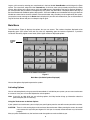
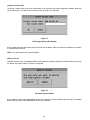
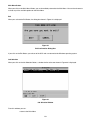
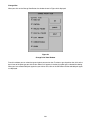
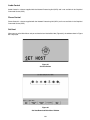
This window asks you to please wait and displays the percentage of copied information completed. While this
message is displayed, you should wait and not attempt to perform system actions. When the system informs you
that the information is 100% copied, you can again use the system to perform desired actions.
Back Up a Volume
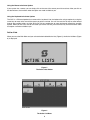
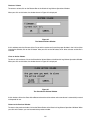
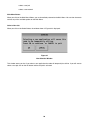
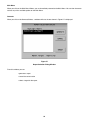
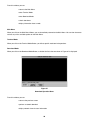
To back up a volume, click on the Backup Button at the Historical Log Volume Operations Window. When you click
on this button, a window similar to the one shown in Figure 22 is displayed.
Figure 22
The Backup Volume Window
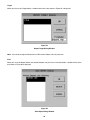
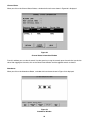
At this window, enter the filename that you want the volume to be backed up to and then place the appropriate floppy
disk in the A: drive. After placing the floppy disk in the A: drive click on the OK button. After you click on the OK
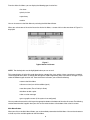
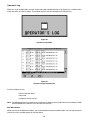
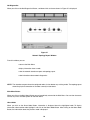
button, the system starts writing information to the A: drive and a window similar to the one shown in Figure 23 is
displayed.
Figure 23
Percent Backed Up Window
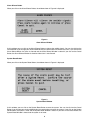
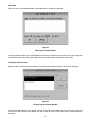
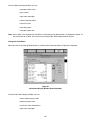
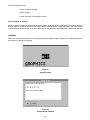
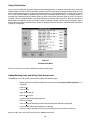
This window asks you to please wait and displays the percentage of copied information completed. While this
message is displayed, you should wait and not attempt to perform system actions. When the system informs you
that the information is 100% copied, you can again use the system to perform desired actions.
14