Download 05SL User Guide - Zebra Technologies Corporation
Transcript
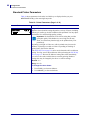
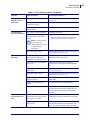
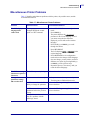
Troubleshooting Communications Problems Communications Problems Table 15 identifies problems with communications, the possible causes, and the recommended solutions. Table 15 • Communications Problems Problem Possible Cause Recommended Solution A label format was sent to the printer but was not recognized. The DATA light does not flash. The communication parameters are incorrect. Check the printer driver or software communications settings (if applicable). If you are using serial communication, check the serial port setting in the control panel menu. See Set Serial Communications on page 98. If you are using serial communication, make sure you are using a null modem cable or a null modem adapter. Using the control panel controls, check the protocol setting. It should be set to NONE. See Set Protocol on page 99. If a driver is used, check the driver communication settings for your connection. A label format was sent to the printer. Several labels print, then the printer skips, misplaces, misses, or distorts the image on the label. The serial communication settings are incorrect. A label format was sent to the printer but was not recognized. The DATA light flashes but no printing occurs. The prefix and delimiter characters set in the printer do not match the ones in the label format. Verify the prefix and delimiter characters. See Set Format Prefix Character on page 100 and Set Delimiter Character on page 101 for the requirements. Incorrect data is being sent to the printer. Check the communication settings on the computer. Ensure that they match the printer settings. Ensure that the flow control settings match. Check the communication cable length. See Table 5 on page 27 for requirements. Check the printer driver or software communications settings (if applicable). Ensure that ZPL II is being used. If the problem continues, check the ZPL II format for changes to ^CC, ^CT, and ^CD. 7/10/07 105SL User Guide 11342L-003 Rev. A 131