1
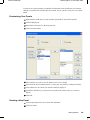
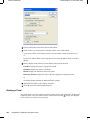
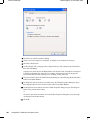
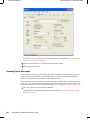
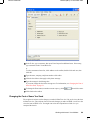
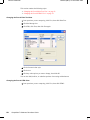
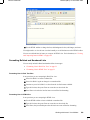
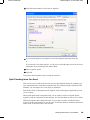
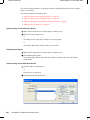
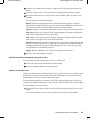
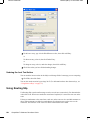
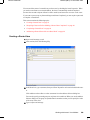
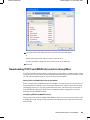
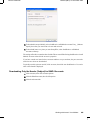
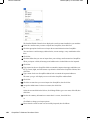
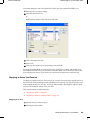
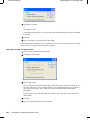
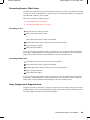
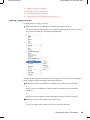
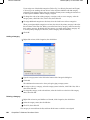
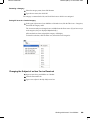
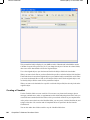
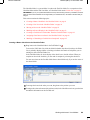
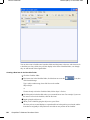
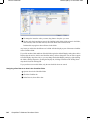
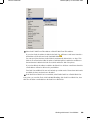
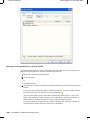
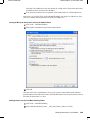
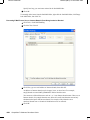
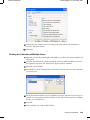
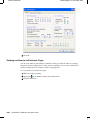
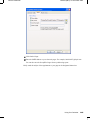
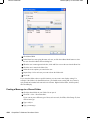
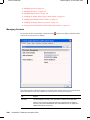
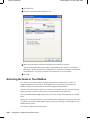
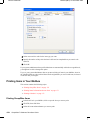
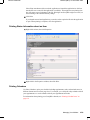
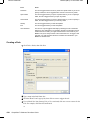
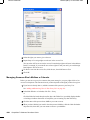
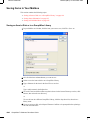
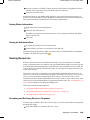
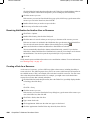
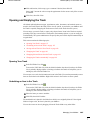
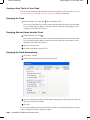
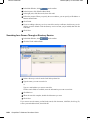
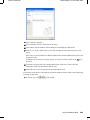
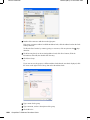
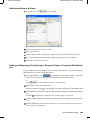
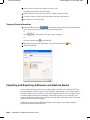
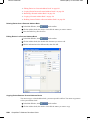
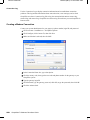
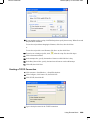
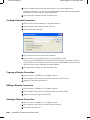
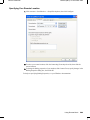
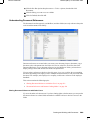
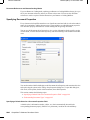
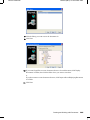
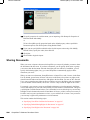
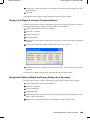
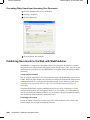
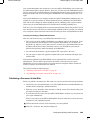
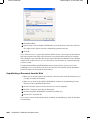
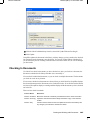
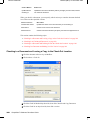
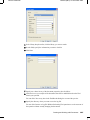
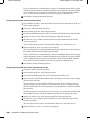
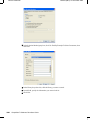
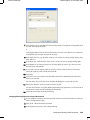
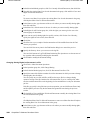
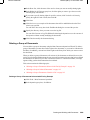
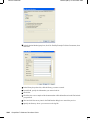
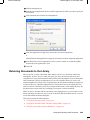
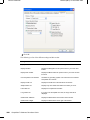
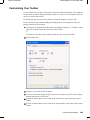
Novell Confidential Manual (ENU) 21 December 2004 “Archiving an Item in Your Mailbox” on page 171 “Viewing Archived Items” on page 171 “Unarchiving Items” on page 171 “Archiving Items Automatically” on page 171 Archiving an Item in Your Mailbox 1 If you have not previously done so, specify the archive path in File Location in the Environment dialog box. See “Specifying Where Archived Items Are Stored” on page 348. 2 In your Mailbox, select the items you want to archive. 3 Click Actions, then click Move to Archive. When you archive an item you have sent, you cannot track the status of that item. Viewing Archived Items 1 In the Main Window, click File > Open Archive. or Click the folder list header drop-down list (above the Folder List; it probably displays Online or Caching to indicate what mode of GroupWise you are running in), then click Archive. Unarchiving Items 1 Click File > Open Archive. or Click the folder list header drop-down list (above the Folder List; it probably displays Online or Caching to indicate what mode of GroupWise you are running in), then click Archive. 2 Click the item you want to unarchive, click Actions, then click Move to Archive. 3 Click File, then click Open Archive to close the archive and return to the Main Window. or Click the folder list header drop-down list (above the Folder List; it displays Archive), then click your user folder (your name) to return to the mode of GroupWise you were running previously. Unarchived messages are returned to the folder from which they were archived. If the folder has been deleted, GroupWise creates a new folder. Archiving Items Automatically 1 Click Tools > Options. 2 Double-click Environment, then click the Cleanup tab. Managing Your Mailbox 171