1
X-PRO User’s Guide
4
Extended Calling Features
Along with basic calling functionality, X-PRO also includes many advanced calling features
normally found in business phones. Among these include call transfer and call conferencing
which will be covered in the sections to follow.
4.1
Call Conferencing
X-PRO allows you to establish a conference call which will let you talk with more than one other
party at once. Each party in the conference will be able to hear and speak to every other party.
4.1.1
Starting a Conference Call
You may host a conference by calling the other parties involved, or you may allow them to call
you. For example, you can create a simple three-way call by following the steps below:
1. With an active call on one of the lines, place the call on hold by either
a) selecting another line and dialing a third party, or
b) accepting an incoming call from a third party by clicking on the line that they arrive
on.
Either operation places the original party on hold.
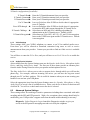
2. After informing the third party of the three-way call, click the Conference (see Figure 3)
button to include all parties in the conversation.
3. To end the three-way call, simply click the Conference button again to place both parties
on hold. At this point you can speaker to neither party and neither party can speak to
one another.
4. You can then talk to each party individually by selecting its respective line.
4.1.2
Adding another Party to the Conference
To add another party to an existing conference perform the following:
1. Place conference on hold by clicking the Conference button.
2. Invite another party to the conference by
a) selecting the line of an incoming call, or
b) selecting an available line to initiate a call to an outside party.
You will now be speaking to the outside party while the conference is on hold.
3. After advising the outside party that they will soon be part of the conference, click the
Conference button once more to re-establish the conference.
4.1.3
Removing a Party from the Conference
To remove a party form an existing conference, perform the following:
1. Place conference on hold by clicking the Conference button.
2. Select the line of the party who wishes to leave the conference.
3. Say goodbye to the party and click the Hang up button.
4. Click the Conference button once more to re-establish the conference.
Note that a party may leave the conference on their own by simply hanging-up. Their line will
then be indicated as inactive and the rest of the conference will be unaffected.
Copyright © 2004 Xten Networks, Inc. All rights reserved.
15