1
owl file of the ontologies related to them. For example if we have an owl-file called
ontology1.owl the corresponding obda-file will be ontology1 owl.obda.
If you already have an .obda file and you want to use it within the NeOn-Toolkit, you
can copy it into the obda folder of the project to which the ontology belongs. Note: the
.obda file has to explicitly relate the data sources to the ontology, for which you want to
use it. This can be easily checked by opening the file and comparing the ’DatasourceUri’
of the data source elements with the actual URI of the ontology.
1.3 OBDA Perspective
The default installation of the OBDA plugin adds a new perspective called ’OBDA
Perspective’. Switching to it opens all the needed components for working with the
OBDA Plugin. Specifically, it opens the OBDA View, the Individual Query View and
an output console.
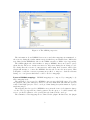
The OBDA View is the main GUI component of the plugin and allows you to define
one or more data sources, to specify their access parameters and to create mappings,
which relate the data in those data sources to the Classes and Properties of the ontology.
The Individual Queries View provides a way to send and visualize the result of nonstandard ABox/individual centric queries to a reasoner. It also provides means to manage these queries (save/organize) plus visualize the results obtained from the reasoner.
The output console is mainly used for showing the progress of different operations.
Furthermore the perspective adds an additional menu item called ’OBDA’ to the main
menubar. This menu allows you to a) trigger a synchronization action with the server,
b) to enable an disable the OBDA synchronization, c) to change the server’s connection
parameters and d) to disable or enable reasoning in the server during query answering.
In case you changed something in the perspective and you want have back its initial
look, you can reset the perspective by right clicking on the OBDA perspective button in
the top right corner of the window and selecting ’reset’ in the appearing popup menu.
1.4 OBDA View
Overview. The OBDA View is the core GUI component of the OBDA plugin. It allows
you to define one or more data sources, to specify their access parameters and to create
mappings, which relate the data in those data sources to the Classes and Properties of
the ontology.
The default installation of the plugin allows you to create RDBMS data sources accessible through JDBC. Associated to a RDMBS data source one can define a set of
semantic mappings. These are on the form described in the OBDA extension to DIG
1.1, that is, a query over the ontology and a query over the data source. Specifically,
in the case for RDBMS data sources, a mapping is composed by a SQL query over the
RDBMS source (the mapping’s body) and a the query over the ontology is Conjunctive
Query (CQ) in data log syntax (the mappings head).
6