1
Adding a variable product
Variable products are arguably the most complex of product types. They let you define
variations of a single product where each variation may have a different SKU, price or stock
level.
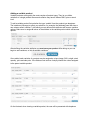
To add a variable product first selection the type ‘variable’ from the product type dropdown.
The interface will change to reflect your selection, for example, the attributes panel will show a
new column called ‘variation?’ with which you can define which attributes will become variation
options. Make sure to assign all values of the attribute to the variable product which will become
options:
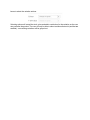
After defining the variation attributes you must save your product. After doing so you can
begin to add variations, or link all possible variations.
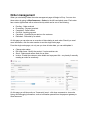
Once added, each variation of a product may be assigned a unique image, SKU, weight, stock
quantity, price and sale price. If the fields are not set then it simply inherits the values assigned
to the parent variable product.
On the frontend, when viewing a variable product, the user will be presented with dropdown