1
19
USER MANUAL
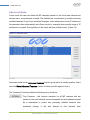
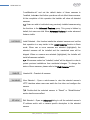
TIP: Double-click the selected camera in IP address or Description
section has the same effect.
Add Remote Units – Open an Advanced dialog to add a camera manually.
This feature is designed for application scenarios where the camera to be
installed is on another sub-net that is not reachable by broadcasting.
Users should use this feature only if the camera’s MAC and IP addresses
are known and the connectivity has been verified.
Save/ Exit – Save the information of the installed cameras into a file
“LocalMachine.ini” for CBC America Video System and export a plaintext
list of cameras into a file “CameraList.txt” for third party software, then
exit the Installer.
Operating CBC America Video System MP100
Note: CBC America Video System requires a license file for each of the installed MP cameras.
The license is tied to a unique camera’s MAC address. The license files are located in the
C:\Program Files\CBC America\license folder.
However, for the evaluation purposes,
MP100 will operate any one MP camera without a license.
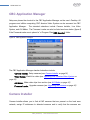
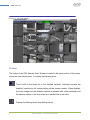
After the cameras are successfully installed, the CBC America Video System can be
activated by clicking on the corresponding Run button in the CBC Application Manager.
The CBC (America) welcome screen will appear and hide automatically.
The CBC
America Video System software will start on its own after a few seconds. Shown below
(Figure 11) is the CBC America Video System displaying live video from sixteen MP
cameras. If Hide is selected, the application will be placed onto the system tray of the
Windows task bar.
CBC (America)
www.cbcamerica.com