1
WOODexpress
6
RUNET software
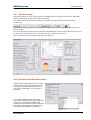
Calculation window
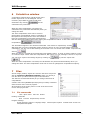
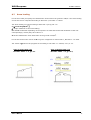
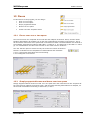
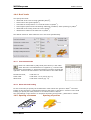
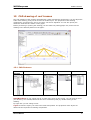
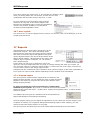
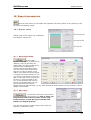
A calculation window has a typical sketch of the
timber object that is to be designed. All the
necessary input data are marked with their
dimensions. By clicking
calculations are performed.
all the
When the Auto-computation is checked, the
calculations are performed automatically when you
change the data.
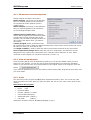
The Auto-computation mode can be set from
[Setup/Auto computational option]. Depending on
the speed of the computer the user can choose to
have the computations performed simultaneously
with the data input/change than when clicking the Computations button. In this case check the Auto
Computation.
.
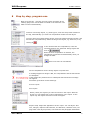
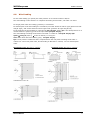
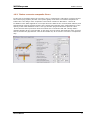
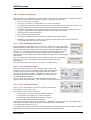
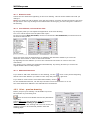
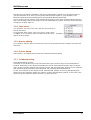
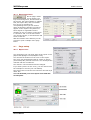
The calculations appear in the window underneath. This window is expanded by clicking
Warnings and errors for inadequate design values are shown in red in a small textbox and in the
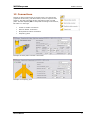
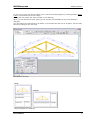
calculations. You can view a CAD drawing of the timber roof or a sketch of the timber component by
clicking
.
When the object is created all the parameters take default values. A check is always made for wrong
or erroneous input values. After the computations, OK or Error (in red) message is shown on top left.
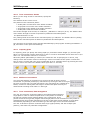
You can see a report of this design object by clicking at
or print the report with
.
When the Auto-computation is checked, the calculations are performed automatically when you
change the data. The Auto-computation mode can be set from [Setup/Auto computational option].
7
Files
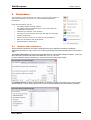
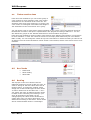
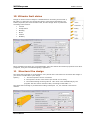
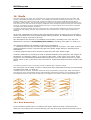
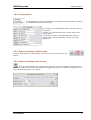
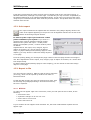
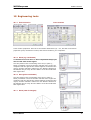
All the design (timber) objects are saved in the same unique file
with an extension [WoodExpressData]. When you specify a
new file name you don't have to type in the extension.
The data are saved automatically as you change them and do
computations.
A folder with name [WOODexpress\Projects] is initially created to
store the files of the various projects.
At the bottom of the [Files] menu is a list of the three most
recent used project files.
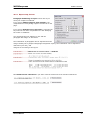
7.1
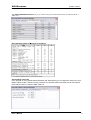
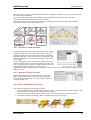
File commands
New
Open Save
Save As
Delete
Printing commands
Print
Preview
Report Setup Printer
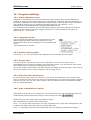
Program settings
Greek character support Language Setup
Computational Option
User’s Manual
Decimal point symbol
Default main screen size
5